Unbilled Jobs
View, manage, and bill every job that's done but not yet invoiced.
View jobs that are done but have not been invoiced, see at a glance what each one still needs, and open it to finish billing.
Overview
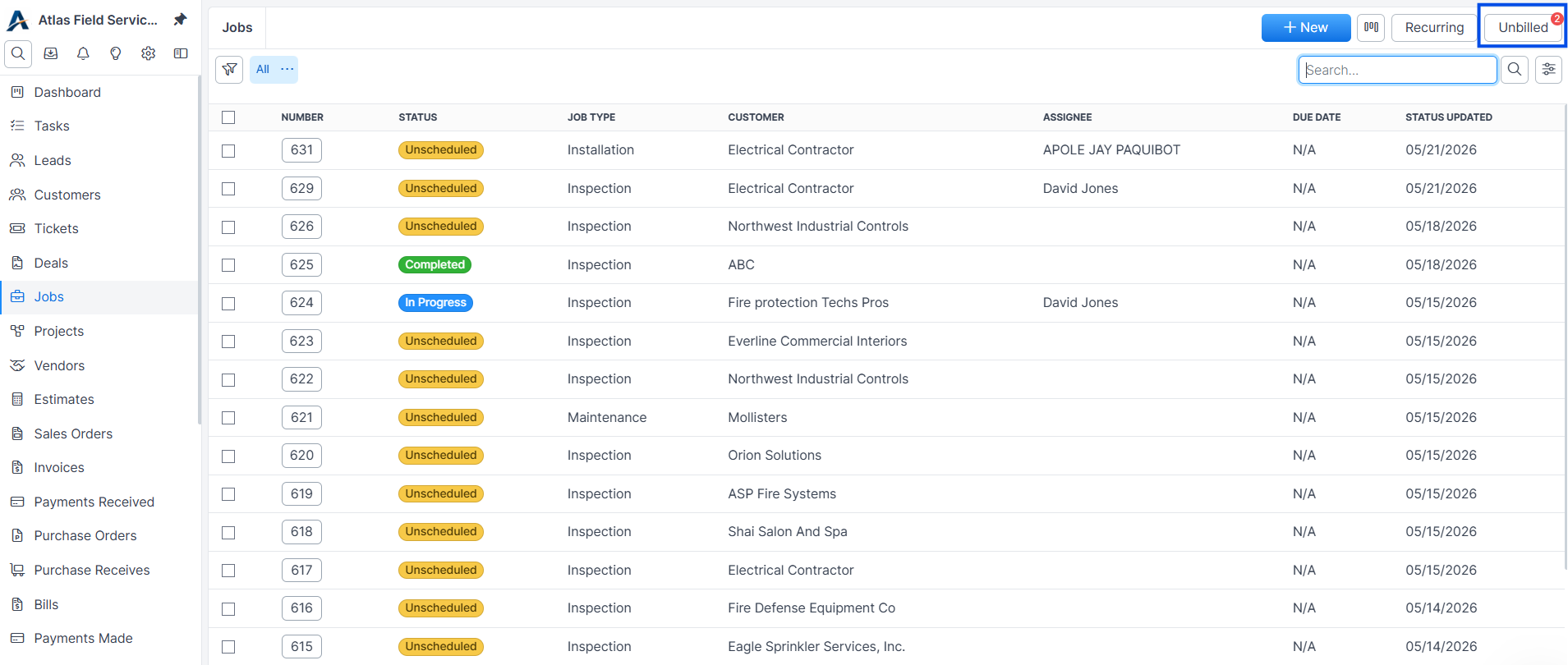
The Unbilled Jobs list collects every job whose status is marked as billable and that has no real invoice (Drafts and Voids do not count as invoiced). Jobs are sorted oldest-first so the longest-stuck work surfaces at the top. You open the list from the Jobs page, and the total count appears as a badge on the Unbilled button there.
Before you begin
You need permission to view jobs.
At least one Job status is marked as billable. The list is empty otherwise.
Marking a status as billable
Open Settings → Billing.
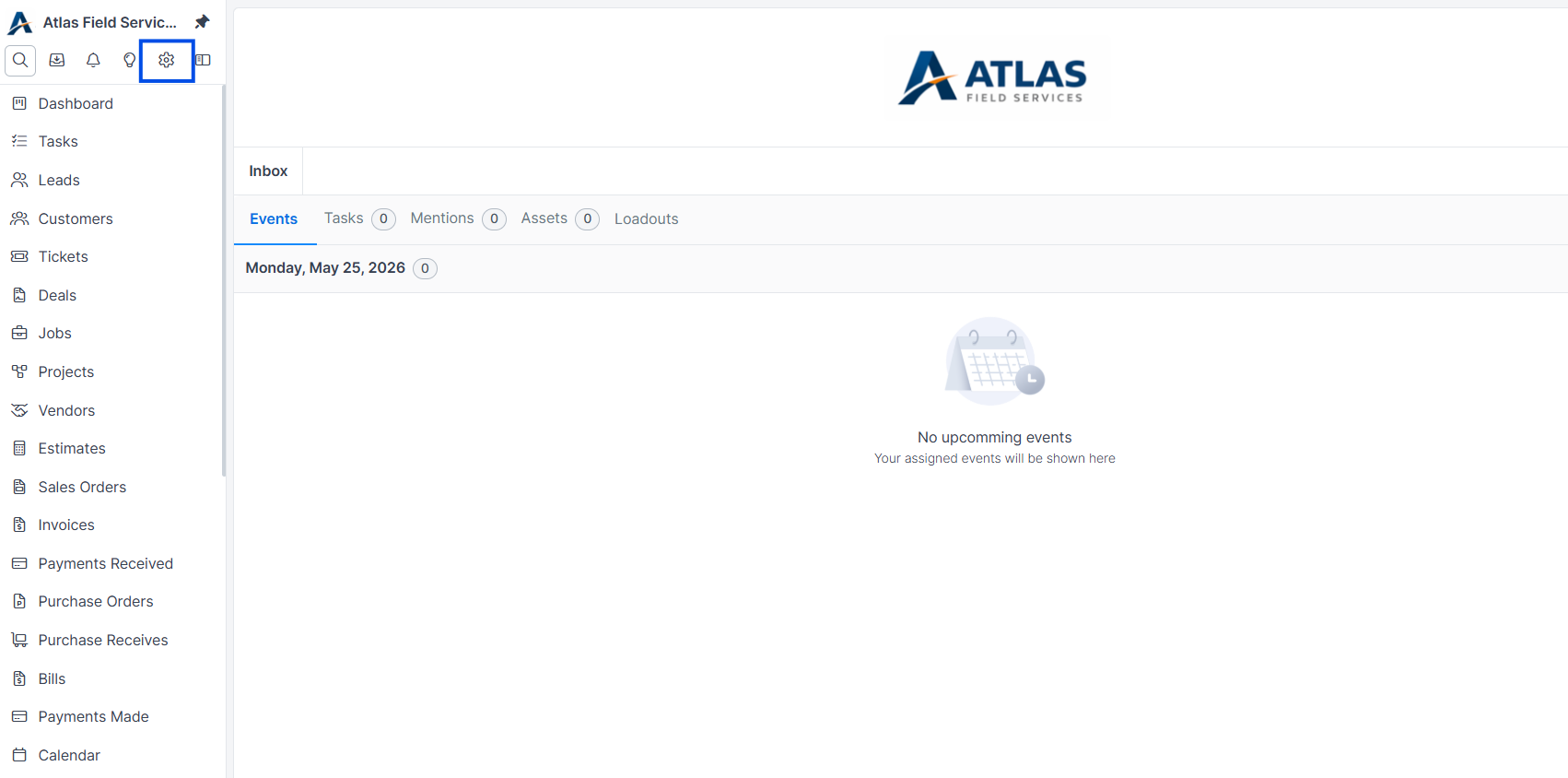
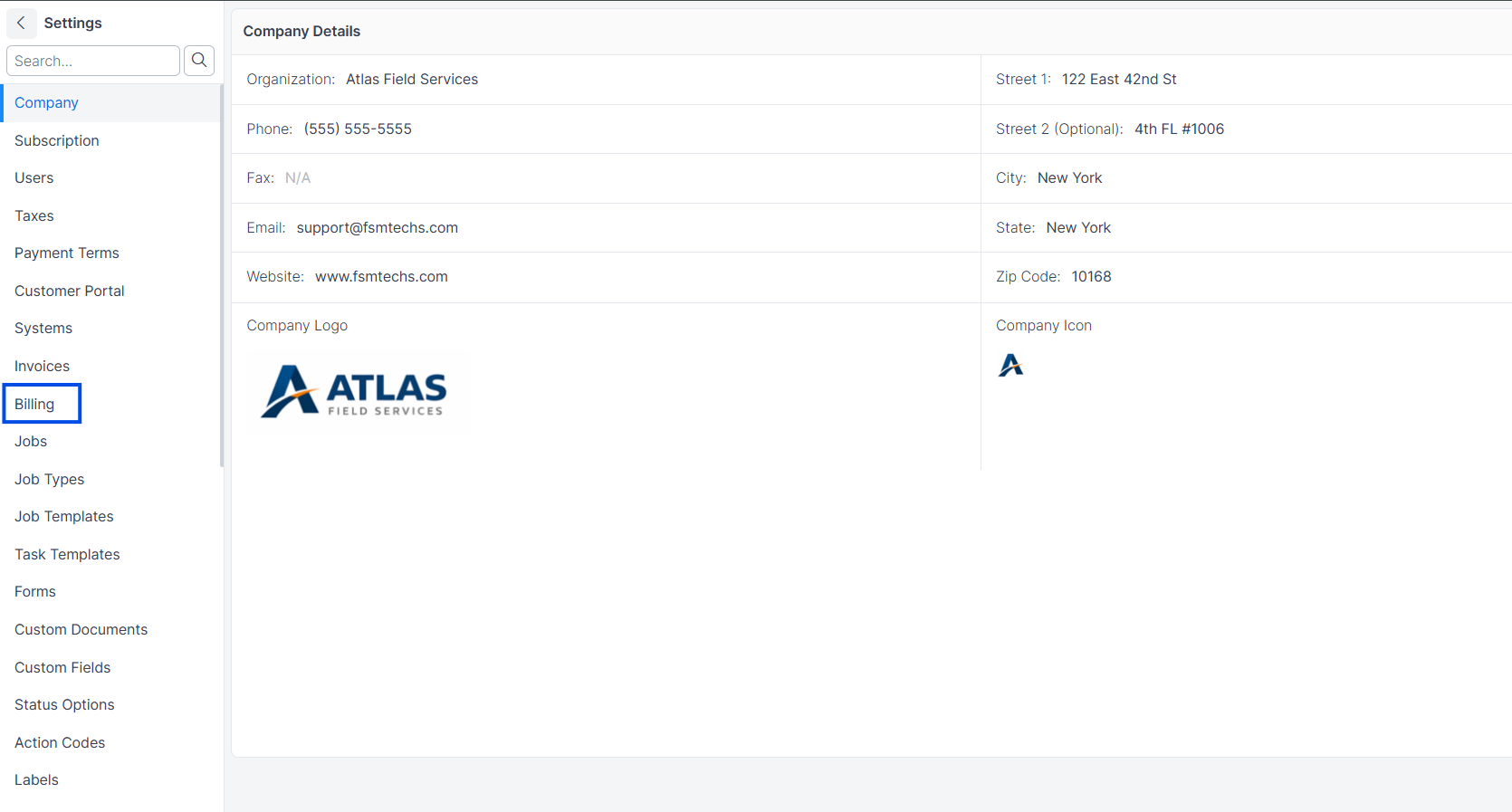
Toggle Ready to bill on the Job status that means “done” (most teams pick Completed).
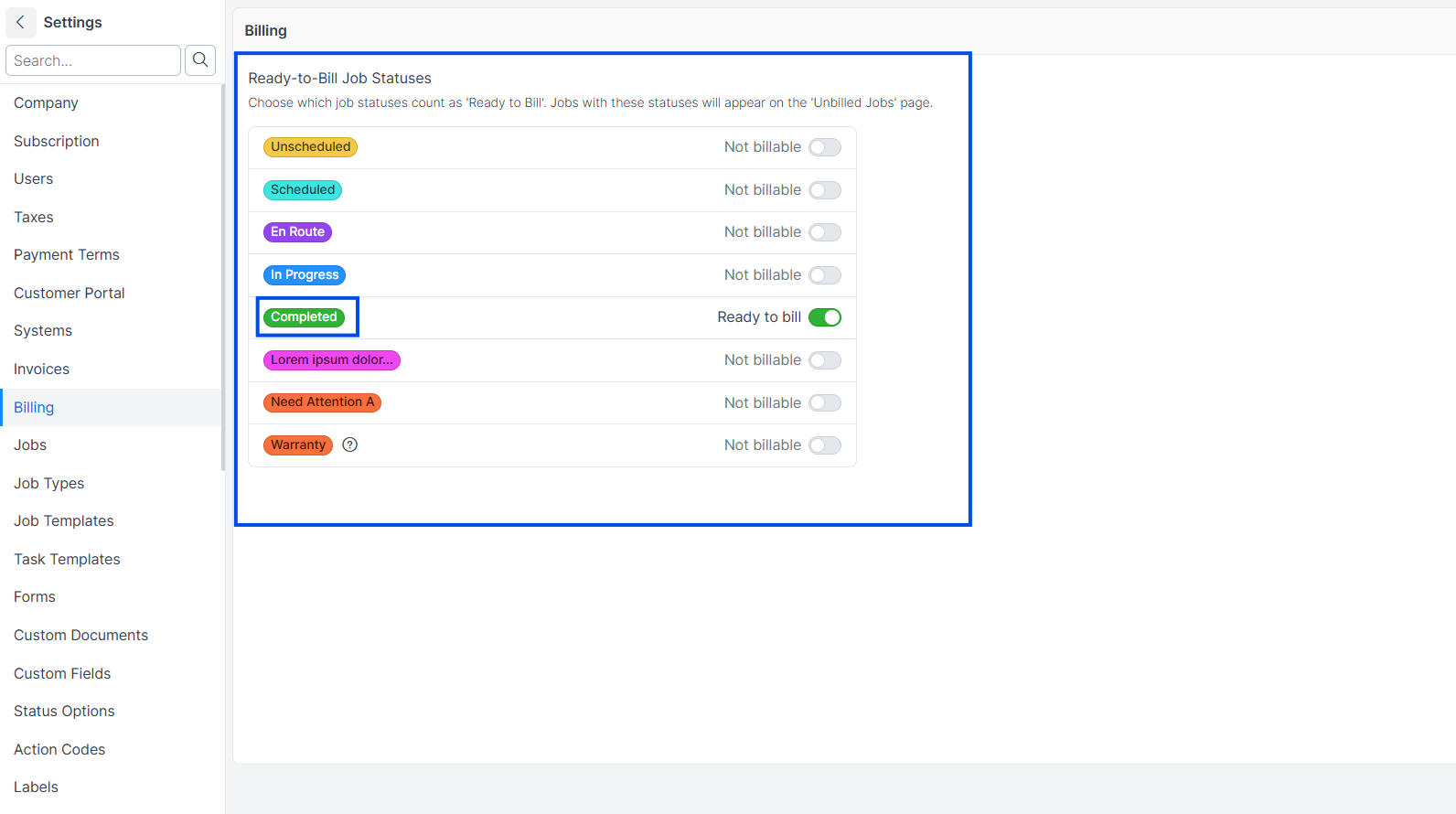
The toggle turns green. Jobs in that status now appear in the Unbilled list until they have a sent invoice.
Expected result: the Unbilled button on the Jobs page shows a count badge with the number of jobs waiting to be billed.
You can mark more than one status. Click the toggle again to turn it off.
Opening the Unbilled list
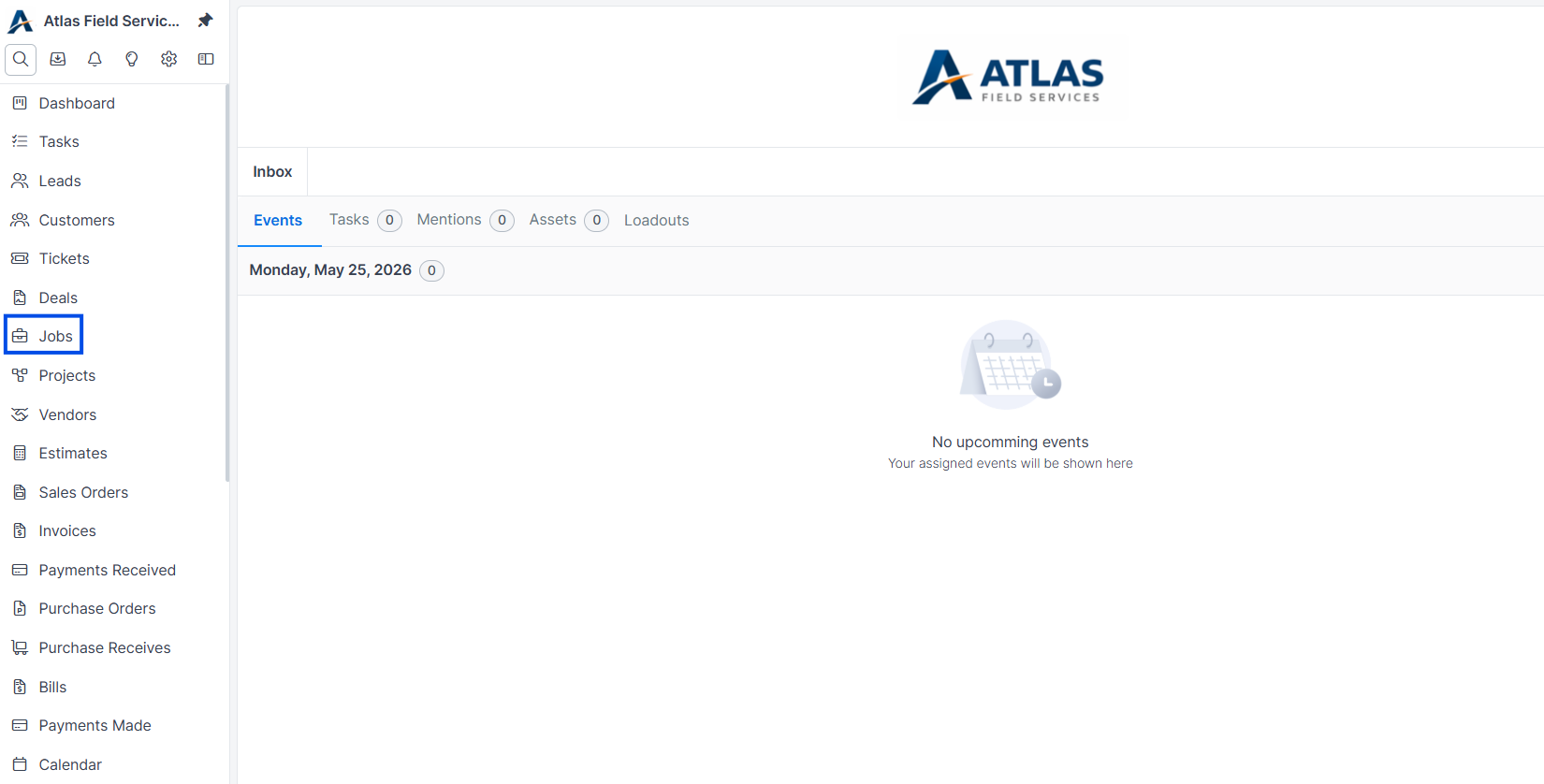
Open Jobs, then click the Unbilled button in the top-right toolbar (next to Recurring). You can also visit /jobs/unbilled directly.
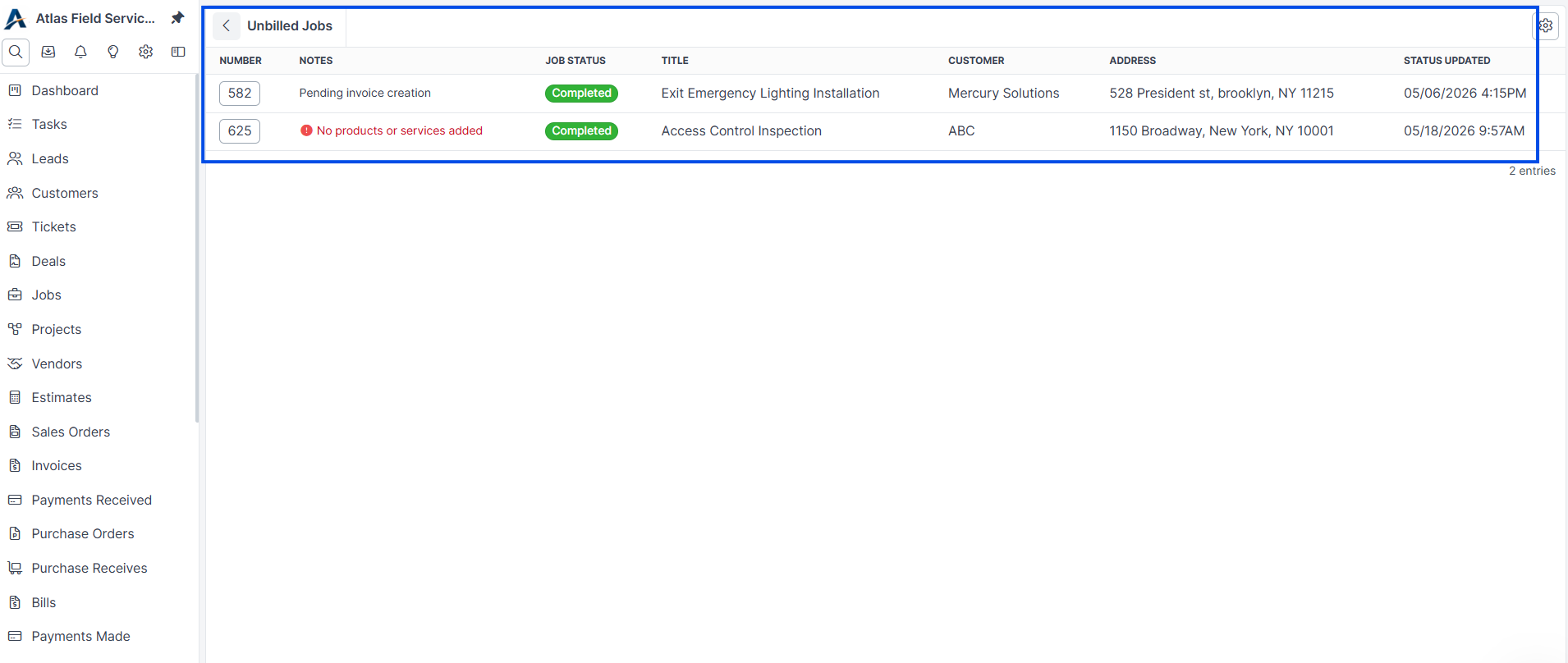
The list shows the job number, a Notes column with what the job still needs, status, title, customer, address, and the time the job moved into its current status.
Billing a job from the list
The list does not create invoices itself. The Notes column tells you what each job needs next, and you open the job to act on it:
Pending invoice creation — the job has line items and is ready to invoice.
No products or services added — the job has no line items yet. Open the job and add them before you can invoice it.
Invoice is in draft — a Draft invoice already exists. Open it, finish it, and send it.
Click the job number to open the job in a new tab, then create or finish the invoice from there.
Expected result: when the job’s invoice moves out of Draft — to Sent, Paid, Partially Paid, Viewed, or Overdue — the job leaves the Unbilled list and the Unbilled button’s badge counts down.
Per-job billing summary
Once a job has at least one non-Draft, non-Void invoice, the details column on the job page shows three values:
Invoiced — total of every non-Draft, non-Void invoice on this job.
Paid — total of every payment applied to those invoices.
Outstanding — what is still owed. Highlighted in red when positive.
The values update as invoices are sent, paid, or voided.
Excluding non-billable jobs
Some completed jobs are not supposed to be invoiced — warranty work, callbacks, internal or comp visits, service-plan-covered visits, and work bundled into a parent job. There are two ways to keep them out of the list.
On a single job
Open the job and find the Billing Status row in the details column.
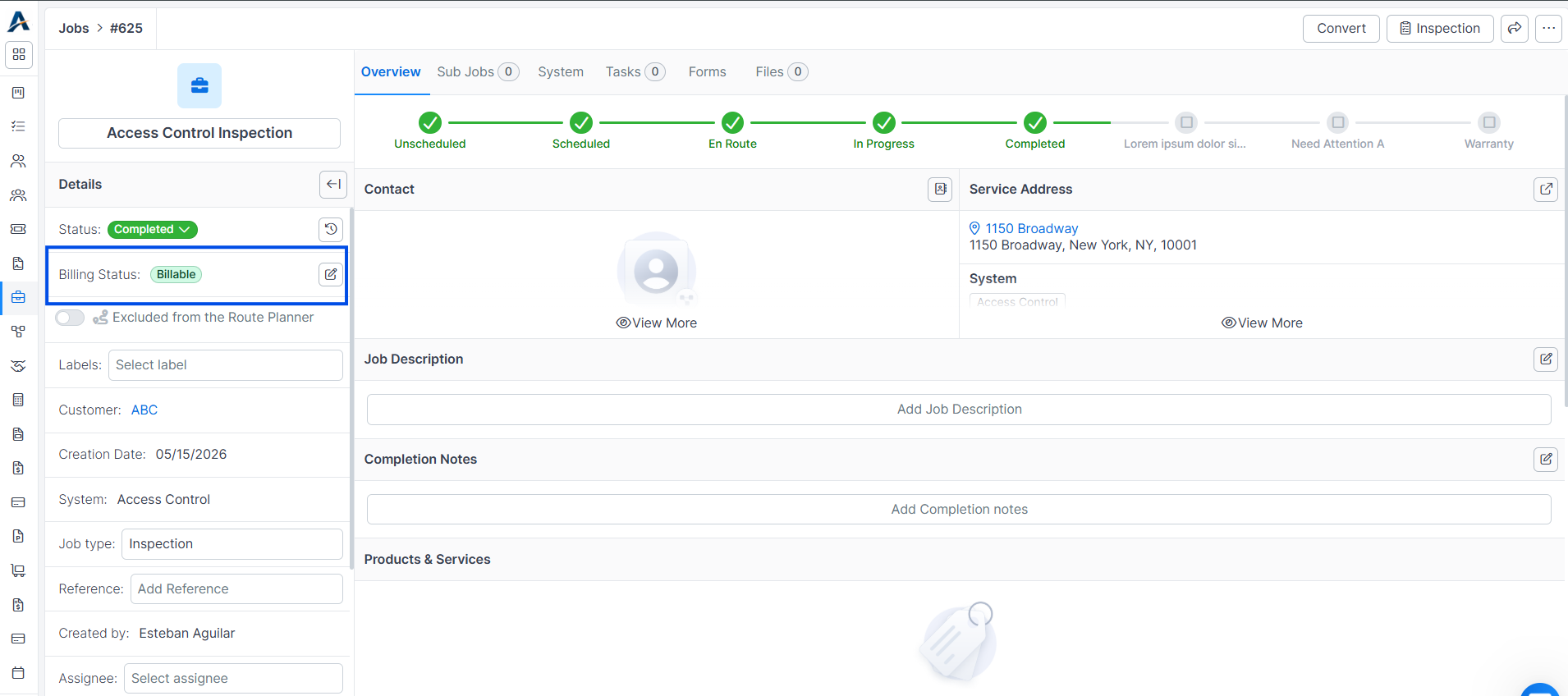
Click the edit (pencil) button on that row. A modal opens.
Set Billing Status to Non-Billable.
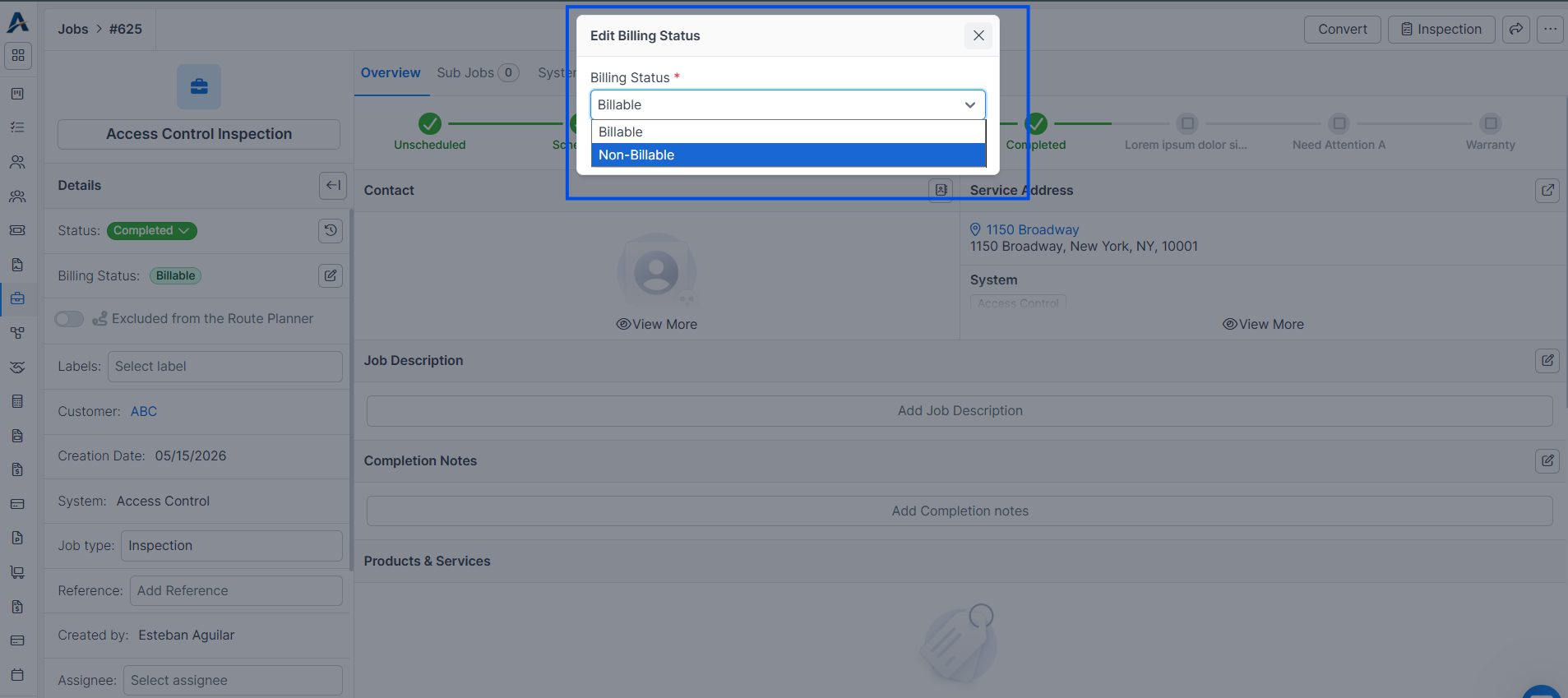
Pick a reason — Warranty, Service Plan, Internal, Bundled (parent), or Other. Each has a short description so the right pick is obvious.
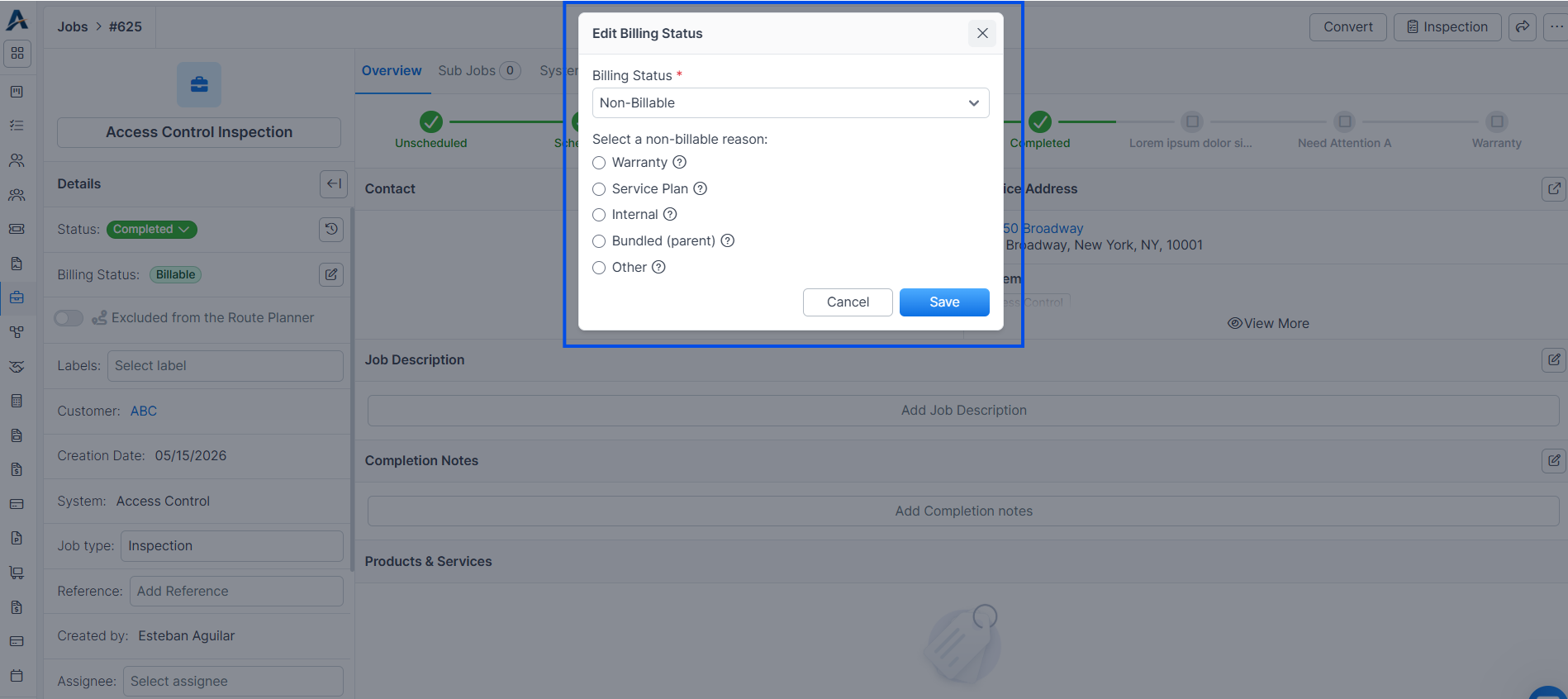
Click Save.
Expected result: the job leaves the list, the Unbilled button’s badge counts down, and the reason shows as a badge on the Billing Status row. To make the job billable again, open the same modal and set Billing Status back to Billable.
Per job-type (default for new jobs)
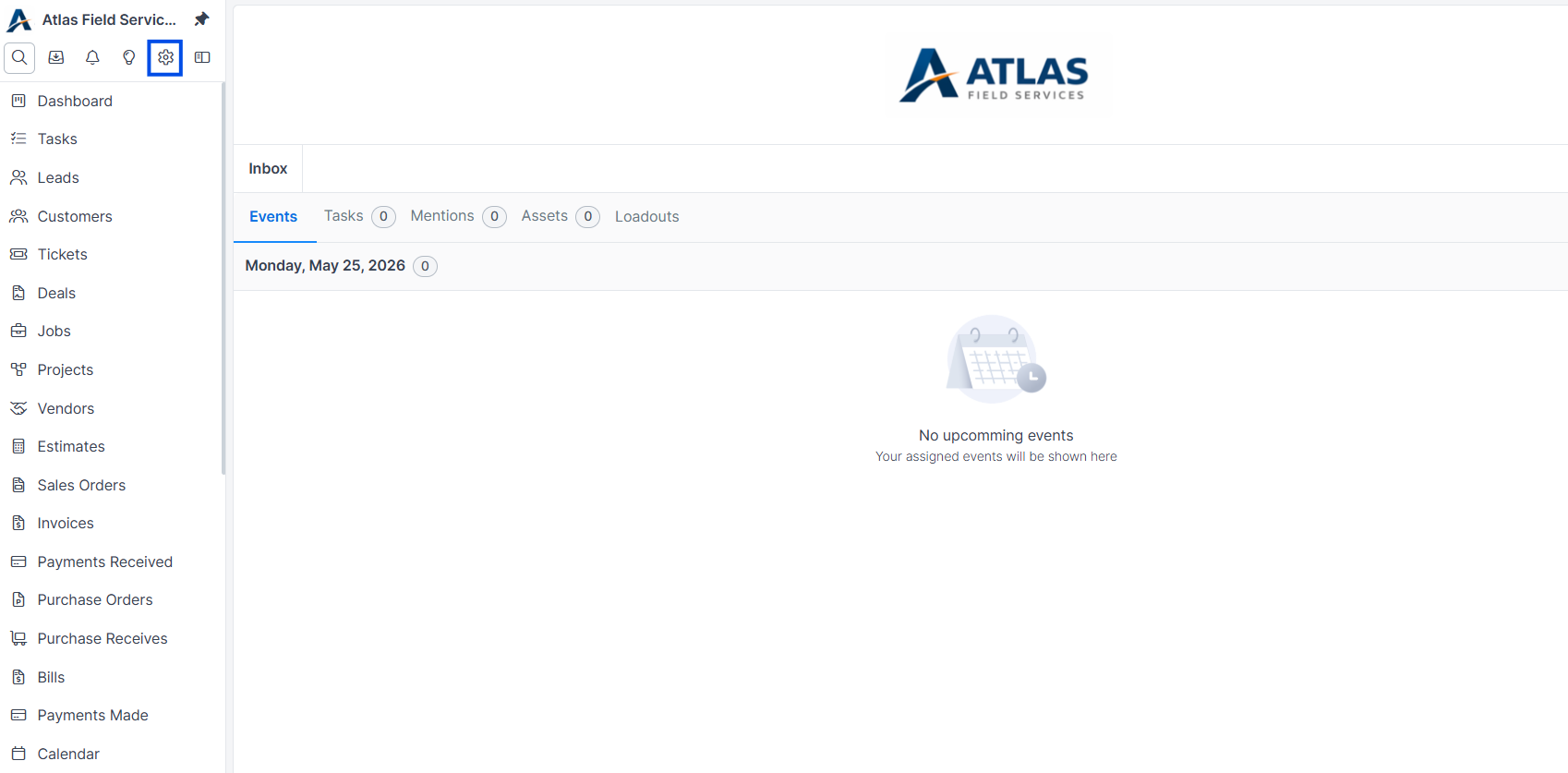
Open Settings → Job Types and edit the type (for example, Warranty Callback).
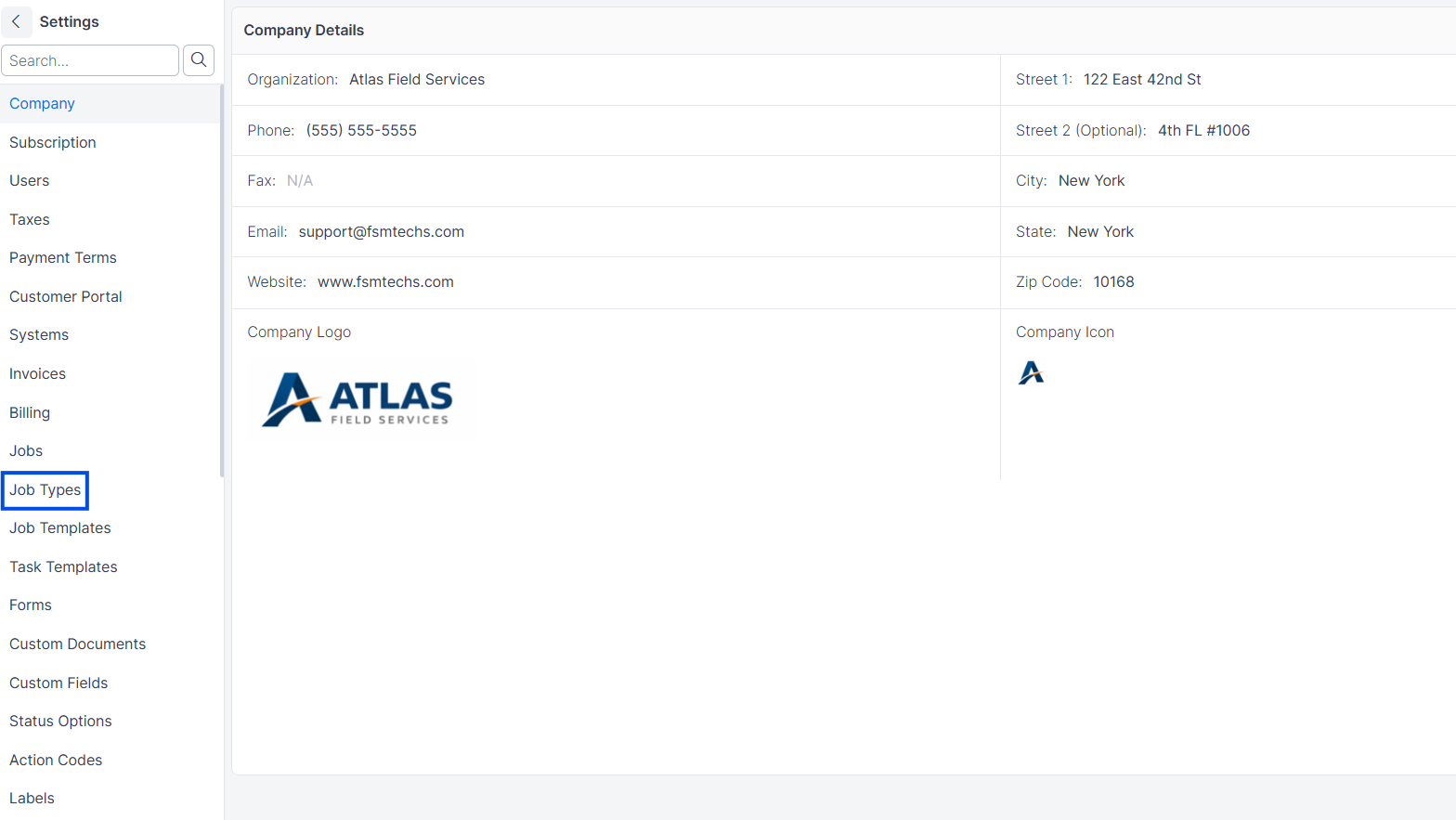
Set a Non-Billable Reason and save.
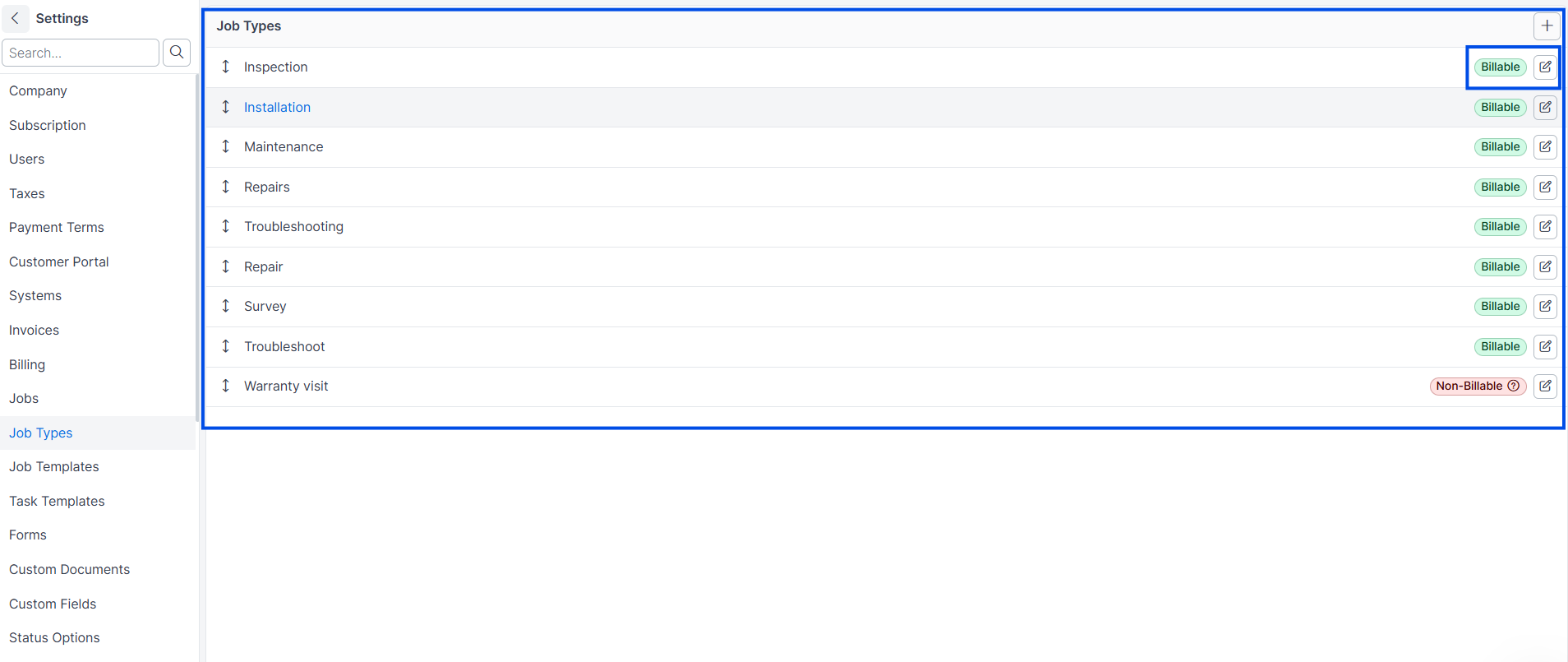
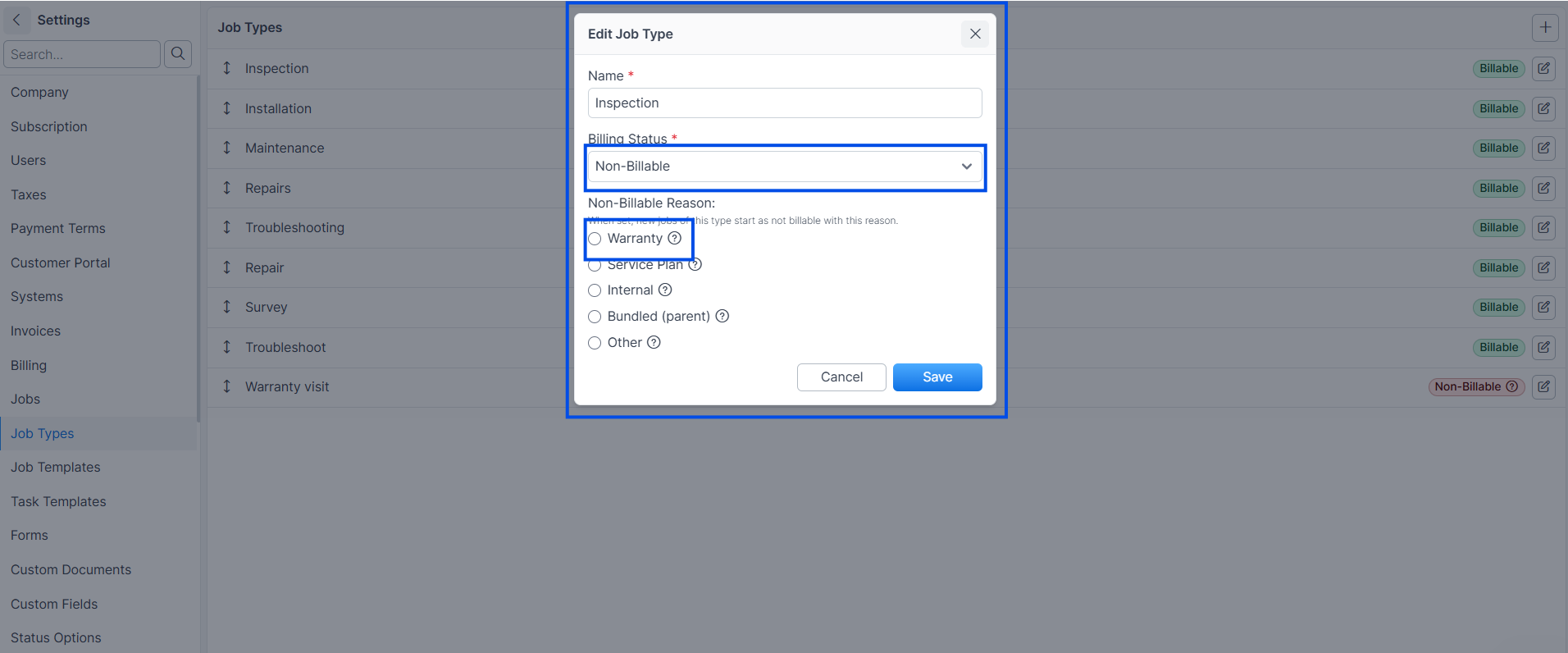
Expected result: every new job created with that type starts non-billable with the chosen reason and stays out of the Unbilled list. Individual jobs can still be changed from their Billing Status row.
What counts as invoiced
A job is considered invoiced when it has at least one invoice that is:
Not in Draft status.
Not in Void status.
Not discarded.
A job whose only invoice is Draft still appears in the Unbilled list — that is the draft that has not been sent.
Permissions
Anyone with permission to view jobs can see the Unbilled list and the per-job billing summary. Marking a job as non-billable requires permission to edit jobs. Marking a status as billable, or setting a default non-billable reason on a job-type, requires the same permission as editing the relevant Settings page.
Known limitation
If a job is invoiced indirectly through its parent Sales Order rather than directly on the job, the Unbilled list still shows it. Set the job’s Billing Status to Non-Billable → Bundled (parent) to keep these out of the queue.