Data Import
Bulk import records into Forz from CSV files with column mapping and validation preview.
Overview
Data Import lets you bring existing records into Forz from spreadsheets. Upload a CSV file, map your columns to Forz fields, review the data preview, and import. Forz validates each row before importing and shows you which records will be skipped due to errors.
Before You Begin
Prerequisites:
You have the Admin role or the Data Import permission on your role.
Your data is in CSV format (
.csvfile extension)- Your CSV uses commas or semicolons as delimiters.
Supported Record Types
Uploading a CSV File
Click Settings in the sidebar navigation.
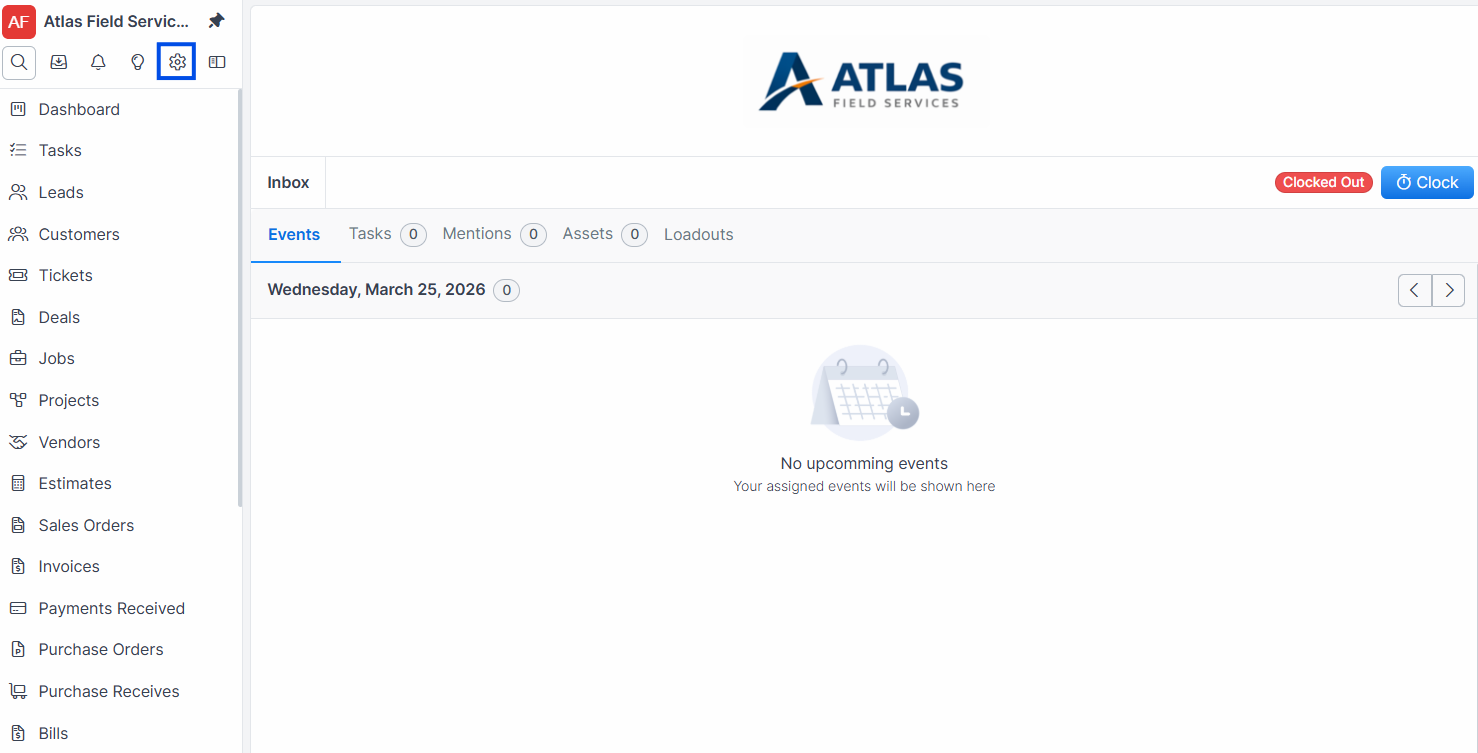
Click the Data Imports tab.
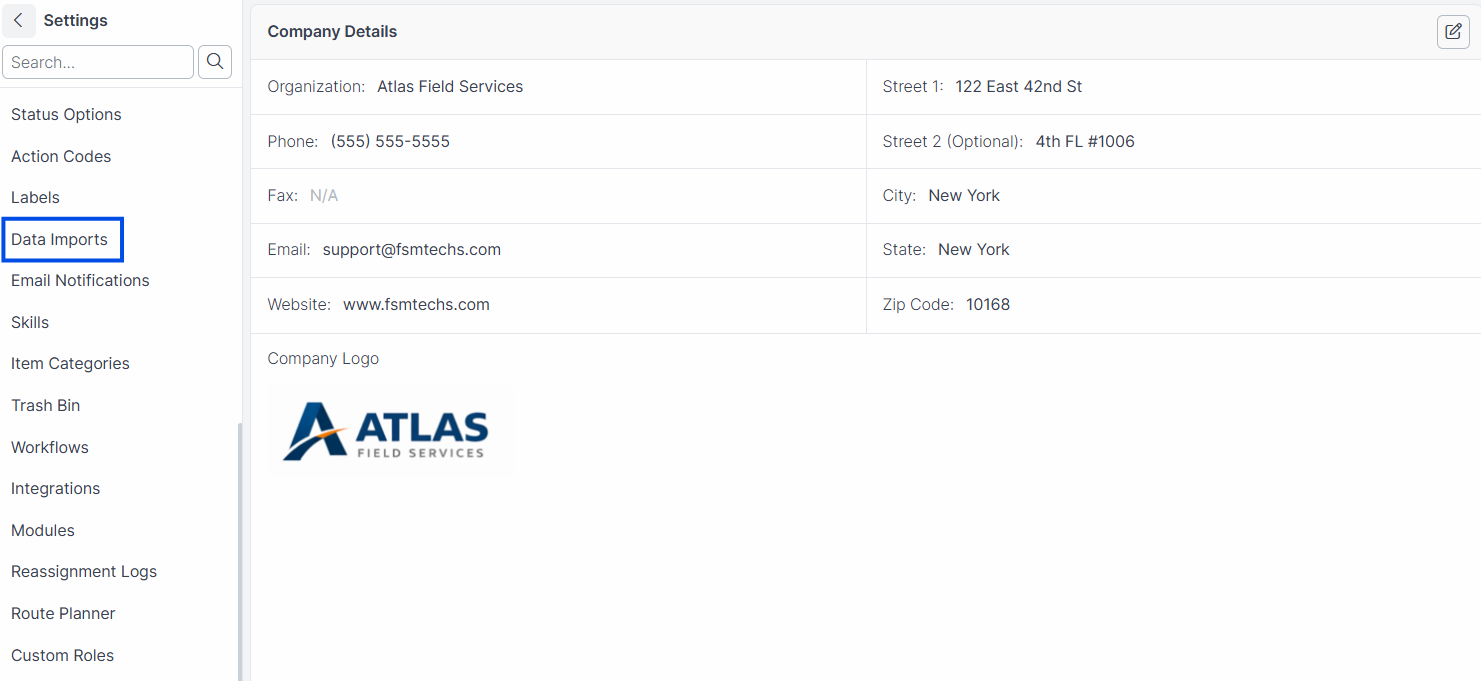
Select the record type you want to import (e.g., Customer).
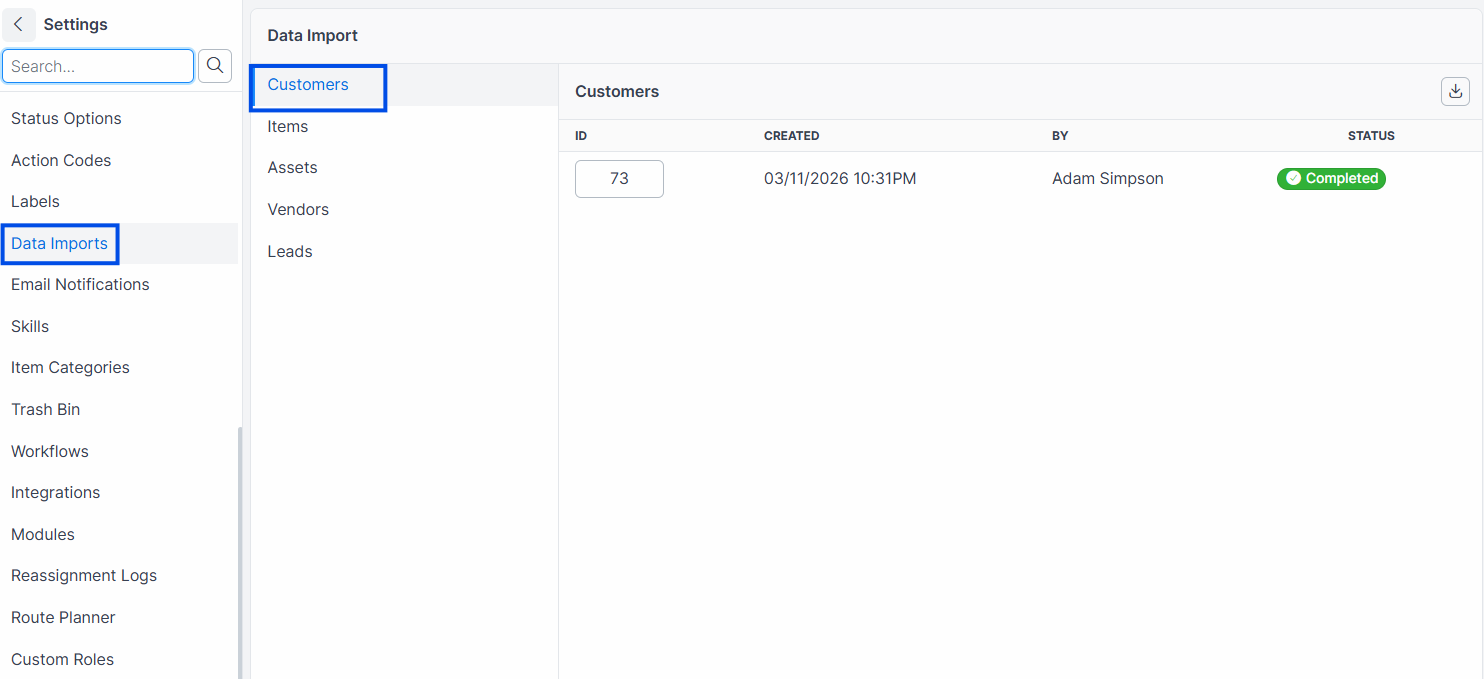
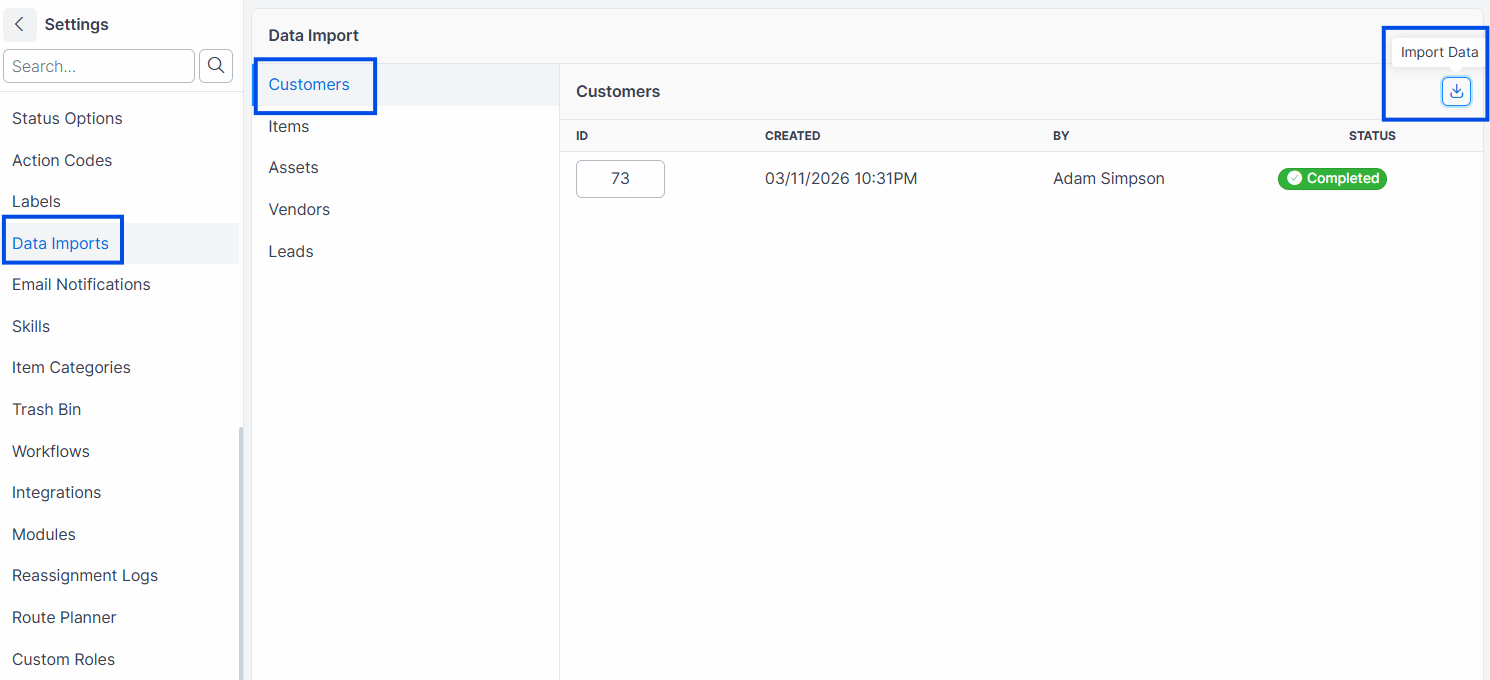
Click Import Data.
Click Choose File and select your CSV file.
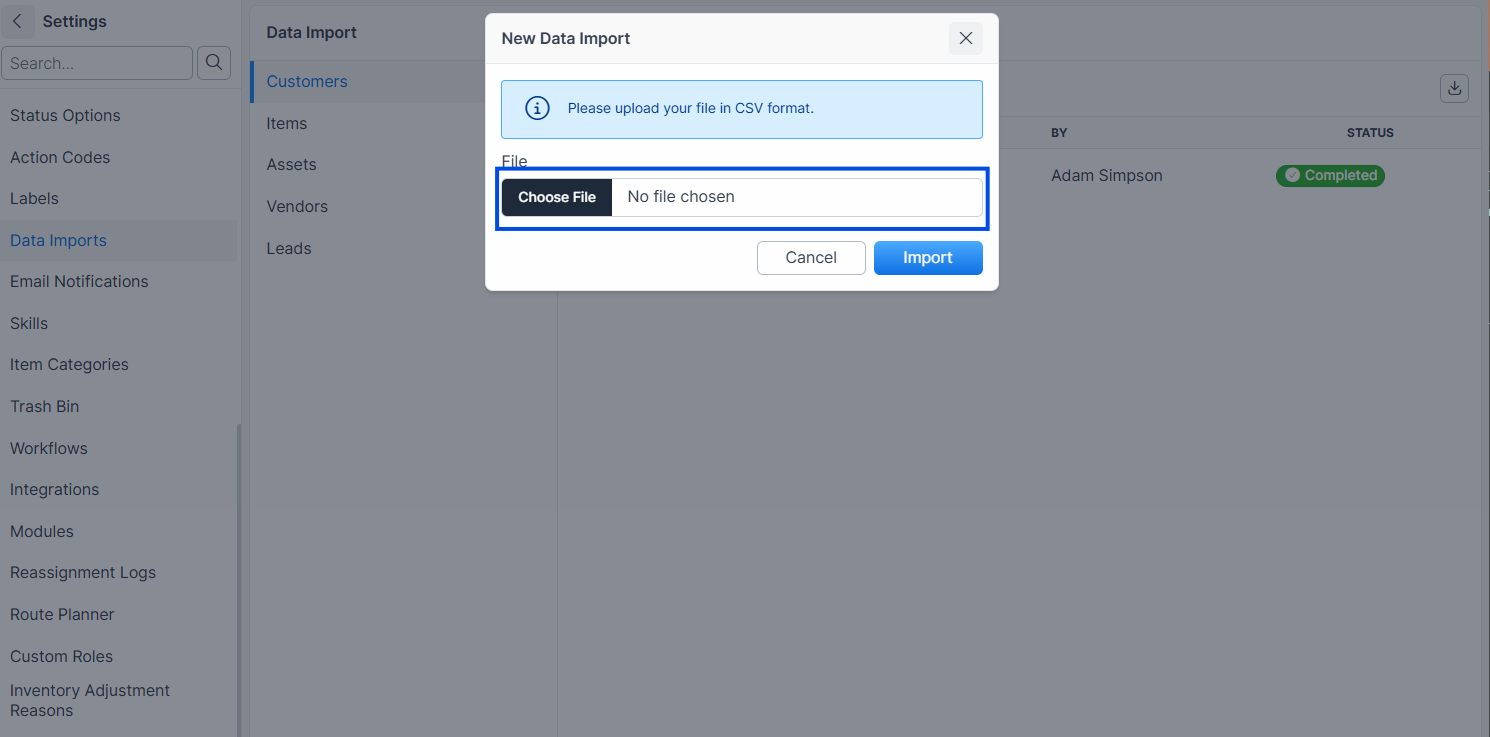
Click Import.
Expected result: Forz reads the CSV file, detects the delimiter (comma or semicolon), and redirects you to the field mapping screen.
Note: Forz automatically detects whether your CSV uses commas or semicolons as delimiters by examining the first line of the file. No configuration needed.
Mapping Columns
For each Forz field, select the matching column from your CSV.
Verify that required fields are mapped (shown with an asterisk).
Leave unmapped any CSV columns you do not want to import.
Click Save Mappings.
Expected result: Forz transforms your data using the mappings and redirects you to the preview screen. Records that fail validation appear in the "Skipped Records" section with error details.
Tip: For Item imports, if your CSV contains category and subcategory names, Forz automatically creates matching Item Categories if they do not already exist.
Reviewing and Confirming the Import
Review the Valid Records table to confirm the data looks correct.
Review the Skipped Records section for rows that failed validation.
Click Import to start the import.
Expected result: Forz queues a background job to create the records. A confirmation message reads: "Data import has been started and will be processed shortly." The import runs asynchronously — you can navigate away and check back later.
Warning: Skipped records are not imported. Fix the errors in your CSV and upload a new file to import those rows. Common reasons for skipping: missing required fields, duplicate unique values, or numeric values exceeding the maximum (999,999,999.999999).
Canceling an Import
Navigate to Settings > Data Imports.
Find the import you want to cancel.
Click Cancel.
Expected result: Forz deletes the pending import and redirects you back to the Data Imports list. No records are created.
What Happens After Import
When the import runs, Forz automatically:
Creates one record per CSV row using the mapped fields
Validates each row against the model's validation rules (presence, uniqueness, format)
Uploads photos if a photo column contains a URL — Forz downloads the image and attaches it to the record
Creates Item Categories on-the-fly if importing Items with category/subcategory names that do not exist
Common Scenarios
HVAC company importing a customer list from a previous system
An HVAC contractor exports 500 customers from their old software as a CSV with columns: Company Name, Contact First, Contact Last, Address, City, State, Zip, Phone. They upload the file to Forz, map "Company Name" to organization, "Contact First" to first_name, and so on. The preview shows 487 valid records and 13 skipped due to missing organization names. The office manager fixes the 13 rows in the CSV and re-uploads to import the rest.
Electrical company importing an inventory list
An electrical supply company exports 200 items from a spreadsheet with columns: Part Name, Type, Cost, Price, Description, Category, Subcategory. They map the columns to the Item fields. Forz creates new Item Categories for "Panels," "Breakers," and "Wiring" because those categories did not exist yet. All 200 items import with their categories assigned.
Plumbing company importing vendor contacts
A plumbing company imports 45 vendor records from a semicolon-delimited CSV exported from a European system. Forz auto-detects the semicolon delimiter and processes the file correctly. Only the organization name is required for vendors, so all 45 records pass validation.
Troubleshooting
Was this helpful?
Still need help? Ask the team