Items
Create and manage the products, services, and inventory items your field service team uses on jobs, invoices, and purchase orders.
Overview
Items are the products and services your company sells or uses during field service work. Each item has a type — Inventory (tracked stock), Non Inventory (products not stock-tracked), or Service (labor, fees, flat-rate charges). Items appear as line items on jobs, invoices, estimates, purchase orders, and bills. Pricing, SKUs, and categories help you organize your catalog and keep financials accurate.
Before You Begin
Prerequisites:
You have the Items: Create permission on your role.
At least one item category is configured if you want to organize items (optional).
For Inventory-type items, at least one inventory location exists (Forz creates a "Main Warehouse" location by default).
Creating an Item
Required fields
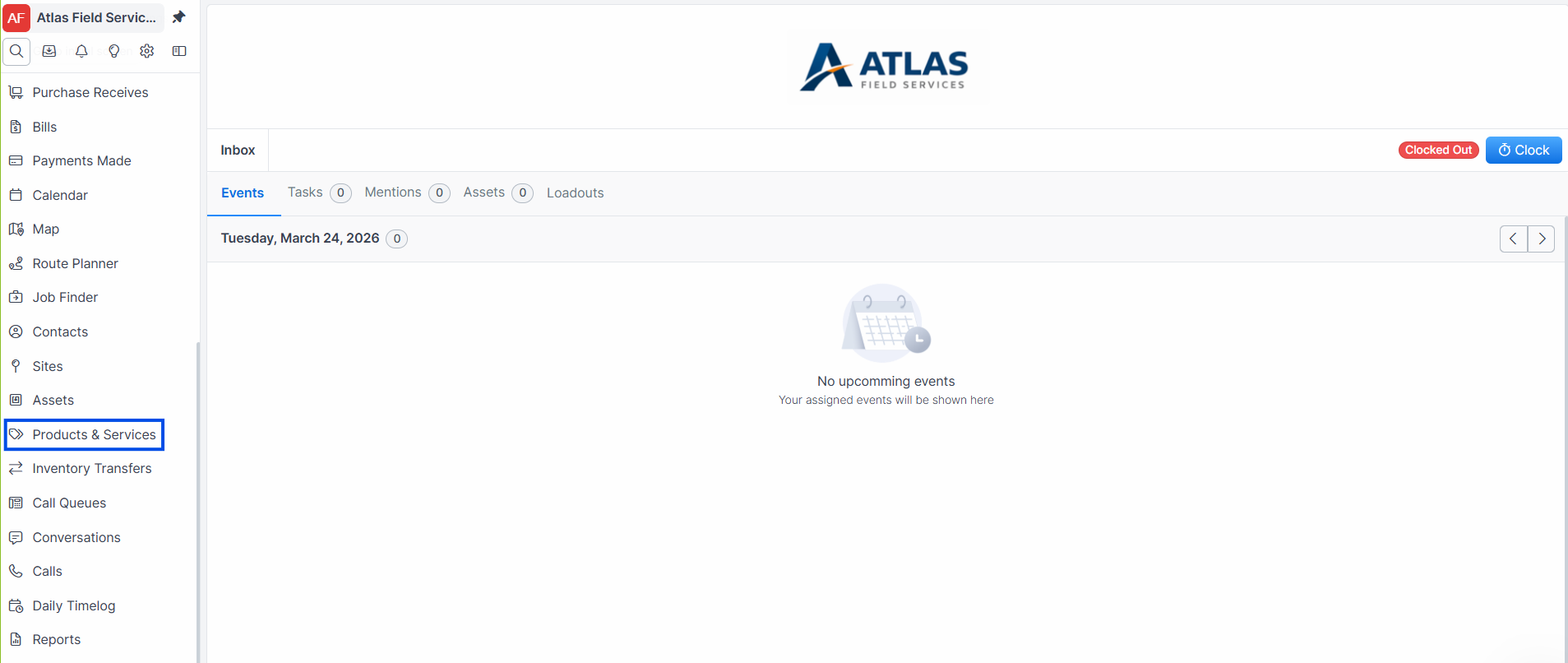
Click Products & Services in the sidebar navigation.
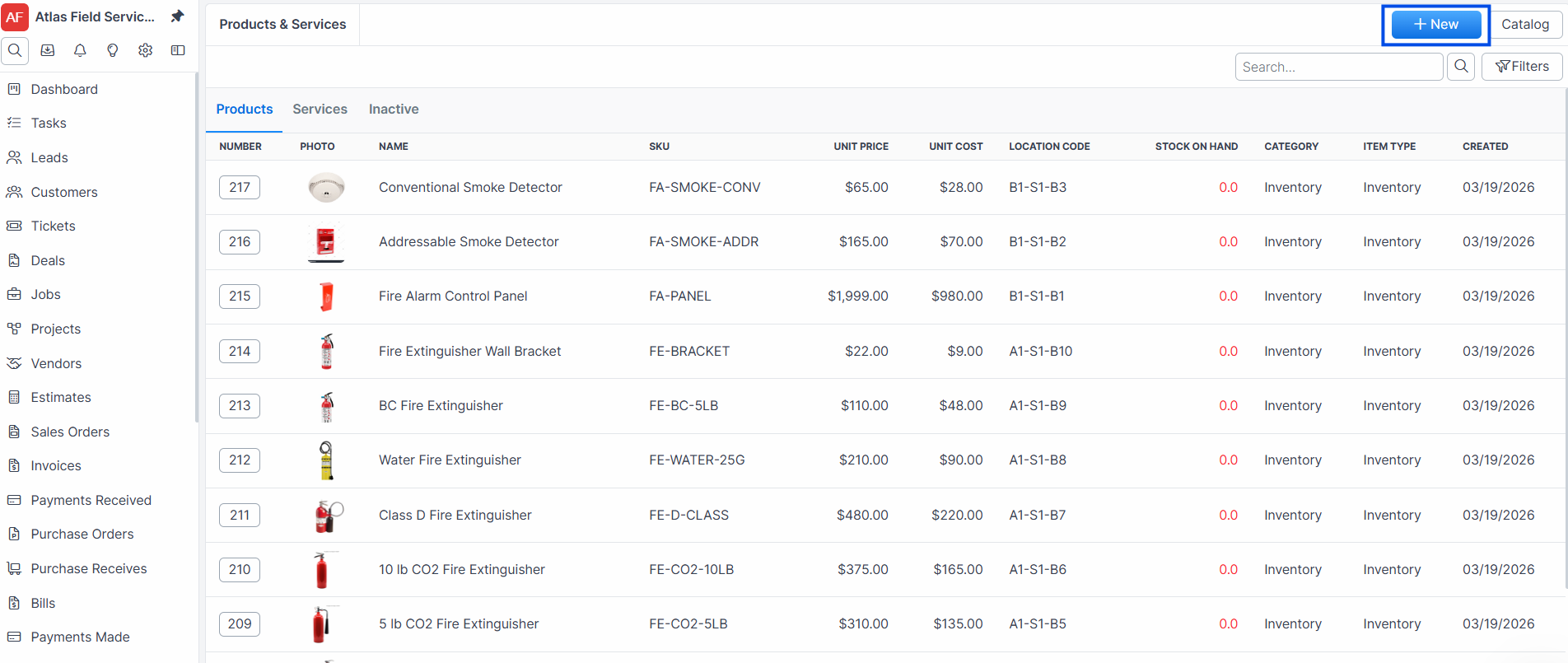
Click the + New button. The new item form opens.
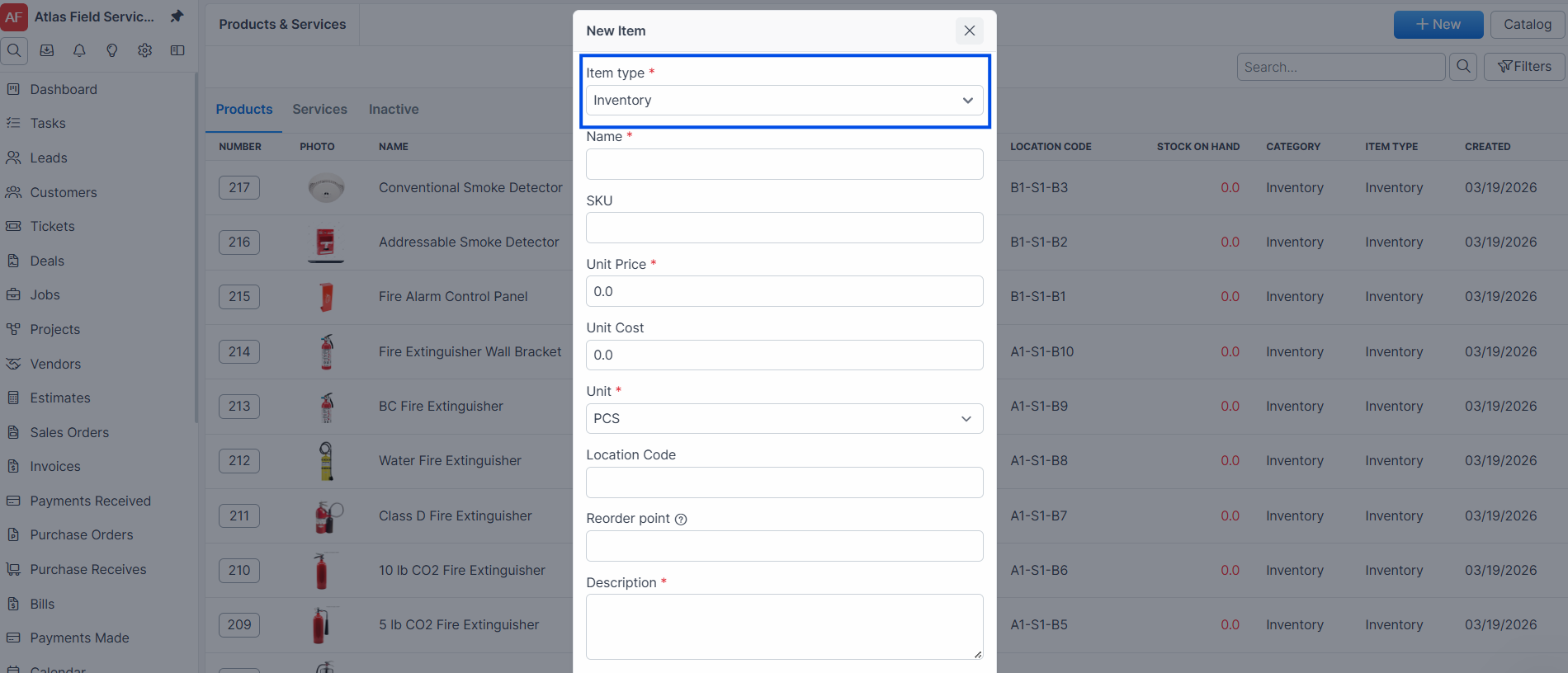
Select an Item type from the dropdown: Inventory, NonInventory, or Service.
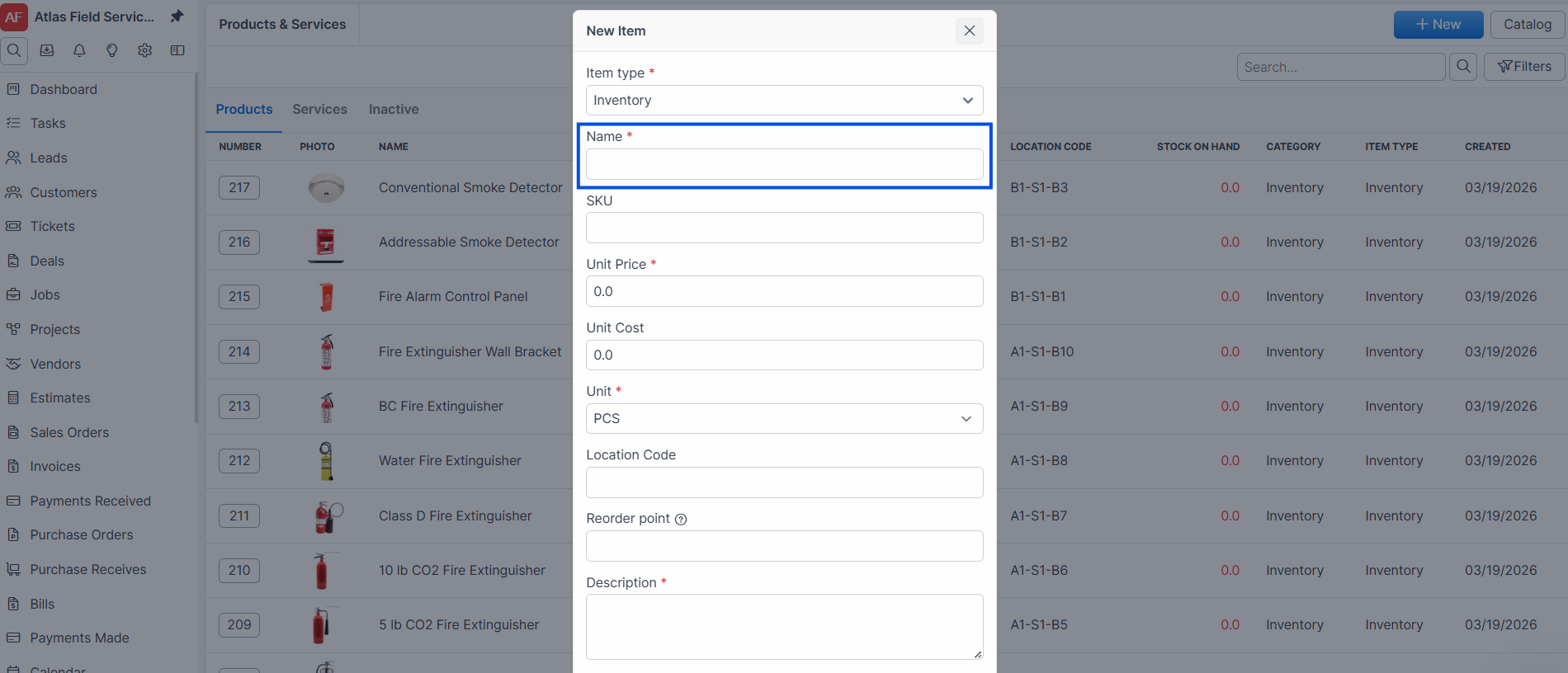
Enter a Name for the item (max 100 characters). Names must be unique across your account.
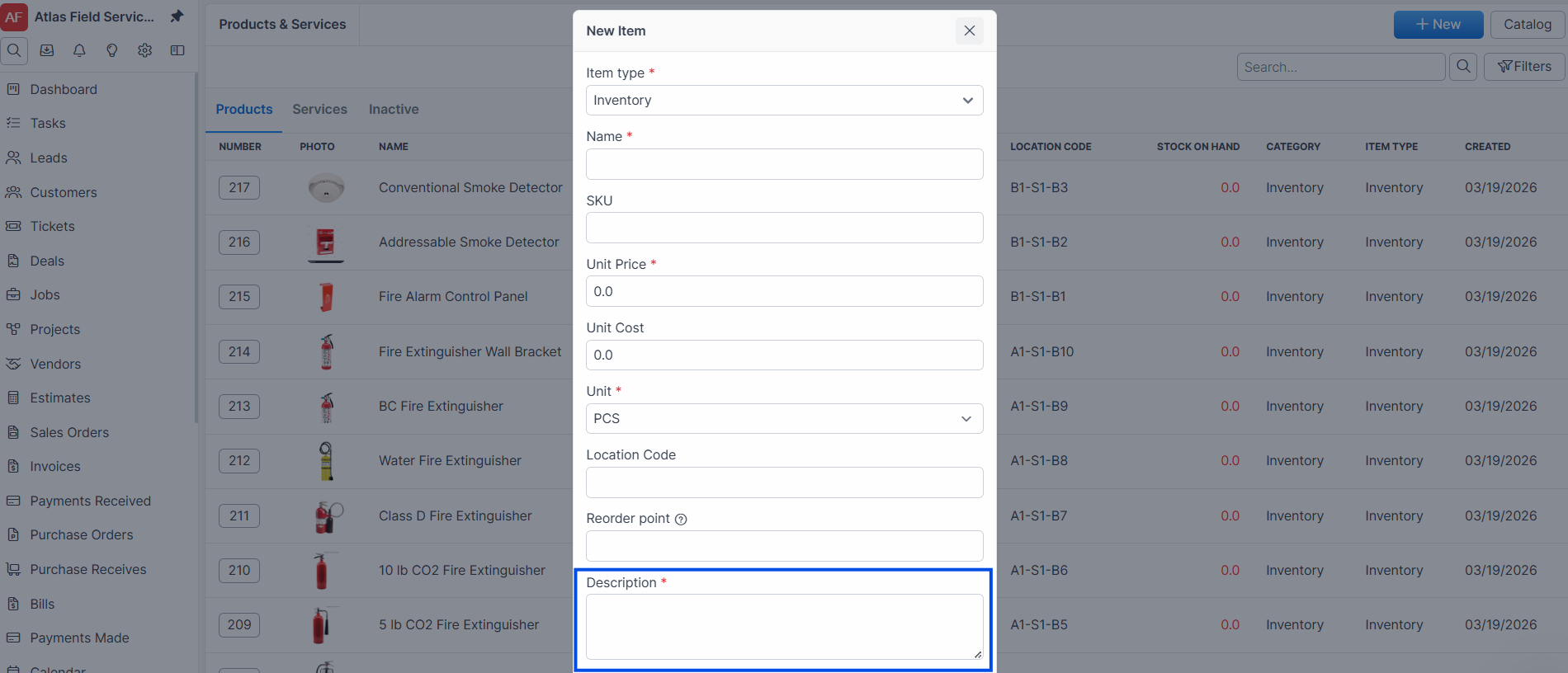
Enter a Description (max 4,000 characters).
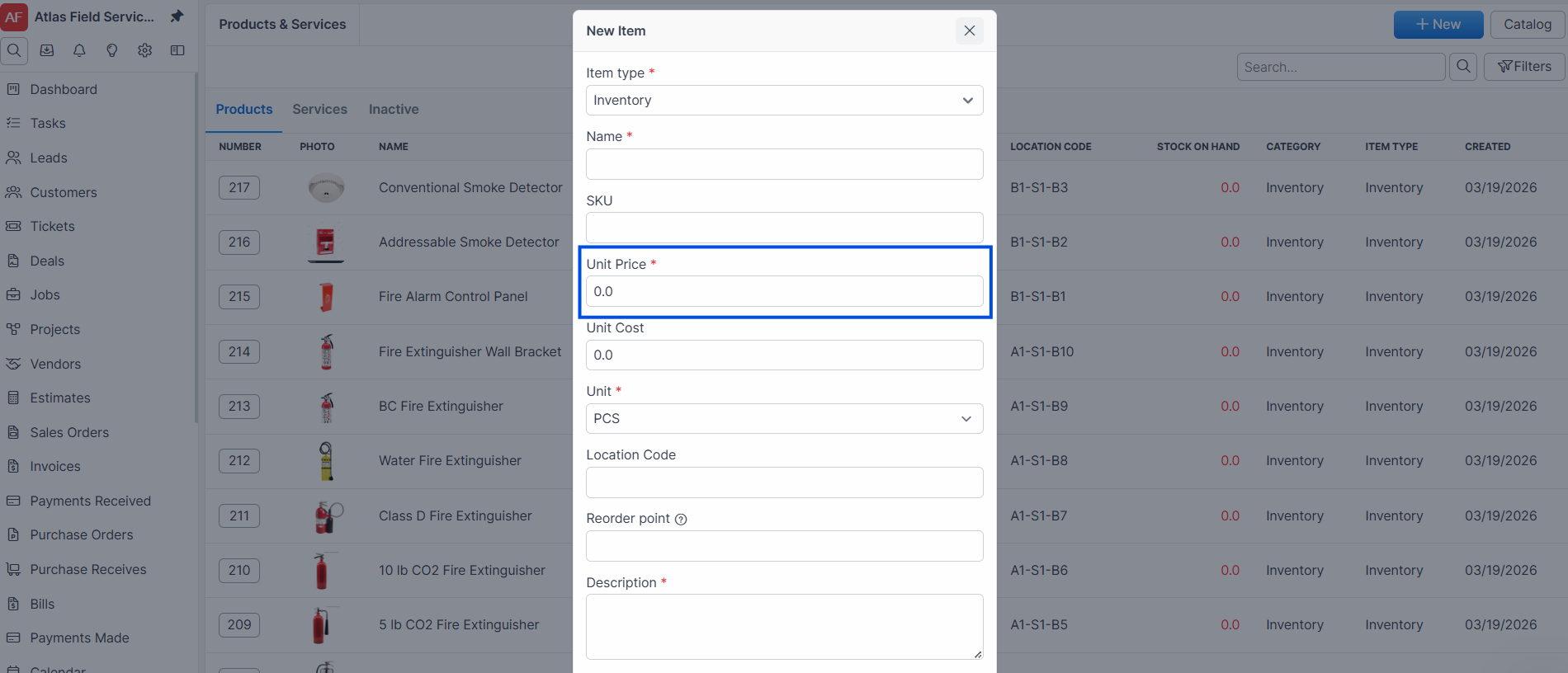
Enter a Unit Price — the default selling price.
Select a Unit from the dropdown (e.g., PCS, BOX, FT, LB, KG, GAL).
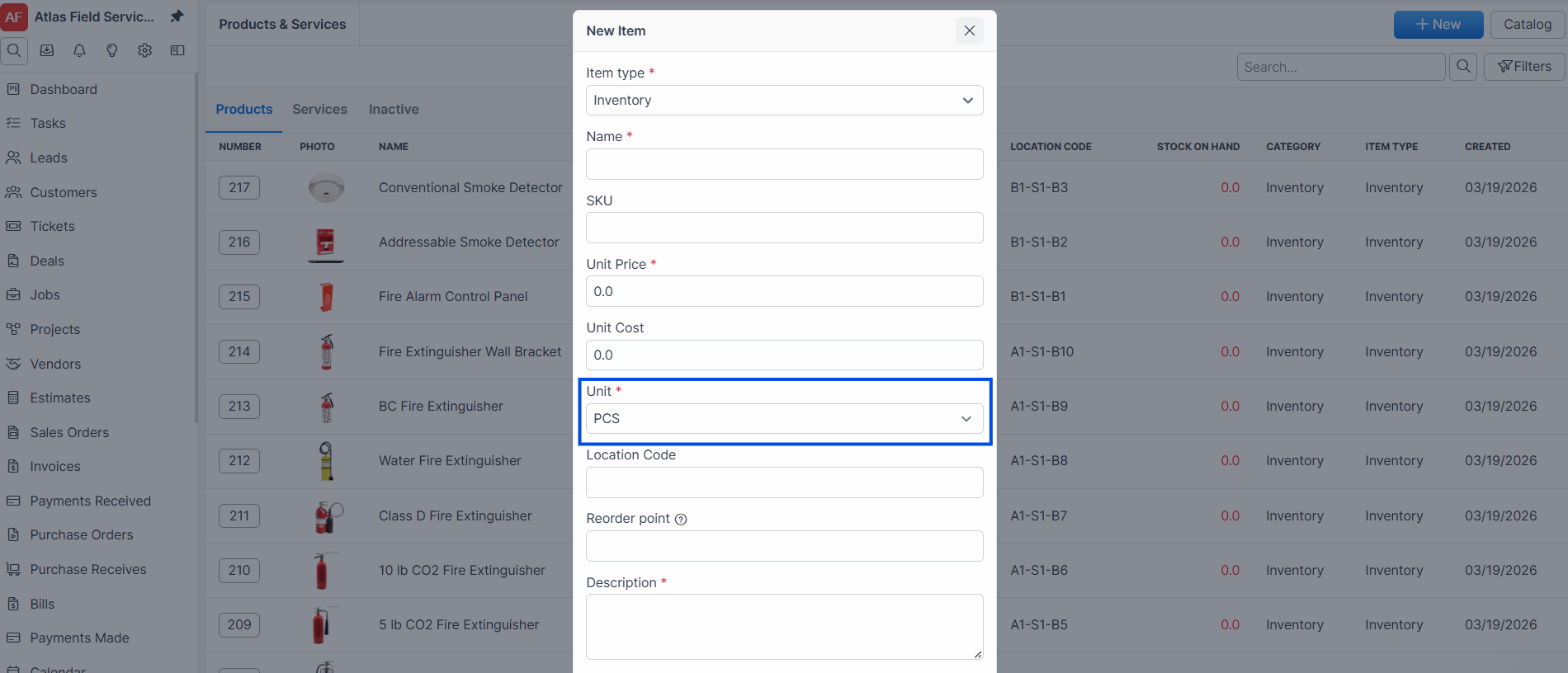
Tip: For HVAC contractors, use unit type PCS for parts like capacitors or contactors, and FT for copper linesets or ductwork sold by the foot.
Optional fields
Enter a SKU — your internal part number or manufacturer SKU (max 100 characters). SKUs must be unique.
Enter a Unit Cost — your purchase cost for profit margin tracking.
Select a Category and optionally a Subcategory to organize your catalog.
Enter a Location Code — a bin or shelf reference for warehouse picking (e.g., "A3-14").
Enter a Reorder point — the stock level at which Forz flags the item as low stock (Inventory type only).
Upload a Photo of the item.
Click Save.
Expected result: Forz creates the item and assigns it a sequential item number (e.g., ITM-0051). For Inventory-type items, Forz automatically creates inventory levels at all active locations with a starting quantity of zero.
Note: If your account is connected to QuickBooks, Forz maps the item to default income, expense, and inventory asset accounts. You can change these account mappings on the item detail page.
Editing an Item
Click Products & Services in the sidebar.
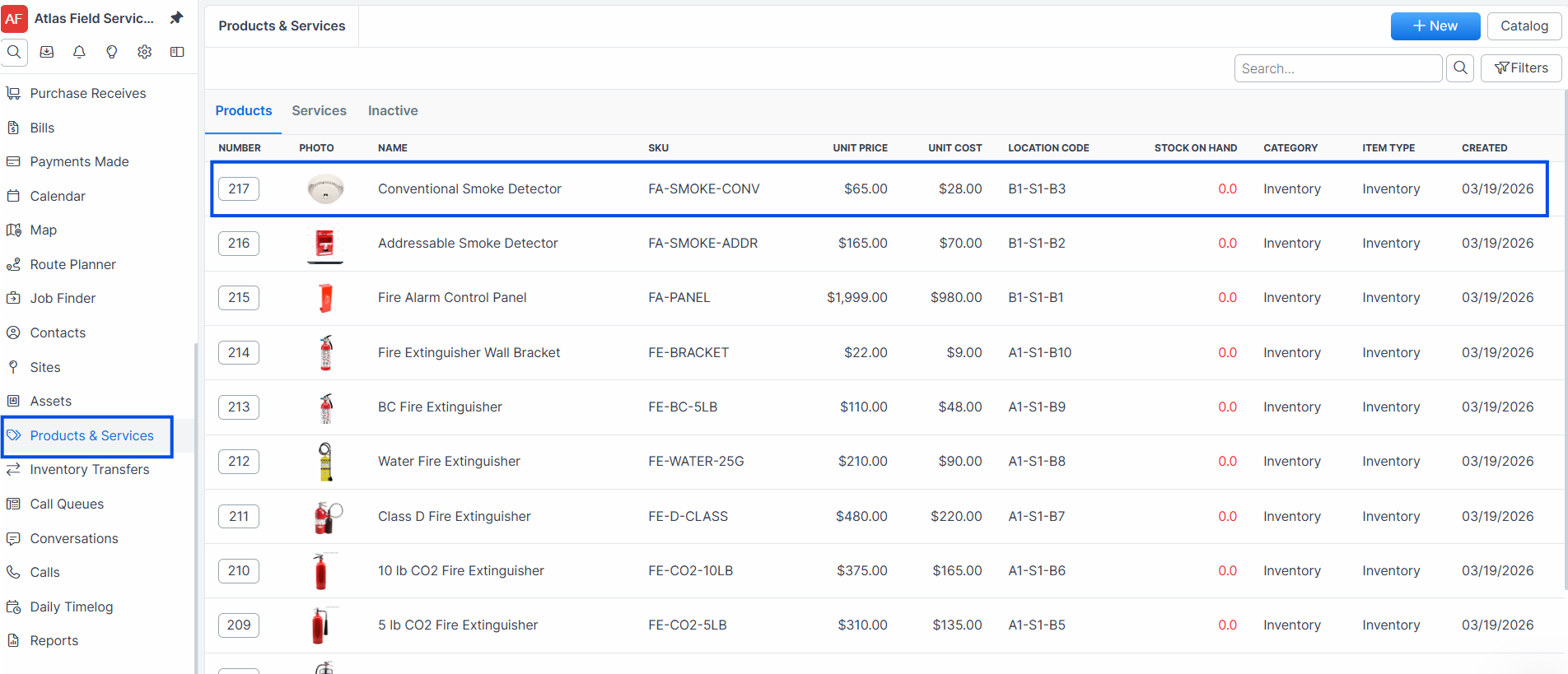
Click the item name in the list to open the detail view.
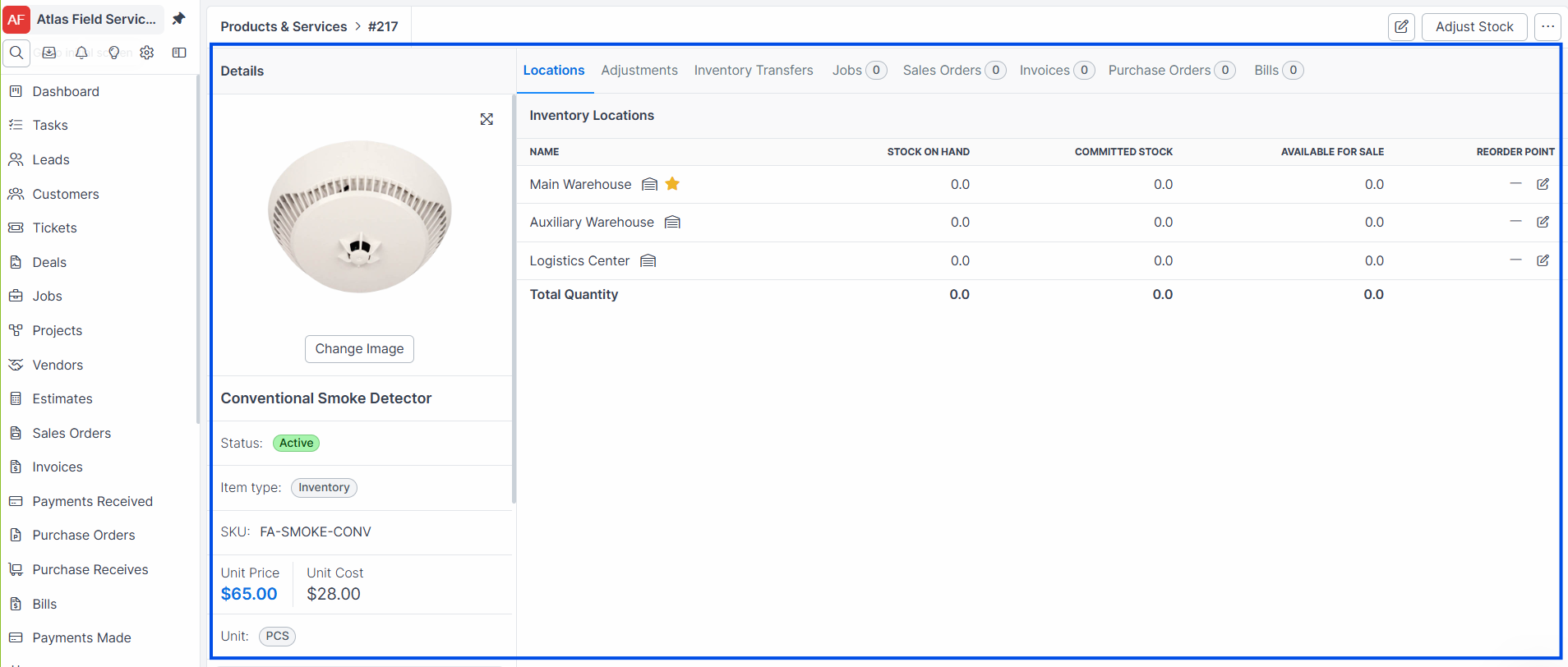
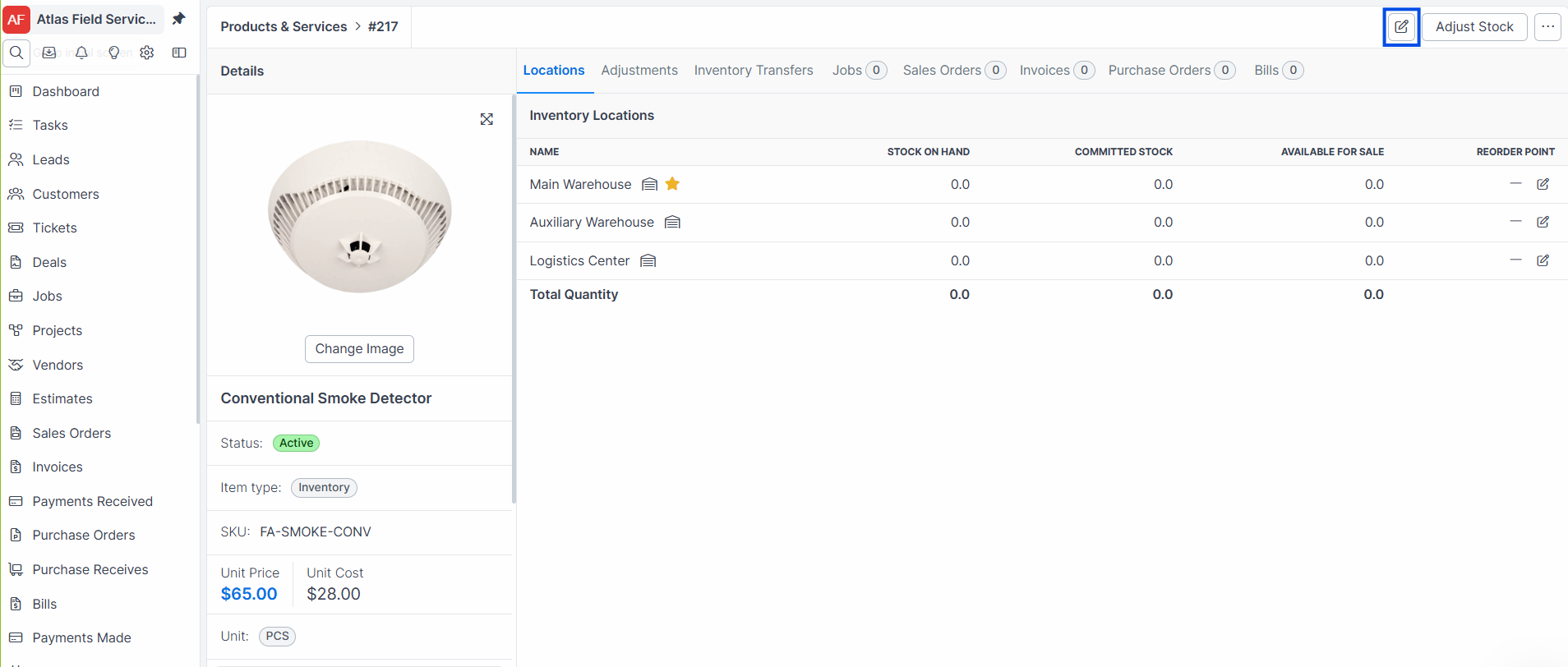
Click Edit.
Update the fields you need to change.
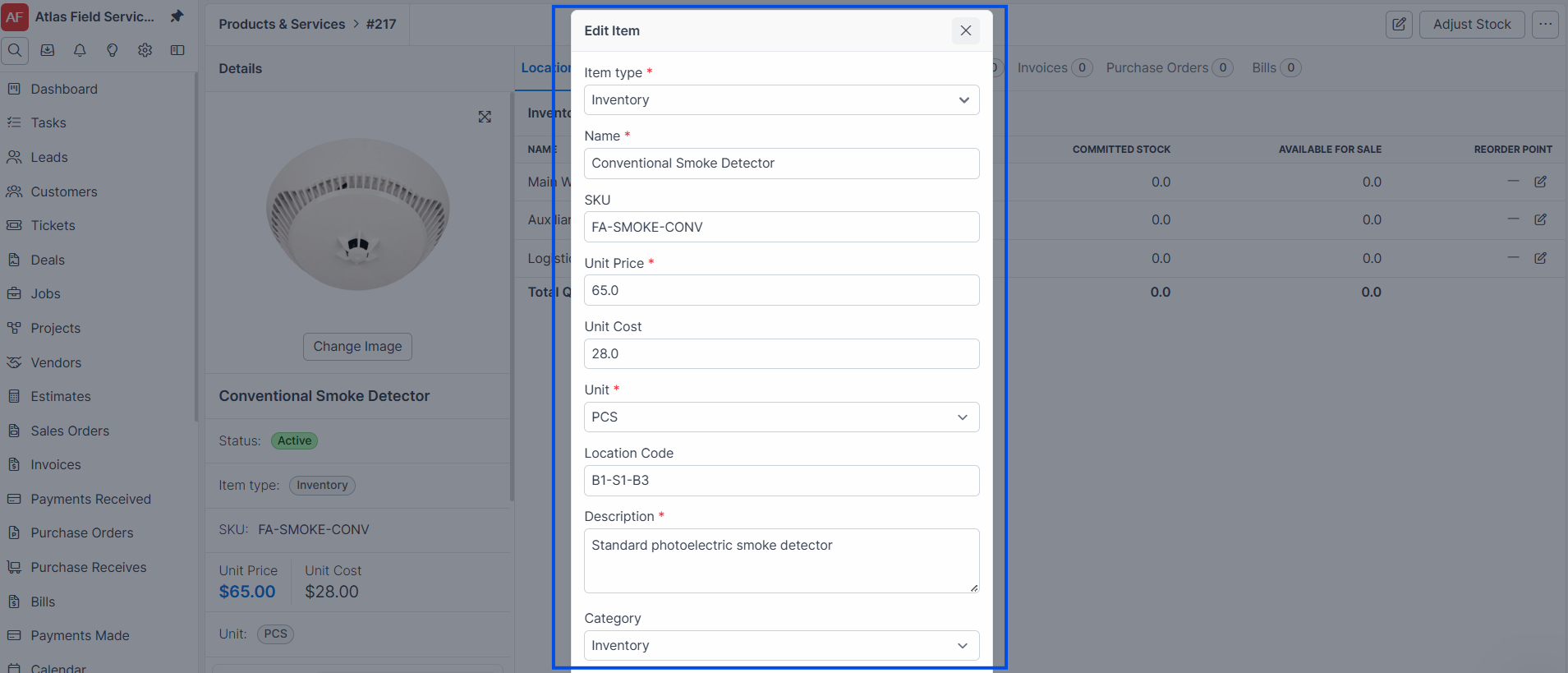
Click Save.
Expected result: The item is updated. If you changed the Reorder point, Forz updates the reorder point on all inventory levels for that item across every location.
Toggling an Item Active or Inactive
Deactivating an item hides it from selection dropdowns on new jobs, invoices, and estimates. The item remains on any existing records.
Open the item detail view.
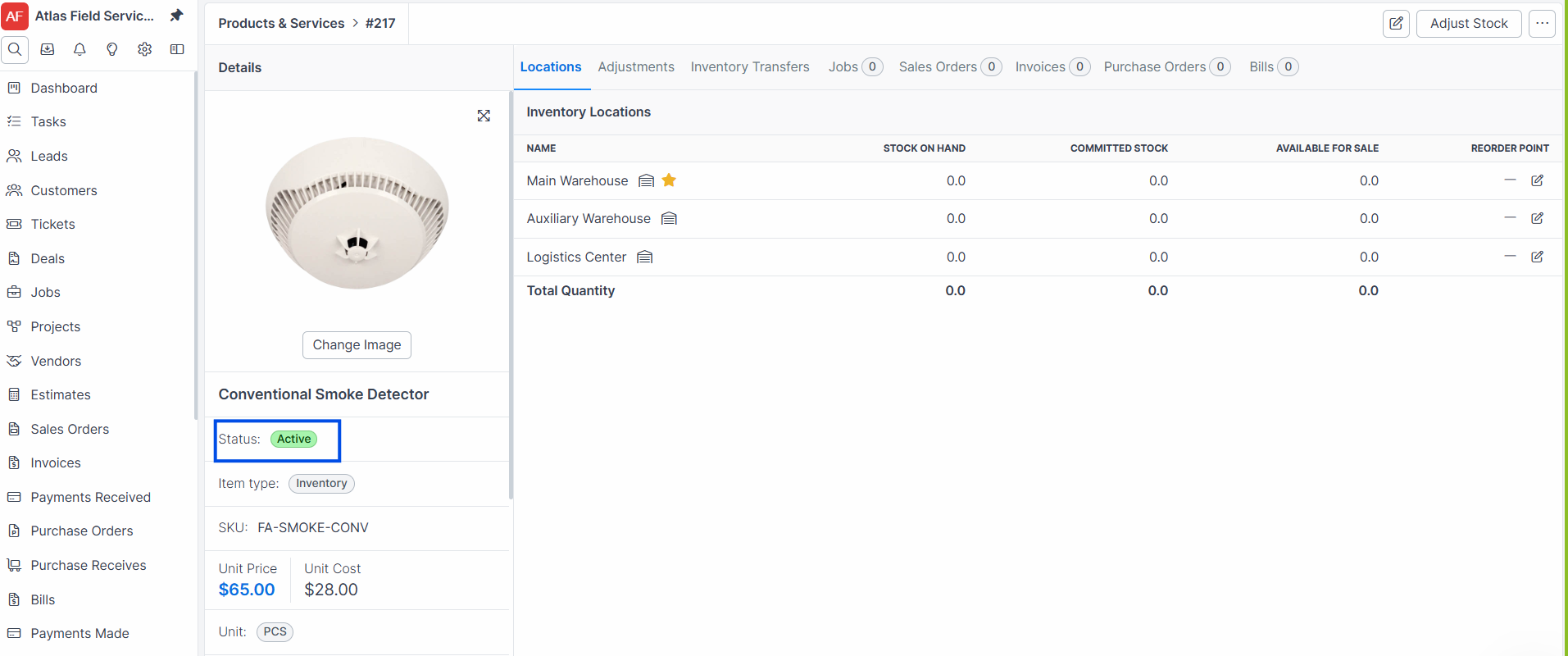
Click the Toggle Active button.
Expected result: The item moves to the Inactive tab on the items list. Toggling again reactivates it.
Warning: Inactive items no longer appear in item selection dropdowns. Existing line items on jobs and invoices are not affected.
Browsing and Filtering Items
The items list has three tabs to organize your catalog:
Products — shows Inventory and Non Inventory items (active only).
Services — shows Service items (active only).
Inactive — shows all deactivated items regardless of type.
Note: The SKU, Location Code, and Stock on Hand columns are hidden on the Services tab because services do not carry inventory.
The list is searchable by name, description, item type, and unit price. You can sort by any column header and filter by creation date.
Item Detail View
The item detail page shows pricing, category, and inventory data. Available tabs depend on item type and your enabled modules:
Locations — stock quantities at each inventory location (Inventory type only, requires Advanced Inventory module).
Adjustments — history of manual stock adjustments (Inventory type only).
Transfers — inventory transfers involving this item (Inventory type only, requires Advanced Inventory module).
Jobs — all jobs that include this item as a line item.
Sales Orders — sales orders containing this item.
Invoices — invoices containing this item.
Purchase Orders — purchase orders for this item.
Bills — bills referencing this item.
Common Scenarios
Stocking HVAC parts for a service fleet
An HVAC company creates Inventory-type items for commonly used parts — capacitors, contactors, fan motors, and refrigerant. Each item gets a SKU matching the manufacturer part number (e.g., "CPT-4070" for a 40/70 capacitor) and a reorder point of 5. When technicians use parts on a job, dispatchers add the item as a line item. Stock quantities update through inventory adjustments and transfers.
Adding flat-rate services to your catalog
A plumbing company creates Service-type items for their flat-rate pricing: "Drain Cleaning — Main Line" at $275, "Water Heater Flush" at $150, "Fixture Install — Standard" at $185. Dispatchers select these services when building job line items, ensuring consistent pricing across the team.
Organizing items by trade category
An electrical contractor creates categories for "Panels & Breakers," "Wiring & Cable," and "Fixtures & Devices." Items are assigned to the matching category and subcategory. The dispatcher filters by category when adding line items to find the right part quickly.
Troubleshooting
Was this helpful?
Still need help? Ask the team