Single Sign-On (SSO)
Manage team authentication, user invitations, and password resets through WorkOS powered SSO.
Overview
Forz uses WorkOS AuthKit for user authentication and organization management. When you add a user to Forz, WorkOS handles the invitation email, password setup, and login flow. Admins can manage invitations and organization memberships from within Forz, and each user can reset their own password.
Before You Begin
Prerequisites:
You have the Admin role in Forz. Your Forz account has an organization name configured in Settings > Company.
How Authentication Works
Forz uses WorkOS for the entire authentication lifecycle:
Organization creation — when your Forz account is set up, Forz creates a matching WorkOS organization.
User invitations — adding a user in Forz sends a WorkOS invitation email.
Login — users authenticate through WorkOS AuthKit, which issues a session token.
Session management — Forz validates tokens using WorkOS JWKS and refreshes sessions automatically.
Inviting a New User
Click Team in the sidebar.
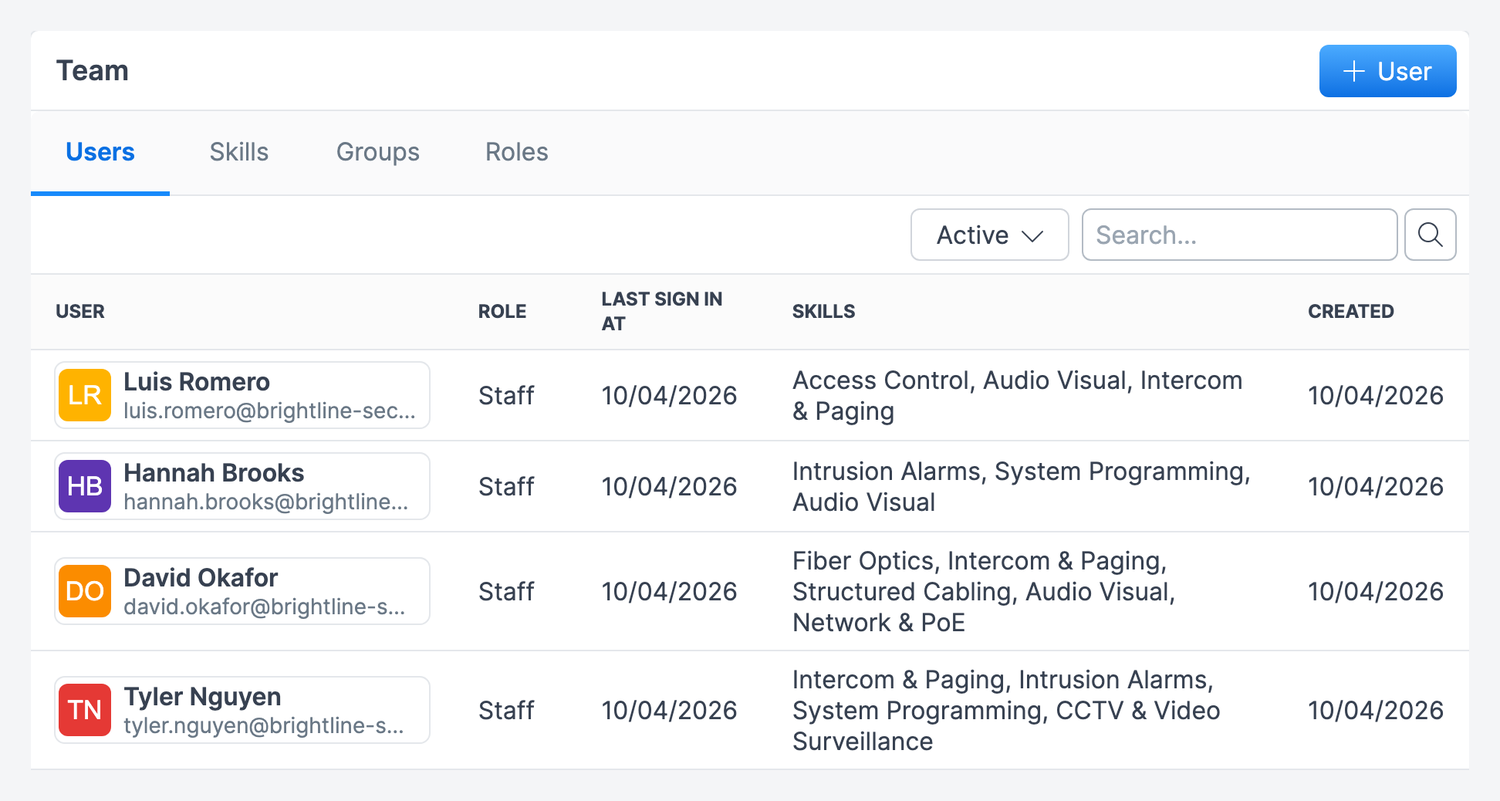
Click + User at the top right.
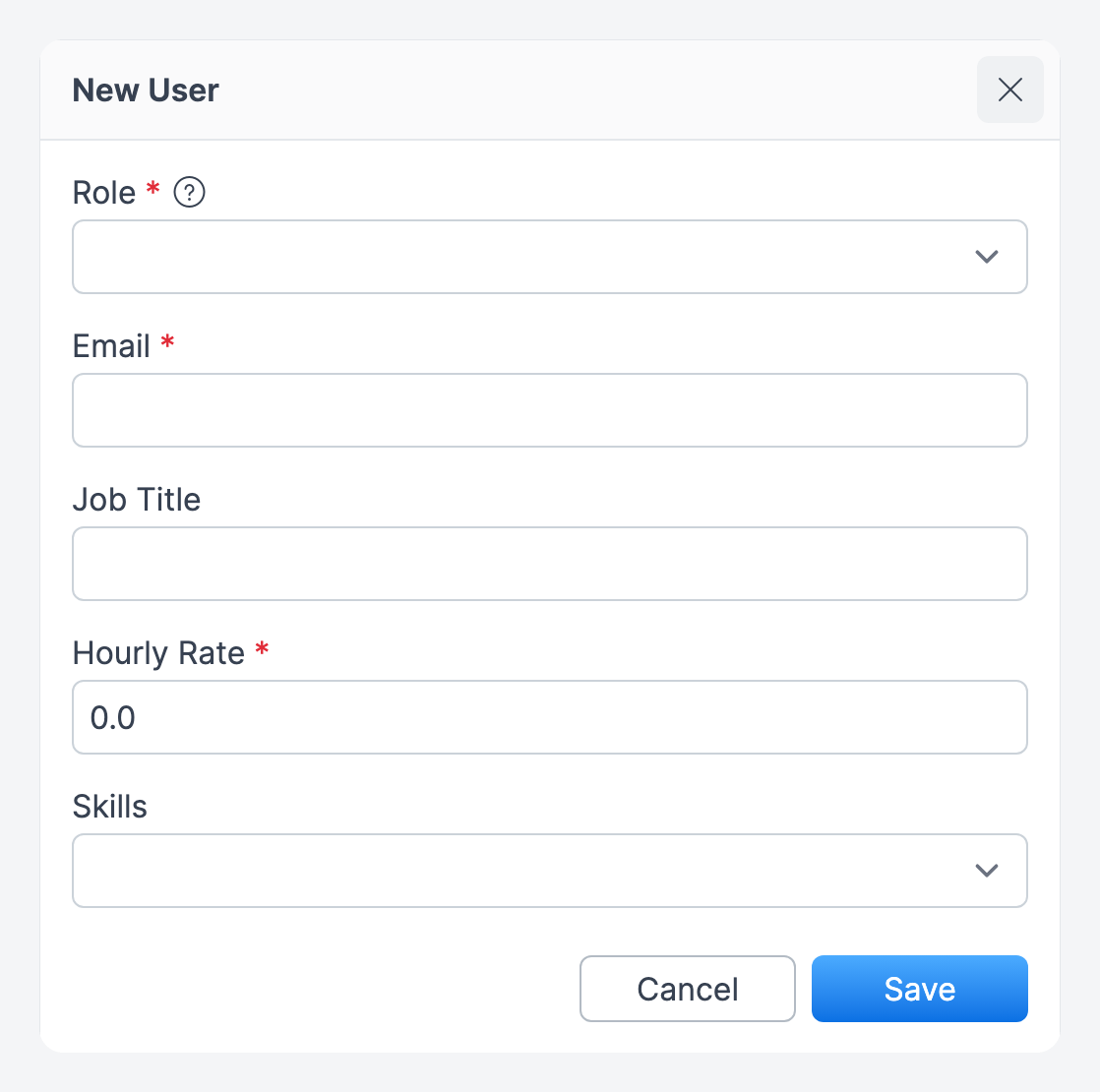
Select a Role and enter the user's Email.
Click Save.
Expected result: Forz creates the user record and sends a WorkOS invitation email. The user receives an email with a link to set up their password and log in.
Note: If the user's email is already associated with a WorkOS account (from another Forz organization), Forz creates an organization membership instead of a new user. The user can switch between organizations after logging in.
Resending an Invitation
Click Team in the sidebar.
Find the user whose invitation is pending. They show an Invitation pending badge.
Click the user's name to open their profile.
Click the More options button (⋯) at the top right, then click Resend Invitation.
Expected result: Forz revokes the previous invitation (if still pending) and sends a new invitation email. The new link replaces the old one.
Tip: Invitation links expire. If a user reports that their link is expired, resend the invitation to generate a fresh link.
Resetting a Password
Admins cannot reset another user's password from Team. Each user resets their own:
Click your name or avatar in the bottom-left corner and select My Settings.
Click the Change Password button (key icon).
Click Send Reset Email.
Expected result: WorkOS emails a secure reset link to the user's address. The user clicks the link and sets a new password.
Disabling a User
Click Team in the sidebar.
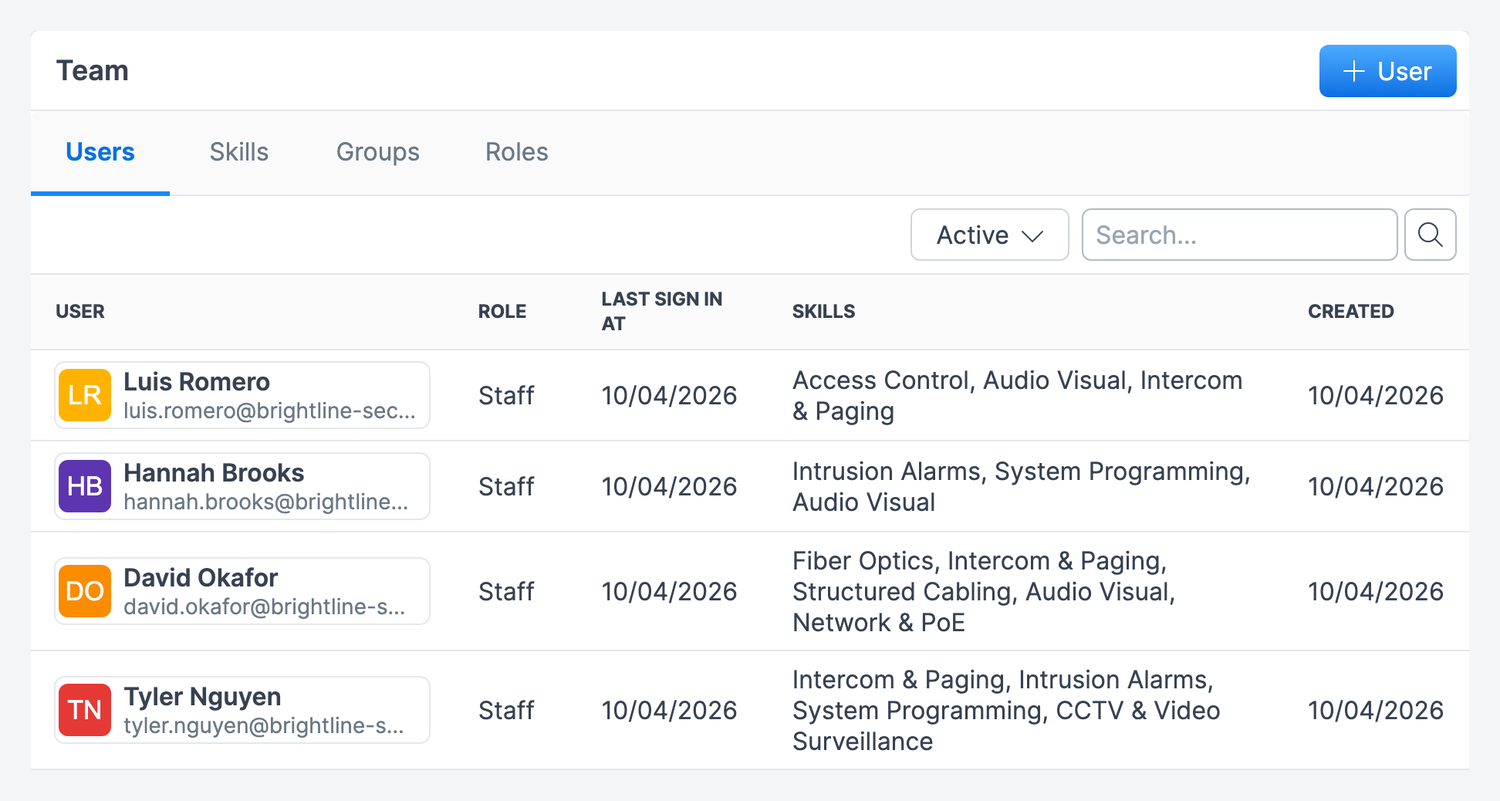
Click the user's name to open their profile.
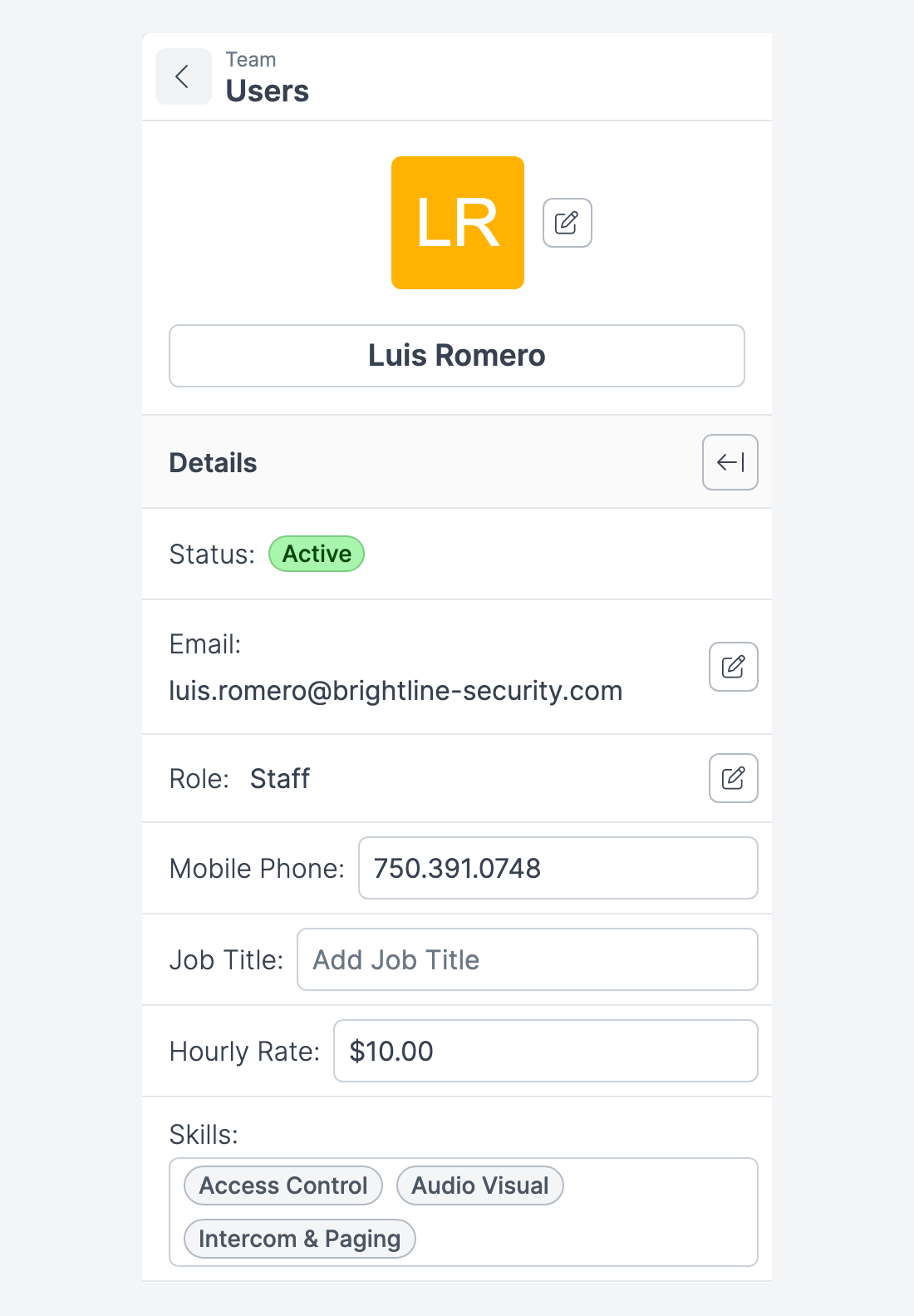
Click on the three dots on the top right then click Disable User.
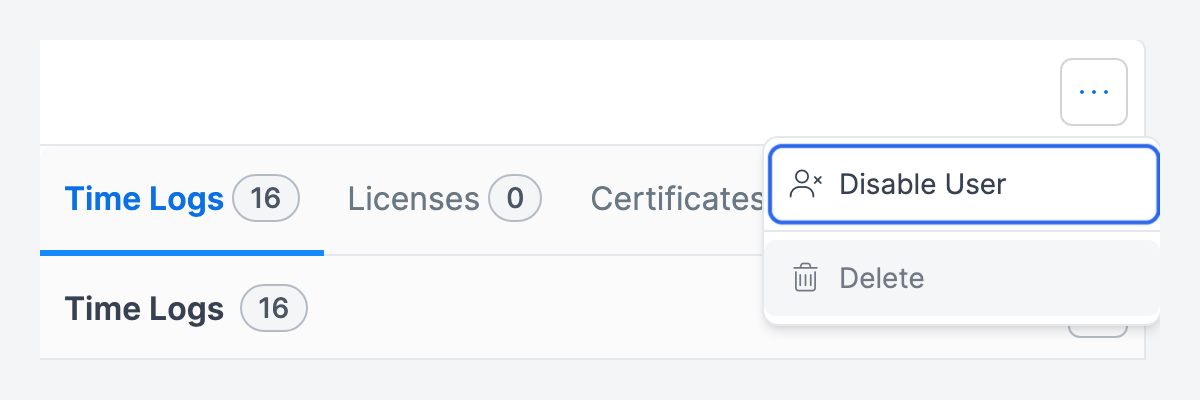
Expected result: Forz deactivates the user's WorkOS organization membership. The user can no longer log in to this Forz organization. If the membership was "pending" (invitation not yet accepted), Forz deletes the membership instead of deactivating it.
Reactivating a User
Click Team in the sidebar.
Open the Active filter and select Inactive.
Click the user's name, click the More options button (⋯), then click Enable User.
Expected result: Forz reactivates the user's WorkOS membership. The user can log in again with their existing credentials.
What Happens Behind the Scenes
When Forz manages users through WorkOS:
Invitation sent — WorkOS creates the user (if new) and sends an email with a sign-up link.
Email verified — Forz marks the user's email as verified in WorkOS after invitation.
User logs in — WorkOS issues an access token via OAuth code exchange; Forz validates the token using JWKS.
Session refresh — when the access token expires, Forz uses the refresh token to get a new one.
Email changed — if a user's email is updated in Forz, WorkOS updates the user record or creates a new membership.
Warning: Deleting a user from Forz also removes their WorkOS account and all organization memberships. This action cannot be undone.
Common Scenarios
Onboarding a new dispatcher at an HVAC company
The office manager adds a new dispatcher, Sarah Chen, in Team with the "Dispatcher" role. Sarah receives an invitation email, clicks the link, sets her password, and logs in to Forz. She can immediately see the dispatch board, create jobs, and manage the schedule.
Transferring a technician between branches
A plumbing company has two Forz organizations (North Branch and South Branch). When technician James Rivera transfers to the South Branch, the North Branch admin deactivates his account. The South Branch admin adds James with his same email address. Because his email already exists in WorkOS, Forz creates a new organization membership instead of a duplicate user. James logs in and sees the South Branch organization.
Troubleshooting
Was this helpful?
Still need help? Ask the team