Sites and Locations
Create and manage service addresses (sites) where field work takes place.
Overview
A site represents a physical location where your team performs work — a building, residence, warehouse, or facility. Every site belongs to a customer (or lead) and has a street address that Forz geocodes for map display and route planning. Sites can have their own contacts, systems, job history, and inspection records.
Before You Begin
Prerequisites:
You have the Sites: Create permission on your role.
At least one customer record exists to attach the site to.
If you want a system to be auto-created on the site, configure System Types in Settings first
Creating a Site
Required fields
Click Customers in the sidebar, then open a customer record.
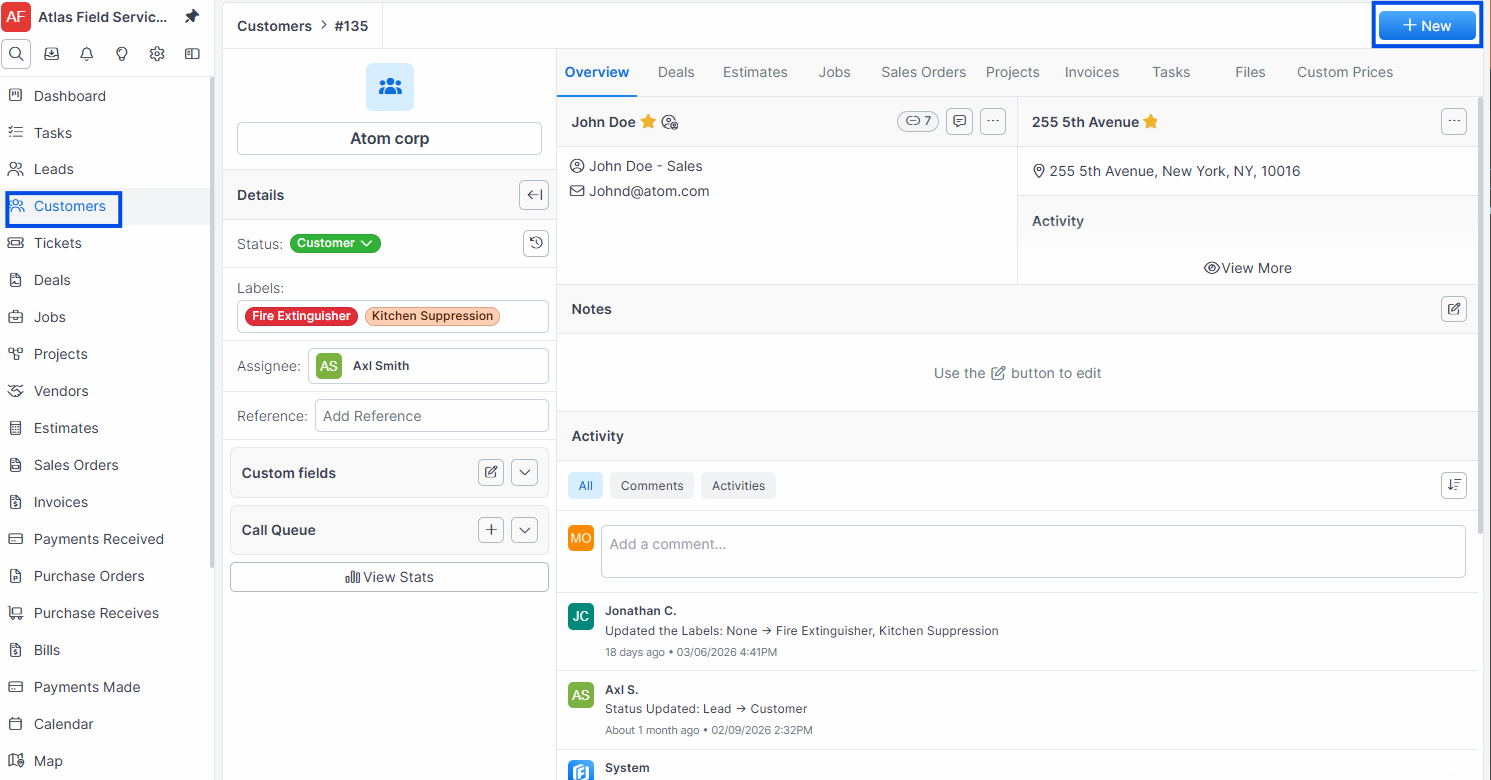
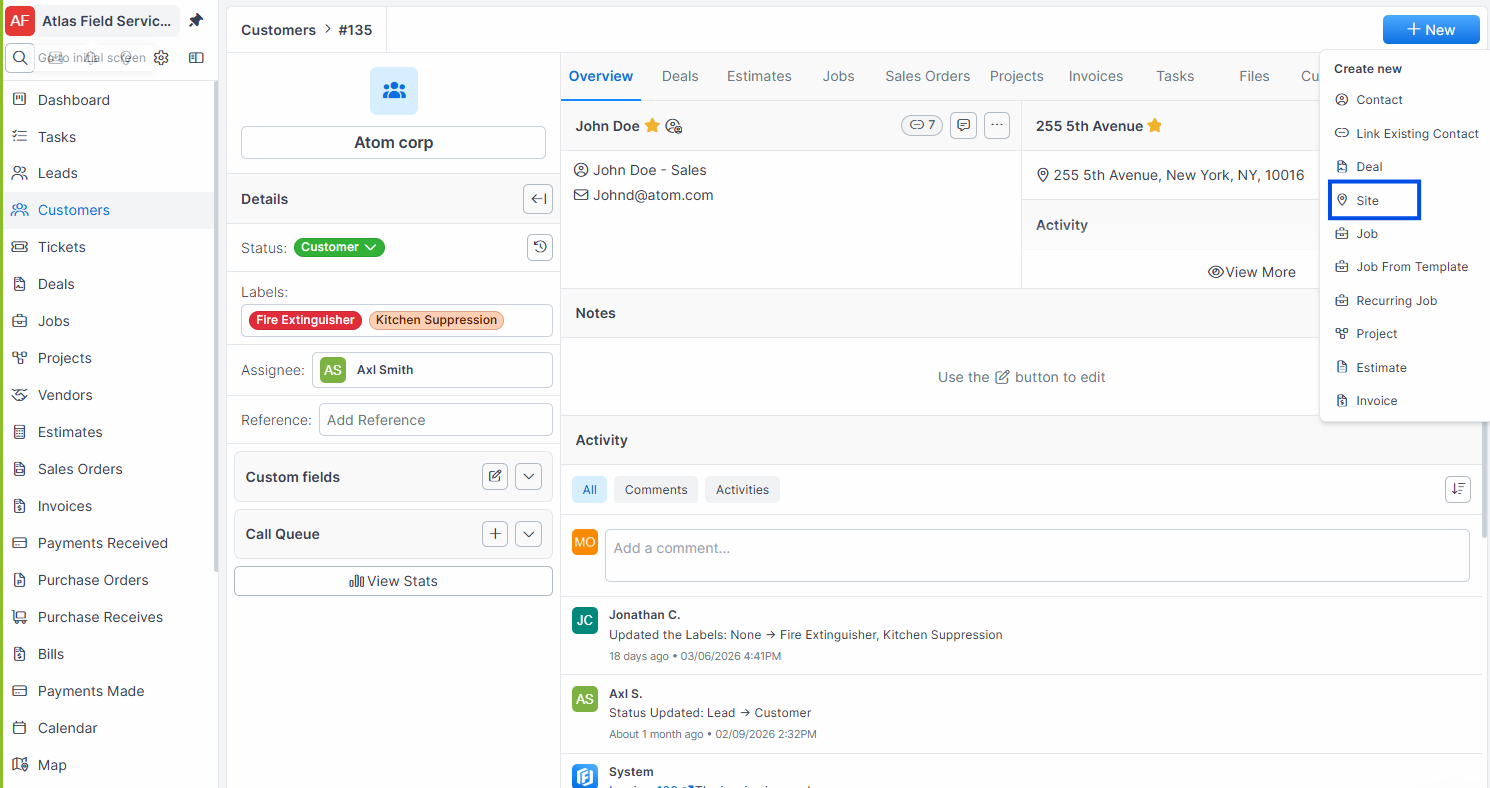
Click the + New button in the sites section.
Navigate to the Sites tab (visible when the customer has 2 or more sites, or from the overview card).
Enter a Site Name — a recognizable label for the location (e.g., "Main Office", "Building A", "123 Oak Street").
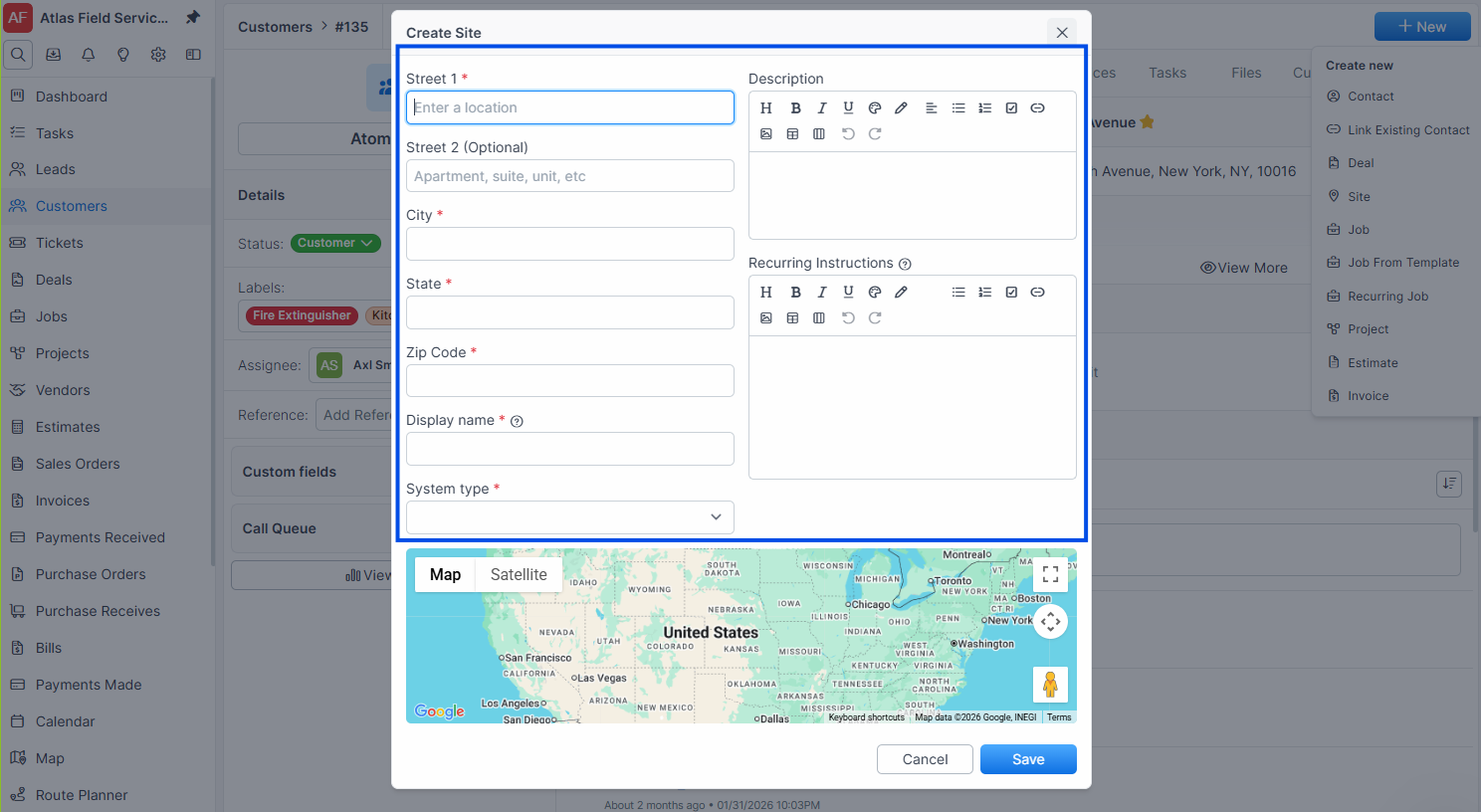
Enter the Street address.
Enter the City.
Enter the State.
Note: All address fields (site name, street, city, state, and zip code) are required. Forz cannot save a site without a complete address.
Complete the address
Enter the Zip Code.
Optionally enter a Street 2 line (e.g., "Suite 200", "Building C").
Optionally select a System Type to auto-create a system on this site (e.g., "HVAC", "Fire Alarm", "Plumbing").
Click Save.
Expected result: Forz creates the site, geocodes the address to latitude/longitude coordinates, and displays the site in the customer's sites list. If you selected a system type, a system record is created on the site automatically.
Creating a Site from the Sites List
Sites can also be created from the global sites list.
Click Sites in the sidebar navigation (if available).
Click the + New button.
Select the Customer this site belongs to.
Fill in the required address fields (site name, street, city, state, zip code).
Click Save.
Expected result: The site is created and linked to the selected customer.
How the Primary Site Works
The first site created for a customer is the primary site (position 1). The primary site's address syncs back to the customer record and is used as the default service address for new jobs.
Warning: Updating the primary site's address also updates the customer record's address and QuickBooks billing address (if QuickBooks is connected). This sync is automatic and cannot be turned off.
Changing the primary site
Open the customer record and navigate to the Sites tab.
Find the site you want to make primary.
Click Set as Primary on that site.
Expected result: The selected site moves to position 1. The customer record's address updates to match the new primary site's address.
Geocoding and Map Display
Forz automatically geocodes each site's address when the site is first saved. The latitude and longitude coordinates are used for:
Displaying the site on the map
Route planning and optimization
Distance calculations for dispatching
Note: Geocoding runs automatically on save if the site does not already have coordinates and the address is complete. If geocoding fails (e.g., invalid address, service unavailable), the site is saved without coordinates. Edit the address and save again to retry.
Linking Contacts to a Site
Sites can have their own contacts separate from the customer's contacts. This is useful when different buildings have different on-site personnel.
Open the site record (click the site from the customer's Sites tab).
Navigate to the Contacts tab.
Click Add Contact and search for an existing contact, or create a new one.
Expected result: The contact appears in the site's contacts list. The first contact added becomes the primary contact for the site.
Filtering and Searching Sites
Click Sites in the sidebar navigation.
Use the Search bar to find sites by name or address.
Click Filters to filter by:
Created — date range
State — one or more states
City — one or more cities
Expected result: The sites list shows matching records. Each site row displays the site name, customer, street, city, state, zip code, and creation date.
Site Detail View
The site detail view shows the address, a map pin, and tabs for related records:
Overview — site details and summary
Tickets — support tickets for this site (if enabled)
Jobs — all jobs at this site
Contacts — linked contacts
Systems — equipment and systems at this site
Files — attached documents and photos
Jobs History — historical job records
Inspections — inspection records (if Inspection module enabled)
Deleting a Site
Open the site record.
Click Delete (or the trash icon).
Confirm the deletion.
Expected result: The site moves to the trash bin. Linked contacts are unlinked (not deleted). To restore the site, go to Settings > Trash Bin.
Common Scenarios
Fire safety company managing a multi-building campus
A customer like "State University" has 15 buildings on campus. Create the university as a customer with the main administration building address. Then add each building as a separate site: "Engineering Hall", "Student Center", "Library", etc. Each site gets its own fire alarm system, inspection schedule, and contacts.
Plumbing contractor adding a second location for a residential customer
Open the customer record for "Johnson Family".
Click the Sites tab.
Click + New and enter the vacation home address.
Save. The original home remains the primary site.
When creating a job for the vacation home, select it from the Service Address dropdown.
HVAC company setting up sites for a property management firm
A property management company manages 30 rental units. Create one customer record for the management company. Add each rental property as a separate site with its specific address. Assign the property manager as a contact linked to each site. When scheduling maintenance, each site appears as a separate pin on the route planner map.
Troubleshooting
Was this helpful?
Still need help? Ask the team