Job Templates
Create reusable templates that pre-fill job type, description, labels, and products & services when you create a job.
Overview
A job template stores a standard set of job details — Job type, Job Description, Labels, tax rate, and Products & Services (line items). When you create a job from a template, Forz copies these fields into the new job. You still choose the customer (and other job-specific fields) on the New Job drawer.
Templates are ideal for repeatable service types. Define the description, line items, and pricing once, then reuse them whenever you create a job.
Note: Task Templates in Settings are a different feature. They are not the same as Job Templates.
Before You Begin
Prerequisites:
You can open Jobs in the sidebar.
Job types are available for your account. Defaults include Inspection, Installation, Maintenance, Repair, and Troubleshoot (Settings > Job Types if you need to review them).
If you plan to add line items, products and services exist in your catalog.
Open Job Templates
Click Jobs in the sidebar.
In the top-right of the Jobs index, click the ⋯ (more) button.
Click Templates. The page heading is Job Templates.
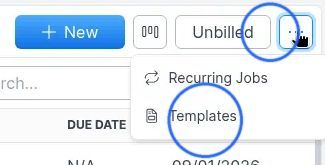
Note: Job Templates are not under Settings. Settings > Jobs only covers options such as Address Requirement and Default Customer Notes.
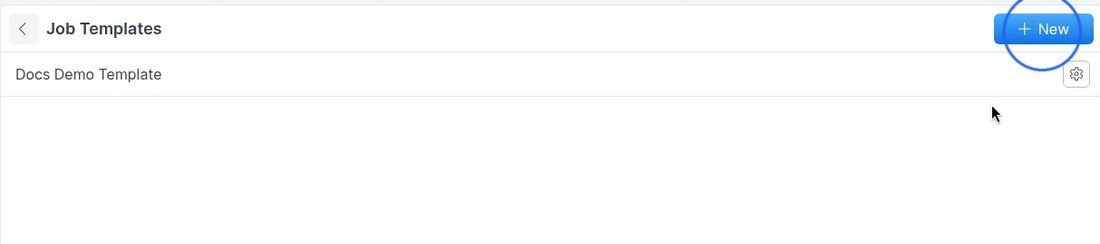
Create a Job Template
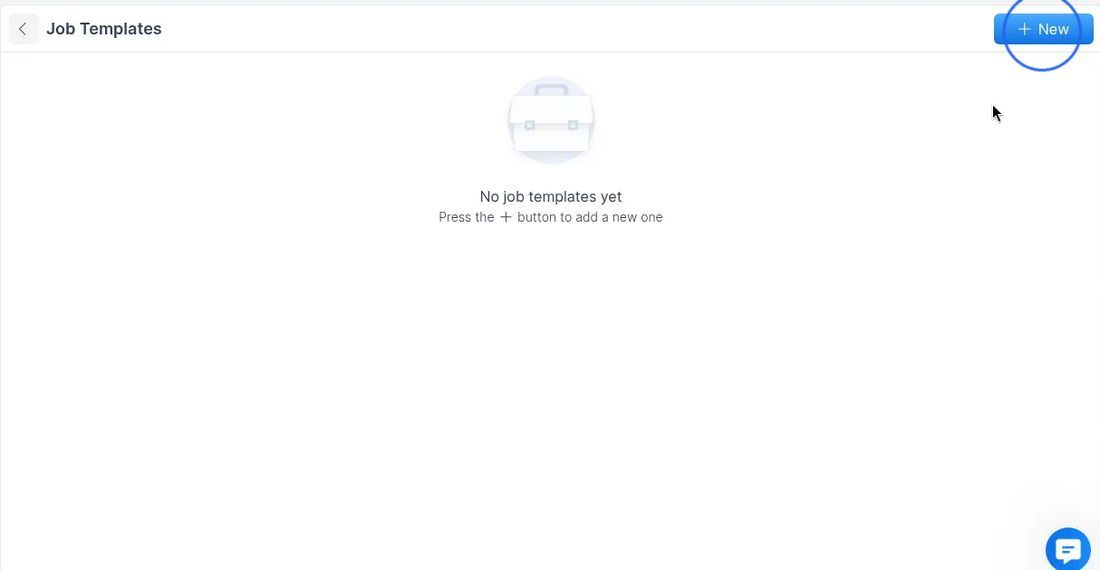
On the Job Templates page, click + New.
If you have no templates yet, the empty state shows No job templates yet and Press the + button to add a new one.
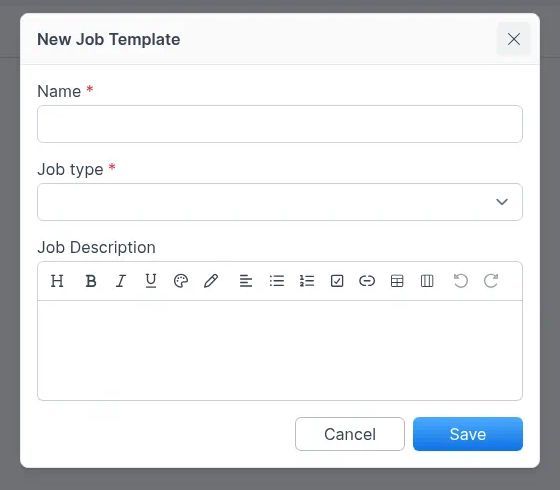
In the New Job Template dialog, enter a Name (required). Use a clear name (for example, "Quarterly HVAC Maintenance" or "Residential Panel Upgrade").
Select a Job type (required). Options include Inspection, Installation, Maintenance, Repair, and Troubleshoot (based on your configured job types).
Enter a Job Description (optional) in the rich text editor. This text is copied into the job when you use the template.
Click Save. Click Cancel to close without saving.
Expected result: The template appears on the Job Templates list. You can open it to add labels and products & services, and it becomes available from Use A Template on the New Job drawer.
Labels and Products & Services
Open a template from the list to see its detail view. From here you can set labels, review job type and description, manage products & services, and use Edit, Duplicate, or Delete.
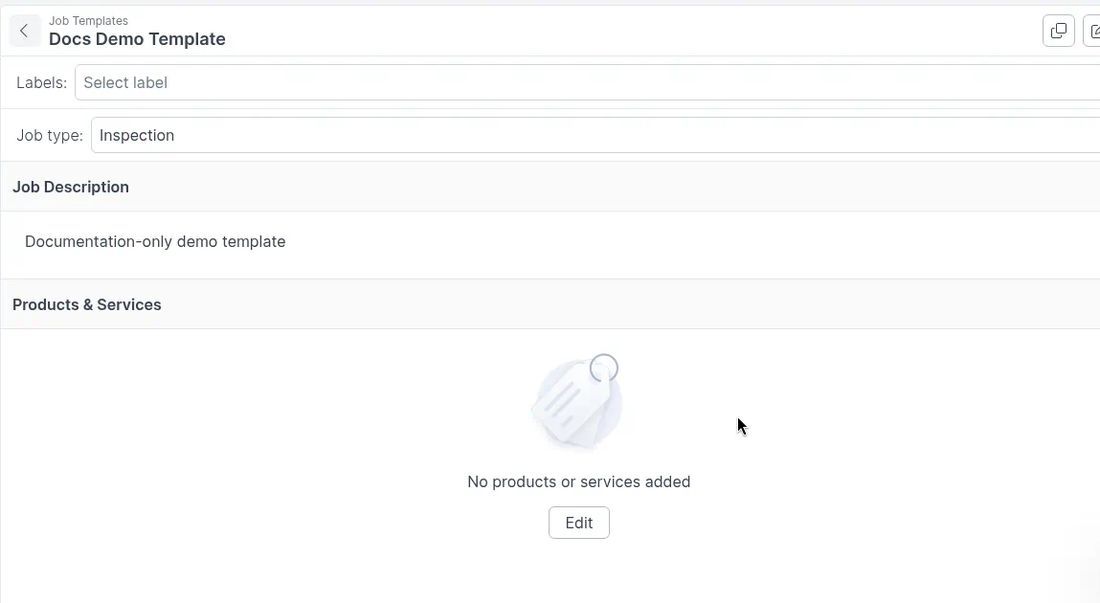
Labels
On the template detail view, use Select label under Labels.
Choose labels such as Under Contract, Warranty, Callback, After Hours, or Requires Lift (your account may show different labels).
Labels carry over to jobs created from the template and help with filtering and reporting.
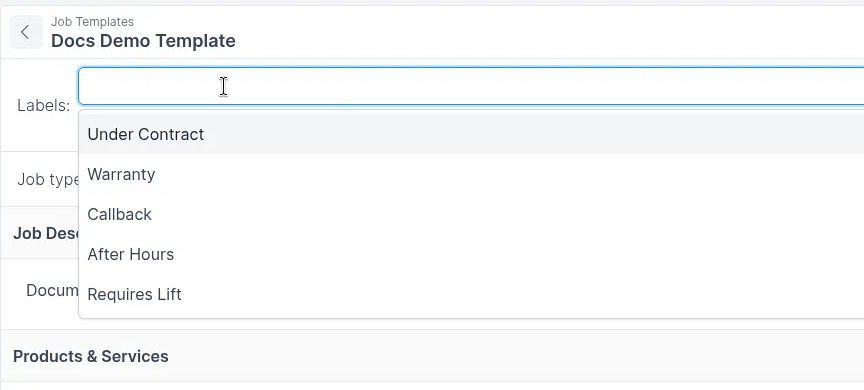
Job Description
Use the Edit control on the Job Description section to update the rich text description.
Products & Services
Line items define the products and services included on jobs created from the template.
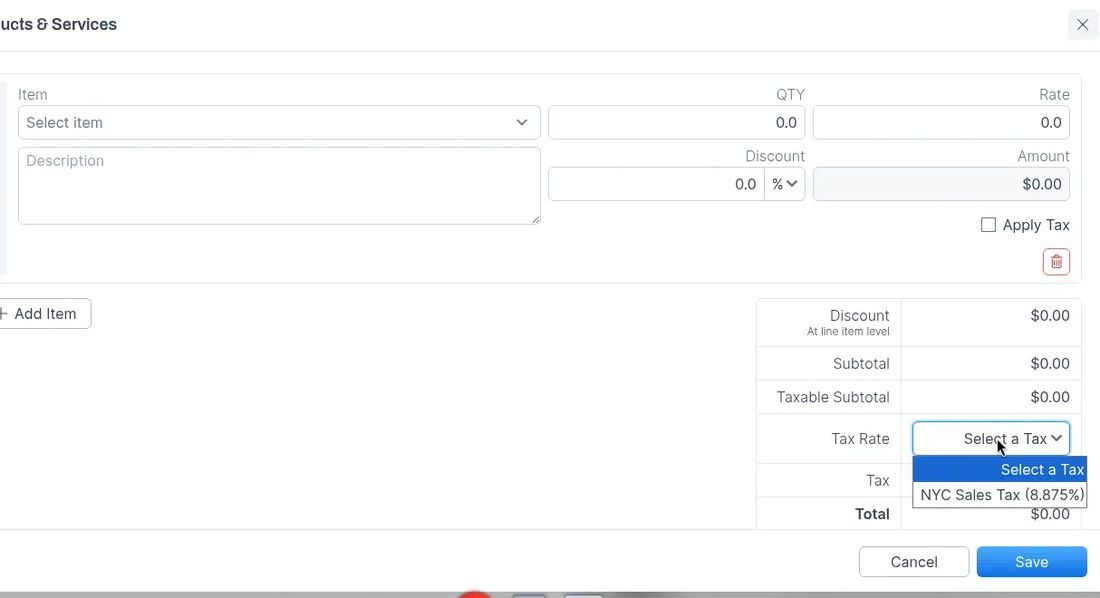
On the template detail view, click Edit on Products & Services (or the empty-state Edit button).
For each line item, set Item (Select item), Description, QTY, Rate, Discount, and Amount. Optionally check Apply Tax.
Click + Add Item to add another line.
Review Subtotal, Taxable Subtotal, Tax Rate (Select a Tax), Tax, and Total.
Click Save. Click Cancel to discard changes.
Duplicate or Delete a Template
On the template detail view, use the actions in the top-right:
Duplicate — creates a copy of the template (including labels, description, and products & services) so you can create a variation without starting from scratch. Open the copy to rename it or adjust details.
Edit — opens Edit Job Template to change the template name (and related header fields).
Delete — removes the template. Jobs already created from it are not deleted.
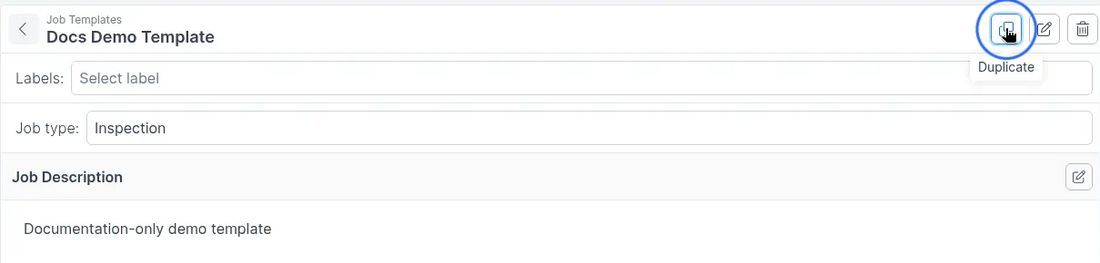
Note: Duplicating a template creates another template. It does not create a job. Changes to a job created from a template do not change the original template, and updating a template does not change jobs already created from it.
Use a Template When Creating a Job
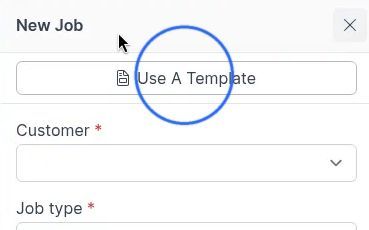
Apply a template from the New Job drawer using Use A Template.
Go to Jobs and click + New to open the New Job drawer.
Click Use A Template at the top of the drawer.
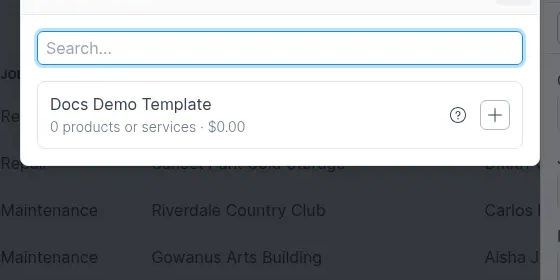
In the Job Templates modal, search if needed, then select a template (for example with the + control).
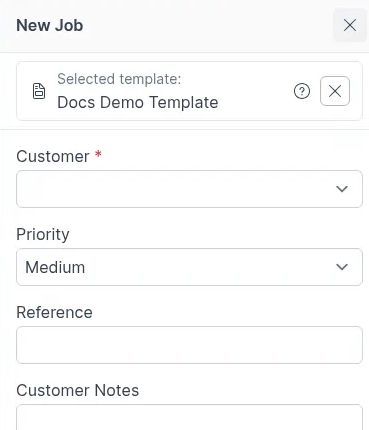
Confirm the banner shows Selected template: with your template name. Review pre-filled details, then complete remaining fields such as Customer (required), Priority, Reference, and Customer Notes.
Click Save.
For the full New Job field list and workflow, see Creating Jobs.
Troubleshooting
Was this helpful?
Still need help? Ask the team