Leads
Capture and manage potential customers through qualification stages, with built-in duplicate detection to ensure a clean pipeline before converting qualified leads to customer records.
Overview
Leads represent prospective customers who have not yet committed to a service agreement. Each lead stores organization details, contact information, an address, and an industry classification. Forz tracks leads through configurable status stages using a list or Kanban board view. When a lead qualifies, convert it to a full customer record with one click — Forz transfers all contacts, sites, documents, tasks, and deals automatically. Built-in duplicate detection warns you before creating leads with similar names or emails.
Before You Begin
Prerequisites:1. You have the Leads: Create permission on your role. Lead statuses are configured in Settings > Status Options > Lead Statuses.
Creating a Lead
Organization and contact details
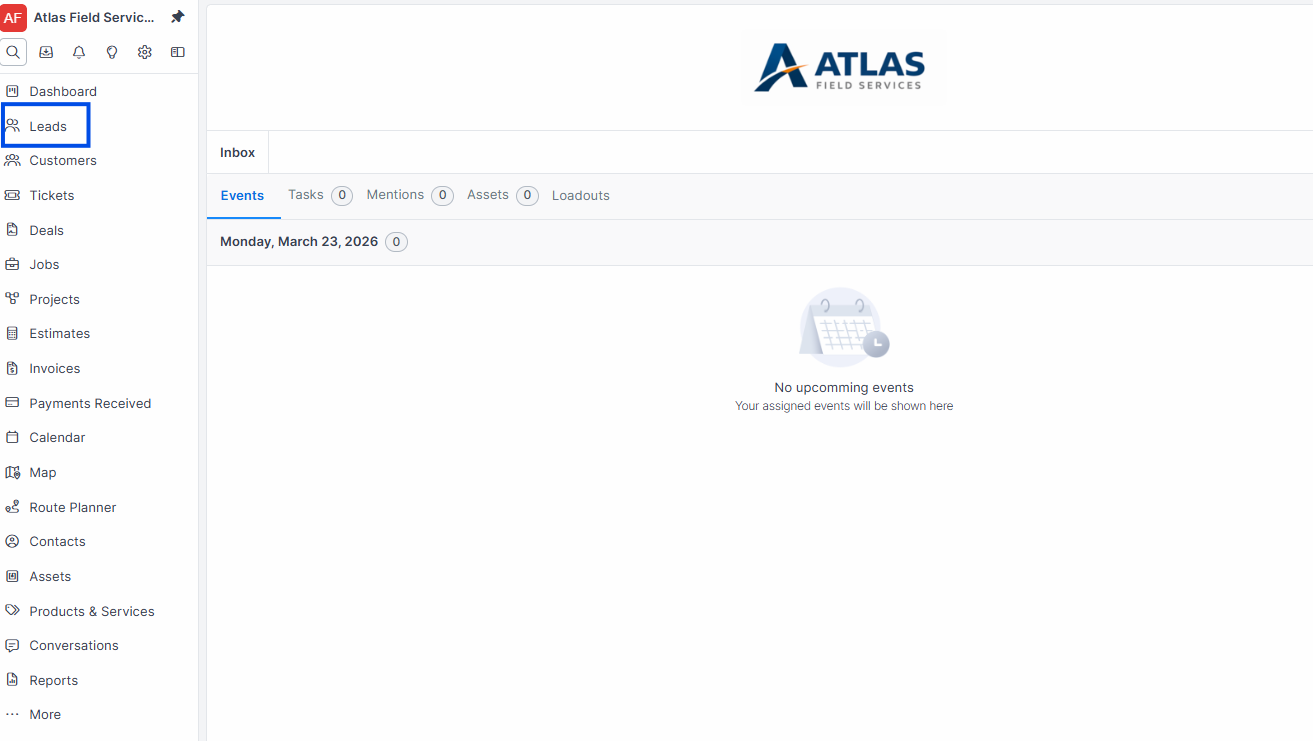
Navigate to Sales > Leads.
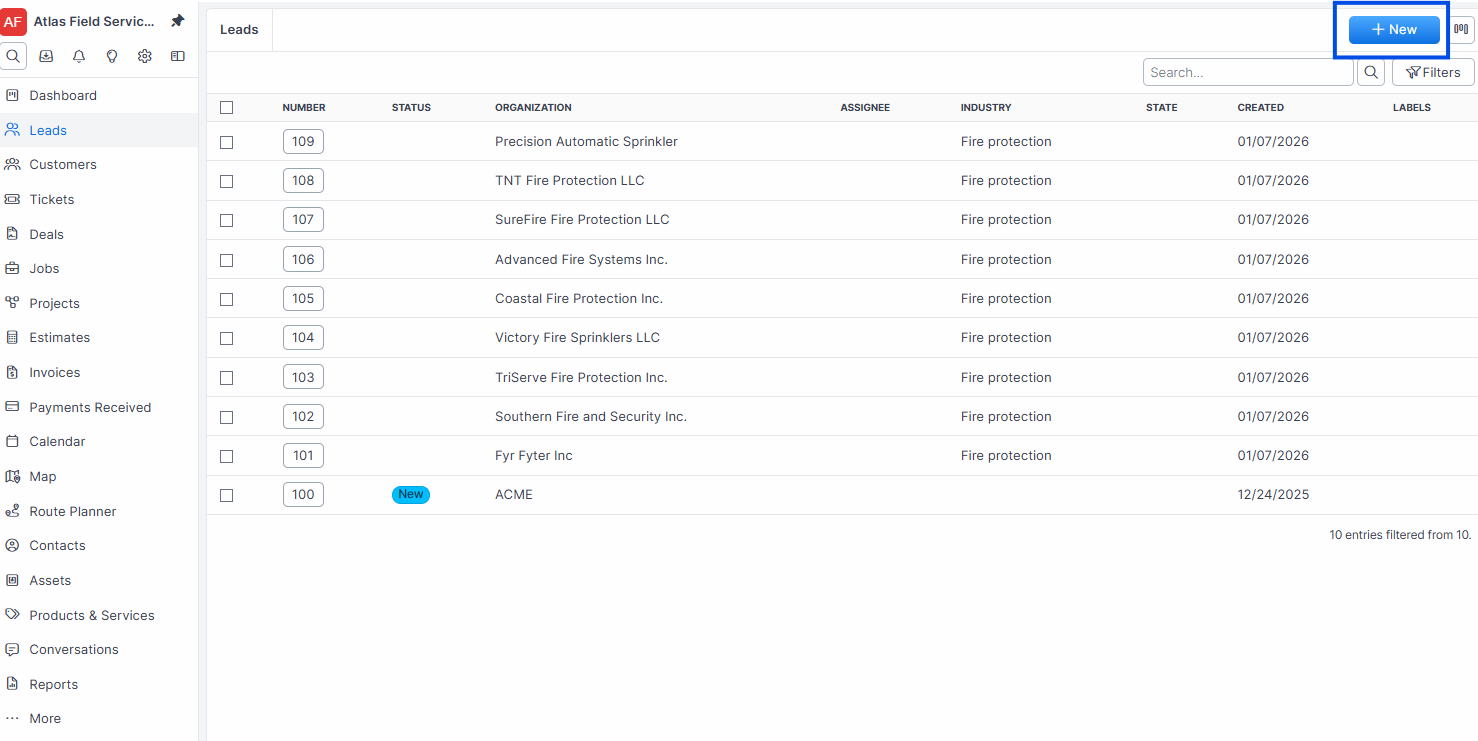
Click the + New button.
Enter the Organization name. This is required and must be unique across your account.
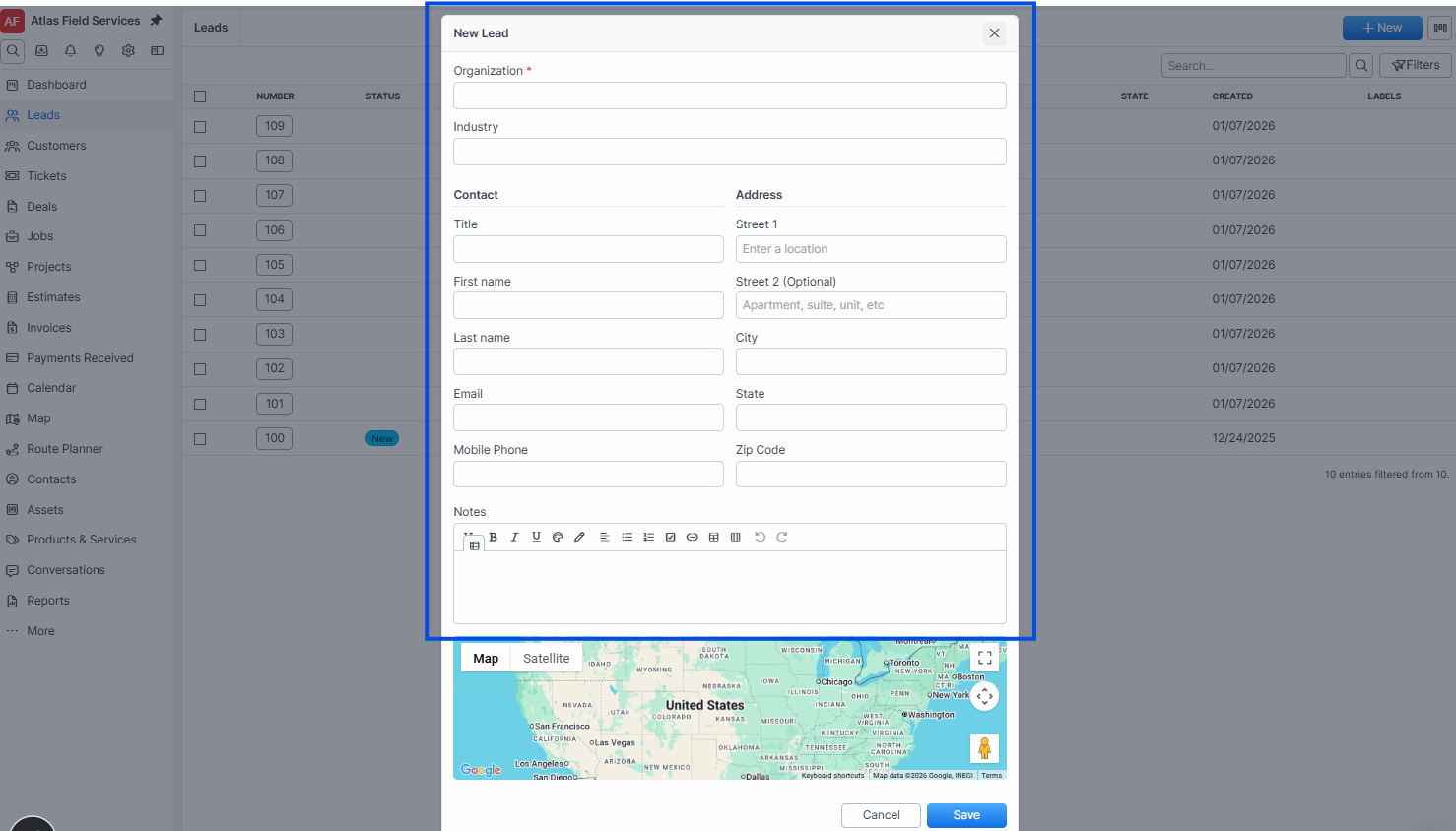
Enter the Email address. Forz validates the format if provided.
Fill in optional contact fields: Title, First Name, Last Name, Main Phone, Mobile Phone, Office Phone, and Fax.
Select an Industry if applicable.
Address
Enter the Street address.
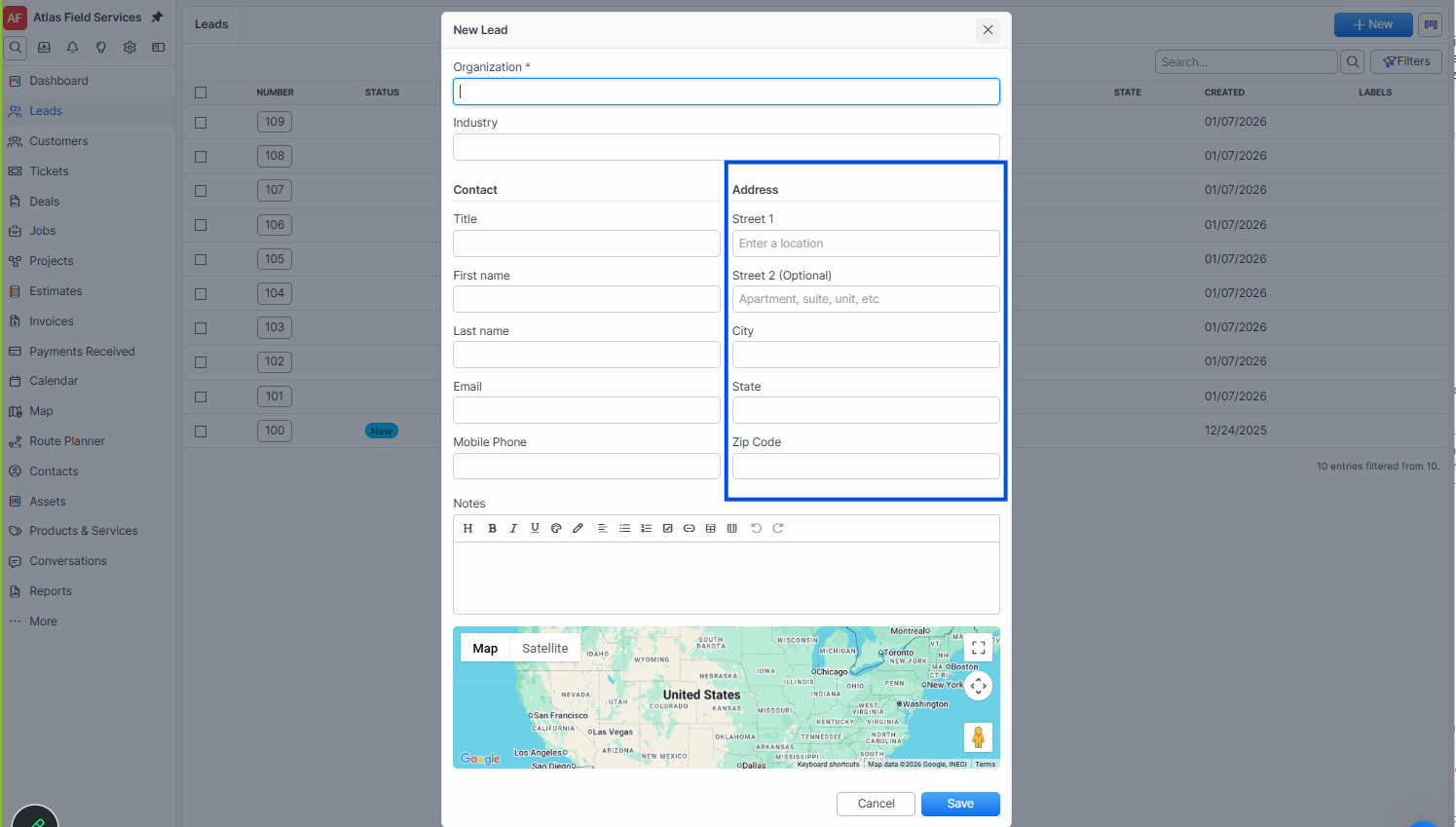
Add Street 2 for suite or unit numbers if needed.
Enter the City, State, and Zip Code.
Click Save.
Expected result: Forz creates the lead with a unique number (e.g., LEAD-1001) and sets the status to the first stage in your lead pipeline. If you provided a first name, Forz also creates a linked contact and a site record from the address automatically.
Note: Forz auto-generates a contact from the lead's name and email fields, and creates a site from the address. You do not need to add these separately.
Duplicate Detection
Forz checks for potential duplicates when you create a new lead. If a similar organization name or email already exists, Forz displays a confirmation dialog before saving.
Fill in the lead creation form and click Save.
If potential duplicates are found, Forz shows a list of similar existing leads.
Review the matches. If the lead is genuinely new, confirm the creation.
If a match is a duplicate, cancel and open the existing lead instead.
Expected result: Forz either creates the lead (if confirmed) or returns you to the form to make changes.
Tip: Duplicate detection uses similarity matching on organization name and email. A match score of 40% or higher triggers the warning. Review matches carefully — similar names (e.g., "ABC Plumbing" and "ABC Plumbing LLC") will flag as potential duplicates.
Using the Board View
The board view displays leads as cards in pipeline stage columns, making it easy to see your qualification funnel at a glance.
Navigate to Sales > Leads.
Switch to the Board view.
Drag lead cards between columns to move them through stages.
Each column loads 10 leads at a time. Scroll or paginate within a column to see more.
Expected result: Leads appear in columns matching your configured lead statuses with color-coded headers.
Assigning a Lead
Assign a lead to a team member for follow-up and qualification.
Open the Lead profile.
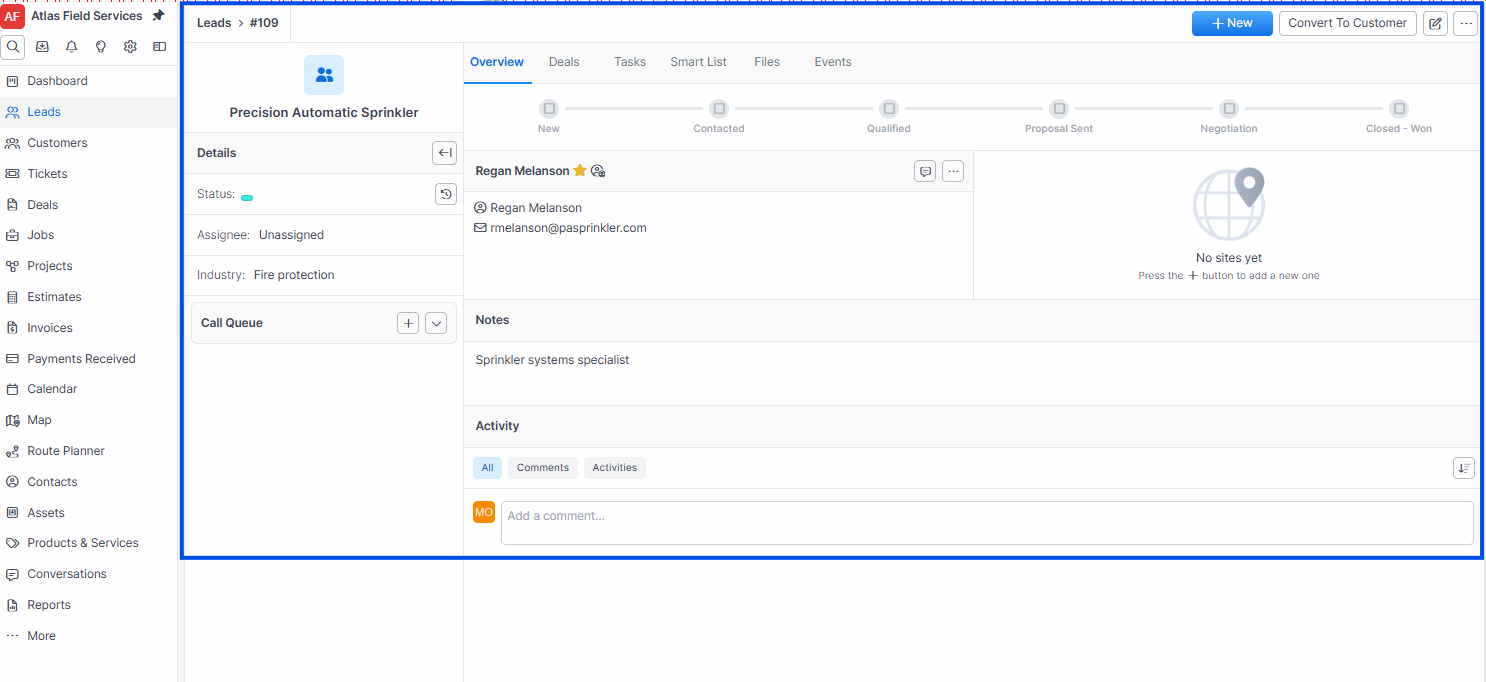
Click Edit.
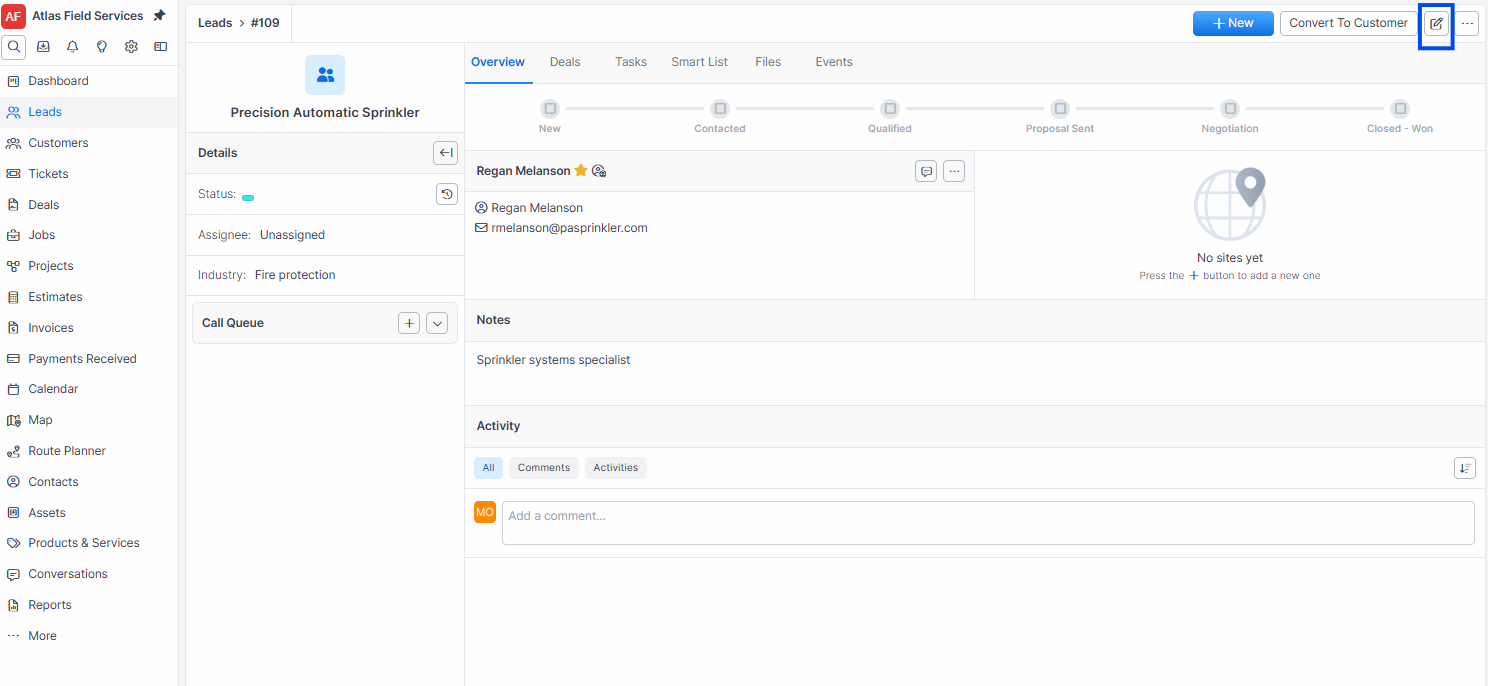
Select an Assignee from the user dropdown.
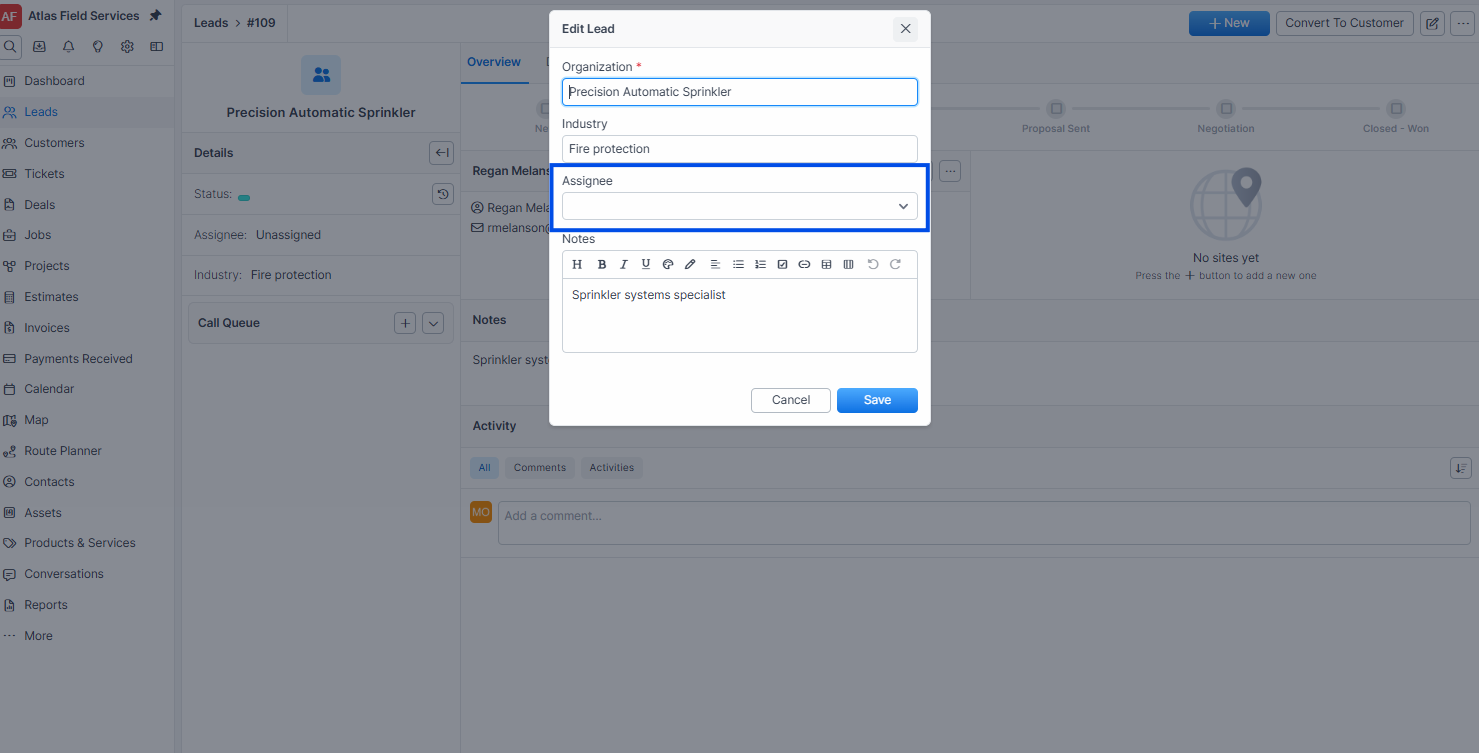
Click Save.
Expected result: The assignee's name appears on the lead in both list and board views. You can filter by assignee to manage individual workloads.
Converting a Lead to a Customer
When a lead qualifies and commits to doing business, convert it to a full customer record.
Open the Lead profile.
Click Convert to Customer .
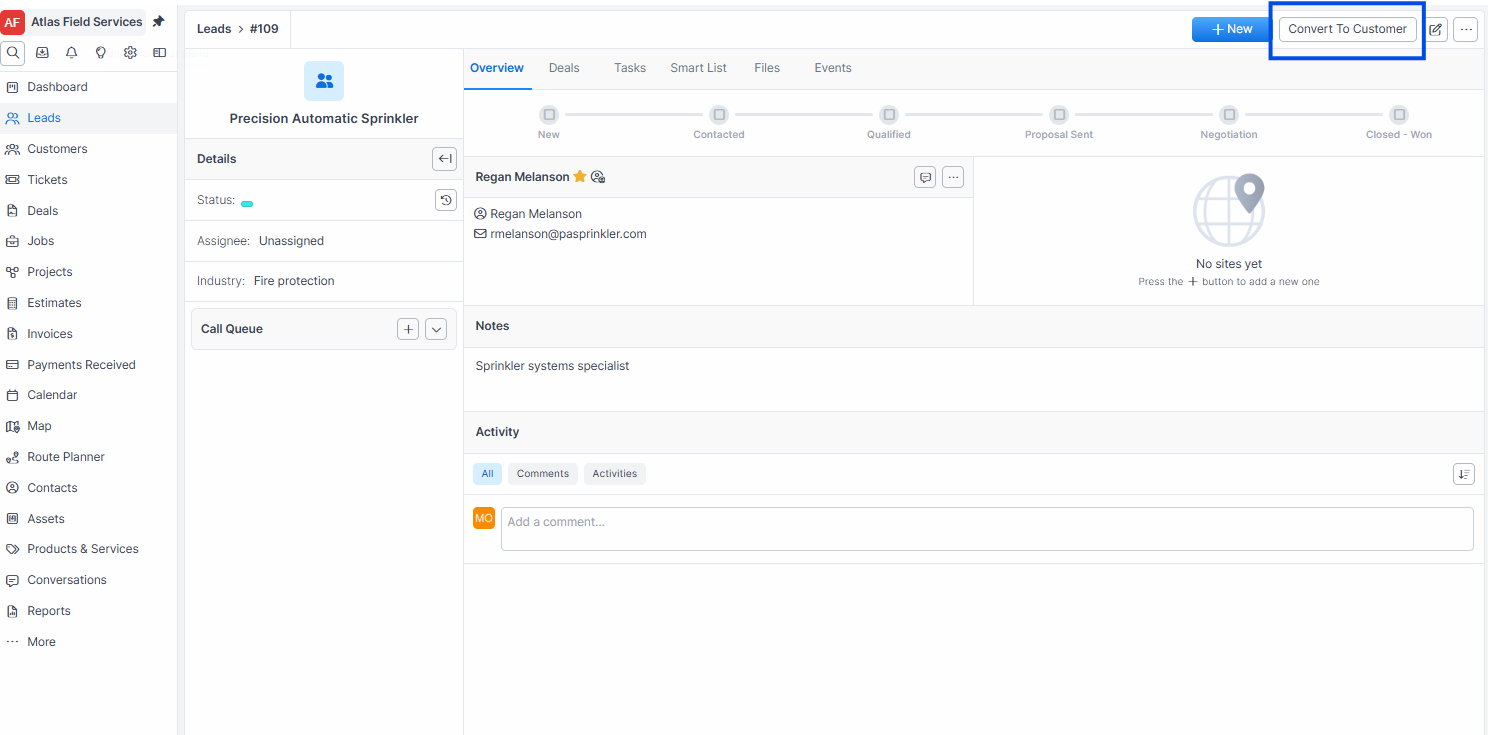
Expected result: Forz creates a new customer record with all the lead's information and performs these transfers automatically:
Contacts — all linked contacts transfer to the customer with primary designation preserved.
Sites — additional sites (beyond the primary) transfer to the customer.
Documents — all uploaded files transfer to the customer.
Tasks — all tasks transfer to the customer.
Deals — all linked deals re-link to the new customer.
Activity note — Forz logs "Converted Lead —> Customer" on the new customer record.
The original lead is moved to the trash bin after conversion.
Warning: Lead conversion is a one-way action. The lead record is deleted after successful conversion. All associated data transfers to the new customer, but the lead cannot be unconverted.
Viewing a Lead Profile
The lead detail page organizes information across several tabs.
Navigate to Sales > Leads and click on a lead.
Use the tabs to view different sections:
Overview — lead details, primary contact, and primary site.
Deals — associated deal opportunities.
Contacts — all linked contacts (appears when 2+ contacts exist)
Sites — service addresses (appears when 2+ sites exist)
Tasks — follow-up tasks and checklists.
Smart List — standardized qualification checklists.
Files — uploaded documents.
Events — scheduled activities and meetings.
Expected result: The lead profile displays with the overview tab selected by default.
What Happens After Creation
When a lead is saved, Forz automatically:
Generates a unique lead number with a LEAD prefix (e.g., LEAD-1001)
Creates a primary contact from the first name, last name, and email fields
Creates a primary site from the address fields (if a street address is provided)
Populates smart list items from your configured lead smart list templates
Sets the initial status to the first active stage in your lead pipeline
Leads from the Public Request Form
If you share your public service request form, a request from an email address that does not match one of your portal contacts becomes a lead rather than a ticket — so nobody is added as a customer before your team has looked at them.
The lead carries the request text, the submitter's name and contact details, and the service address if one was given.
Someone who submits again adds a note to the same lead instead of creating a second one.
A request from a known contact who could not complete email verification also arrives here, rather than on that customer's account.
Qualify and convert these the same way as any other lead.
See Service Requests & Online Booking for the full flow.
Emailing the lead's contacts
Open the lead.
Click + New in the record header and select Email, or, when the lead has two or more contacts, click the paper-plane icon (Email contacts) on the Contacts tab. The Email item is greyed out until a contact on the record has an email address.
Add or remove recipients, write your message (or, if your company has custom email templates, pick one with Use Template), and click Send.
Expected result: The email appears in the Communication History of each contact on it, and the lead gets an "Emailed to …" note. To starts with the lead's primary contact, and its other contacts are one click away. For recipients, templates, and formatting, see Email.
Common Scenarios
Capturing a lead from a trade show
A sales rep meets a property manager at an HVAC trade show and collects their business card.
Navigate to Sales > Leads and click + New.
Enter "Summit Commercial Properties" as the organization.
Enter the contact: "Maria Garcia", email "maria@summitcommercial.com".
Select "Property Management" as the industry.
Enter the office address.
After saving, create a deal from the lead profile for the maintenance contract discussed.
Detecting and merging a duplicate lead
A dispatcher creates a lead for "Johnson Mechanical" but Forz flags "Johnson Mechanical Services" as a potential duplicate.
Review the duplicate detection dialog showing the existing lead.
Determine whether this is the same company (different legal name) or a genuinely different business.
If it is the same company, click Cancel and open the existing lead to add new information.
If it is a different company, click Confirm to create the new lead.
Converting a qualified lead to a customer and creating a job
After a site visit and accepted estimate, a fire safety company converts a qualified lead.
Open the lead "Riverside Office Complex".
Click Convert to Customer.
Forz creates the customer with all contacts, sites, and deals.
From the new customer profile, create a job for the initial fire alarm inspection.
Troubleshooting
Was this helpful?
Still need help? Ask the team