Workflows
Automate repetitive actions across customers, jobs, leads, and tasks with trigger-condition-action workflows.
Overview
Workflows let you define automated rules that run when something happens in Forz. Each workflow follows a When-If-Then structure: a trigger fires (When), optional conditions filter whether it applies (If), and one or more actions execute (Then). Use workflows to send SMS or email notifications, create tasks, apply labels, update statuses, set field values, or fire webhooks — without manual intervention.
Workflows apply to four record types: Customer, Job, Lead, and Task.
Before You Begin
Prerequisites:
The Workflow module is enabled (Settings > Modules).
You have the Workflows: Create permission on your role.
For SMS actions: an SMS credential is configured (Settings > Integrations).
For webhook actions: at least one webhook endpoint is configured (Settings > Webhooks).
Creating a Workflow
Name and Save the Workflow
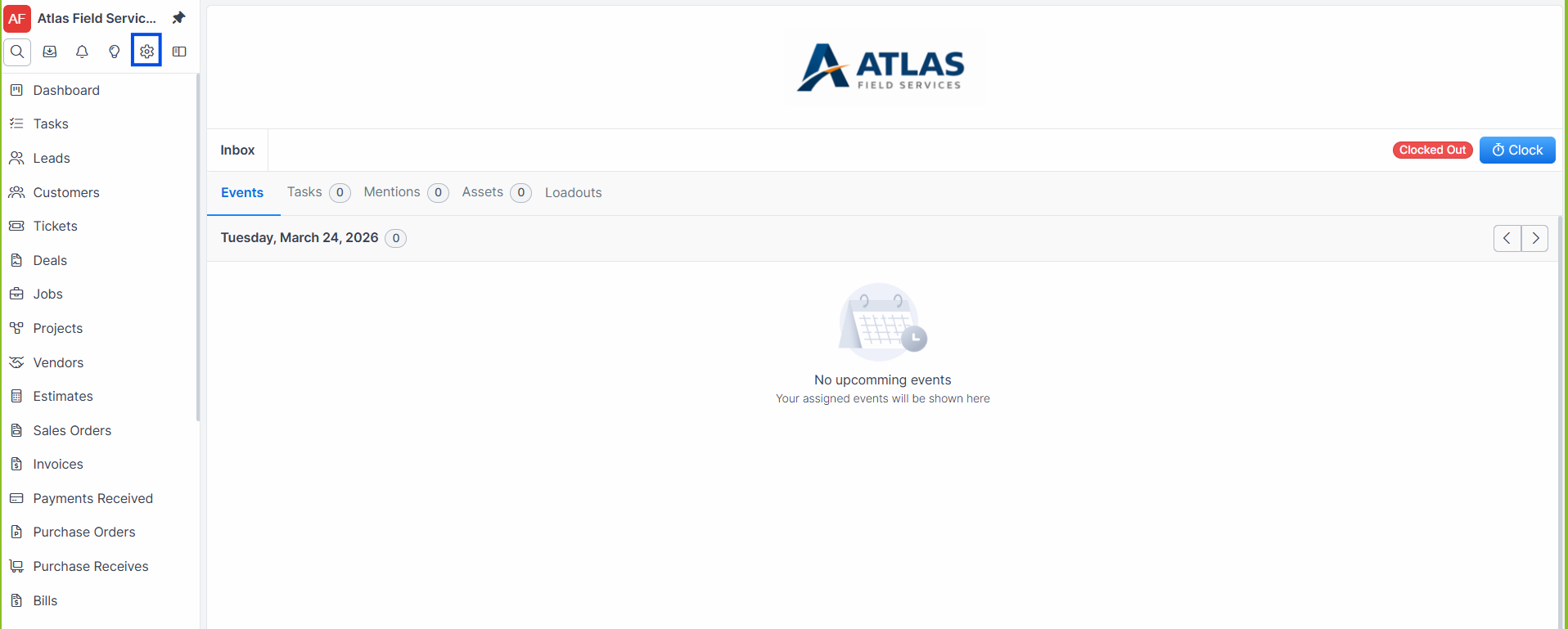
Navigate to Settings > Workflows.
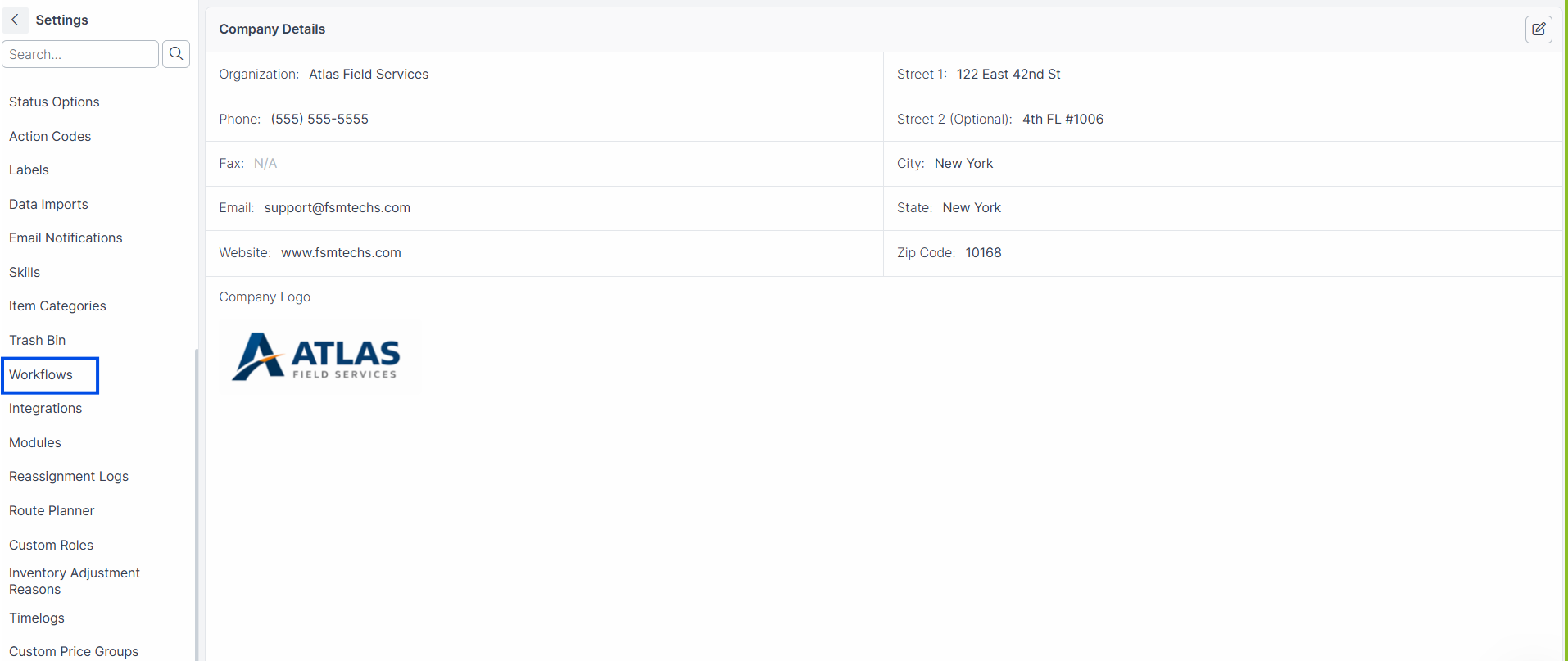
Click the + New button. A dialog opens.
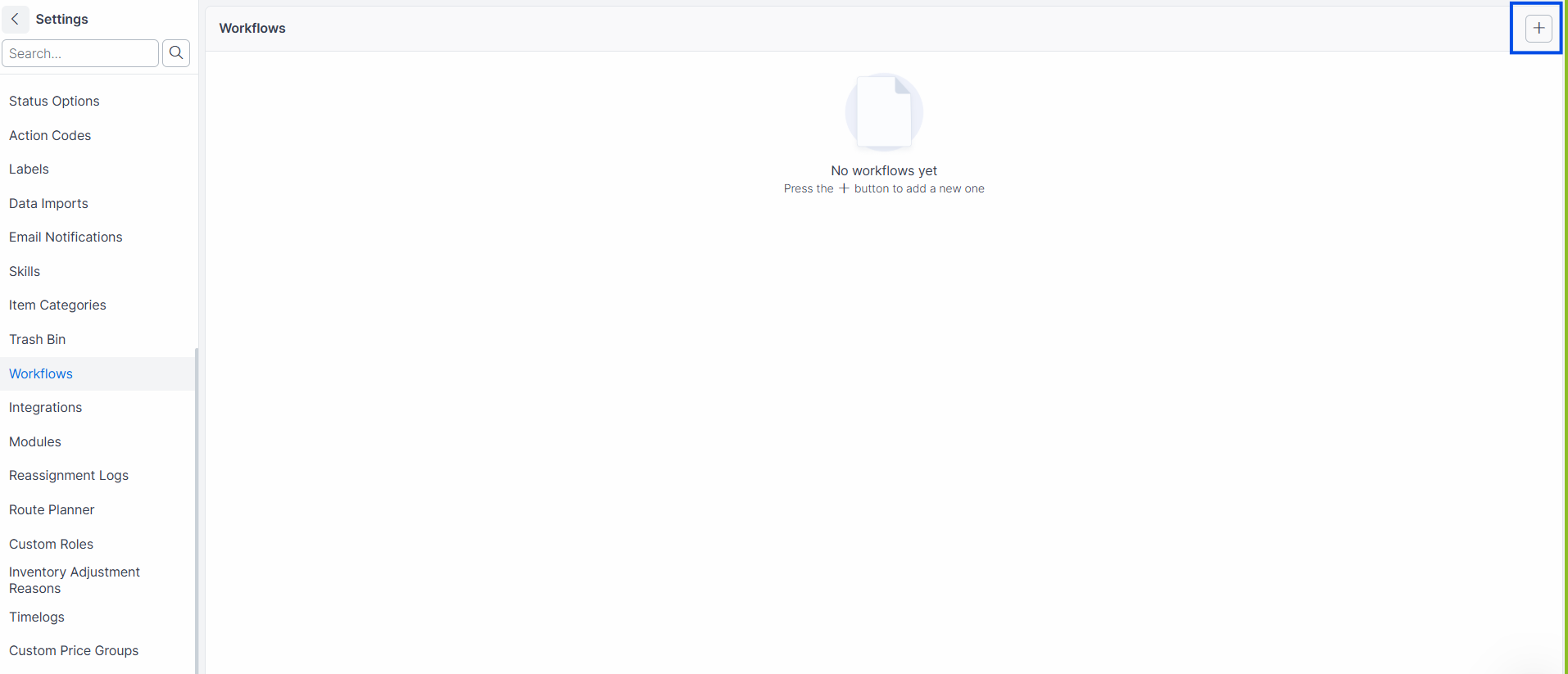
Enter a Name for the workflow (e.g., "Notify tech on job completion").
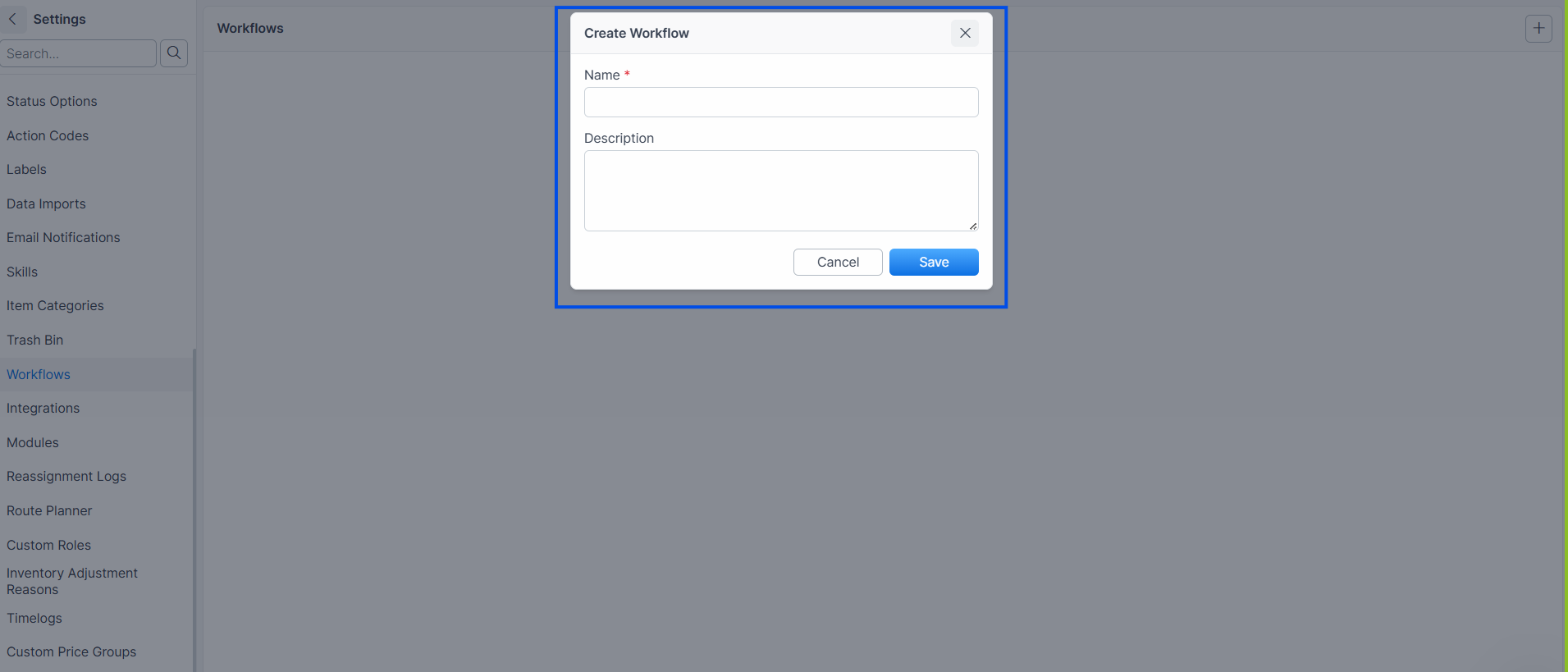
Optionally enter a Description to explain what the workflow does.
Click Save.
Expected result: Forz creates the workflow in an inactive state and opens the workflow builder where you add steps.
Add a trigger (When)
The first step in every workflow is a trigger — the event that starts the workflow.
Click Add Step in the workflow builder. The available trigger types appear.
Select a trigger type:
Record Created — fires when a new record is created.
Record Updated — fires when an existing record is updated.
Manual Trigger — fires only when a user runs the workflow by hand. You must select which Roles can trigger it.
Select the Model the trigger applies to: Customer, Job, Lead, or Task.
Click Save.
Expected result: The trigger step appears at position 1 in the workflow builder with a "When" label.
Add a condition (If) — optional
Conditions narrow when the workflow runs. You can add conditions only after the trigger is set (except for manual triggers, which skip conditions).
Click Add Step below the trigger. The available condition types appear.
Select a condition type:
Record field changes — fires if any of the selected fields changed during the update.
Record field changes to a specific value — fires if a specific field changed to a value matching your operator (Equal to, Not Equal to, Contains, Does not contain).
Record field has a specific value — fires if a field currently holds a specific value, regardless of whether it changed.
Job Status Changes — fires if the job status changed from one status to another (or from "Any Status"). Only available when the model is Job.
Customer Status Changes — only available when the model is Customer.
Lead Status Changes — only available when the model is Lead.
Task Status Changes — only available when the model is Task.
Configure the condition fields and click Save.
Expected result: The condition step appears with an "If" label between the trigger and any actions.
Add an action (Then)
Actions are what the workflow performs when conditions are met.
Click Add Step below the last step. The available action types appear.
Select an action type and configure it:
Click Save.
Expected result: The action step appears with a "Then" label. You can add multiple action steps to a single workflow.
Activating and Deactivating a Workflow
Workflows are inactive by default after creation. An inactive workflow never fires.
Open the workflow from Settings > Workflows.
Click the toggle to switch the workflow between active and inactive.
Expected result: The workflow's active state changes immediately. Active workflows appear at the top of the list; inactive workflows appear below.
Warning: Activating a workflow with a "Record Created" or "Record Updated" trigger means it runs on every qualifying event going forward. Test your workflow logic before activating in a production account.
Editing a Workflow
Navigate to Settings > Workflows.
Click the workflow name to open it.
Click a step to select it and modify its settings.
Click Save after making changes.
Expected result: The step configuration updates. If the workflow is active, changes take effect on the next trigger event.
Deleting a Workflow
Navigate to Settings > Workflows.
Open the workflow you want to remove.
Click Delete.
Expected result: The workflow moves to the trash bin and stops running. Deleted workflows can be restored from the trash bin.
What Happens After a Workflow Runs
When a trigger fires and conditions pass, Forz executes each action step in order:
SMS and Email actions — the message is queued and sent. Delivery depends on your SMS credential and email configuration.
Create Job Task — a new task appears on the job's task list with the configured title, description, and assignee.
Add Labels — labels are appended to the record (existing labels are not removed).
Set Field Value — the field is overwritten with the new value.
Update Status — the record's status changes, which may trigger other workflows.
Send Webhook — Forz sends a POST request to the configured endpoint with the record data.
Warning: An "Update Status" action can trigger another workflow that watches for status changes. Design your workflows carefully to avoid infinite loops.
Common Scenarios
Notifying a technician when a job is assigned
A plumbing company wants to send an SMS to the assigned technician whenever a job is scheduled.
Create a workflow named "SMS tech on scheduling."
Add a Record Updated trigger on the Job model.
Add a Job Status Changes condition with "From: Unscheduled" and "To: Scheduled."
Add a Send SMS action with the technician's phone number and a message like "New job assigned: {{title}}."
Activate the workflow.
Auto-labeling new leads by source
A fire safety company wants to tag every new lead with a "Website" label when it comes in.
Create a workflow named "Label website leads."
Add a Record Created trigger on the Lead model.
Add a Record field has a specific value condition checking the source field equals "Website."
Add an Add Labels action selecting the "Website" label.
Activate the workflow.
Creating follow-up tasks on job completion
An HVAC service company wants a follow-up task created every time a maintenance job is completed.
Create a workflow named "Follow-up after maintenance."
Add a Record Updated trigger on the Job model.
Add a Job Status Changes condition with "From: Any Status" and "To: Complete."
Add a Create Job Task action with title "Schedule 6-month follow-up" and assign it to the account manager.
Activate the workflow.
Troubleshooting
Was this helpful?
Still need help? Ask the team