Call Lists
Create and manage scheduled outbound call lists for systematic customer and lead follow-up.
Overview
Call Lists organize outbound calling into structured lists with scheduled dates, assigned users, and configurable actions. Each list contains items (customers or leads) that need to be called, with a call date and optional user assignment. When a call is completed, the user selects an action (keep, remove, or reschedule) and adds notes. Call list help service companies maintain consistent follow-up for sales, renewals, maintenance reminders, and collections.
Before You Begin
Prerequisites:
You have the Call List: View permission on your role.
The Call List module is enabled (Settings > Modules).
At least one customer or lead record exists to add to the list.
Viewing Call Lists
Click Call Lists in the sidebar navigation.
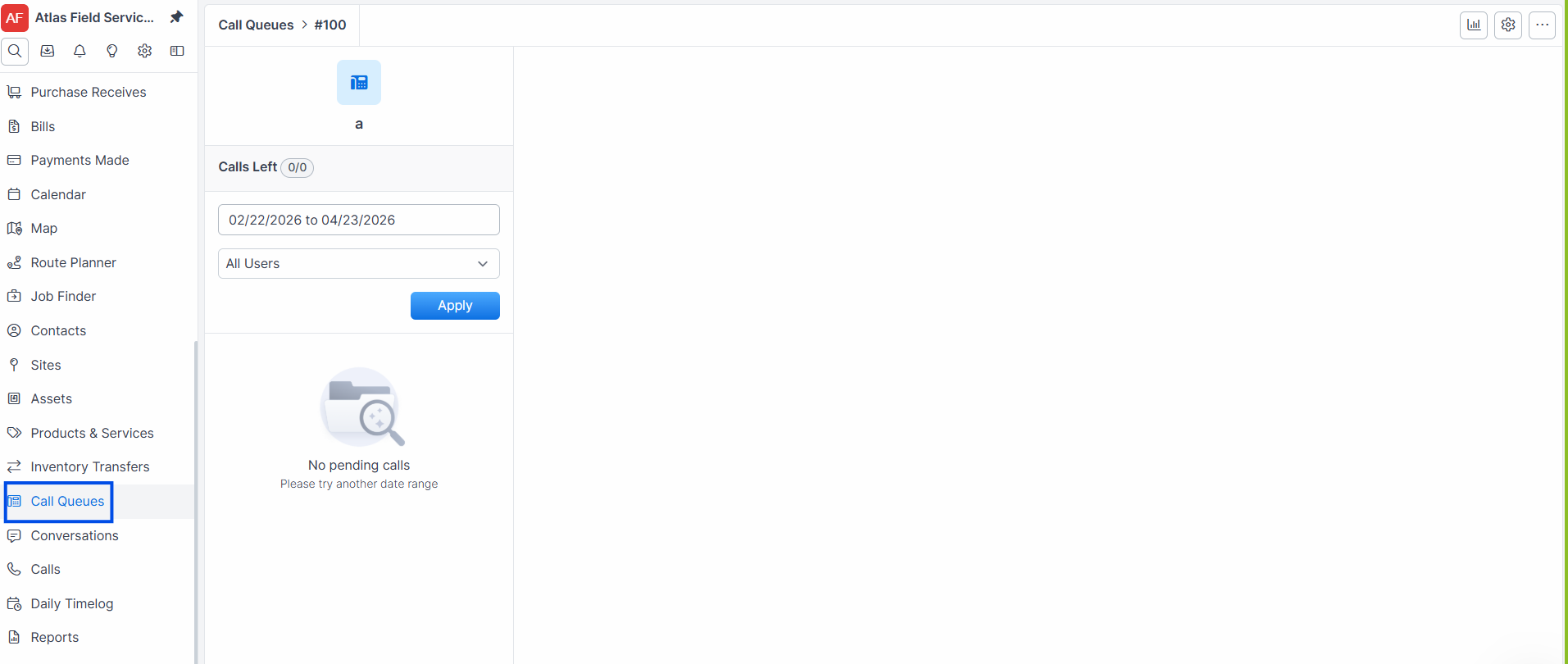
The list displays all active call lists with their number, name, description, and creation date.
Use the search bar to filter lists by name.
Expected result: The Call Lists index loads all lists, sorted and paginated. Each row links to the list’s detail view.
Creating a Call List
Click Call Lists in the sidebar.
Click the + New button.
Enter a Name for the list. This is required (e.g., "Q1 HVAC Maintenance Renewals").
Enter a Description to explain the list's purpose.
Add a Script — a call script that agents can reference while making calls.
Click Save.
Expected result: The Call List is created with a sequential list number (e.g., #0012) and opens in the detail view.
Configuring Call List Actions
Actions define the outcomes available when a user completes a call from the list. Each list has its own set of custom actions.
Open a call list and click Settings.
Click + New to add a new action.
Enter a Name (e.g., "Interested - Schedule Appointment," "Not Interested," "No Answer - Reschedule").
Select an Action Type:
Keep — the item stays in the list for future follow-up.
Remove — the item is archived and removed from the active list.
New Date — the item is rescheduled to a new call date.
Select a Comment Option: Optional or Required (forces the user to add notes).
Choose a Color for visual identification.
Click Save.
Expected result: The action appears in the list's settings. Actions are displayed in position order and available when processing list items.
Adding Items to a Call List
From the Call List
Open the call list.
Click Add.
Search for and select a Customer or Lead.
Set the Call Date for when the item should be called.
Optionally assign a User to handle the call.
Click Save.
Expected result: The item appears in the list's item list on the assigned date. A note is added to the customer/lead record: "Added to [List Name] CallQ."
Warning: Forz prevents duplicate pending items. You cannot add the same customer or lead to the same list for the same call date if a pending item already exists.
From a customer or lead record
Open a customer or lead record.
Navigate to the call list section.
Select the list and set the call date.
Click Save.
Expected result: The item is added to the selected list, and a note is created on the record.
Processing Call List Items
Open a call list.
Use the date range filter to focus on items due for calling.
Use the user filter to view items assigned to a specific user or select All.
Click on an item to open it.
After completing the call, select an Action (e.g., "Interested," "No Answer - Reschedule").
Add Notes (required or optional, depending on the action configuration).
If the action type is New Date, select the new call date.
Expected result: The action is recorded, notes are saved to the customer/lead record, and the item is processed according to the action type (kept, removed, or rescheduled). Forz navigates to the next pending item in the list.
Viewing Call List Statistics
Open a call list.
Click Stats.
Use the date range and user filters to adjust the reporting period.
Expected result: The stats page displays two charts:
Actions pie chart — breakdown of completed actions by type (e.g., 40% "Interested," 30% "No Answer," 30% "Not Interested")
Calls by user bar chart — number of completed calls per assigned user
Duplicating a Call List
Open the call list you want to duplicate.
Click Duplicate.
Expected result: Forz creates a copy of the list with the name "Original Name" and duplicates all configured actions. Items are not copied.
What Happens After Processing an Item
When you complete an action on a list item, Forz automatically:
Records the action — saves the action type, notes, timestamp, and the user who performed it
Creates a note on the customer or lead record with the action details
Processes the item based on action type:
Keep: archives the current item and creates a new pending item for today
Remove: archives the item (marks as completed)
New Date: archives the current item and creates a new pending item for the selected date
Navigates to the next item in the list so the user can continue calling
Common Scenarios
Quarterly HVAC maintenance renewal calls
A dispatcher creates a call list named "Q2 HVAC Renewals" with actions: "Renewed - Remove" (type: Remove, comment: Required), "Call Back Later" (type: New Date, comment: Optional), and "Declined" (type: Remove, comment: Required). She adds 150 customers with expiring maintenance contracts, sets call dates across the next two weeks, and assigns them to three sales representatives. Each rep opens the list daily, works through their items, and records outcomes.
New lead follow-up for a pool service company
A sales manager creates a list called "March Web Leads" and adds all leads captured from the company website. Each lead gets a call date of the day after they submitted their inquiry. The assigned salesperson opens the list, calls each lead, and marks them as "Qualified - Schedule Estimate" (keep for follow-up), "Not Qualified" (remove), or "No Answer" (reschedule for tomorrow).
Troubleshooting
Was this helpful?
Still need help? Ask the team