Creating Jobs
Create new jobs to track field service work for your customers.
Overview
A job represents a unit of field service work — an installation, repair, maintenance visit, inspection, or troubleshooting call. Every job is linked to a customer and assigned a job type. Jobs flow through configurable statuses, can be scheduled on the calendar, dispatched via the route planner, and converted into invoices or estimates.
Before You Begin
Prerequisites:
Your account has at least one customer record created.
Job types are configured (Settings > Job Types).
Default types: Inspection, Installation, Maintenance, Repair, Troubleshoot.
You have the Jobs: Create permission on your role.
Creating a Job
Required fields
Click Jobs in the sidebar navigation.
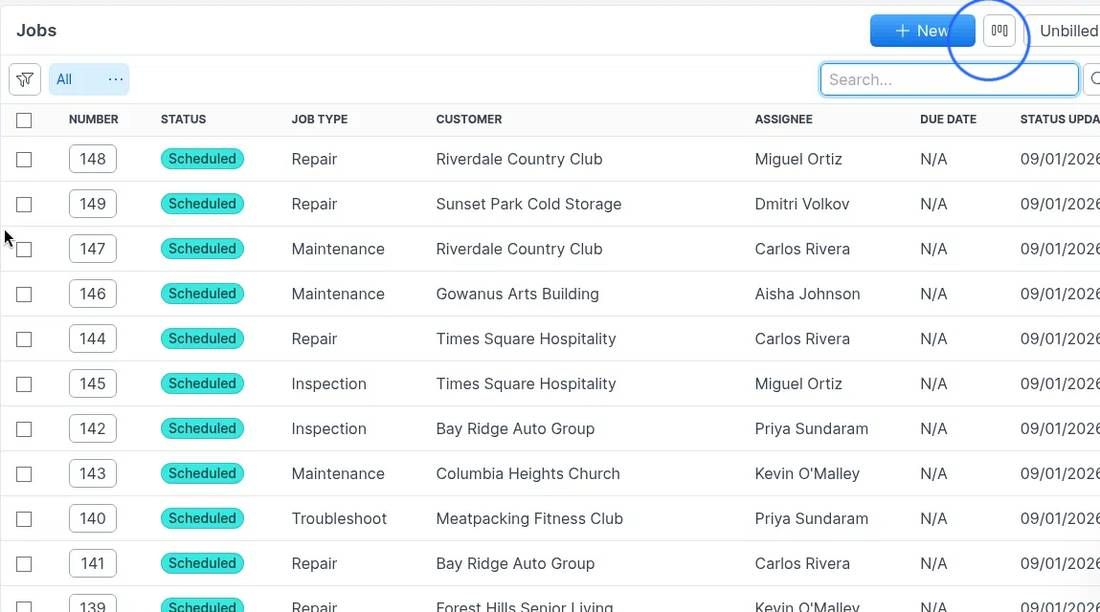
Click the + New button in the top-right corner. The New Job drawer opens on the right.
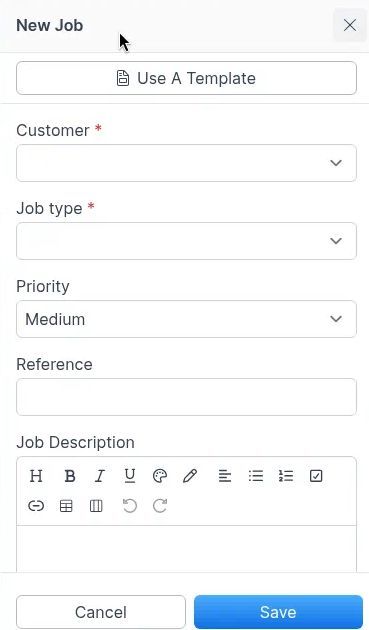
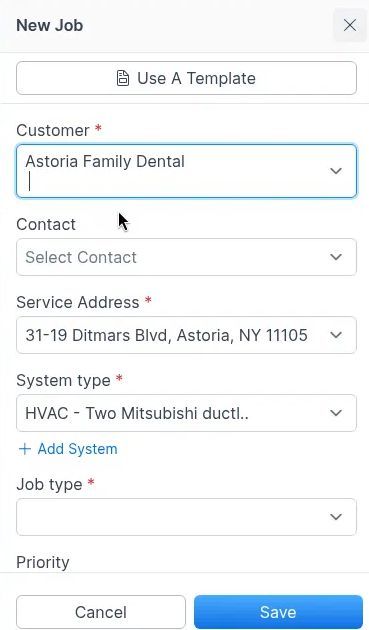
Select a Customer (required). After you select a customer, Contact and Service Address appear. Service Address is required.
Select a System type (required), or use + Add System if you need to add one.
Select a Job type (required). Options come from your configured job types.
Optional and additional fields
Select a Contact — the person at the customer location who is the point of contact for this job.
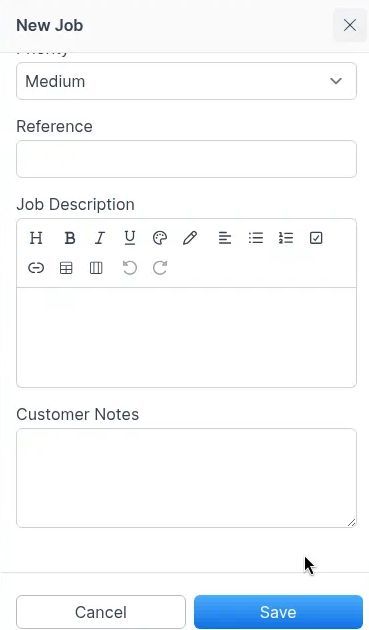
Set Priority (defaults to Medium).
Enter a Reference — a PO number, work order reference, or external ID for your own tracking.
Enter a Job Description — use the rich text editor to describe the scope of work.
Enter Customer Notes if needed.
Click Save. Click Cancel to close without creating a job.
Expected result: The job is created with the first status in your job status workflow (typically "Unscheduled") and assigned a sequential job number (e.g., JOB-1042). Scheduling and line items are managed on the job detail view after save — they are not part of the create drawer.
Note: Forz auto-generates the job title from the system type and job type (e.g., "HVAC Maintenance"). You can edit the title after creation by clicking it in the detail view.
Creating a Job from a Template
Job templates can pre-fill details such as job type, description, labels, tax rate, and line items (products and services).
Open the New Job drawer (Jobs > + New).
Click Use A Template at the top of the drawer.
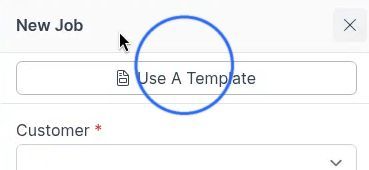
Select a Customer and choose a job template.
Review the pre-filled fields, then click Save.
Creating a Sub-Job
Sub-jobs let you break a parent job into smaller work items that are tracked separately.
Open an existing job.
Open the Sub jobs tab.
Click New Sub Job.
Enter a Description for the sub-job, then click Save.
The sub-job inherits the parent’s customer, service address, system, and job type. It gets its own job number and status.
What Happens After Creation
When a job is saved, Forz automatically:
Assigns a job number — sequential, unique (e.g., JOB-1042)
Sets the initial status — the first status in your Job status workflow
Creates dispatch info — default time window (Any Day, 6:00 AM – 6:00 PM) and duration (30 minutes)
Populates smart list items — if the system has smart list templates configured
Creates an inspection — if the job type is "Inspection", the Inspection module is enabled, and a system is selected
Logs the creation — a note is added recording who created the job
Job Detail View
After creation, the job opens in a two-column layout:
Left column — Details:
Customer (linked)
Status (with status workflow controls)
Job type, reference, assignee, created by
Labels
Dispatch info (skills, schedule date, due date, duration, time window)
Scheduled events (calendar entries)
Timers (activity logs)
Custom fields (if configured)
Route planner info
Related estimate and invoice links
Right column — Tabs:
Overview — products & services (line items), totals, discounts
Sub jobs — child jobs (only visible on parent jobs)
System — system details (if Systems module enabled)
Tasks — task checklist attached to the job
Files — attached documents, photos, and files
Common Scenarios
Scheduling a repair after a customer call
Create a new job, select the customer and Service Address, and set job type to Repair.
Add a description of the reported issue.
Save the job.
Open Calendar, click an empty slot, then choose New Event or Schedule Job.
For full calendar steps, see Scheduling Jobs or Events.
Creating multiple jobs from the same template
If your team performs recurring service types (e.g., quarterly HVAC maintenance), create a job template with the standard line items and description. From the New Job drawer, click Use A Template for each job — then select the customer and service address as needed.
Converting a job to an invoice
Open the job and go to the Overview tab.
Add products and services (line items) with quantities and prices.
Click the Generate Invoice button.
Forz creates a draft invoice with all line items copied from the job.
Troubleshooting
Was this helpful?
Still need help? Ask the team