Projects
Organize multiple jobs, tasks, invoices, and time logs under a single project for large or ongoing work.
Overview
Projects group related work into a single view. Use projects for multi-visit engagements, ongoing service contracts, or large jobs that span multiple work orders. Each project tracks its own tasks, jobs, invoices, time logs, purchase orders, estimates, expenses, and files. Forz calculates financial summaries — billed, paid, and outstanding amounts, so you can monitor project profitability at a glance.
Projects come in two types: Customer Projects (linked to a customer record) and Internal Projects (not tied to a customer, for internal operations).
Before You Begin
Prerequisites:
The Project module is enabled (Settings > Modules).
You have the Projects: Create permission on your role.
For customer projects: at least one customer record exists. At least one project status is configured (Settings > Statuses > Project).
Creating a Customer Project
Click Projects in the sidebar navigation.
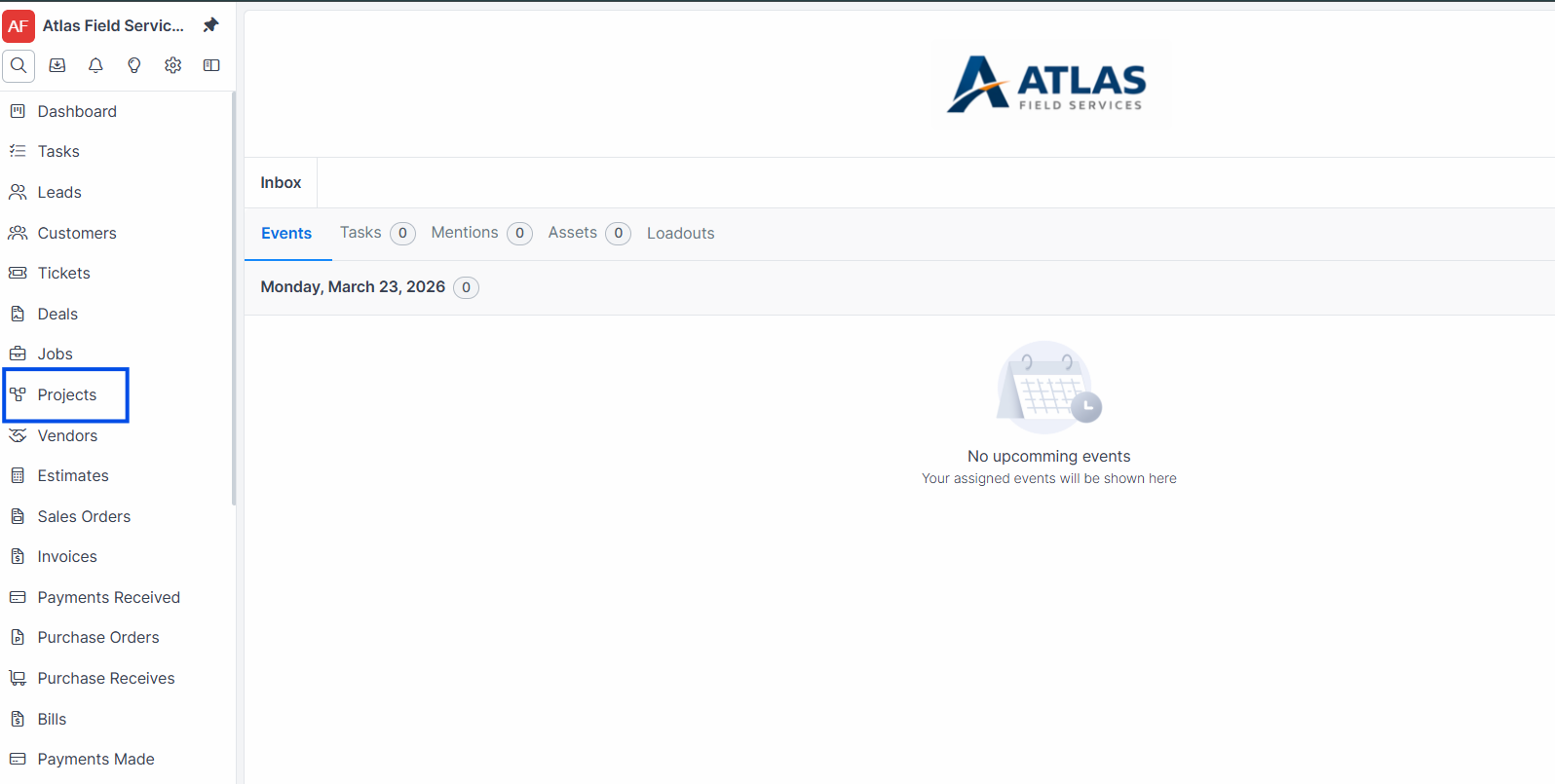
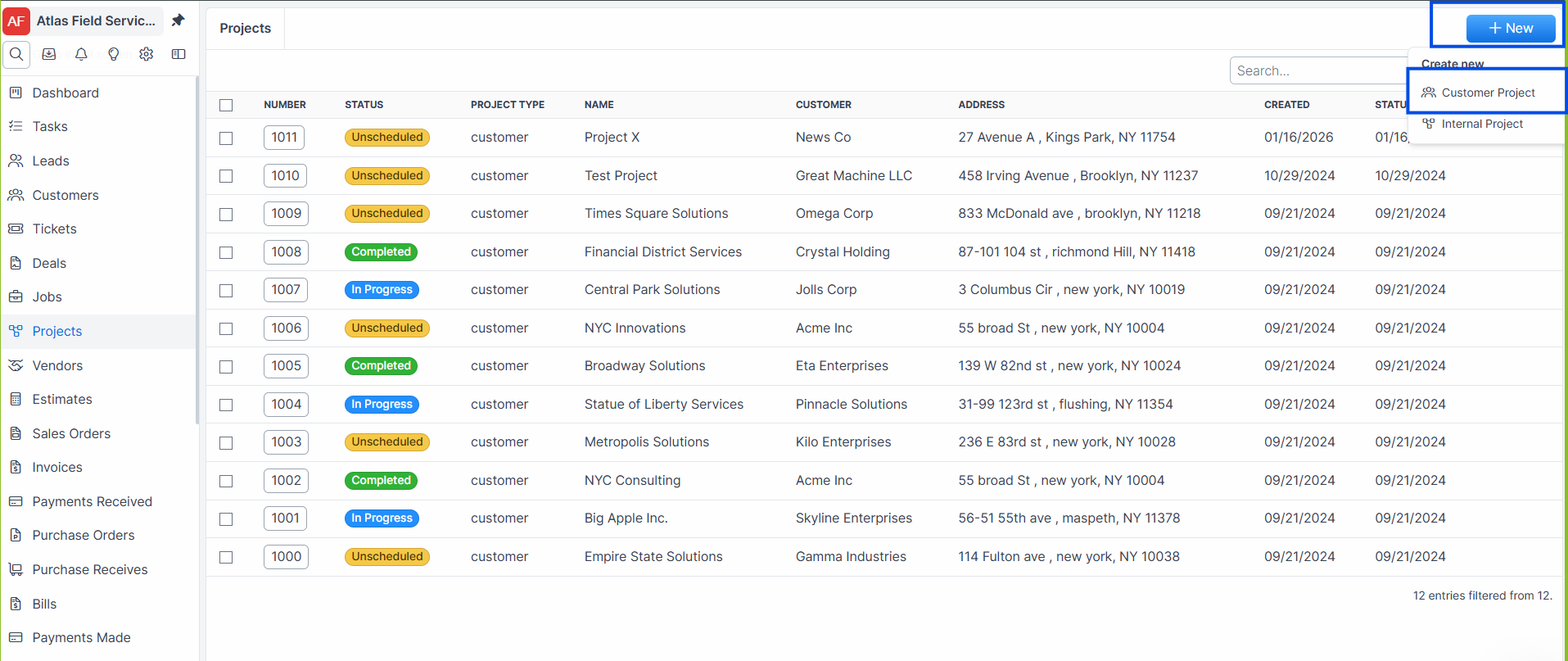
Click Customer Project.
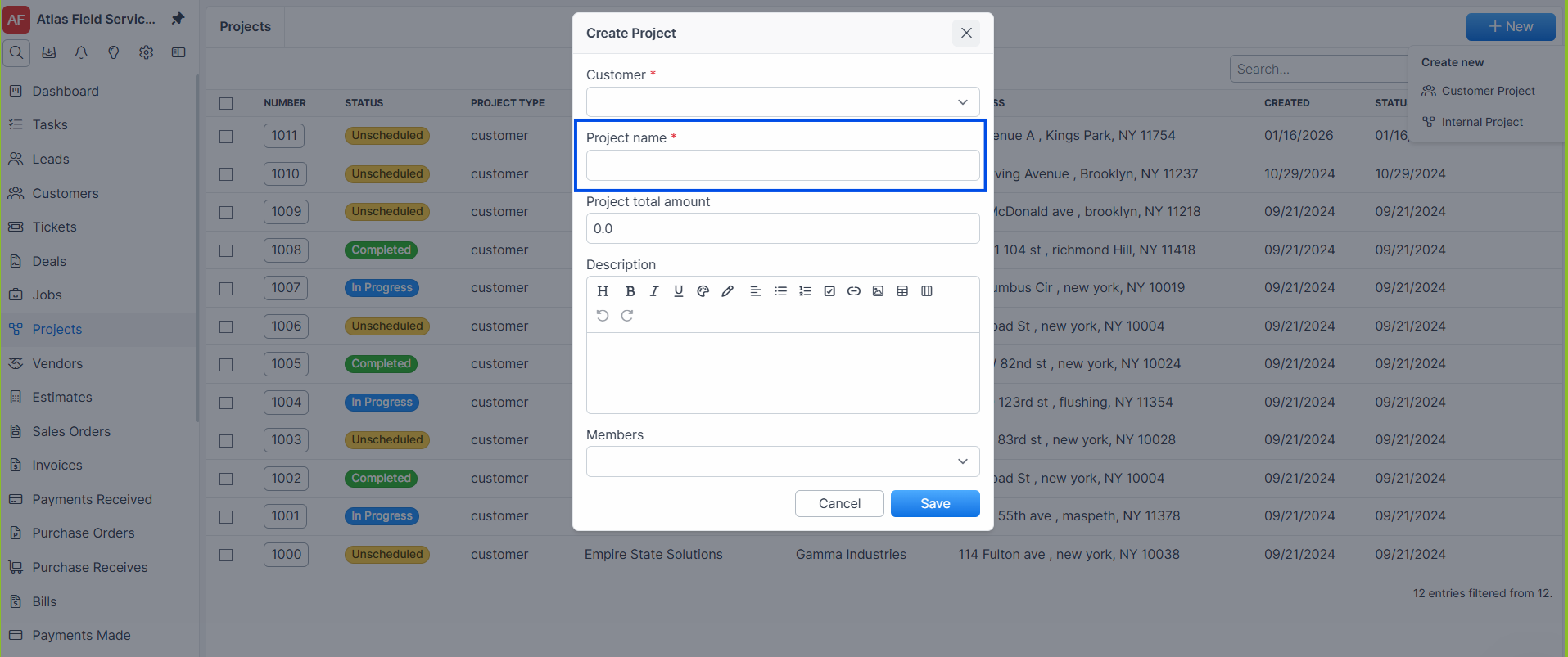
Enter a Name for the project (e.g., "Johnson Residence - Full Renovation"). This is required.
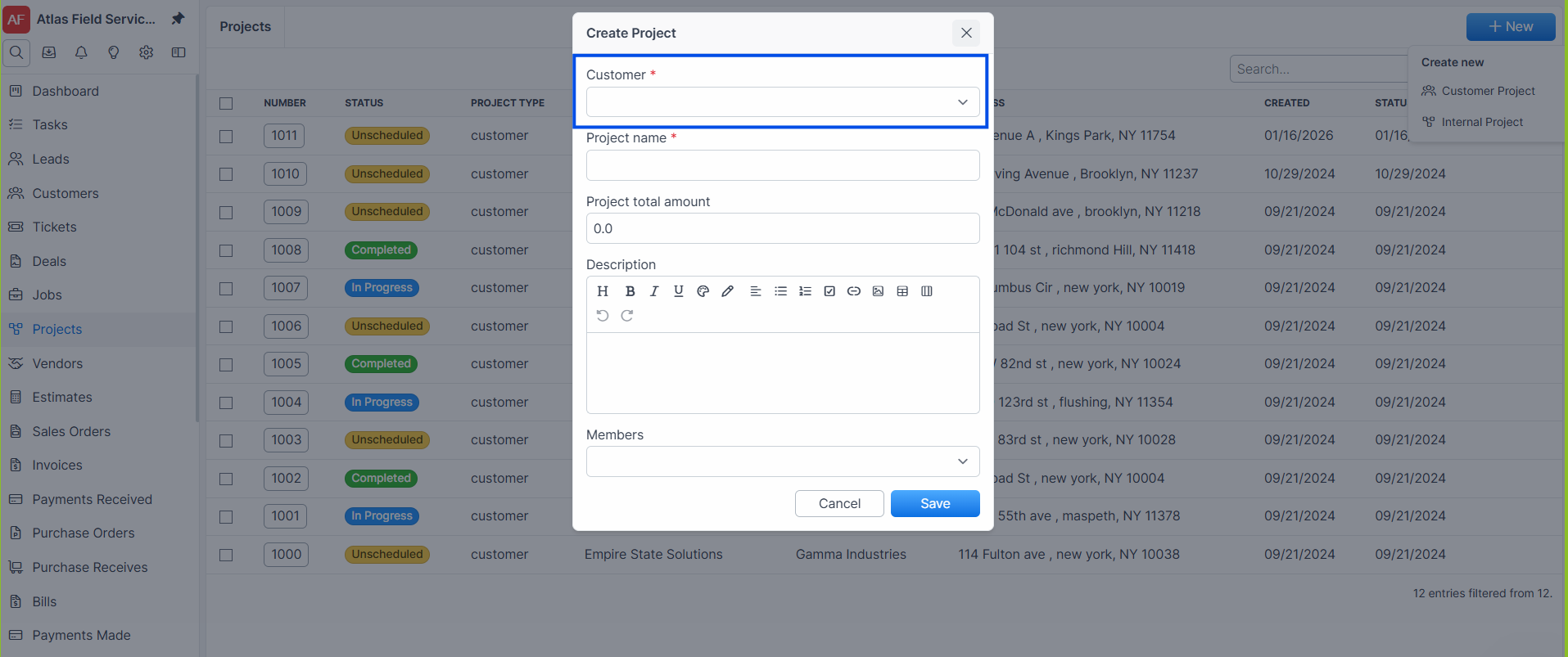
Select a Customer from the dropdown. This is required for customer projects.
Optionally select a Service Address from the customer's addresses.
Optionally select a Contact from the customer's contacts.
Optionally enter a Description.
Click Save.
Expected result: Forz creates the project with the first project status (e.g., "Open"), assigns a sequential project number (e.g., PRJ-1008), and opens the project detail page.
Creating an Internal Project
Internal projects track operational work not tied to a customer — fleet maintenance, office renovations, training programs, or equipment upgrades.
Click Projects in the sidebar.
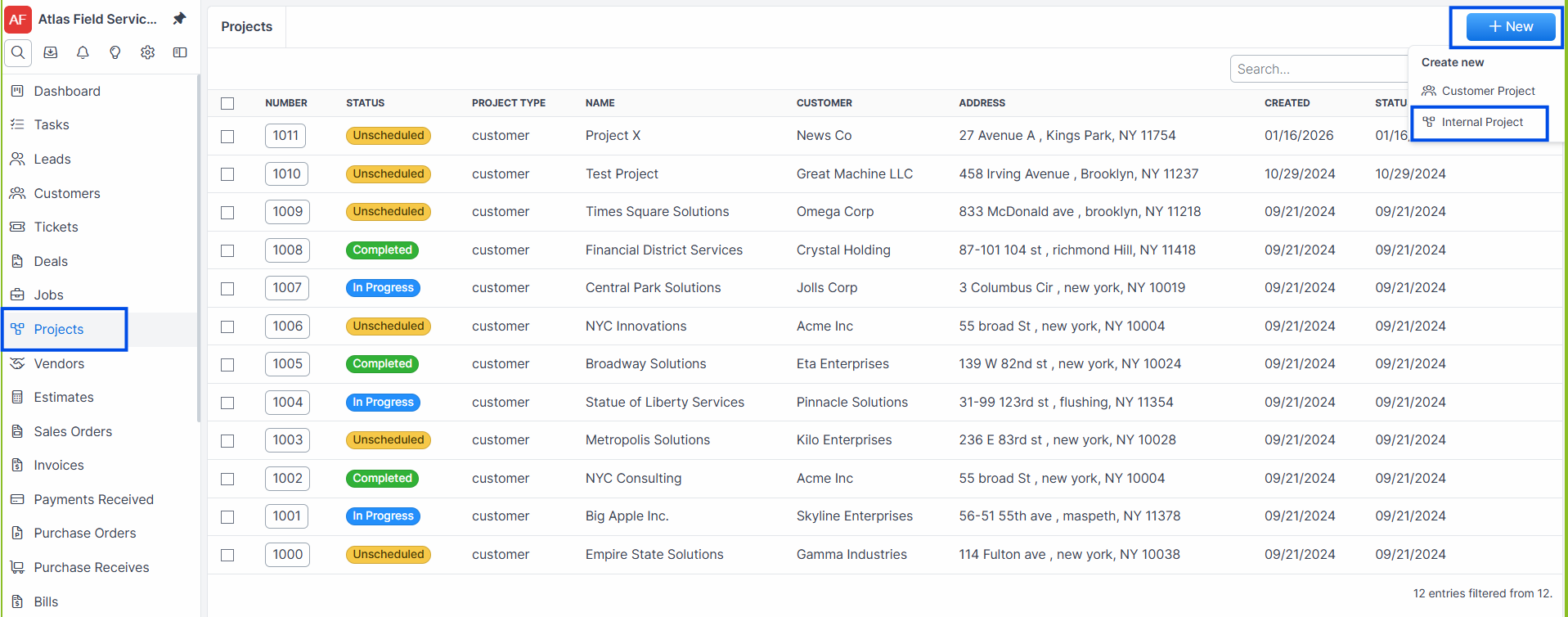
Click Internal Project.
Enter a Name for the project.
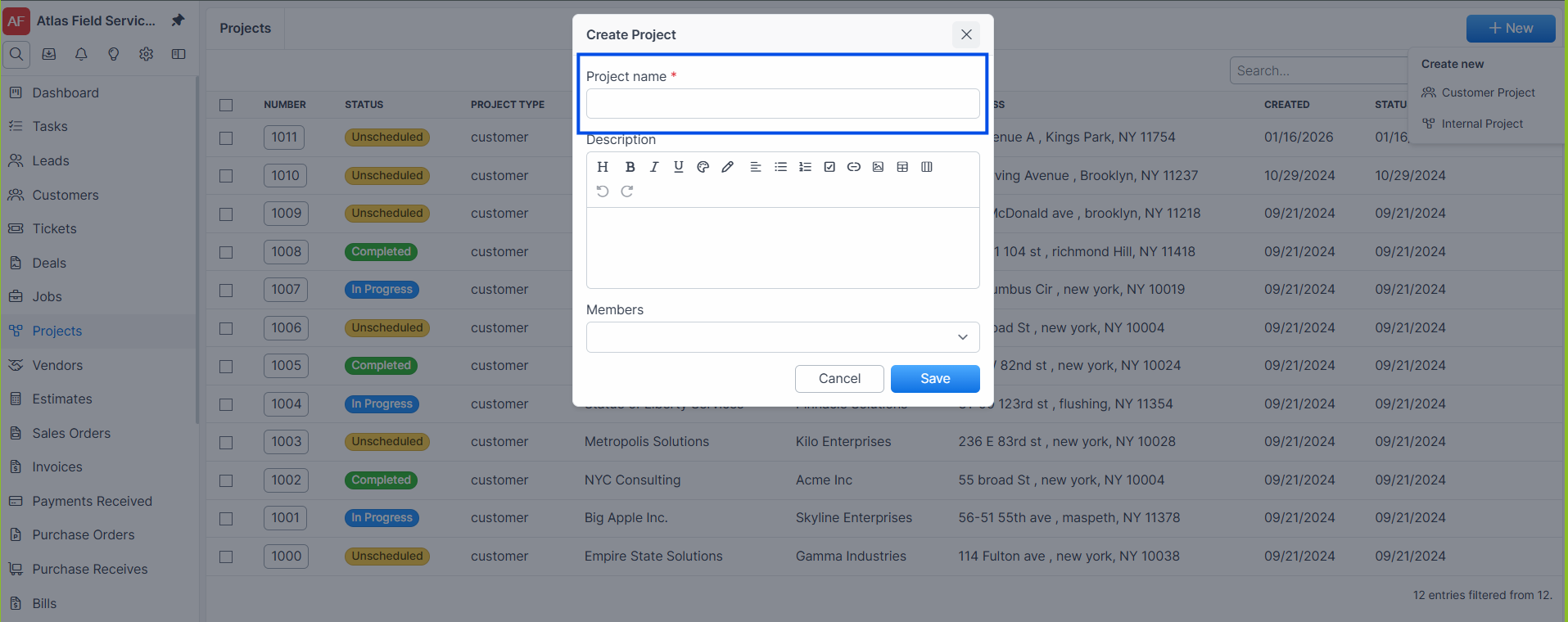
Optionally enter a Description.
Click Save.
Expected result: Forz creates the internal project. Internal projects do not require a customer and show a simplified set of tabs (overview, tasks, and files).
Project Detail Tabs
The project detail page organizes information into tabs. Available tabs differ between customer and internal projects.
Overview
Displays the project name, status, number, customer (if applicable), address, contact, description, and labels. For customer projects, a financial summary card shows billed, paid, outstanding, and revenue amounts.
Contacts
Appears when the project has two or more linked contacts. Shows all contacts associated with the project, with one designated as the primary contact.
Note: The contacts tab only appears when there are at least two contacts linked to the project. If there is one or zero contacts, the primary contact displays on the overview tab instead.
Jobs
Lists all jobs linked to this project. You can create new jobs from this tab, and they are automatically associated with the project.
Invoices
Shows all invoices generated from the project's jobs. Displays invoice status, amounts, and payment status.
Purchase Orders
Lists purchase orders associated with the project. Tracks materials and supplies ordered for the project work.
Finance
Displays a financial breakdown of the project:
Revenue (total paid amount from invoices marked "Paid" or "Partially Paid”).
Billed Amount (total amount across all invoices).
Paid Amount (total payments received).
Outstanding Balance (sum of balances on non-draft invoices that are not fully paid).
Labor Total (sum of pay amounts from time logs linked to the project).
Expenses Total (sum of expense amounts).
Total Expenses (labor plus expenses combined).
Tasks
Displays tasks linked to the project in both list and board views. You can create tasks, apply task templates, and drag tasks between status columns. See Managing Tasks for details.
Timelogs
Shows time entries logged against the project. Tracks labor hours and associated pay amounts.
Files
Stores documents and files uploaded to the project.
Editing a Project
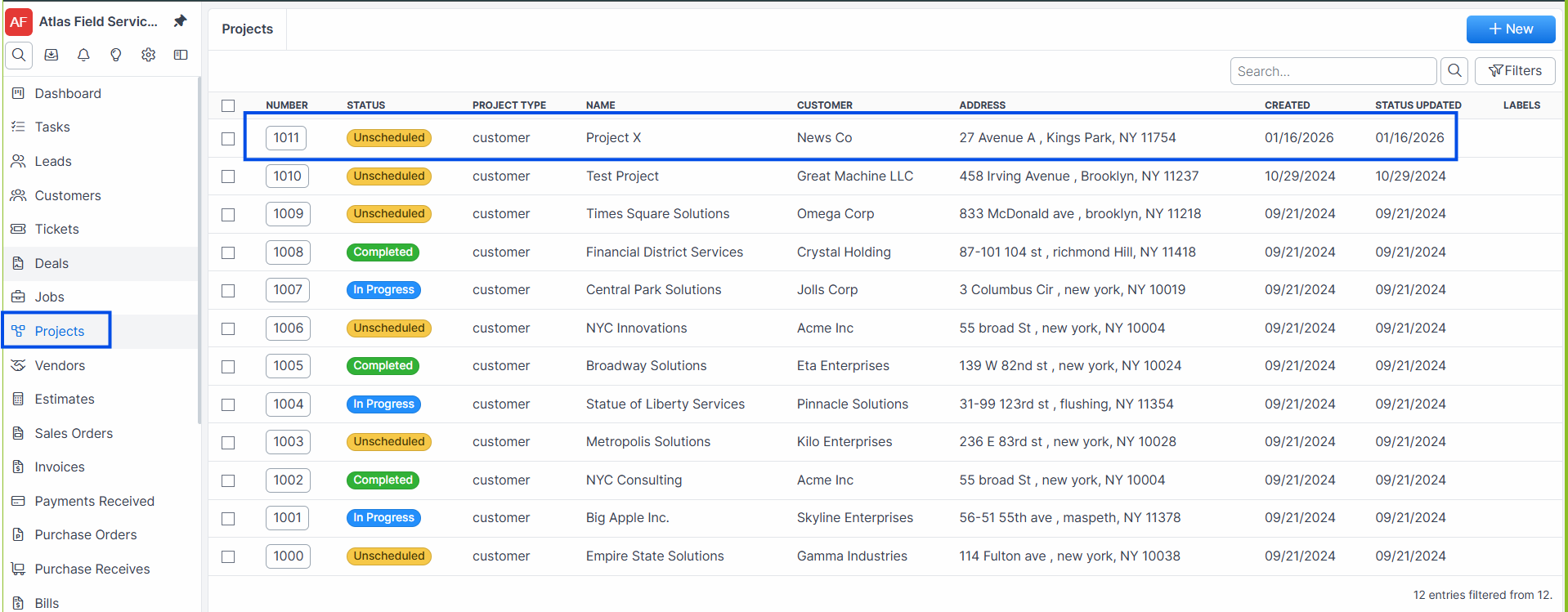
Open the project from the Projects list.
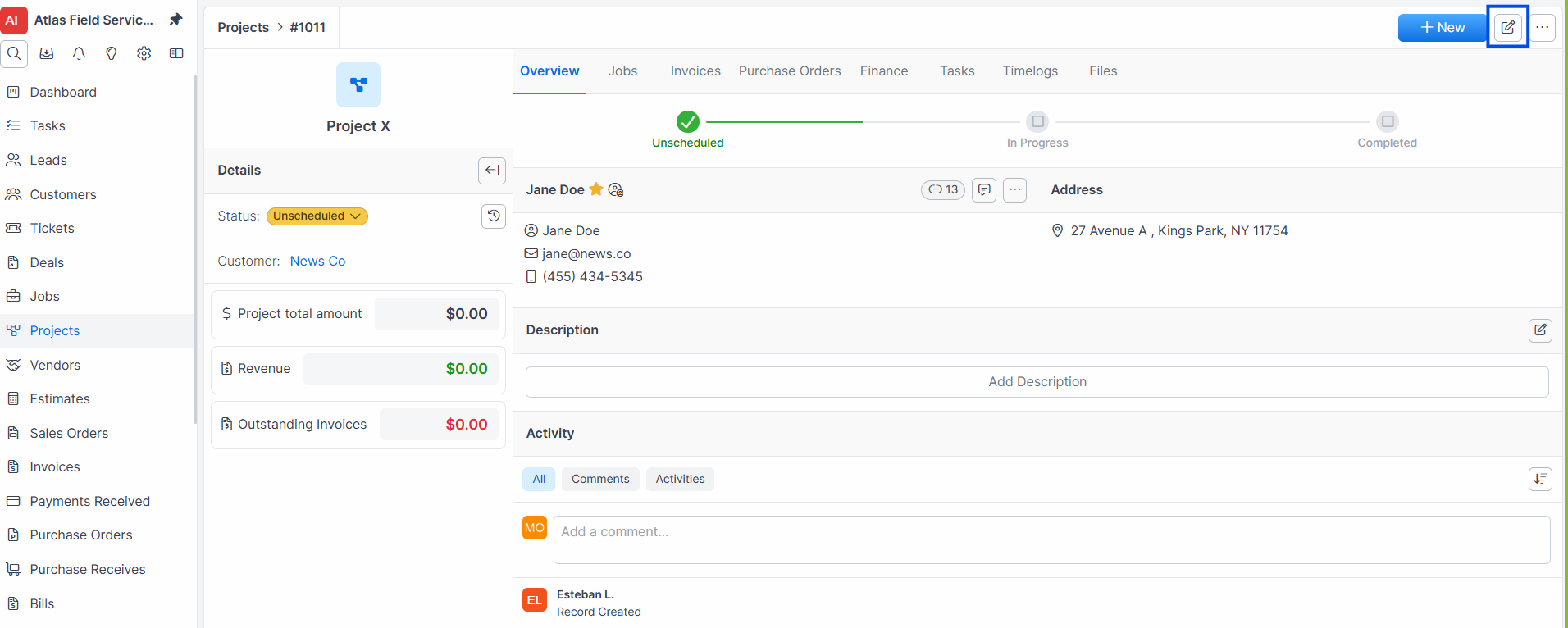
Click the field you want to edit (name, status, description, customer, address, contact, or labels).
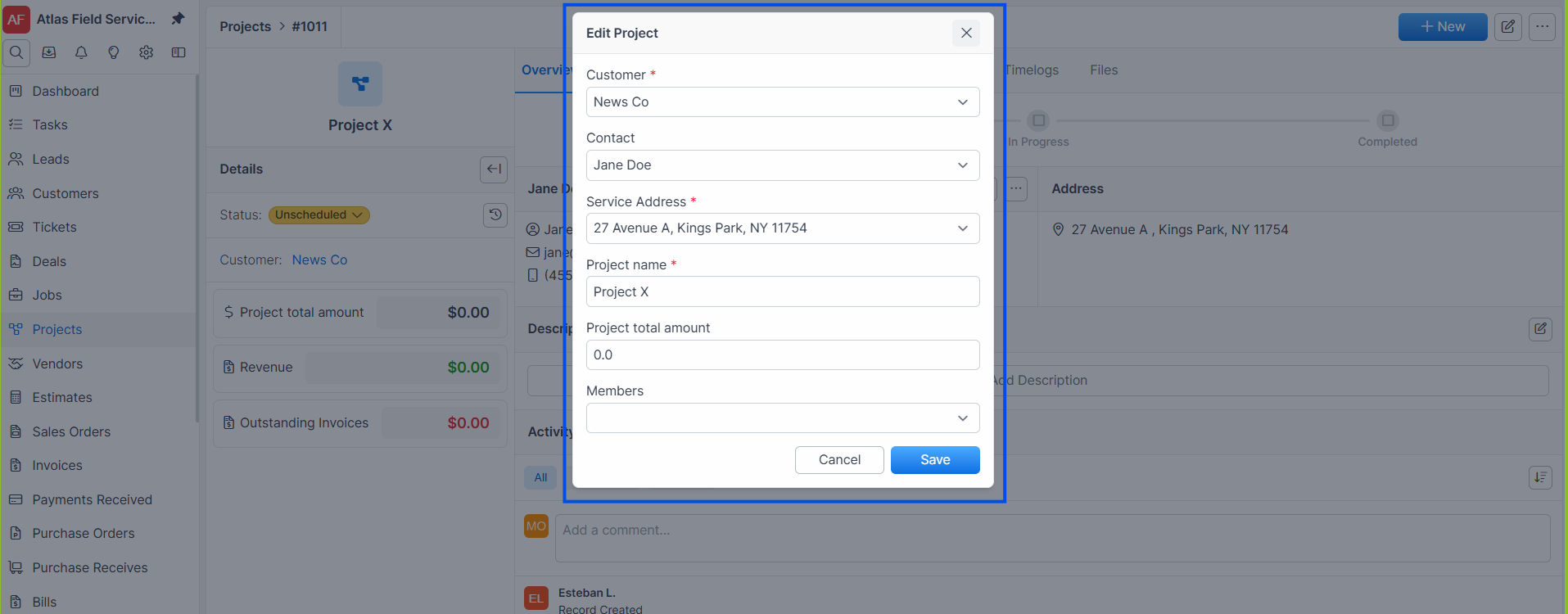
Make your changes. Updates save automatically for inline edits.
Expected result: The field value updates and is reflected on the project detail page.
Filtering and Searching Projects
Click Projects in the sidebar.
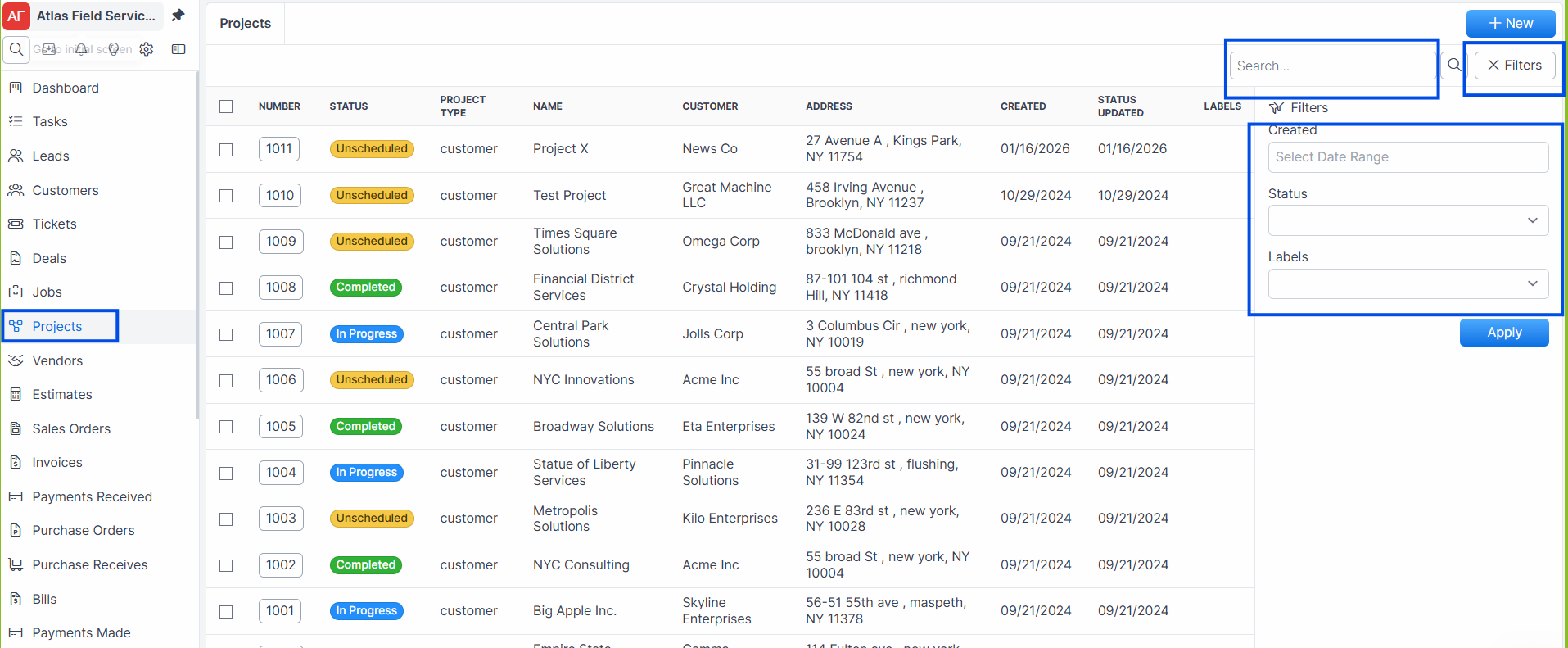
Use the filter controls to narrow results by Status, Labels, or Created date range.
Use the search bar to find projects by name or number.
Click a column header to sort the list.
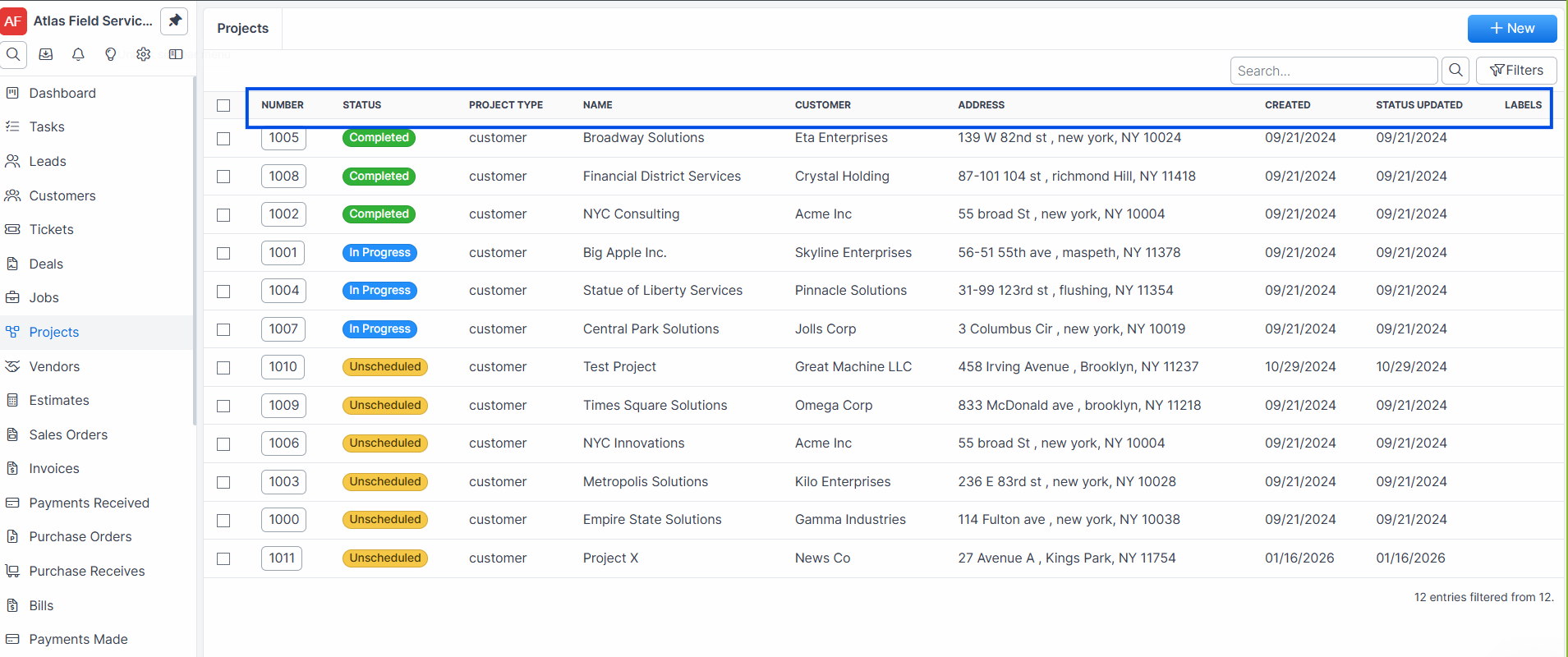
Expected result: The projects list updates to show matching records.
Deleting a Project
Deleting a project has restrictions to prevent data loss.
Open the project detail page.
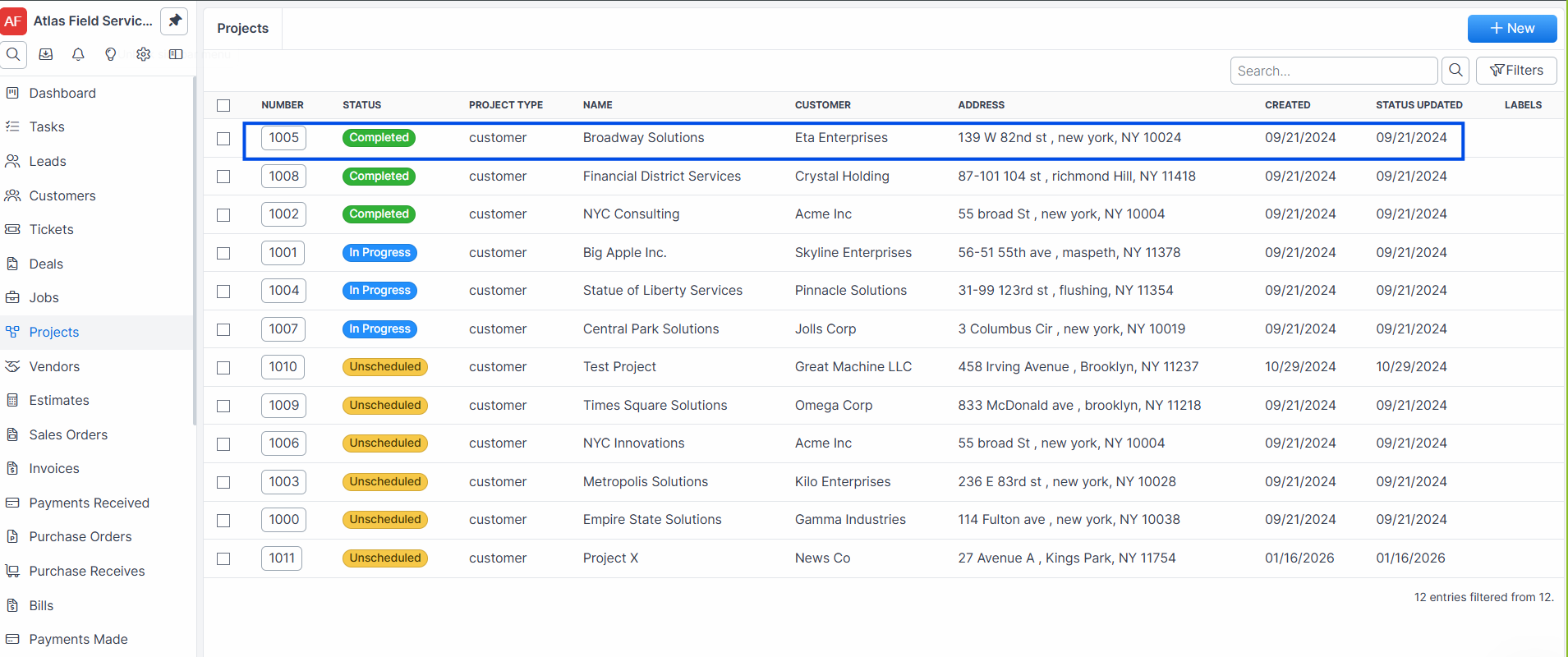
Click Delete.

Expected result: The project moves to the trash bin.
Warning: You cannot delete a project that has associated jobs, invoices, or purchase orders. Remove or reassign these records before deleting the project.
What Happens After Creating a Project
When a project is created, Forz automatically:
Assigns a project number — a sequential identifier (e.g., PRJ-1008) generated by the Numerable concern.
Sets the initial status — uses the first status in your configured project statuses.
Creates an activity note — logs the creation event for the audit trail.
Indexes for search — the project becomes searchable by name and number.
Emailing the project's contacts
Open the customer project.
Click + New in the record header and select Email, or click the paper-plane icon (Email contacts) on the Contacts tab. The Email item is greyed out until a contact on the record has an email address.
Add or remove recipients, write your message (or, if your company has custom email templates, pick one with Use Template), and click Send.
Expected result: The email appears in the Communication History of each contact on it, and the project gets an "Emailed to …" note. To starts with the project's primary contact, and its other contacts are one click away. For recipients, templates, and formatting, see Email.
Common Scenarios
Managing a multi-phase commercial HVAC installation
An HVAC contractor wins a contract to install systems across a 3-story office building. They create a customer project "ABC Corp - HVAC Installation" and add three jobs: "Floor 1 Ductwork," "Floor 2 Ductwork," and "Floor 3 Ductwork." Each job has its own schedule and assigned technicians. The project's finance tab shows total billed and paid amounts across all three jobs, giving the project manager a single view of profitability.
Tracking an internal fleet maintenance program
A plumbing company creates an internal project "Q1 Fleet Maintenance" to manage van servicing. They add tasks for each vehicle: "Van 01 - Oil change," "Van 02 - Brake inspection," and "Van 03 - Tire rotation." Time logs track the hours each mechanic spends, and expenses capture parts costs. The finance tab tallies total labor and expense costs.
Coordinating a fire safety compliance audit
A fire safety company creates a project for a property management client who needs annual inspections across five buildings. Each building gets its own job within the project. As inspections complete, invoices are generated per building. The project overview shows the outstanding balance — the property manager's accounts payable team uses this to track what has been billed versus paid.
Troubleshooting
Was this helpful?
Still need help? Ask the team