Tickets
Create and manage support tickets to track customer issues and link them to jobs.
Overview
A ticket represents a customer request, complaint, or issue that needs attention. Tickets let you log the problem, assign it to a team member, link it to the relevant customer and service address, and track it through a status workflow. When the issue requires field work, you can create jobs directly from the ticket.
Before You Begin
Prerequisites:
You have the Tickets: Create permission on your role — At least one customer record exists (Customers > New Customer). Ticket statuses are configured (Settings > Status Options with related name "Ticket").
Creating a Ticket
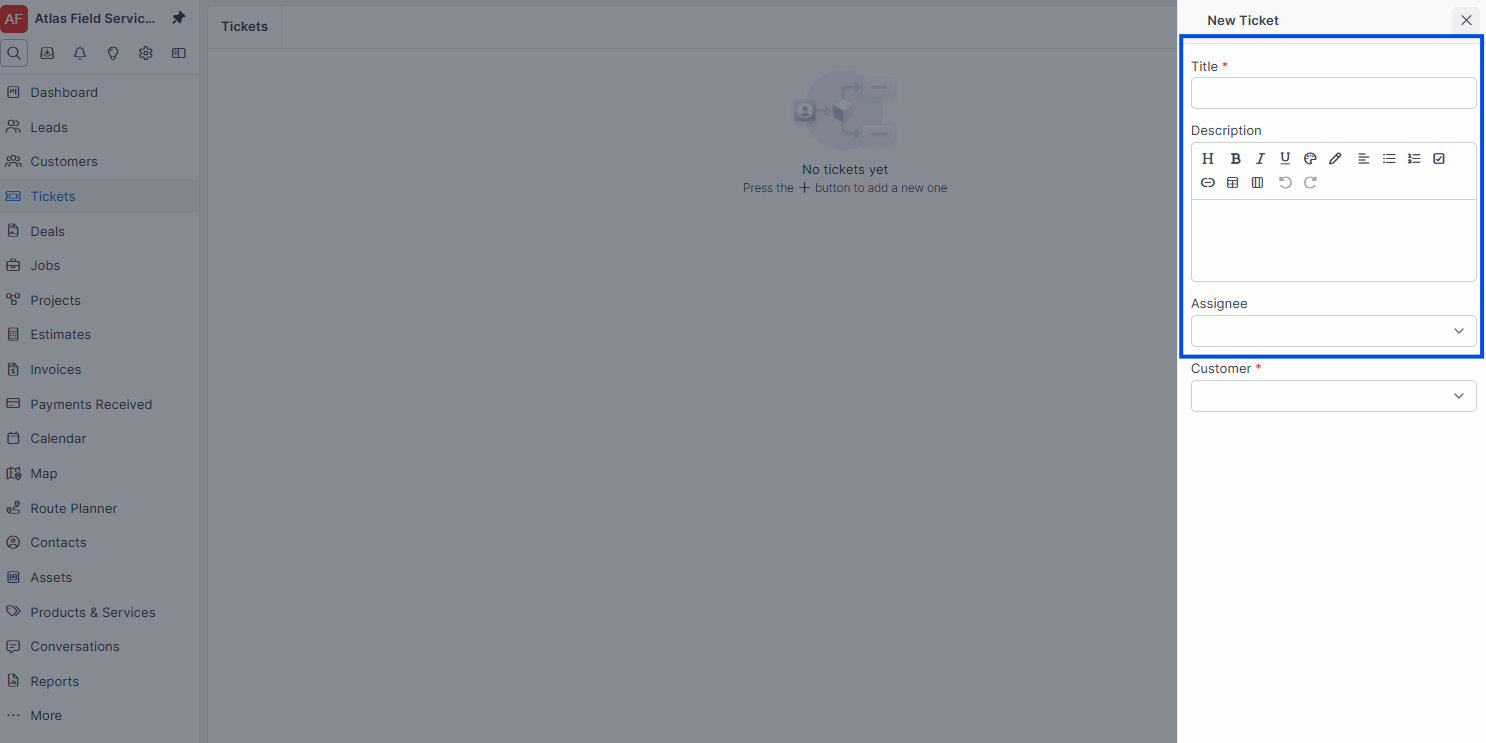
Fields on the new ticket form
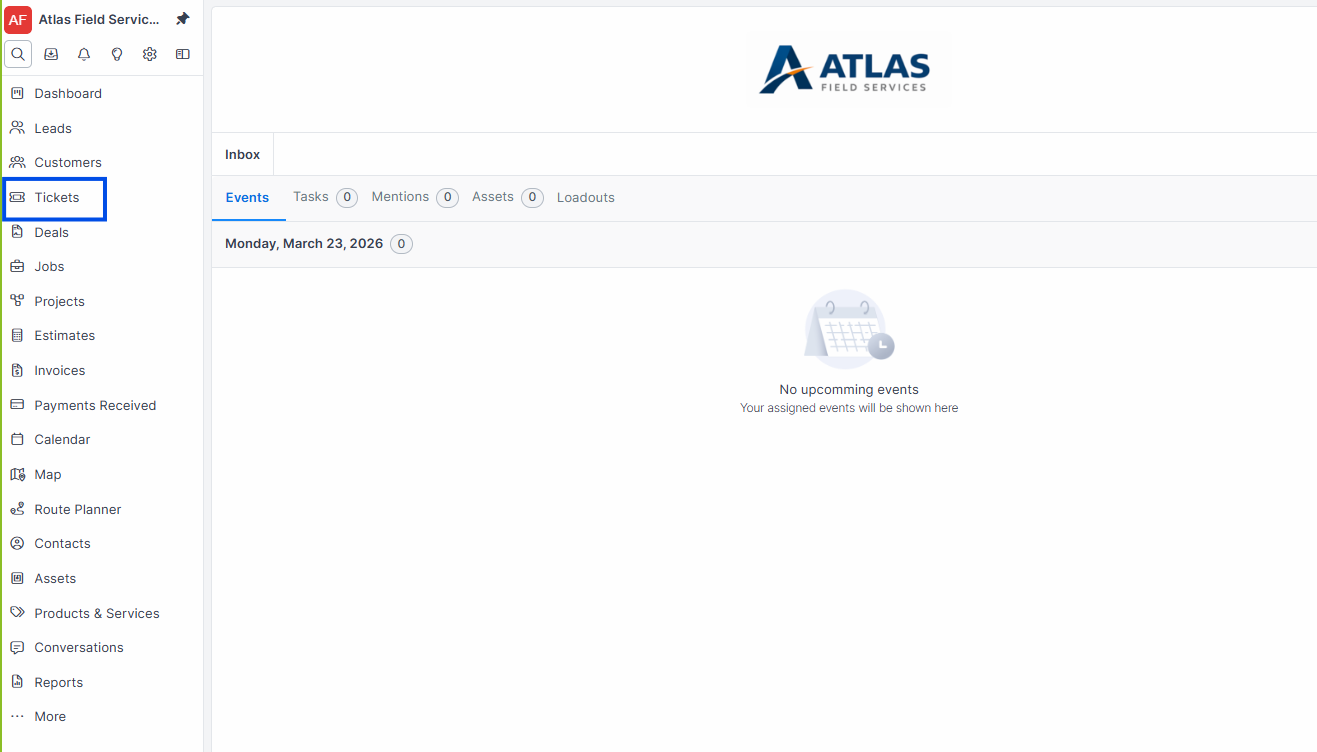
Click Tickets in the sidebar navigation.
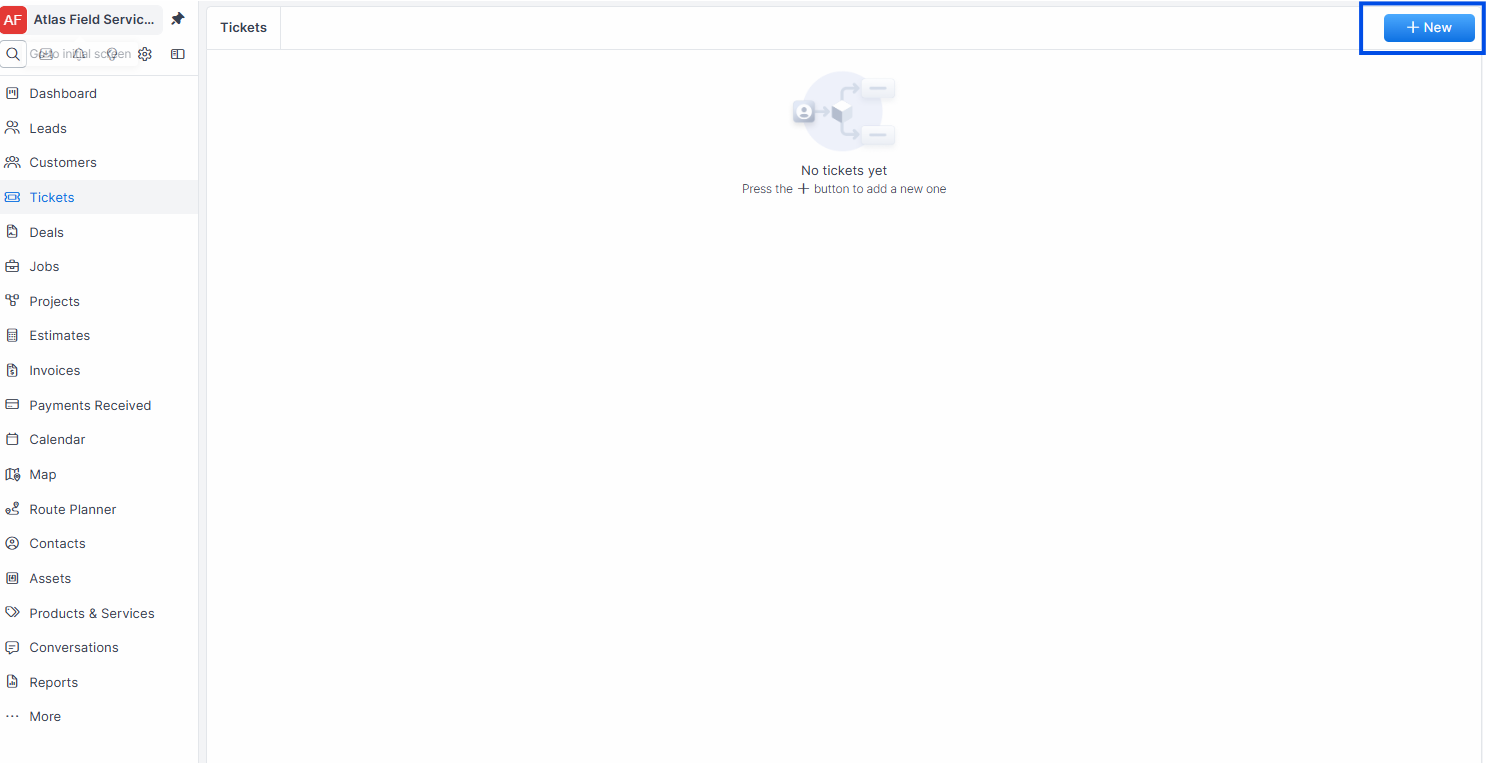
Click the + New button in the top-right corner.
Enter a Title — a short summary of the issue (e.g., "AC unit not cooling on second floor"). This is required.
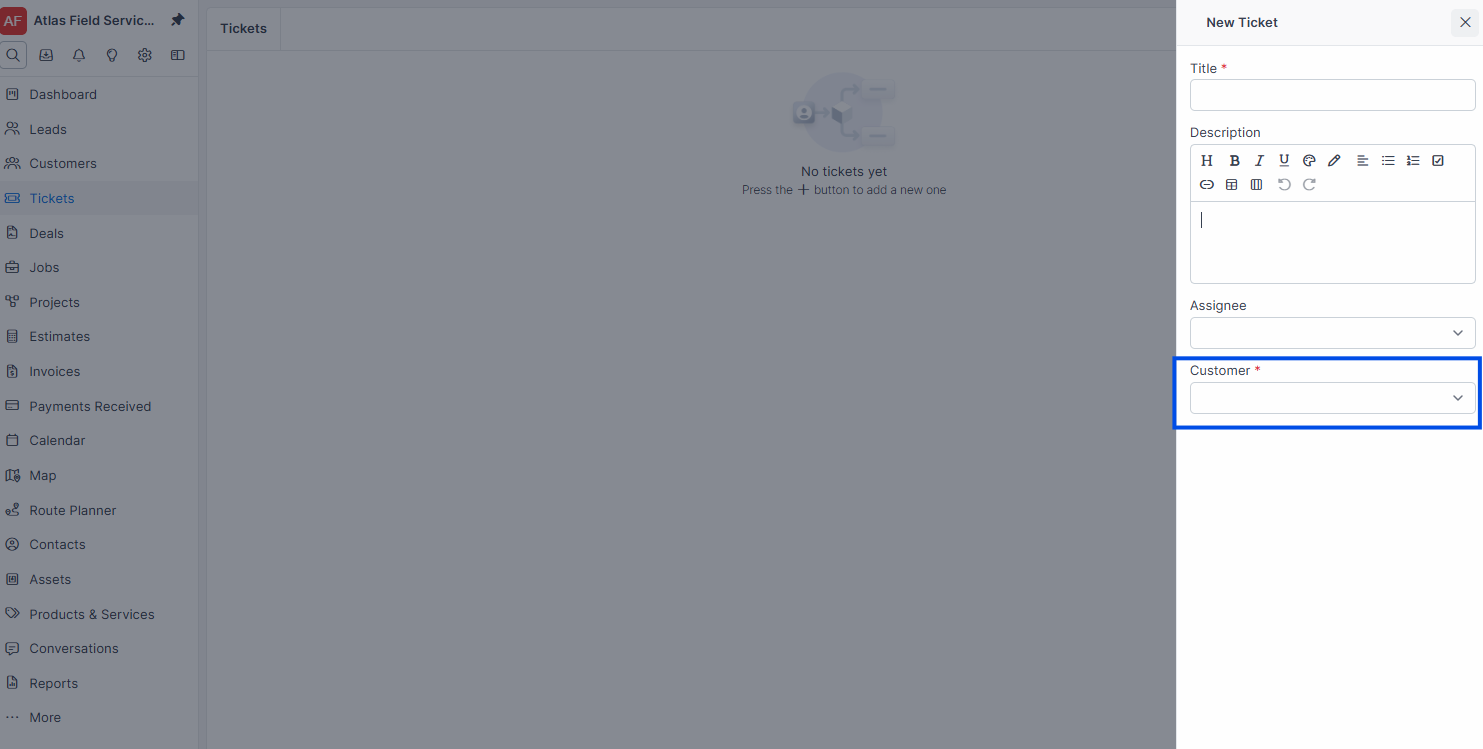
Select a Customer from the dropdown. This is required.
Optionally select an Assignee — the team member responsible for resolving the ticket.
Optionally enter a Description — detailed information about the problem, symptoms, or customer request.
Click Save.
Expected result: Forz creates the ticket with the first status in your ticket status workflow (typically "New") and assigns a sequential ticket number (e.g., TKT-0051). The ticket detail view opens.
Note: The ticket status is set automatically to the first status option configured for Tickets. You cannot override this during creation.
Linking Contacts to a Ticket
Tickets support multiple contact linkages, with one contact designated as the primary point of contact.
Open an existing ticket.
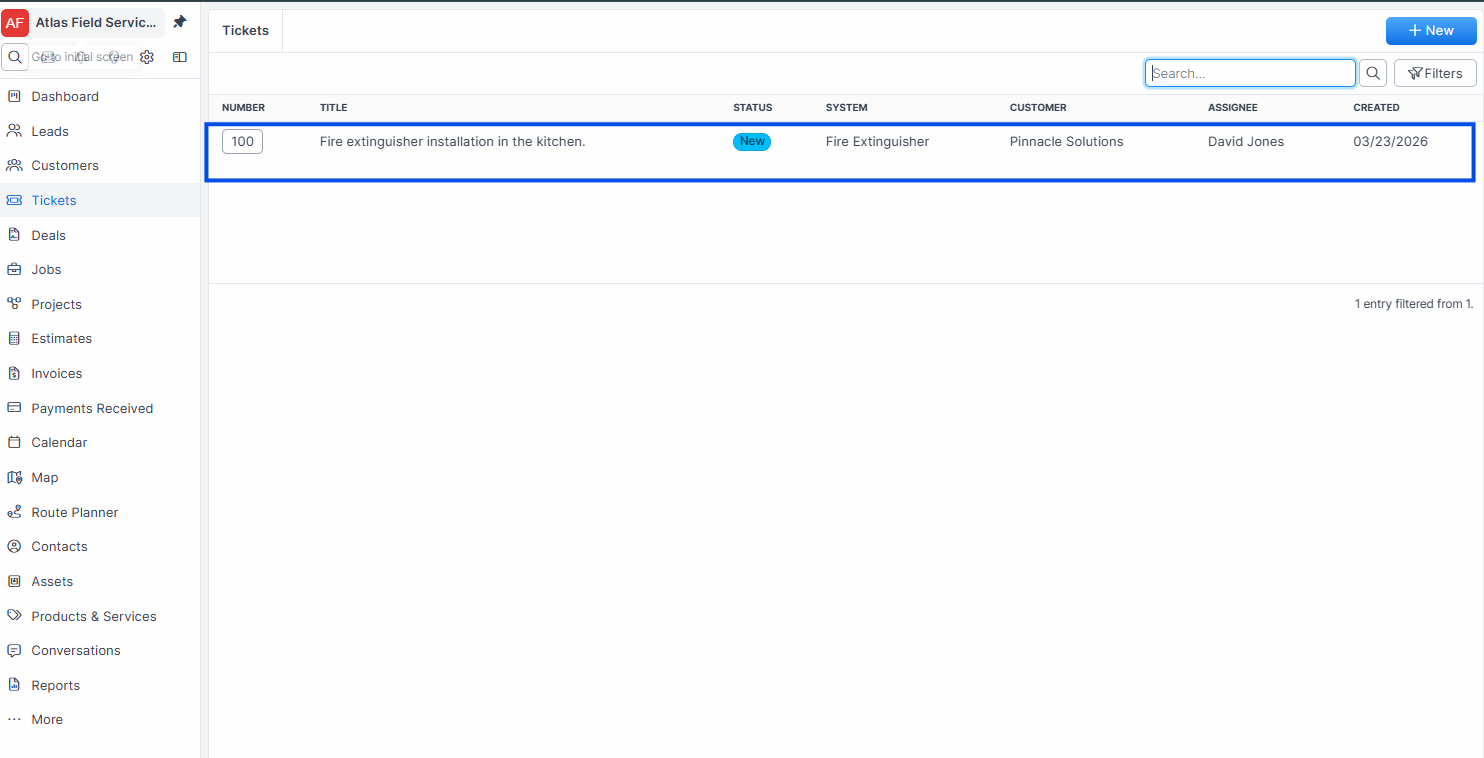
In the ticket detail view, locate the Contacts section.
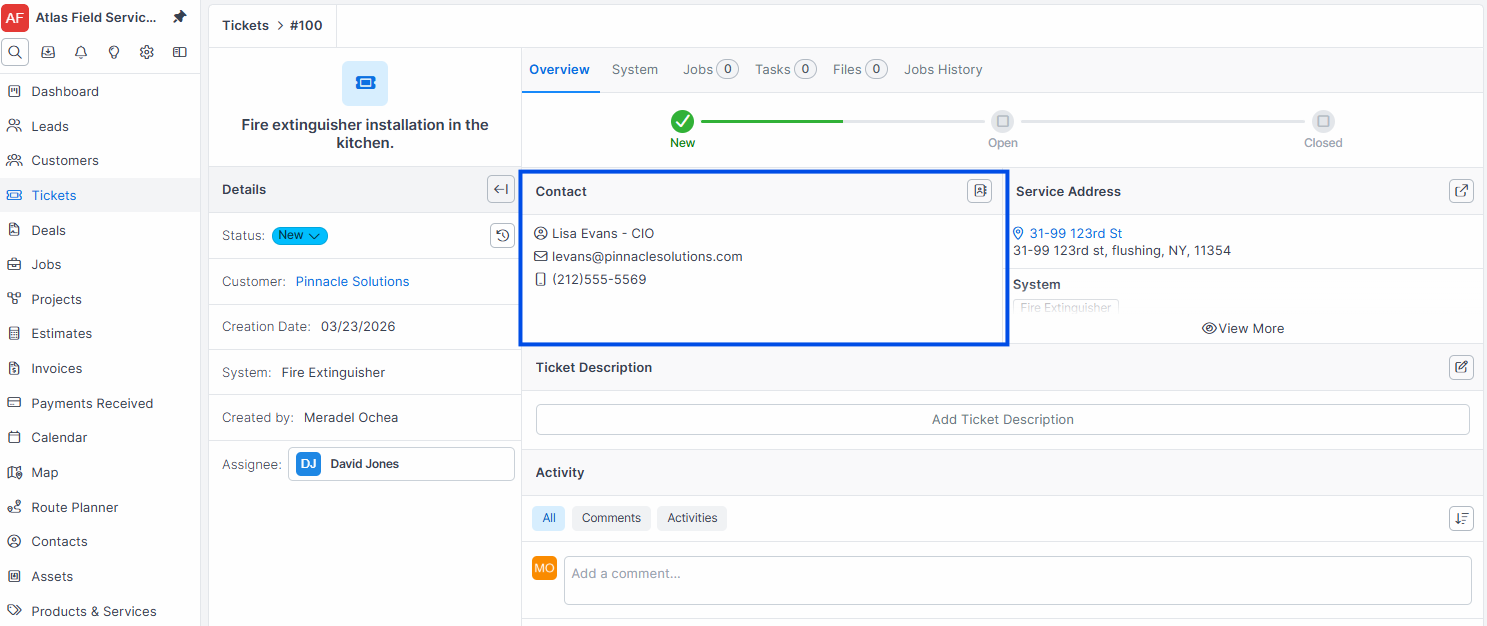
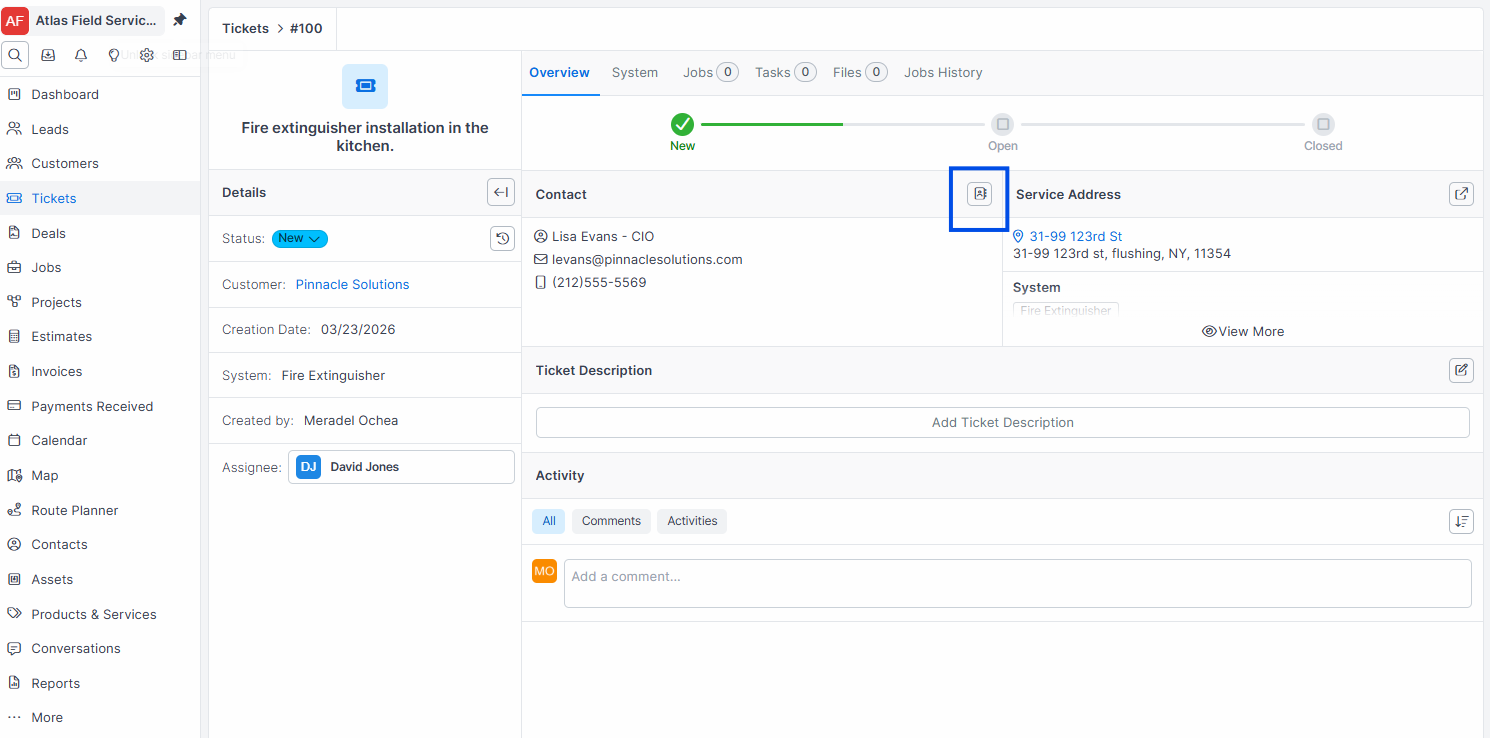
Click the contact form to add or change linked contacts.
Select a contact from the customer's contact list.
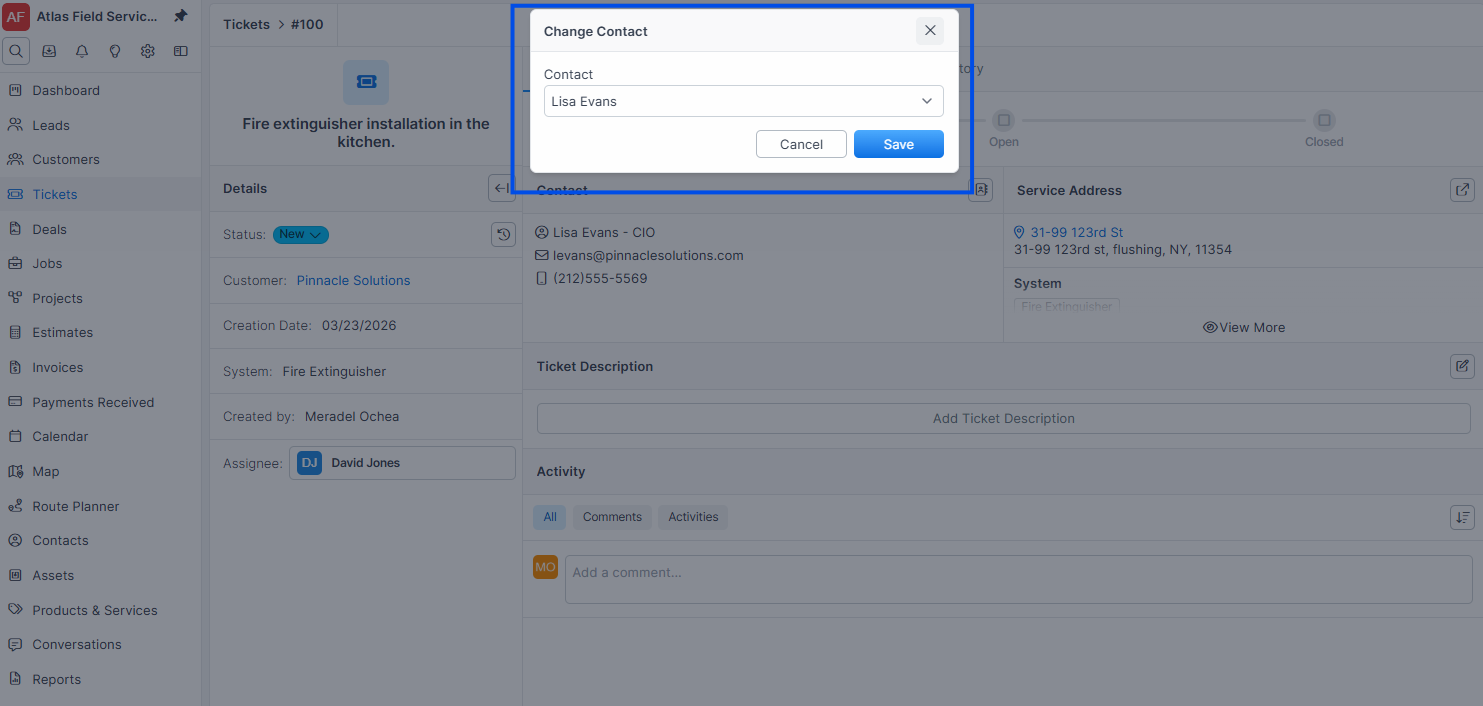
Expected result: The contact appears linked to the ticket. The primary contact is used as the default point of contact for communications related to this ticket.
Tip: If the customer has multiple sites and you need to reach different people at each location, link the site-specific contact and mark them as primary.
Creating a Job from a Ticket
When a ticket requires field work, you can create a job directly from the ticket.
Open the ticket detail view.
Click the Jobs tab on the right side.
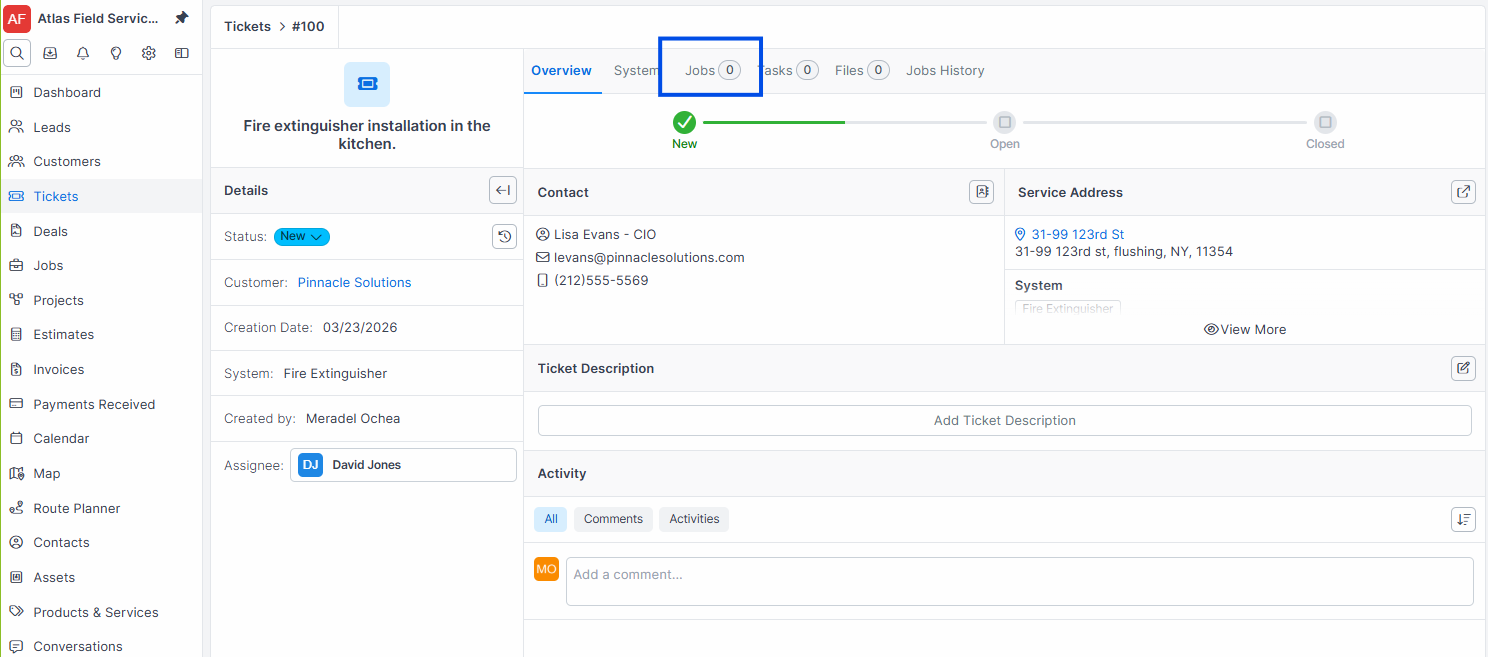
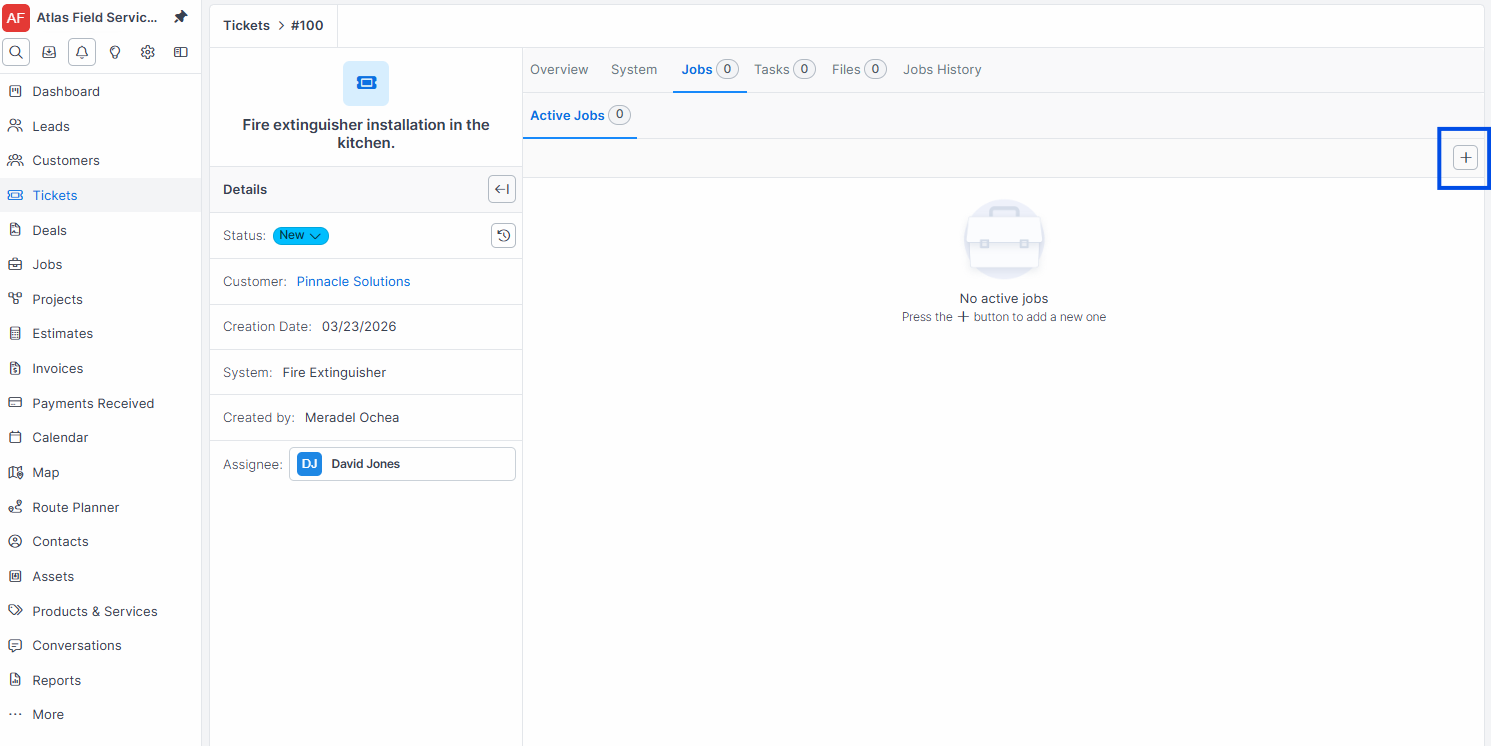
Click New Job to create a job linked to this ticket.
The job inherits the ticket's customer, service address, and system.
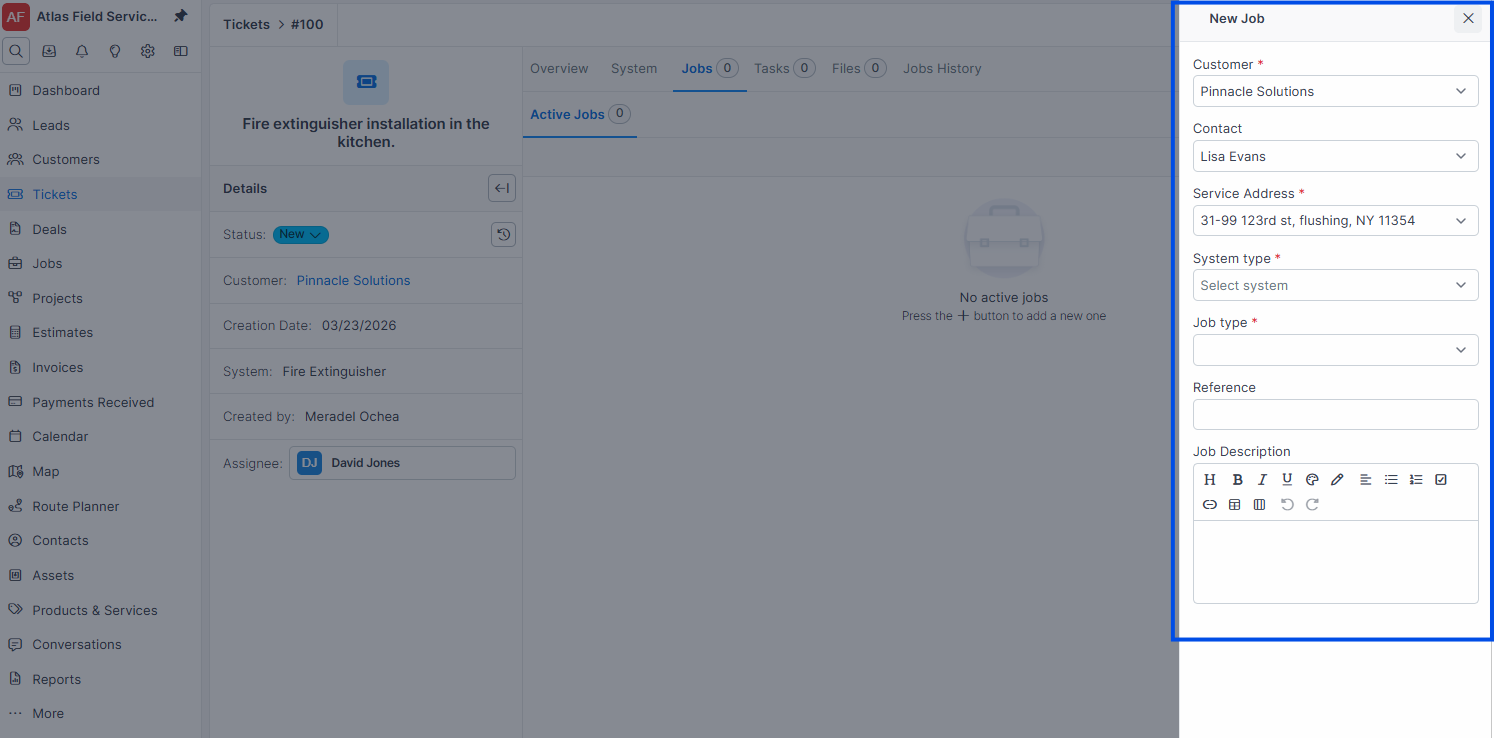
Complete the remaining job fields and click Save.
Expected result: A new job is created and linked to the ticket. The job appears in the ticket's Jobs tab for tracking.
Updating Ticket Status
Open the ticket detail view.
Click the Status field.
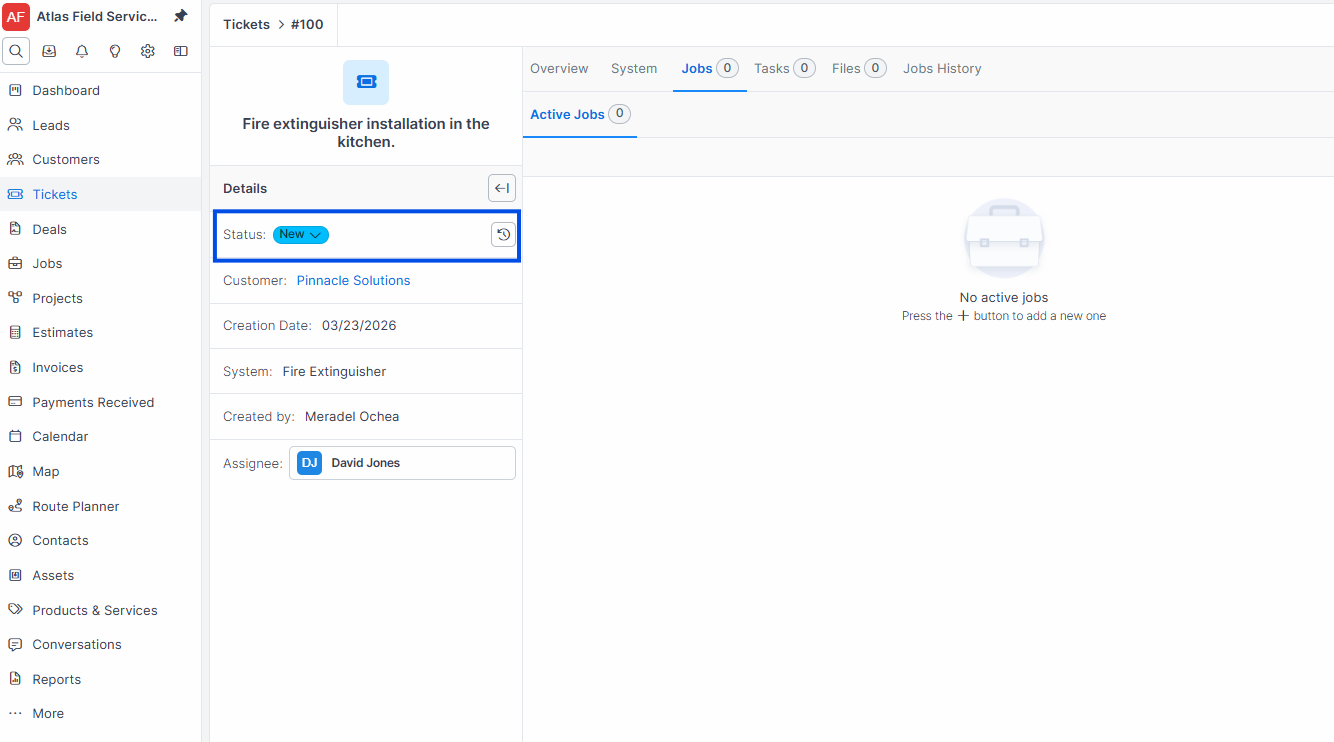
Select the new status from the dropdown (statuses come from your configured ticket status workflow).
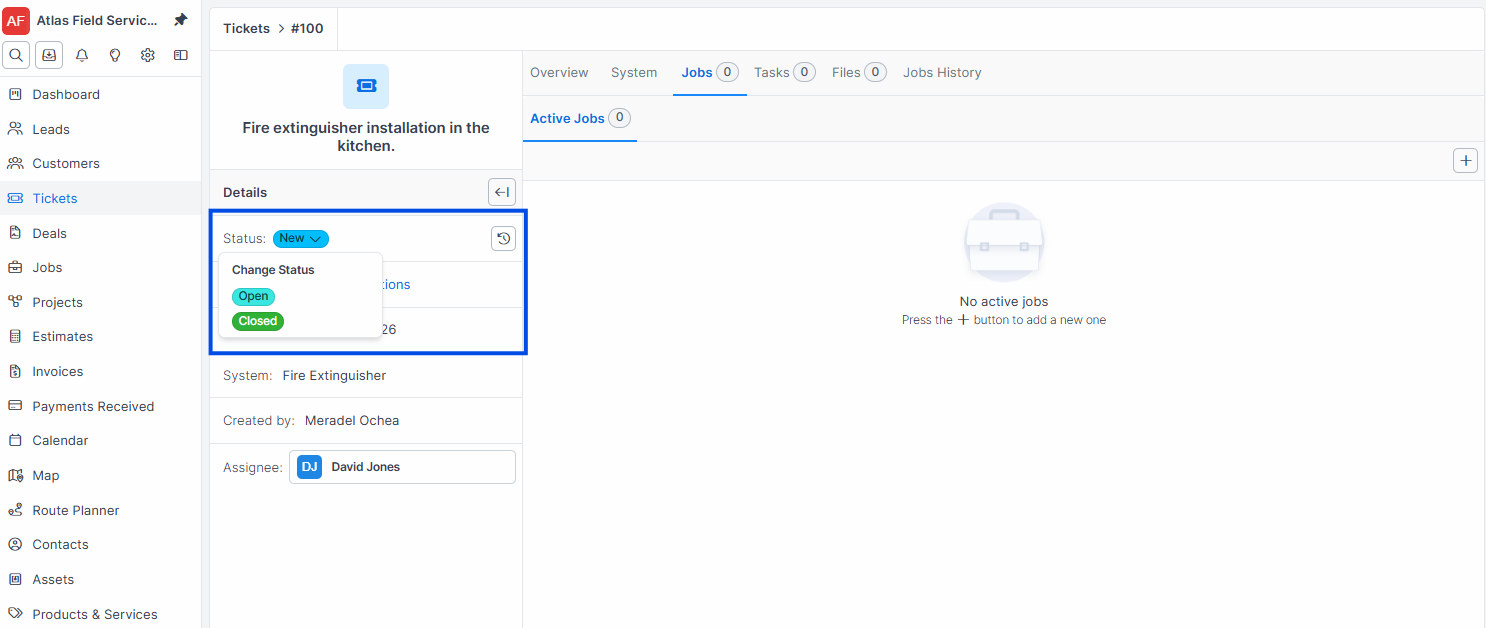
Expected result: The ticket status updates immediately. The status change is reflected in the ticket list view.
Editing a Ticket
Open the ticket from the ticket list.
Click inline fields to edit the title, description, assignee, service address, system, or contact.
Changes save automatically when you navigate away from the field, or click Save if using the edit form.
Expected result: The ticket is updated with your changes.
Deleting a Ticket
Open the ticket detail view.
Click the delete action.
Confirm the deletion.
Expected result: The ticket is moved to the Trash Bin (soft delete). It can be restored from the Trash Bin if needed.
Ticket Detail View
After creation, the ticket opens in a detail view:
Left column — Details:
Ticket number and title
Status (with workflow controls)
Customer (linked)
Service Address
System (if Systems module is enabled)
Assignee
Contacts (with primary contact designation)
Created by and creation date
Right column — Tabs:
Overview — ticket details and notes
System — system details (if Systems module is enabled)
Jobs — jobs linked to this ticket
Tasks — task checklist attached to the ticket
Files — attached documents and photos
Jobs History — historical job records linked to this ticket
Note: The System, Jobs, Tasks, and Jobs History tabs only appear if you have the corresponding module permissions enabled.
What Happens After Creation
When a ticket is saved, Forz automatically:
Assigns a ticket number — sequential, unique (e.g., TKT-0051)
Sets the initial status — the first status in your Ticket status workflow
Records the creator — logs which user created the ticket
Indexes for search — the ticket becomes searchable by number and title
Booking Approval Queue
When a customer books an arrival window online and your account does not confirm bookings automatically, the ticket waits for someone on your team to accept it.
A Needs approval filter appears beside the ticket filters while anything is waiting. It lists every ticket whose job holds an unconfirmed booking, with the window the customer was promised and inline Accept and Decline buttons.
Open Tickets and select the Needs approval filter.
Click Accept to confirm the visit, or Decline to release the window.
Expected result: the ticket leaves the queue and the customer is emailed either the confirmed window or a note that the appointment could not be confirmed.
Note: requests submitted without an arrival window do not appear here. They arrive in the normal ticket list under your first ticket status.
See Service Requests & Online Booking for the full flow.
Emailing the ticket's contacts
Open the ticket.
Click … (More options) in the record header and select Email. The Email item is greyed out until a contact on the record has an email address.
Add or remove recipients, write your message (or, if your company has custom email templates, pick one with Use Template), and click Send.
Expected result: The email appears in the Communication History of each contact on it, and the ticket gets an "Emailed to …" note. To starts with the ticket's primary contact, and its other contacts are one click away. For recipients, templates, and formatting, see Email.
Common Scenarios
Logging an emergency HVAC repair request
A customer calls to report their commercial AC unit has stopped working.
Create a ticket with the title "Commercial AC unit failure — no cooling" and select the customer.
Select the service address where the unit is installed.
Select the HVAC system on that site.
Assign the ticket to your lead HVAC dispatcher.
From the ticket's Jobs tab, create a Repair job to dispatch a technician.
Tracking a plumbing warranty claim
A property manager reports a recurring leak at a site your team serviced last month. Create a ticket referencing the issue, link it to the customer and the original service address, and attach the prior job for context. The ticket tracks the warranty investigation while the linked job handles the actual repair visit.
Escalating an unresolved electrical issue
A ticket was created for flickering lights at a retail location. After the first job visit, the technician notes the issue persists. Open the ticket, review the job history, and create a follow-up job. The ticket serves as a single thread connecting all visits related to this issue.
Troubleshooting
Was this helpful?
Still need help? Ask the team