Calendar
View, create, and manage scheduled events for your field service team on an interactive calendar.
Overview
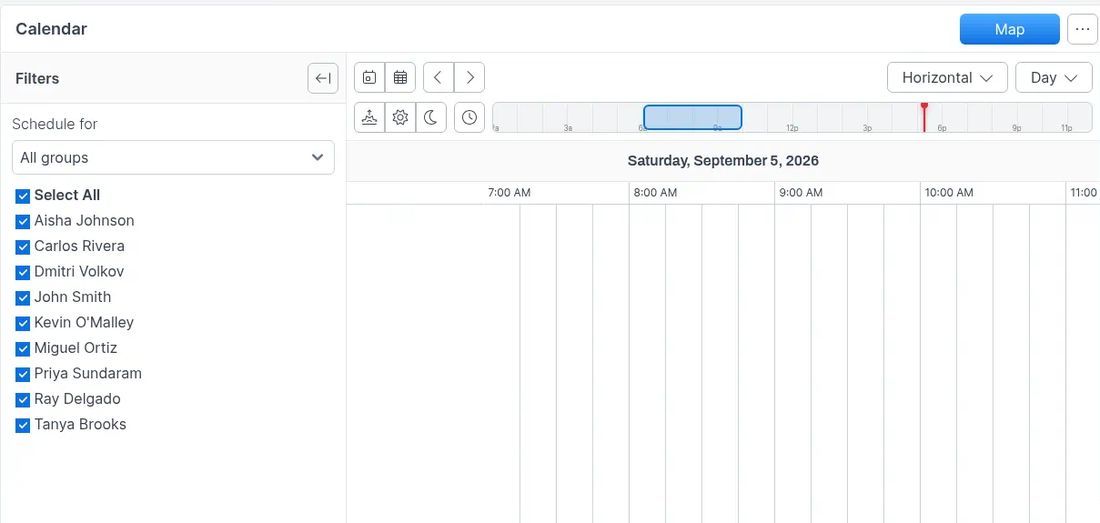
The calendar is the central scheduling hub in Forz. Dispatchers use it to assign jobs to technicians, view team availability across day, week, or month views, and drag unscheduled jobs into open time slots. Events on the calendar are color-coded by job status, and the built-in map view shows job locations alongside a smart GPS anchor that prioritizes nearby work.
Before You Begin
Prerequisites:
The Calendar module is enabled (Settings > Modules).
You have the Calendar: View permission on your role.
You have the Events: Create permission to create or schedule events.
At least one active user (technician or dispatcher) exists for scheduling.
Navigating the Calendar
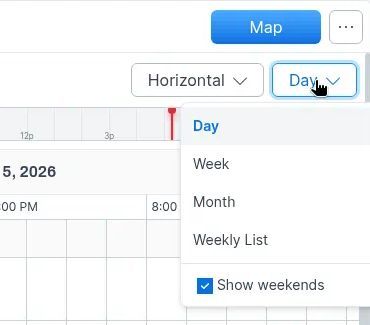
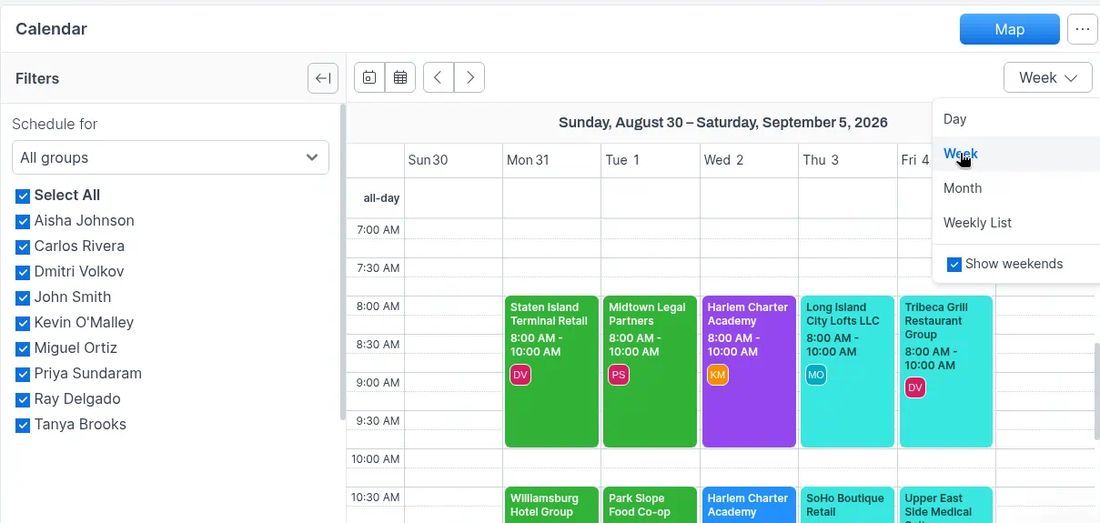
The calendar supports four view modes:
Day — shows a single day with hourly time slots for each technician.
Week — displays a full week across all assigned technicians.
Month — provides a high-level overview of events across the month.
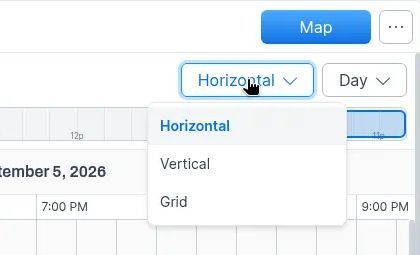
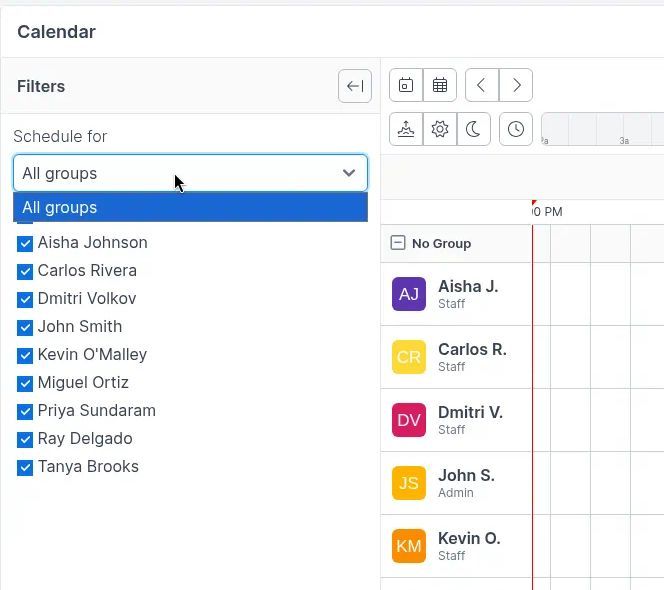
Resource — organizes the calendar by technician, showing each person's schedule side by side.
Tip: Use the resource view when dispatching multiple jobs at once. It shows each technician's availability in parallel columns so you can spot open gaps.
Creating an Event
Required fields
Click Calendar in the sidebar navigation.

Click a time slot on the calendar, or click the + New button. The event form opens.

Enter a Title for the event. This is required.

Set the Start Date and Start Time. Both are required.

Set the End Time. This is required. The end time must be after the start time.
Assigning and linking
Select one or more Users to assign to the event. Use the user dropdown to pick technicians or dispatchers.

To link the event to a job, select Job as the Linked Record Type and choose the job. When linked to a job, the title and location auto-fill from the job record.
Enter a Location if the event is not linked to a job with a service address.
Click Save.
Expected result: The event appears on the calendar at the selected time. If linked to a job, the event is color-coded to match the job's current status. The event syncs to assigned technicians' mobile devices.
Note: Events can be linked to jobs, estimates, or leads. When linked to a job, the calendar displays the customer organization name as the event title and uses the job site's address for location and GPS coordinates.
Scheduling a Job from the Calendar
Drag-and-drop scheduling
Click Calendar in the sidebar navigation.

Click a time slot on the calendar. The unscheduled jobs panel opens on the right side.

Find the job you want to schedule in the panel. Use the search bar or filters to narrow the list.

Drag the job from the panel onto the desired time slot on the calendar.


The event form opens with the job's title, location, and selected time pre-filled.

Assign one or more Users and adjust the time if needed.
Click Save.
Expected result: Forz creates a calendar event linked to the job. The job's status updates from "Unscheduled" to the next status in your workflow (typically "Scheduled").
Scheduling from a job detail page
Open the job you want to schedule.

Click the calendar icon next to Event in the left column.

Choose Calendar View to open the calendar with the job pre-loaded.

Click a time slot to open the event form with the job already linked.

Assign a technician and confirm the time.

Click Save.
Expected result: The event appears on the calendar, linked to the job.
Filtering the Unscheduled Jobs Panel
When the unscheduled jobs panel is open, use filters to narrow which jobs appear. Available filters:
Due Date — Today, Tomorrow, This Week, Next 7 Days, This Month, or Overdue
Created Date — a date range picker
Job Type — multiselect from your configured job types (e.g., Repair, Maintenance, Inspection)
Assignee — filter by the technician already assigned to the job
Labels -- filter by job labels
Skills — filter by required skills. When you select a technician on the calendar, their skills are automatically pre-selected as the default filter.
Tip: When you select a technician on the resource view and click a time slot, Forz automatically filters the unscheduled jobs panel to show jobs matching that technician's skills. This ensures you only see jobs the technician is qualified to handle.
Smart GPS Anchor
When you select a time slot for a specific technician, Forz calculates a smart GPS anchor point based on the technician's adjacent scheduled events. The unscheduled jobs panel then sorts jobs by proximity to this anchor, putting the closest jobs first.
How the anchor works:
Both a previous and next event exist with locations — Forz interpolates between the two coordinates based on where the selected time slot falls in the gap, giving a position estimate for where the technician will be.
Only the previous event has a location — the anchor uses the previous event's coordinates.
Only the next event has a location — the anchor uses the next event's coordinates.
Neither event has a location — jobs sort by creation date (newest first).
Note: The GPS anchor requires job sites to have geocoded addresses (latitude and longitude). Jobs without site coordinates appear at the bottom of the proximity-sorted list.
Map View
The map view displays unscheduled jobs as numbered markers on a map. Each marker number corresponds to the job's position in the unscheduled jobs panel.
Open the unscheduled jobs panel by clicking a time slot on the calendar.

Click the Map toggle above the jobs list.

Job markers appear on the map in teal. If a smart GPS anchor is active, a yellow anchor marker labeled "Nearby anchor" shows the estimated center point.
Click a marker to see the job number, title, customer name, and address. Click View to open the job.
Expected result: The map displays all unscheduled jobs that have geocoded service addresses, numbered to match the panel list order.
Event Colors
Events on the calendar are color-coded:
Job events — colored based on the linked job's current status. Each job status has a configurable color set in Settings > Job Statuses.
Non-job events — displayed in teal (#3AE7E1) with dark text.
This color coding helps dispatchers see at a glance which jobs are in progress, complete, or need attention.
Calendar Settings
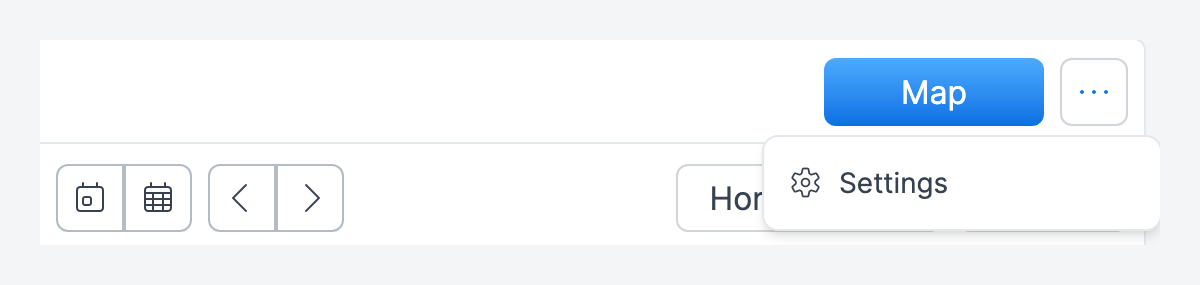
Access calendar settings by clicking Settings from the calendar view. Calendar settings are managed as a module configuration and control default behaviors for the calendar display.
Common Scenarios
Dispatching an emergency HVAC repair
A customer calls reporting their commercial AC unit is down. The dispatcher needs to find the nearest available technician and schedule the repair immediately.
Create a new job with job type Repair and select the customer's site.
Open the Calendar and switch to Resource view to see all technicians' schedules.
Click on the earliest open time slot for a nearby technician. The unscheduled jobs panel opens with jobs sorted by proximity to the technician's adjacent appointments.
Find the new repair job at the top of the list (closest to the technician's current area) and drag it onto the time slot.
Confirm the technician assignment and click Save.
Filling a gap in a plumber's schedule
A technician's 10:00 AM appointment was cancelled, leaving a two-hour gap before their next job at noon. The dispatcher wants to fill that gap with nearby work.
On the calendar resource view, click the empty 10:00 AM - 12:00 PM slot for the plumber.
The smart GPS anchor calculates a position between the plumber's 8:00 AM job site and the noon job site.
The unscheduled jobs panel shows the closest unscheduled plumbing jobs first.
Drag the best-fitting job into the gap and save.
Scheduling a fire safety inspection across a full week
A fire safety company has 20 annual inspections to schedule across five technicians. The dispatcher uses the week view to distribute them evenly.
Open the Calendar in Week view.
For each day, click an open slot for a technician, filter the unscheduled jobs by job type Inspection, and drag inspections onto the calendar.
Use the map view to group nearby inspections on the same day for each technician, reducing travel time.