Labels
Create and manage color-coded labels to categorize customers, jobs, estimates, projects, invoices for quick visual identification and filtering.
Overview
Labels let you tag customers, jobs, estimates, projects, and invoices with custom categories. Each label has a name and color. You can apply multiple labels to a single record and filter lists by label. When you rename a label, Forz automatically updates every record that uses it.
Before You Begin
Prerequisites:
You have the Admin or Dispatcher role (or a custom role with Label permissions).
The record type you want to label is enabled in Settings > Modules.
Creating a Label
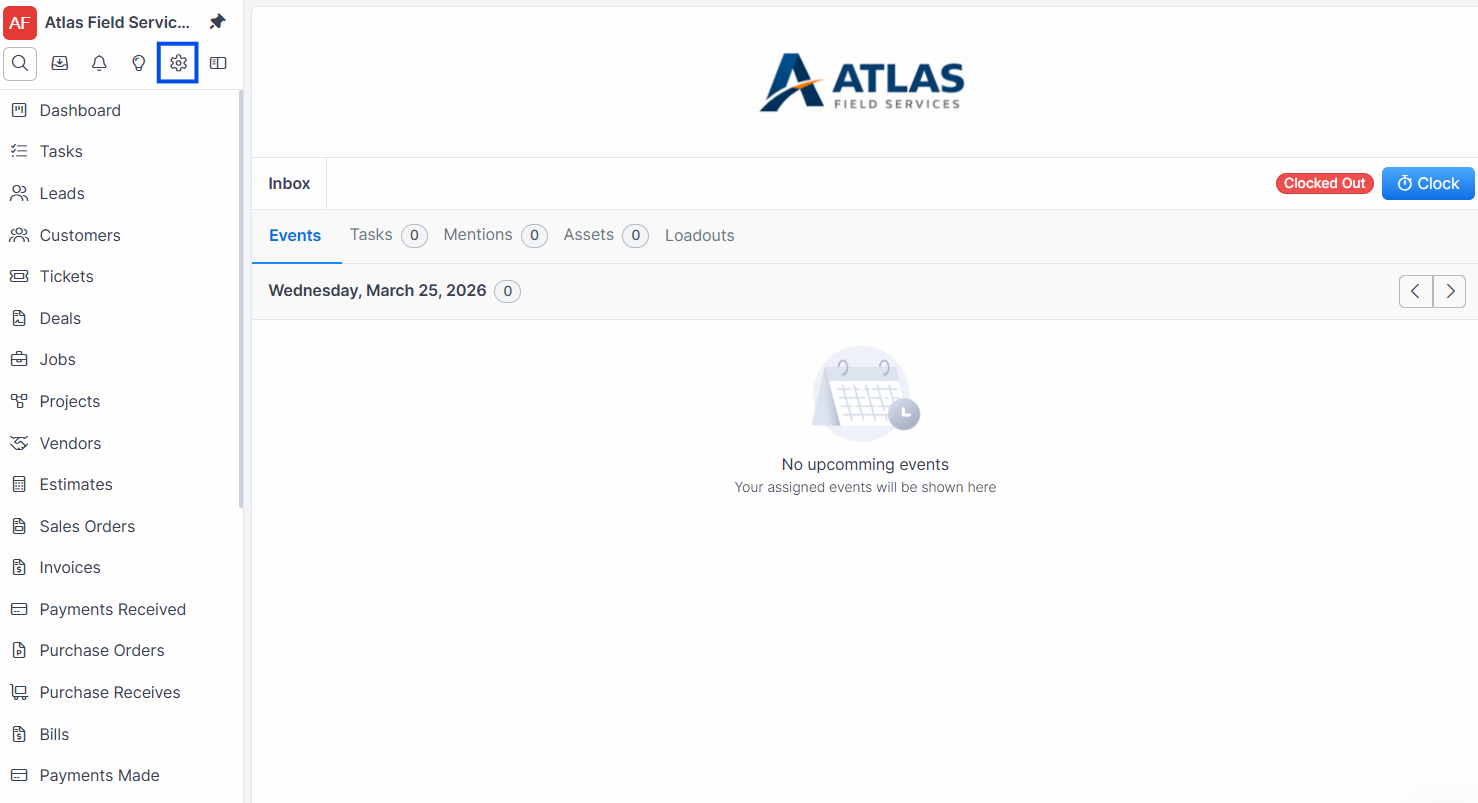
Click Settings in the sidebar navigation.
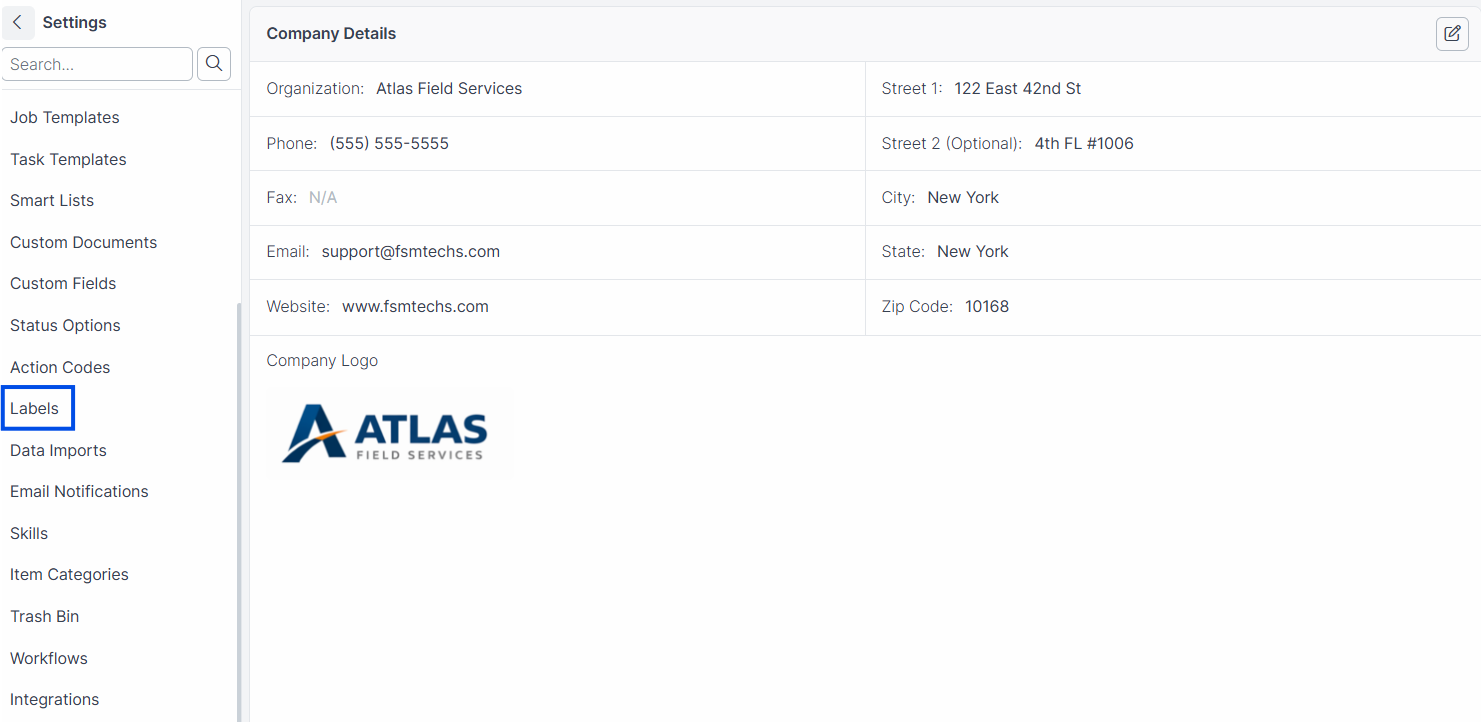
Click the Labels tab.
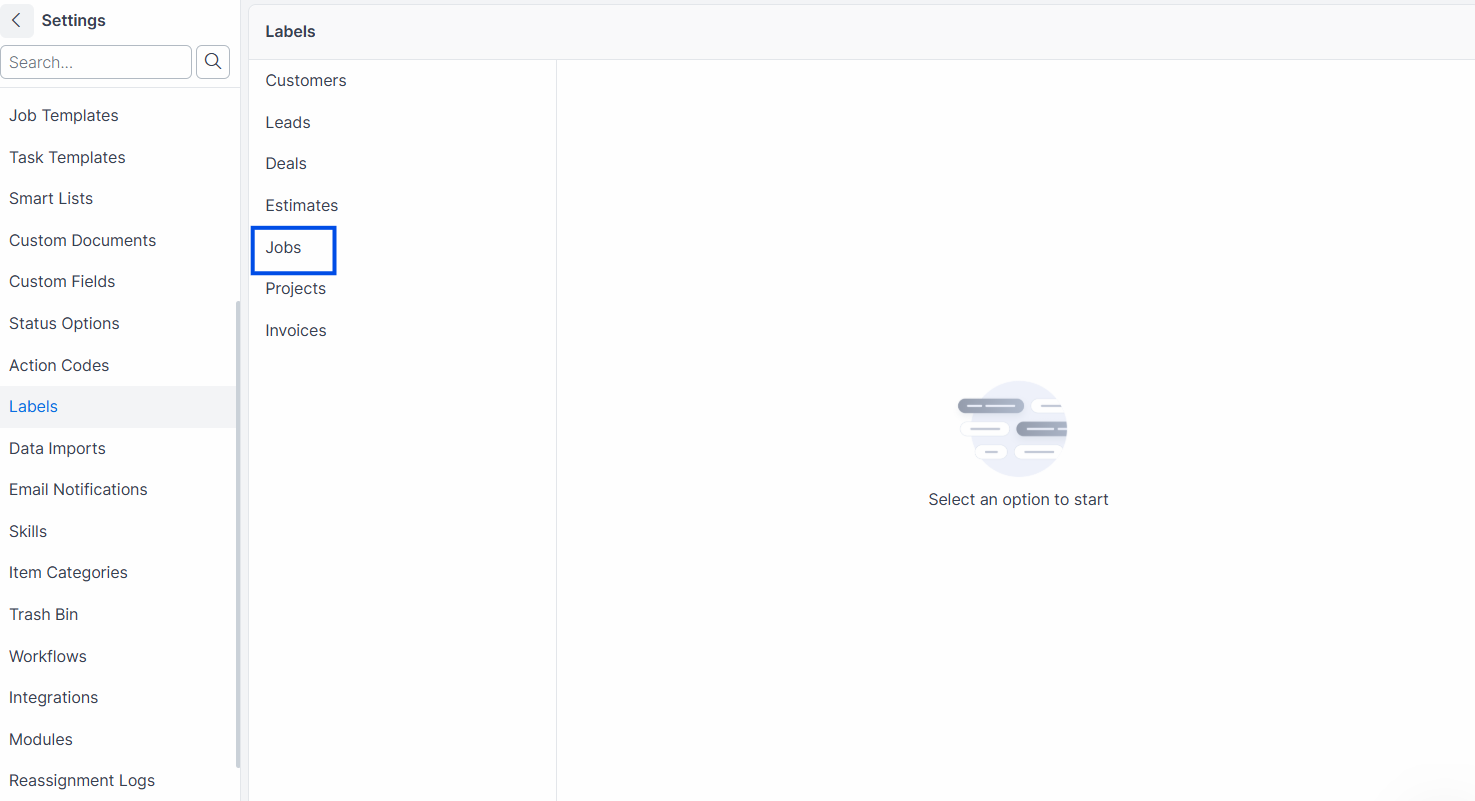
Select the record type from the dropdown (e.g., Job).
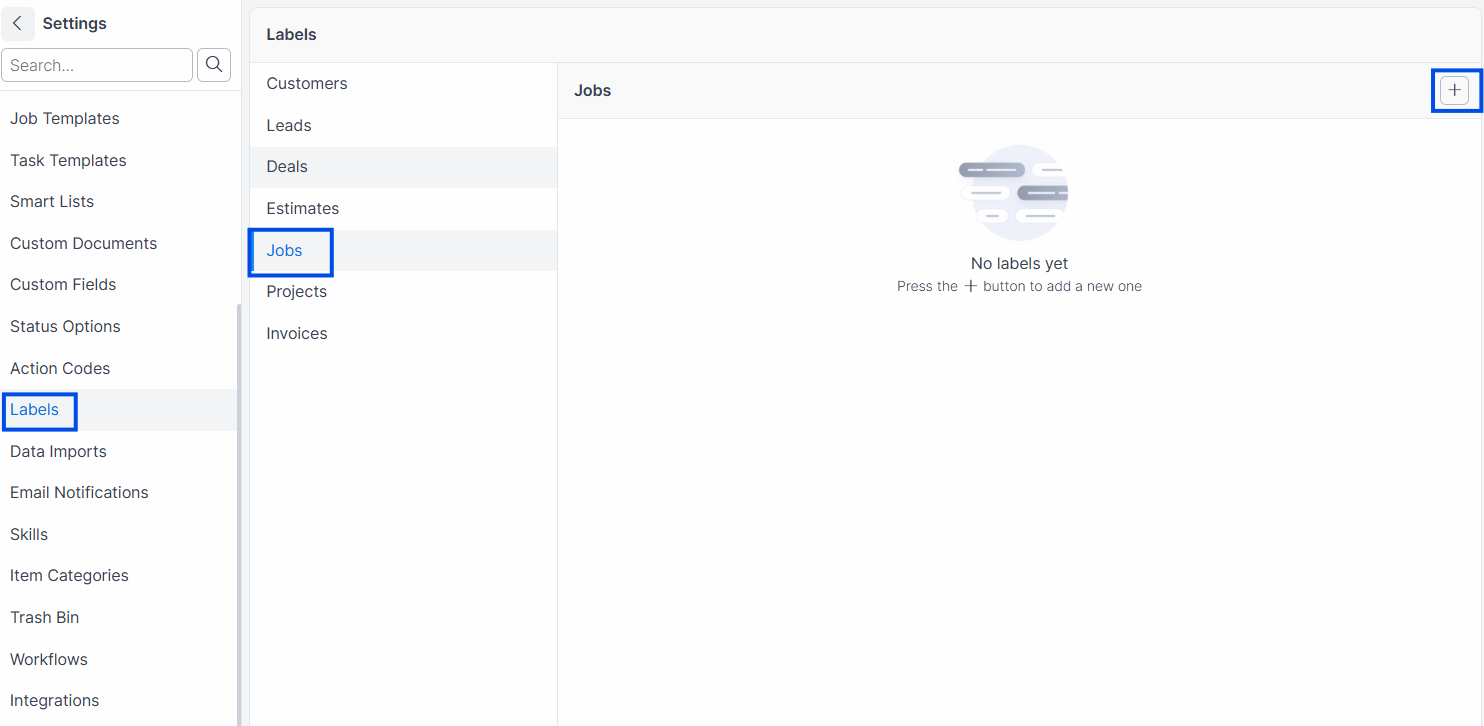
Click Add Label.
Enter a Name for the label (e.g., "Priority," "Warranty," "Commercial").
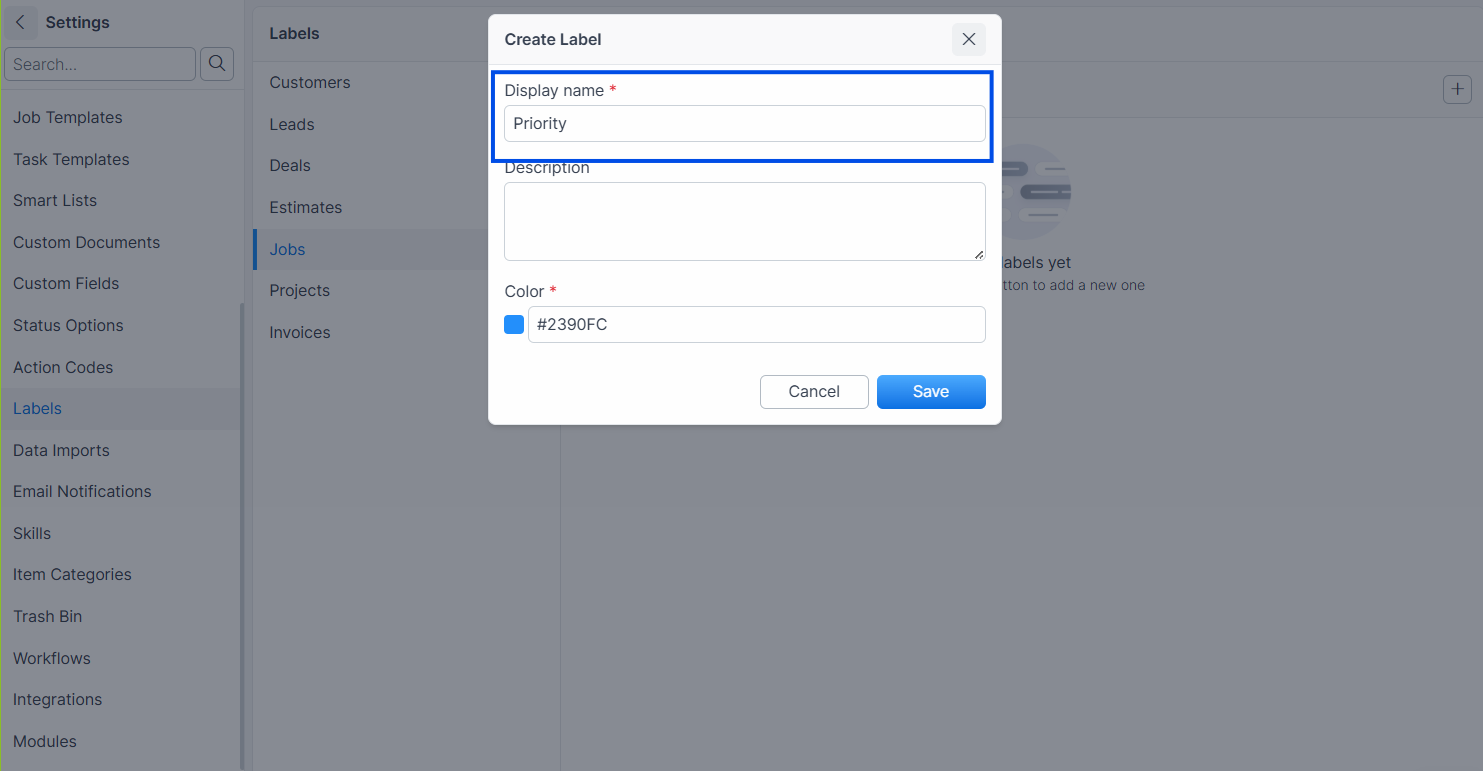
Select a Color for the label.
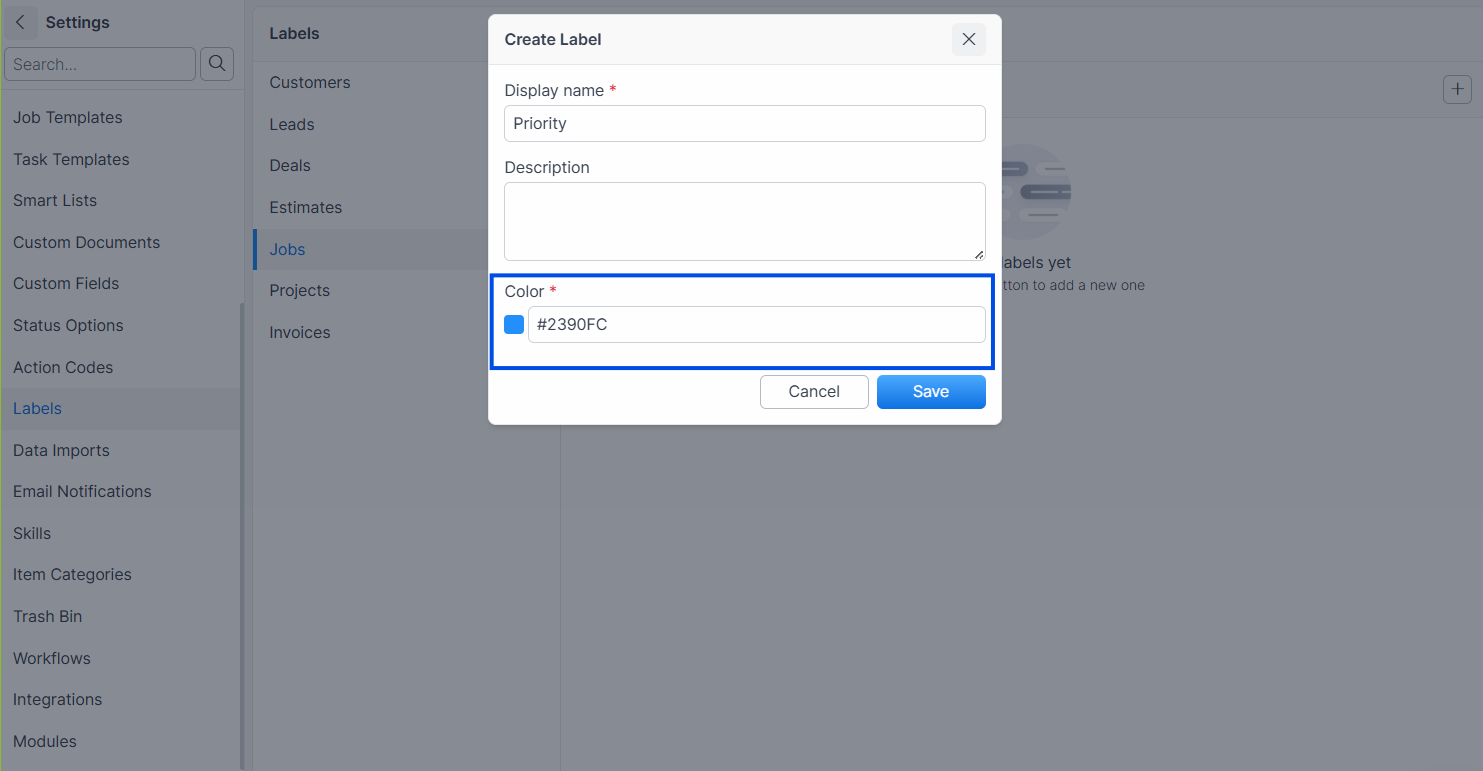
Click Save.
Expected result: The label appears in the list for that record type. You can now apply it to any record of that type.
Note: Label names must be unique within each record type. You can have a "Priority" label for Jobs and a separate "Priority" label for Customers, but not two "Priority" labels for Jobs.
Applying Labels to Records
Labels are available on the following record types:
Customer
Estimate
Job
Project
Invoice
To apply a label, open the record and select labels from the label field. You can apply multiple labels to a single record.
Renaming a Label
Navigate to Settings > Labels.
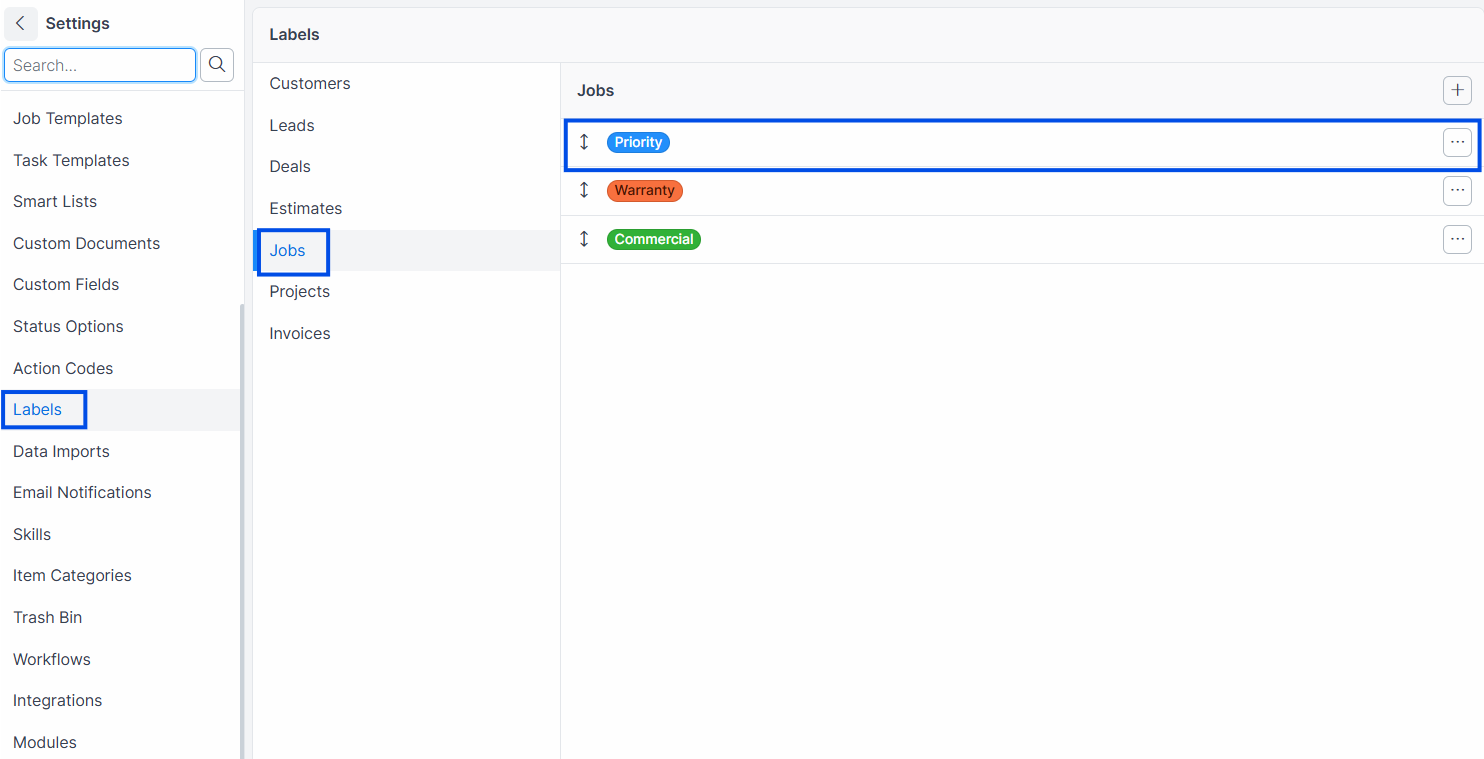
Select the record type.
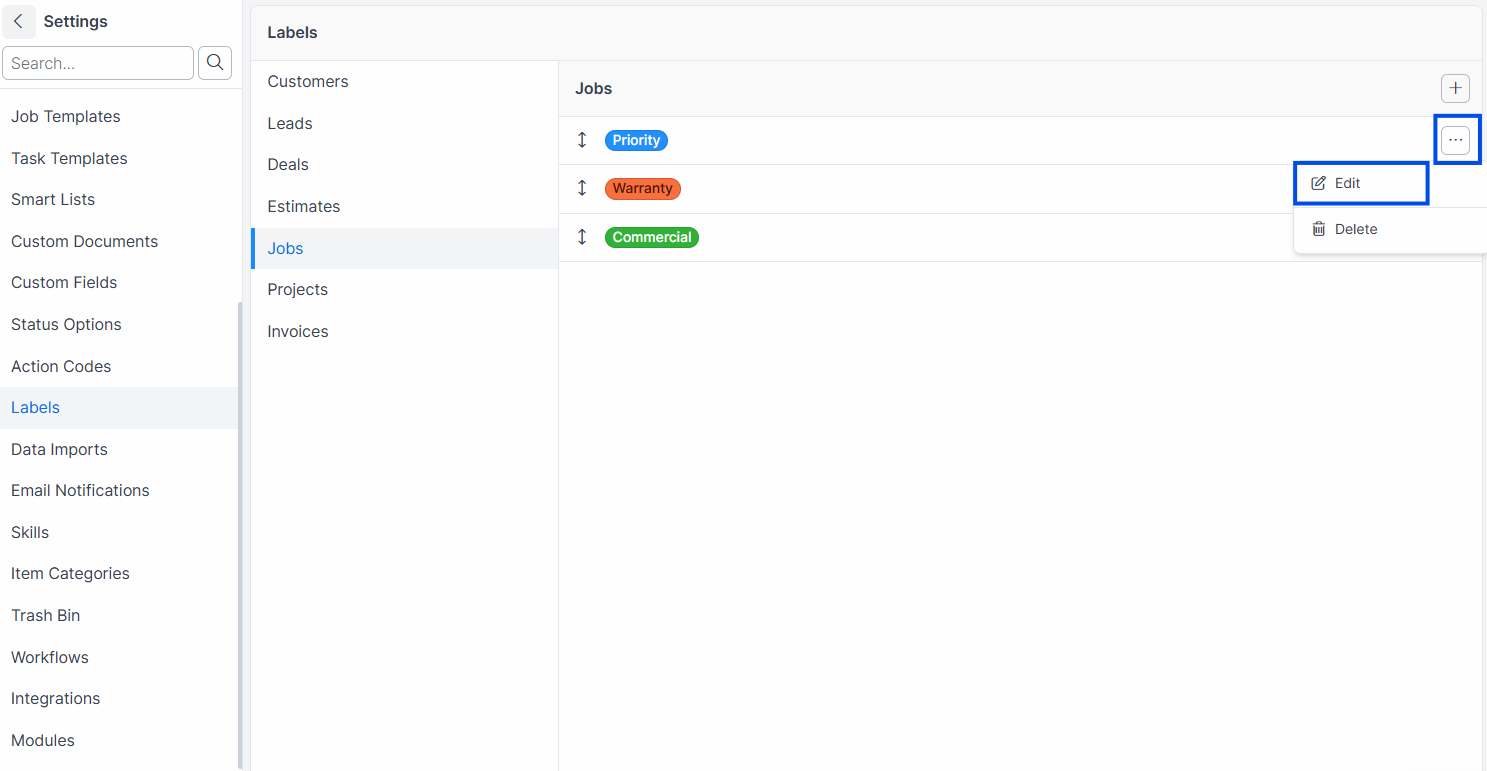
Click the label you want to rename.
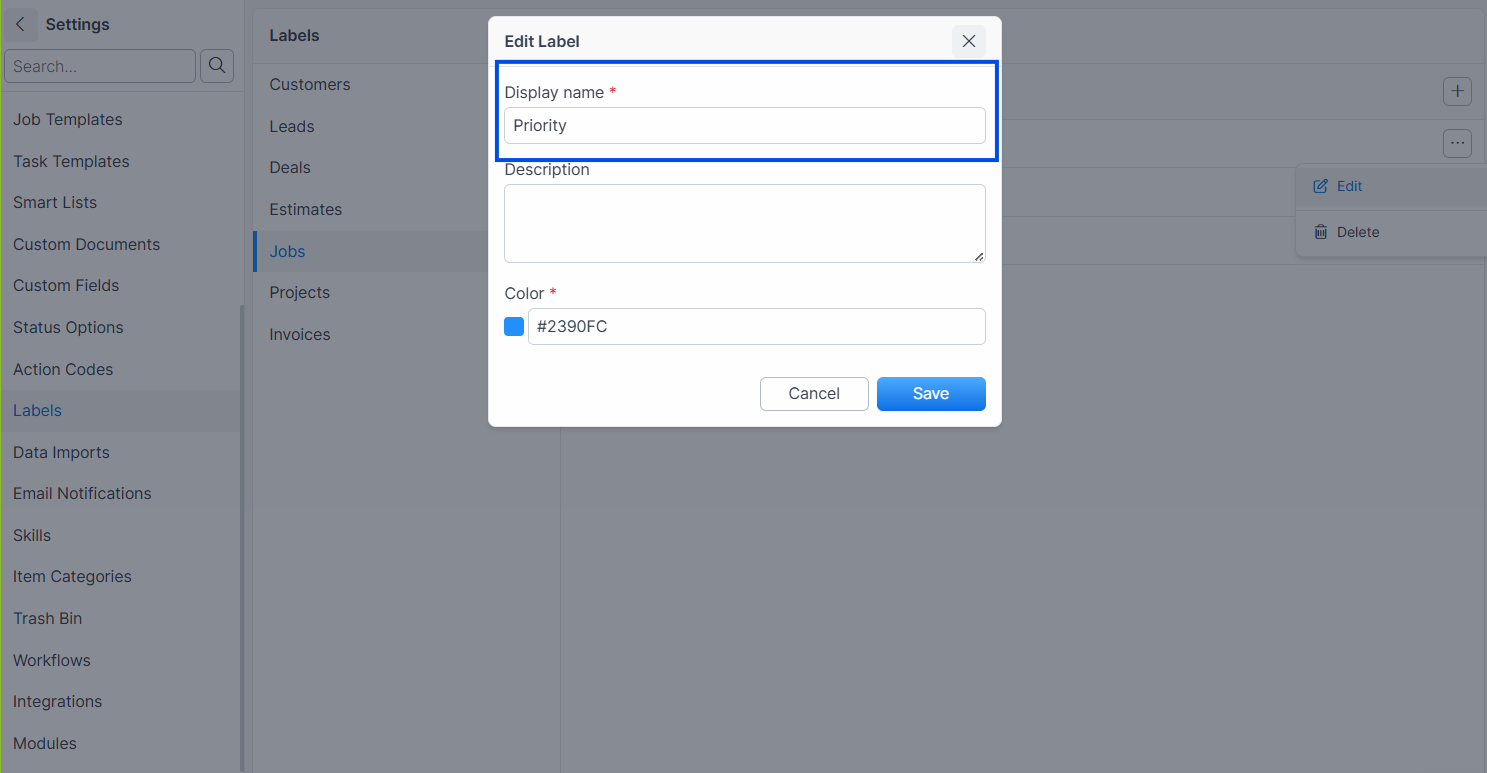
Change the Name field.
Click Save.
Expected result: Forz updates the label name and queues a background job (LabelsUpdateRelatedJob) to update every record that uses the old label name. All records automatically reflect the new name.
Warning: Renaming a label propagates to all records that use it. This runs as a background job, so large datasets may take a few moments to fully update.
Deleting a Label
Navigate to Settings > Labels.
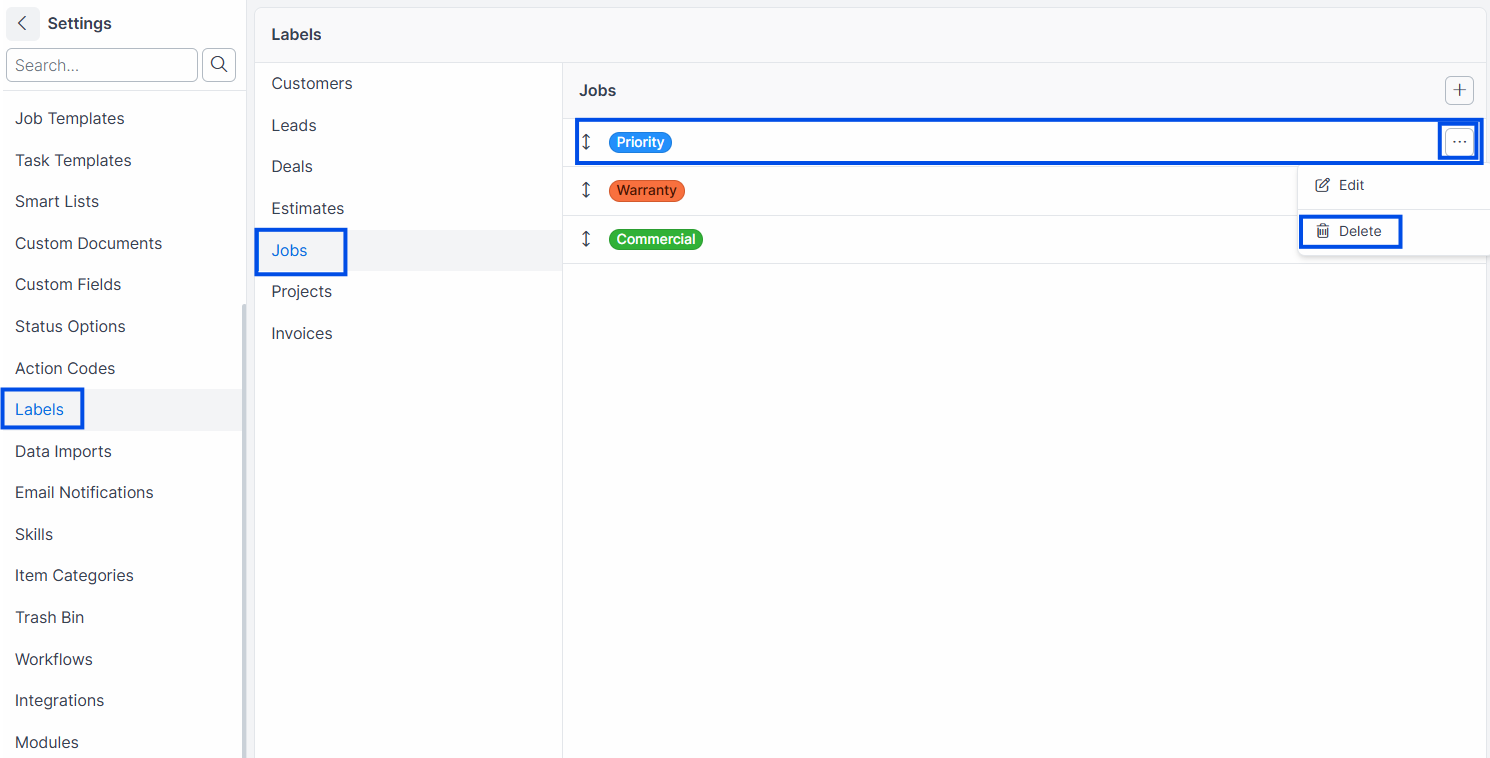
Select the record type.
Click the label you want to delete.
Click Delete.
Expected result: Forz removes the label from all records that use it, then soft-deletes the label to the trash bin. The label no longer appears in the label list or on any records.
Warning: Deleting a label strips it from every record of that type. This cannot be undone from the UI — check the Trash Bin to restore if needed.
Filtering by Labels
Navigate to the record list (e.g., Jobs).
Click the Labels filter.
Select one or more labels.
Expected result: The list shows only records that have at least one of the selected labels applied.
Reordering Labels
Labels support drag-and-drop reordering within each record type. The position determines the display order in dropdowns and filter menus.
Navigate to Settings > Labels.
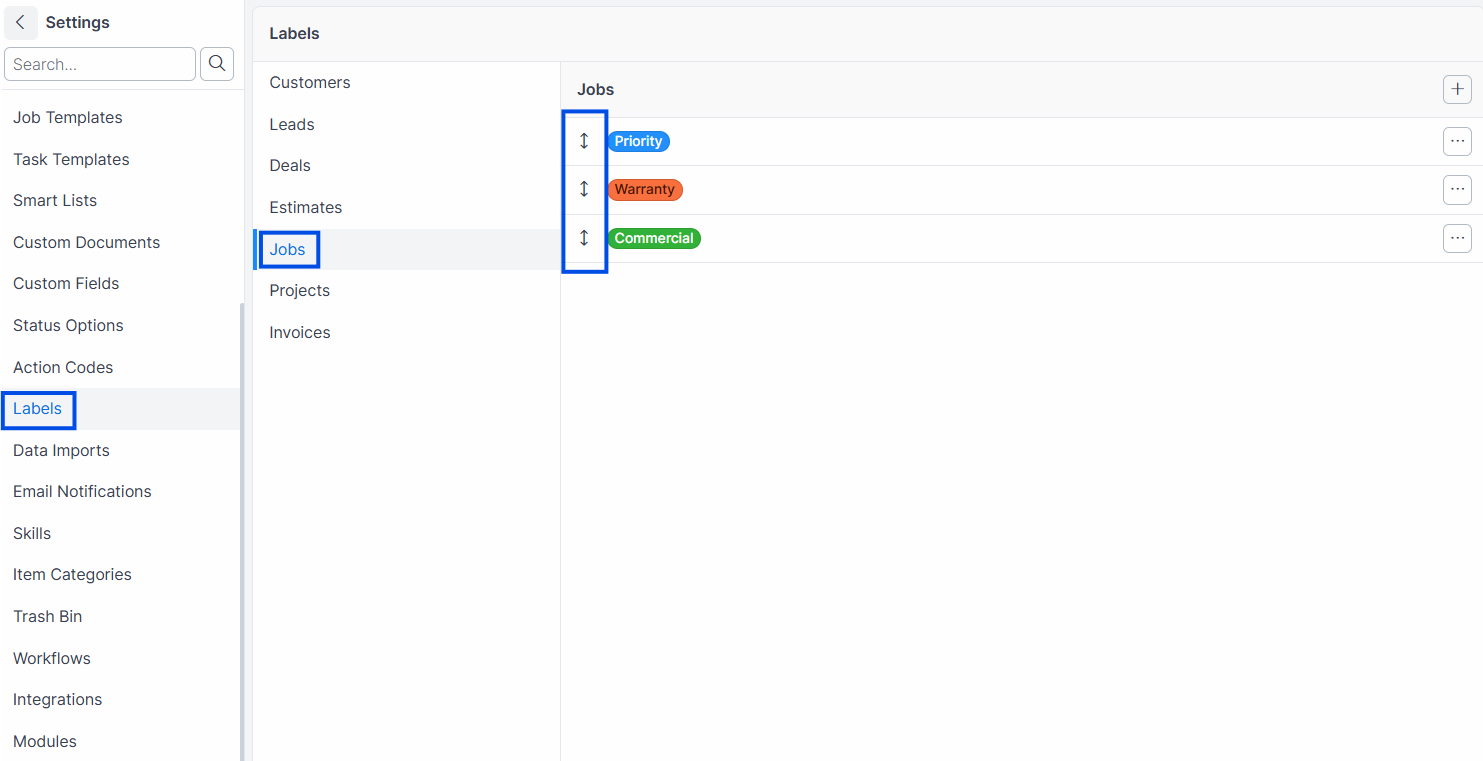
Select the record type.
Drag labels to rearrange their order.
Expected result: The label order updates immediately and is reflected in all label dropdowns across Forz.
Common Scenarios
HVAC company organizing jobs by service type
An HVAC dispatcher creates labels for Jobs: "Installation" (blue), "Repair" (red), "Maintenance" (green), and "Warranty" (purple). When dispatching, the team applies the appropriate label to each job. The dispatcher filters the job board by "Warranty" to see all active warranty calls and prioritize them.
Plumbing company tracking customer segments
A plumbing company creates Customer labels: "Commercial" (blue), "Residential" (gray), and "Property Manager" (orange). The sales team filters the customer list by "Commercial" to identify high-value accounts for quarterly follow-ups.
Electrical contractor managing estimate priorities
An electrical contractor uses Estimate labels: "Urgent" (red), "Pending Approval" (yellow), and "Government" (green). The estimating team filters by "Pending Approval" to follow up on outstanding quotes before they expire.
Troubleshooting
Was this helpful?
Still need help? Ask the team