Recurring Invoices
Set up invoices that generate automatically on a repeating schedule.
Overview
Recurring invoices let you automate billing for repeated services — monthly maintenance contracts, quarterly inspections, biweekly pool service, or any work billed on a regular cycle. You define the customer, line items, frequency, and start date. Forz generates individual invoices automatically based on the schedule.
Before You Begin
Prerequisites:
The Invoice module is enabled (Settings > Modules).
You have the Invoices: Create permission on your role.
At least one customer record exists.
At least one payment term is configured (Settings > Payment Terms).
Creating a Recurring Invoice
Required fields
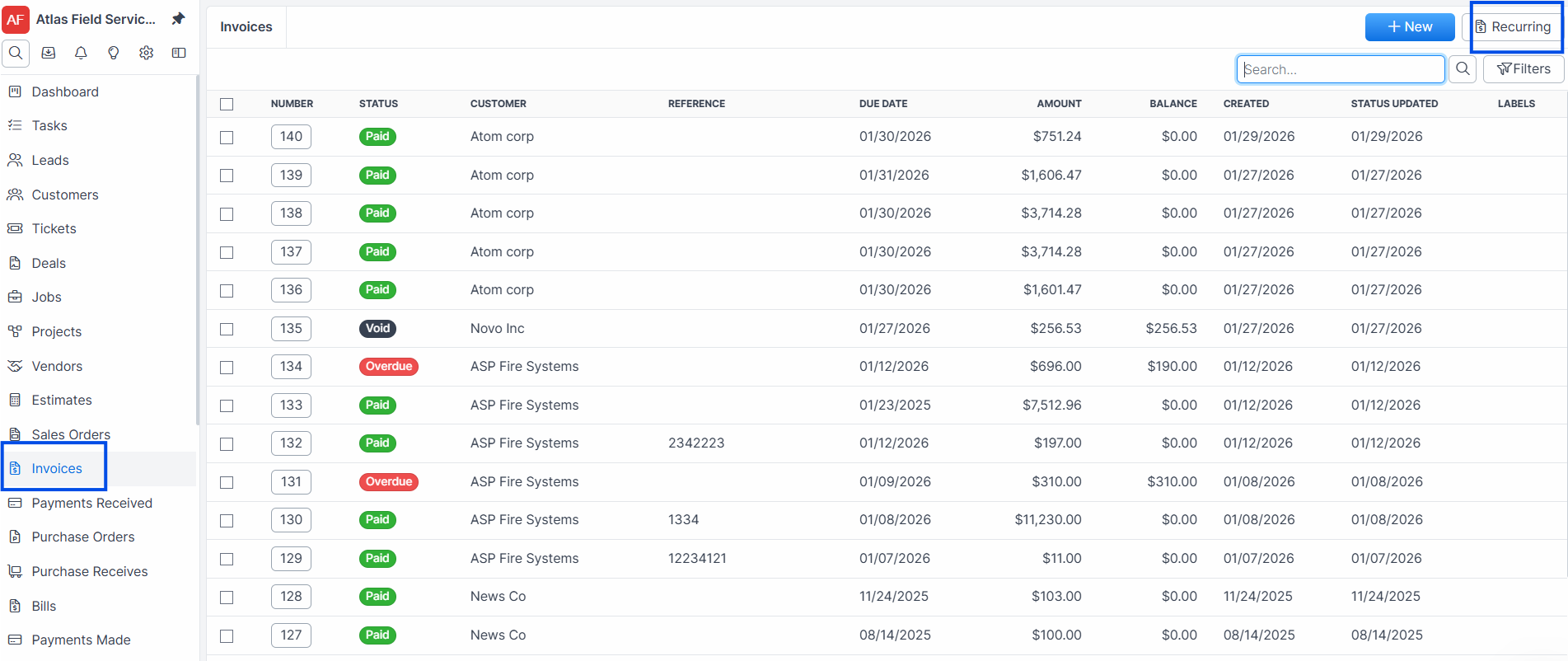
Click Invoices in the sidebar navigation.
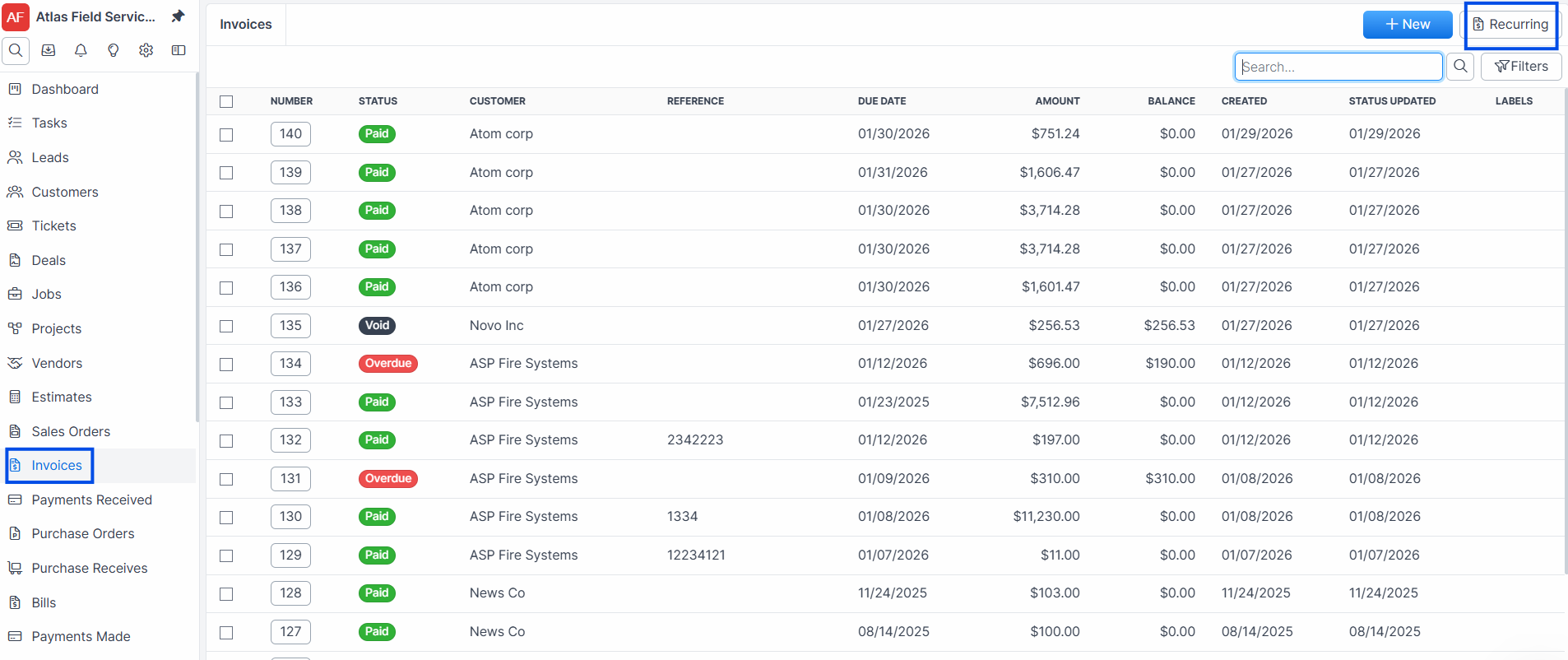
Click Recurring on the top right corner.
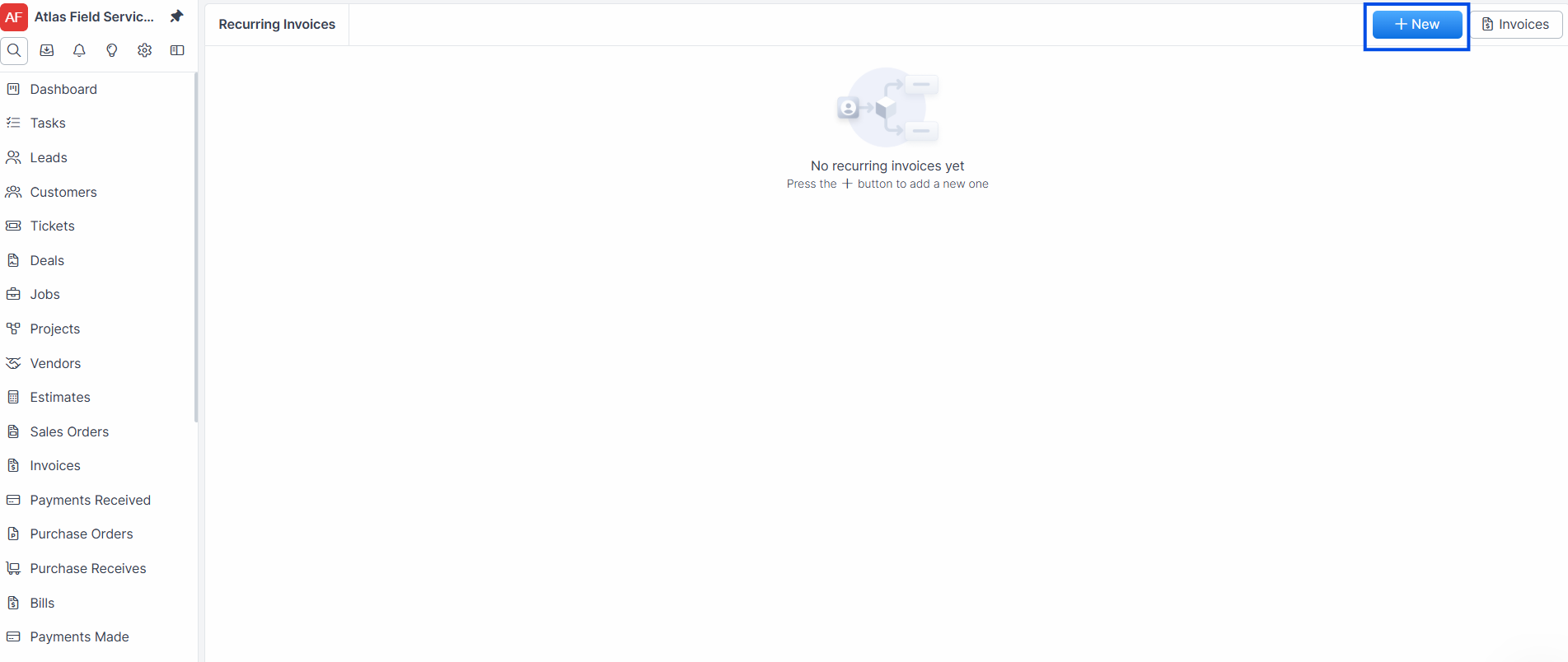
Click the + New button.
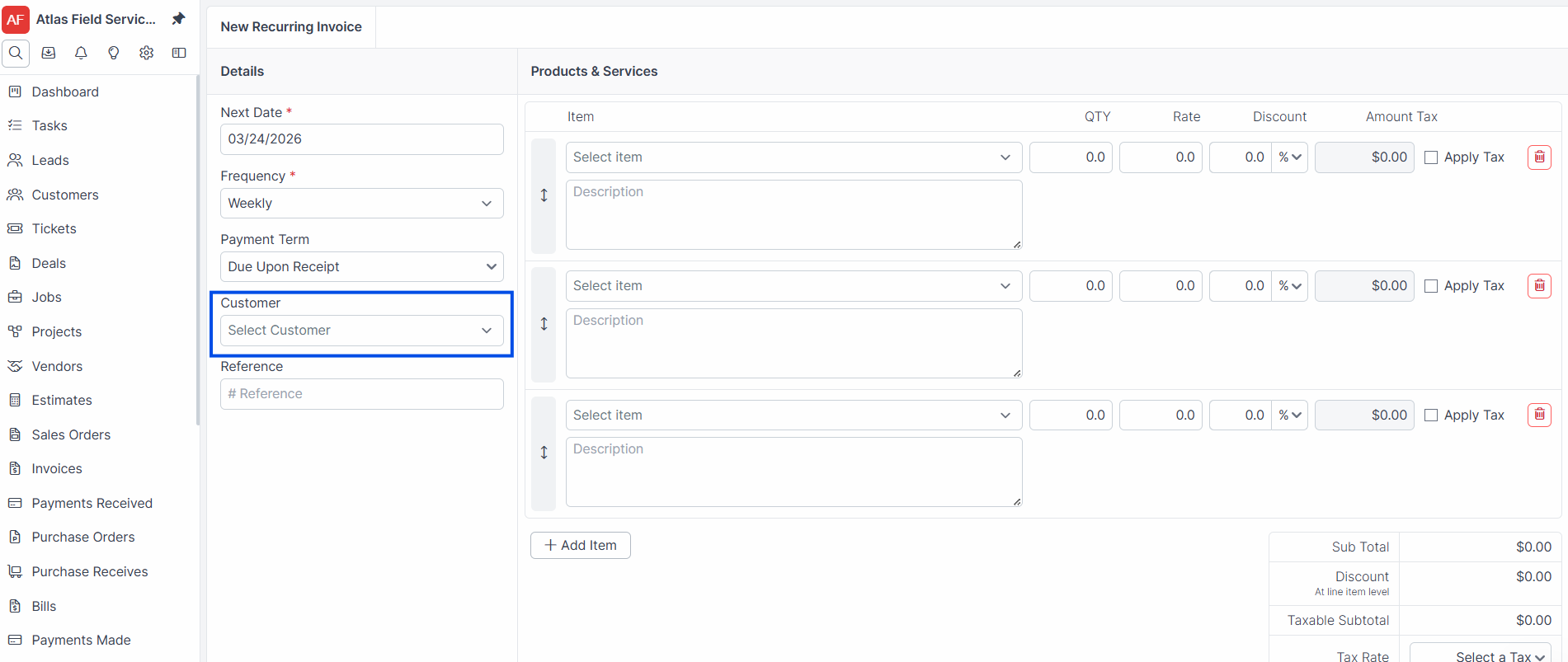
Select a Customer from the dropdown.
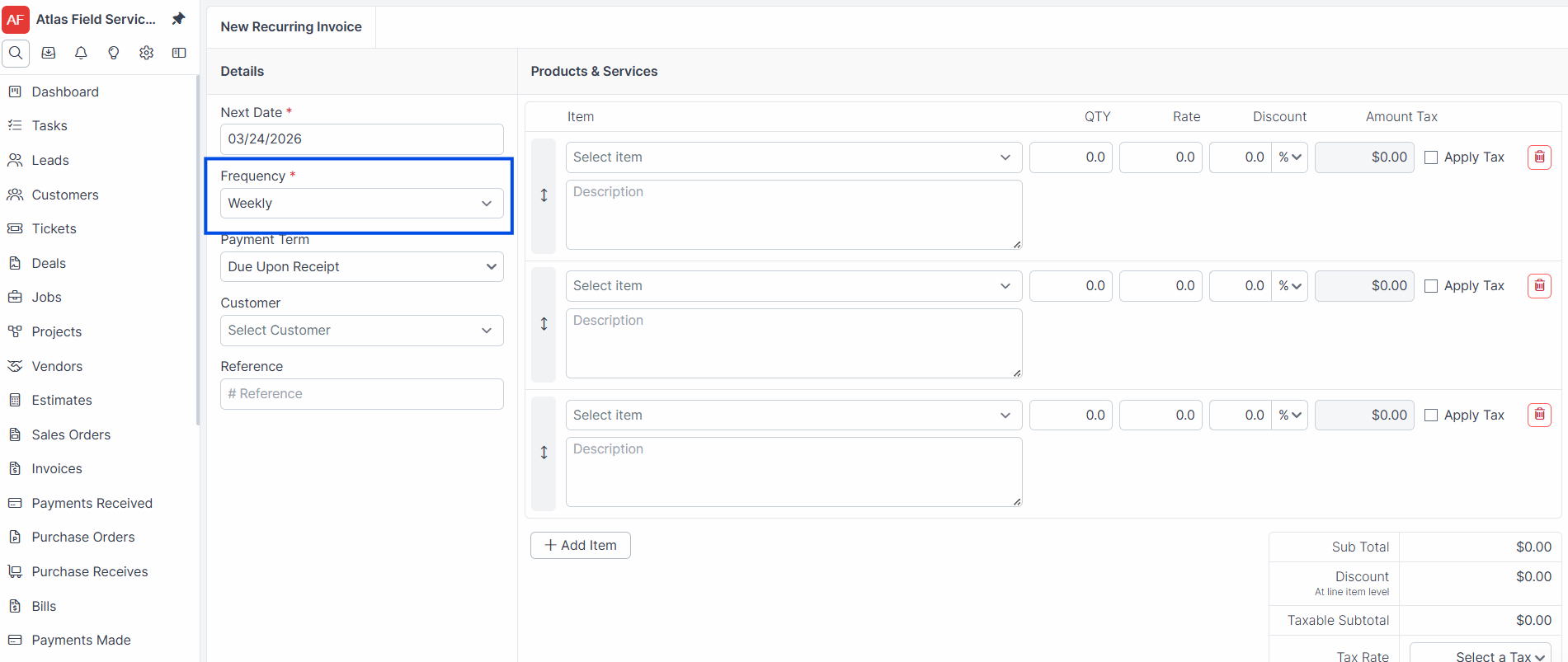
Select a Frequency — options include weekly, biweekly, monthly, every 3 months, every 6 months, and yearly.
Set the Next Date — the date the first invoice will be generated.
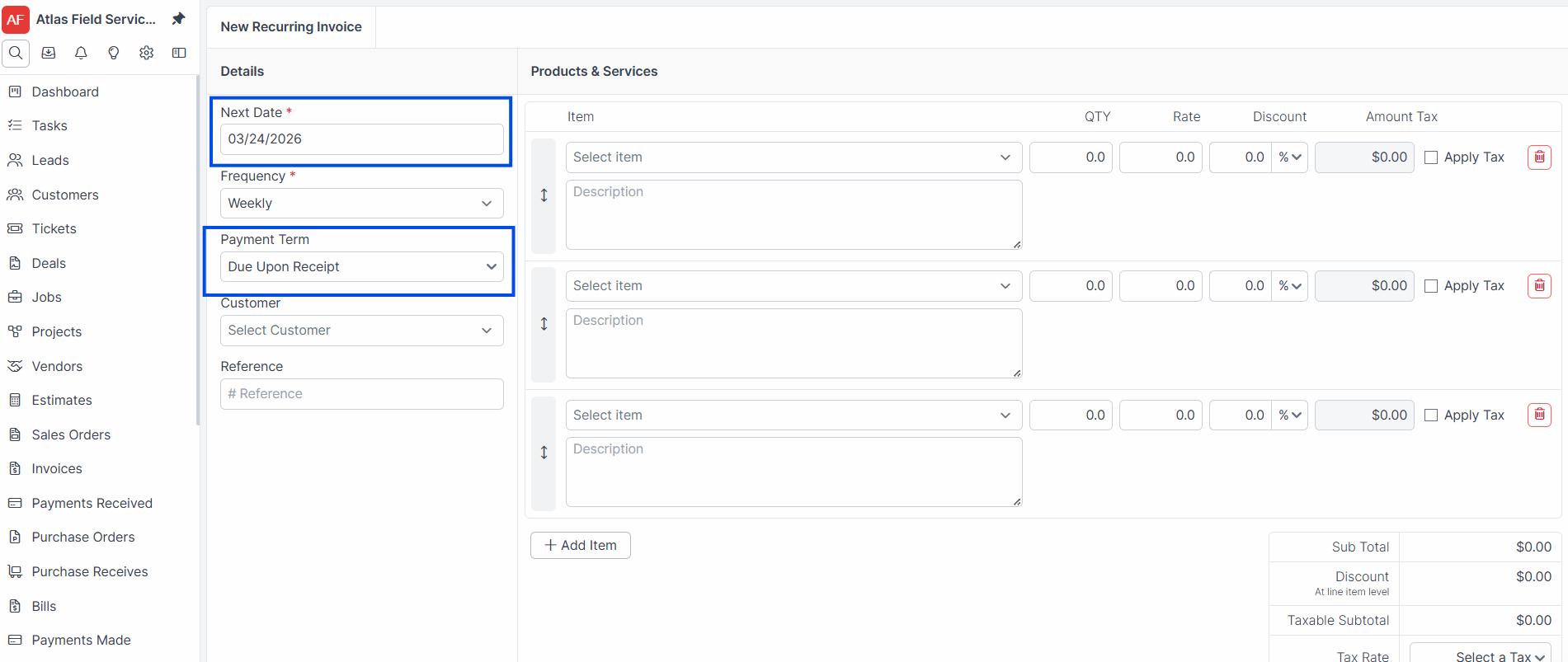
Select a Payment Term.
Optional fields
Select a Service Address.
Select a System — required if the Systems module is enabled.
Select a Contact.
Add line items (products and services) with quantities and prices.
Click Save.
Expected result: Forz creates the recurring invoice with a unique number and generates scheduled items for the next 12 months based on the selected frequency. Each item represents a future invoice that will be created automatically.
Note: Forz generates invoices for scheduled items within a window of up to 5 days in the future. This means invoices are created slightly before their scheduled date to allow time for review.
How Invoice Generation Works
Forz runs a daily background job that checks for pending recurring invoice items whose date falls within the generation window. For each eligible item, Forz creates a new invoice in Draft status with the customer, contact, site, payment term, and line items copied from the recurring invoice template.
Editing a Recurring Invoice
Open Invoices in the side bar, click the Recurring button.
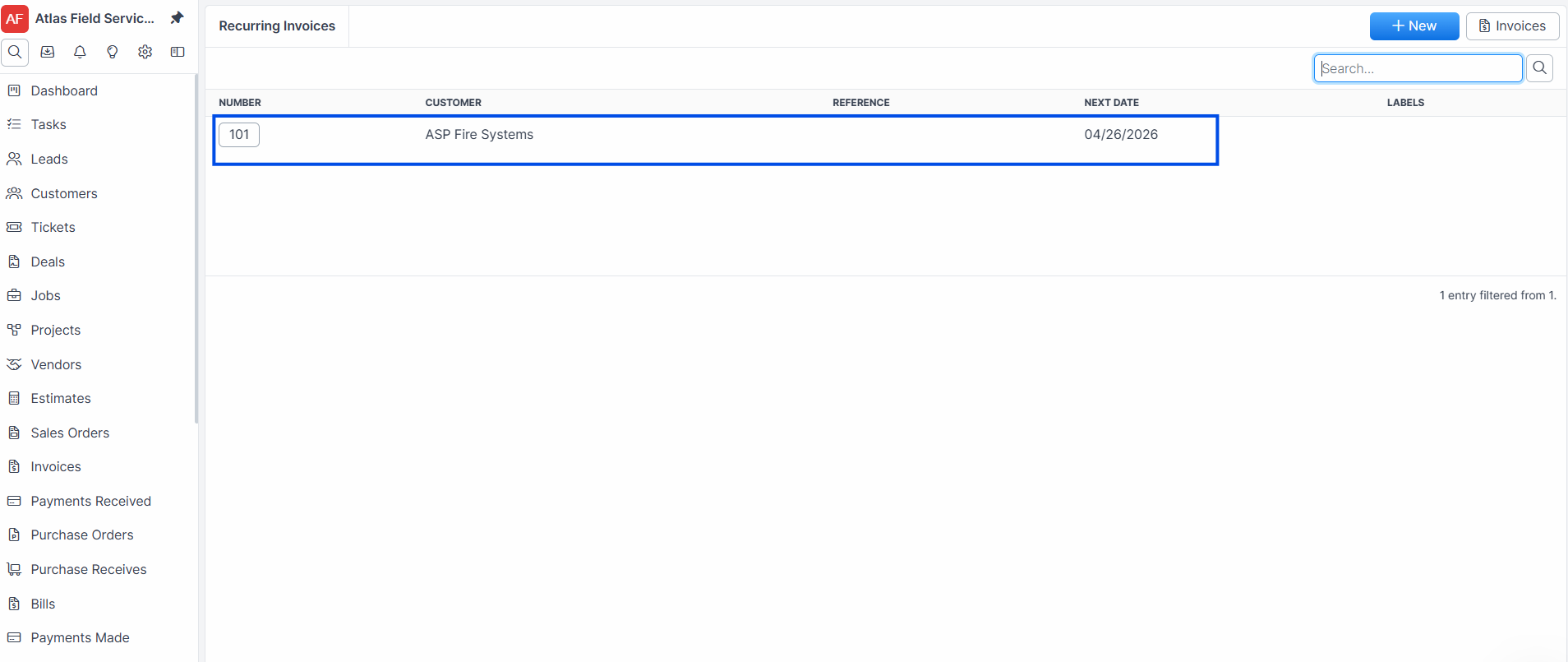
Click Edit.
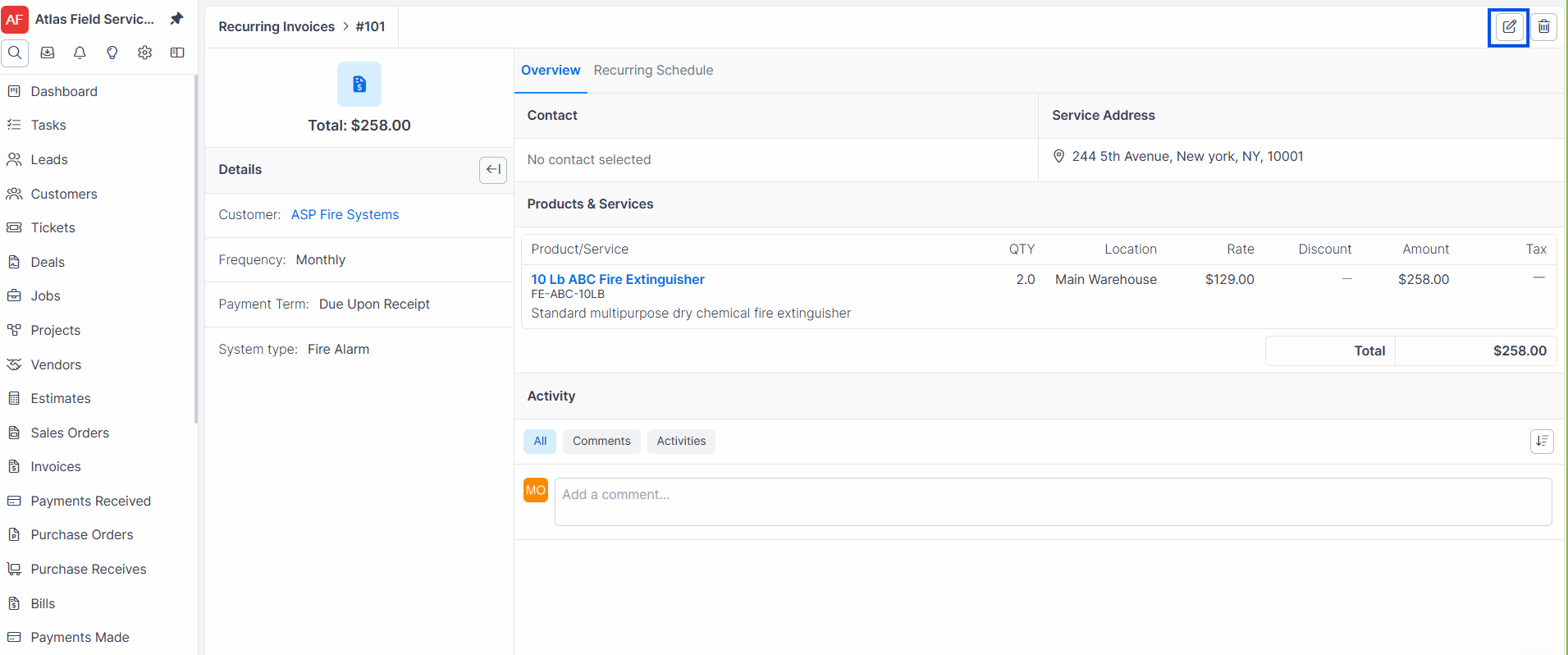
Update the frequency, next date, line items, or other fields.
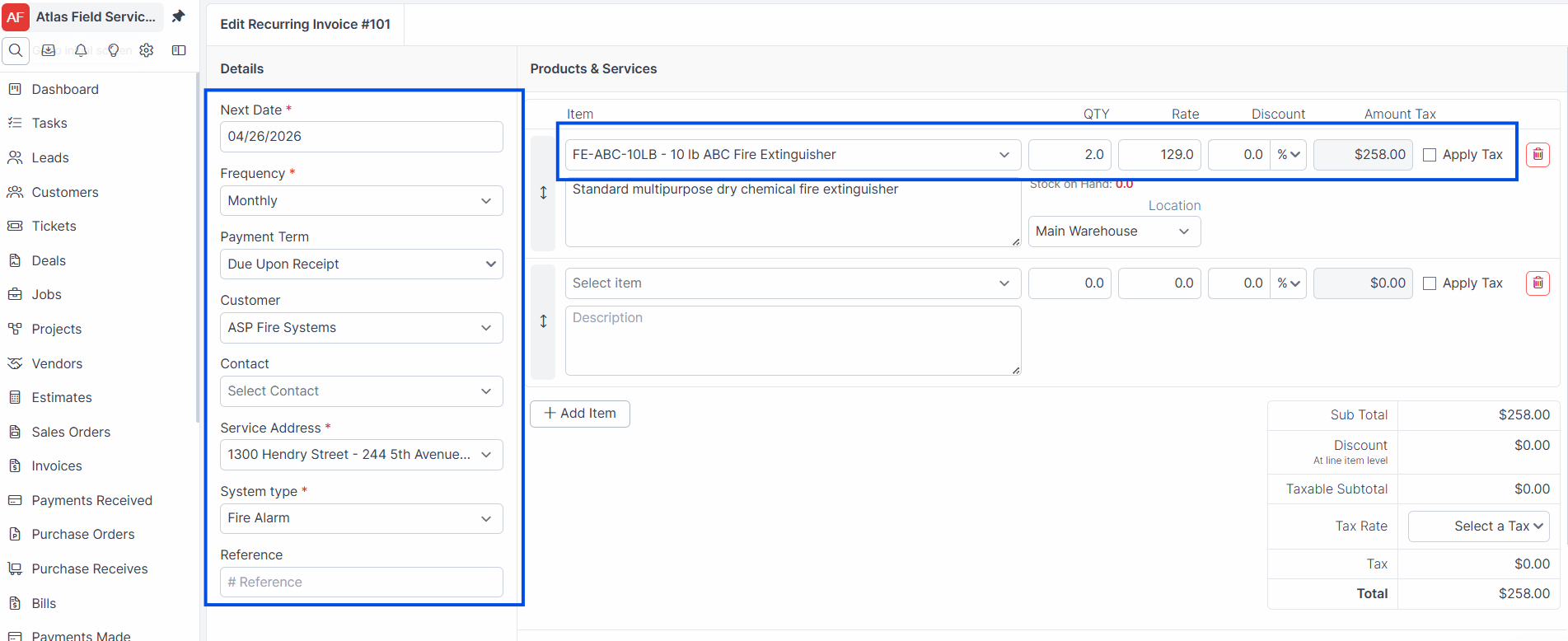
Click Save.
Expected result: Forz removes any future scheduled items that have not yet generated invoices, and creates new scheduled items based on the updated frequency and next date.
Common Scenarios
Monthly HVAC maintenance contract
An HVAC company bills a property management firm $450/month for preventive maintenance across three rooftop units. The dispatcher creates a recurring invoice with a monthly frequency, sets the next date to the 1st of next month, and adds three line items (Preventive Maintenance - RTU, qty 1, $150 each). On the 1st of each month, Forz generates a Draft invoice automatically.
Quarterly fire safety inspection
A fire protection company schedules quarterly inspections for a hospital. They create a recurring invoice with an "every 3 months" frequency and include line items for fire extinguisher inspection, sprinkler system check, and emergency lighting test.
Troubleshooting
Was this helpful?
Still need help? Ask the team