Send emails from invoices, estimates, jobs, purchase orders, and sales orders, or write to one or more contacts.
Overview
You can send emails directly from Forz. Email an invoice, estimate, job, purchase order, or sales order to a customer or vendor, or write to one or more contacts from a customer, lead, ticket, project, or vendor. One email can go to several people at once, and every email you send is recorded on the record or the contact.
When you email a document, Forz fills in the subject and message from the record's email template and includes a link to the customer-facing page for the record. When you email contacts, you write the message yourself or start from one of your own email templates.
Before You Begin
Prerequisites:
You have permission to view the record you want to email (for example, Invoices: View).
At least one email sender is configured and verified (Settings → Email Notifications), or your own mailbox is connected (see Email Account).
The customer, vendor, or contact has a valid email address.
Sending a document by email
Open the invoice, estimate, job, purchase order, or sales order.
Click Send by email. On invoices, estimates, and jobs it is in the share menu (share icon); on purchase orders and sales orders it is the envelope icon.
Review the pre-filled fields:
From — shown only while your own mailbox is connected. It defaults to your mailbox address; select Company sender to send from your company address instead.
To — the record's primary contact, or the customer's primary contact (for purchase orders, the vendor's email).
CC — add more recipients (optional).
Subject and Message — filled in from the record's email template. If the template is written in HTML, the message shows a preview of the email as it will be sent; click Edit HTML above the preview to change the code.
Add or remove recipients and edit the message as needed. See Choosing recipients and Writing the message below.
Click Send.
Expected result: Forz sends one email to everyone in To and CC, adds a note to the record (for example, "Invoice emailed to ap@riversidepark.com, facilities@riversidepark.com"), and moves a Draft invoice, estimate, purchase order, or sales order to Sent.
Choosing recipients
Each address in To and CC appears as a chip. Click a field to see suggestions from the record's contacts, its site's contacts, and its customer's contacts, each labelled with their role (for example, Primary or Billing). For a purchase order, suggestions come from the vendor's contacts. When you email a single contact, only that contact is suggested.
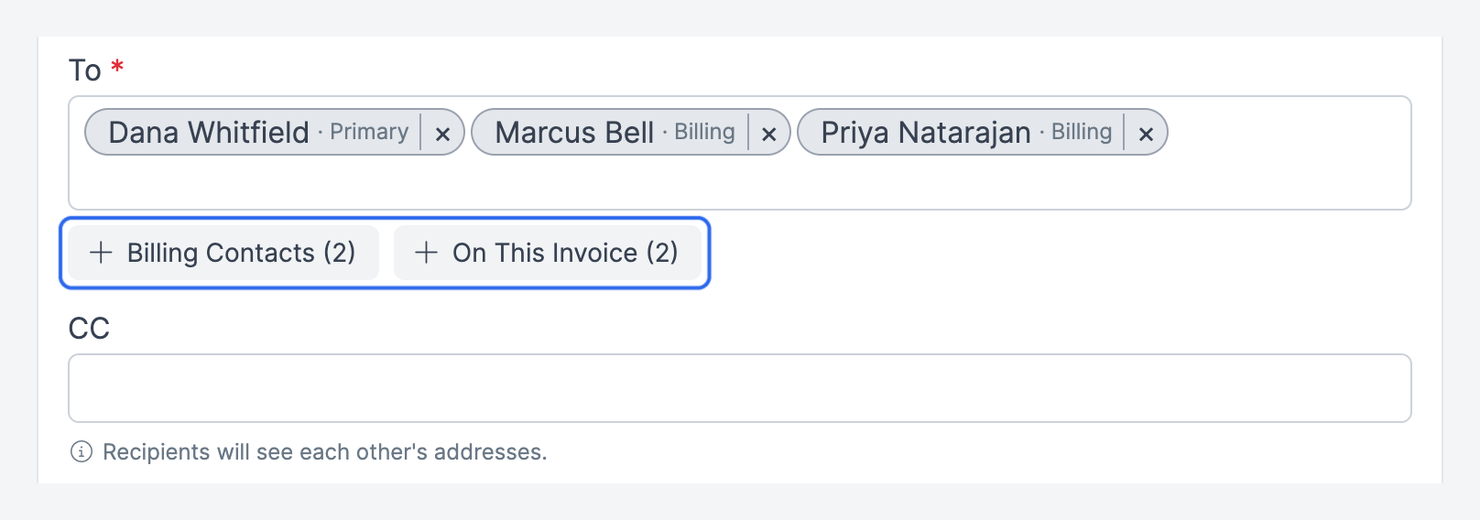
Add a contact — type a name or address and select a suggestion, or type a full address and press Enter or a comma.
Add a group — click Billing Contacts or On This {record} (on a purchase order, Vendor: {name}) under To to add every contact in that group. The number shows how many people the group adds. Each person is added as a separate chip, so you can remove anyone you don't want.
Paste a list — paste addresses separated by commas, semicolons, or new lines. "Jane Doe <jane@example.com>" becomes jane@example.com.
Remove a recipient — click the × on the chip.
An address that doesn't look like an email address is marked as invalid. Fix or remove it before sending.
Warning: Everyone on the email sees each other's addresses, and the form says so as soon as you add a second recipient. There is no BCC. To keep addresses private, send separate emails.
You can send to up to 50 addresses across To and CC. Duplicate addresses are removed automatically.
Emailing contacts
You can email contacts without attaching a document:
One contact — click the paper-plane icon next to the contact's email address on a contact card, in the contact's page header, or at the bottom of the contact's Communication History.
A record's contacts — on the Contacts tab of a customer, lead, project, or vendor (the tab appears once a customer, lead, or vendor has two or more contacts), click the paper-plane icon (Email contacts). On leads, customers, and projects you can also select Email from the + New menu in the record header; on tickets, select Email from the … menu.
The To field starts with the record's primary contact (or its first contact with an email). The record's other contacts are suggestions and group buttons, one click away. If no contact on the record has an email address, the Email menu item is greyed out with the hint "Add a contact with an email first", and the paper-plane on the Contacts tab is hidden.
Expected result: The email appears in the Communication History of every contact on it, where you can reply to it. When you send from a record's Contacts tab or menu, Forz also adds a note to the record (for example, "Emailed to jane@example.com").
Starting from a template
When you email contacts and your company has at least one custom email template, click Use Template above the form and select one of your company's custom email templates. The template replaces the subject and message; your recipients and From choice stay. If you've already written something, Forz asks "Replace your message with this template?" first.
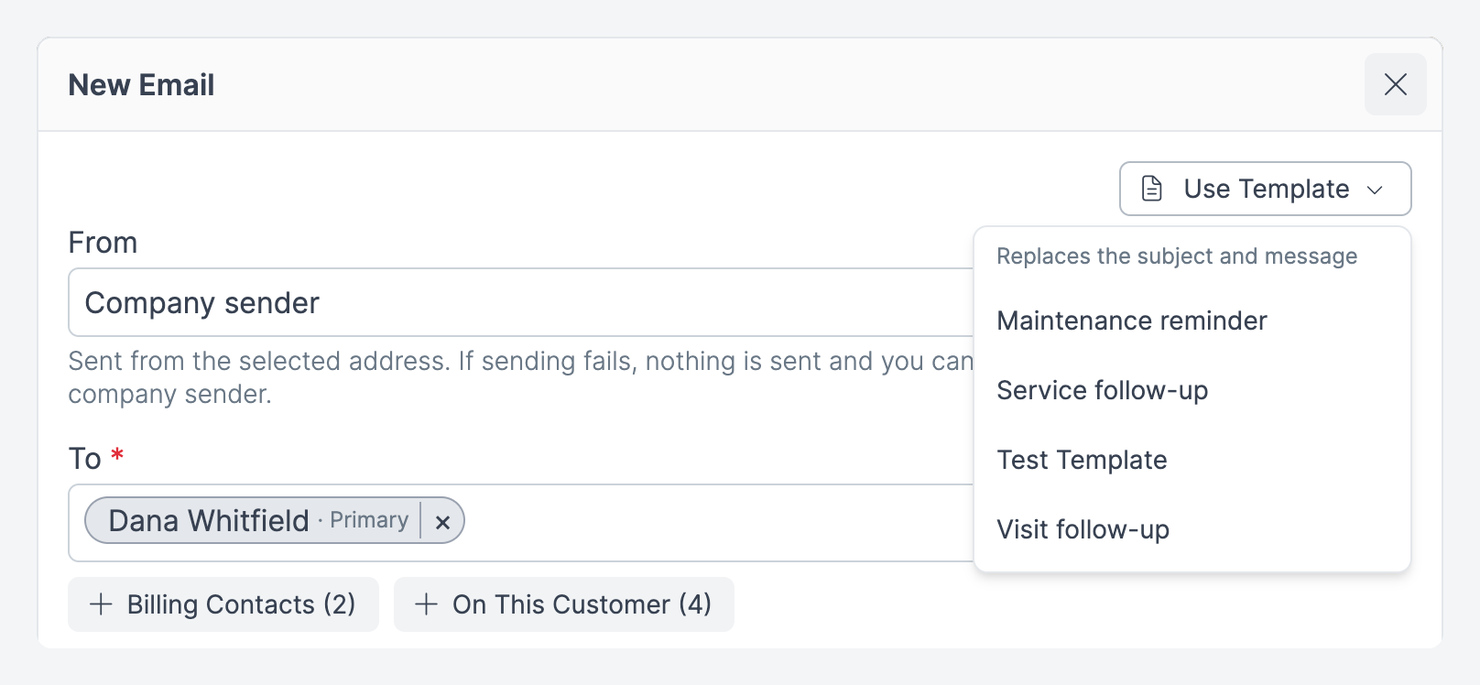
Merge fields such as {{contact.first_name}} and {{company.organization}} are filled in when you pick the template, using the contact the email opened with (the record's primary contact, or the contact you clicked). Everyone on the email gets the same text, so check names before you send to several people. To create these templates, see Email Templates.
If the template is written in HTML, such as a branded layout, the message shows a preview of the email as it will be sent. Click Edit HTML above the preview to change the code.
Writing the message
The Message editor supports formatting such as bold, lists, and links, and emails are sent as formatted HTML with a plain-text version for mail apps that need it.
Images — add, paste, or drop PNG, JPEG, GIF, or WebP images up to 10 MB. Send is unavailable until the upload finishes.
Edit HTML — click the code icon (</>) in the editor toolbar to edit the message as raw HTML, for example to paste a layout with tables and inline styles. If the message shows a preview, click Edit HTML above it first. Switching back to the visual editor can drop HTML it can't display, such as custom layouts and styles.
Forz won't send an empty message: write some text or add an image first.
Replying to an email
Every email sent from Forz, including emailed documents, and every email logged from a connected mailbox appears as a thread in the Communication History of each contact on it. Emailed documents show only to people who can view the document.
Open the contact's Communication History and expand the thread.
Click Reply to answer the latest message (its sender, or its recipients if you sent it), or Reply all to also copy everyone else who was on the email.
Write your message and click Send.
Expected result: The reply joins the same thread. Reply all leaves out your own addresses and your company's sender addresses.
What happens after sending
One email, one thread — everyone receives the same email, and replies stay together in one thread.
Activity note — the document, or the record you emailed from, gets a note listing the recipients, including CC (for example, "Invoice emailed to a@example.com, cc: b@example.com" or "Emailed to a@example.com"). Emails to a single contact add no note.
Status update — a Draft invoice, estimate, purchase order, or sales order moves to Sent.
Portal link — document emails include a link to the customer-facing page for the record.
Skipped addresses — if an address previously bounced or unsubscribed, the email is still sent to everyone else and Forz shows "Sent, but not delivered to: …". The same message is added to the note.
Email senders
Email senders define the verified sending addresses and domains for your account. Each sender can be assigned a purpose to route emails through the correct address.
Sender purposes
Sender verification
Each email sender requires verification before it can send emails:
Email confirmed — the sender email address is confirmed.
DKIM verified — domain authentication is configured.
Return path verified — bounce handling is set up.
Tip: Configure at least one fully verified sender with the Billing purpose so invoices and estimates send from a professional address (for example, billing@yourcompany.com).
Common scenarios
Sending an invoice to a commercial customer's billing team
A dispatcher opens Invoice #INV-2048 for Riverside Office Park and clicks Send by email. To already holds the primary contact. The dispatcher clicks Billing Contacts to add the two accounts-payable contacts, removes one who left the company, and clicks Send. The invoice moves from Draft to Sent, and the note lists every recipient.
Following up with everyone on a ticket
A service coordinator opens a ticket for a recurring leak, clicks … → Email, clicks On This Ticket to add the property manager and the tenant, picks the "Visit follow-up" template, changes the greeting so it addresses both of them, and sends. The email shows in both contacts' Communication History, and the ticket gets an "Emailed to …" note.
Sending a purchase order to a parts vendor
A dispatcher emails Purchase Order #PO-0087 to the HVAC parts supplier. To is filled with the vendor's email address, and the vendor's other contacts are offered as suggestions. The PO moves from Draft to Sent.
Permissions
To email a document you need permission to view it. Invoices also need the Send email permission. An invoice can't be emailed while it is Void or has no line items, and an estimate can't be emailed until it has at least one line item. To email a contact you need permission to view the contact. Emailing a record's contacts also needs permission to view the record and the contacts list. Recipient suggestions appear only if your role can view contacts; otherwise To and CC are plain text fields.
Troubleshooting
Was this helpful?
Still need help? Ask the team