Email Templates
Create and edit HTML email templates with merge fields for document emails and emails to contacts.
Overview
Email templates hold the subject and message used for emails sent from Forz. There are two kinds:
Default templates — one each for estimates, invoices, jobs, purchase orders, and sales orders. Forz uses them to fill in the subject and message when you click Send by email on one of those records. You can edit their subject and message.
Custom templates — templates you create, such as a visit follow-up or a maintenance reminder. They appear in the Use Template menu when you email contacts.
Template messages are formatted HTML. You can use merge fields such as {{invoice.number}} or {{contact.first_name}} so each email includes the right details.
Before You Begin
Prerequisites:
You are an Admin. Email templates are managed by admins only.
Viewing email templates
Navigate to Settings → Email Templates.
Click a template in the list on the left. The right side shows a preview of the email with its subject, sender, and message.
Click Desktop or Mobile above the preview to see how the email looks on a computer or a phone.
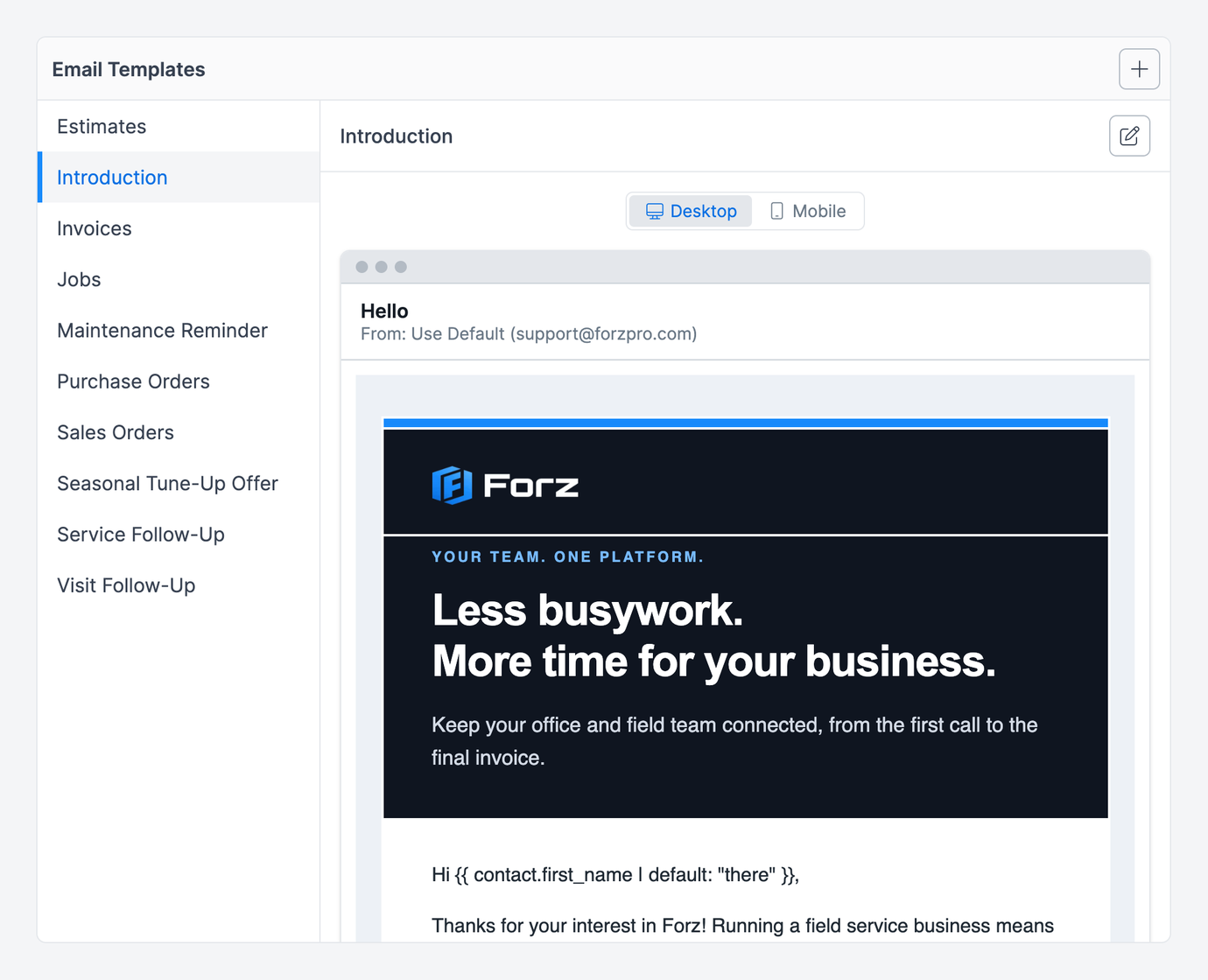
Expected result: The list shows every template in alphabetical order, including the five default templates (Estimates, Invoices, Jobs, Purchase Orders, Sales Orders) and any custom templates you have created. The first template is selected when you open the tab. Merge fields appear as written in the preview, for example {{contact.first_name}}; Forz fills them in when the template is used.
Creating an email template
Navigate to Settings → Email Templates.
Click the + button (Create Email Template).
Enter a Display name (required). This is the name shown in the Use Template menu, for example "Visit follow-up".
Leave From on Use Default (…). A sender set here only applies to default templates (see Default templates below).
Enter a Subject. Type
{{to pick a merge field.Write the Body. Use the toolbar to format text and add images, and click Insert Field to add a merge field at the cursor.
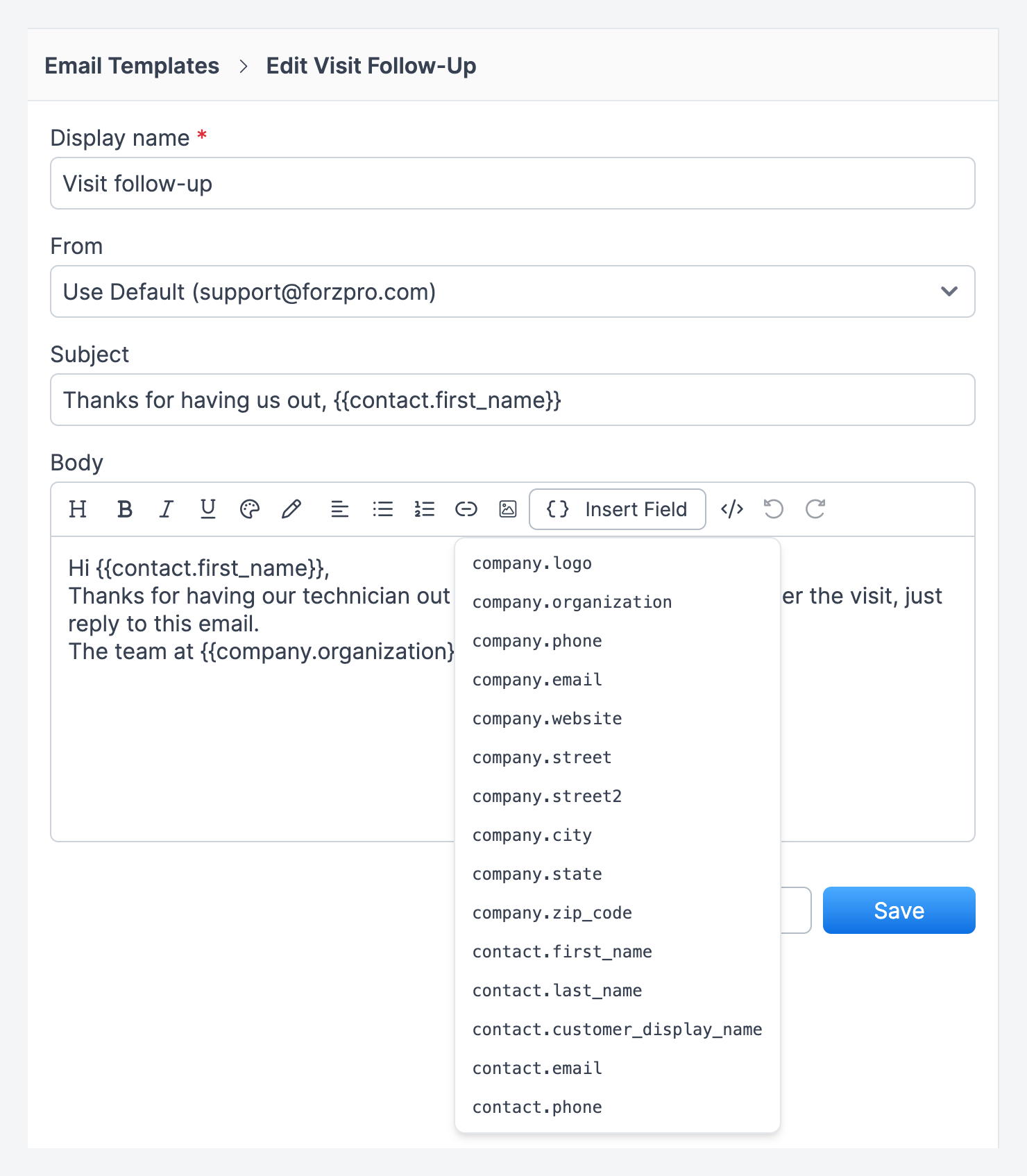
Click Save.
Expected result: The template is selected in the list with its preview, and it appears in the Use Template menu when anyone emails contacts. If the subject or body contains a broken merge field (for example, a missing }}), the template is not saved and the error is shown so you can fix it.
Editing an email template
Navigate to Settings → Email Templates.
Click the template, then click the pencil icon (Edit).
Change the Display name, From, Subject, or Body.
Click Save.
Expected result: The preview shows the saved template. Emails started after you save use the new content. Emails already sent are not changed.
Writing the template in HTML
To paste or hand-write an HTML layout, such as a branded table with inline styles, click the code icon (Edit HTML) in the editor toolbar. The body switches to raw HTML, and Forz saves exactly what you write.
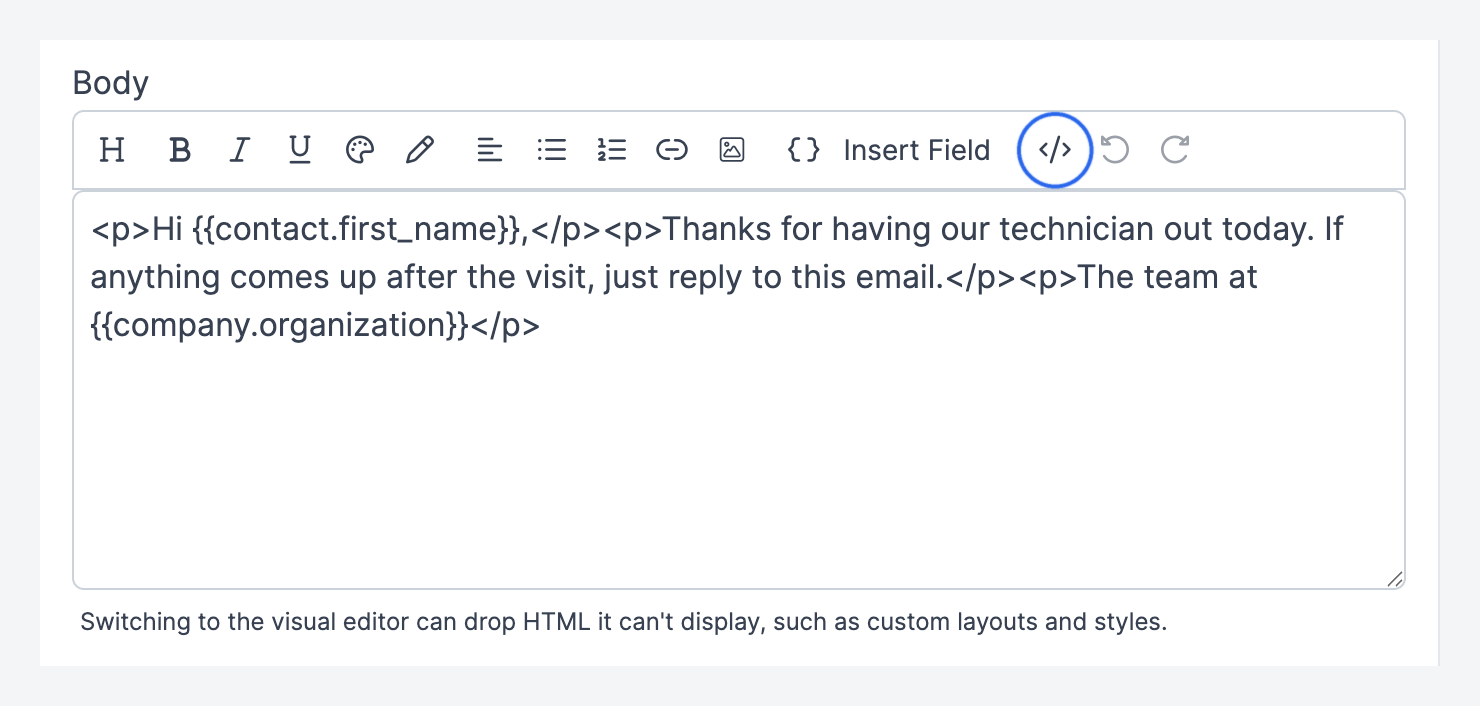
The template remembers the mode and reopens in Edit HTML.
When you email from an HTML template, the message shows a preview of the email as it will be sent instead of the code. Click Edit HTML above the preview to change the code.
Switching back to the visual editor can drop HTML it can't display, such as custom layouts and styles.
Use inline styles (
style="…").<style>blocks are removed when the email is sent.
Available merge fields
Each template offers the fields that fit it. Insert Field lists them, so you never need to type them from memory.
Company fields (all templates)
Default template fields
Custom template fields
Custom templates are addressed to a contact, so they offer contact fields: {{contact.first_name}}, {{contact.last_name}}, {{contact.customer_display_name}}, {{contact.email}}, and {{contact.phone}}. Forz fills them in when someone picks the template in the email form, using the contact the email opens with, so the sender can review the final text before clicking Send. Everyone on that email receives the same text, so a greeting like {{contact.first_name}} uses that one contact's name.
Default templates
Forz creates these templates during account setup:
A default template's From sender, if set, is used whenever that document is emailed from the company sender.
Common scenarios
Customizing the invoice email for a plumbing company
An admin edits the default Invoices template to add the company's payment terms and a thank-you line: "Thank you for choosing Reliable Plumbing. Invoice #{{invoice.number}} for {{invoice.amount}} is ready. Payment is due within 30 days." They use Insert Field to add {{invoice.link_html}} so the link to the invoice sits inside the message text. Every invoice emailed afterwards uses the new message.
Creating a visit follow-up template
An admin creates a custom template called "Visit follow-up" with the subject "Thanks for having us, {{contact.first_name}}" and a short body asking for feedback. Technicians and dispatchers pick it from Use Template when they email a contact after a service visit.
Pasting a branded HTML layout
An office admin receives an HTML newsletter-style layout from a designer. They create a template, click Edit HTML, paste the layout, and save. The template keeps the layout because it stays in HTML mode.
Permissions
Only admins can view, create, and edit email templates. There is no role permission to configure for this feature. Anyone who can email contacts can pick a custom template from Use Template.
Troubleshooting
Was this helpful?
Still need help? Ask the team