Customer Checkout
How customers pay invoices online and how Forz records the payment.
Overview
Customers can pay an invoice online from the invoice link you send them, without logging in, or from the Customer Portal. Payments go to your company's Stripe account, and Forz records each payment on the invoice automatically.
Before You Begin
Prerequisites:
The Invoices module is enabled (Settings → Modules).
Stripe is connected and the Stripe card shows Accepting payments (Settings → Integrations). See Stripe Integration.
The invoice has a balance due and isn't Void.
Paying an invoice online
The customer opens the invoice from the link in your invoice email or from the Customer Portal.
The customer clicks Pay Invoice.
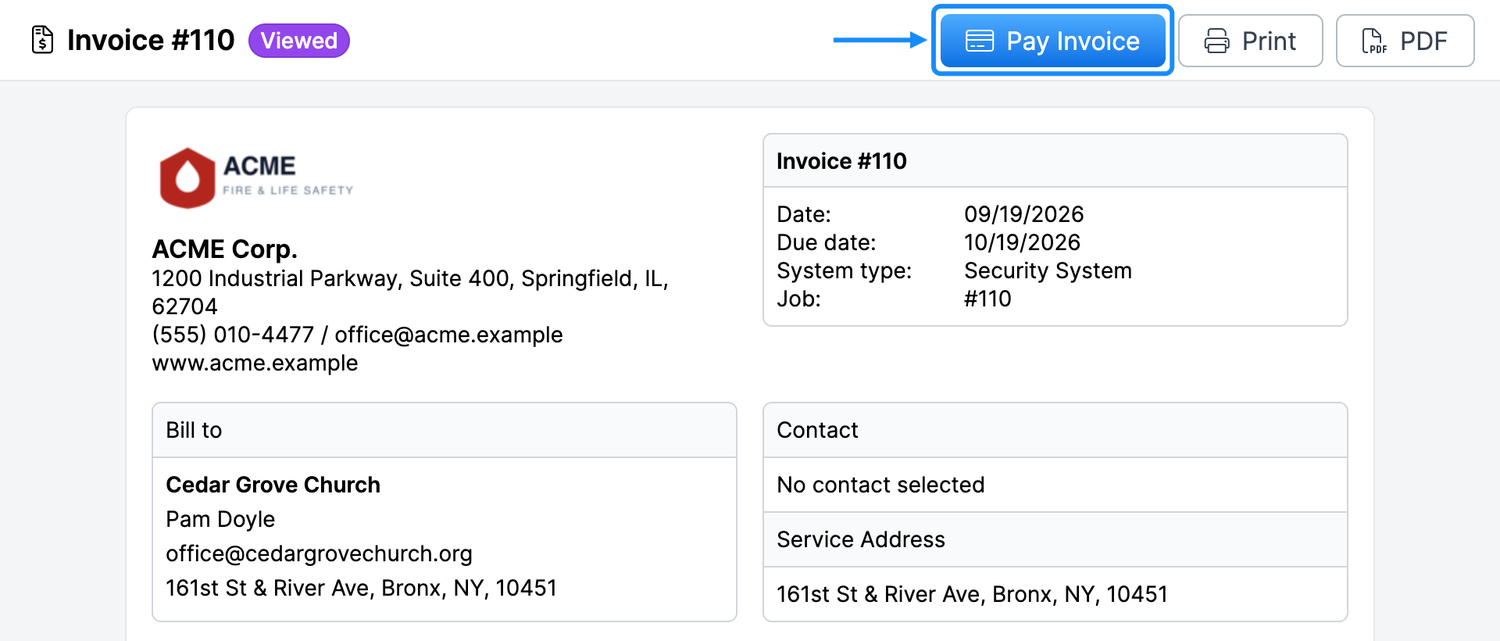
The Invoice Payment window opens with a secure Stripe payment form showing the invoice number and the amount due.
The customer chooses a payment method, enters their details, and clicks Pay.
Expected result: For card and wallet payments, the customer sees Payment received. In Forz, the payment appears on the invoice with the payment method Card (or Stripe for Link), and the invoice moves to Paid. Bank payments show Payment processing instead (see below).
What customers can pay with
Card — Credit and debit cards.
Wallets — Apple Pay, Google Pay, and Link, when the customer's device and browser support them.
Bank account (ACH) — For US customers.
You control which payment methods are offered from your Stripe Dashboard.
Amount charged
The customer pays the invoice's full balance due, in your company's currency. If you already recorded part of the payment in Forz, the customer pays only what remains. Customers can't enter a different amount.
Fees and payouts
Stripe's processing fees apply to each payment. Stripe pays out to the bank account you added when you connected Stripe.
Bank account payments
Bank payments take time to clear. After paying by bank account, the customer sees Payment processing; it usually clears in 3–5 business days. When it clears, Forz records the payment on the invoice with the payment method ACH. Until then, the invoice keeps its balance due and still shows Pay Invoice. Ask customers who paid by bank account not to pay again while the payment is processing, and don't record a manual payment for it. If the invoice is already paid when the bank payment clears, Forz still adds the payment but doesn't apply the extra amount to the invoice; refund it from your Stripe Dashboard.
Payment results
Payment received — The payment went through and is recorded on the invoice.
Payment processing — A bank payment is on its way. No action needed.
Confirming your payment — Forz couldn't confirm the payment yet. The customer should click Check again instead of paying a second time.
Payment not completed — The payment didn't go through. The customer can click Try again to return to the invoice and pay again.
Permissions
Customers don't need a Forz login to pay from the invoice link. Each invoice link is unique to that invoice. Only Admins and the Account Admin can connect Stripe in Settings → Integrations.
Troubleshooting
Was this helpful?
Still need help? Ask the team