Status Options
Define the status workflow for each record type -- including custom statuses, sub-statuses, colors, and stepper progression.
Overview
Status Options control the available statuses for jobs, customers, projects, estimates, invoices, tasks, leads, deals, purchase orders, sales orders, bills, and tickets. Each status has a color, a position in the workflow, and optional sub-statuses. Some statuses are system-locked (required for Forz to function), while others can be customized or added.
Before You Begin
Prerequisites:
You have the Admin role in Forz.
The record type you want to configure is enabled in Settings > Modules.
Understanding Status Options
Each status option has these properties:
Default Status Workflows
Forz creates the following status workflows during account setup:
Job: Unscheduled > Scheduled > En Route > In Progress > Completed
Customer: Active > Inactive
Project: Unscheduled > In Progress > Completed > Archived
Invoice: Draft > Sent > Viewed > Partially Paid > Overdue > Paid > Void
Estimate: Draft > Sent > Viewed > Accepted > Declined
Task: New > In Progress > Completed
Lead: New > Contacted > Qualified > Converted > Lost
Deal: Qualified > Proposal > Negotiation > Won > Lost
Note: Statuses marked with
lock: trueare system-locked. They cannot be deleted because Forz relies on them for core workflows (e.g., job scheduling requires "Unscheduled" and "Scheduled" statuses).
Adding a Custom Status
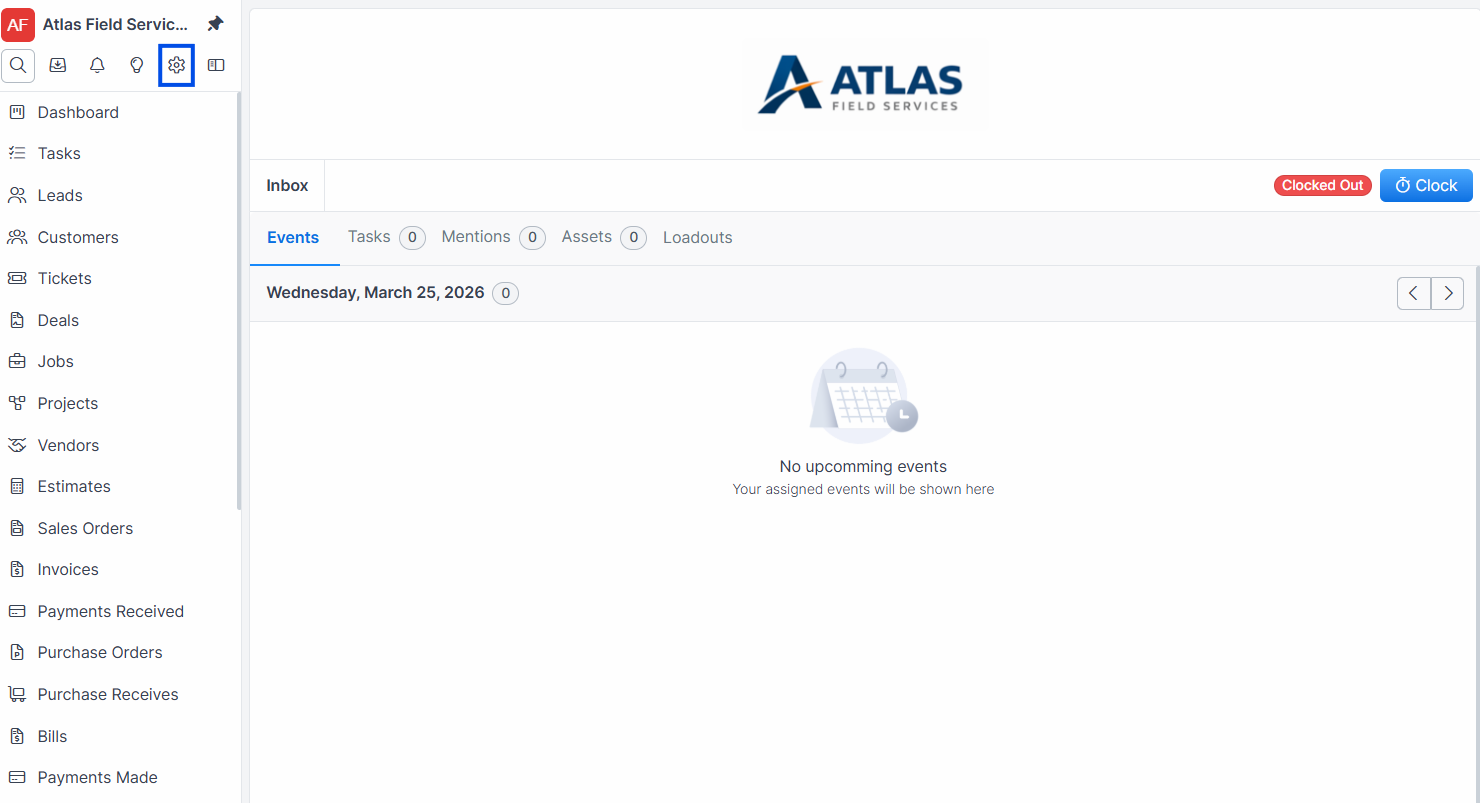
Click Settings in the sidebar navigation.
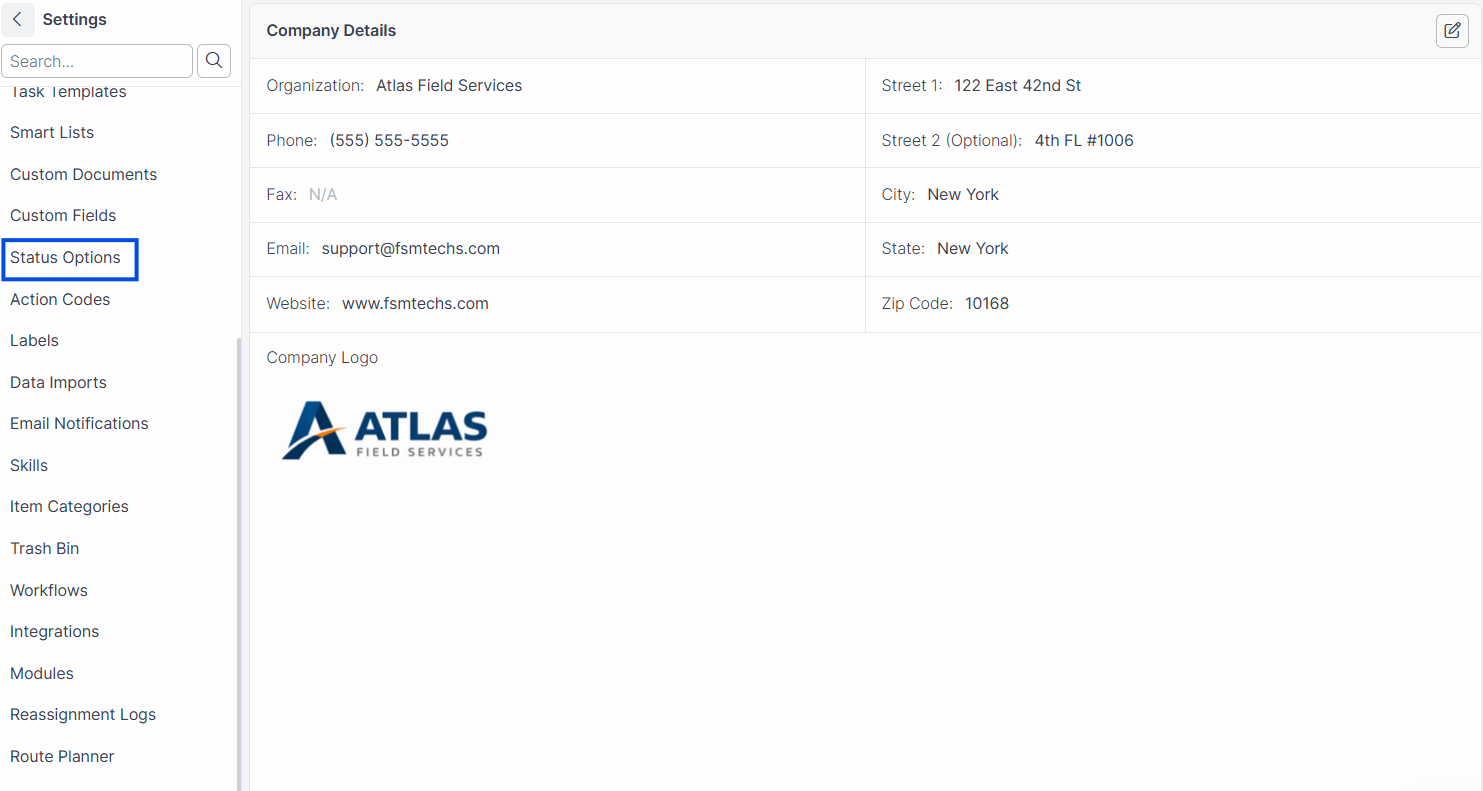
Click the Status Options tab.
Select the record type from the dropdown (e.g., Job).
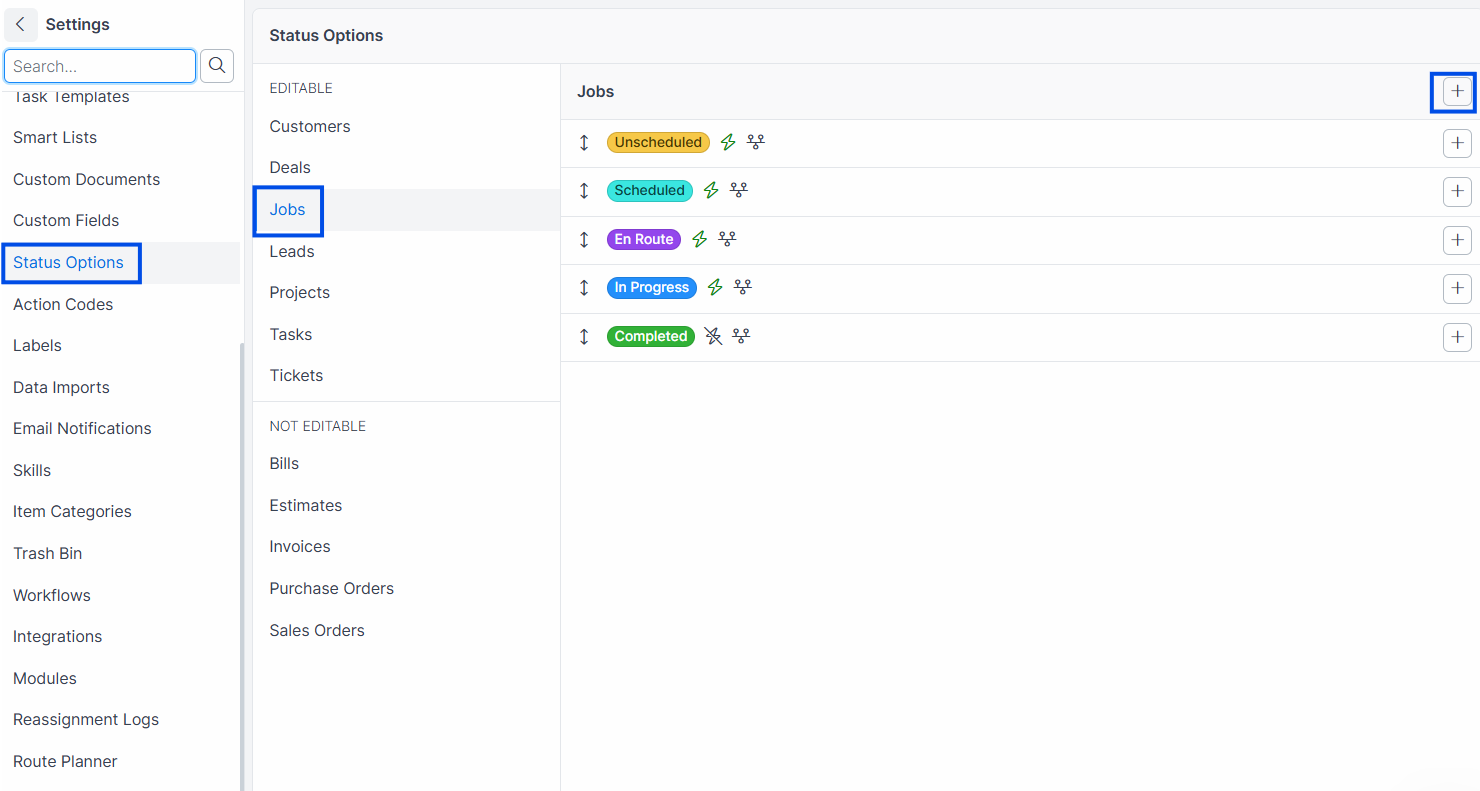
Click Add Status.
Enter a Name for the status (e.g., "Waiting for Parts").
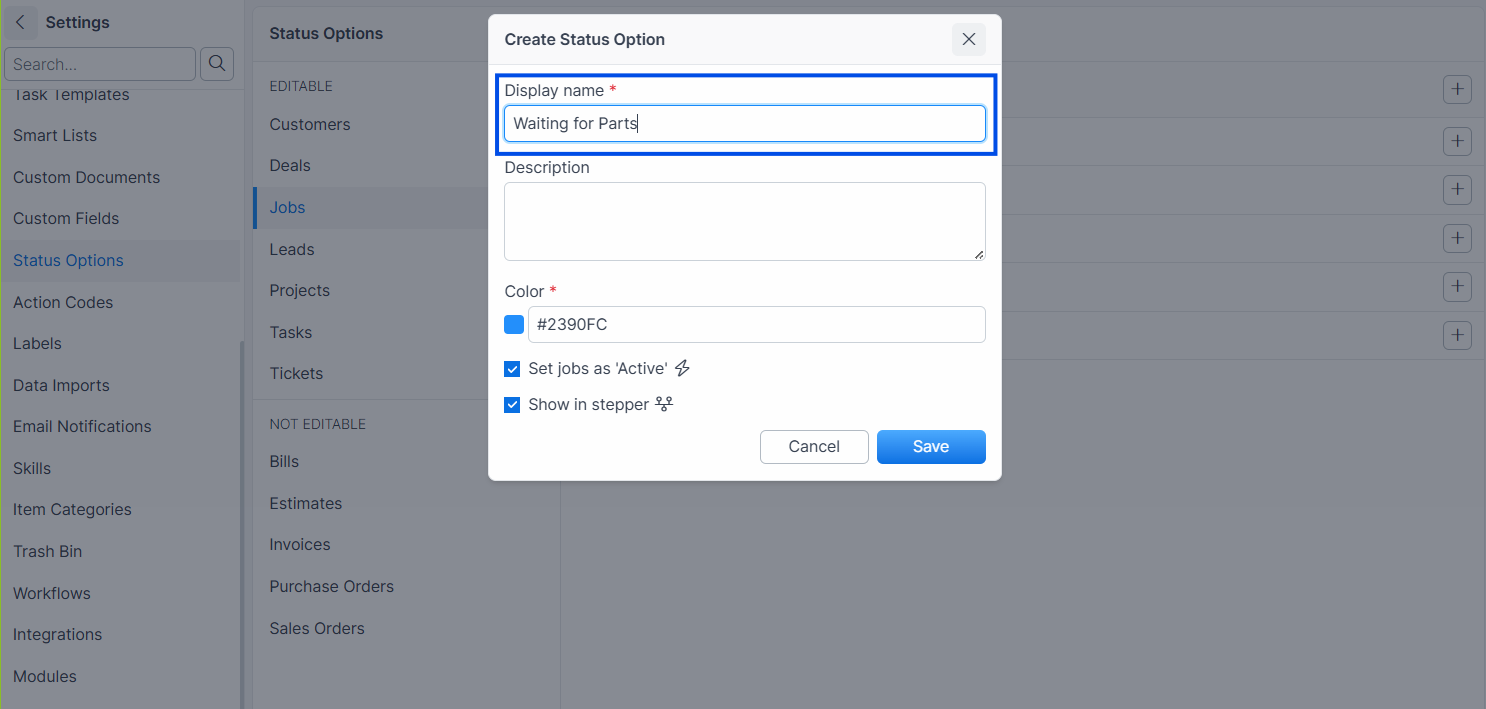
Select a Color.
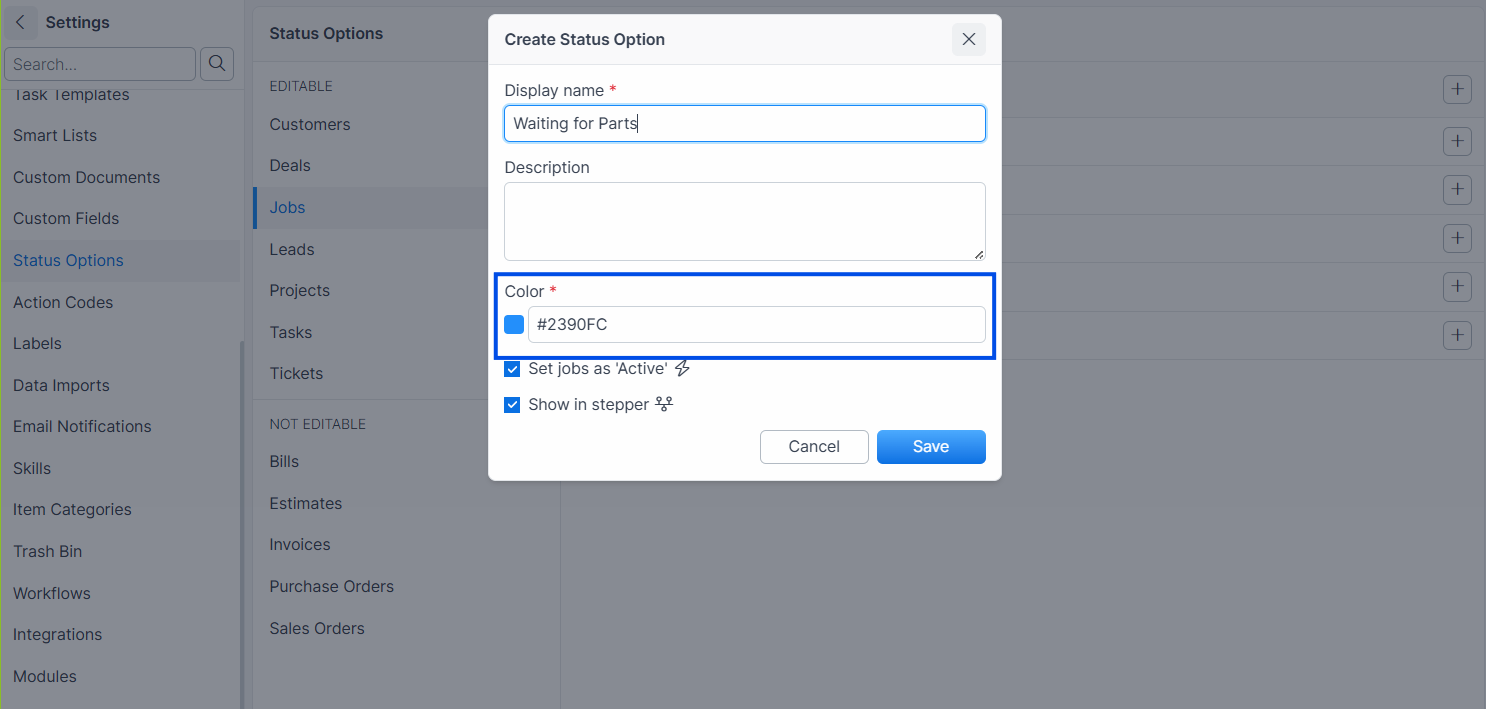
Set Active to control whether records in this status appear in active views.
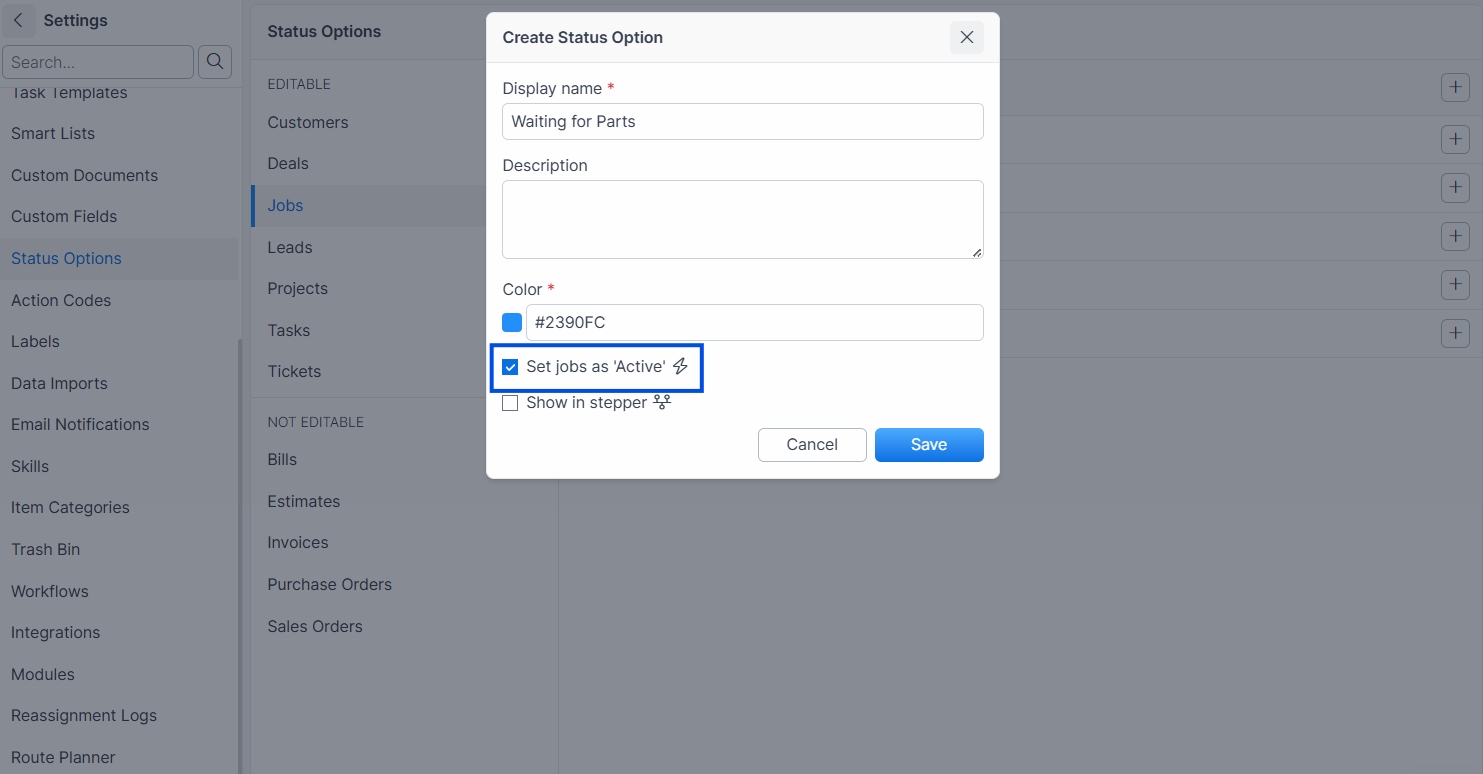
Click Save.
Expected result: The new status appears in the list and is available in status dropdowns for that record type.
Adding a Sub-Status
Sub-statuses provide more granular tracking under a parent status. For example, "In Progress" might have sub-statuses like "50% Complete" and "Awaiting Inspection."
Navigate to Settings > Status Options.
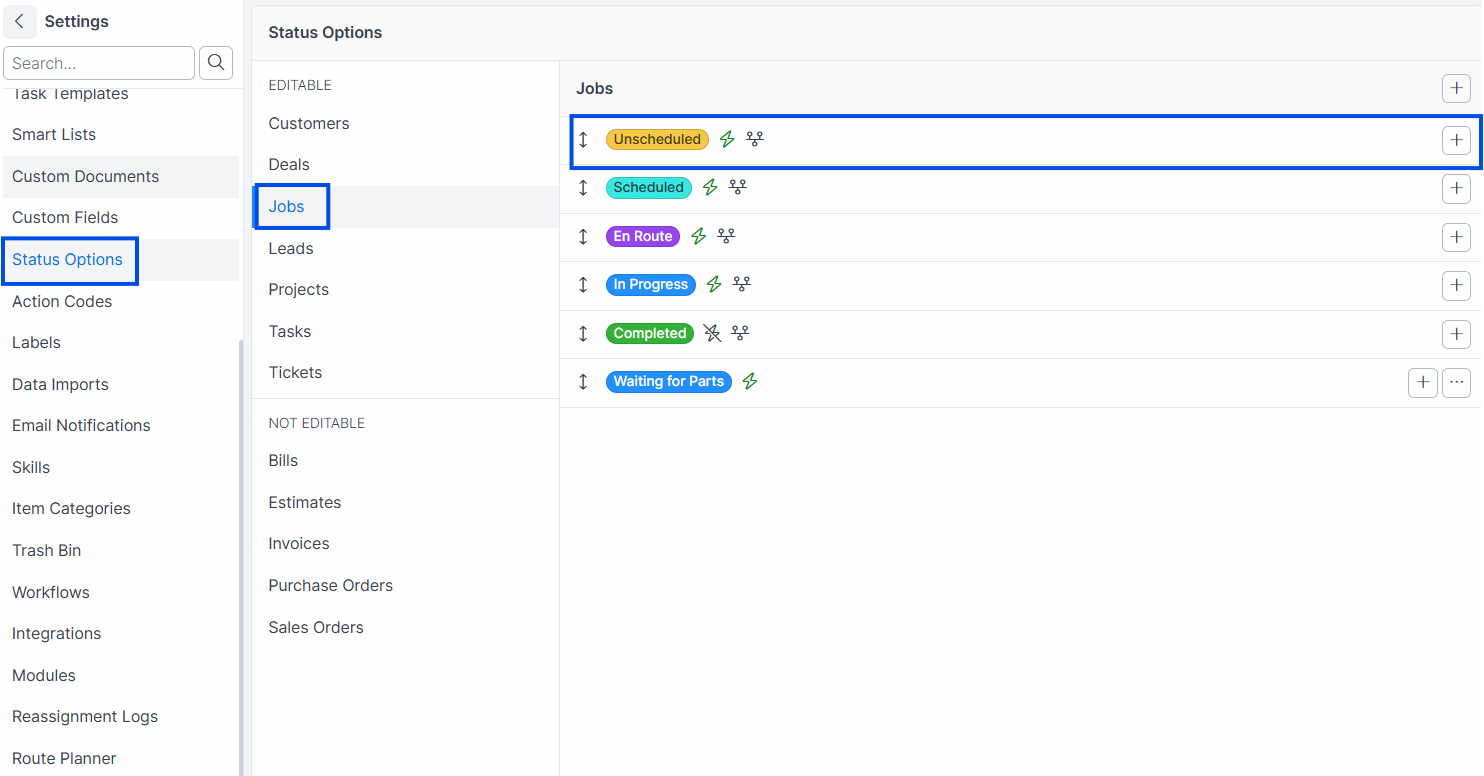
Select the record type.
Click Add Sub-Status next to the parent status.
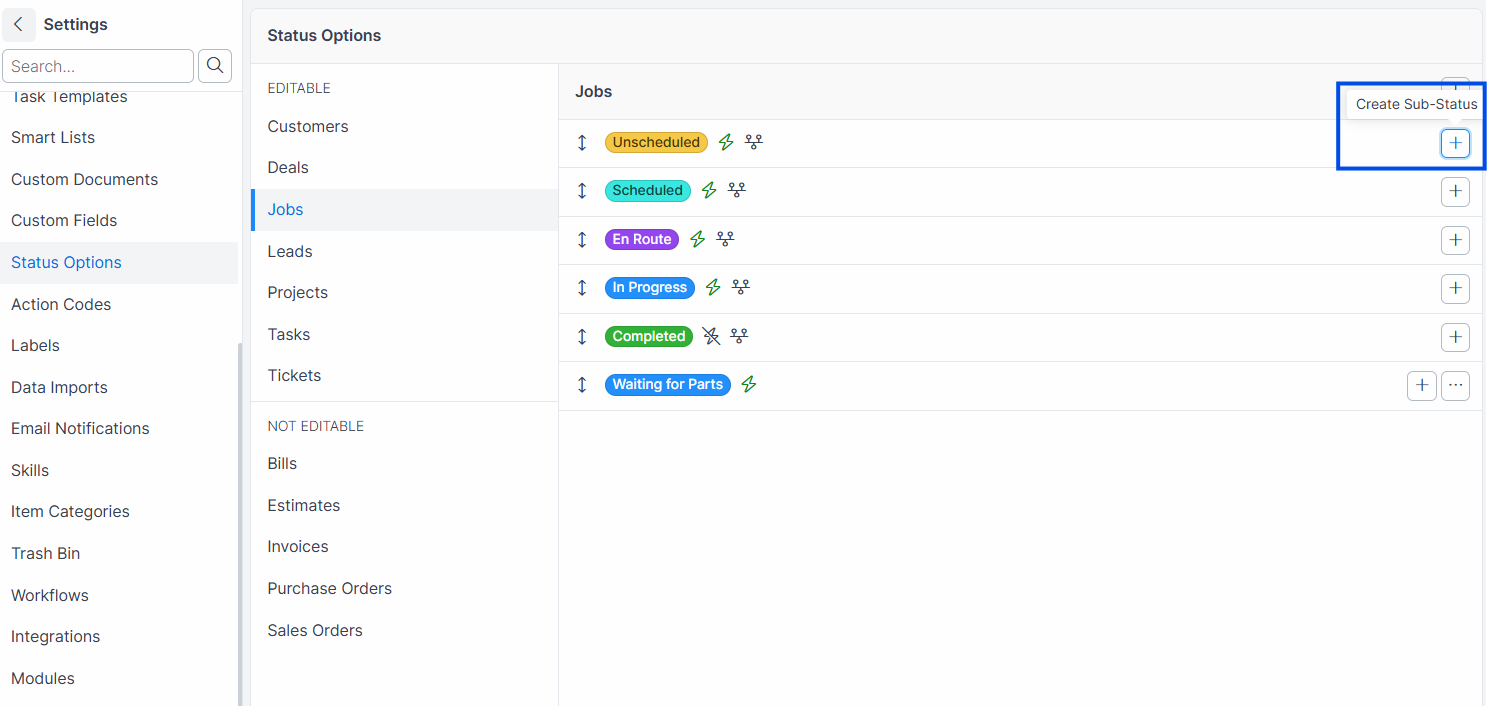
Enter a Name for the sub-status.
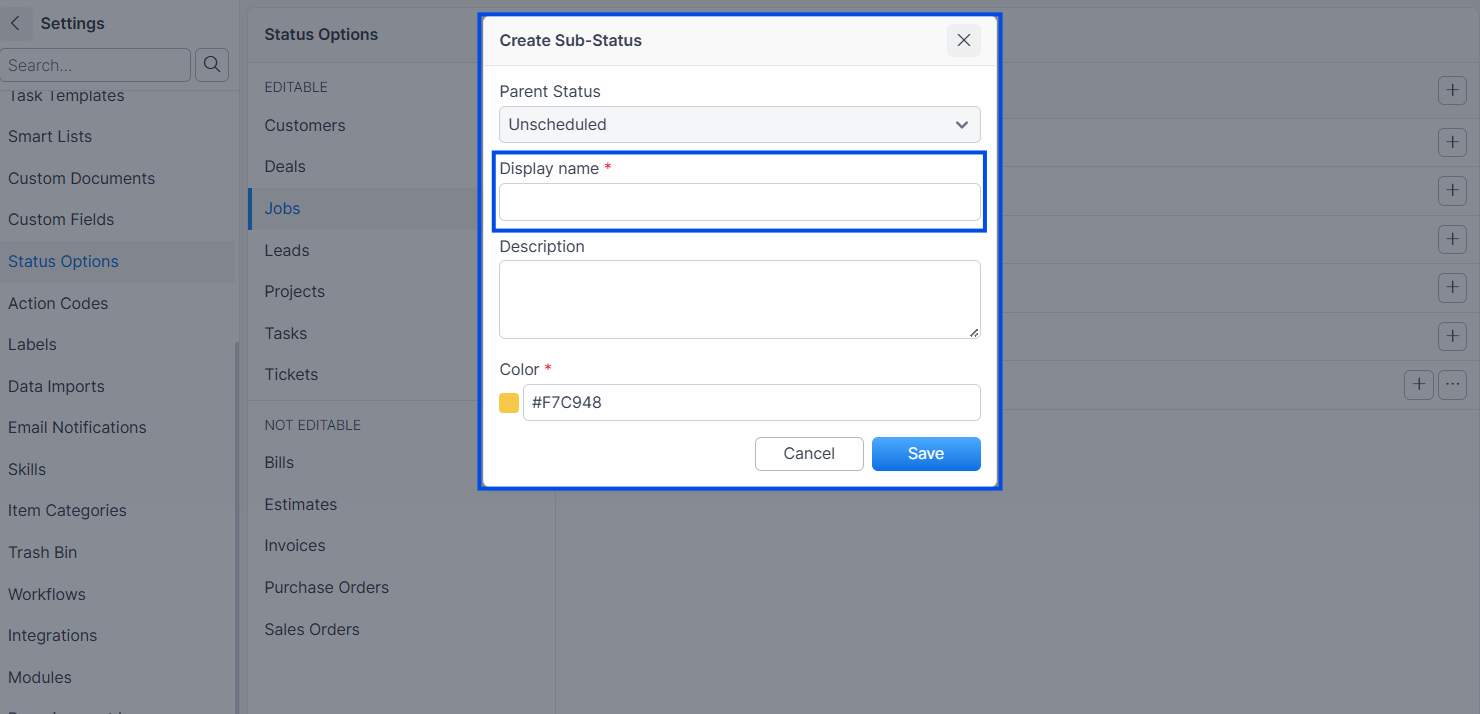
Click Save.
Expected result: The sub-status appears nested under its parent. It inherits the parent's color and active state. The full status path displays as "In Progress > 50% Complete."
Note: Sub-statuses automatically inherit their parent's
activestate. If the parent is deactivated, all sub-statuses are deactivated too. Sub-statuses do not appear in the stepper bar by default.
Editing a Status
Navigate to Settings > Status Options.
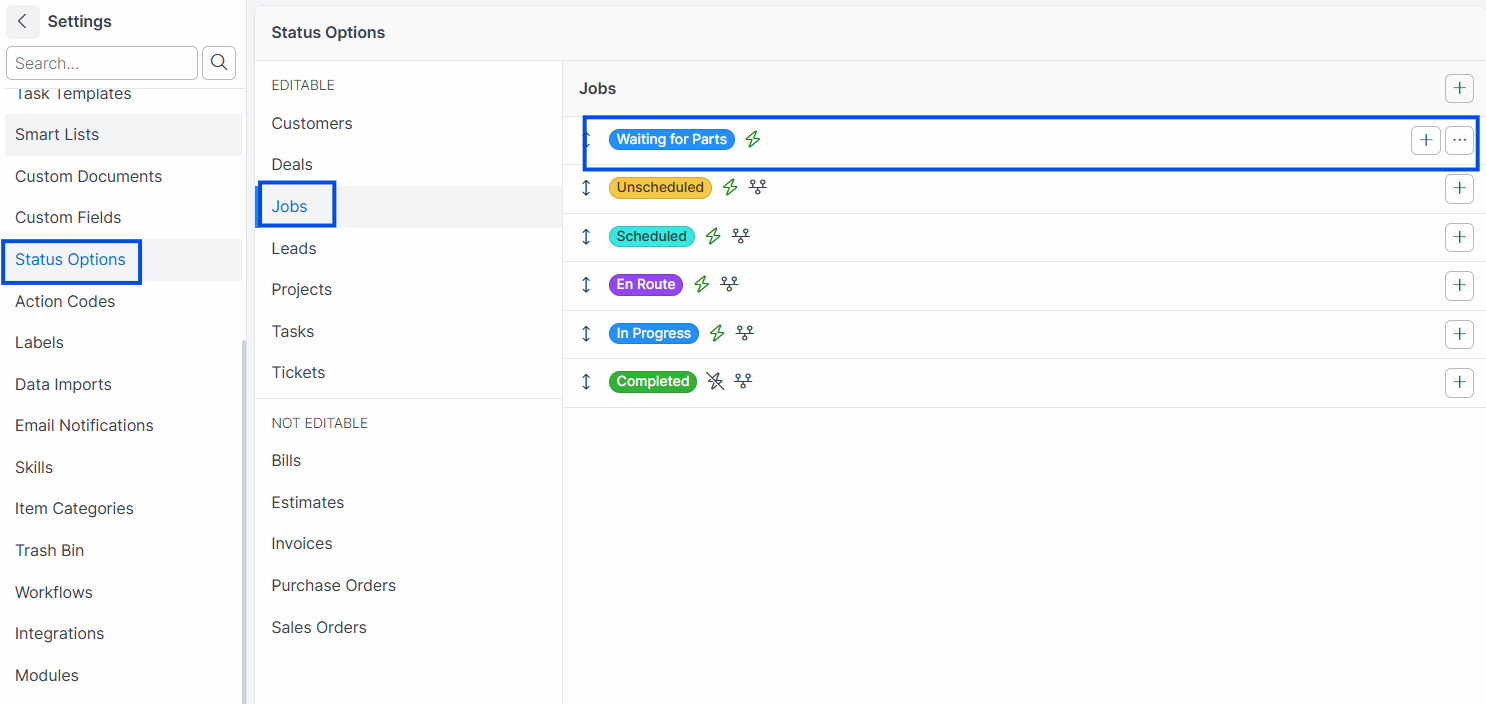
Select the record type.
Click the status you want to edit.
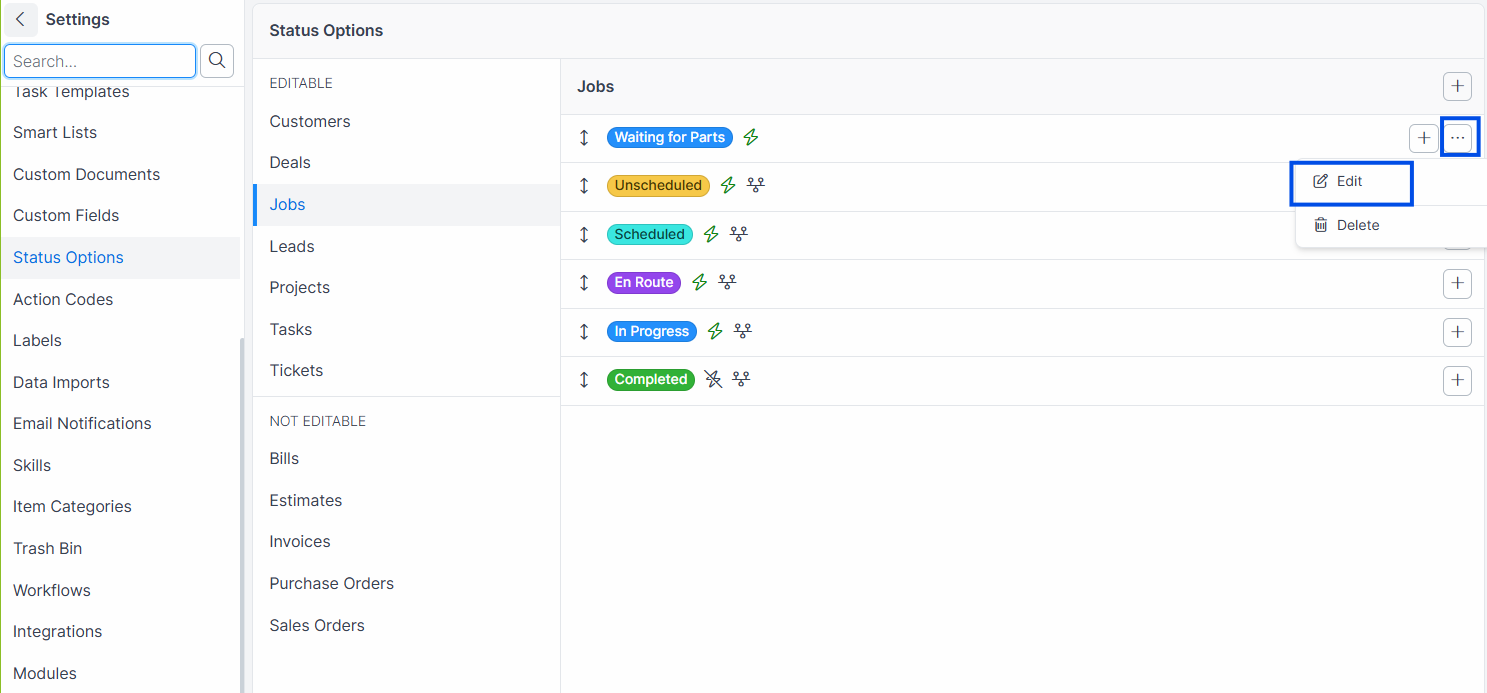
Update the Name, Color, Active, or Stepper fields.
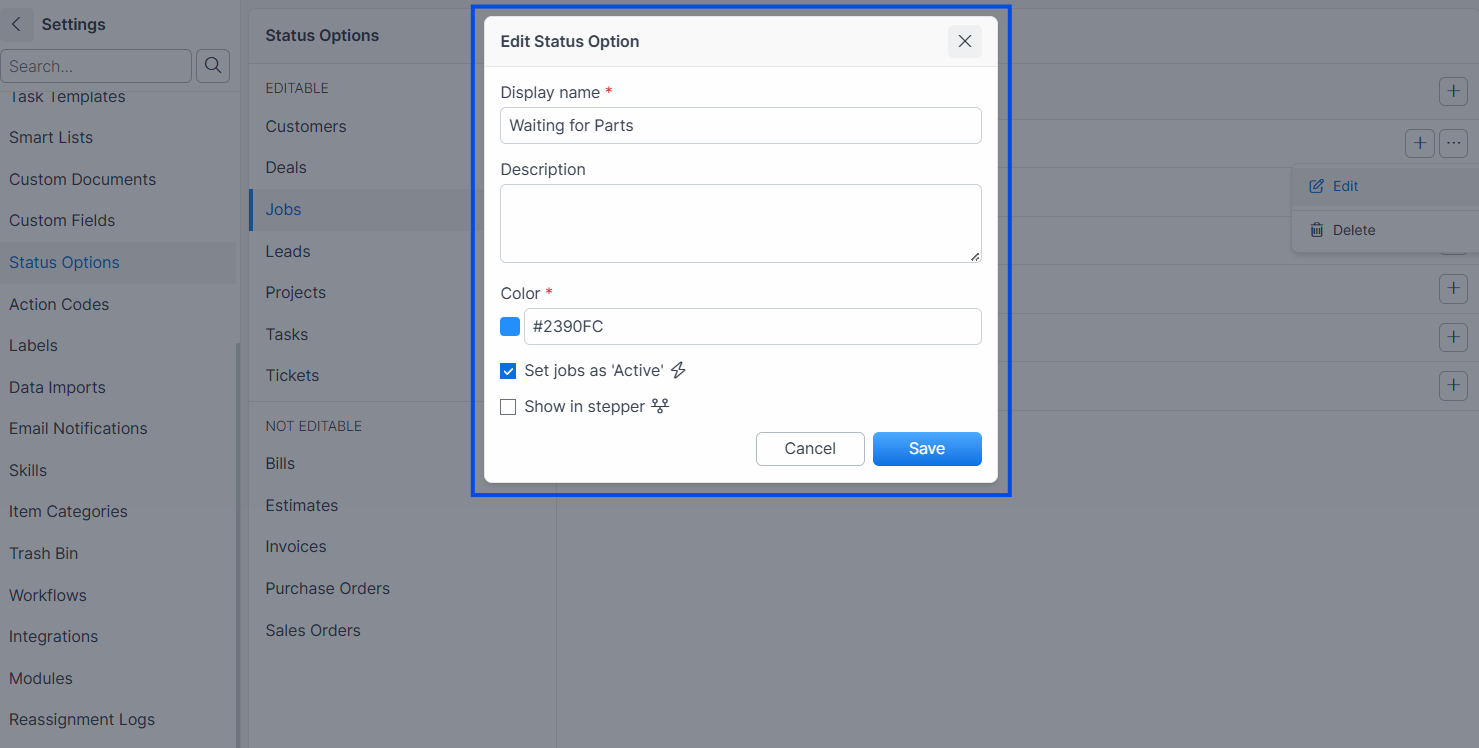
Click Save.
Expected result: Forz saves the changes. If you renamed the status, all records currently using the old name are updated to the new name automatically.
Warning: Renaming a status updates all records with that status. The controller calls
update_related(old_status, new_status)which runsUPDATE ... SET status = new_status WHERE status = old_status. This happens immediately, not as a background job.
Deleting a Status
Navigate to Settings > Status Options.
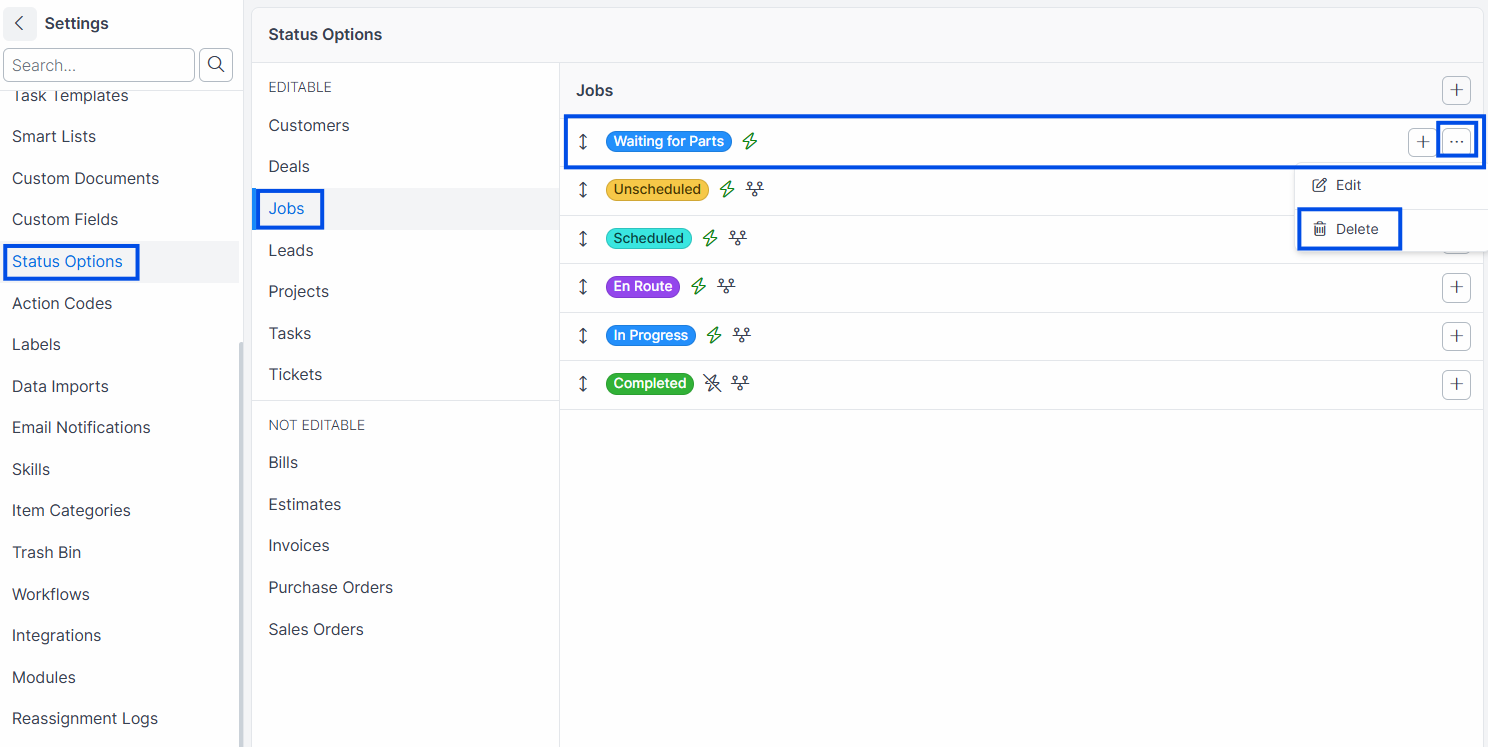
Select the record type.
Click the status you want to delete.
Click Delete.
Expected result: The status is soft-deleted to the trash bin and removed from the list. It is no longer available in dropdowns.
Warning: System-locked statuses (shown with a lock icon) cannot be deleted. These include core workflow statuses like "Unscheduled," "Scheduled," "Draft," "Paid," etc.
Stepper Behavior
The stepper is the horizontal progress bar shown on record detail pages. Statuses with stepper: true appear as steps in order of their position.
Statuses with
stepper: false(e.g., "Void," "Archived," "Declined," "Lost," "Cancelled") are excluded from the stepper. These represent terminal states that are not part of the normal forward progression.The stepper shows the current status highlighted and previous statuses as completed.
Active vs. Inactive Statuses
Active statuses (
active: true): Records in these statuses appear in default list views and active counts. Examples: "Unscheduled," "Scheduled," "In Progress."Inactive statuses (
active: false): Records in these statuses are considered closed or completed. They are excluded from default list views. Examples: "Completed," "Paid," "Void," "Lost."
When a parent status's active state changes, all sub-statuses automatically update to match.
Job Status Logic
Job statuses have special behavior:
Unscheduled: Available only when the job has no scheduled events.
Scheduled: Available only when the job has at least one scheduled event.
The status dropdown for a job excludes the current status and applies these rules automatically.
Common Scenarios
HVAC company adding a "Waiting for Parts" status
An HVAC company needs to track jobs that are paused while waiting for equipment. The admin adds a custom "Waiting for Parts" status (orange, active, stepper enabled) to Jobs. Dispatchers set this status on jobs when a part is on backorder. They filter the job board by "Waiting for Parts" to follow up with suppliers.
Plumbing company adding sub-statuses to "In Progress"
A plumbing company wants more granularity on in-progress jobs. The admin adds sub-statuses under "In Progress": "Rough-In" and "Final Inspection." Technicians update jobs to "In Progress > Rough-In" after initial work and "In Progress > Final Inspection" when ready for inspection. The dispatcher sees the full status path on the job board.
Electrical contractor customizing Lead statuses
An electrical contractor adds "Site Visit Scheduled" and "Proposal Sent" statuses between "Contacted" and "Qualified" in the Lead pipeline. The unlocked Lead statuses ("Contacted" and "Qualified") can be renamed, and custom statuses are inserted at the desired position using drag-and-drop reordering.
Troubleshooting
Was this helpful?
Still need help? Ask the team