Creating New Contacts
Create a contact from the Contacts list and link it to a customer, vendor, lead, site, job, or project.
Overview
A contact is a person you work with — for example a facility manager, property owner, or on-site technician. Contacts live on their own and can be linked to customers, vendors, leads, sites, jobs, and projects.
This article covers creating a contact from the Contacts list, filling the form, and starting the link step. For linking someone who already exists, see Linking Existing Contacts. For edit, merge, delete, and primary contact actions, see Contact Actions.
Before You Begin
Prerequisites:
You have the Contacts: Create permission on your role.
If you plan to link the contact right away, the target record (customer, vendor, lead, site, job, or project) should already exist.
Create from Contacts
Open Contacts in the sidebar.
Click + New.
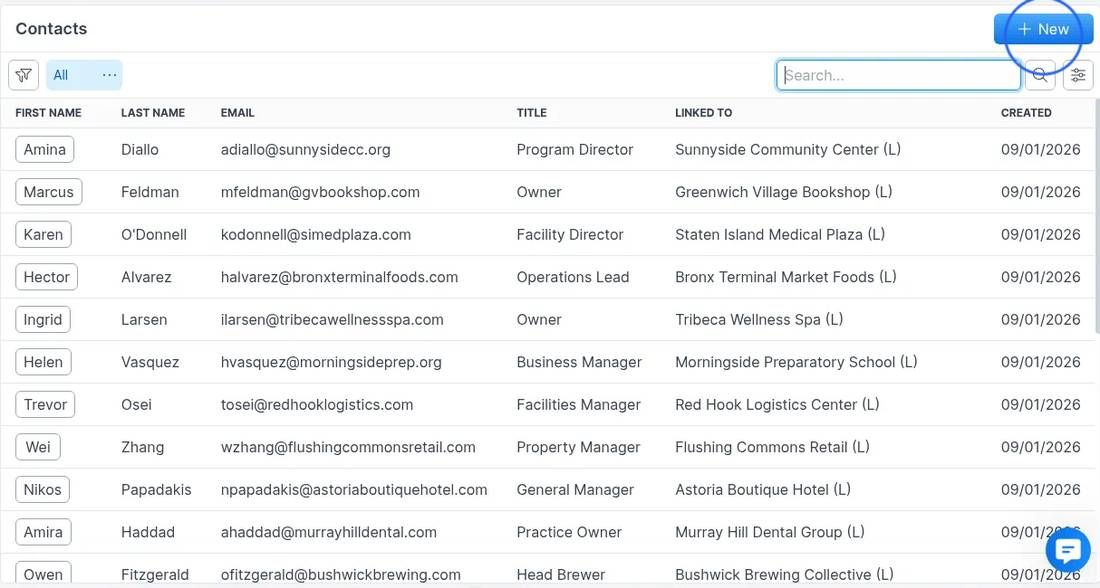
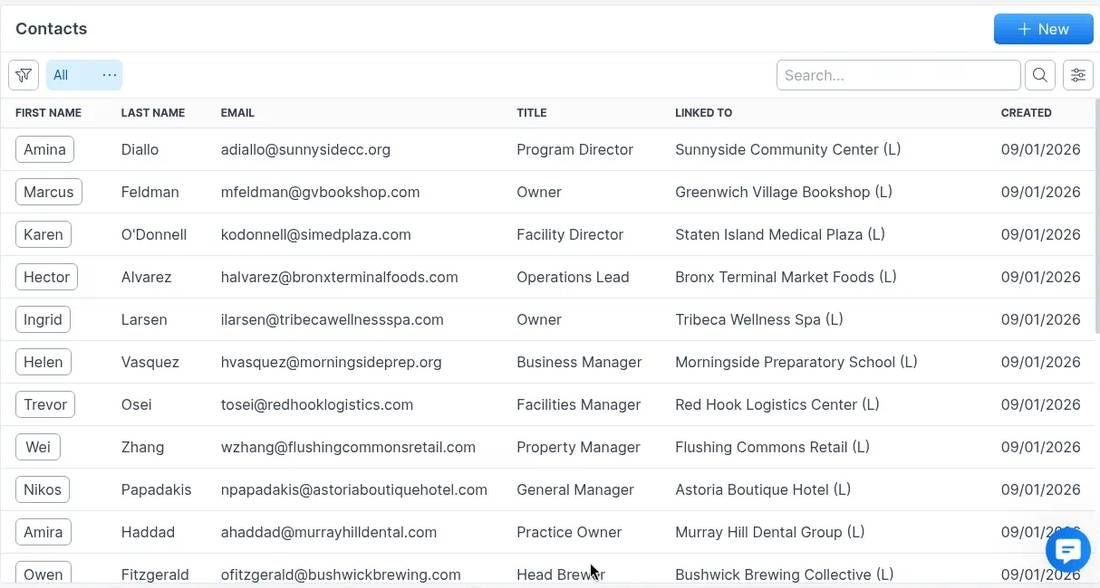
The Contacts list shows First name, Last name, Email, Title, Linked to, and Created. Use All and Search… to find existing people before you create a duplicate.
Fill the Create Contact form
The Create Contact dialog opens. First name is required (marked with *). Other fields are optional.
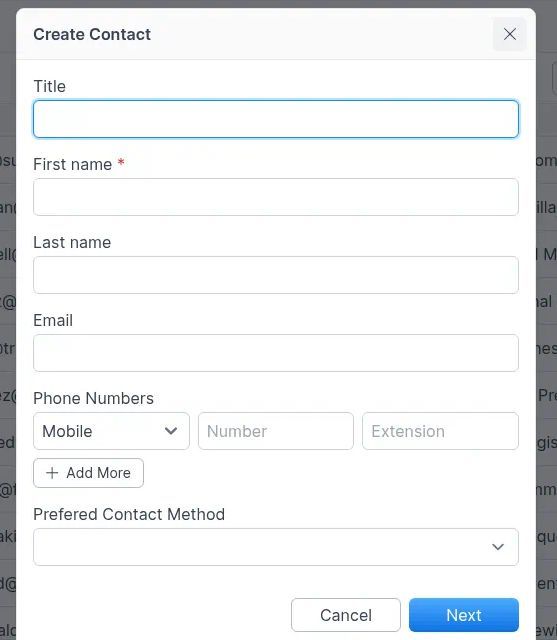
Enter Title (job title), First name, Last name, and Email as needed.
Under Phone Numbers, choose a type (for example Mobile), enter the Number, and an optional Extension. Click + Add More for additional numbers.
Optionally set Preferred Contact Method.
Click Next to continue to linking. Click Cancel to close without creating a contact.
Note: On this first screen the primary action is Next, not Save.
Link to a record
After Next, the Link Contact dialog asks which module to link to:
Customer
Vendor
Lead
Site
Job
Project
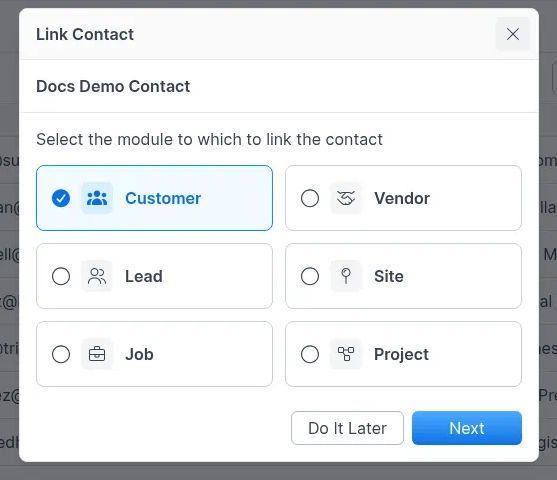
Select a module, then click Next.
Or click Do It Later if you want to finish linking another time.
When you continue, Forz shows a search field for that module — for example Search Customers… or Search Sites…. Start typing to find the record. Use Back to return to the module list.
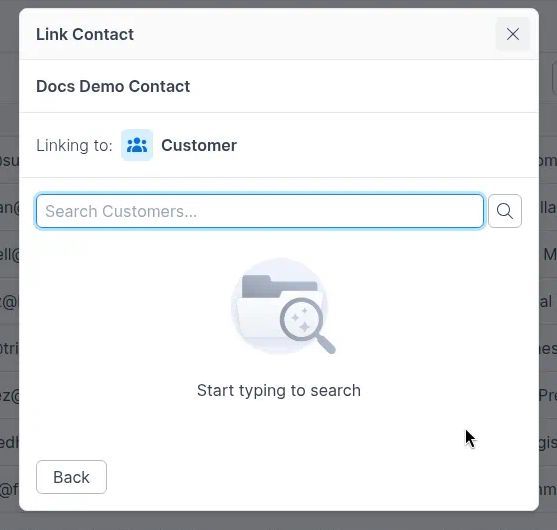
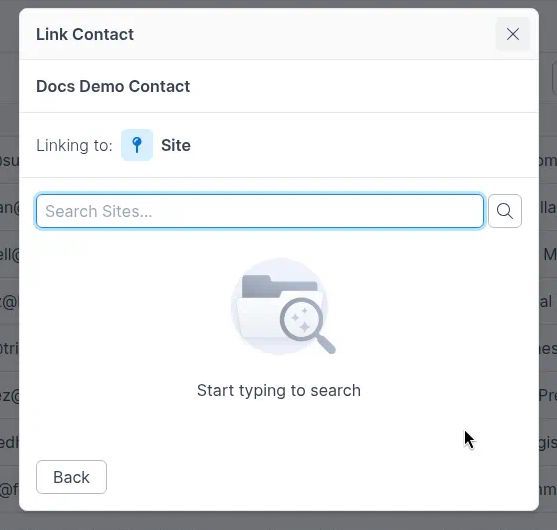
Note: After you pick a record, Forz may ask you to confirm the relationship and finish linking. Those follow-on steps are not covered with screenshots here. If the contact already exists and you only need to attach them to a record, use Linking Existing Contacts instead.
Cancel
Clicking Cancel on the Create Contact form closes the dialog and returns you to the Contacts list without creating a contact.
Other ways to start
Some records may also offer a way to add a contact from that record (for example from a customer). When you start from a record, Forz may already know which record to associate. This article focuses on the Contacts list flow shown above.
Related articles
Contacts — hub overview
Troubleshooting
Was this helpful?
Still need help? Ask the team