Linking Existing Contacts
Link an existing contact to a customer from + New → Link Existing Contact, choose a relationship type, and save.
Overview
Use Link Existing Contact when the person already exists in Forz and you want to attach them to a customer. This is different from creating a brand-new contact.
This article follows the verified path from a Customer record. To create a new contact from the Contacts list, see Creating New Contacts. For edit, merge, delete, and the primary-contact star, see Contact Actions.
Before You Begin
Prerequisites:
The customer record already exists.
The contact already exists in Contacts.
You have permission to link contacts on the customer.
Link from a customer
Open the customer.
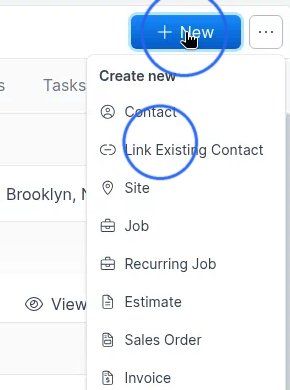
Click + New.
In the Create new menu, choose Link Existing Contact.
The same menu also includes Contact (create a new person on this customer). Use Link Existing Contact when they already exist.
Search for the contact
The Link Existing Contact dialog opens and shows the customer name. Use Search contacts… and start typing.
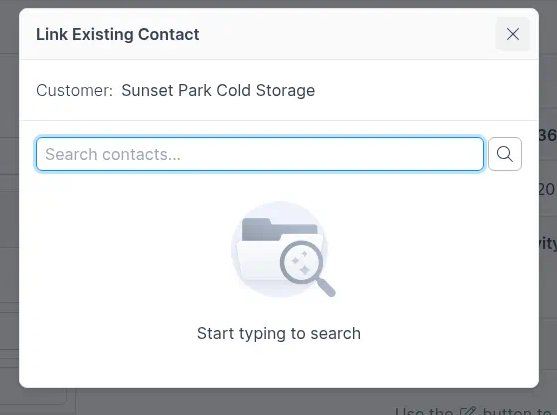
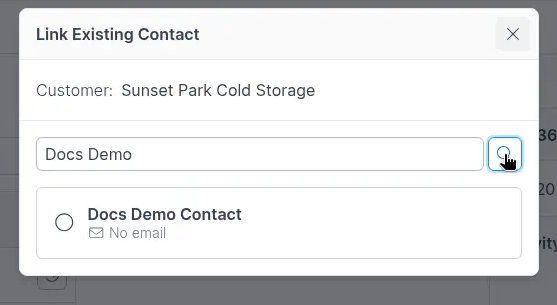
Type part of the name (or other identifying text).
Select the matching contact from the results.
Choose relationship and save
After you select a contact, choose Select relationship type:
Associated Contact (Default)
Billing Contact
Technical Contact
Decision Maker
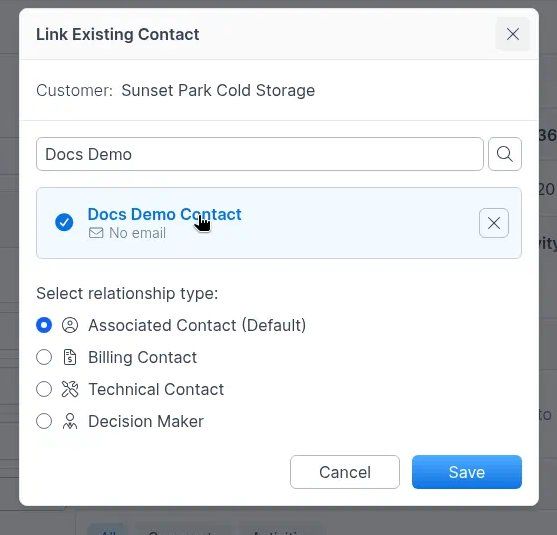
Pick the relationship type that fits.
Click Save to link, or Cancel to close without linking.
Contacts list + New is create only
On the main Contacts list, + New opens Create Contact only — it does not open Link Existing Contact. Linking an existing person to a customer starts from the customer’s + New menu as shown above.
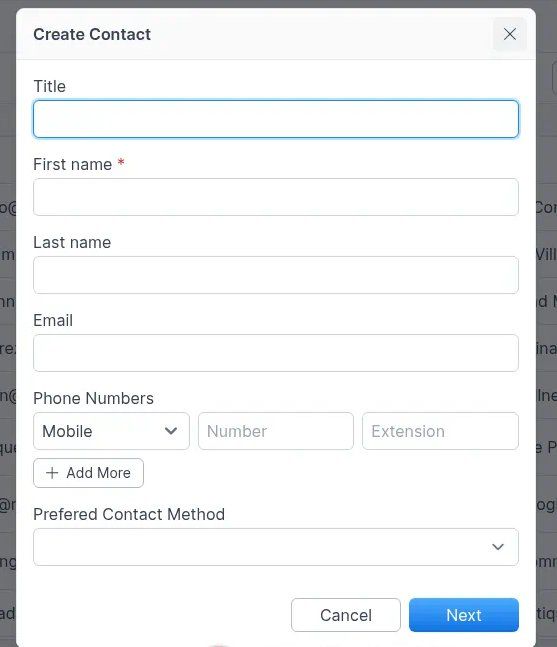
Note: Creating a contact from the Contacts list uses Next (not Save) on the first screen and can continue into linking. See Creating New Contacts.
Related articles
Contacts — hub overview
Troubleshooting
Was this helpful?
Still need help? Ask the team