Company Setup: First Steps in Forz
To get started with Forz, the account administrator needs to complete five simple steps to set up the organization and get it ready to go in Forz.
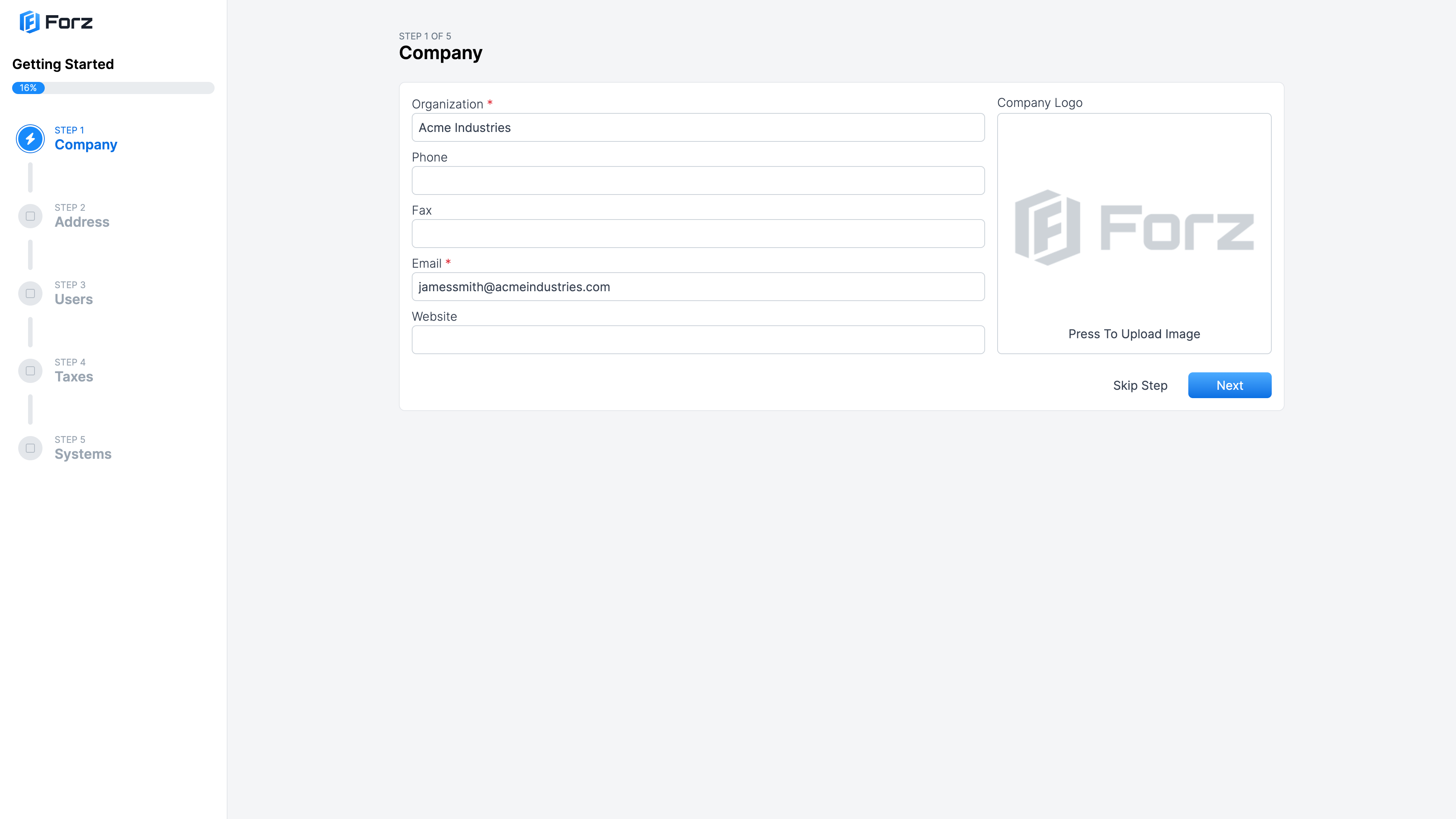
Step 1: Company
Add the information related to your company, such as:
Organization name.
Phone and fax number.
Email: By default, this field is prefilled with the administrator’s email address, but you can change it to your company’s main email.
Note: The email entered here will appear in the header of your invoices and other documents.Website URL
Company logo: On this screen, the Forz logo is shown as a placeholder example. If you don’t have your company logo ready yet, you can upload it later on Settings. No logo will appear on your invoices or documents until you upload your own company logo.
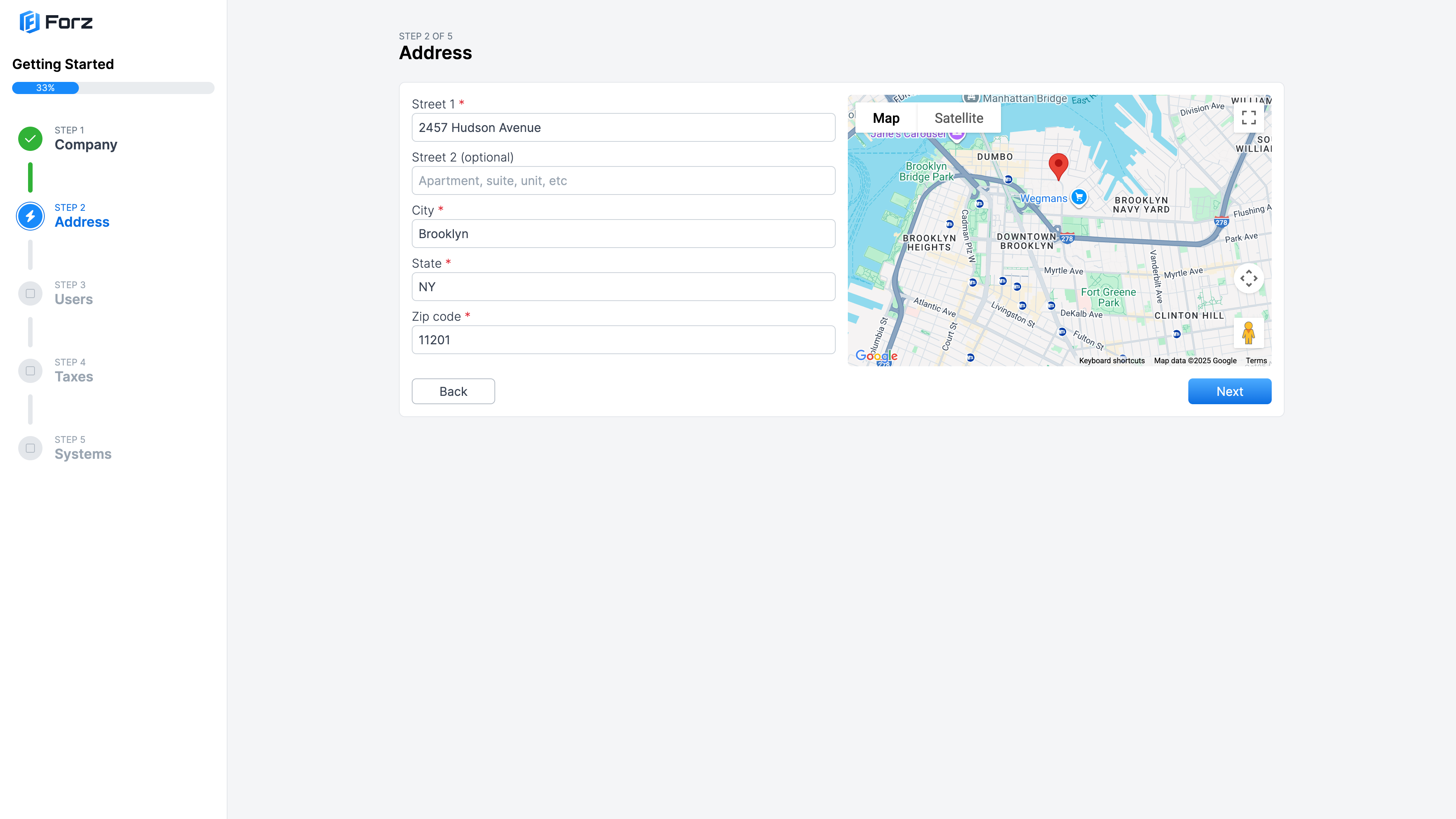
Step 2: Address
Add your company’s address. The “Street 1” field allows you to search for your address using Google Maps autocomplete:
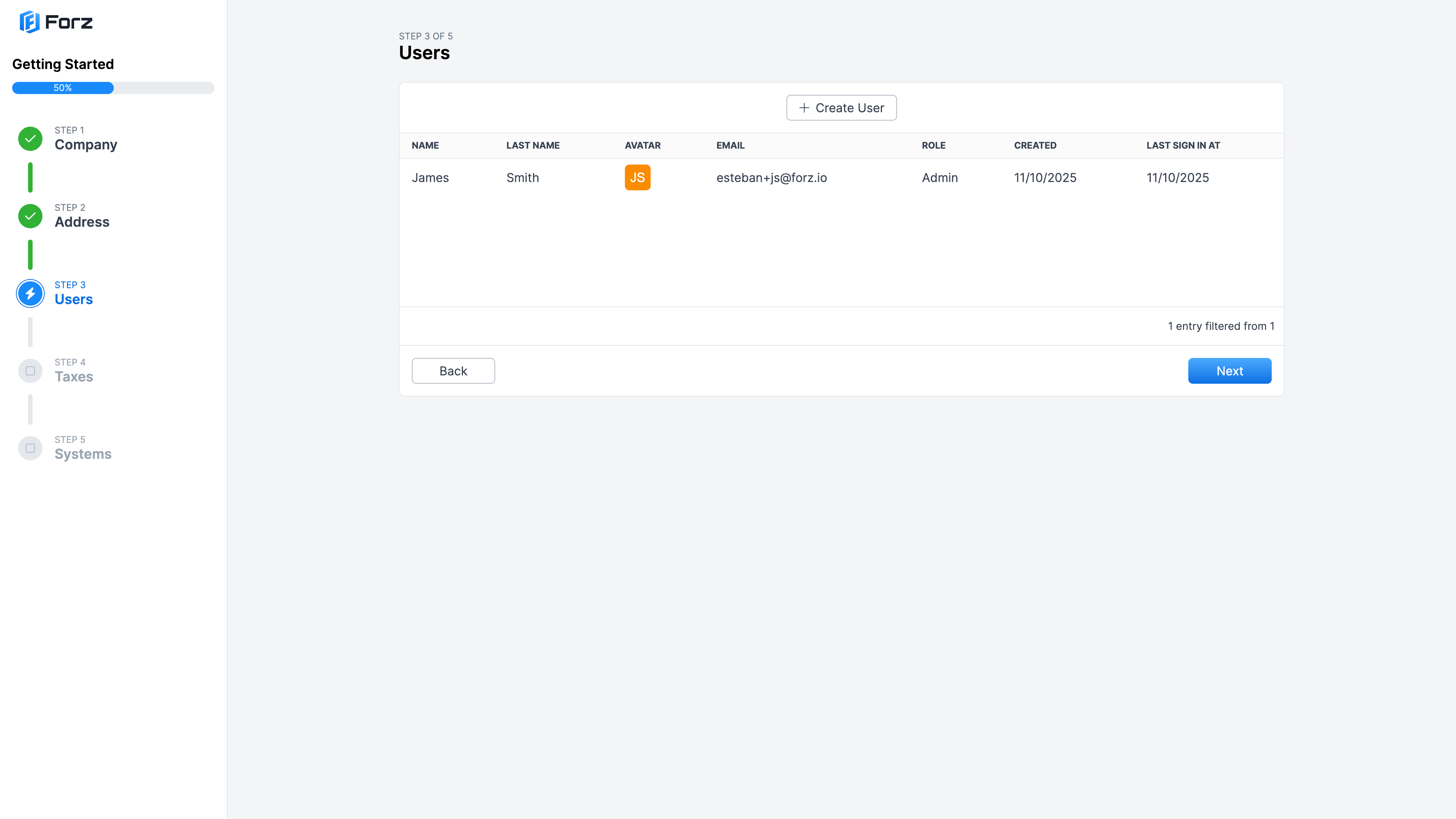
Step 3: Users
Here you can create users to invite your team to Forz. Click the “Create User” button to open the “New User” popup window.
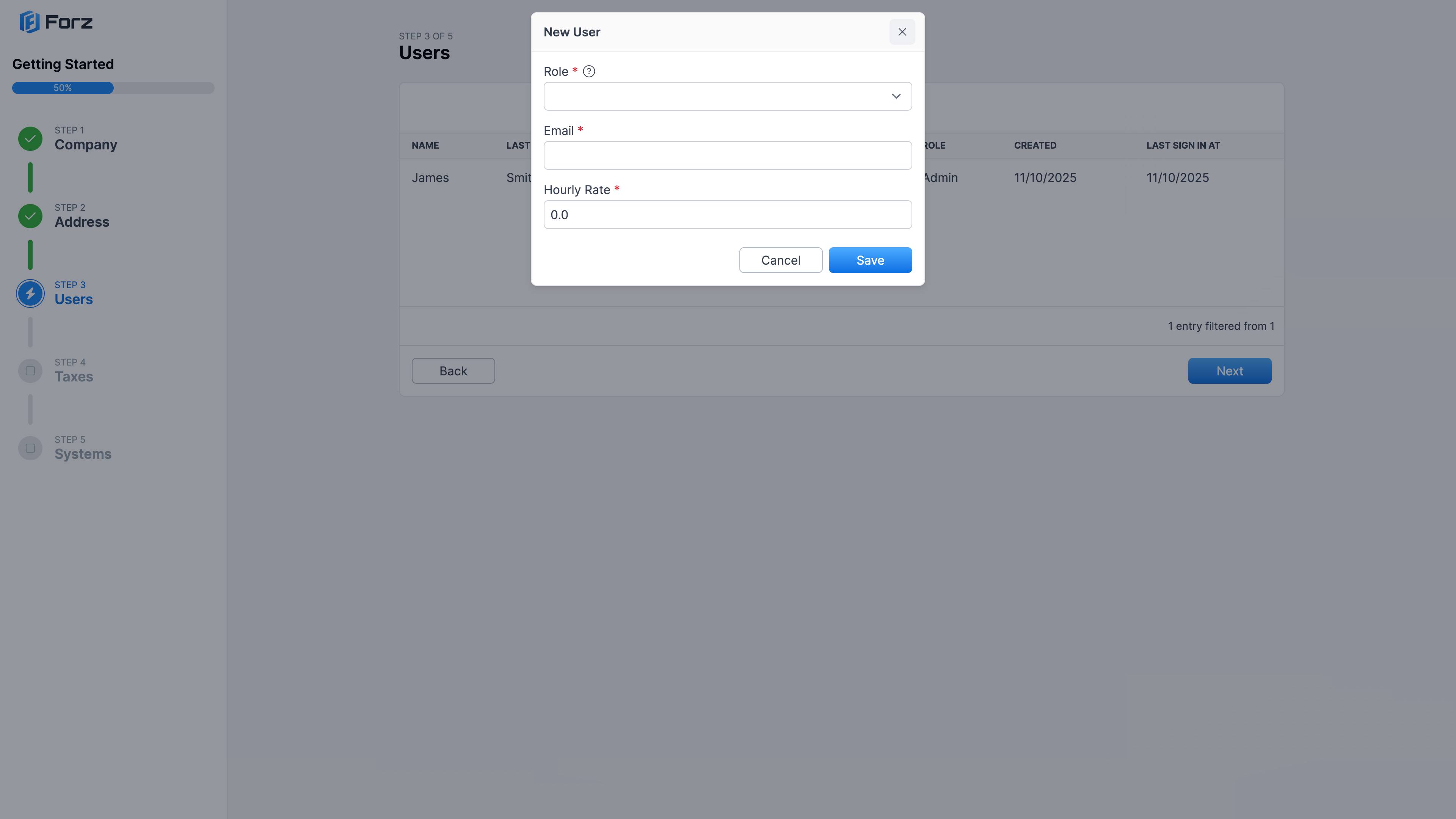
Select a role from the available options:
Then fill in the user’s “Email” and “Hourly Rate” fields:
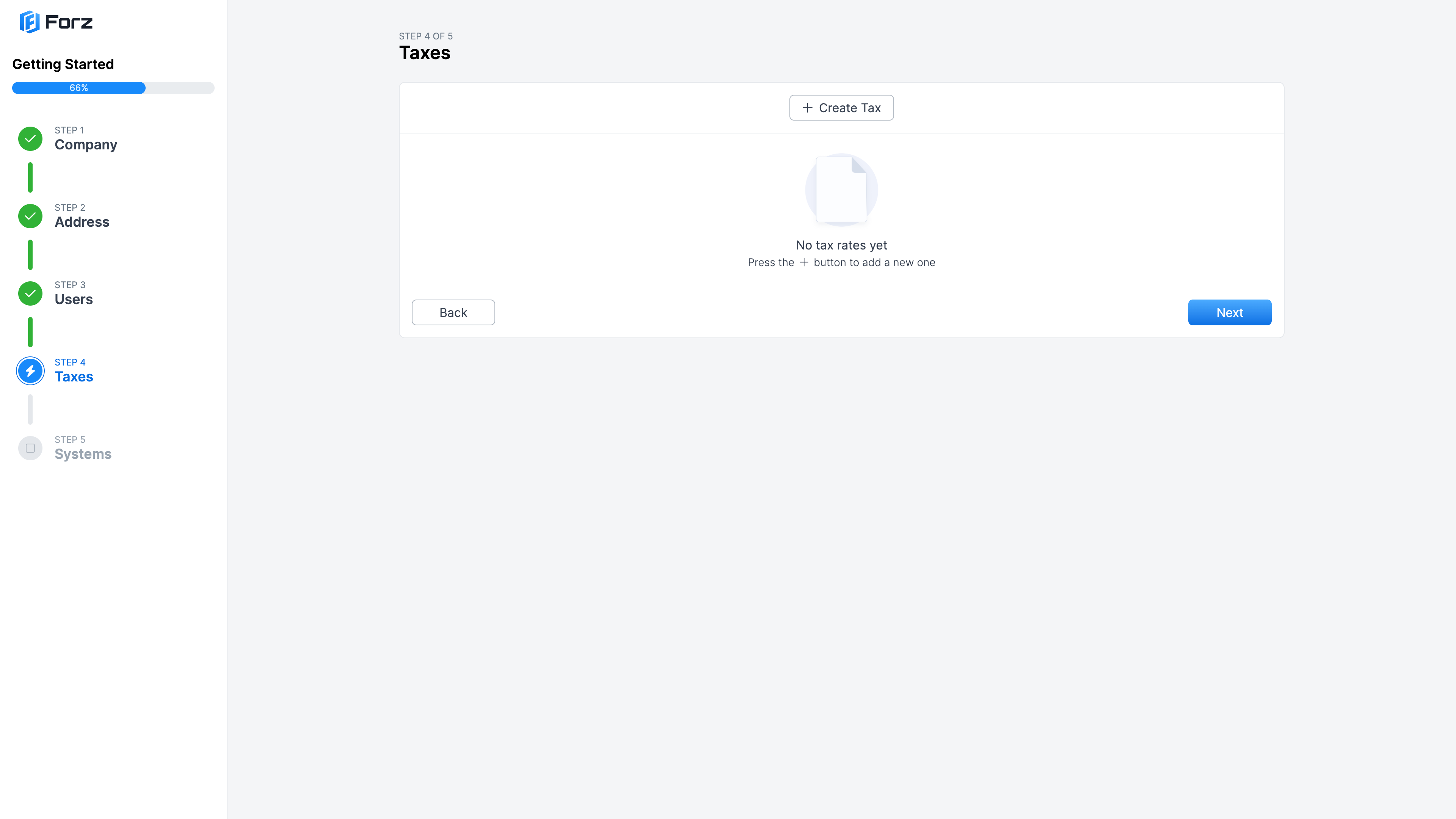
Step 4: Taxes
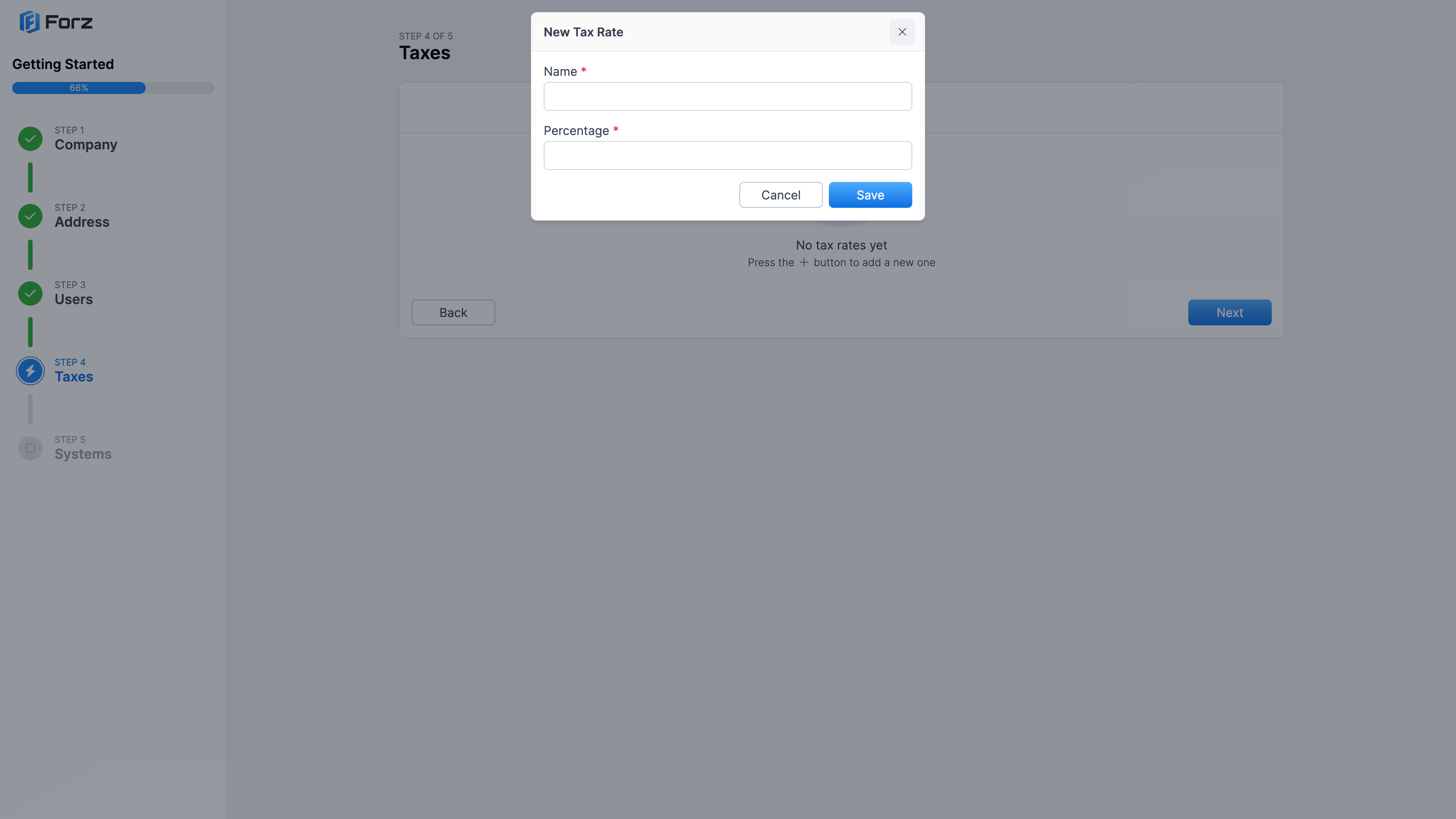
Next, you can set up tax rates. Click the “Create Tax” button to open the “New Tax Rate” popup window:
Then fill in the “Name” and “Percentage” fields:
Step 5: Systems
Finally, you can set up your systems.
What is the systems module?
The systems module is designed for businesses that need to manage and track specific systems that require regular maintenance or inspections, such as CCTV, fire alarms, elevators, garage doors, and similar setups. This module allows you to add, document, and monitor these systems, ensuring that all installations and equipment under your management are kept in optimal condition.
Should you add a system?
If your business involves the installation, maintenance, or supervision of technical or mechanical systems, such as security systems, fire protection, or similar equipment, you should use this section to document and manage them. If your business does not handle specific systems that require detailed tracking, you may choose not to use this module.
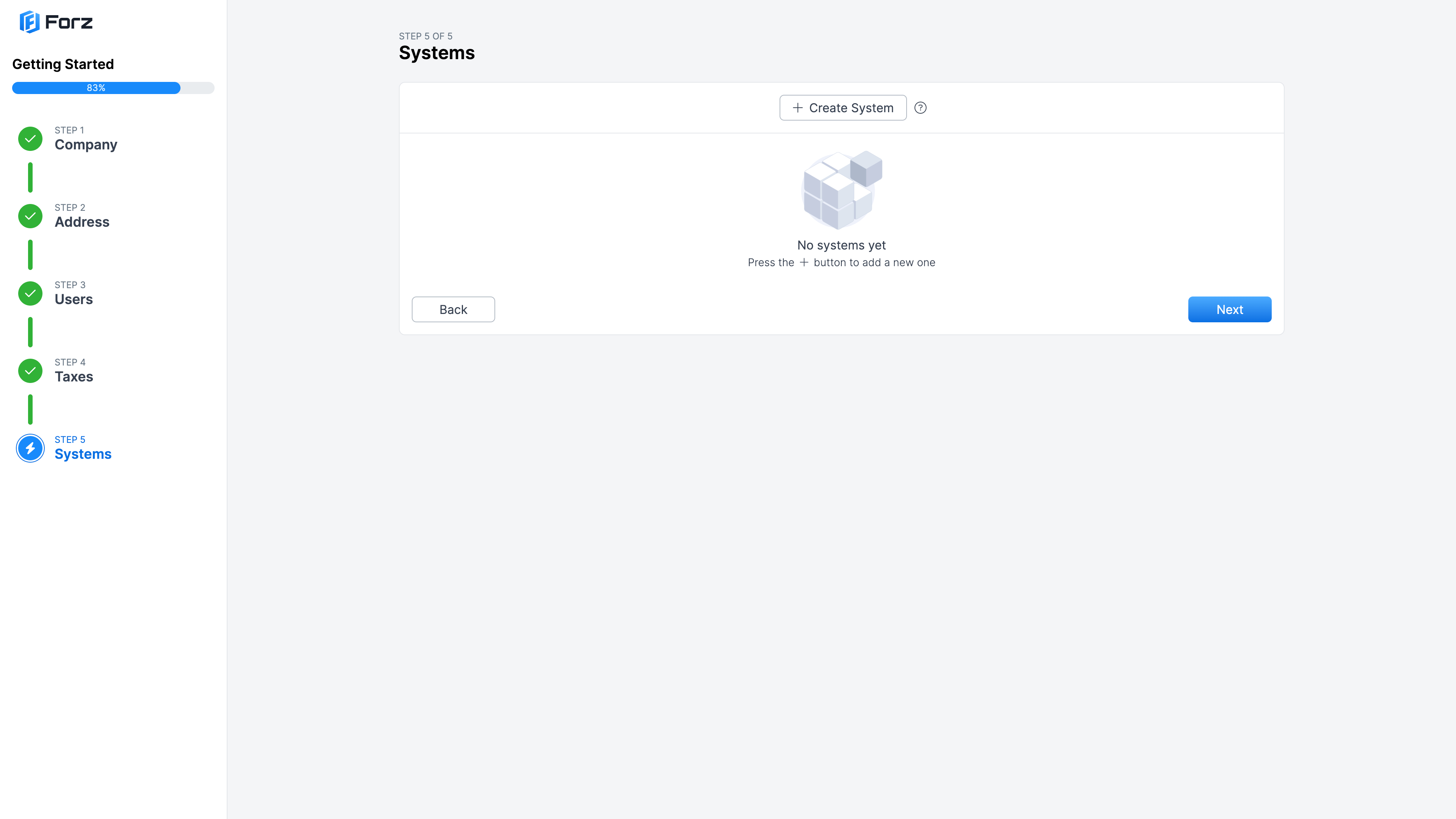
Adding Systems
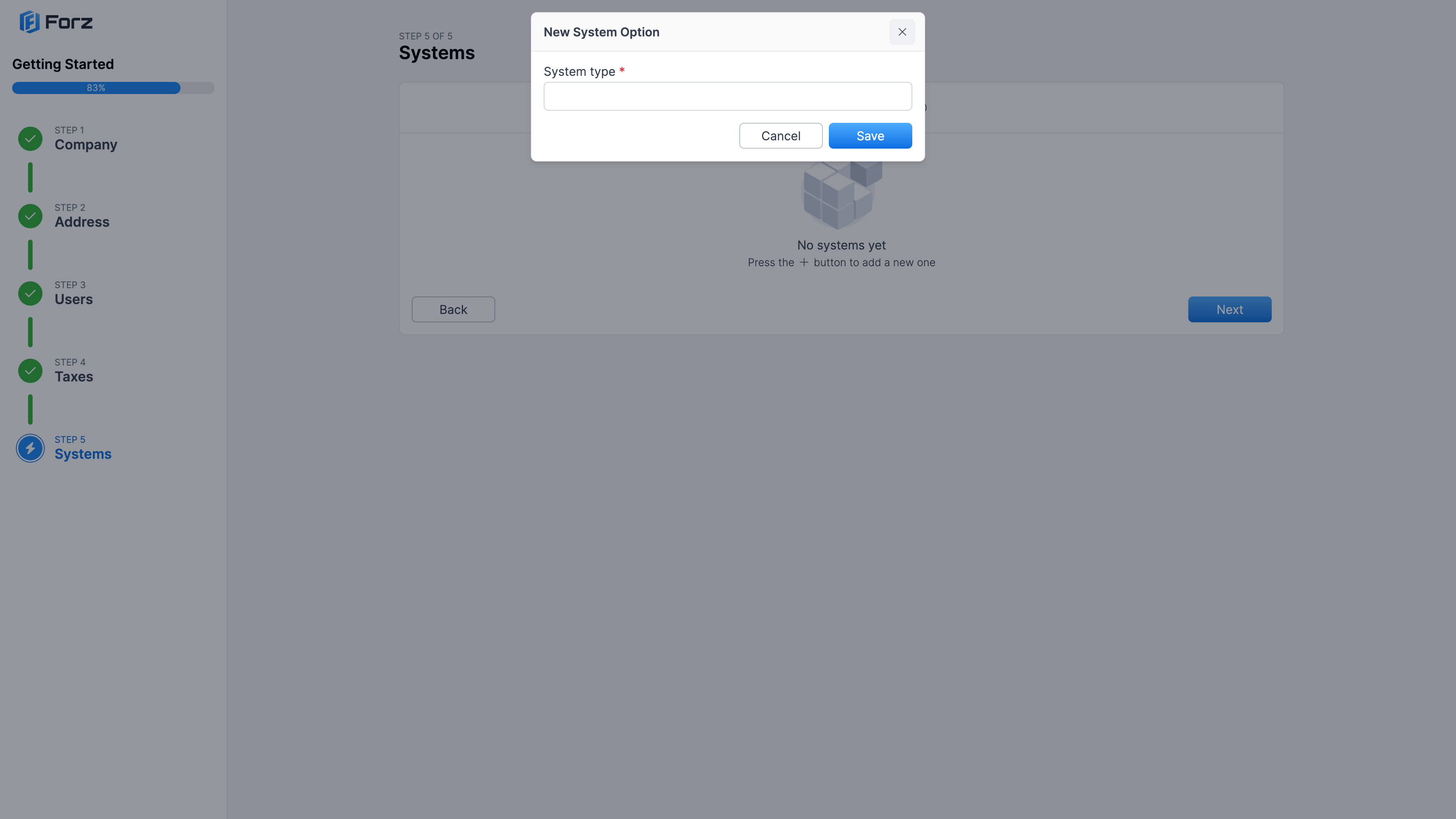
If this applies to your company, click the “Create System” button to open the “New System” popup window:
Then fill in the “System Type” field:
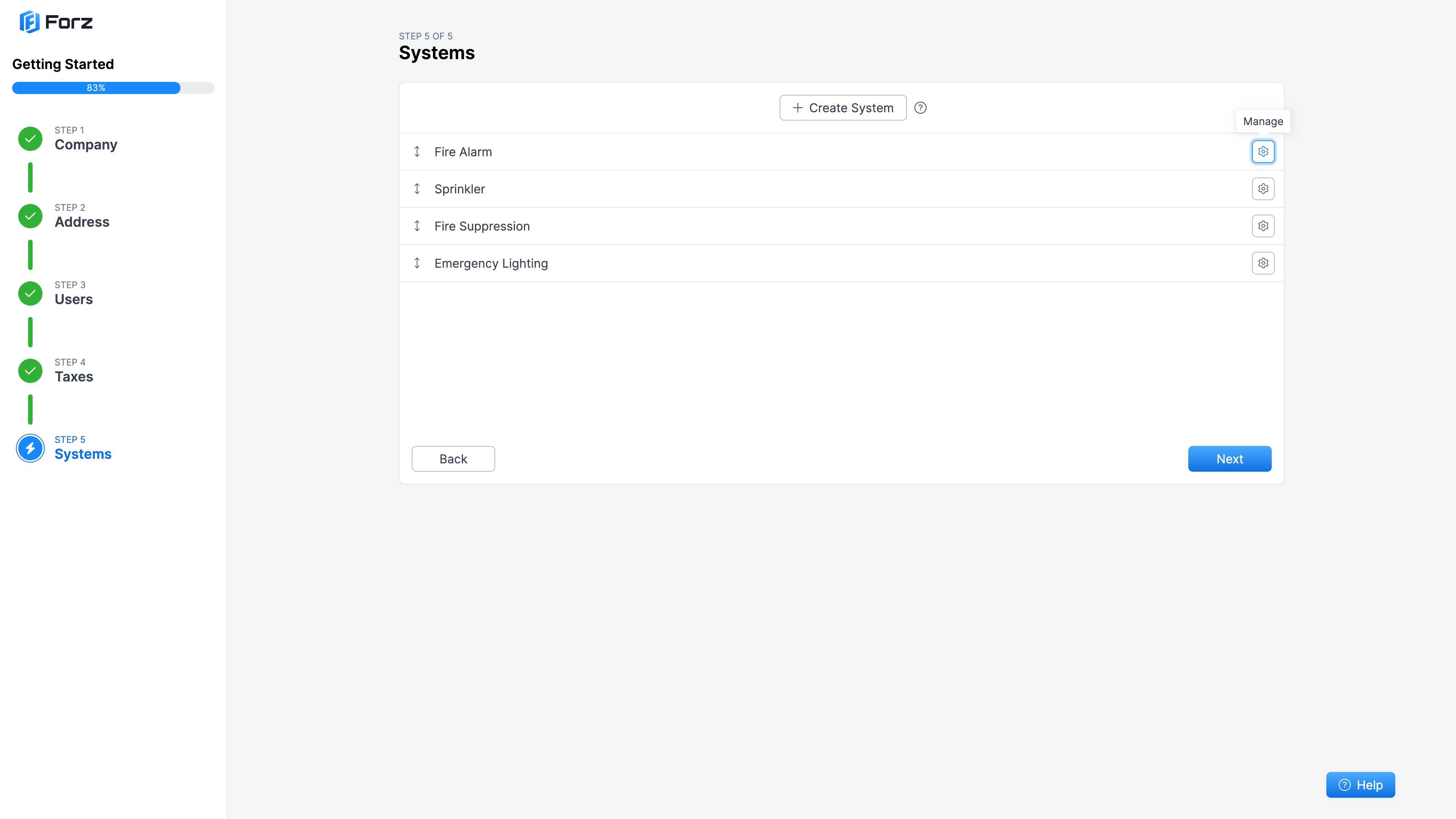
Once you have added your systems, you can set up more options by clicking the “Manage” button:
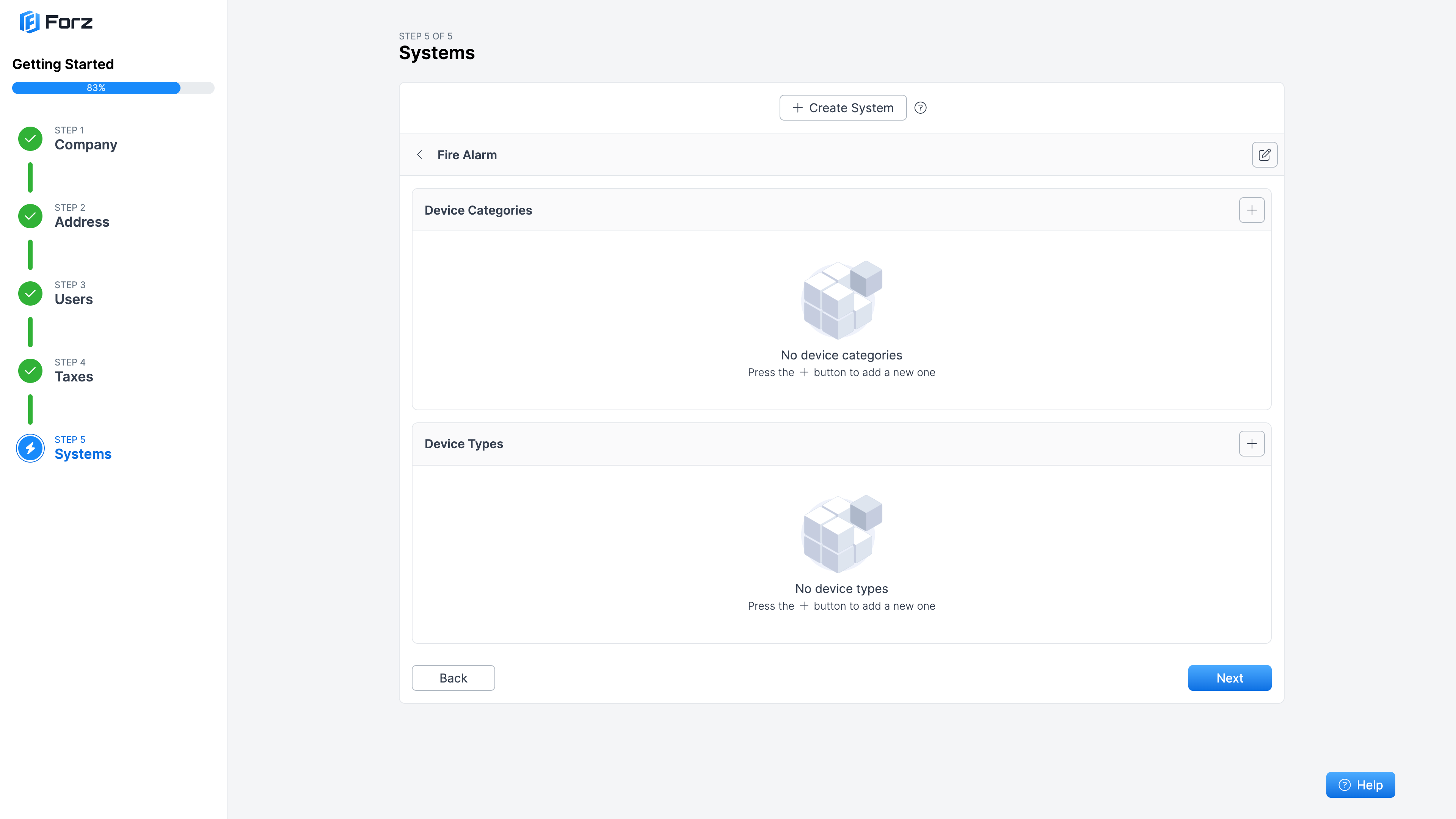
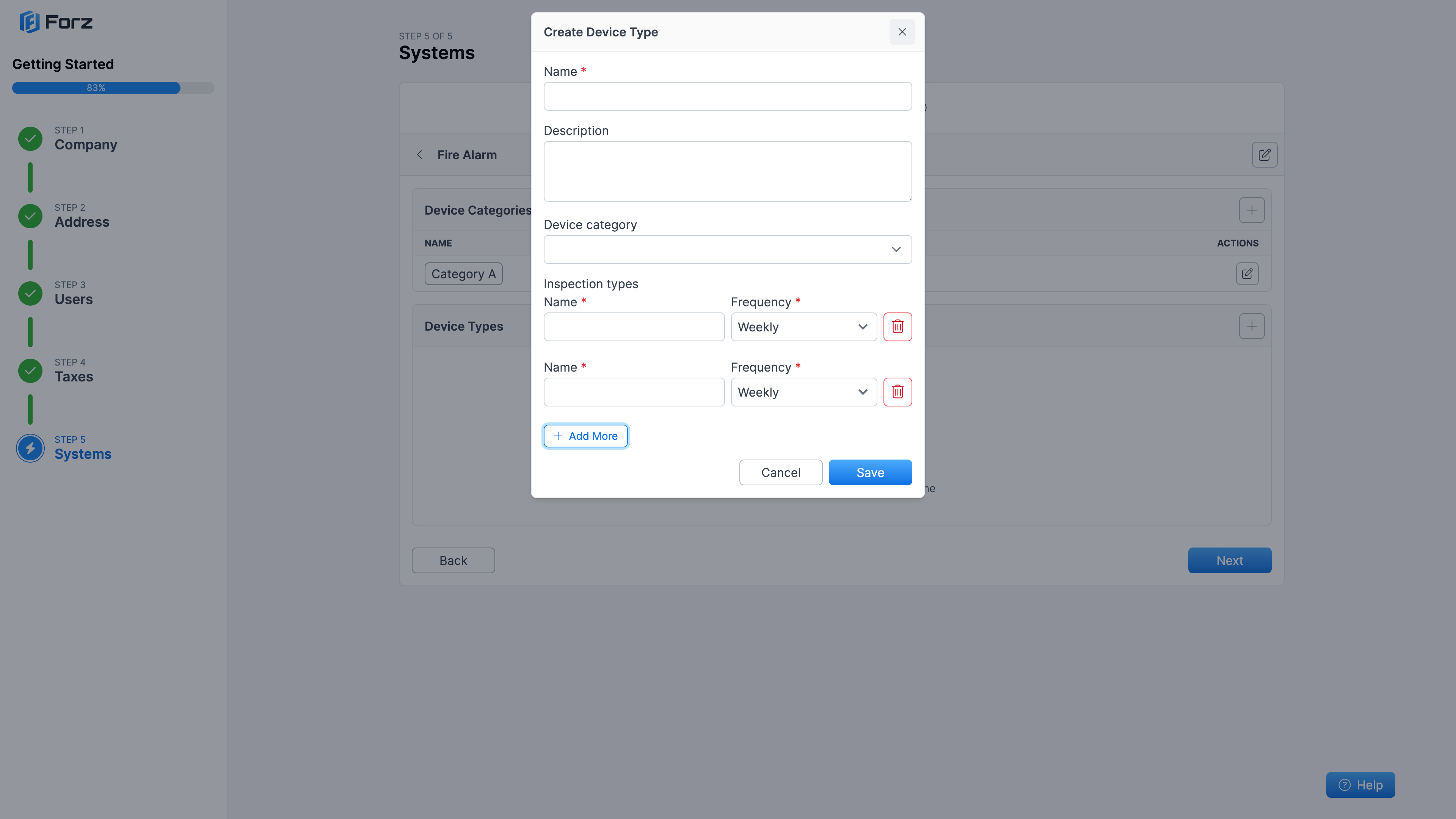
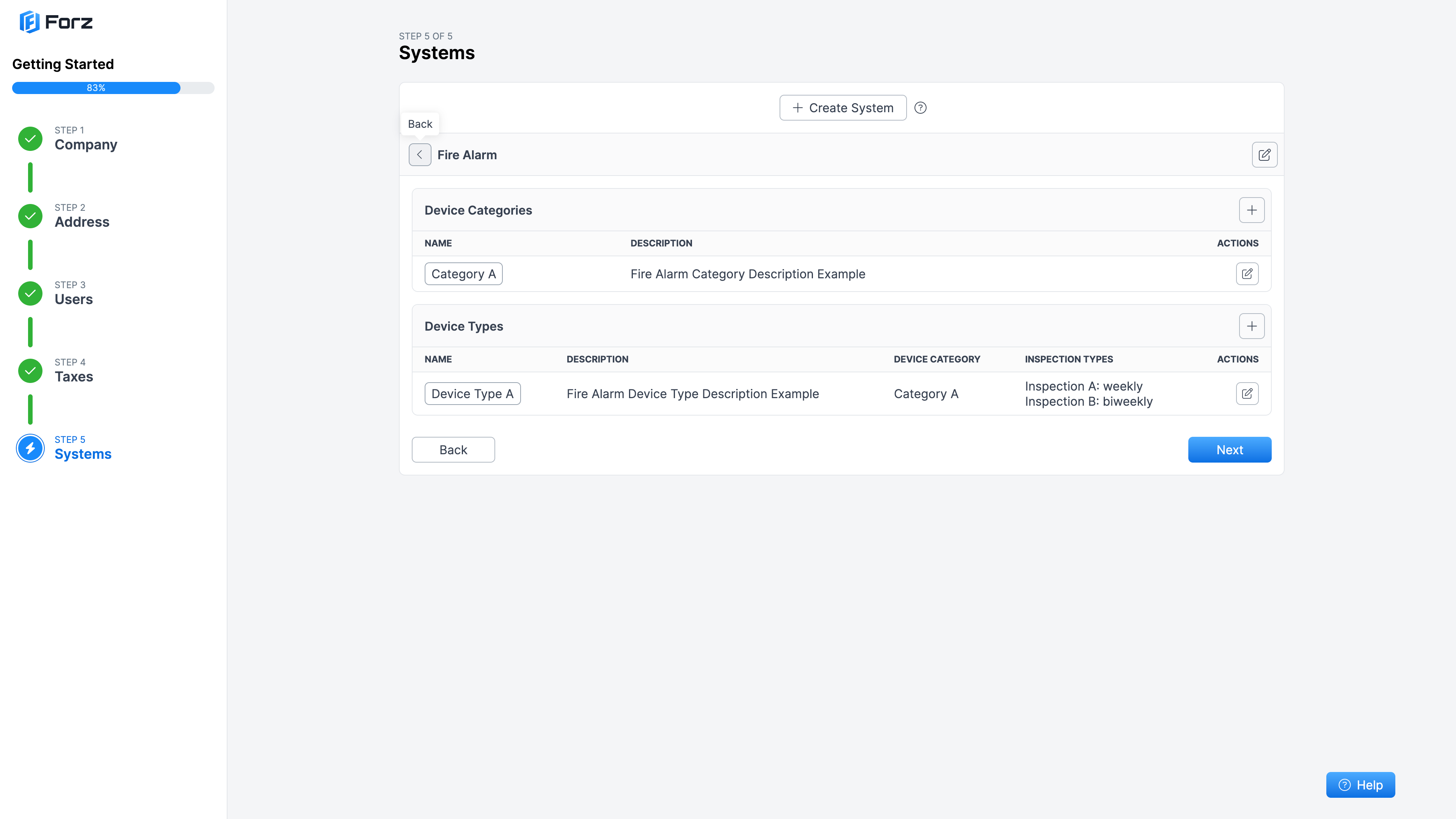
On this screen, you can configure “Device Categories” to organize your devices, and “Device Types” to set the recurring inspection frequency required for each type of device:
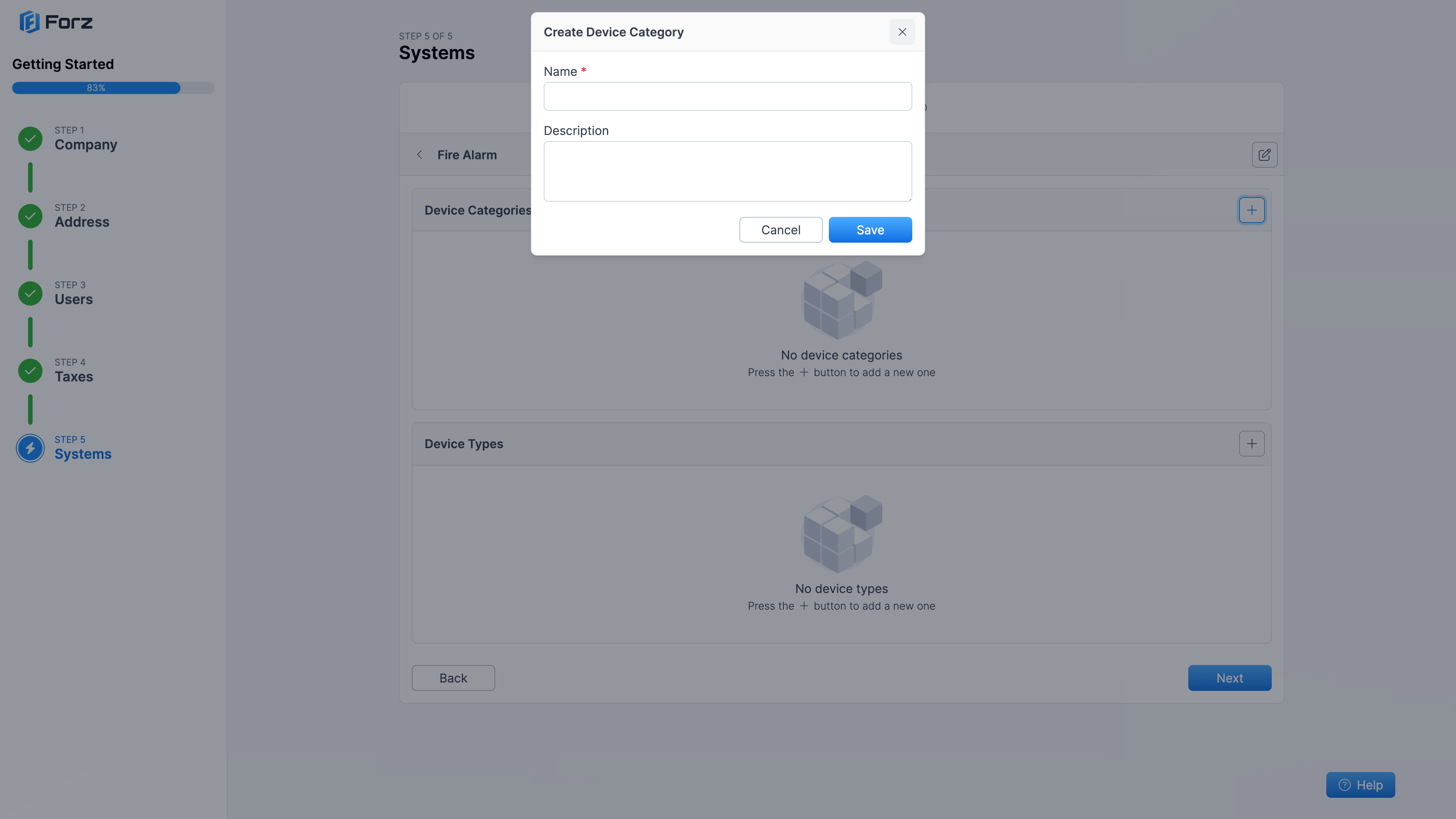
To create a new one, click the plus (+) button to open the corresponding popup:
After setting up a system, you can go back to manage another one by clicking the “Back” button next to the system name:
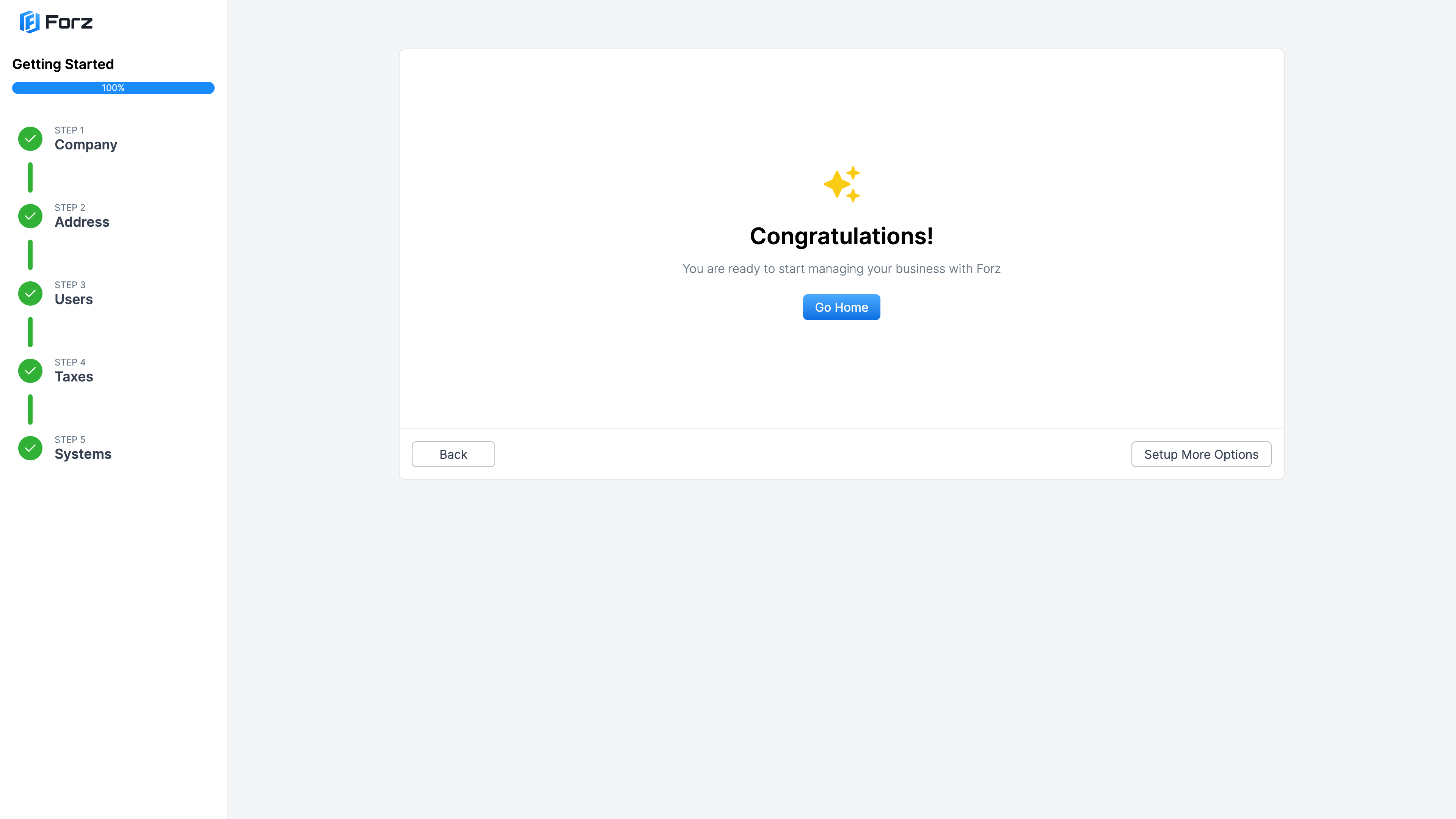
Congratulations!
You can now click “Go Home” to return to the homepage, or “Set up more options” to continue configuring additional modules in the Forz Platform:
Was this helpful?
Still need help? Ask the team