Inventory Transfers
Move inventory items between warehouse, vehicle, and job-site locations and track the transfer through to completion.
Overview
An inventory transfer moves stock from one inventory location to another. Transfers start with a status of In Transit and must be completed by a user to finalize the stock movement. When a transfer is completed, Forz decrements the source location quantities and increments the destination location quantities in a single transaction. This feature requires the Advanced Inventory module.
Before You Begin
Prerequisites:
The Advanced Inventory module is enabled (Settings > Modules).
You have the Inventory Transfers: Create permission on your role.
At least two active inventory locations exist.
The source location has sufficient stock for the items you want to transfer.
Creating a Transfer
Select locations
Click Products & Services in the sidebar navigation, then open an Inventory-type item.
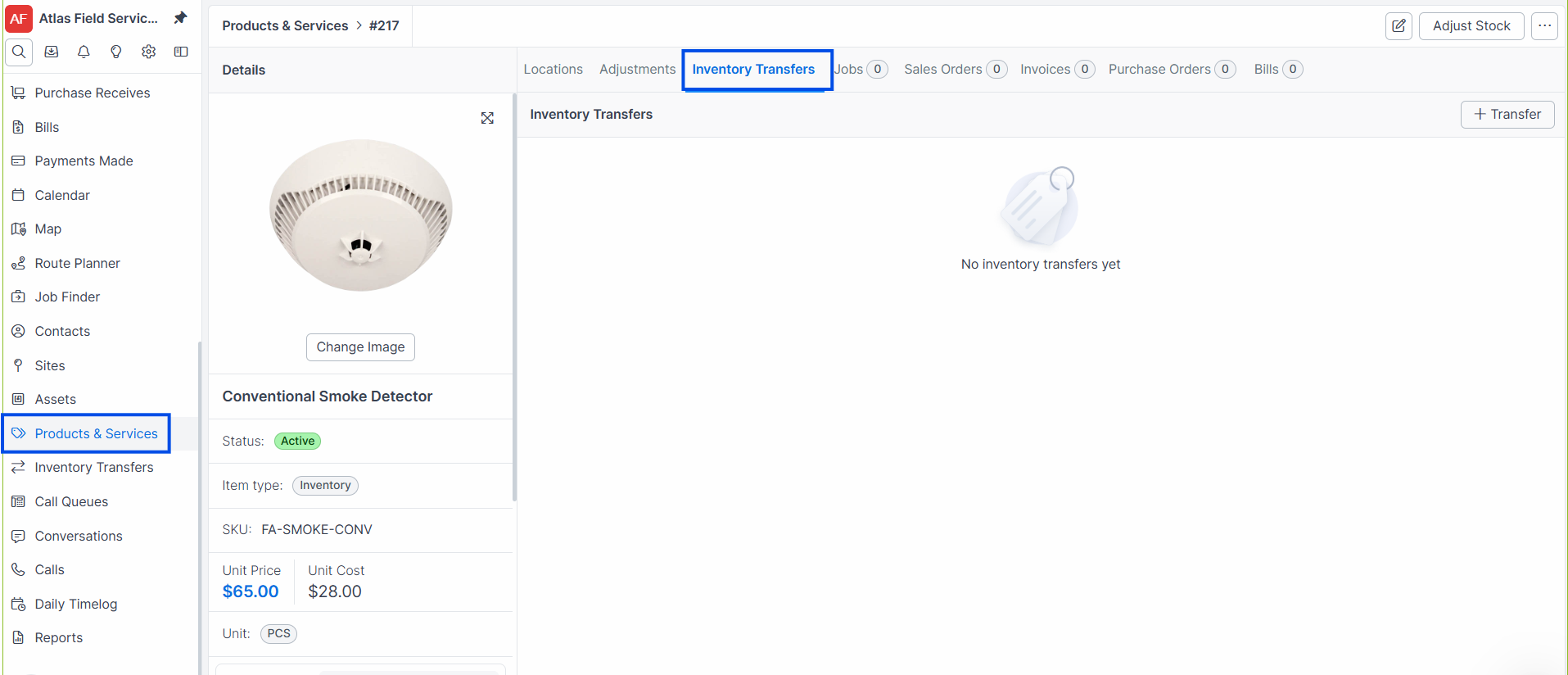
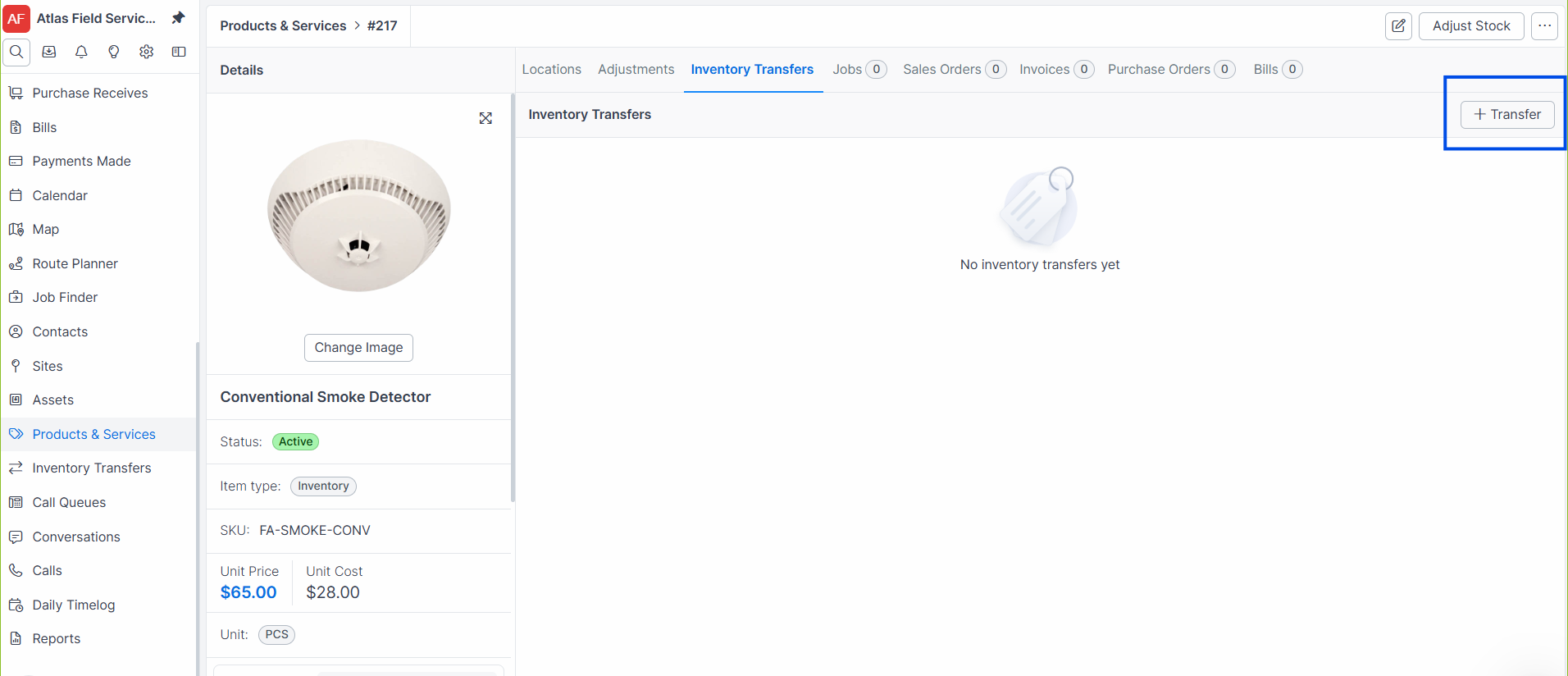
Click the Transfers tab, then click + Transfer.
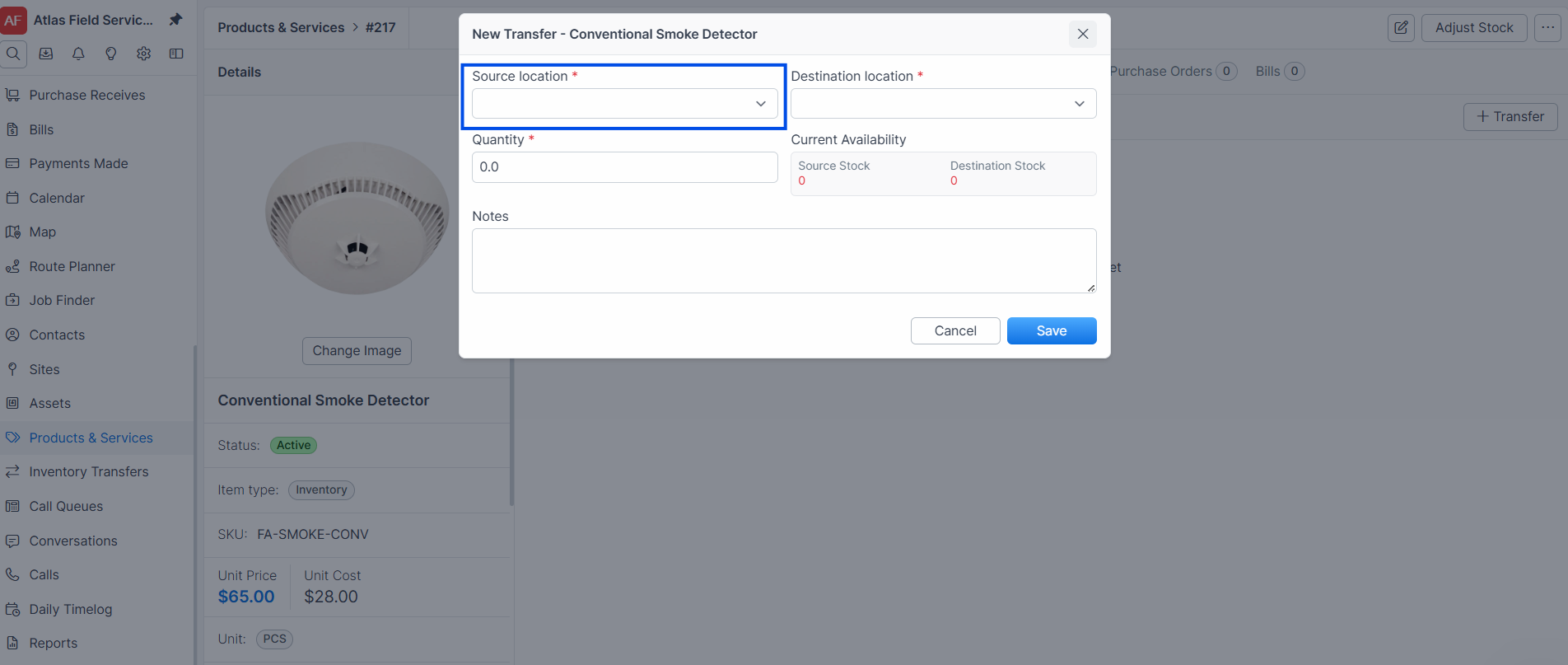
Select a From Location — the source warehouse or vehicle.
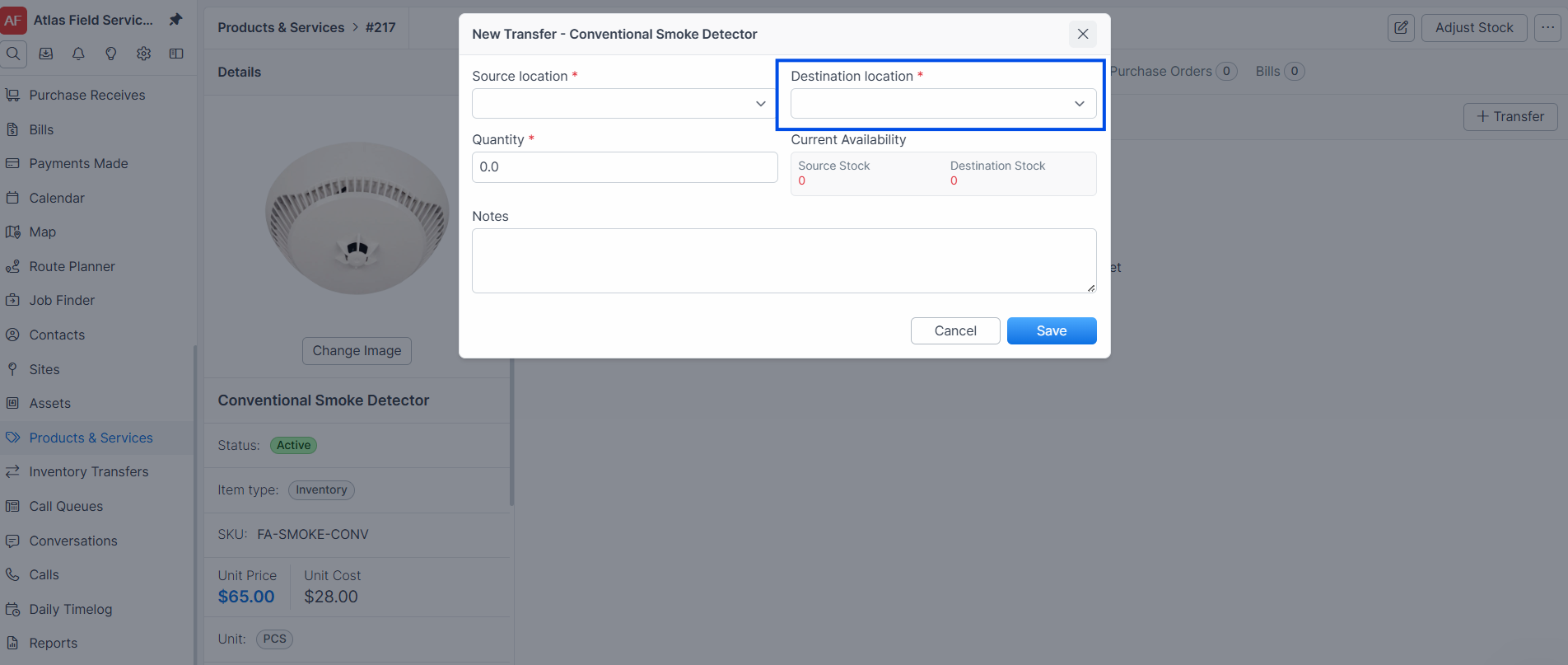
Select a To Location — the destination. This must be different from the source.
Tip: Before creating a transfer, check the Locations tab on the item to verify available stock at the source location. You cannot transfer more than what is in stock.
Add items and quantities
Add one or more items to the transfer. For each item, enter the Quantity to transfer.
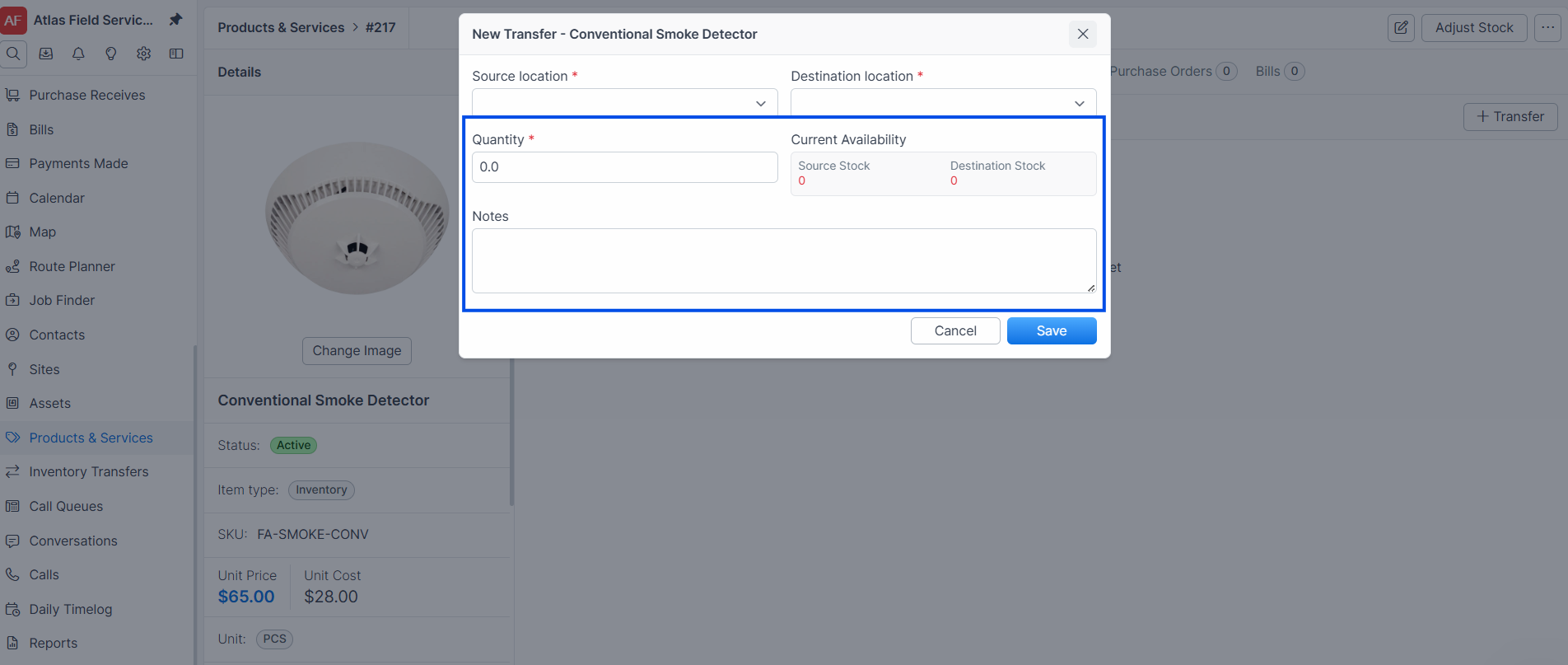
Verify the source stock and destination stock displayed for each line item.
Click Save.
Expected result: Forz creates the transfer with a status of In Transit. Stock quantities do not change yet, they update only when the transfer is completed.
Warning: Each line item must have a quantity greater than zero, and the source location must have enough stock. Forz validates both conditions and displays an error if either fails.
Completing a Transfer
Completing a transfer finalizes the stock movement, updating quantities at both locations.
Open the transfer from the item's Transfers tab or the transfers list.
Verify the items and quantities are correct.
Click Complete.
Expected result: The transfer status changes to Transferred. Forz records who completed the transfer and the completion timestamp. Source location quantities decrease and destination location quantities increase by the transferred amounts.
Note: Forz re-validates stock levels at the time of completion. If the source location no longer has sufficient stock (e.g., an adjustment was made after the transfer was created), the completion fails with an error.
Transfer Statuses
Common Scenarios
Restocking a technician's van from the warehouse
A plumbing dispatcher sees that Van 3 is low on PEX fittings after a week of installations. She creates a transfer from "Main Warehouse" to "Van 3" with 50 units of 1/2" PEX couplings and 25 units of 3/4" PEX elbows. The warehouse manager picks the parts, loads them into the van, and the dispatcher clicks Complete to finalize the stock move.
Moving surplus materials between job sites
An electrical contractor has leftover conduit at a completed job site. The project manager creates a transfer from "Job Site — Oak Street" to "Main Warehouse" for 200 ft of 3/4" EMT conduit. When the materials arrive at the warehouse and are checked in, the transfer is completed.
Pre-staging equipment for a large installation
An HVAC company wins a contract to install 15 units in a new apartment building. The operations manager creates a transfer from "Main Warehouse" to "Job Site — Maple Apartments" for 15 condensing units, 15 air handlers, and 300 ft of copper lineset. The transfer tracks the shipment while materials are in transit to the site.
Troubleshooting
Was this helpful?
Still need help? Ask the team