Invoices
Create, send, and manage invoices for completed field service work
Overview
An invoice is a billing document you send to a customer for work performed. Invoices track line items (products and services), calculate totals and balances, and flow through a status workflow from Draft to Paid. You can create invoices from scratch, generate them from a job, or build them from a sales order. Customers receive invoices via email and can view them through a secure portal link.
Before You Begin
Prerequisites:
The Invoice module is enabled (Settings > Modules).
You have the Invoices: Create permission on your role.
At least one customer record exists.
At least one payment term is configured (Settings > Payment Terms).
Default terms include Net 15, Net 30, Net 45, Net 60, Net 90, and Due on Receipt.
Invoice Status Workflow
Invoices move through the following statuses:
Draft — the invoice is being prepared and has not been sent to the customer.
Sent — the invoice has been emailed or marked as sent.
Viewed — the customer has opened the invoice through the portal link.
Partially Paid — the customer has made a payment, but a balance remains.
Paid — the full amount has been received (balance equals zero).
Overdue — the due date has passed and a balance remains (set automatically by a daily check).
Void — the invoice has been canceled and can no longer be edited or paid.
Note: Forz runs a daily background job to detect overdue invoices. Any invoice with a status of Sent, Viewed, or Partially Paid whose due date has passed is automatically marked Overdue. If the due date is later extended past today, the status reverts to Viewed (if the customer opened it) or Sent.
Creating an Invoice
Required fields
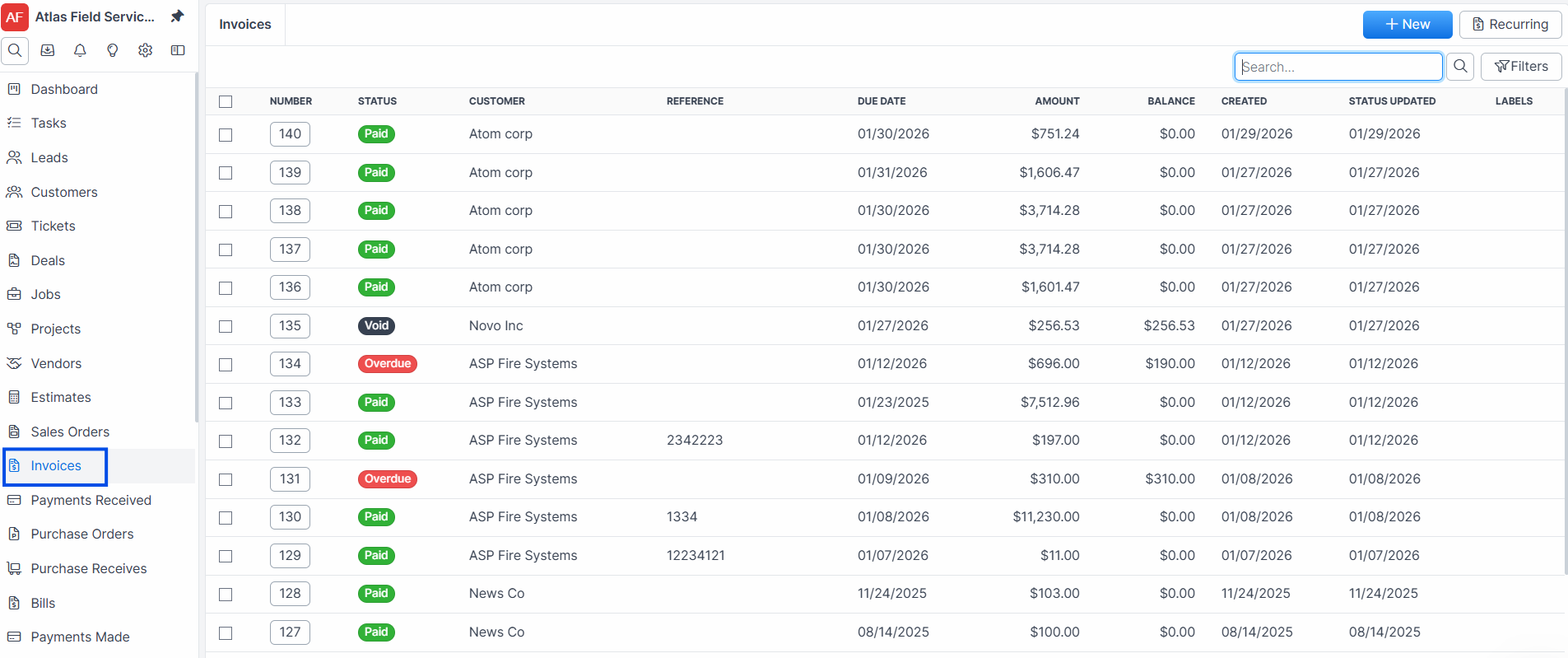
Click Invoices in the sidebar navigation.
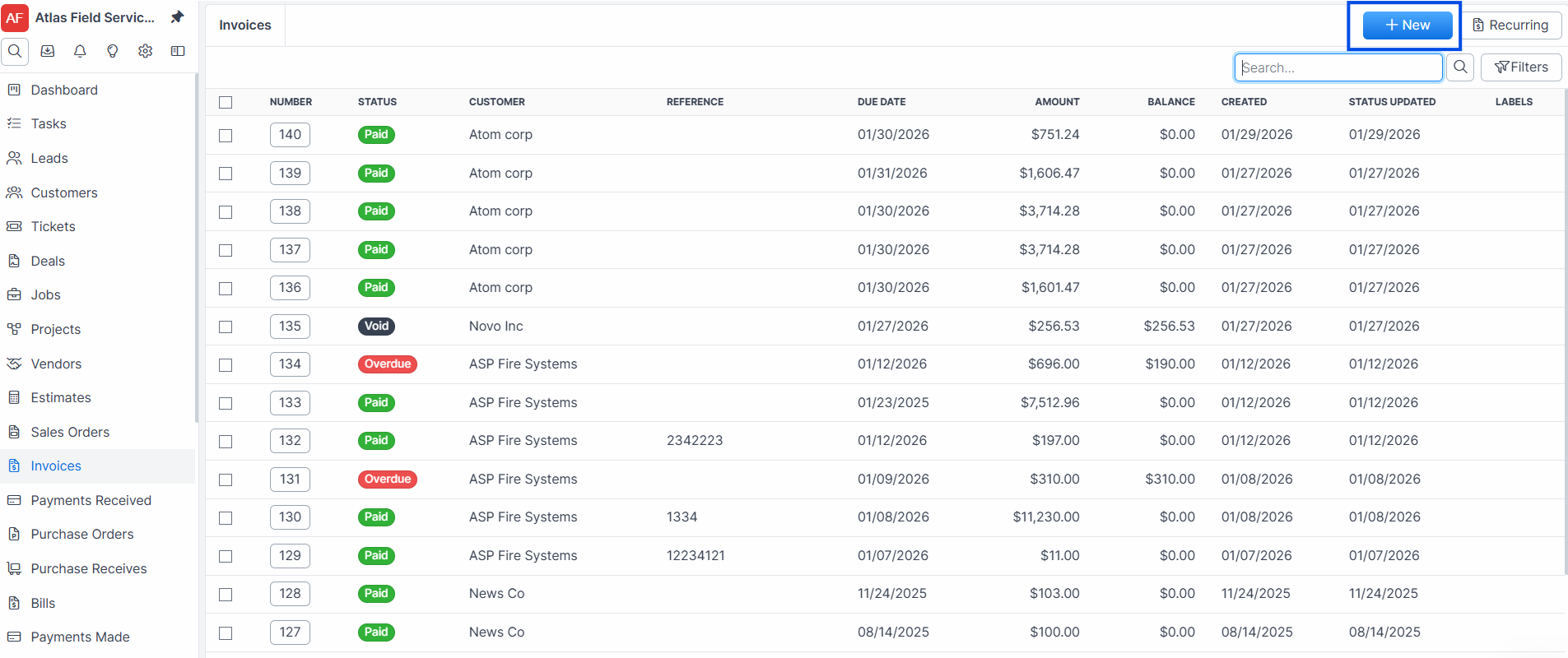
Click the + New button.
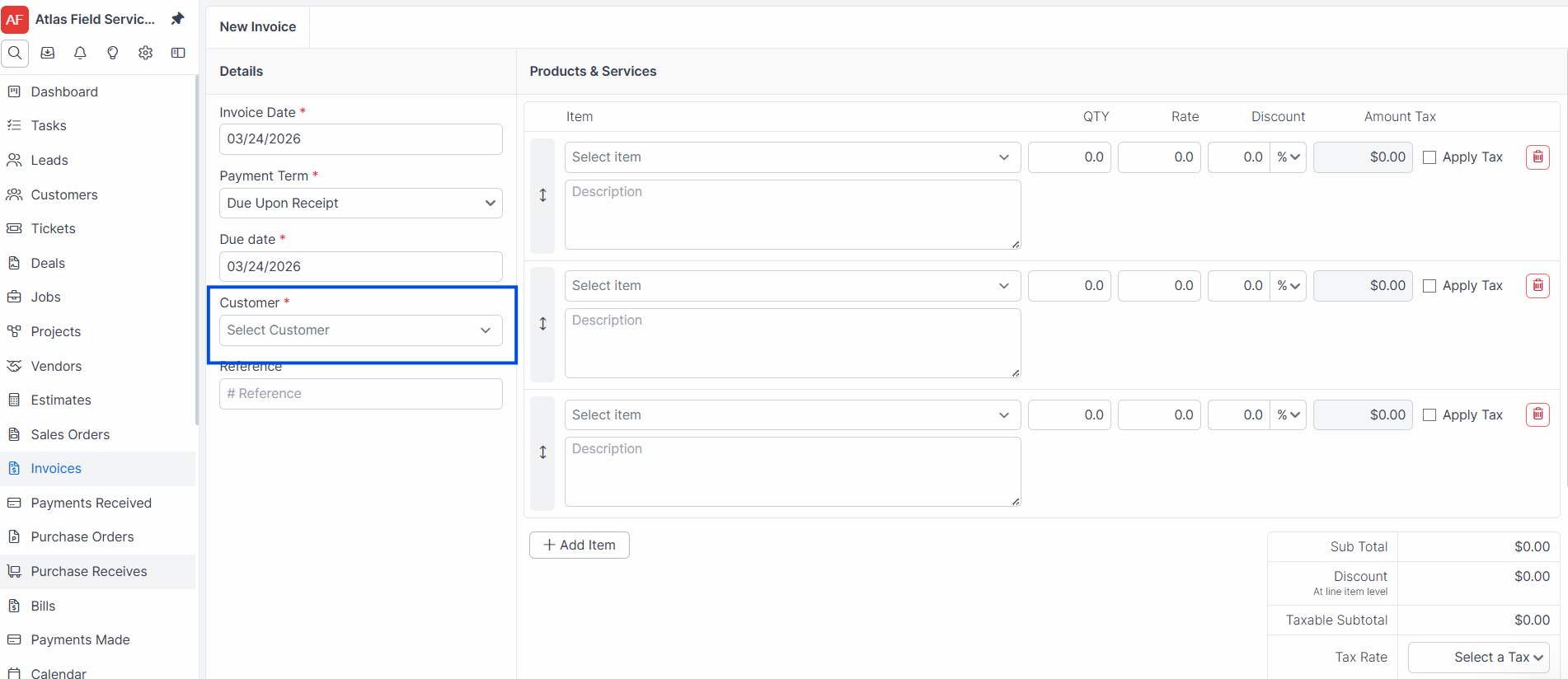
Select a Customer from the dropdown.
Confirm the Invoice Date — defaults to today's date.
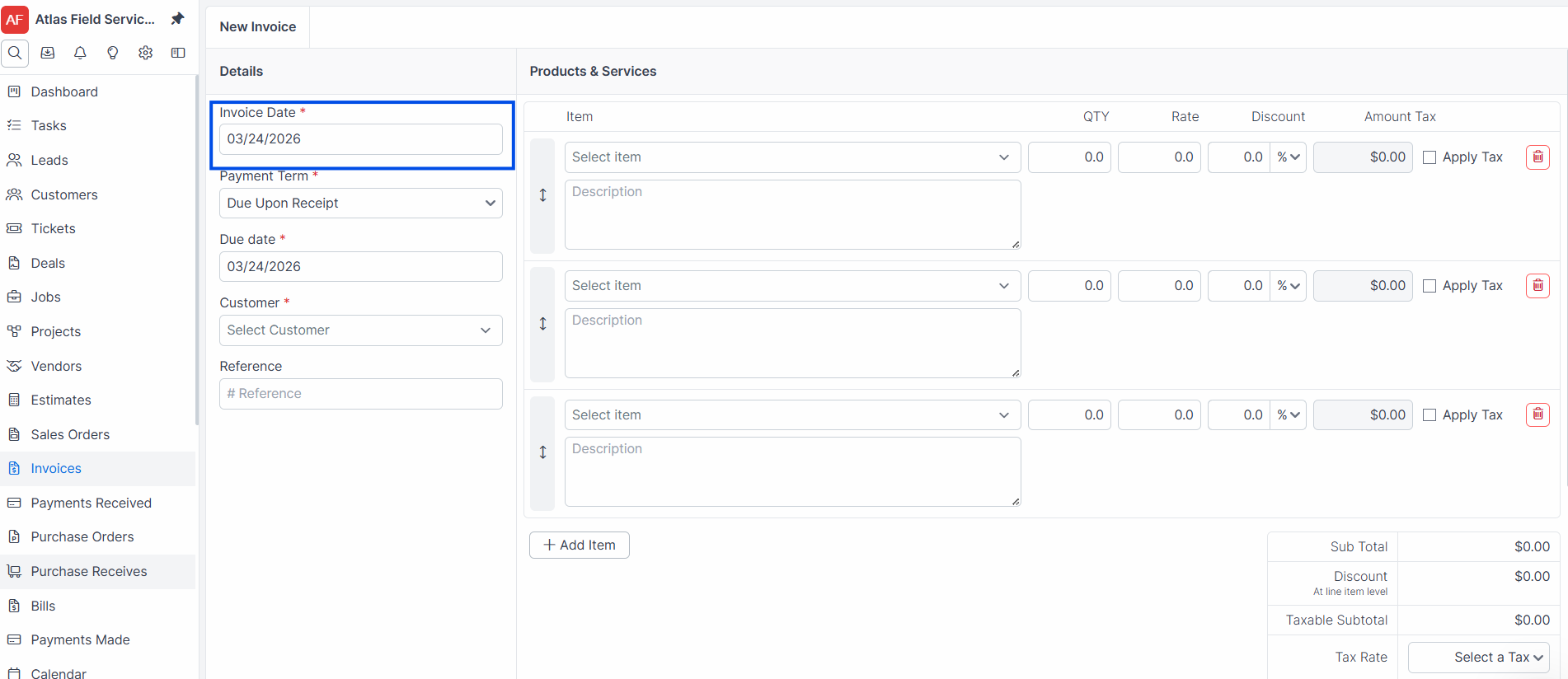
Select a Payment Term from the dropdown. Forz auto-calculates the Due Date based on the selected term.
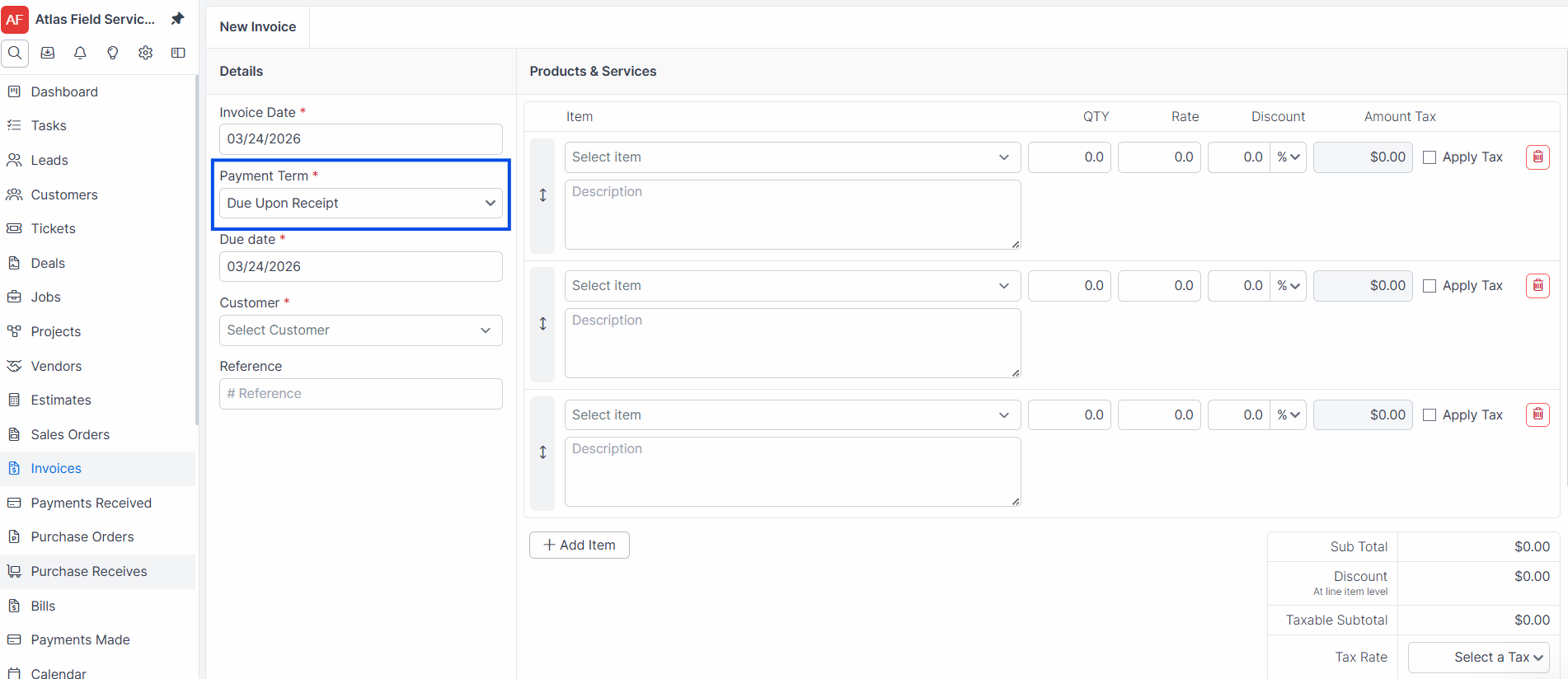
Tip: Set a default payment term in Settings > Payment Terms so new invoices are pre-filled. The default is Net 30.
Optional fields
Select a Service Address — the location where the work was performed.
Select a Contact — the person at the customer site to address the invoice to.
Select a System — the equipment or system associated with the work.
Enter a Reference — a PO number or external tracking ID.
Select a Tax Rate — applied to taxable line items.
Adding line items
In the line items section, select a product or service from the dropdown.
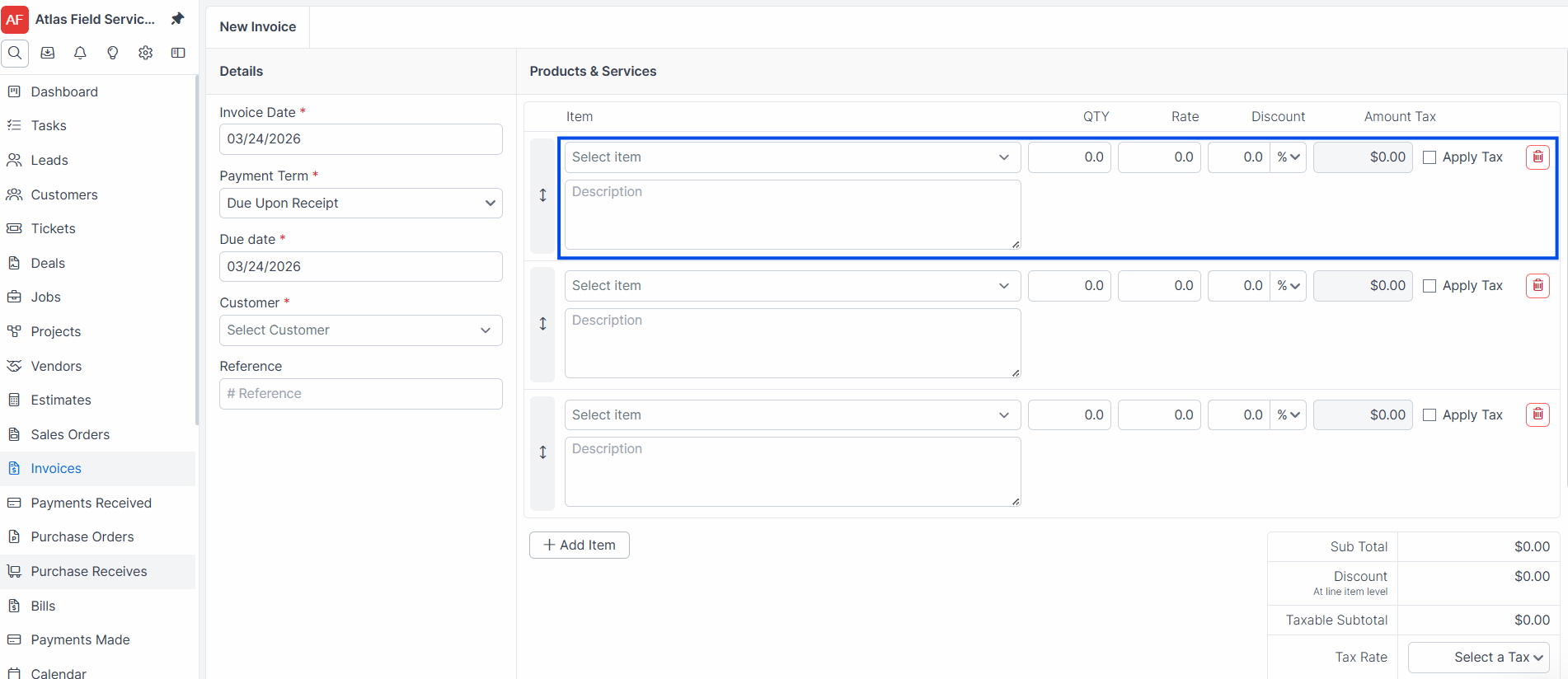
Enter a Quantity and Price for each line item.
Add more rows as needed. Forz adds an empty row automatically.
Discounts and notes
To apply a discount, select a Discount Type (percentage or flat amount) and enter the Discount Value. Forz calculates the Discount Total automatically.
Enter Customer Notes (up to 1,000 characters) — these appear on the invoice the customer sees.
Enter Back Office Notes (up to 4,000 characters) — these are internal and not visible to the customer.
Click Save.
Expected result: Forz creates the invoice in Draft status with a unique invoice number (e.g., INV-1001). The amount and balance are calculated automatically from line items, tax, and discounts.
Note: Forz auto-populates the billing address from the customer's primary site and the service address from the selected site. You do not need to enter these manually.
Creating an Invoice from a Job
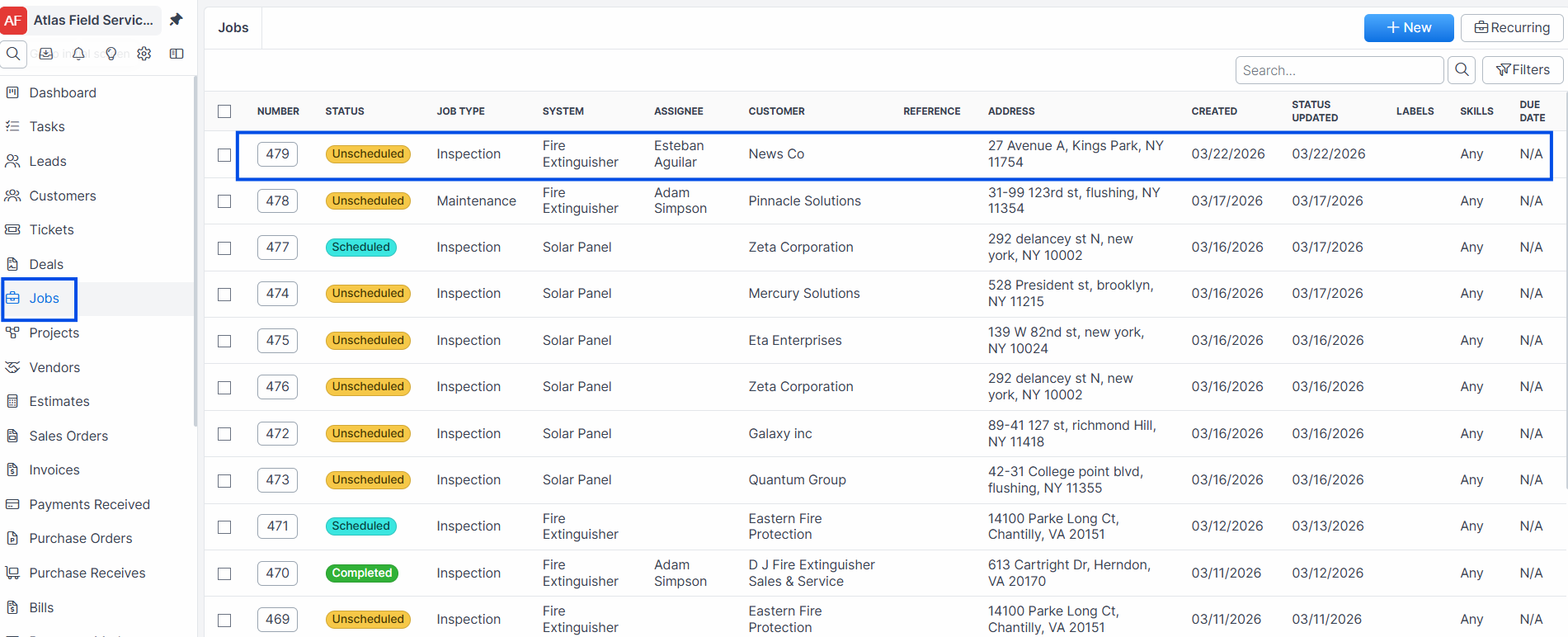
Open the job you want to invoice.
Click Generate Invoice on the job detail view.
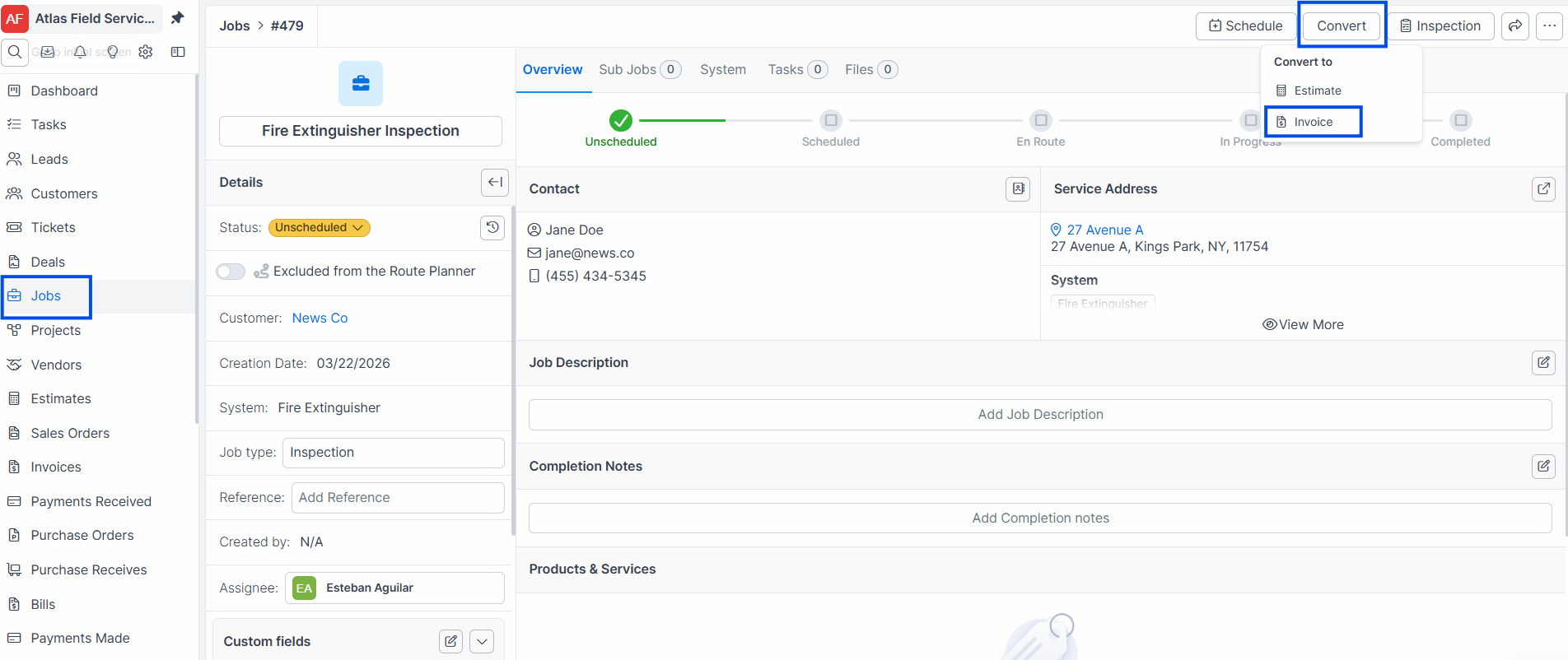
Forz creates a new Draft invoice with the customer, contact, service address, payment term, and all line items copied from the job.
Review the invoice and click Save.
Expected result: The invoice is linked to the job. The job detail view displays a link to the invoice under the related records section.
Warning: Each job supports one invoice. Once an invoice is generated from a job, the Generate Invoice button is no longer available for that job.
Creating an Invoice from a Sales Order
Open the sales order.
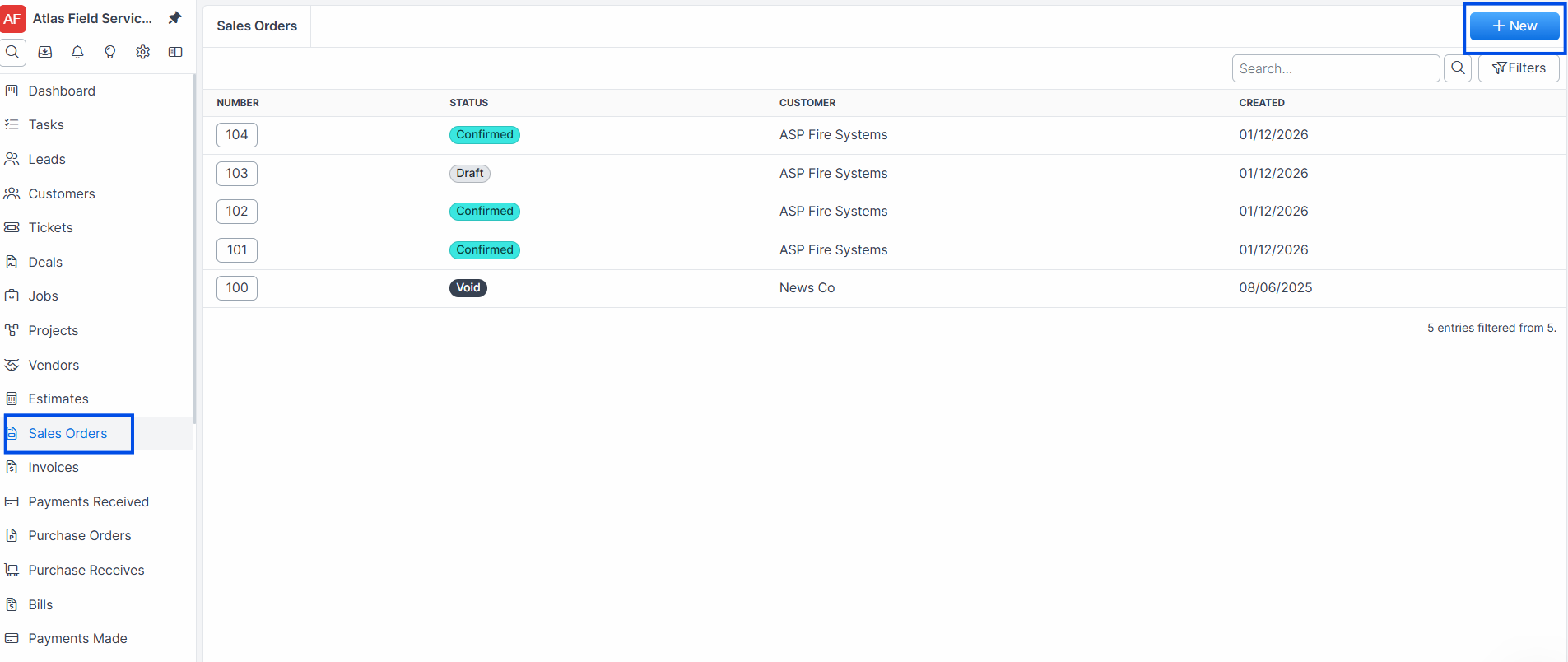
Click + New.
Forz copies the customer, site, system, contact, payment term, tax rate, and remaining line items from the sales order.
Review and click Save.
Expected result: The invoice is created in Draft status and linked to the sales order.
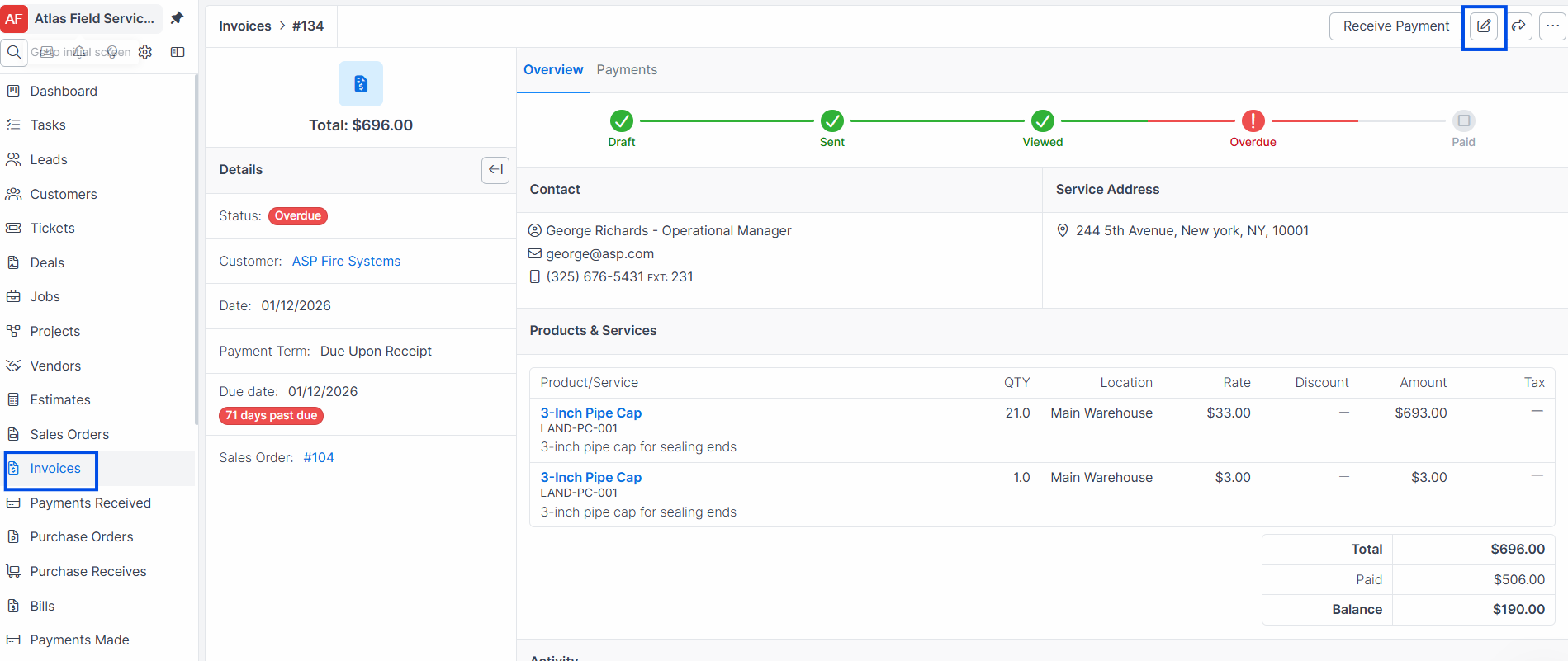
Editing an Invoice
Open the invoice you want to edit.
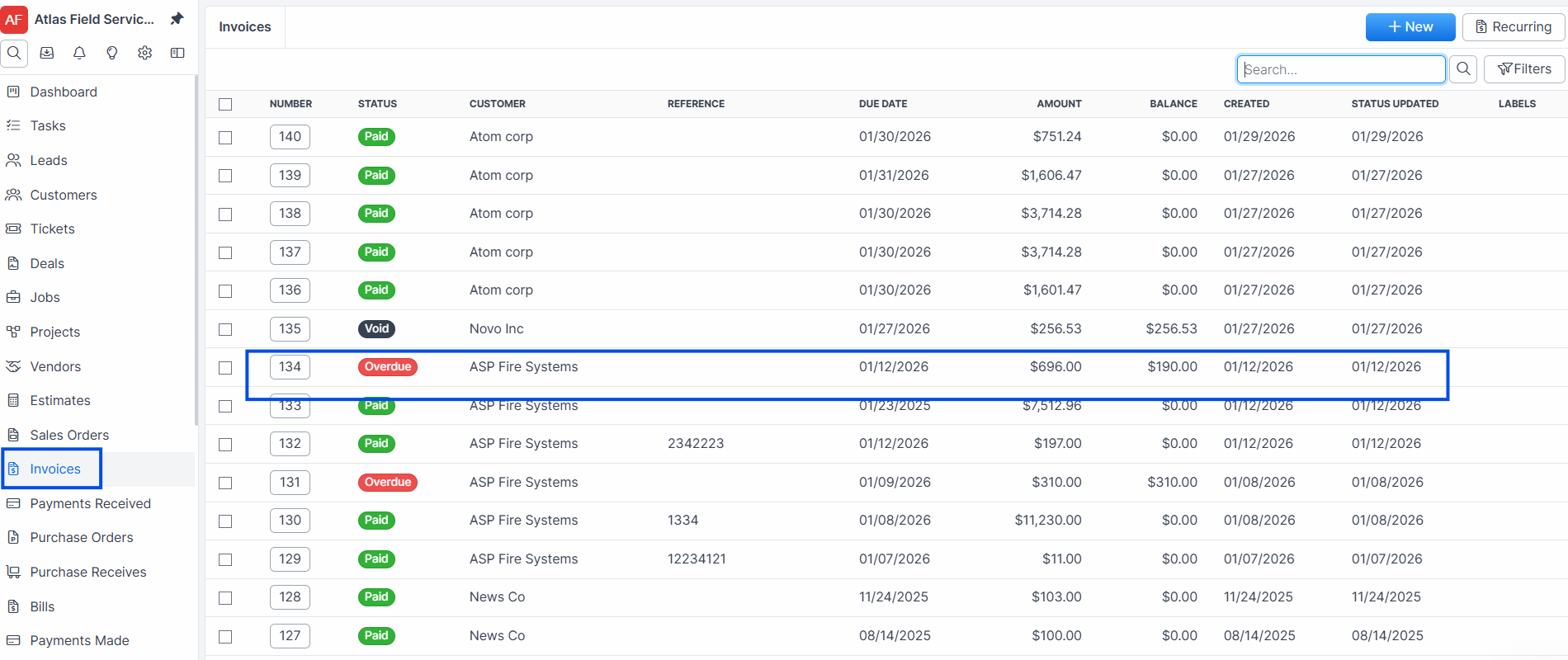
Click Edit.
Update the fields, line items, discounts, or notes as needed.
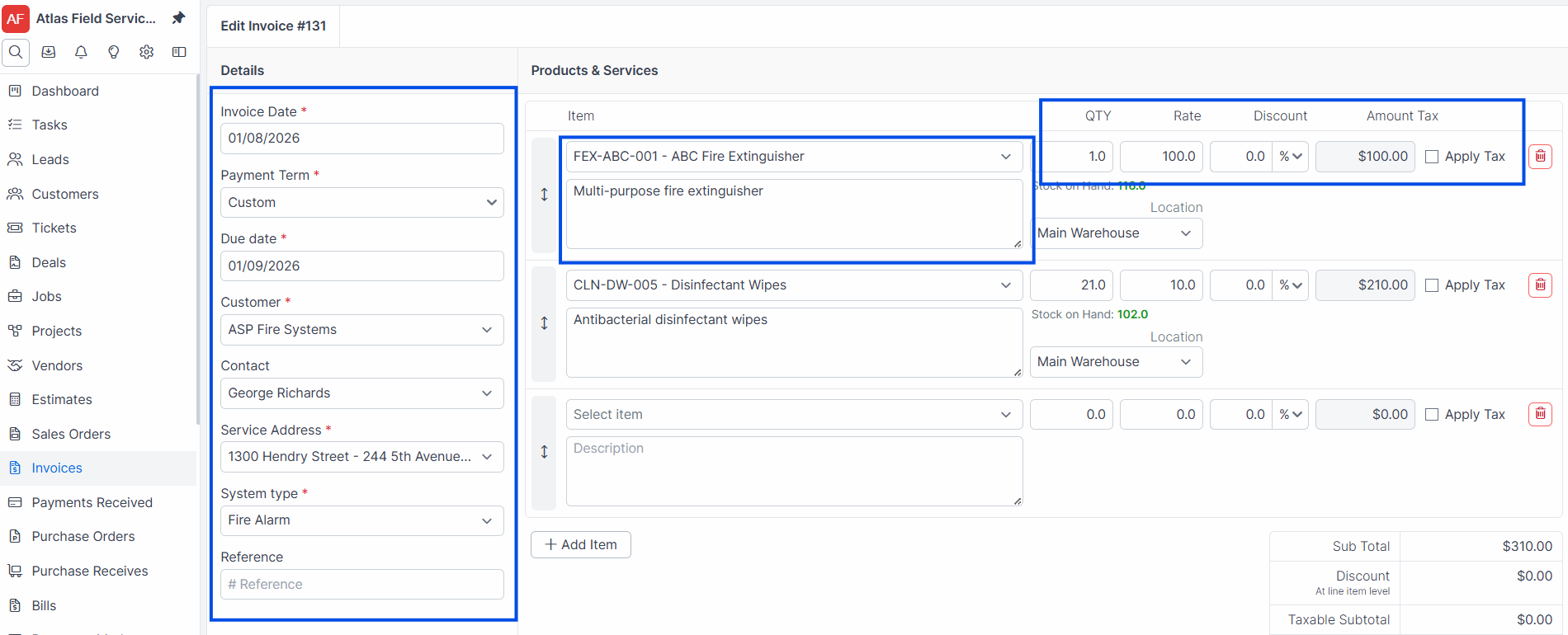
Click Save.
Expected result: The invoice is updated with the new values. The amount and balance recalculate automatically.
Warning: You cannot edit an invoice once a payment has been recorded against it. You also cannot edit a Void invoice.
Sending an Invoice
Sending by email
Open the invoice.
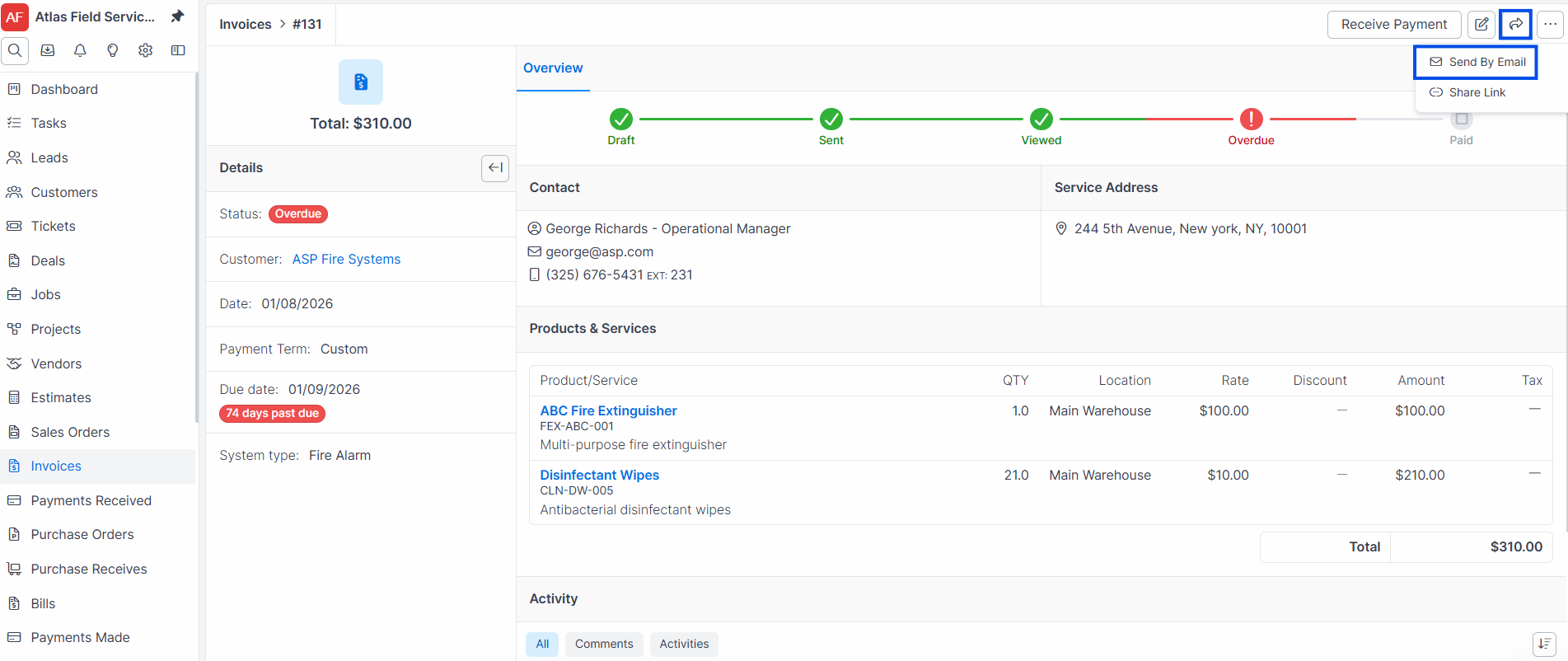
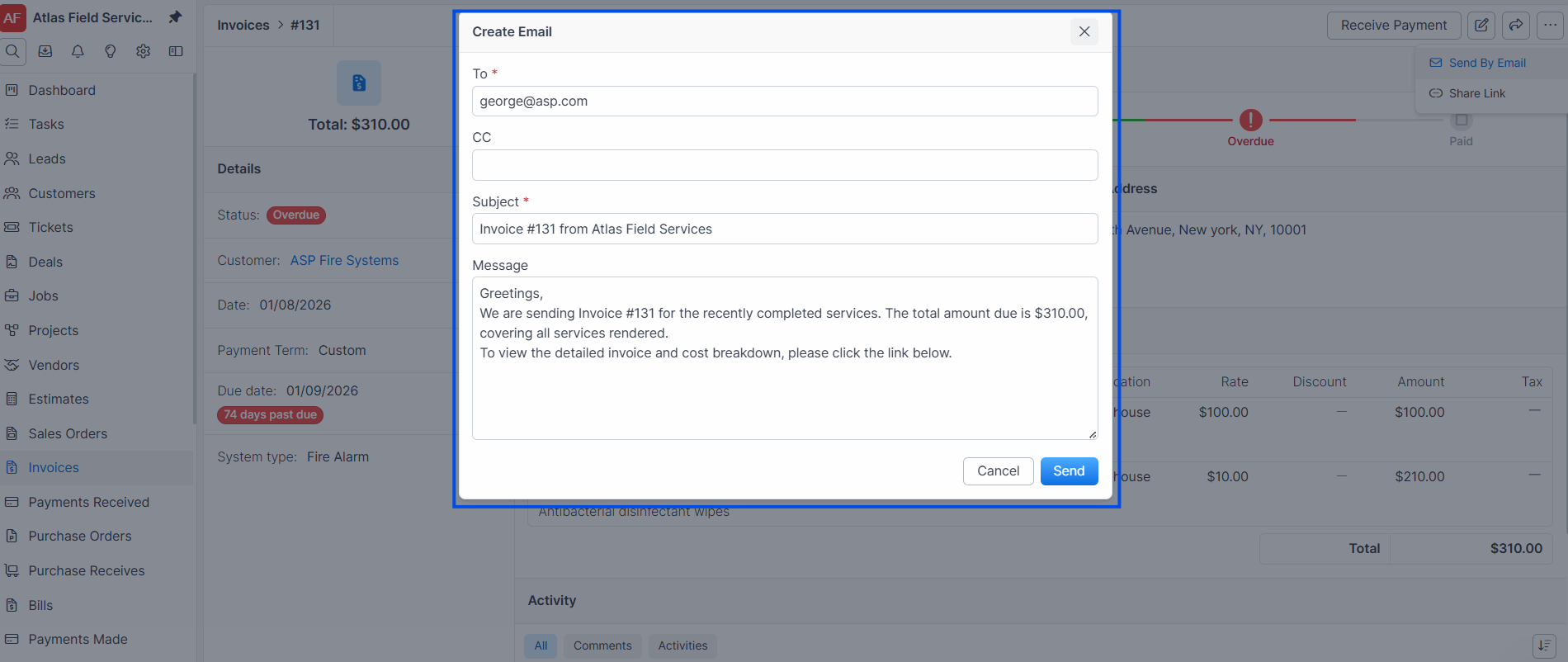
Click Send.
Forz sends the invoice to the customer using the configured email template.
Expected result: The invoice status changes to Sent. The customer receives an email with a link to view and pay the invoice.
Marking as sent without email
Open a Draft invoice.
Click Mark as Sent.
Expected result: The status changes to Sent without sending an email. Use this when you deliver the invoice by mail, in person, or through another channel.
Customer Portal Link
Each invoice has a unique, token-based URL that customers use to view the invoice without logging in. The URL follows the format:
https://[your-domain]/view/invoice/[token]
When a customer opens this link, Forz records the view and updates the invoice status to Viewed (if it was previously Sent).
Voiding an Invoice
Open the invoice you want to void.
Click Void.
Expected result: The invoice status changes to Void. All line items are marked as void. If the invoice was linked to a job or sales order, the link is removed, allowing a new invoice to be generated.
Warning: You cannot void an invoice that has payments recorded against it. Delete the payments first, then void the invoice. Voiding a non-Draft invoice restores inventory quantities for any line items with inventory locations.
Generating a PDF
Open the invoice.
Click PDF or Print.
Expected result: Forz generates a PDF named Invoice-[number][customer-name][date].pdf and opens it in your browser. You can download or print from there.
What Happens After Saving
When an invoice is saved, Forz automatically:
Calculates the amount — sums all line items, applies tax and discounts.
Calculates the balance — amount minus payments received.
Populates addresses — billing address from the customer's primary site, service address from the selected site.
Generates a portal token — a unique URL for customer access (created once, on first save).
Updates inventory — when an invoice moves from Draft to any other status, inventory quantities are decremented for line items with inventory locations.
Syncs to QuickBooks — if QuickBooks integration is enabled, the invoice is sent to QuickBooks Online.
Common Scenarios
Invoicing after an HVAC repair
A dispatcher creates a job for an emergency AC repair at a commercial property. The technician completes the work and logs parts used (1x compressor relay, 2 lbs refrigerant) and labor (2 hours). The dispatcher opens the job and clicks Generate Invoice. Forz creates a Draft invoice with all line items. The dispatcher reviews the totals, adds a customer note ("Thank you for choosing us — warranty info attached"), and clicks Send.
Monthly pool maintenance billing
A pool service company completes weekly visits for a property management client. At the end of the month, the dispatcher creates an invoice from scratch, selects the customer, and manually adds four line items for each weekly visit (Pool Maintenance - Weekly Service, qty 4). They apply the customer's negotiated 10% discount and select Net 30 payment terms.
Handling a disputed invoice
A customer disputes a line item on their invoice. The dispatcher cannot edit the invoice because a partial payment has already been recorded. Instead, they void the original invoice (after deleting the payment), create a new invoice with the corrected line items, and send it to the customer.
Troubleshooting
Was this helpful?
Still need help? Ask the team