Managing Tools
Track company equipment, tools, and vehicles in a central registry with assignment and request workflows.
Overview
The Tools module lets you catalog every piece of equipment your company owns — from service vehicles and power tools to specialized testing equipment. Each tool has a unique number, can be assigned to a technician, and supports photos and detailed specifications. Technicians can accept or decline tool assignment requests from their mobile app.
Before You Begin
Prerequisites:
You have the Admin or Dispatcher role (or a custom role with Tool permissions).
Technicians need the Tool: View permission to see and accept assigned tools.
Creating a Tool
Click Tools in the sidebar navigation.
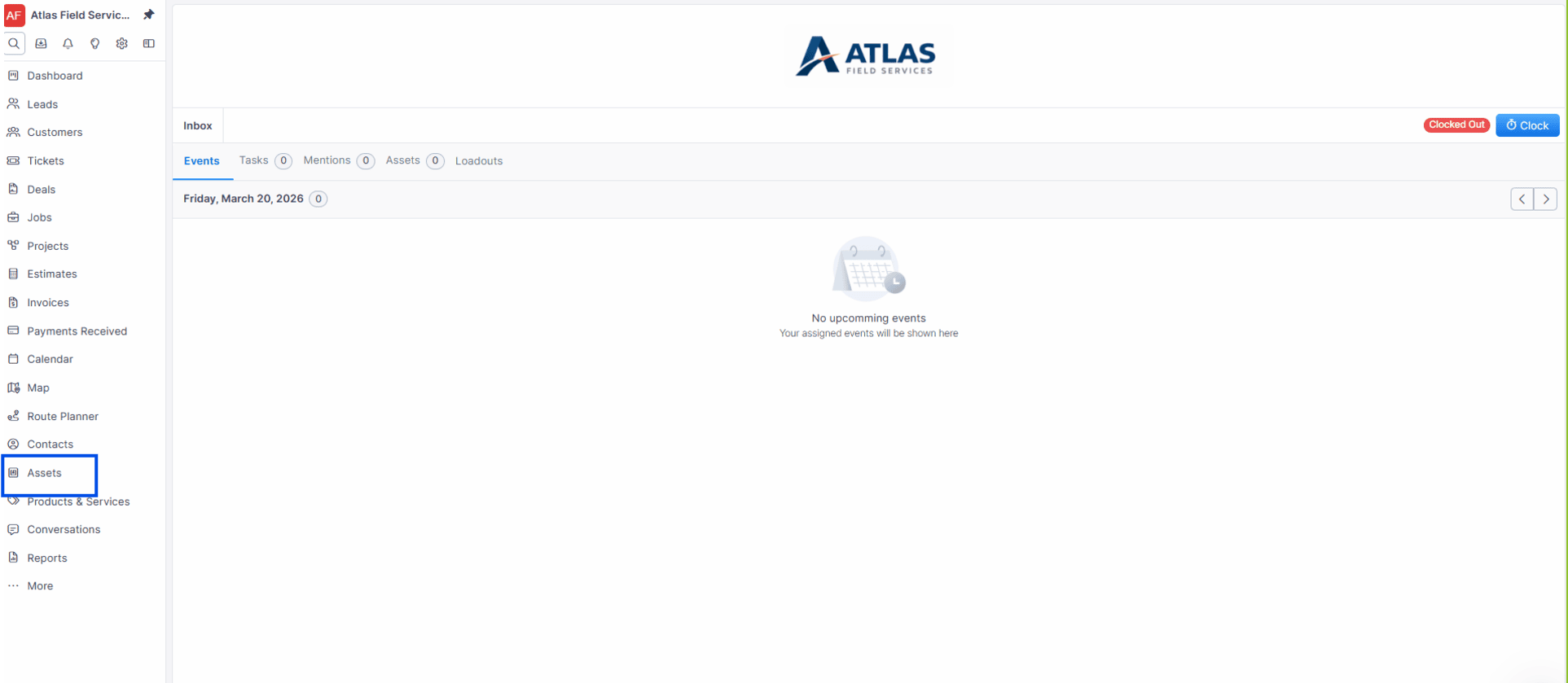
Click New.
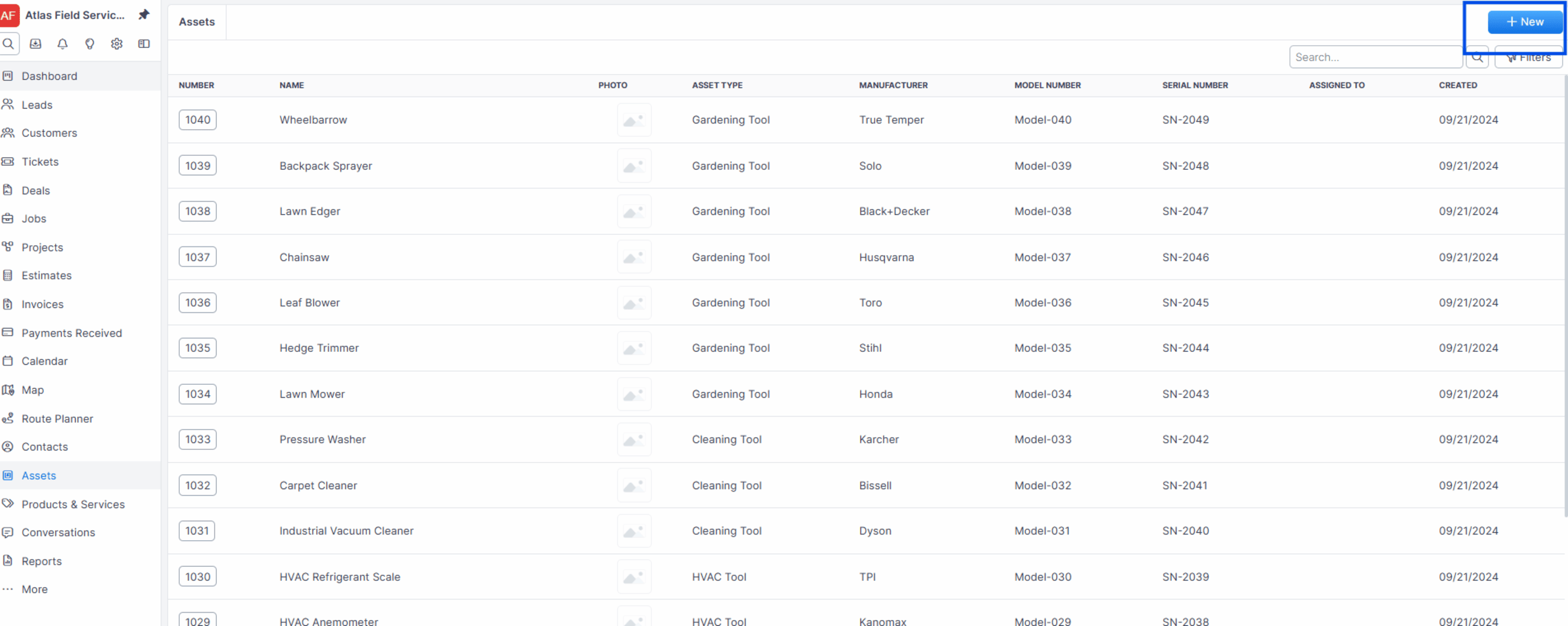
Enter the Number / Scan Code (pre-filled with the next number, starting at 1000 for the first tool).
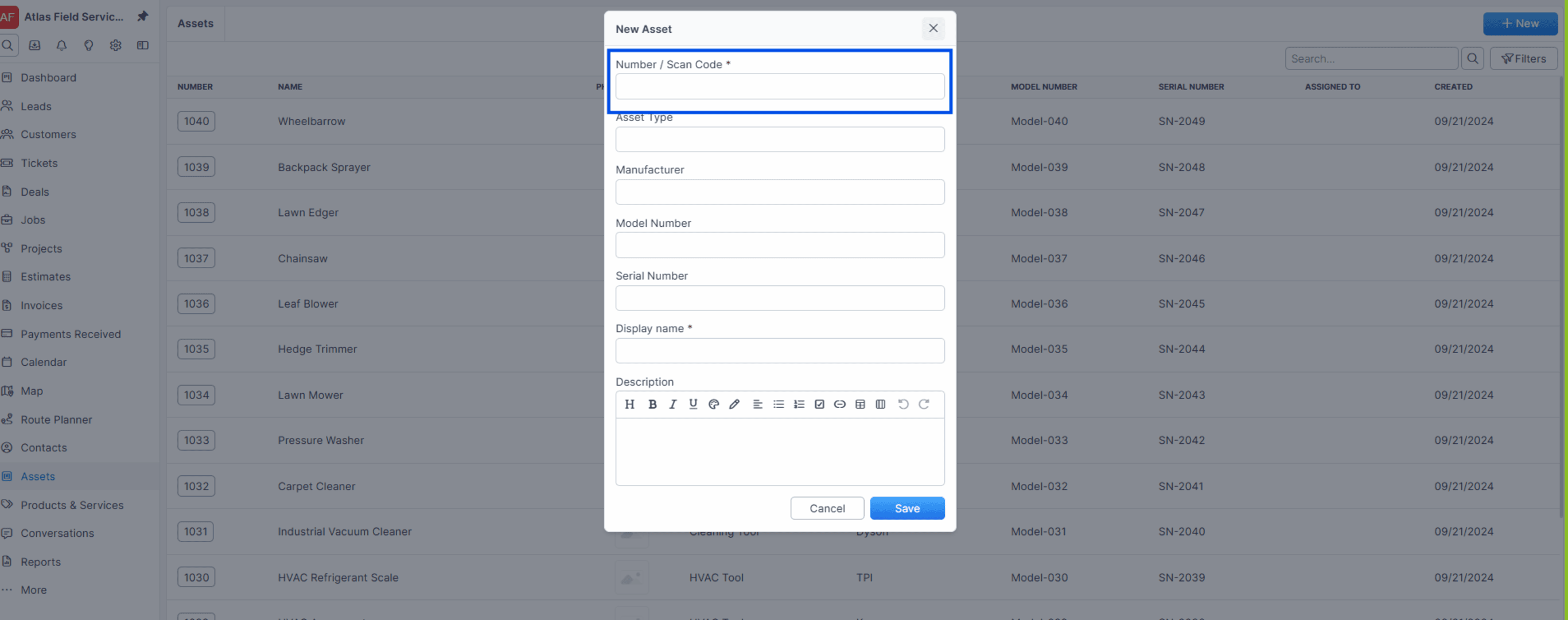
Enter a Name (must be unique, e.g., "Service Van #3" or "Fluke 117 Multimeter").
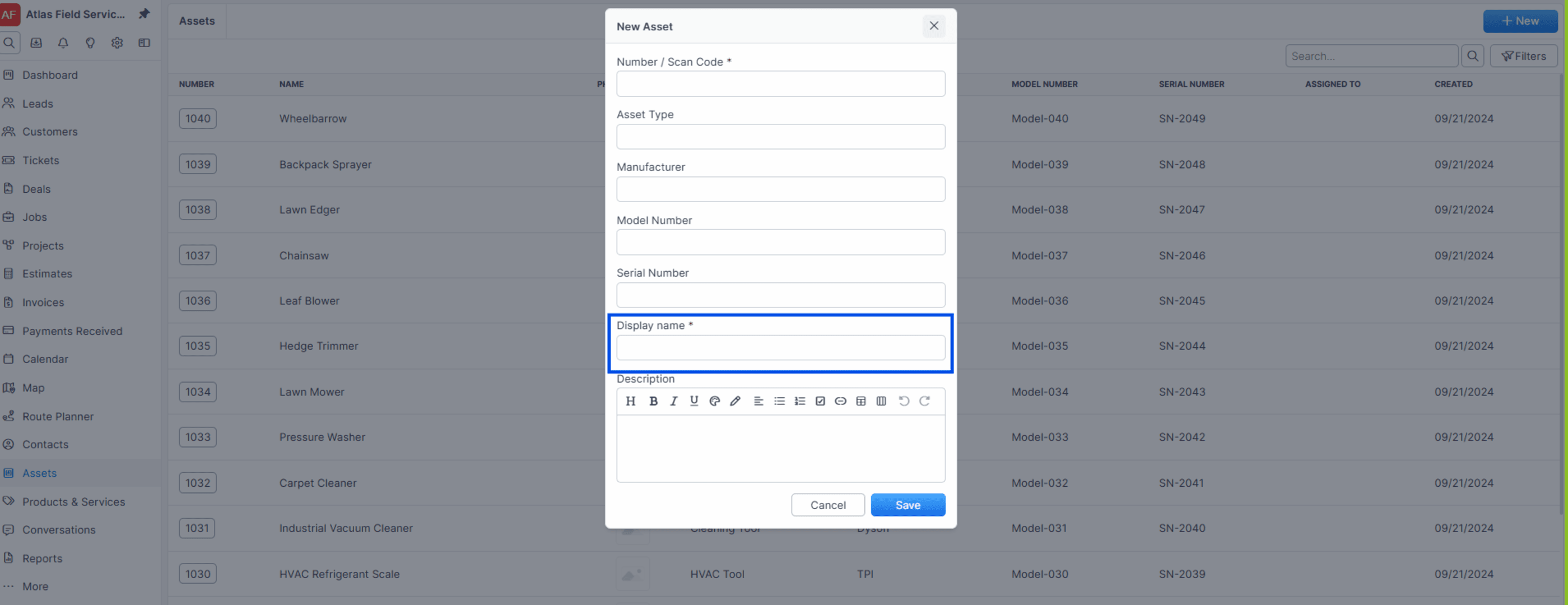
Enter the Tool type (e.g., "Vehicle," "Hand Tool," "Diagnostic Equipment").
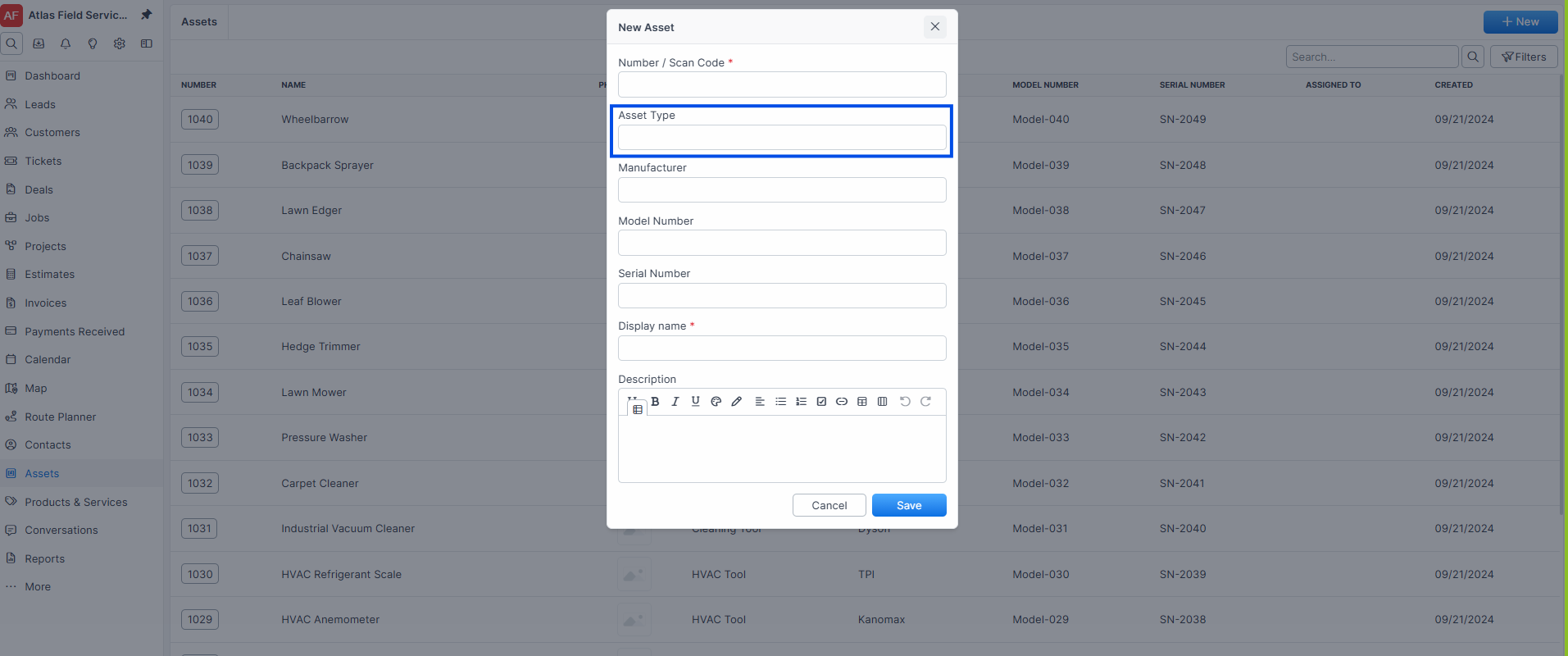
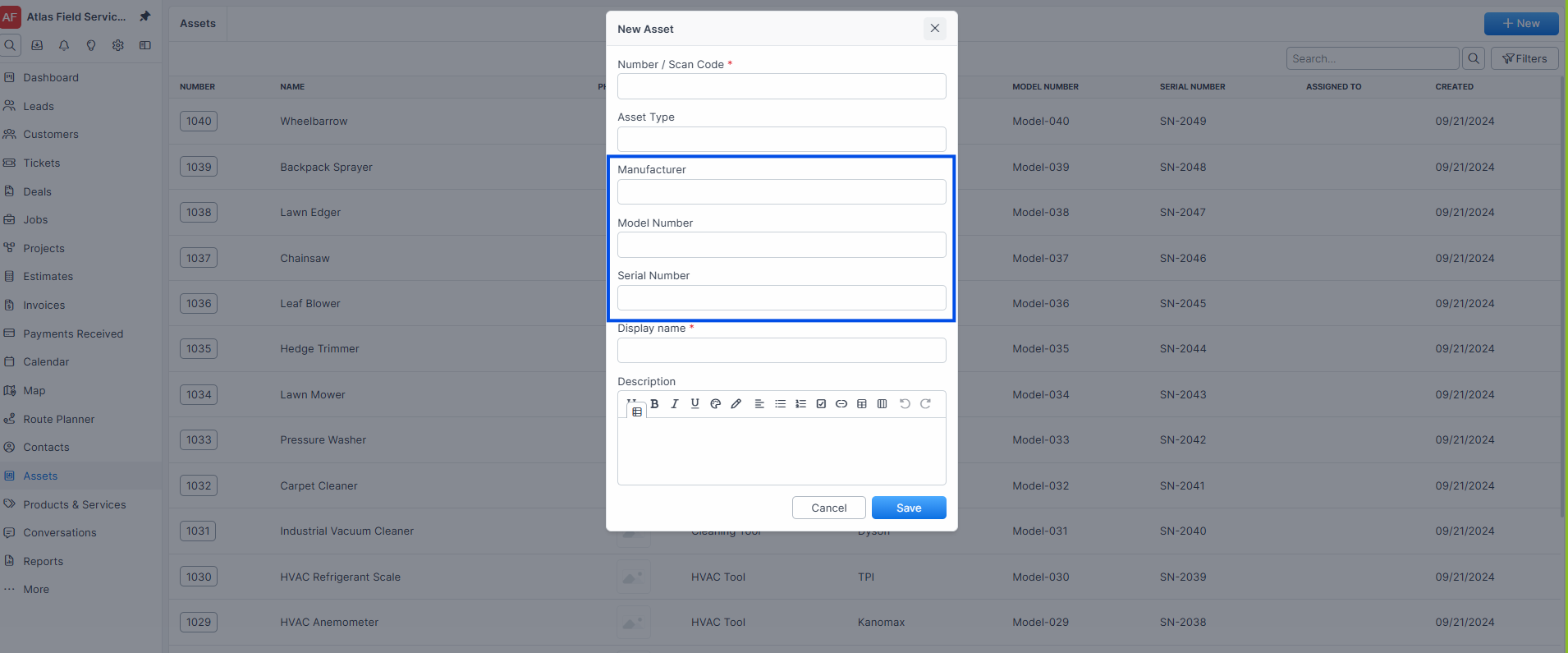
Enter Manufacturer, Model Number, and Serial Number.
Click Save.
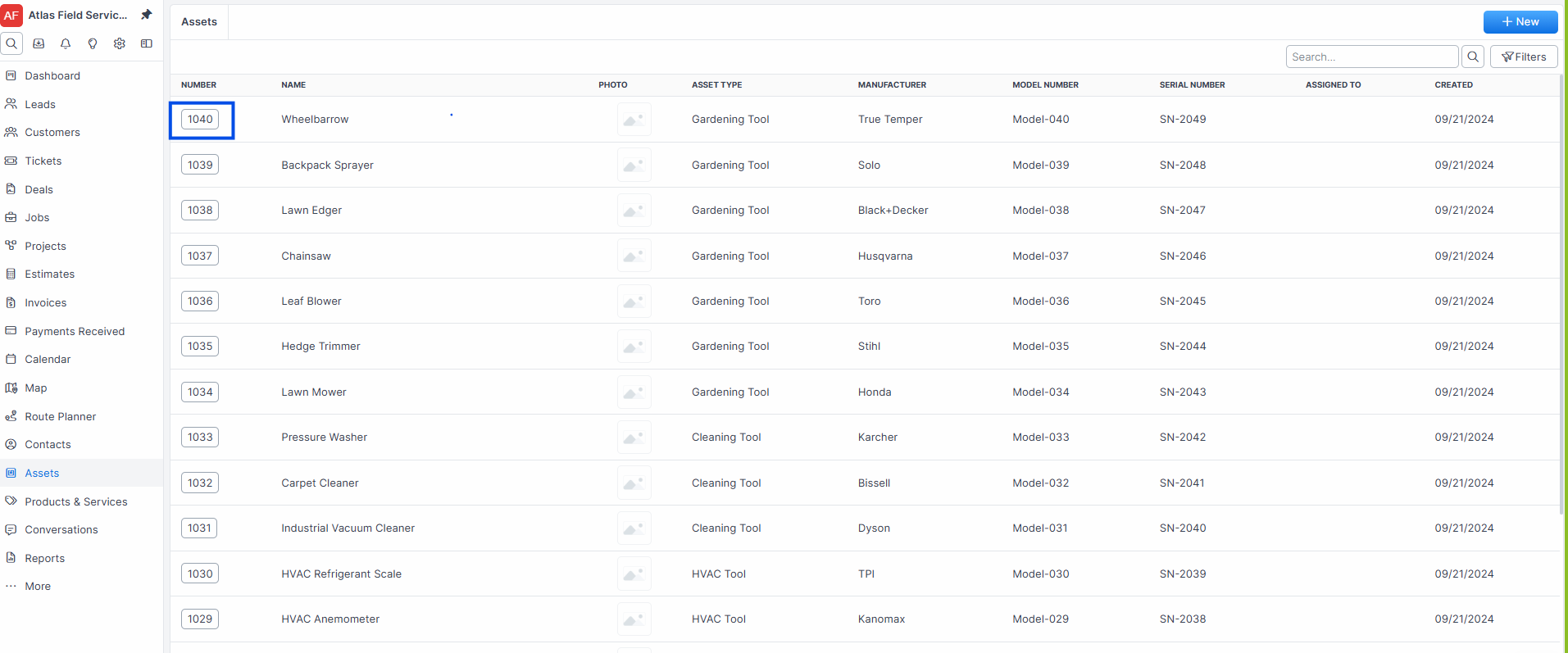
Expected result: Forz creates the tool with a status of "Unassigned" (yellow badge). The tool appears in the tool list and is searchable.
Note: Tool numbers must be unique integers. Forz auto-generates the next number based on the last tool created. The first tool in a new account starts at 1000.
Adding a Photo
Open the tool you want to photograph.
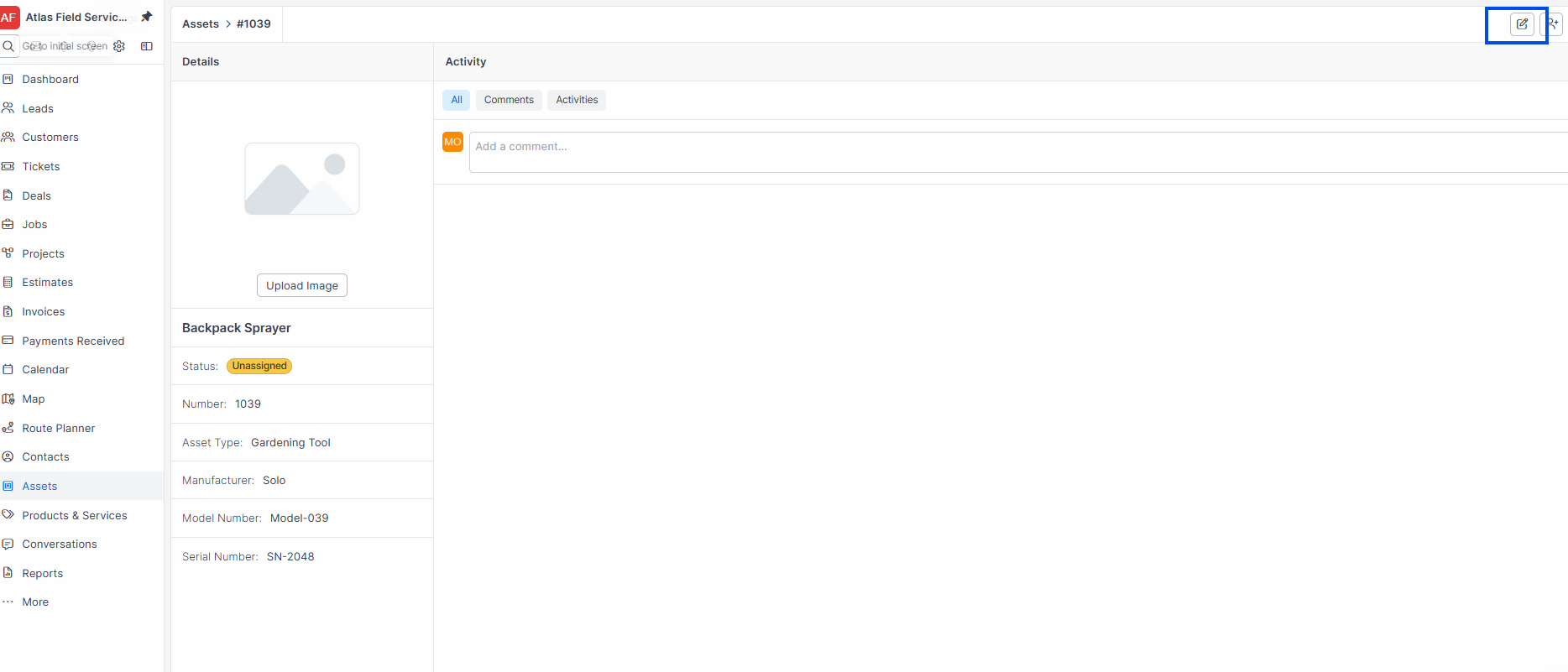
Click Edit.
Click the Photo field and select an image file.
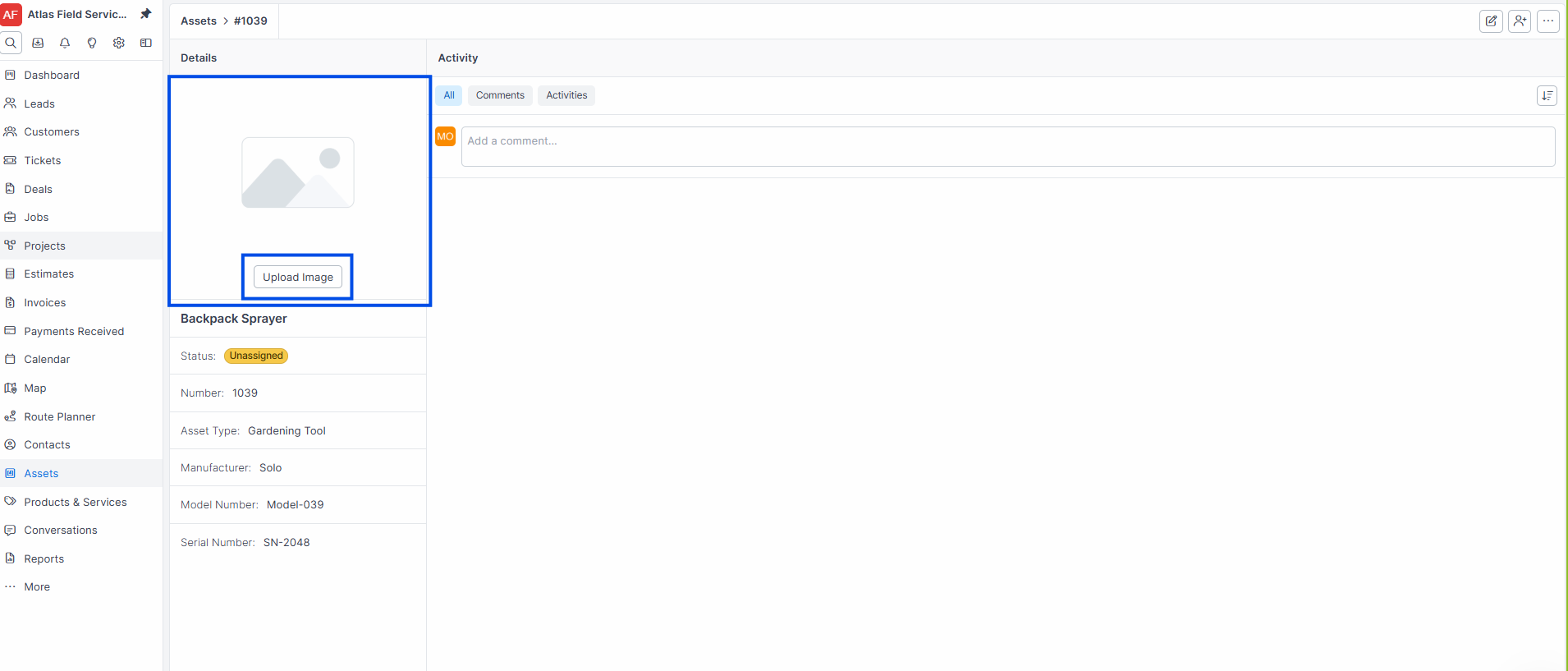
Click Save.
Expected result: The photo appears on the tool detail page and in the tool list as a thumbnail.
Assigning a Tool to a Technician
Sending an assignment request
Open the tool you want to assign.
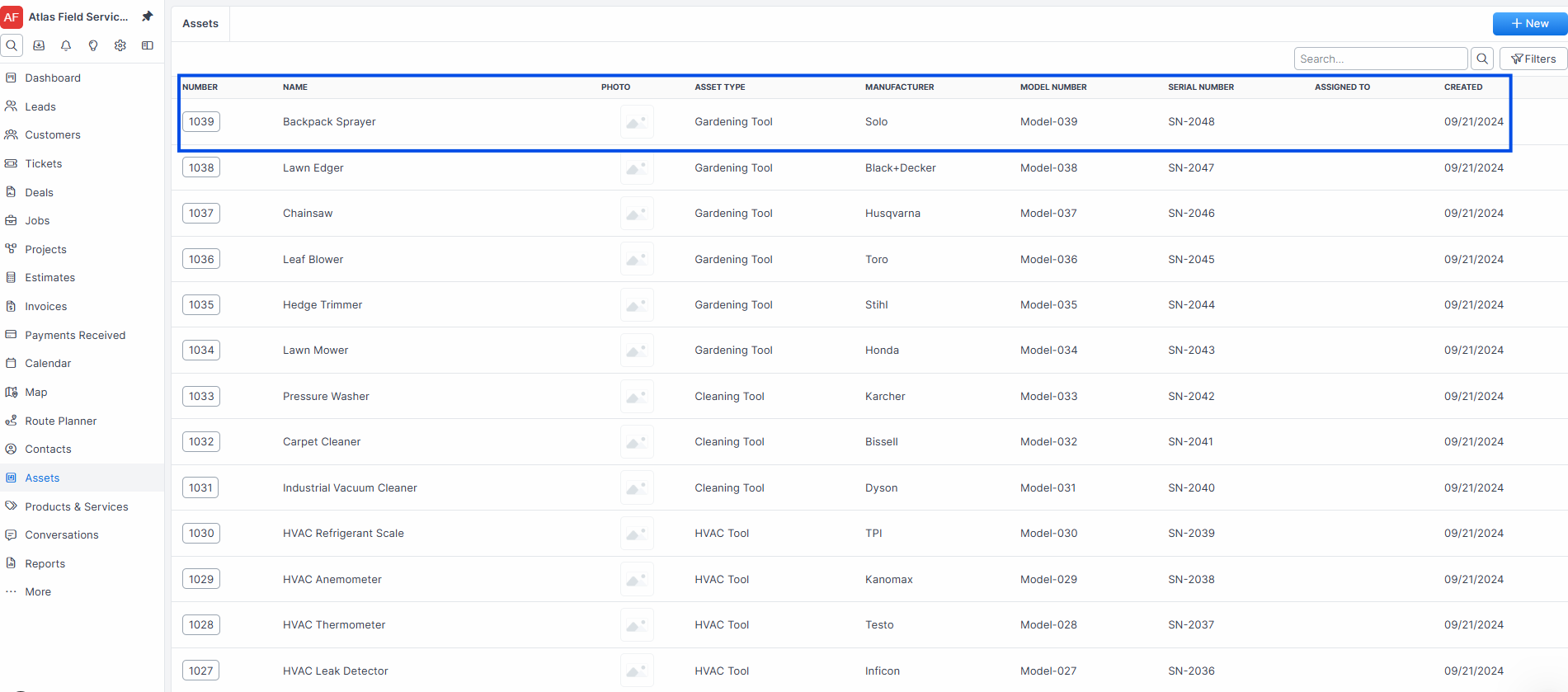
Click Assign.
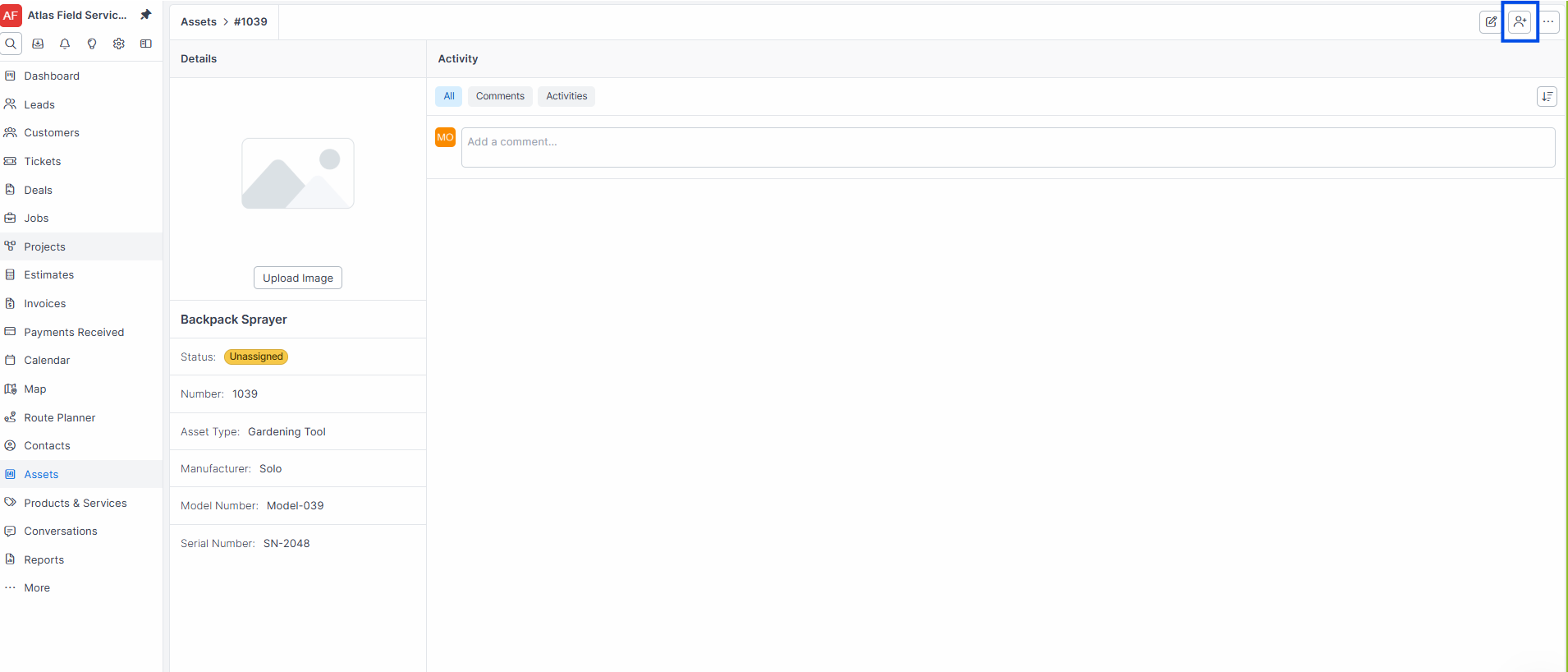
Select the Technician from the dropdown.
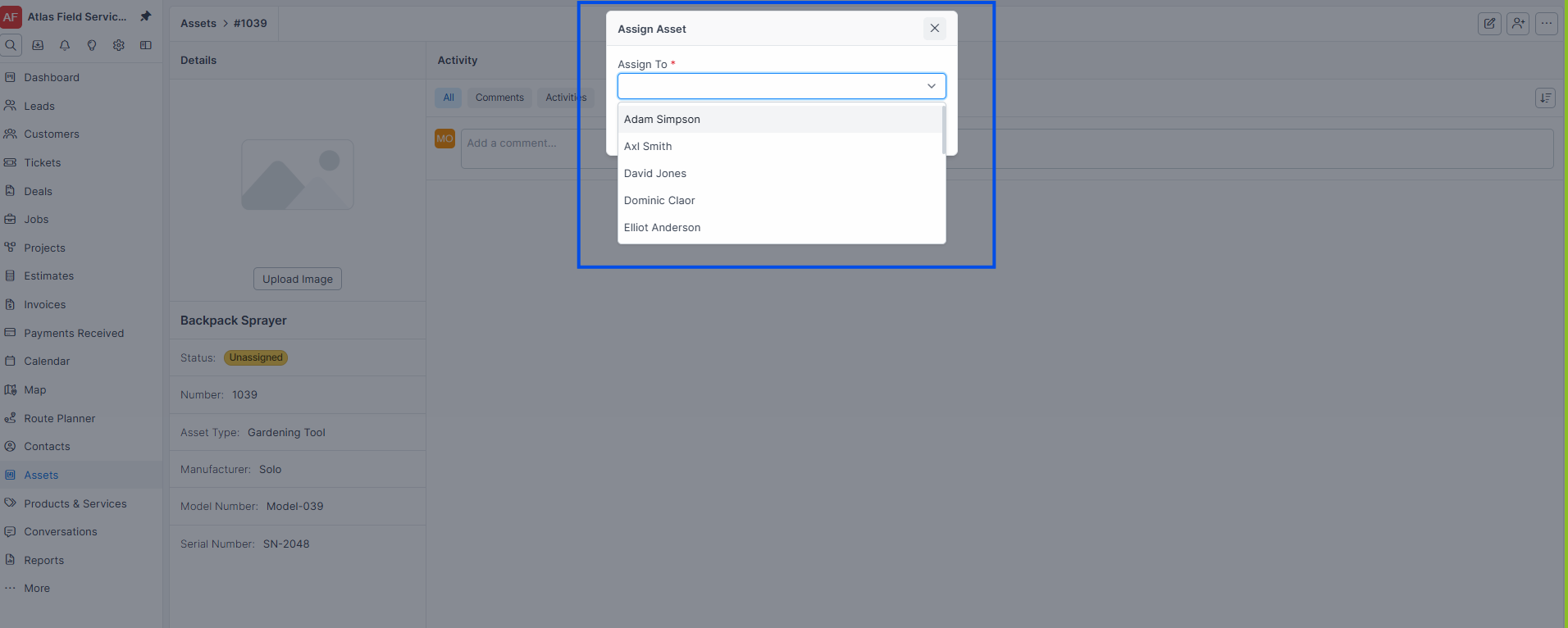
Click Assign.
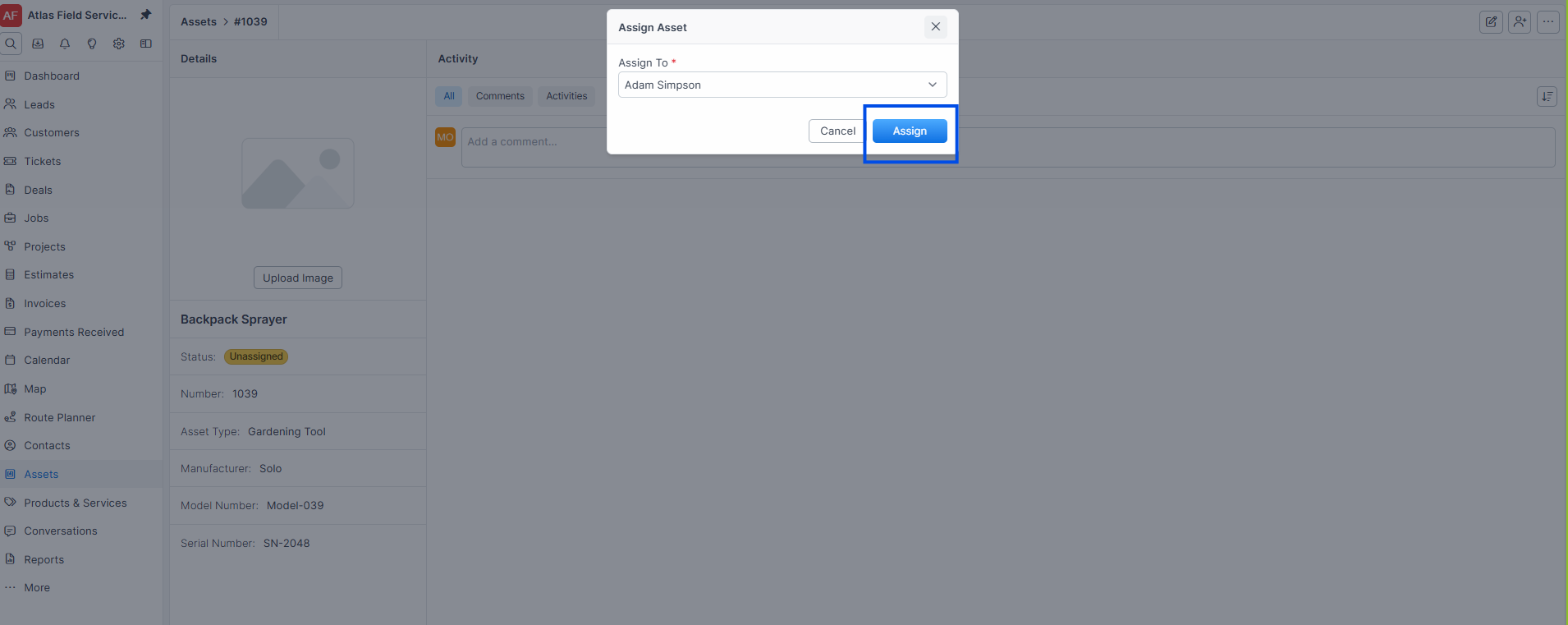
Expected result: Forz sends a notification to the technician. The tool status changes to "Request sent" (cyan badge). The activity log records "Request sent to [Technician Name] by [Your Name]."
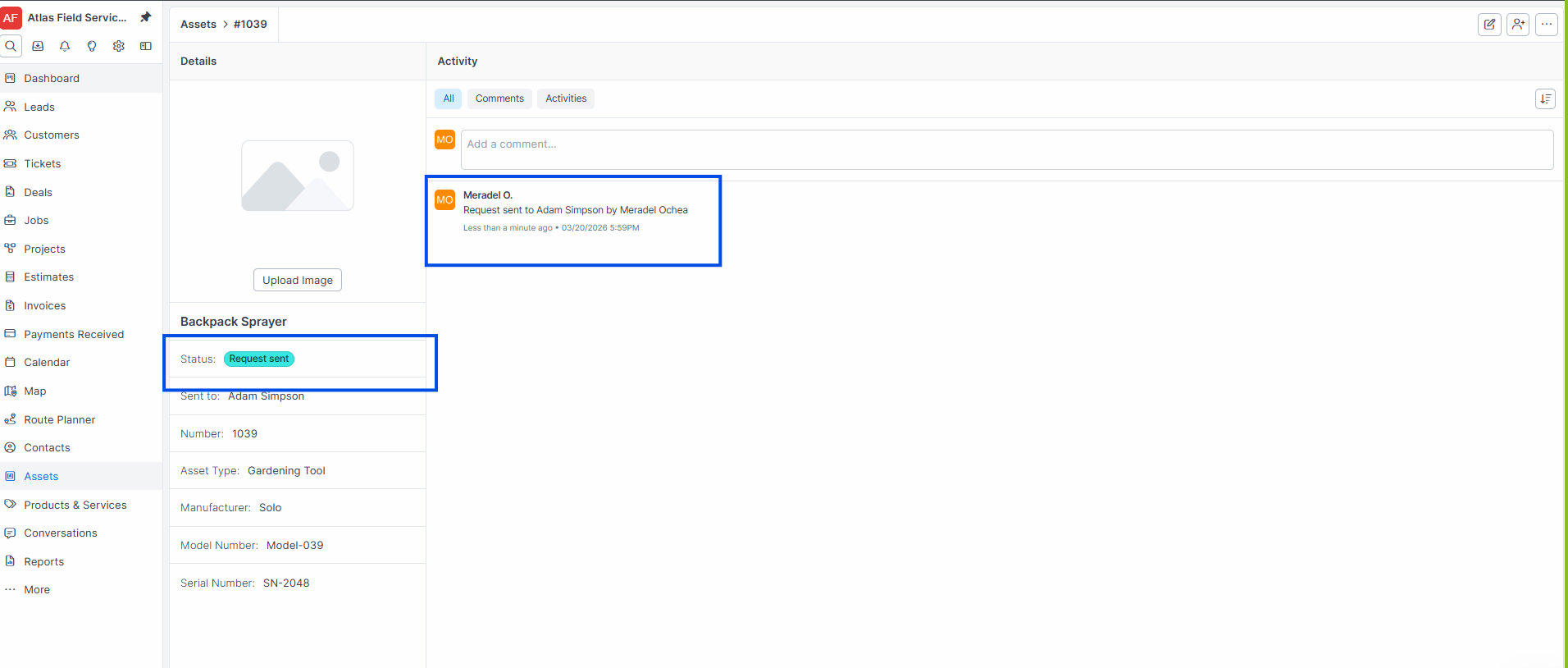
Note: Assigning a tool does not immediately transfer it. The technician must accept the request. This creates an accountability handoff.
Technician accepting the assignment
The technician opens the Tools tab in their Inbox, or the notification.
The technician clicks Accept on the tool request.
Expected result: The tool status changes to "Assigned" (green badge). The user_id is set to the accepting technician, and the request fields are cleared. The activity log records "Request Accepted." If another technician previously held the tool, they receive a notification that the tool has been reassigned.
Tool Statuses
Tools use an automatic status system based on assignment state:
Searching and Filtering Tools
The tool list supports full-text search and filters:
Search: Type in the search bar to find tools by number, name, type, manufacturer, model number, or serial number.
Filter by Assignee: Select one or more technicians to see only their tools.
Filter by Created Date: Select a date range to find recently added tools.
Sort: Click any column header (Number, Name, Type, Manufacturer, Model, Serial Number, Created) to sort.
Deleting a Tool
Open the tool you want to delete.
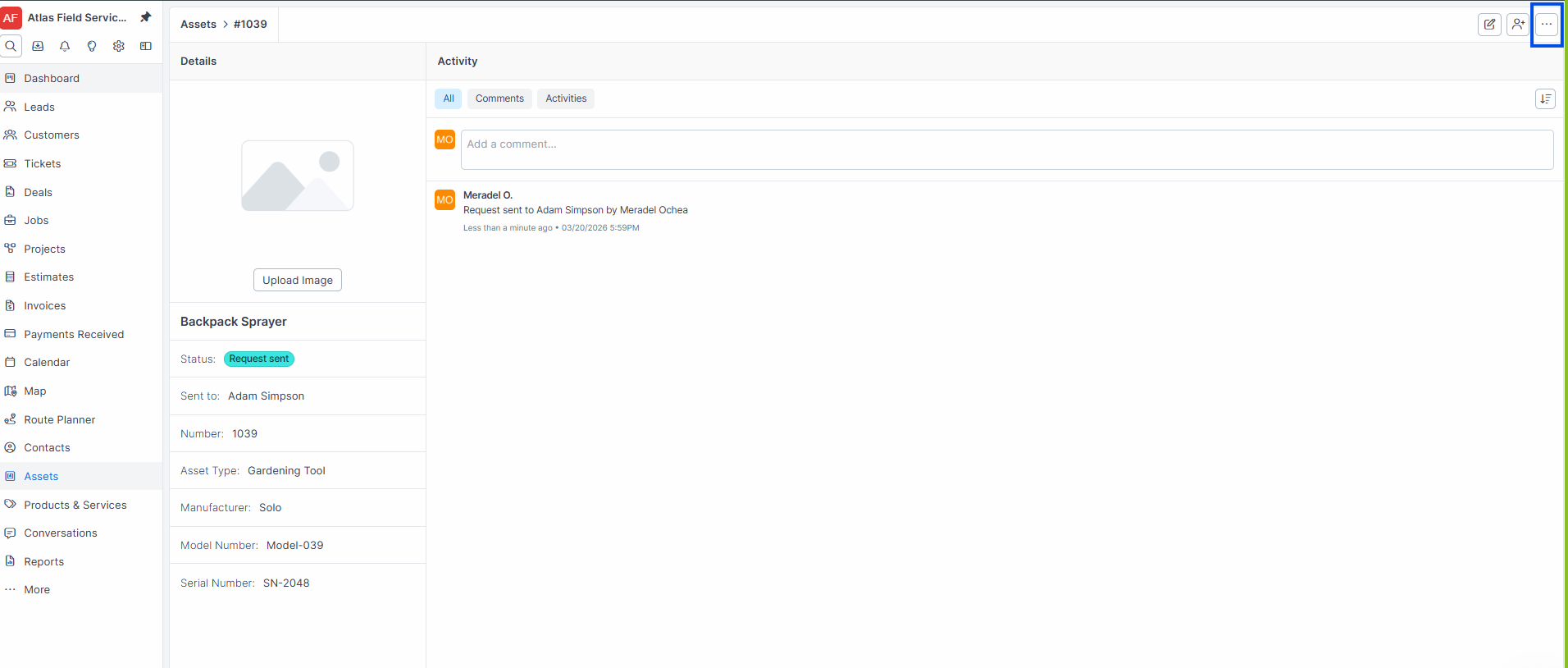
Tool before deletion Click Delete.
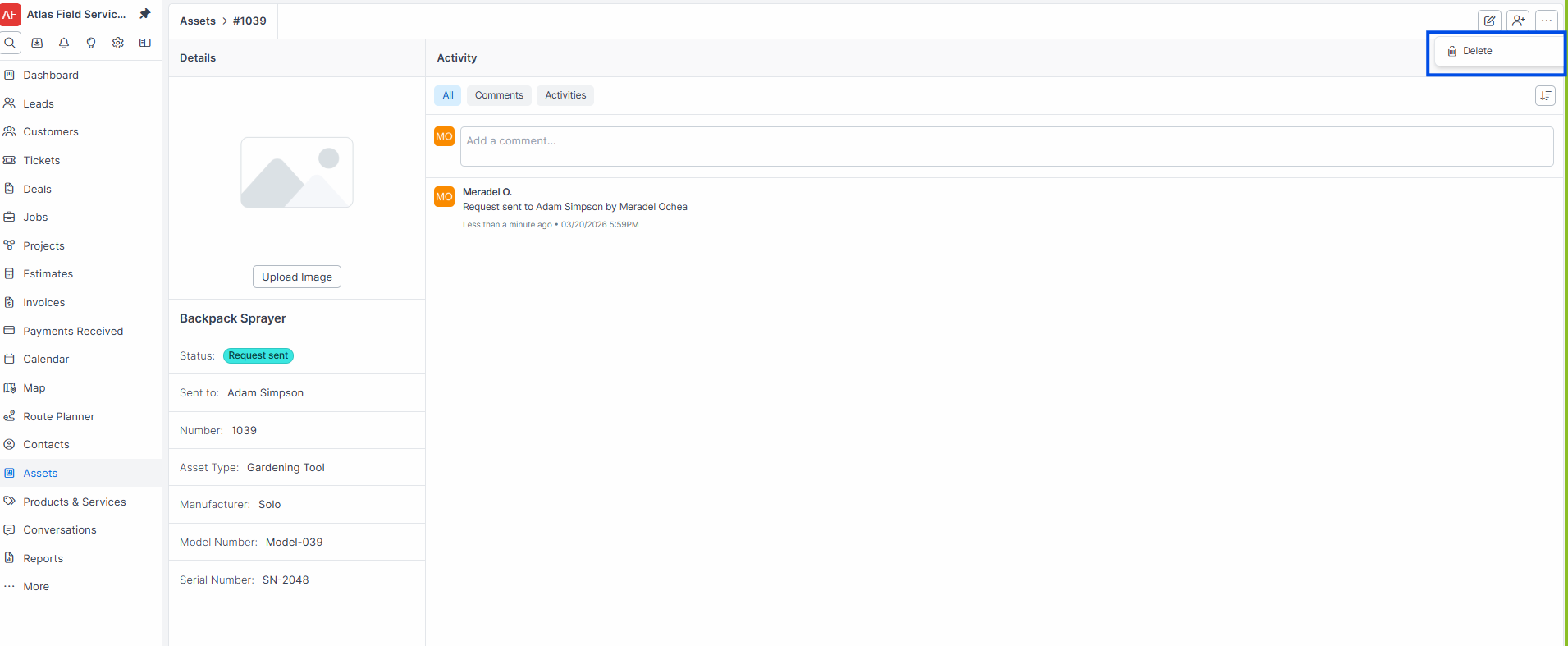
Expected result: Forz soft-deletes the tool to the trash bin. The tool no longer appears in the tool list or search results. It can be restored from Settings > Trash Bin.
Warning: If a tool with the same name exists in the trash bin, Forz prevents creating a new tool with that name. Restore or permanently delete the trashed tool first.
Common Scenarios
HVAC company tracking service vehicles
An HVAC company creates tools for each service van: "Van #1 -- Ford Transit 2024" through "Van #5 -- Ford Transit 2022." Each van is assigned to a lead technician. When a technician goes on vacation, the dispatcher reassigns the van to the covering technician, who accepts the request on their phone.
Electrical contractor managing diagnostic equipment
An electrical contractor tracks 15 multimeters and 8 thermal imagers. Each tool has its serial number recorded. When a new apprentice starts, the foreman assigns a multimeter through Forz. The apprentice accepts the assignment, creating a clear chain of custody for the $400 tool.
Plumbing company auditing equipment assignments
A plumbing company filters the tool list by "Unassigned" to find tools sitting in the warehouse. The office manager assigns idle drain cameras and pipe locators to technicians who need them, ensuring equipment is utilized and not forgotten.