Contacts
Create and manage contact people linked to customers, sites, and jobs.
Overview
A contact represents a person you interact with — a facility manager, property owner, building superintendent, or on-site technician. Contacts exist independently and can be linked to multiple customers, vendors, leads, sites, jobs, and projects. Each linked record can designate one contact as the primary point of contact.
Before You Begin
Prerequisites:
You have the Contacts: Create permission on your role.
At least one customer record exists if you plan to link the contact to a customer.
Creating a Contact
Required fields
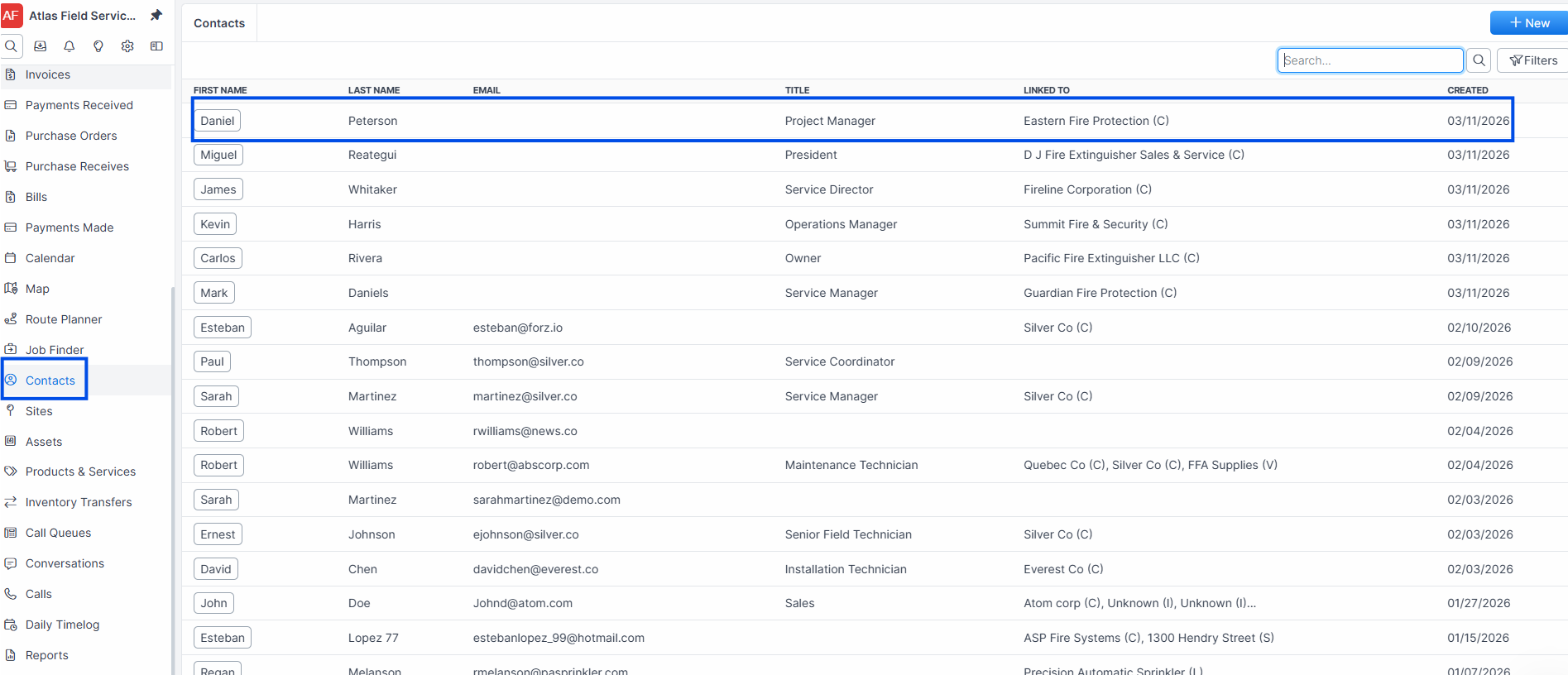
Click Contacts in the sidebar navigation.
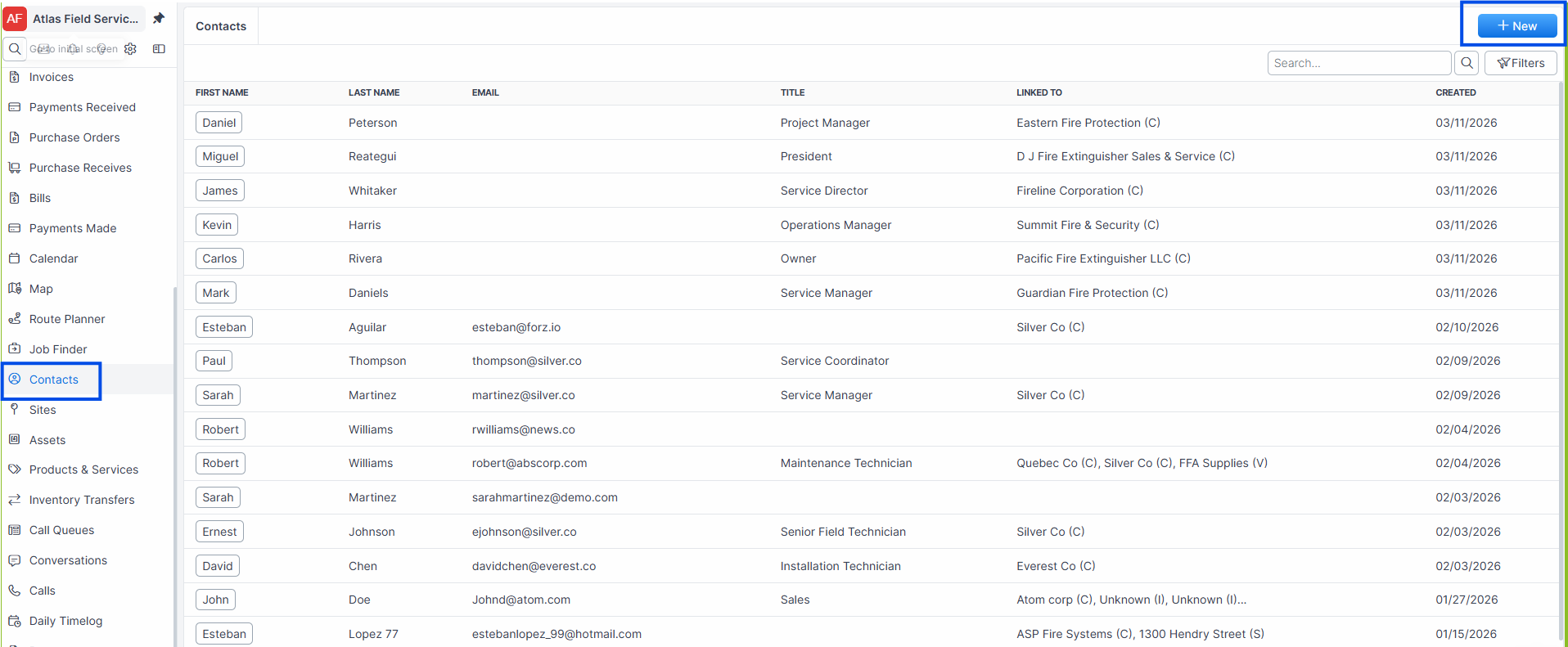
Click the + New button. A form opens.
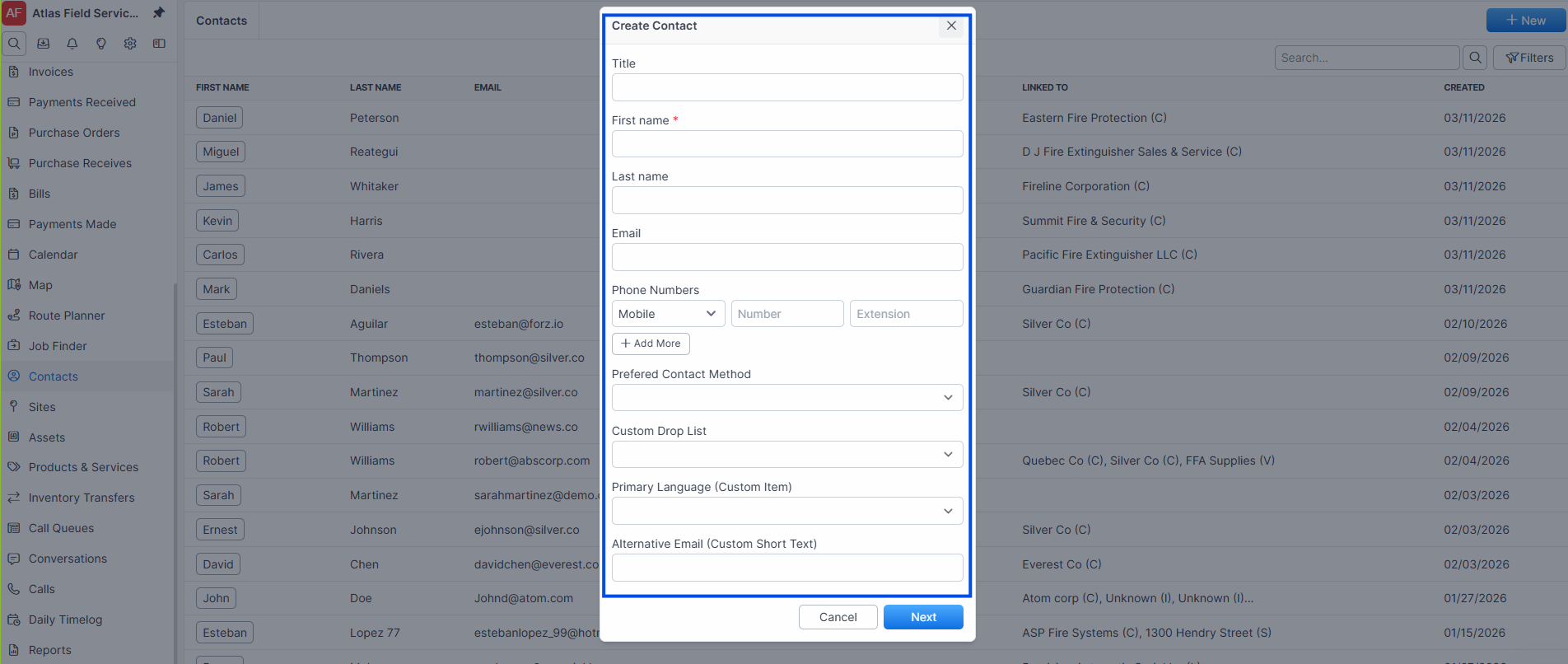
Enter a First Name. This is the only required field.
Optional fields
Enter a Last Name.
Enter an Email address.
Enter a Title (e.g., "Facility Manager", "Building Owner", "Office Admin").
Select a Preferred Contact Method — how this person prefers to be reached.
Add one or more Phone Numbers. For each phone number, enter a Label (e.g., "Mobile", "Office", "Home"), the Number, and an optional Extension.
Click Next.
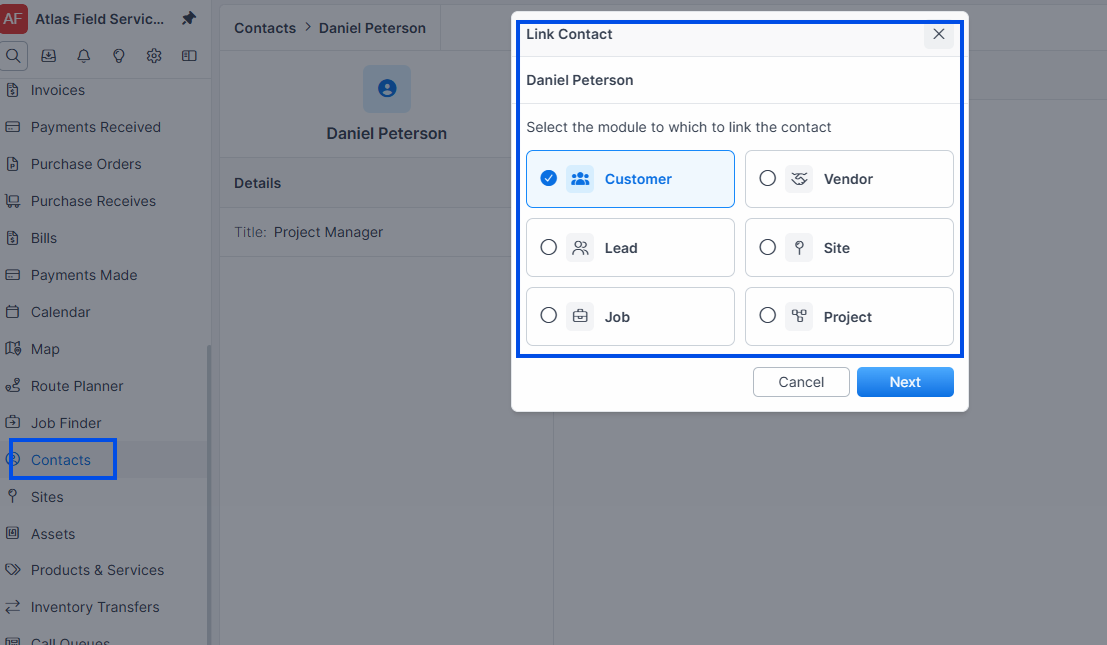
Expected result: The Link Contact dialog opens so you can choose a module (Customer, Vendor, Lead, Site, Job, or Project) or click Do It Later. For the full create-and-link flow, see Creating New Contacts.
Note: On the Contacts list create flow, the first screen uses Next (not Save). Forz may also warn you about possible duplicate contacts before you finish.
Creating a Contact from a Customer Page
When you create a contact from within a customer detail view, Forz automatically links the new contact to that customer.
Open the customer record.
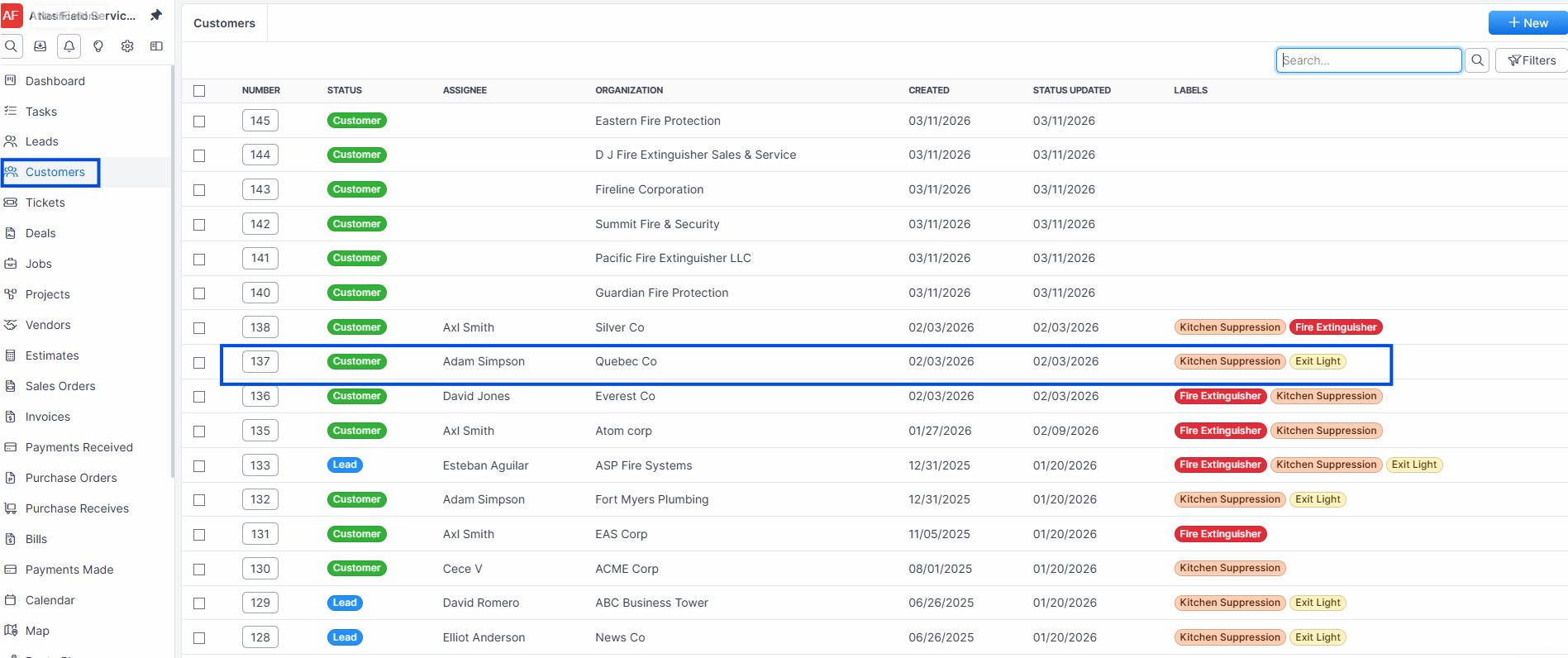
Navigate to the Contacts tab (visible when the customer has 2 or more contacts).
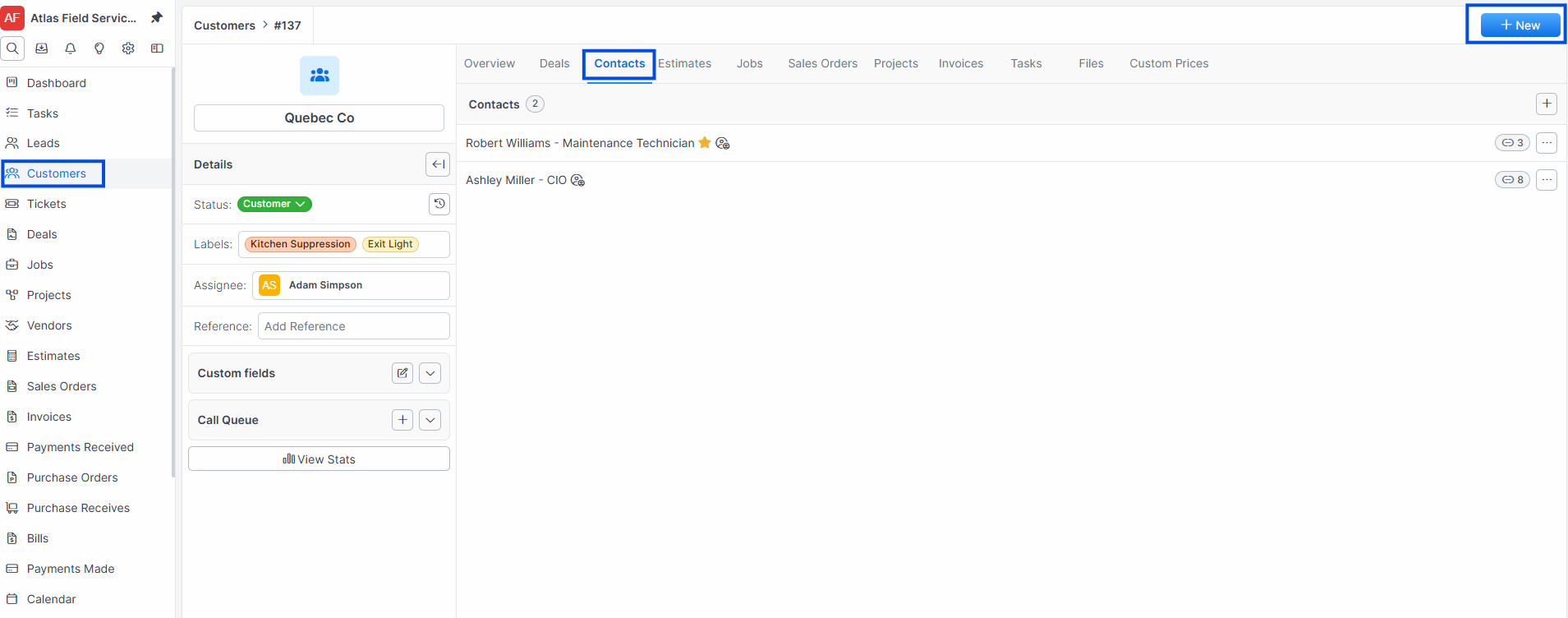
Click the + New button in the contacts section.
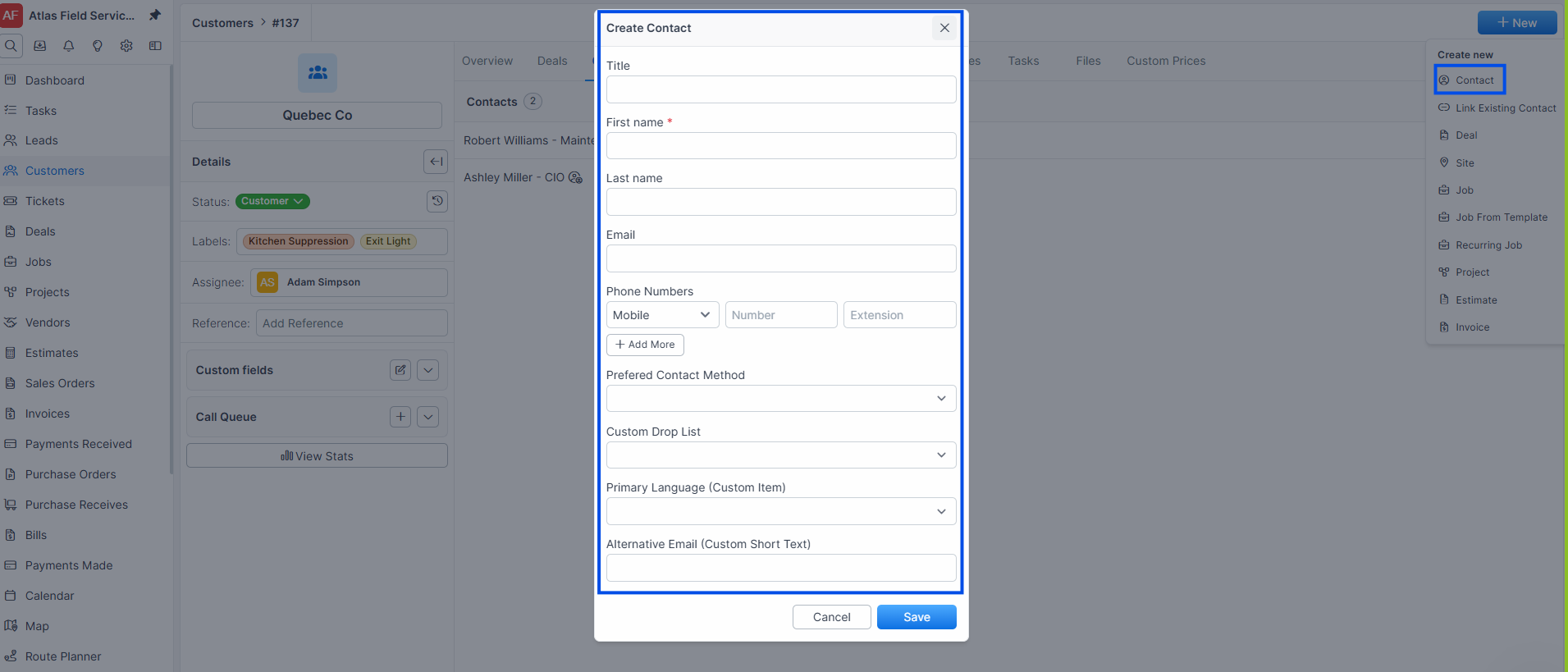
Fill in the contact fields and click Save.
Select a Relationship Type from the dialog that appears (e.g., "Associated", "Billing", "Technical", "Decision Maker").
Expected result: The contact is created and linked to the customer with your chosen relationship type. If this is the first contact for the customer, it is automatically set as the primary contact.
Linking a Contact to Records
Contacts can be linked to customers, vendors, leads, sites, jobs, and projects. A single contact can be linked to multiple records.
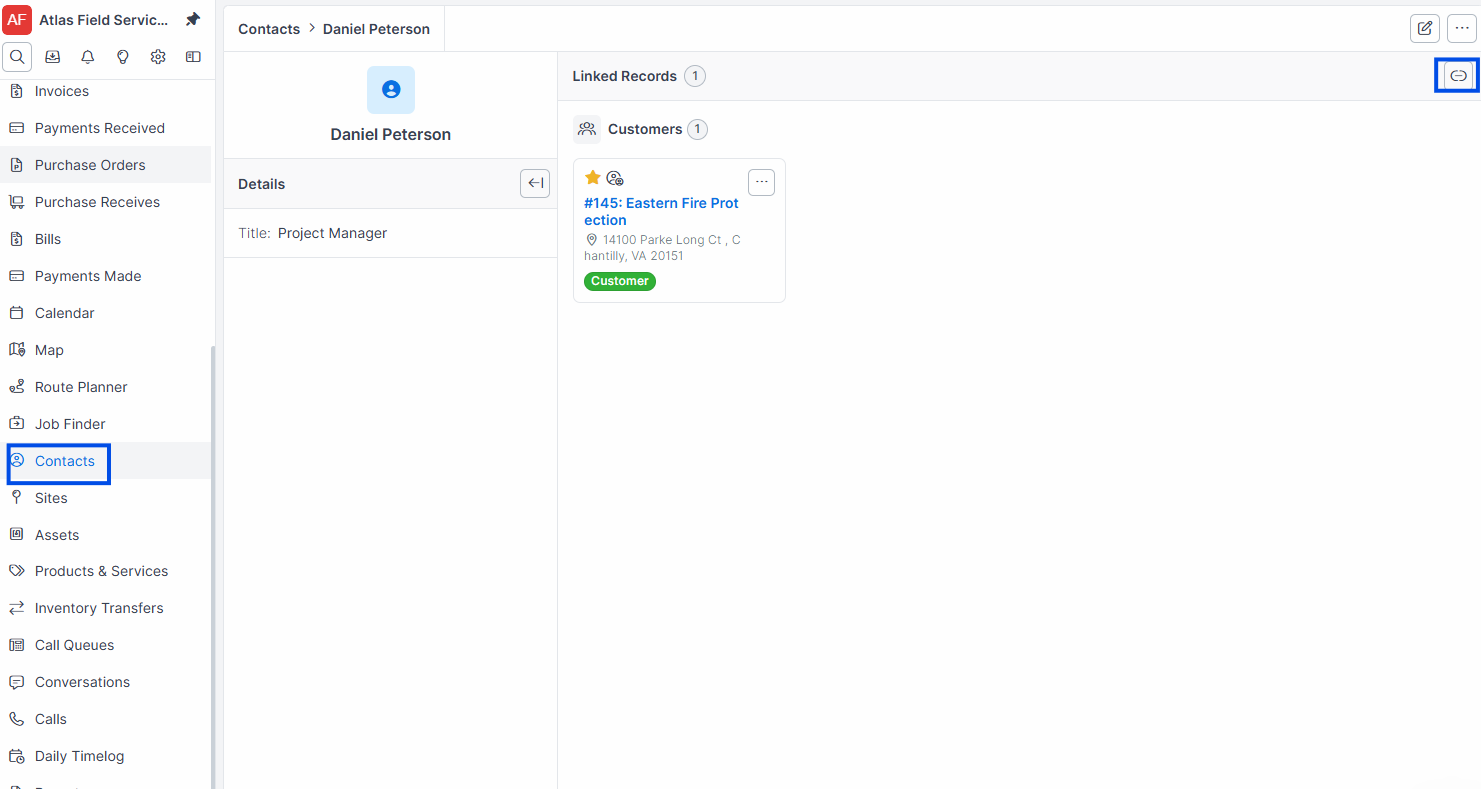
Open the contact record.
Click Link (or the link icon).
Select the Record Type — Customer, Vendor, Lead, Site, Job, or Project.
Search for and select the specific record.
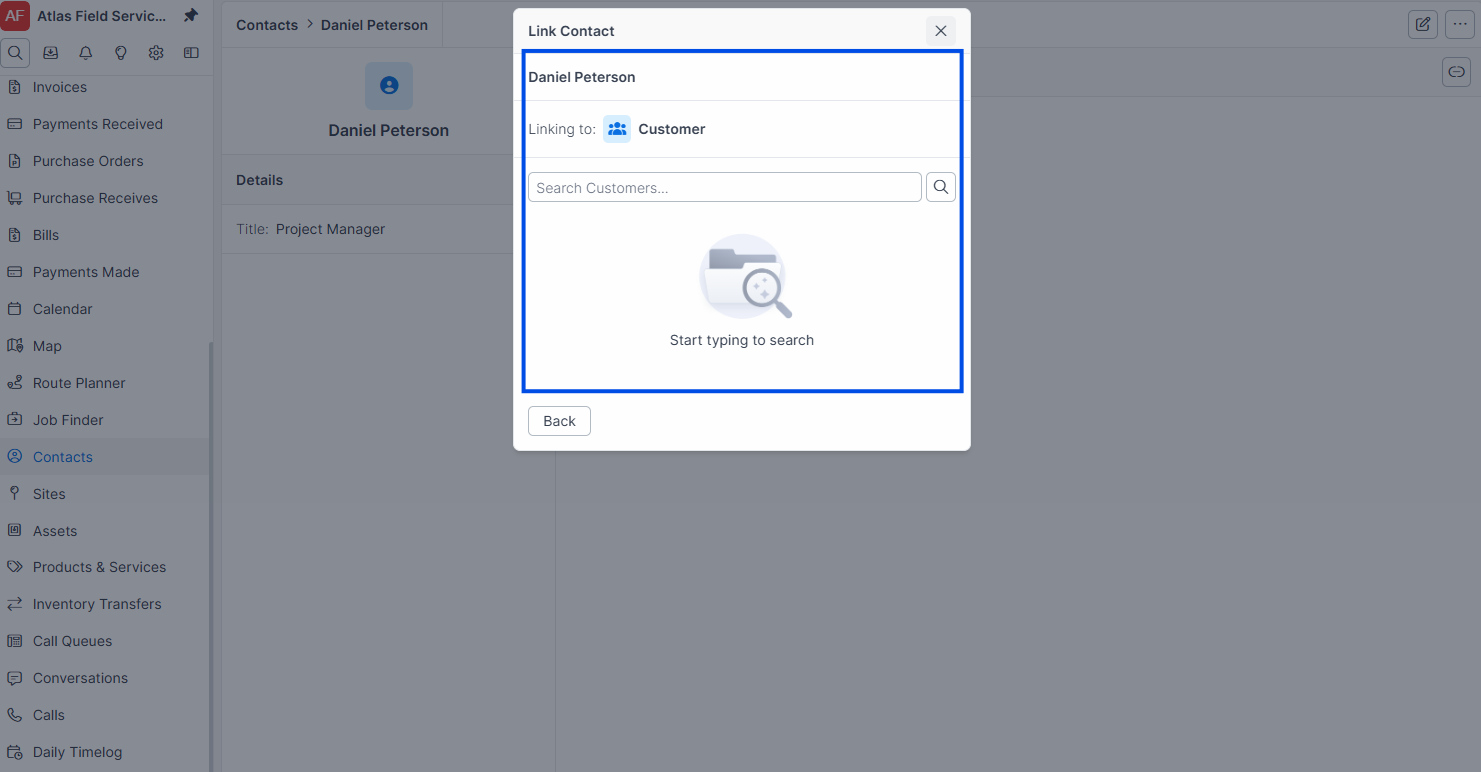
Choose a Relationship Type: Associated, Billing, Technical, or Decision Maker.
Click Save.
Expected result: The contact appears in the linked record's contacts list. If this is the first contact linked, it becomes the primary contact.
Tip: When linking a contact to a site or job, Forz offers to also link the contact to the parent customer if not already linked.
Setting a Primary Contact
Each customer, site, job, or other record can have one primary contact. The primary contact appears on the record's overview and is used as the default recipient for communications.
Open the record (customer, site, or job) that has multiple contacts.
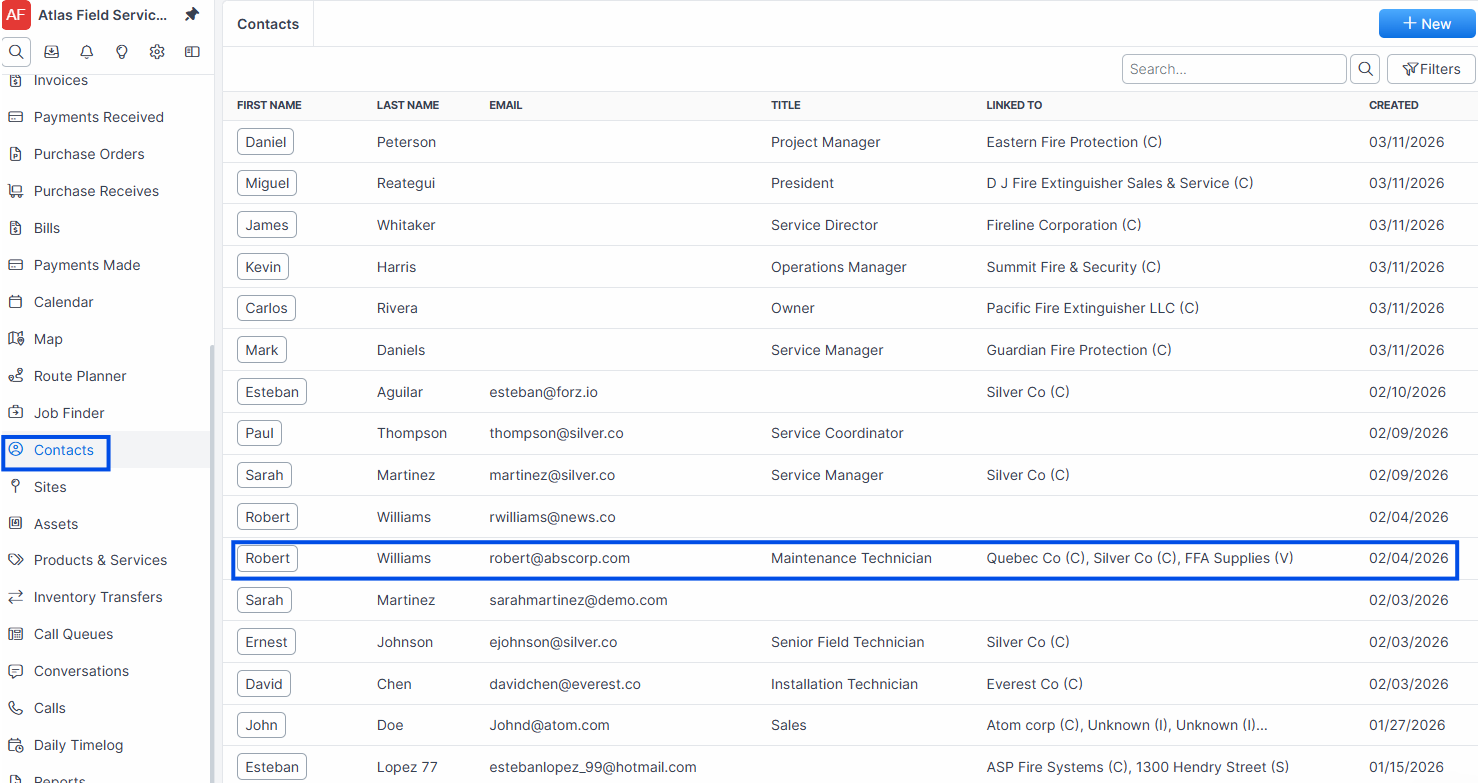
Navigate to the Contacts section or tab.
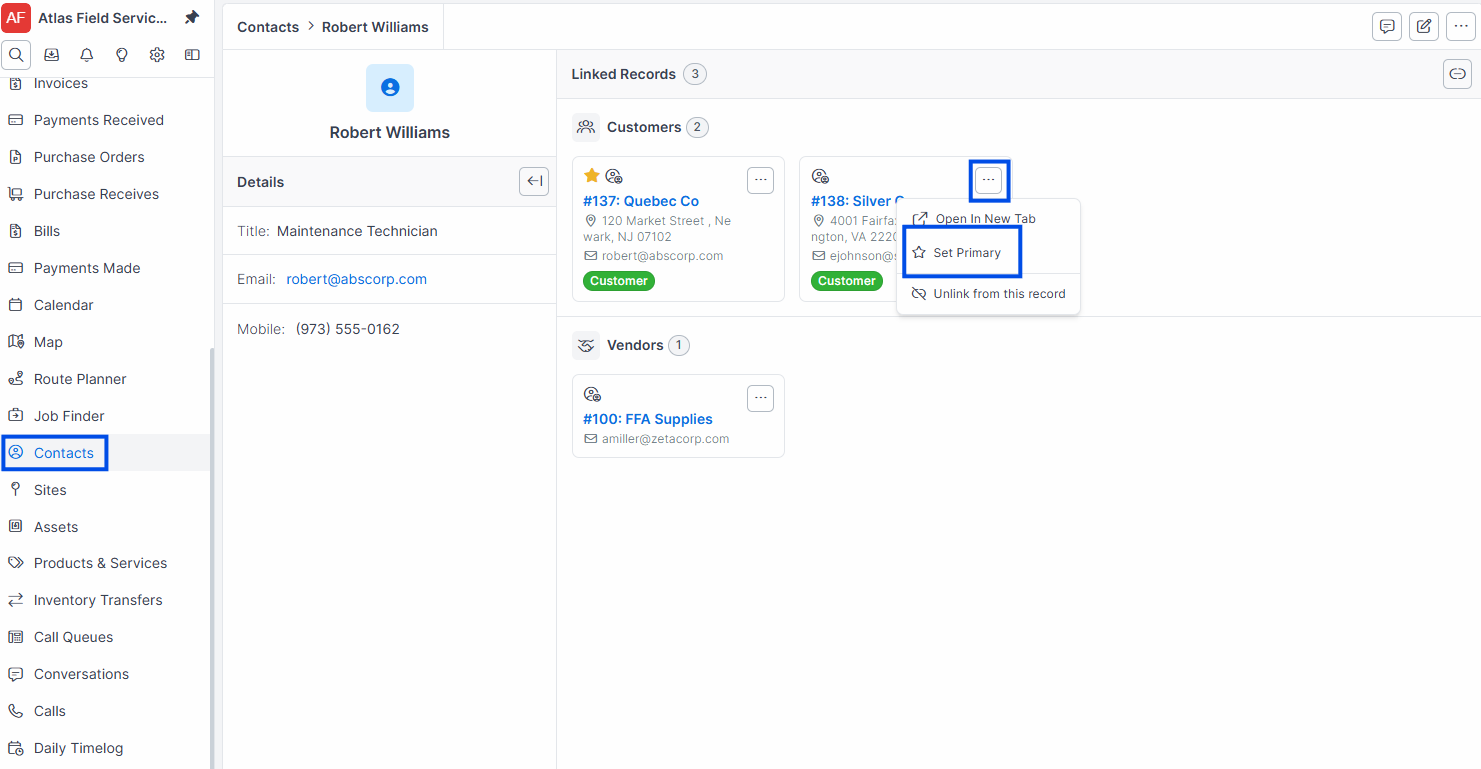
Click Set as Primary on the contact you want to designate.
Expected result: The selected contact is marked as primary. The previous primary contact remains linked but loses its primary designation.
Managing Phone Numbers
Each contact can have multiple phone numbers with labels.
Open the contact record and click Edit.
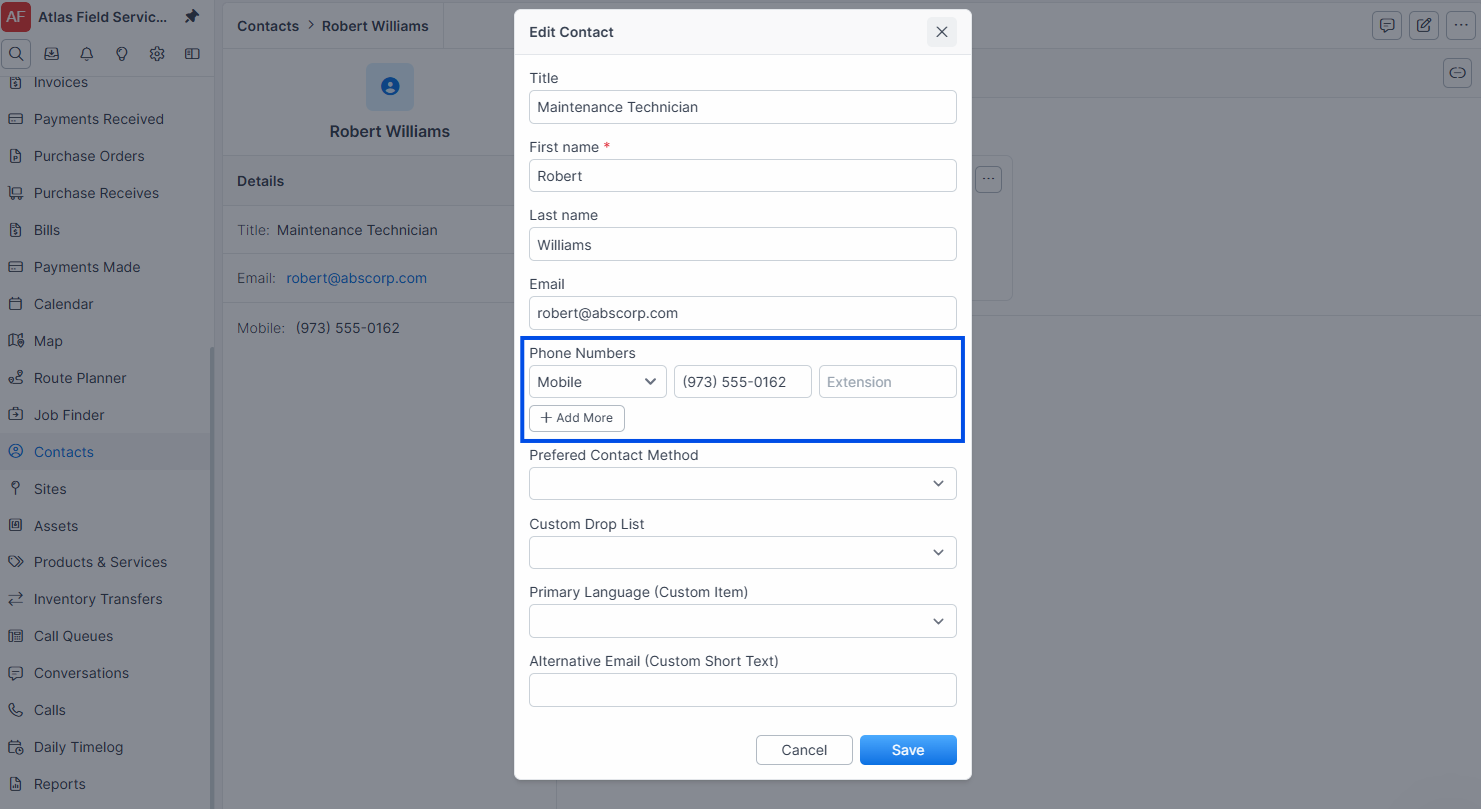
In the Phone Numbers section, click Add Phone Number.
Select a Label (e.g., "Mobile", "Office", "Home").
Enter the Number and optional Extension.
Click Save.
Expected result: The phone number appears on the contact record. Forz normalizes phone numbers for matching — incoming calls and SMS messages are matched to contacts by phone number.
Note: To remove a phone number, click the Remove button (or trash icon) next to the phone number and save the contact.
Merging Duplicate Contacts
If the same person exists as two separate contacts, merge them into one record. Merging combines phone numbers, notes, linked records, and custom fields.
Warning: Merging is permanent. The merged contact is deleted and cannot be restored from the trash bin. Review both contacts carefully before proceeding.
Open the contact you want to keep (the "surviving" contact).
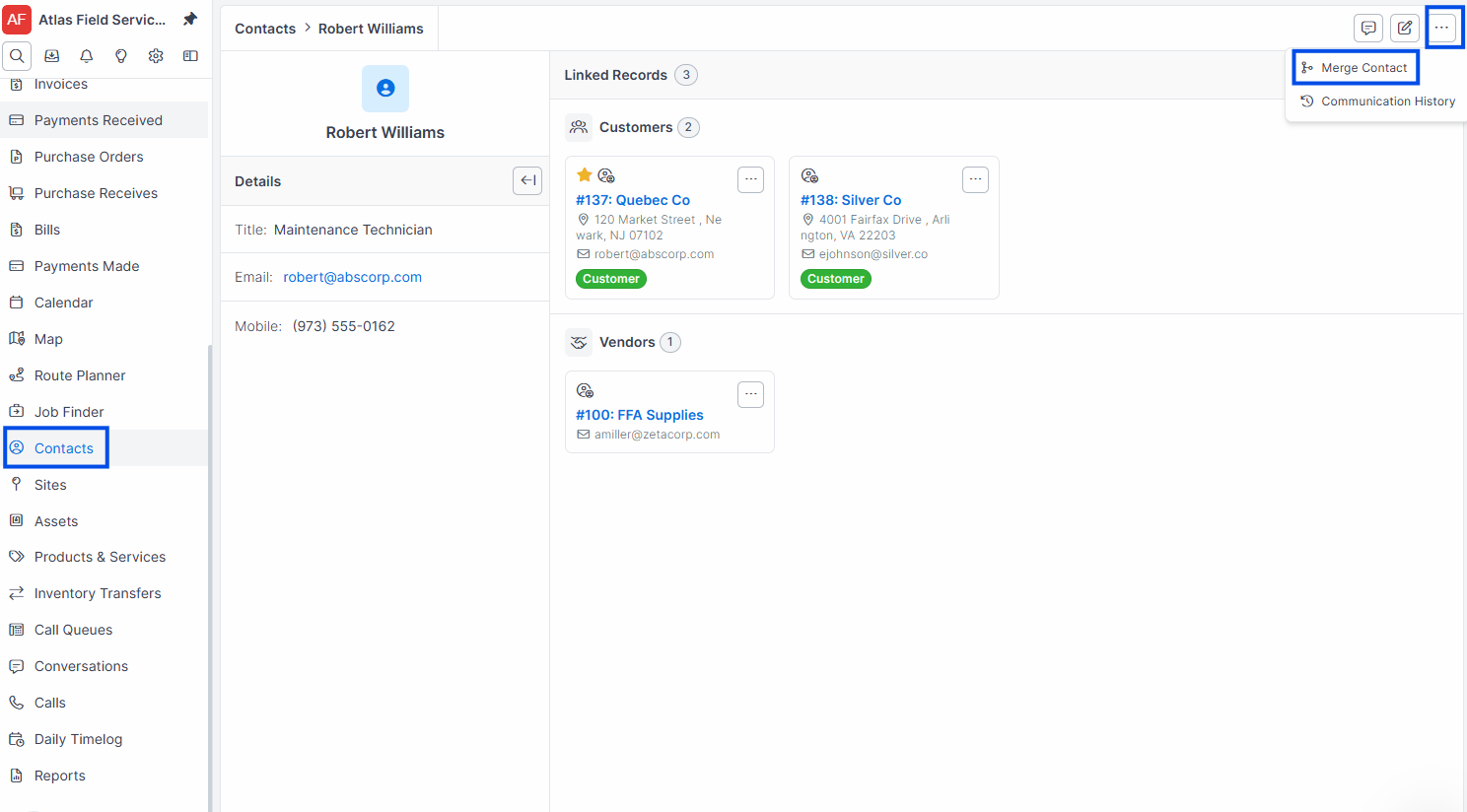
Click Merge.
Forz shows a list of potential duplicates ranked by similarity score.
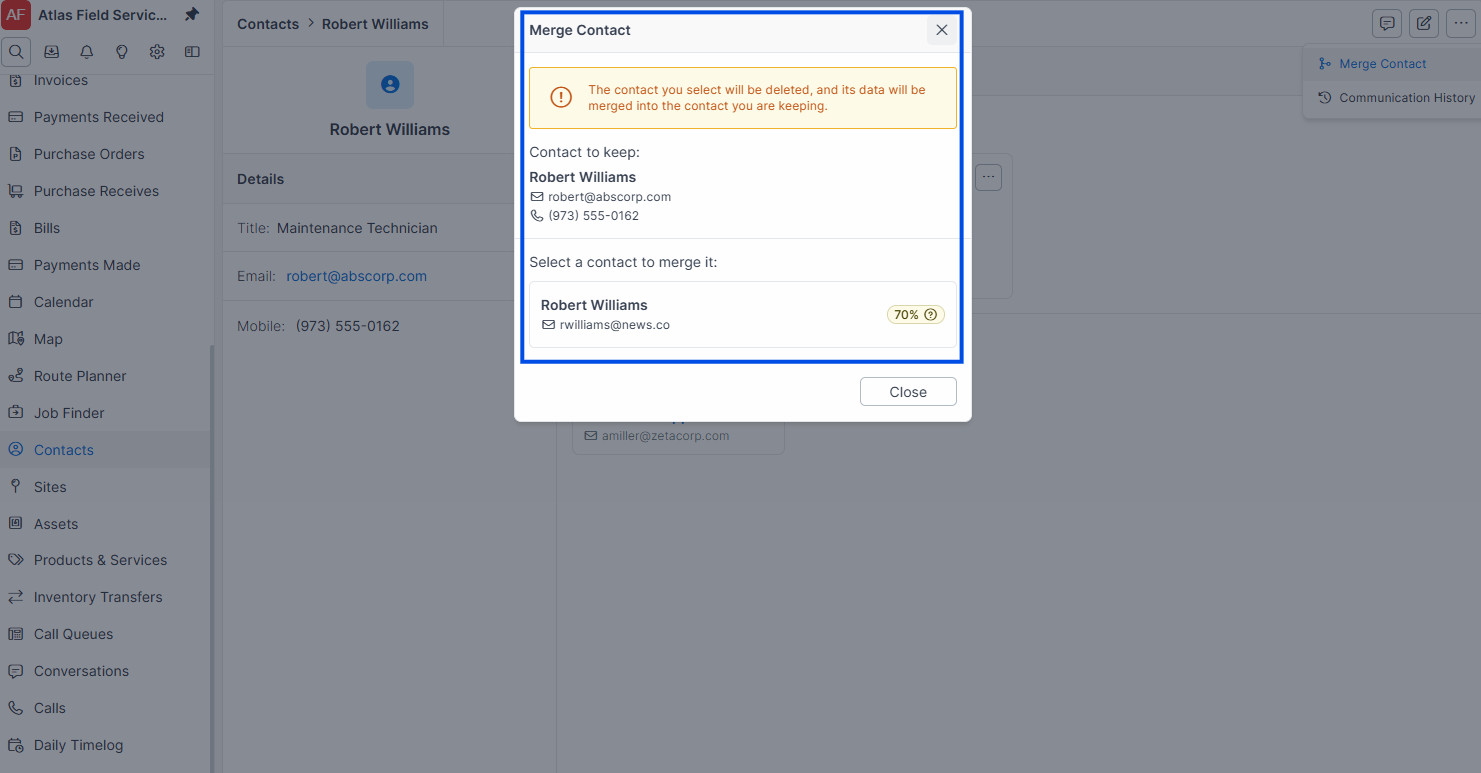
Select the contact to merge into this one.
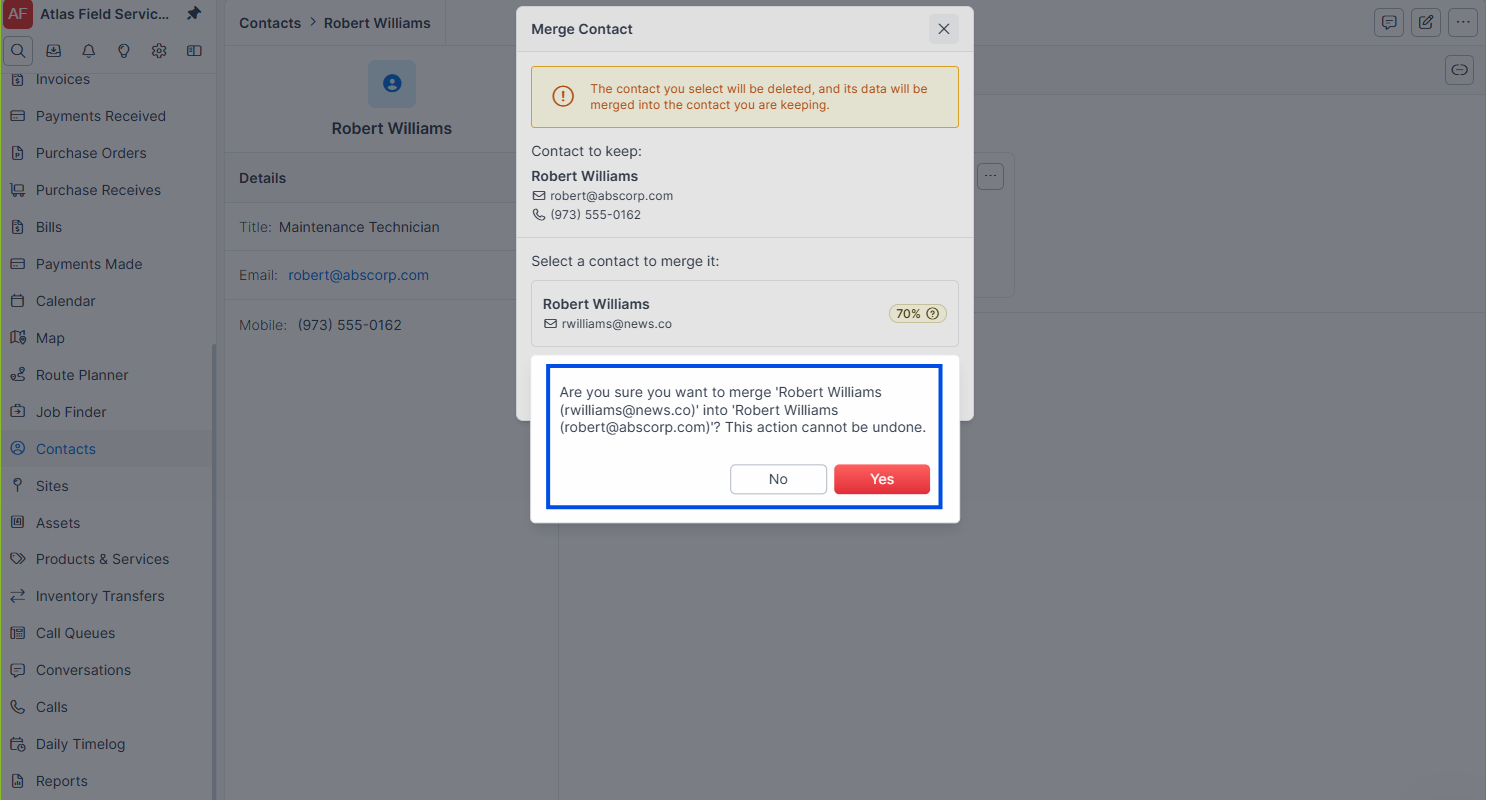
Confirm the merge.
Expected result: The surviving contact retains its own data and fills in blank fields from the merged contact. All phone numbers, notes, linked records (customers, sites, jobs), and site associations transfer to the surviving contact. A system note records the merge.
Viewing the Activity Timeline
The activity timeline shows a unified view of all interactions across linked organizations — notes, jobs, estimates, invoices, conversations, and calls.
Open a contact record.
Click the Activity Timeline tab or button.
Expected result: A chronological list appears showing recent activity across all organizations the contact is linked to, including jobs, estimates, invoices, notes, SMS conversations, and phone calls.
Unlinking a Contact
Open the contact record.
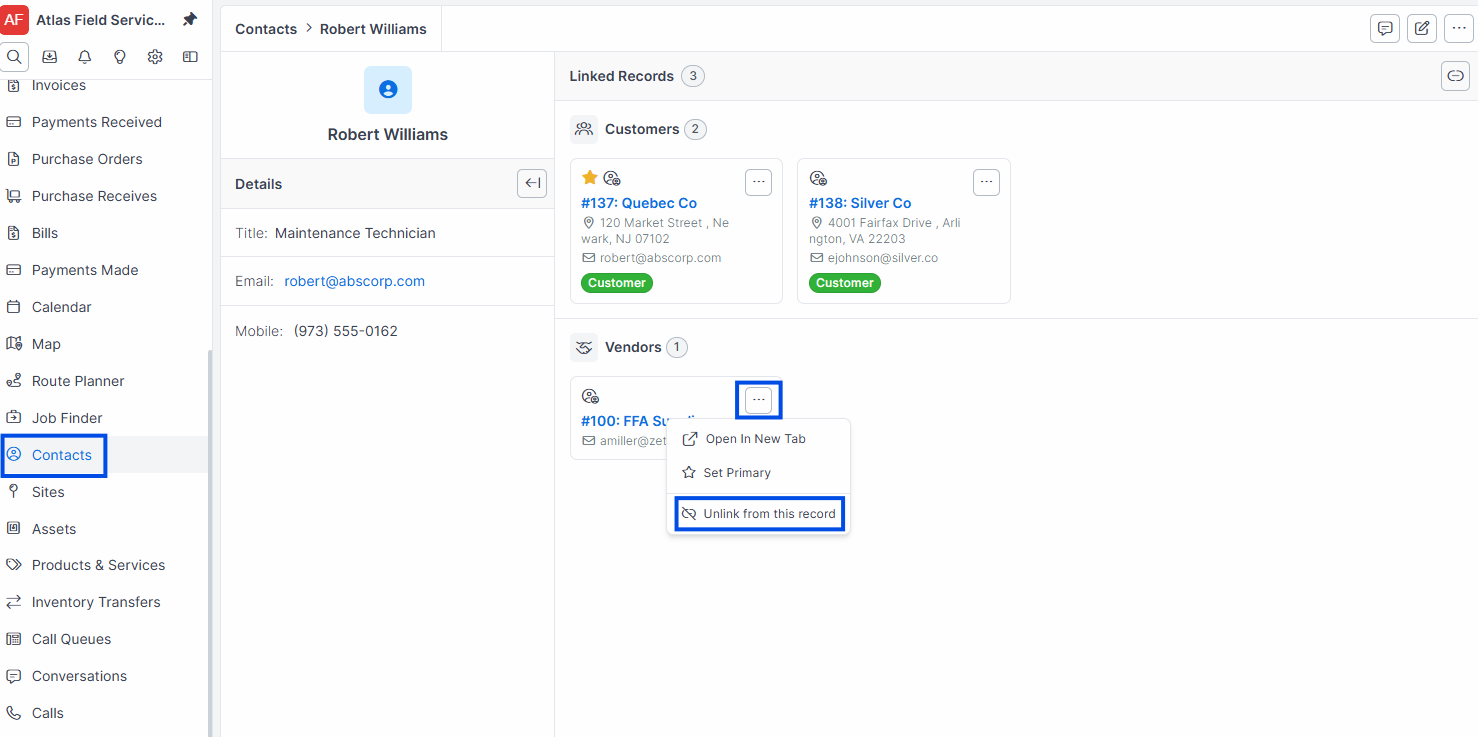
Find the linkage you want to remove in the linked records list.
Click Unlink next to the record.
Expected result: The contact is unlinked from the record but remains in Forz. Other linkages are unaffected.
Warning: You cannot delete a contact that has active linkages. Unlink the contact from all records first, then delete.
Common Scenarios
Plumbing company with a facility manager who oversees multiple buildings
Create one contact for the facility manager (e.g., "Maria Rodriguez, Facility Manager") and link her to each building's site record and to the parent customer. Set her as the primary contact for each site. When a technician arrives at any building, the dispatch sheet shows Maria's phone number.
HVAC contractor receiving a call from a new contact at an existing customer
Create a new contact with the caller's name and phone number.
Link the contact to the existing customer.
Set the relationship type to "Technical" if the caller is the on-site maintenance person.
Create a job from the customer record — the new contact is available in the contact dropdown.
Merging contacts after a company acquisition
After a customer reorganizes, two contacts named "John Smith" and "J. Smith" may exist for the same person. Open one contact, click Merge, and select the duplicate. The surviving record inherits all linked jobs, phone numbers, and notes from both records.
Troubleshooting
Was this helpful?
Still need help? Ask the team