Saved views
Save the filters, search, and sort on any list page as a named view you can switch back to in one click.
Overview
A saved view remembers the filters, search, and sort you currently have on a list page so you can return to that exact slice of data in one click. Saved views appear as cards in the toolbar above the list, and the active card shows a live count of how many records match.
Saved views are personal to your user — they do not change what your teammates see — and are scoped to one resource (the list you saved them on). You can keep up to 100 saved views per resource.
Saved views are available on most list and board pages, including Leads, Customers, Contacts, Jobs, Estimates, Invoices, Recurring Invoices, Recurring Jobs, Sales Orders, Purchase Orders, Bills, Deals, Projects, Tasks, Tickets, Vendors, Sites, Tools, and Call Lists.
Before you begin
Prerequisites:
You can view the list page where you want to save a view (for example, you can open Leads in the sidebar).
You have at least one filter, a search term, or a sort applied to the list — otherwise there is nothing to save.
Saving a view
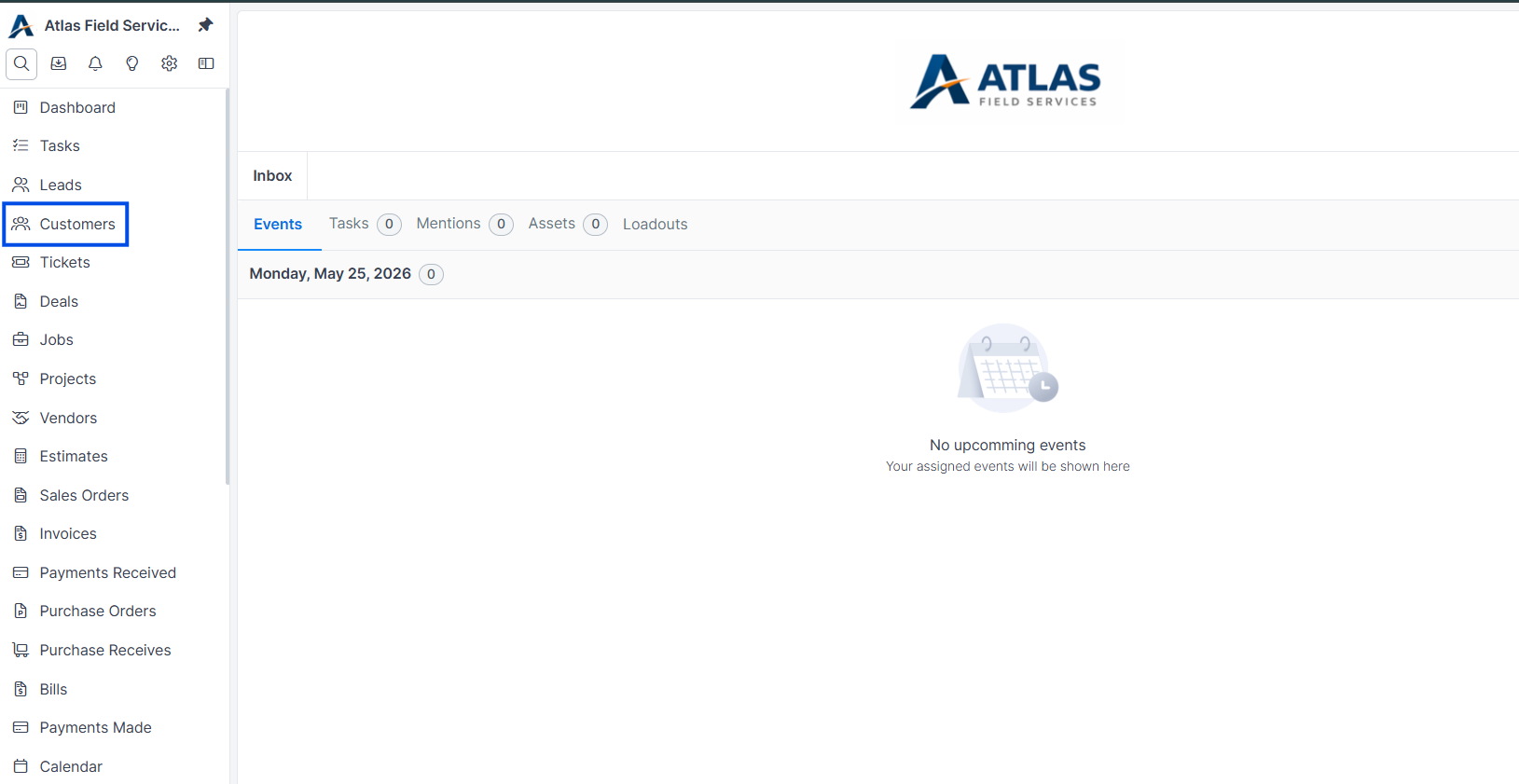
Open the list page (for example, Customers).
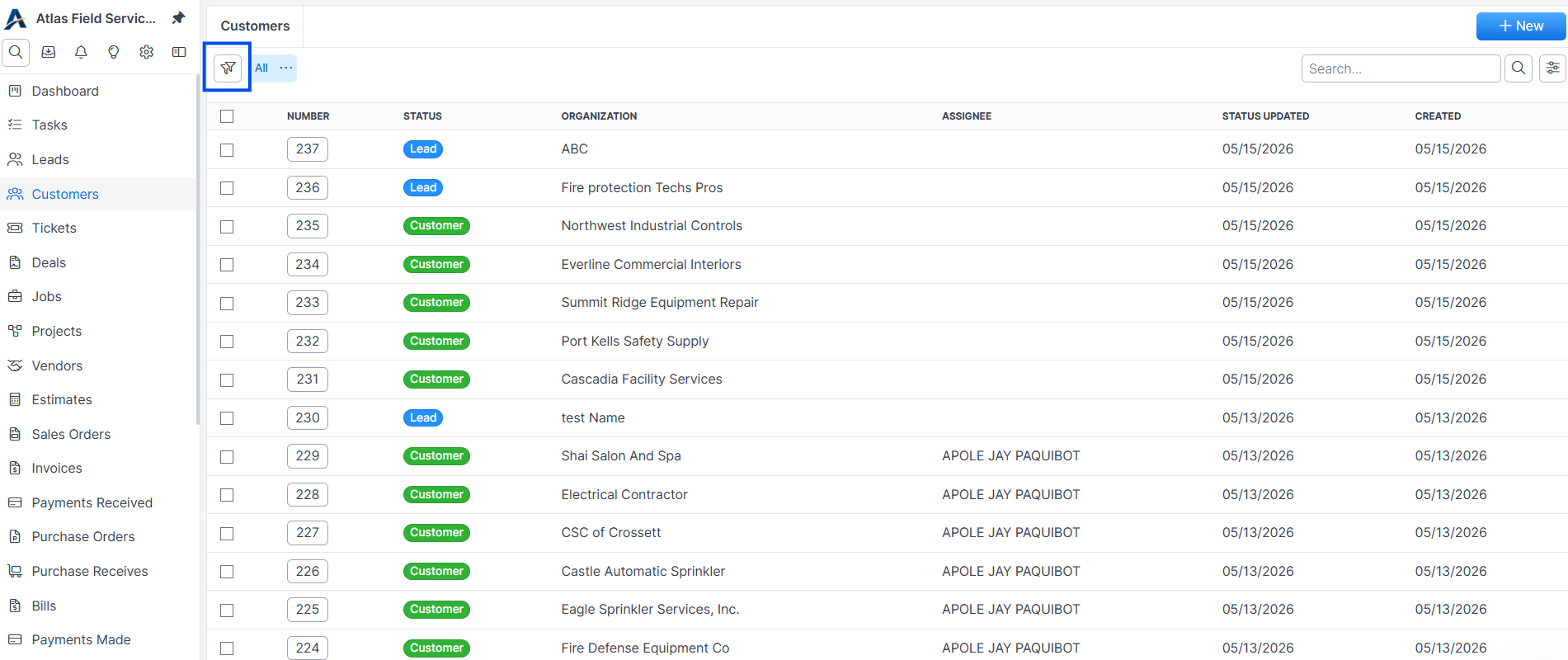
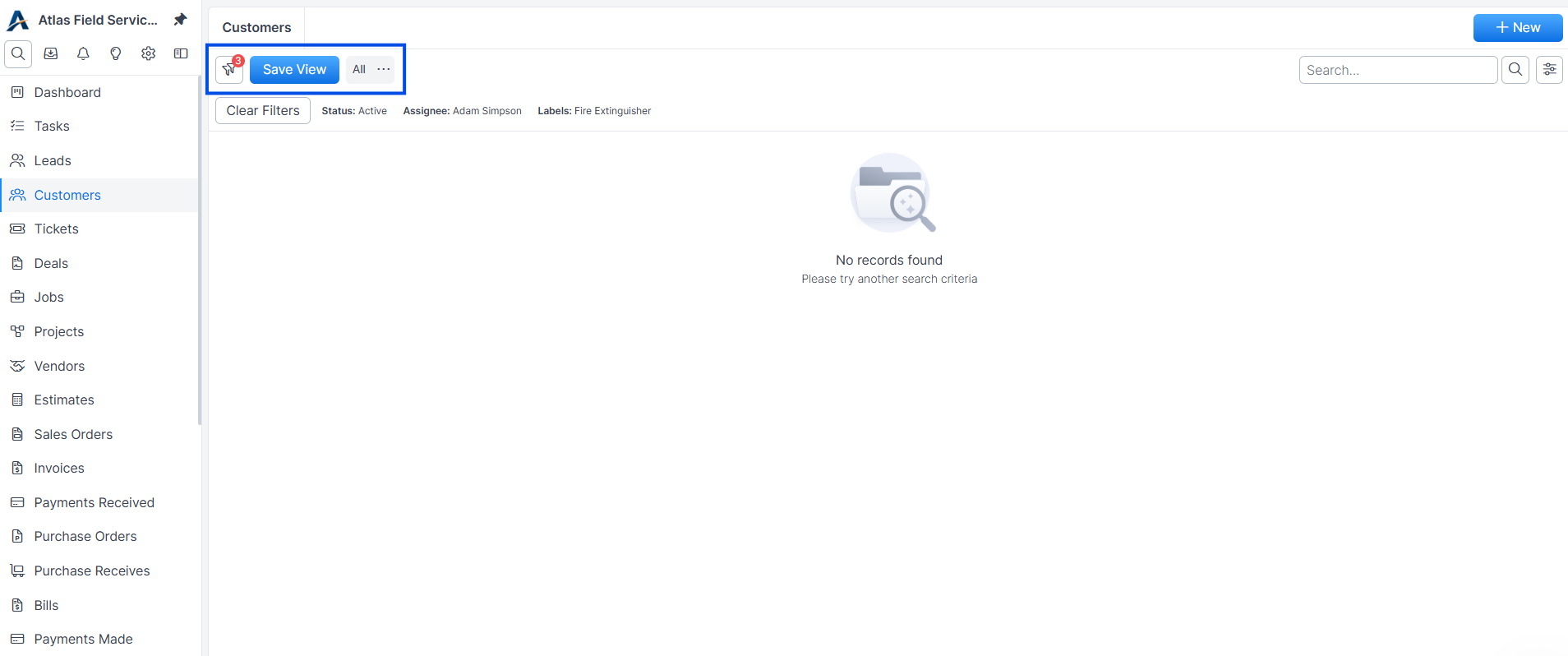
Apply the filters, search, and sort that define the slice of data you want to save.
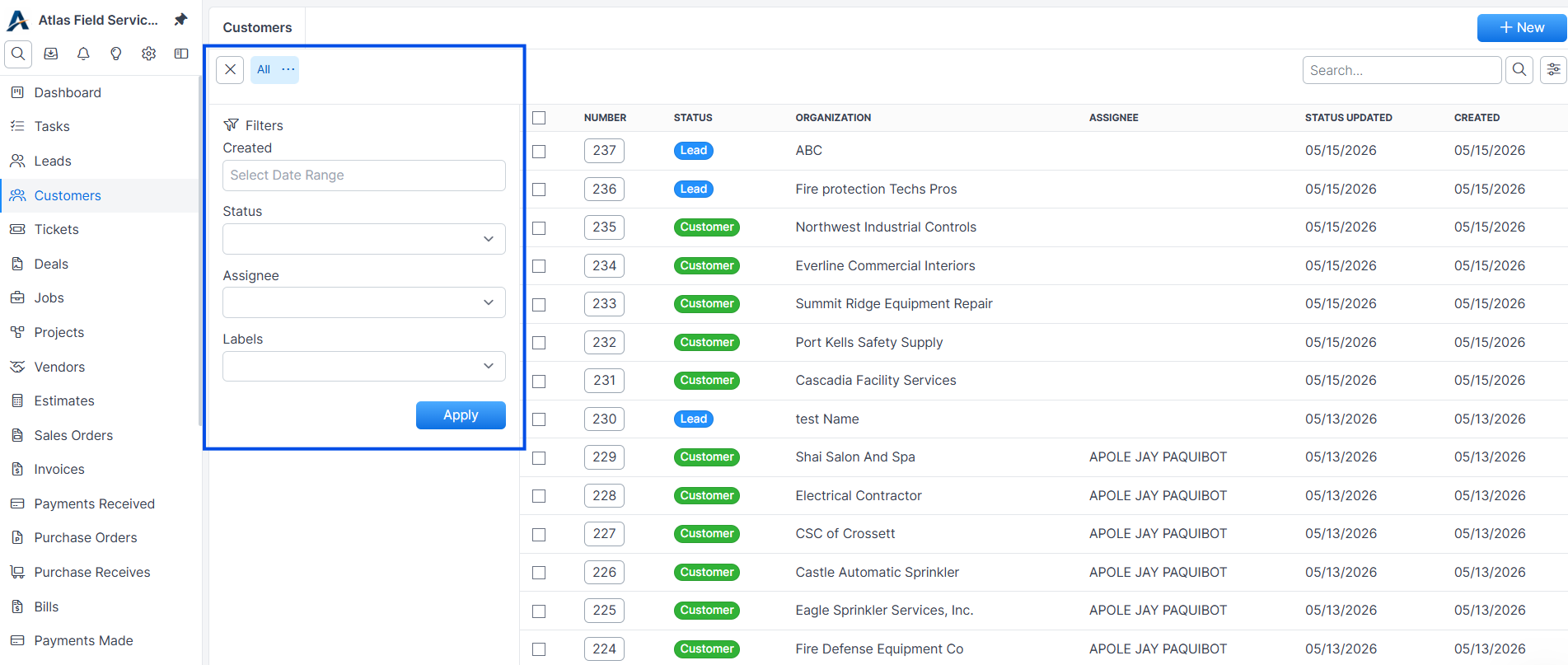
Saved view filters 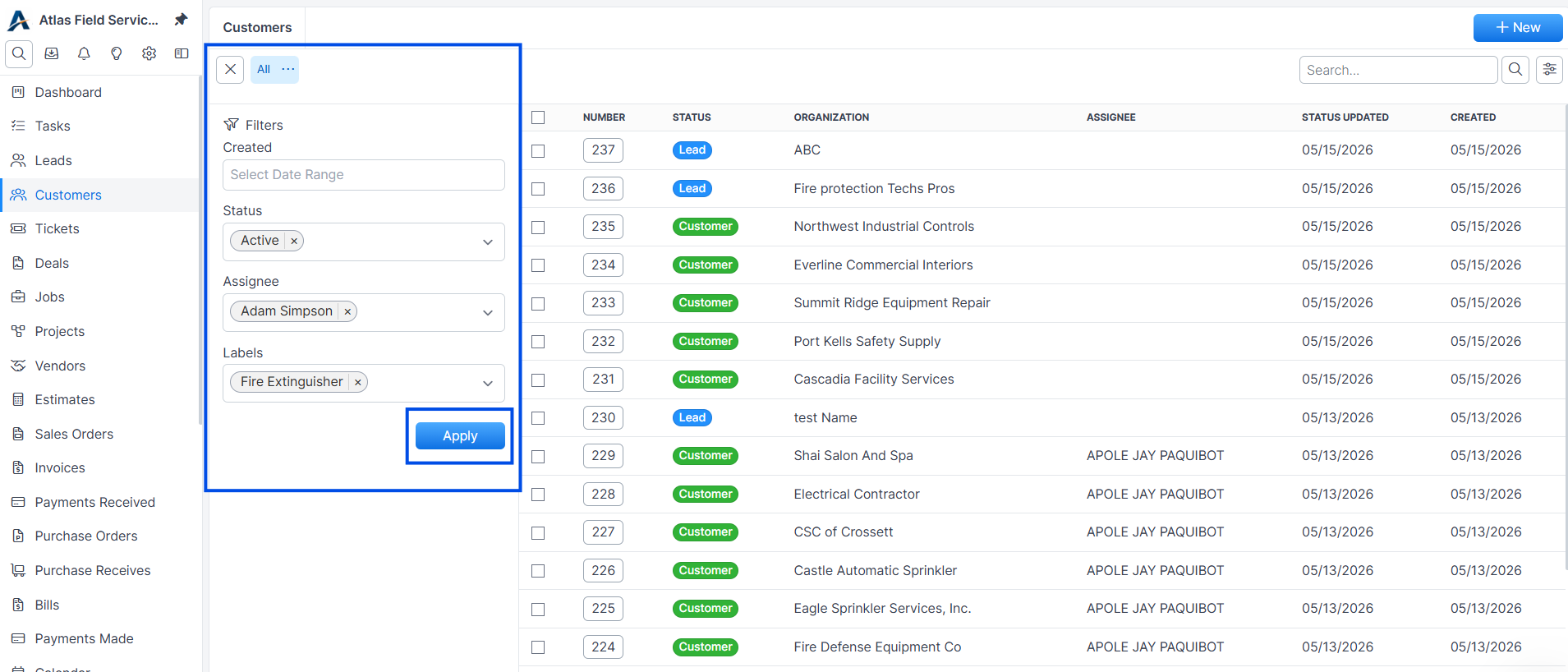
Filtered customers list Click Save View in the toolbar, next to the Filters and Columns buttons. The button only appears when the current filters, search, and sort do not already match a saved view.
In the New Filter View dialog, enter a Name for the view (up to 80 characters).
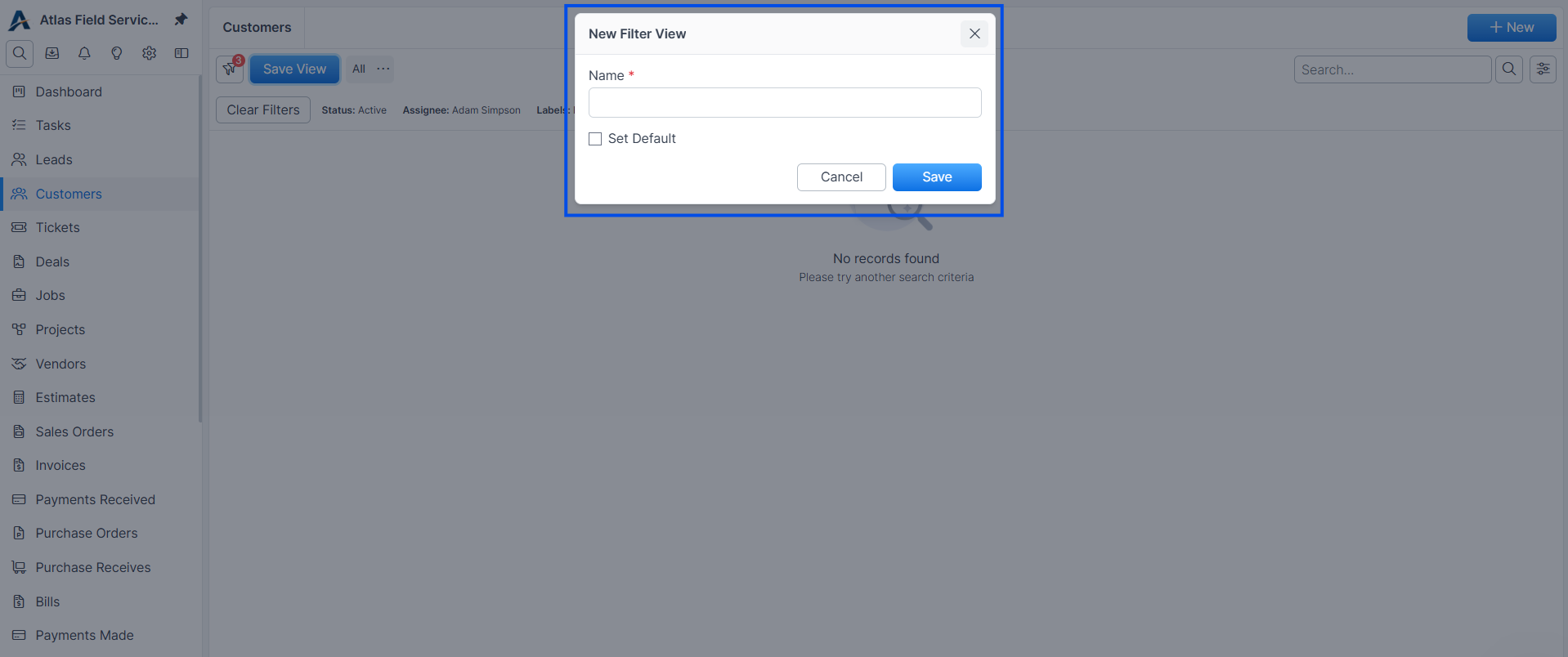
New Filter View dialog (Optional) Tick Set Default to load this view automatically every time you open this list page.
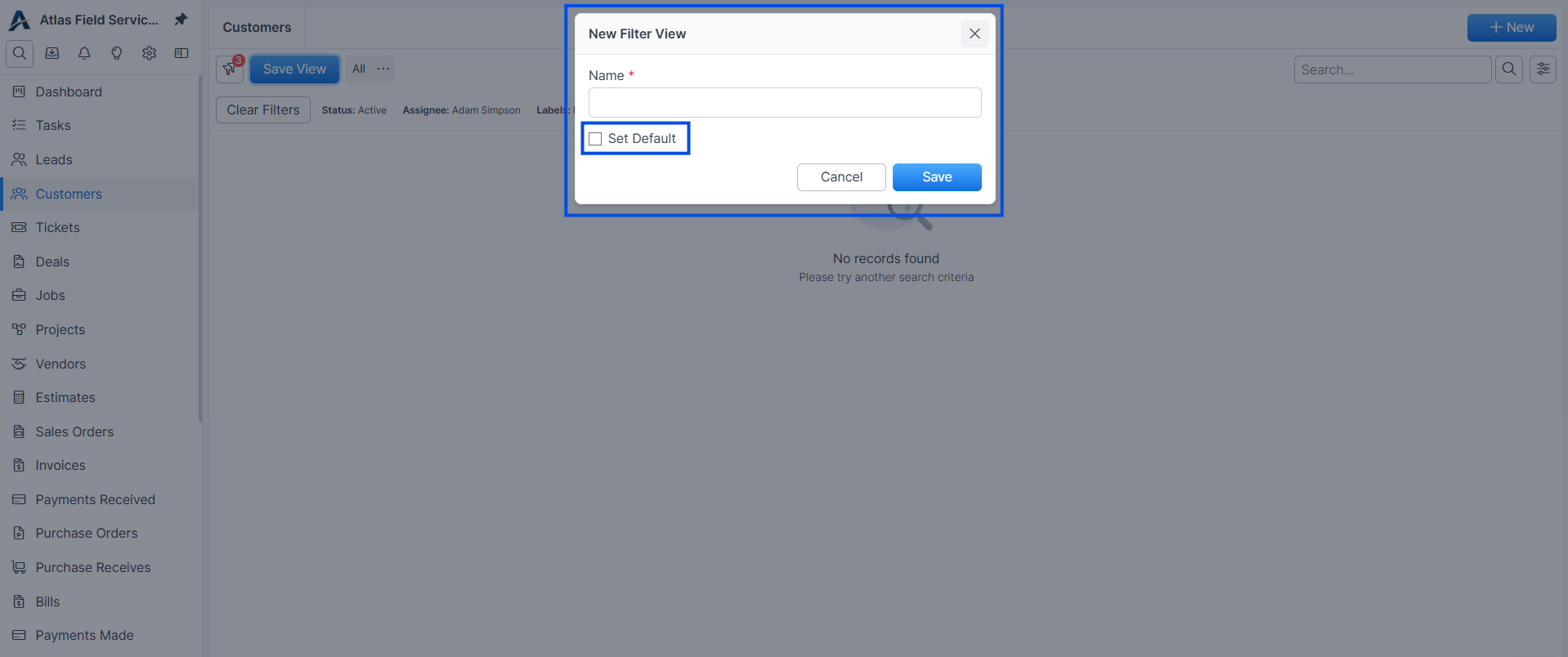
Set default option Click Save.
Expected result: a new card with the name you chose appears in the cards row above the list, and the active card shows a count badge with the number of matching records.
Switching between views
The cards row above the list is a one-click switcher.
Click any saved-view card to load that view.
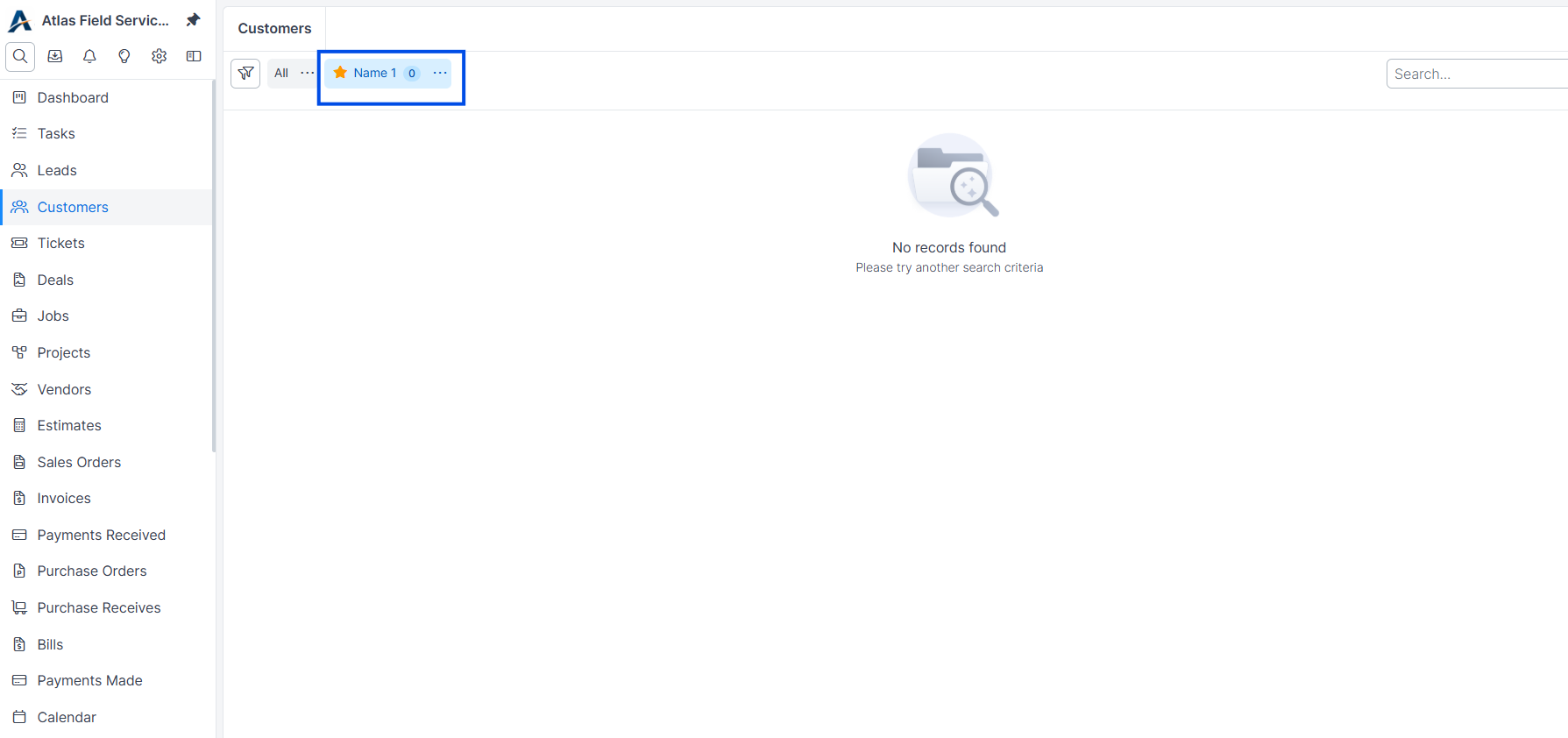
Saved view card Click the All card on the left to clear filters and show every record.
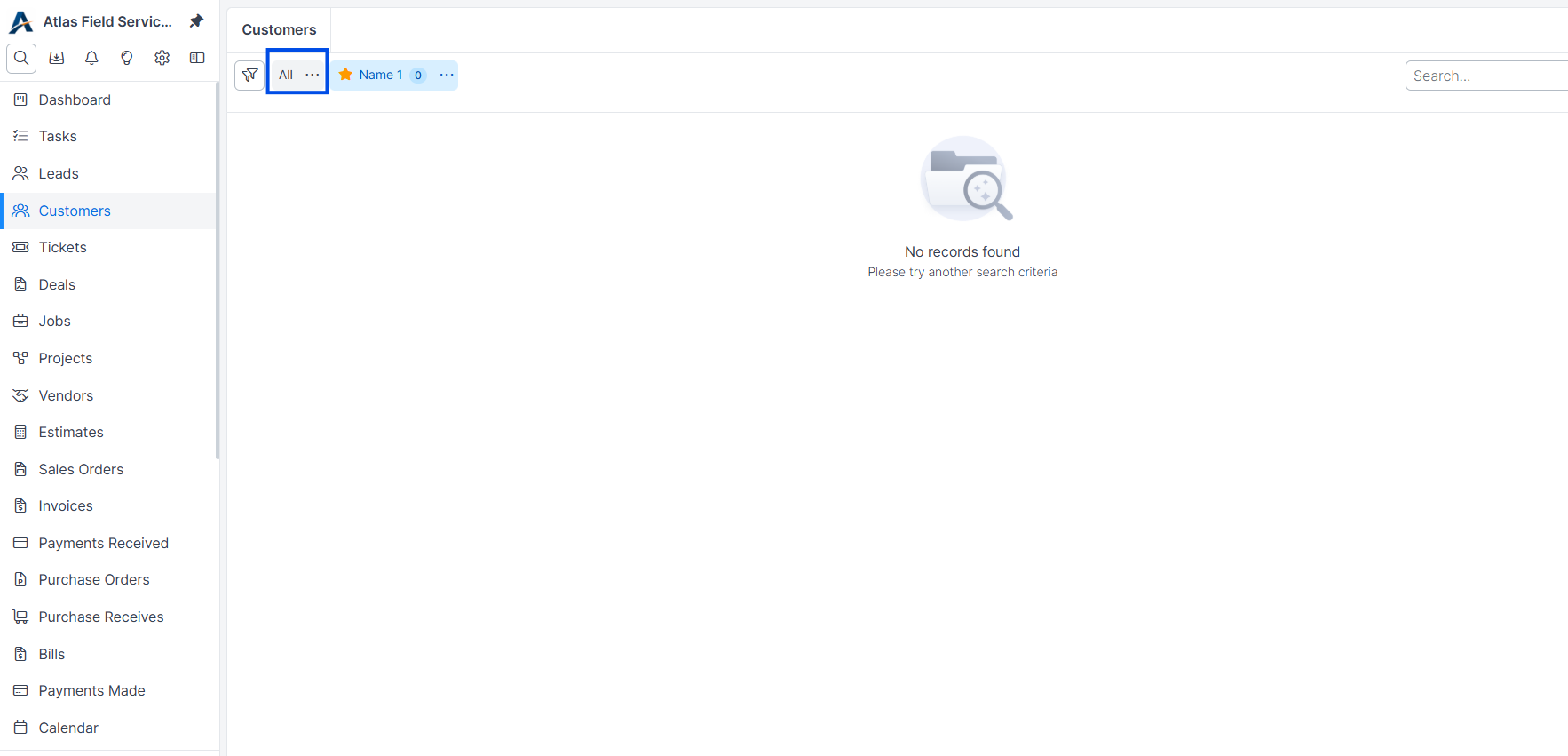
All records view 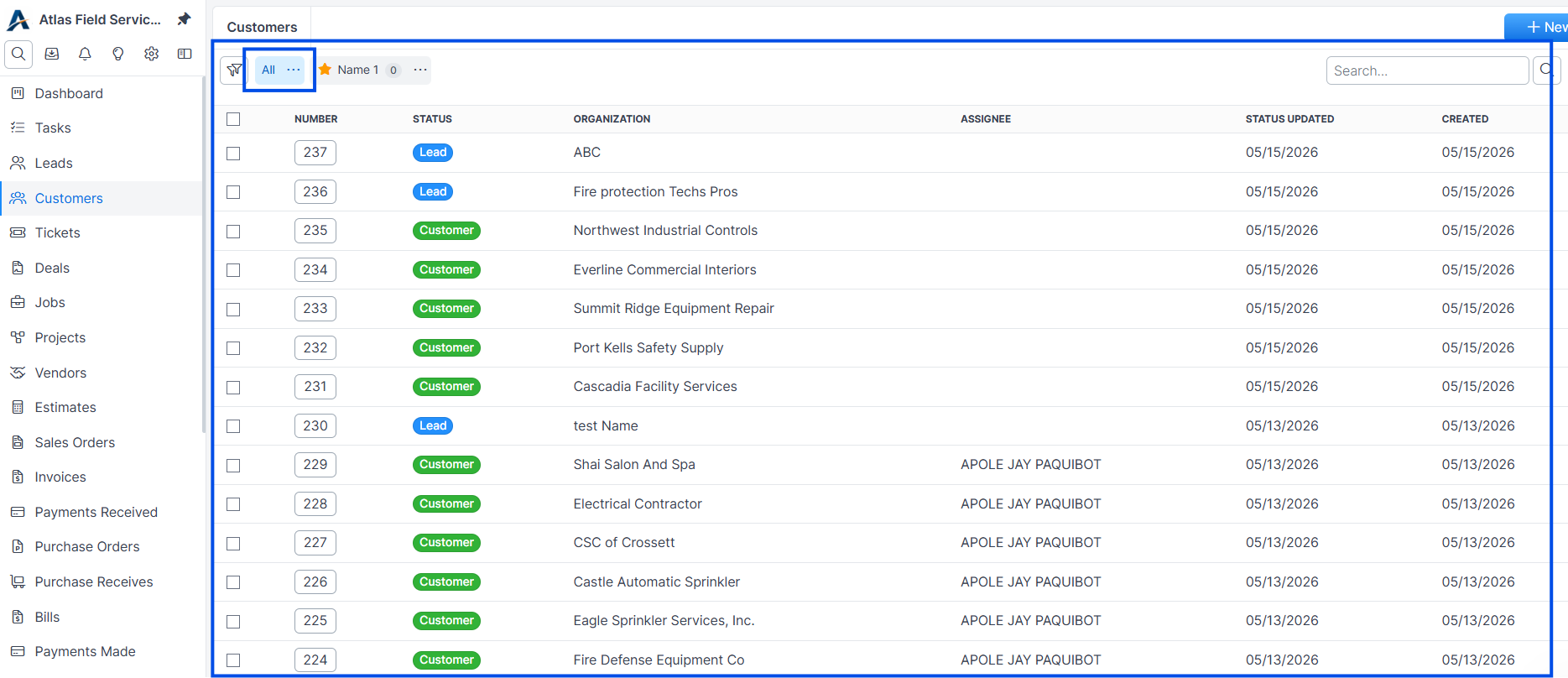
On phones and tablets, the cards row is replaced by a dropdown above the list — pick a saved view from the list to load it.
Showing more views
The cards row keeps your most-used views visible and tucks the rest into a menu. The first four views you save on a resource appear as cards automatically; any beyond that go into a More views dropdown at the end of the row until you choose to lock them.
To keep a view visible as a card, open its ⋯ menu and click Lock.
To move a view back into the More views dropdown, open its ⋯ menu and click Unlock.
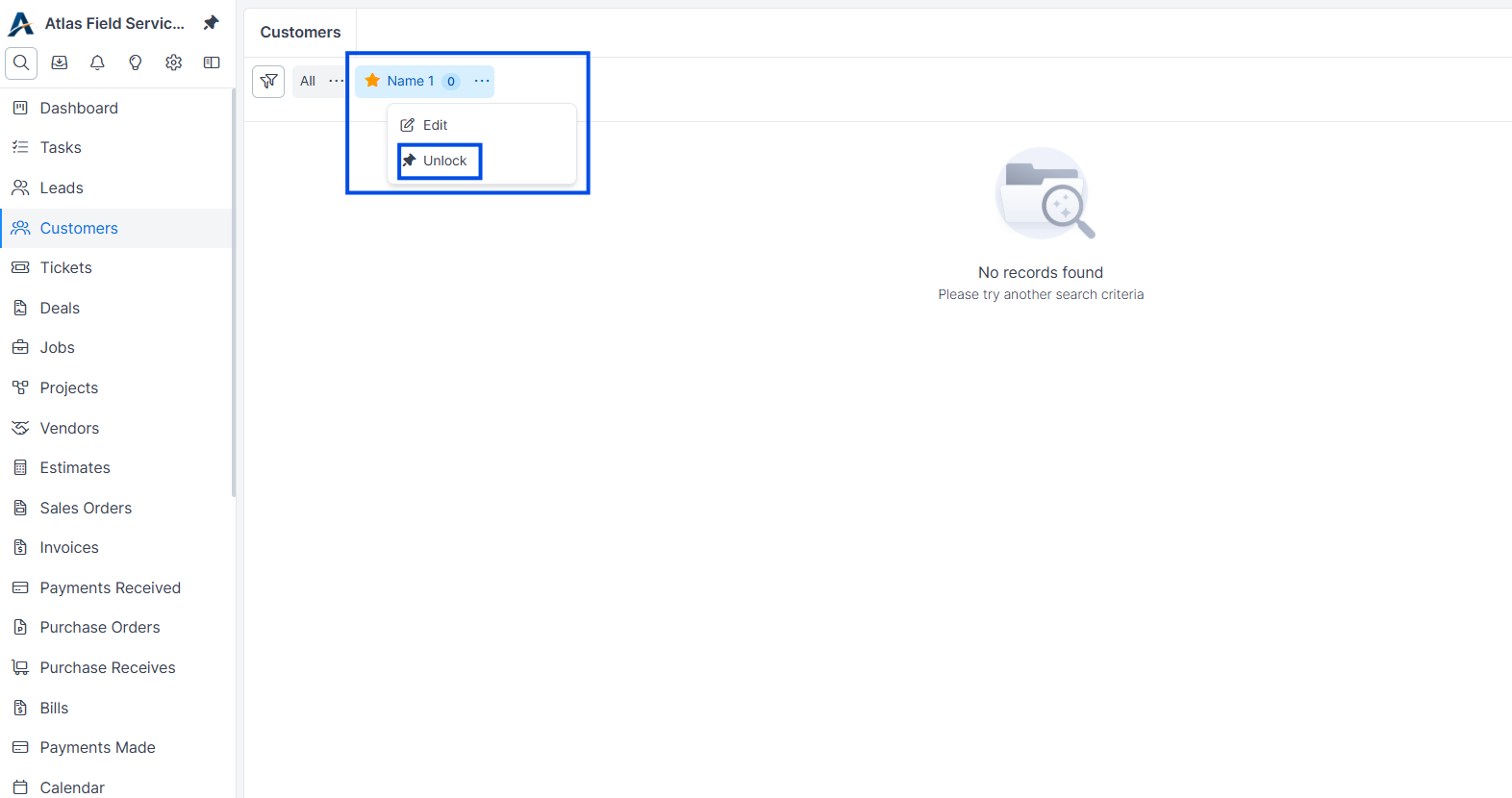
More saved views menu
Setting a default view
A default view loads automatically when you open the list page from the sidebar, so you do not have to apply your usual filter every time.
On the list page, open the ⋯ menu on the saved-view card you want as your default.
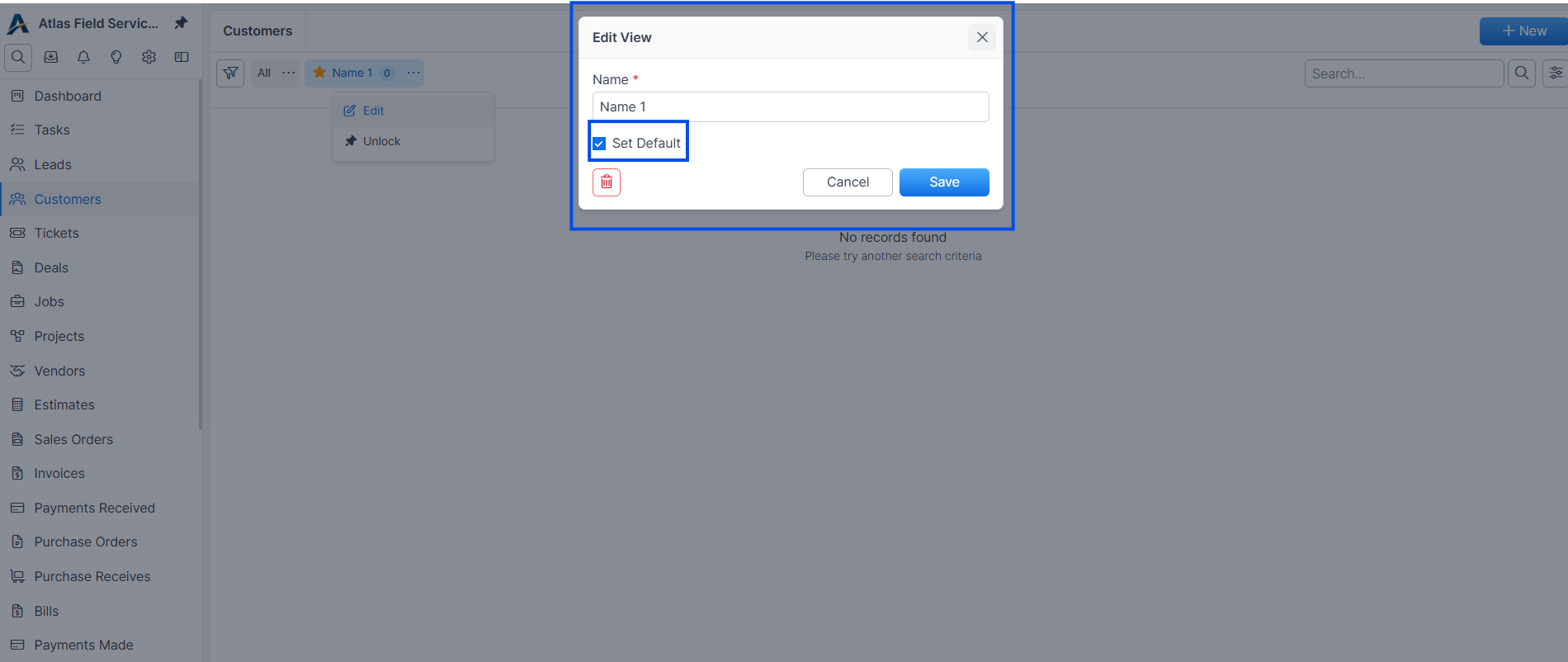
Click Set Default.
Expected result: a star icon appears on the card, and the next time you open this list page, that view is applied automatically.
Tip: when a default view auto-applies, a small toast in the bottom-right corner reads Your default filter is on. Click Show all in the toast to see every record for the rest of your visit.
To stop a view from loading automatically, open the ⋯ menu on the All card and click Set Default. The All card becomes your default, so the list opens showing every record. Each user has at most one default per resource.
Renaming or deleting a view
Open the three dots menu on the saved-view card and click Edit.
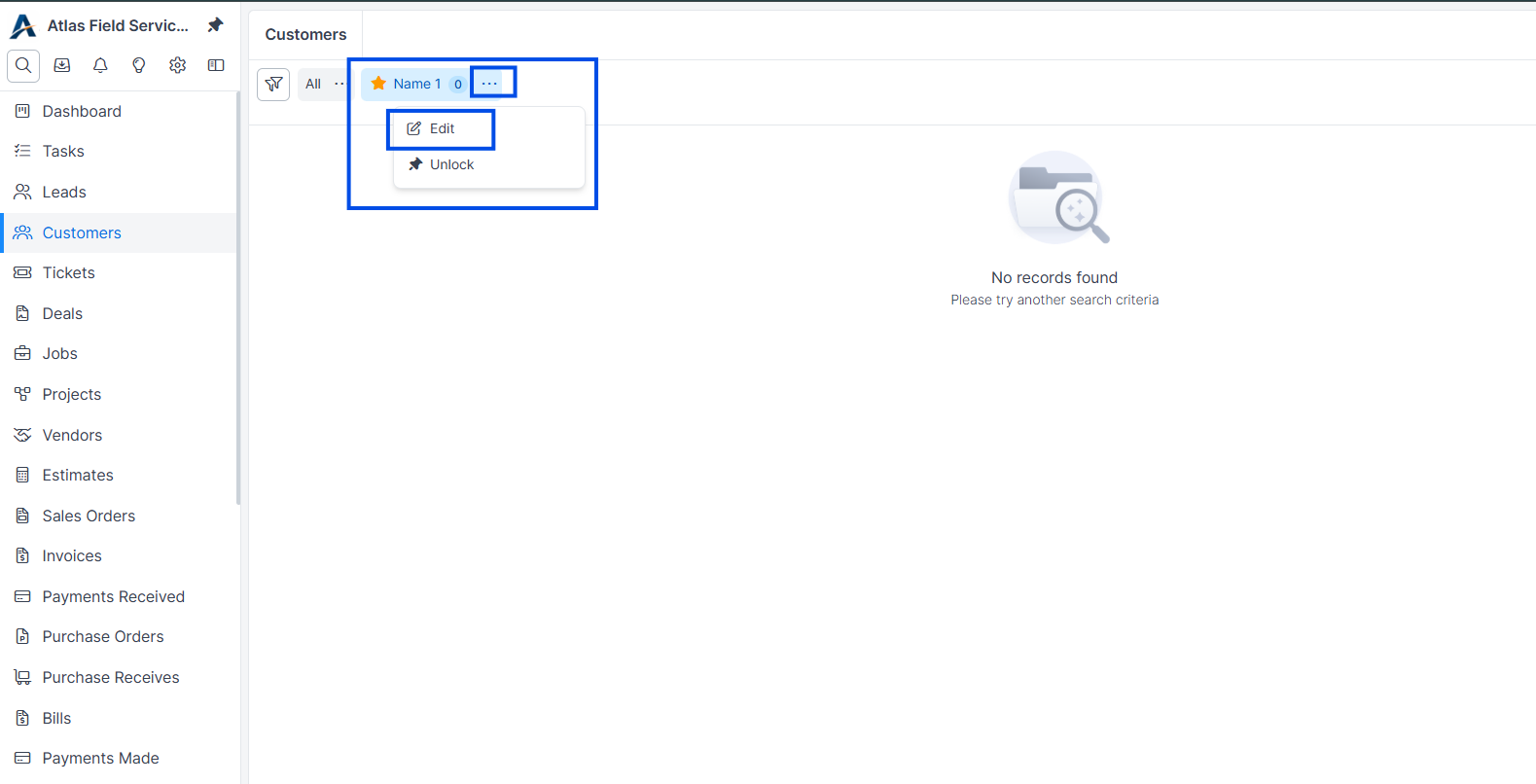
Saved view menu In the Edit View dialog, change the Name and click Save, or click the trash icon in the bottom-left corner to delete the view.
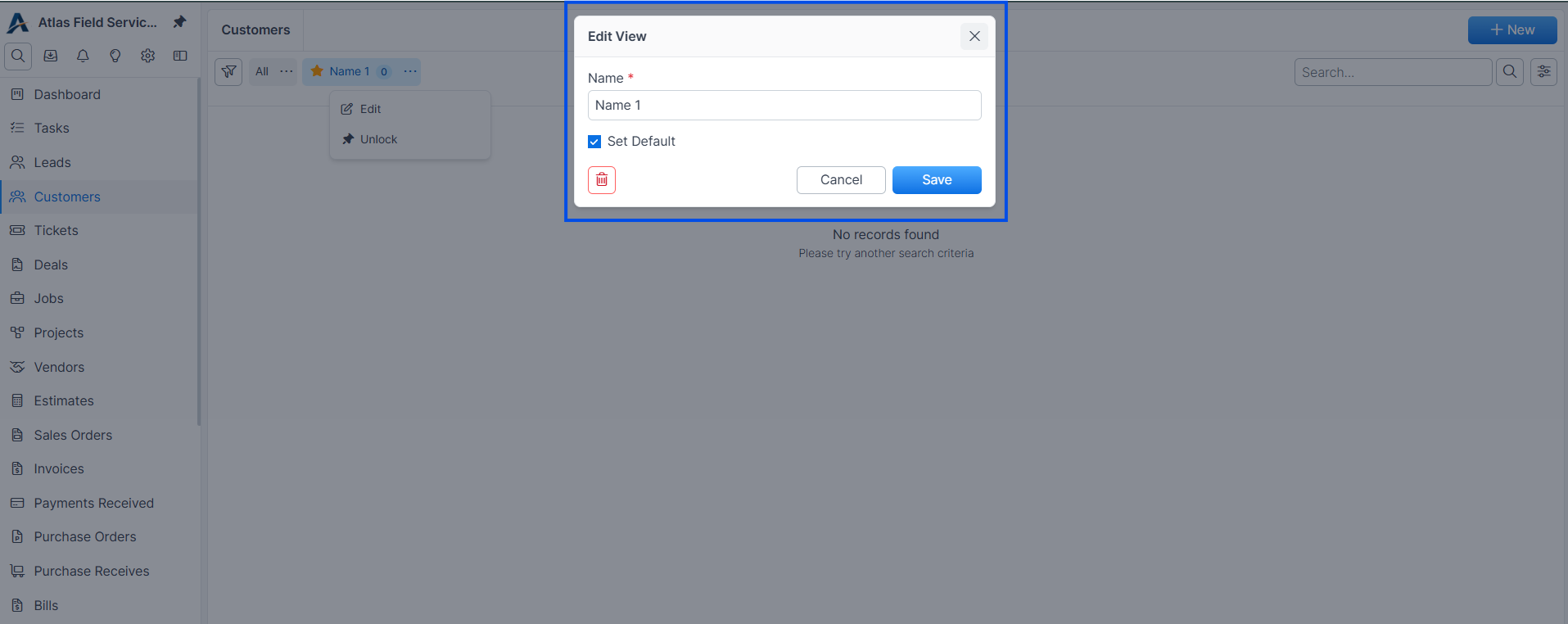
Edit view dialog
Deleting a view asks for confirmation. It does not affect the records on the list — it just removes the shortcut. If the deleted view was your default, the list reverts to showing all records the next time you open it.
Updating a saved view
Saving changes creates a new view rather than overwriting an existing one. If you load a saved view and then change its filters, search, or sort, the Save View button reappears in the toolbar so you can save the new combination.
Click an existing saved-view card to load it.
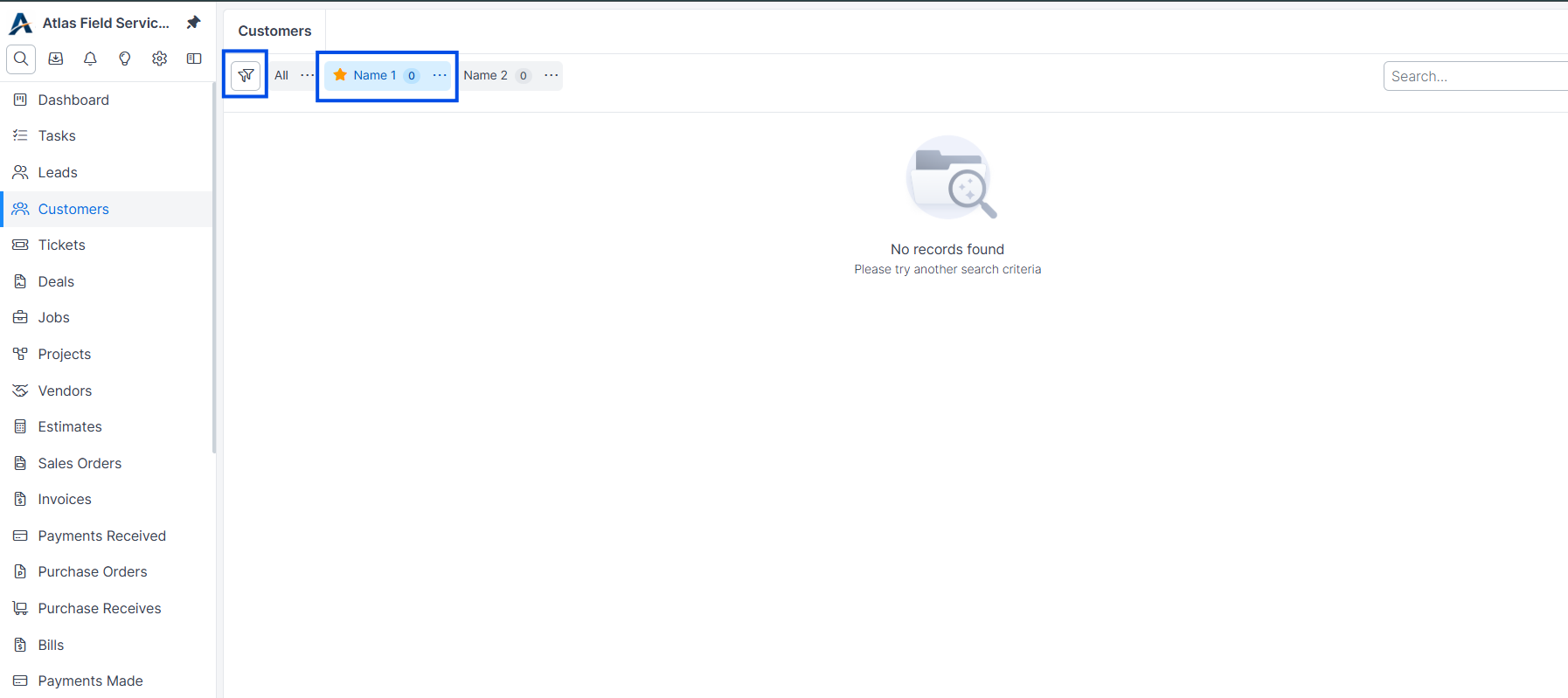
Existing saved view card Adjust filters, search, or sort.
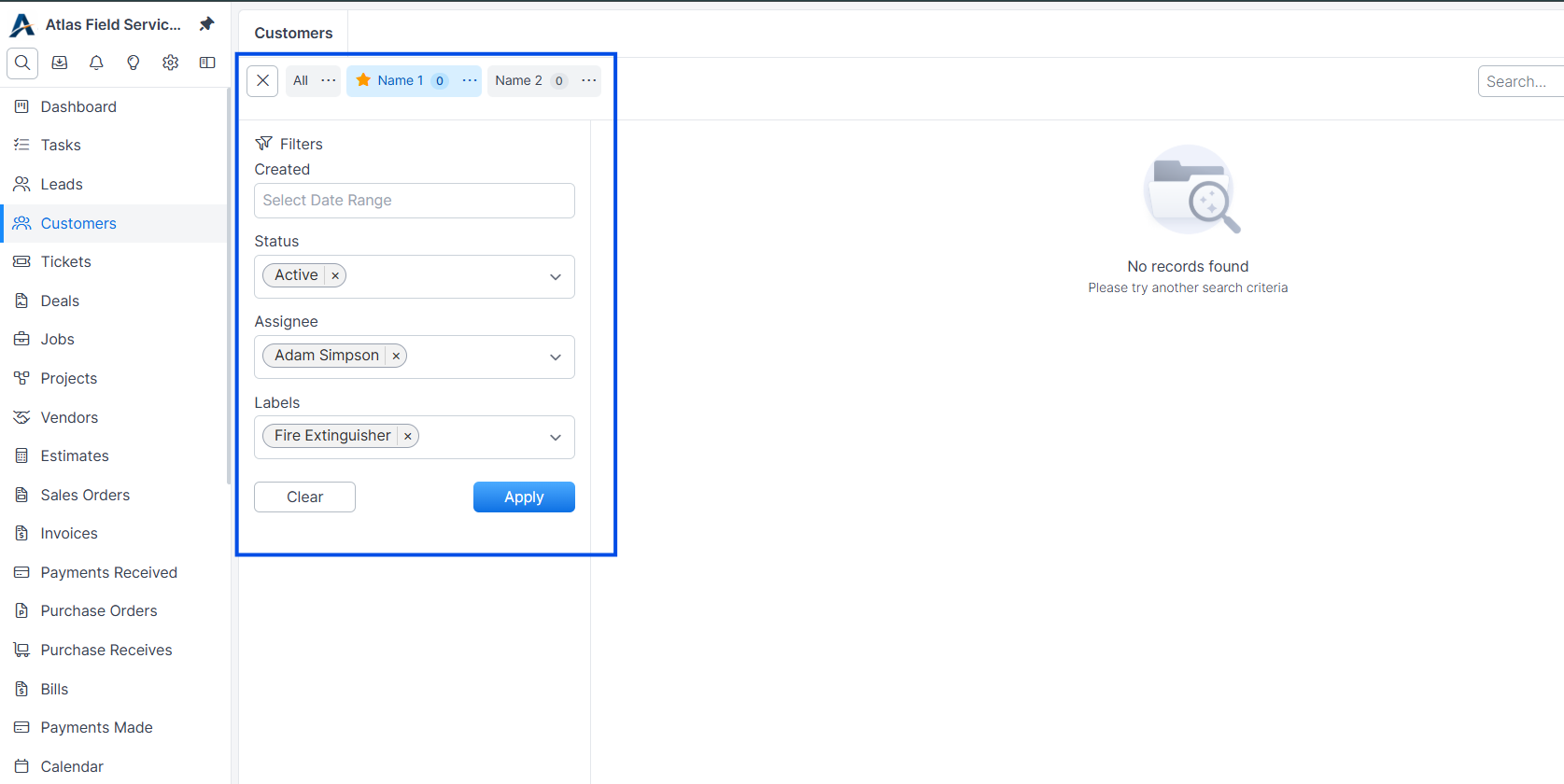
Adjust filters Click Save View and enter a new name to save the modified view alongside the original.
Limits
Up to 100 saved views per resource per user. If you reach the limit, delete or reuse an existing view.
Saved views store the filters, search, and sort on the list. Column visibility is configured separately through the Columns picker.
Saved views are personal — only the user who created the view can see, edit, or delete it.
Was this helpful?
Still need help? Ask the team