Truck Load and Pick Lists
Load each technician's truck from a bin-sorted checklist, and let the warehouse pick parts ahead of time.
Overview
Truck Load gives each technician a checklist of every part their jobs need for the day, sorted by warehouse bin. The technician checks each part off as it goes on the truck, by tapping or by scanning, and confirms the load before leaving the yard. Anything still missing is listed by name and bin.
If your company uses the Pick Lists module, the warehouse picks those parts ahead of time. The technician then sees what was picked and only has to verify and load.
Loading a truck does not change your inventory levels. Truck Load works whether or not you use Advanced Inventory.
Before You Begin
Prerequisites:
The parts are Products with the item type Inventory. Give each one a Location Code (the bin, for example B-2) so the checklist can sort by bin.
The technician has jobs scheduled on that day, with those products as line items.
For the warehouse workflow, the Pick Lists module is enabled on your account (contact Forz support to turn it on), and warehouse staff have the Pick Lists permissions on their role.
What goes on the checklist
The checklist covers the technician's jobs scheduled on the selected day. Lines are grouped so that the progress count only includes parts you can actually load:
To load — Inventory products from single-day jobs. Only these count toward the progress bar.
Not stocked — check before you go — Non-Inventory items, such as permits or freight. Shown for reference, not counted.
Multi-day job — may already be on site — parts for jobs with visits on more than one day. Shown for reference, not counted.
When the same product is needed on several jobs, it appears once with the total quantity. Expand the line to see which jobs need it.
Loading your truck
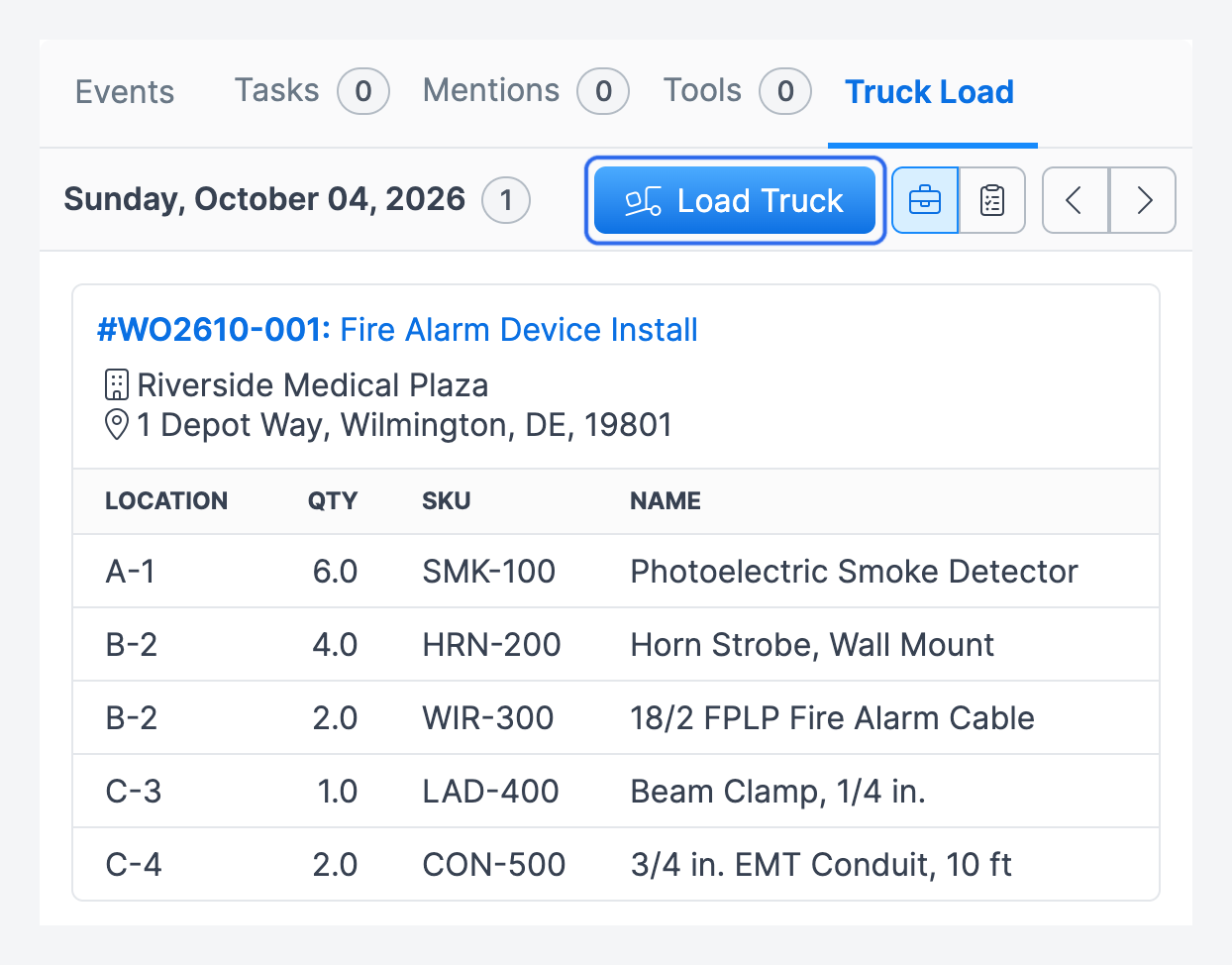
Click Inbox in the sidebar navigation, then open the Truck Load tab. It lists the parts each of your jobs needs today. Use the arrows to change the day.
Click Load Truck.
Tap a line to open it, then tap Load Full Qty to load the whole quantity at once. Use − and + to load part of it.
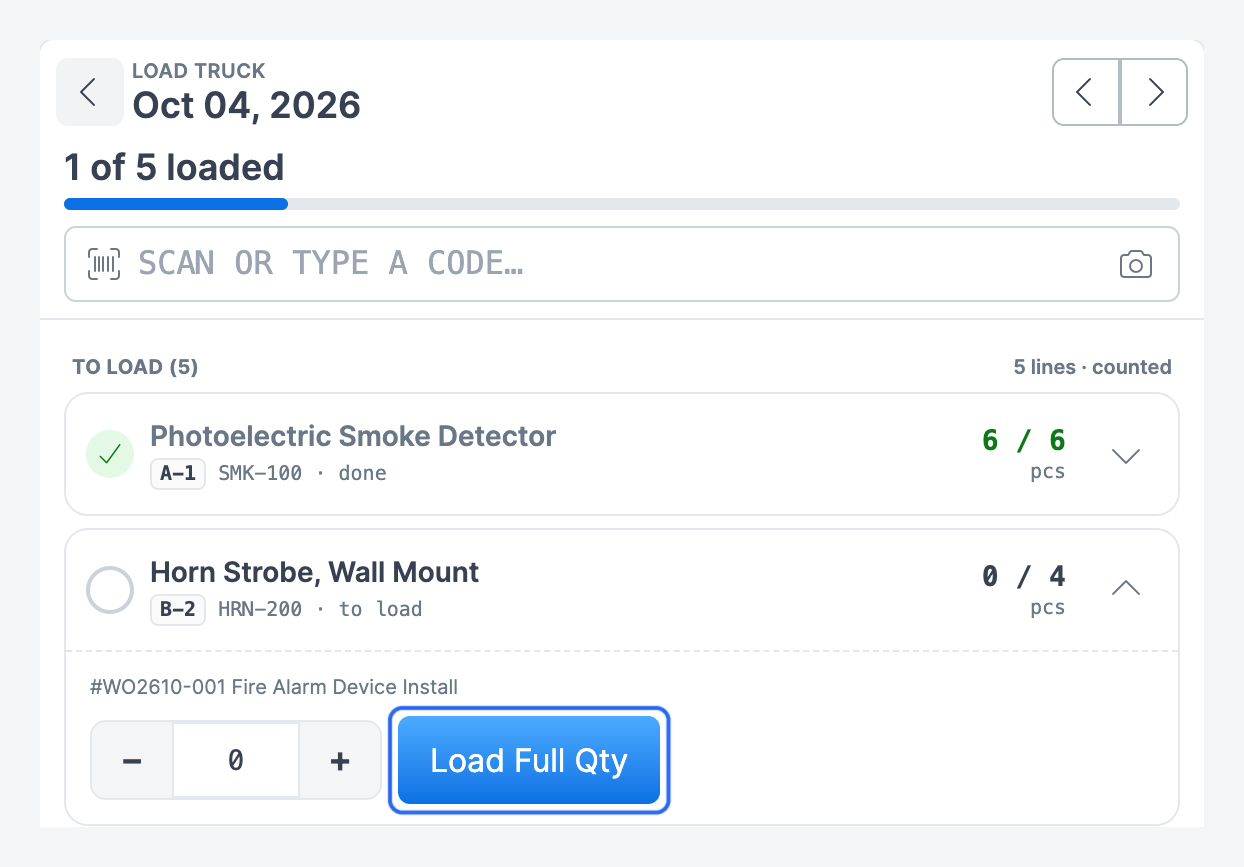
Use the Scan or type a code… field at the top to scan instead. Scan or type a product's barcode or SKU to load that line in full. Scan a bin code, such as B-2, to load every line stored in that bin. Tap the camera icon to scan with your phone's camera. A camera scan opens a quantity panel so you can count and load without leaving the camera.
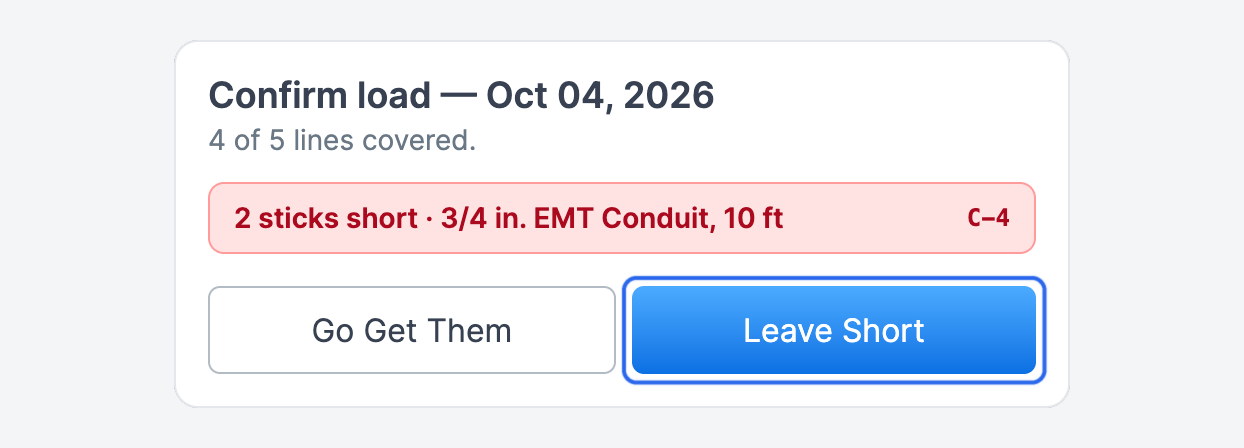
When you are done, tap Confirm Load. If anything is missing, the dialog lists each short line with its quantity and bin.
If lines are short, tap Go Get Them to go back and keep loading, or Leave Short to confirm the load as it is. If everything is loaded, tap Confirm.
Expected result: a banner shows the time you confirmed and how many lines were verified or short. The required quantities are locked from this point, so later changes to the job do not alter the record of what you left with.
Your changes save automatically while you work; there is no save button. Confirming needs a connection. If you are offline, keep the page open and try again once you have signal.
Tip: Scanning with a barcode scanner or typing a code never lowers a quantity. If you deliberately loaded extra, scanning that product again leaves your count alone. A code that matches nothing shows Not on today's list.
Sorting by aisle
When the Pick Lists module is off, technicians pick their own parts. The Load Truck page then has two views:
By Aisle — every counted line grouped by aisle (the part of the Location Code before the dash) and sorted by bin. Switch back to Checklist to confirm.
Checklist — the grouped checklist and the Confirm Load button.
Picking parts in the warehouse
With the Pick Lists module enabled, warehouse staff pick each technician's parts before the technician arrives. Picking is done from the Pick Lists page.
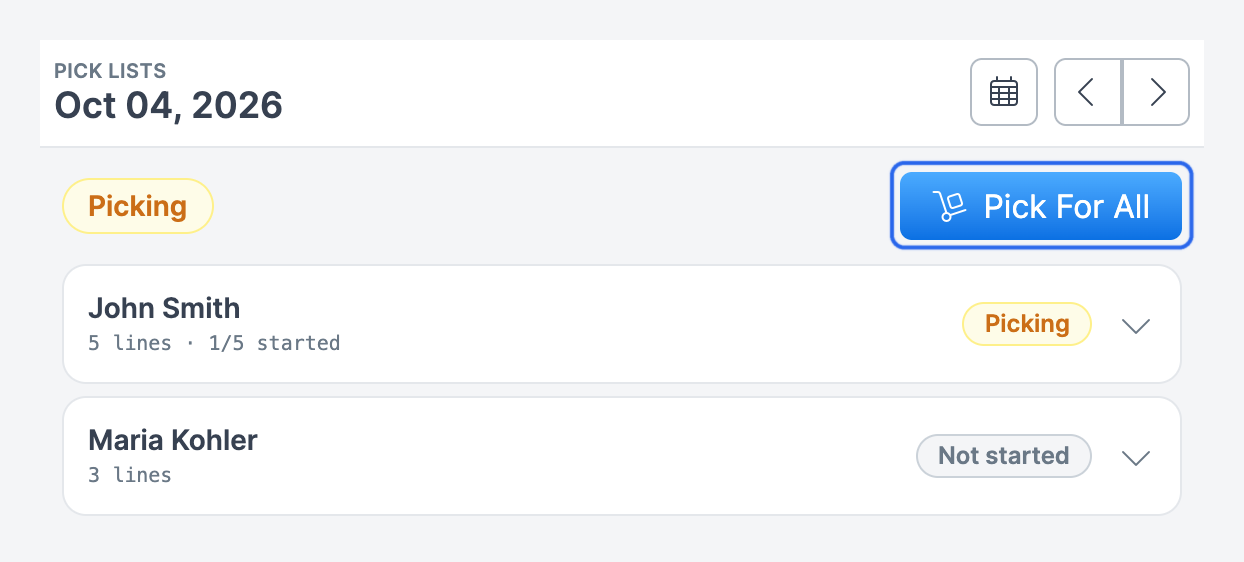
Click Pick Lists in the sidebar navigation. The page shows one card per technician scheduled that day, with their line count and pick status. Use the arrows or the calendar to change the day.
Click Pick For All to pick every technician's parts in one pass, with quantities added up per product. To pick for one technician, expand their card and click Pick.
Tap a line, then tap Pick Full Qty, or use − and + for a partial quantity. Scanning works the same way as on the Load Truck page.
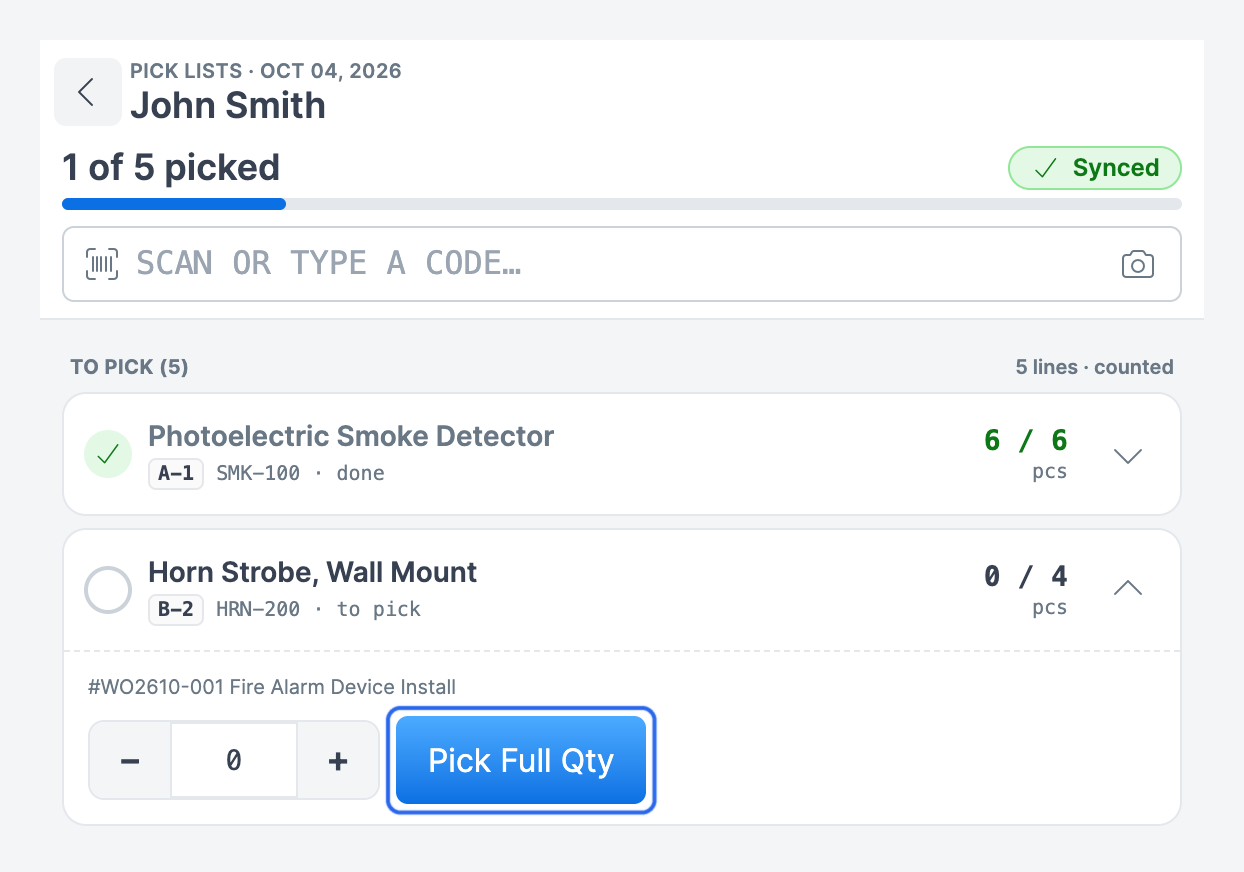
Tap Confirm Pick. If anything is short, tap Go Get Them to keep picking, or Confirm With Shorts to finish. When you pick for one technician, Forz then opens the next technician who still needs picking, or returns to the Pick Lists page when everyone is done. After Pick For All, it returns to the Pick Lists page.
Expected result: the technician's card shows Picked, or Picked · N short if lines were left short.
Each technician card moves through these statuses:
Not started — nothing picked yet.
Picking — some lines picked, not yet confirmed.
Picked — the warehouse confirmed the pick.
Loaded — the technician confirmed the load.
Once a technician has confirmed their load, the warehouse can no longer change that technician's pick.
What the technician sees after a pick
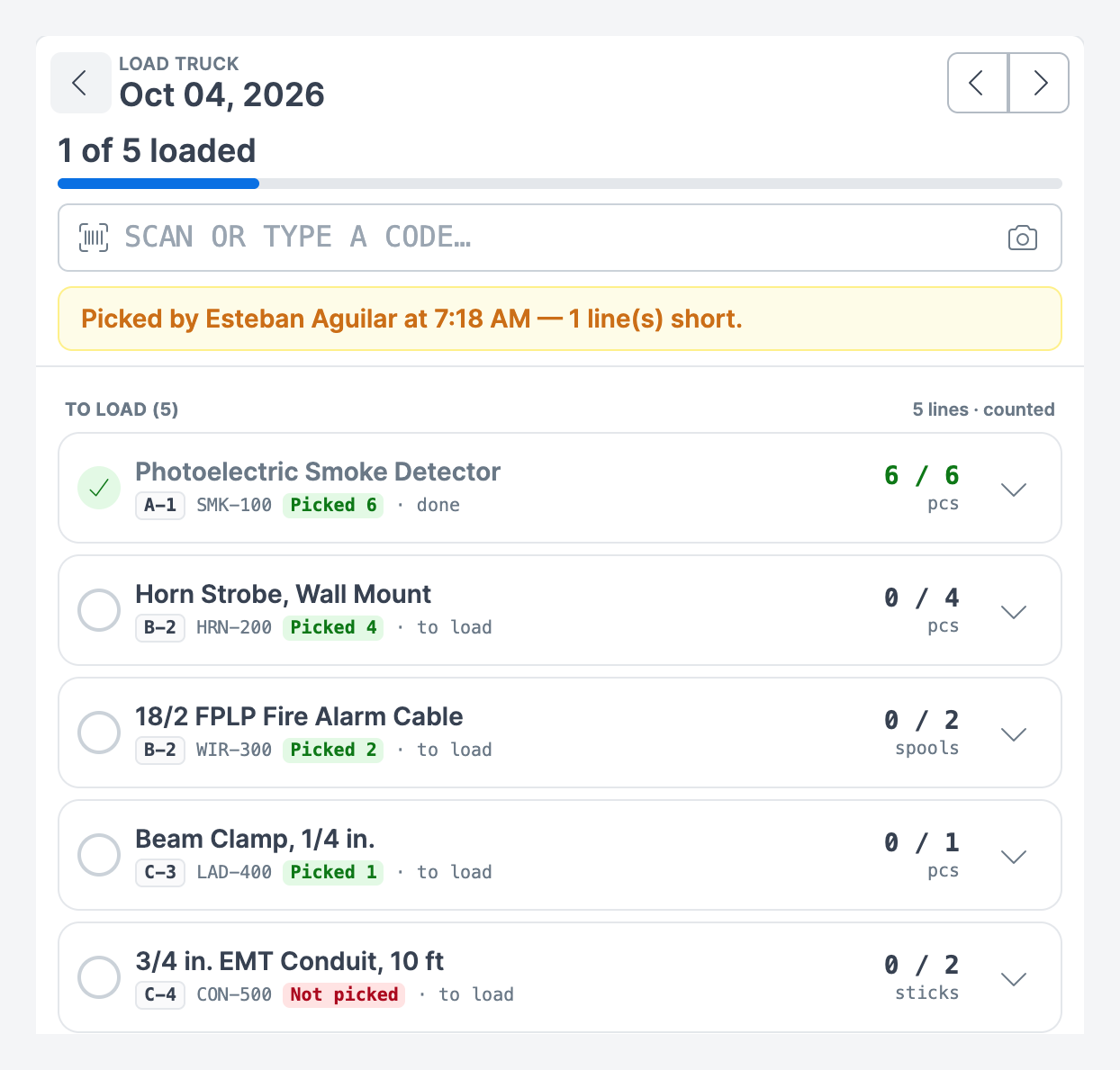
When the pick is confirmed, the Load Truck page shows a banner with who picked the parts and when, and each line shows what was picked:
Picked N (green) — the full quantity was picked.
Picked N (yellow) — only part of the quantity was picked.
Not picked (red) — the warehouse left this line short.
Added after pick (gray) — the part was added to a job after the pick was confirmed.
While the warehouse has started picking but has not confirmed yet, the Load Truck page shows Warehouse is still picking your load.
The technician verifies the parts, loads them, and confirms the load as usual. The By Aisle view is not shown, because the warehouse has already picked in bin order.
Reports
Office staff can print or export the day's requirements from Reports → Truck Load Reports:
Truck Load — the parts each job needs, per technician.
Pick Sheet — the day's job parts grouped by aisle and bin.
Both reports can be filtered by date and technician, and exported to PDF or CSV.
Permissions
Every user can open the Truck Load tab and load and confirm their own truck. Truck Load is not listed in Custom Roles.
The Pick Lists page is controlled by the Pick Lists permissions in Settings → Custom Roles. View list opens the page; Edit records and confirms picks, including Pick For All. Grant them to the roles that pick parts. The two reports are controlled by the Truck Load and Pick Sheet permissions under Report.
Known limitations
The Truck Load and Pick Sheet reports show what the jobs require. They do not show what was actually picked or loaded.
Loading does not move stock from the warehouse to the truck, and inventory levels do not change when you confirm a load.
If you reload the Load Truck page while offline, changes that had not saved yet are lost.
Still need help? Ask the team