Managing Jobs
Find, filter, update, schedule, and organize your jobs from the jobs list and job detail views.
Overview
Once jobs are created, dispatchers and admins manage them through the jobs list at Jobs in the sidebar. The list provides full-text search, column sorting, advanced filters, bulk actions, and inline editing. The job detail view gives you direct control over status, assignment, scheduling, invoicing, and every other aspect of a job's lifecycle.
The Jobs List
Navigate to Jobs in the sidebar to open the jobs list at “Jobs". The table displays the following columns:
Searching Jobs
The search bar at the top of the jobs list searche sy job number and title. Type a job number (e.g., "1042") or part of a job title to find matching results instantly.
Filtering Jobs
Click the Filter button to open the filter panel. Combine multiple filters to narrow your list:
When you open the jobs list from a customer, project, site, or ticket record, the list automatically filters to show only jobs linked to that record.
Bulk Actions
Select multiple jobs using the checkboxes in the list, then use the bulk action toolbar to perform operations across all selected jobs at once.
Updating Job Details
Open a job by clicking its row in the jobs list. The detail view uses a two-column layout with inline editing on key fields.
Inline Editing
Click directly on these fields in the detail view to edit them without opening a form:
Title — click the job title text to rename it.
Job Type — click to change the job category.
Reference — click to update the external reference.
Assignee — click to reassign the job to a different technician.
Changes save automatically when you click away from the field.
Changing Status
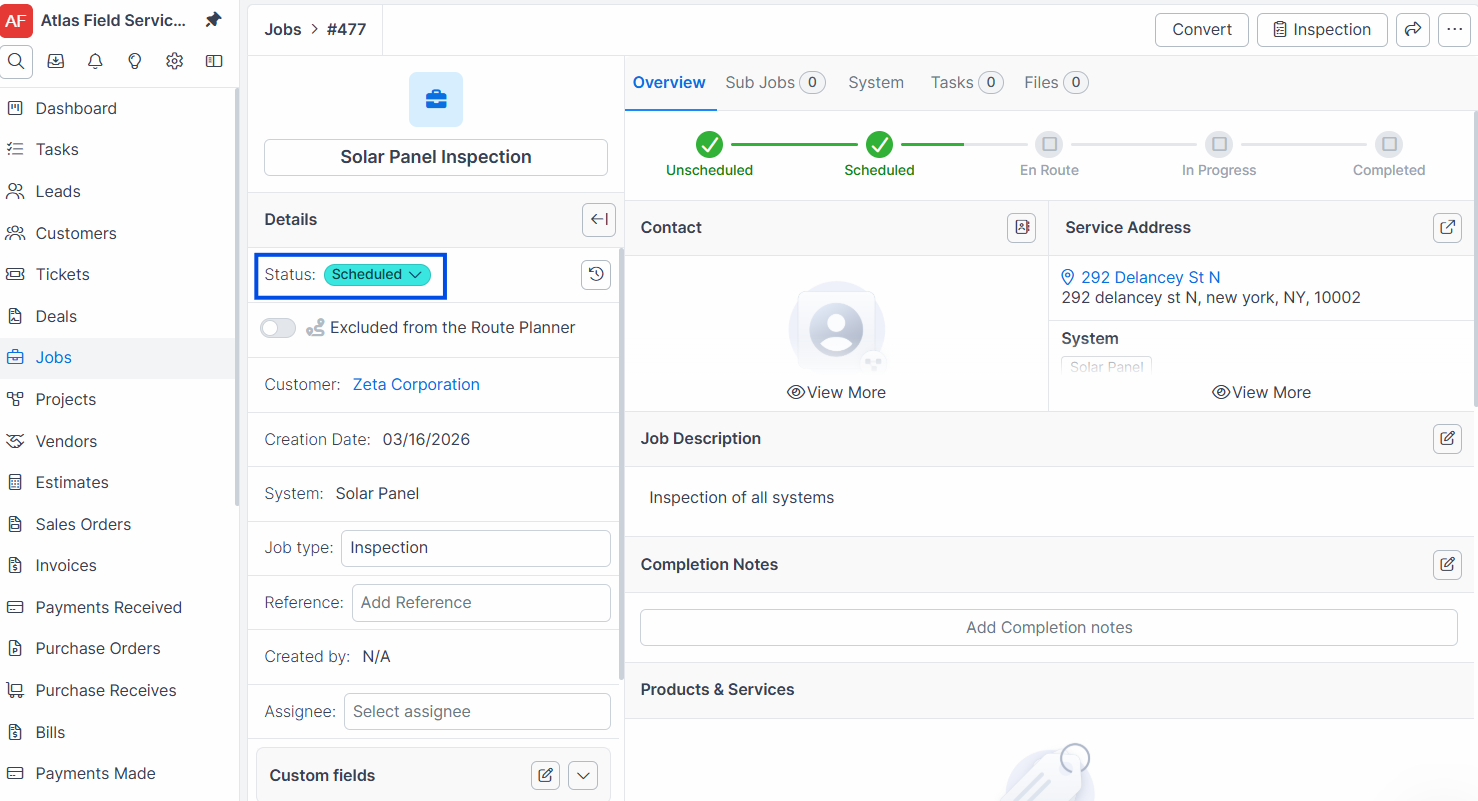
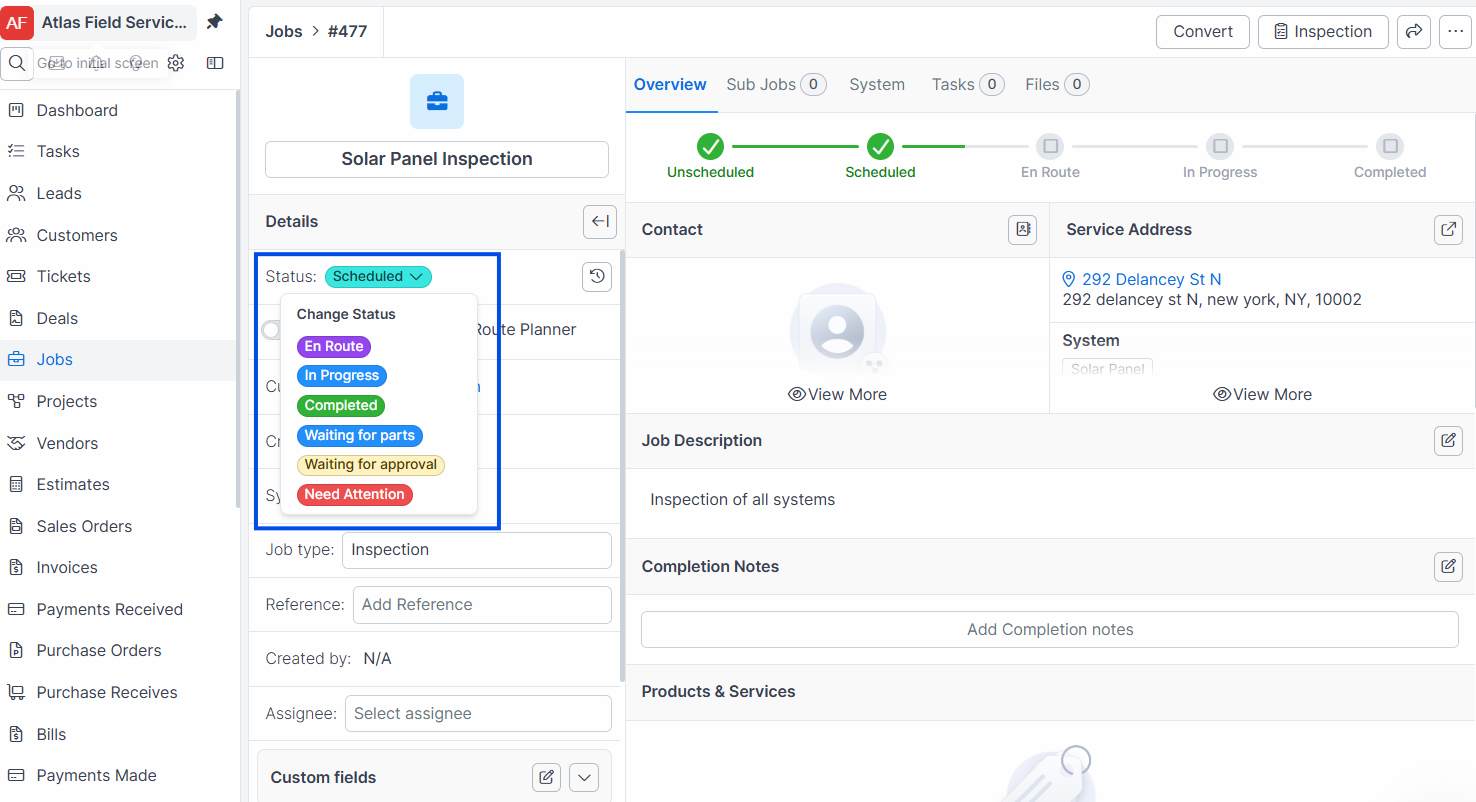
Jobs move through statuses defined in your status workflow (Settings > Job Statuses). The current status displays in the left column of the detail view.
Open the job.
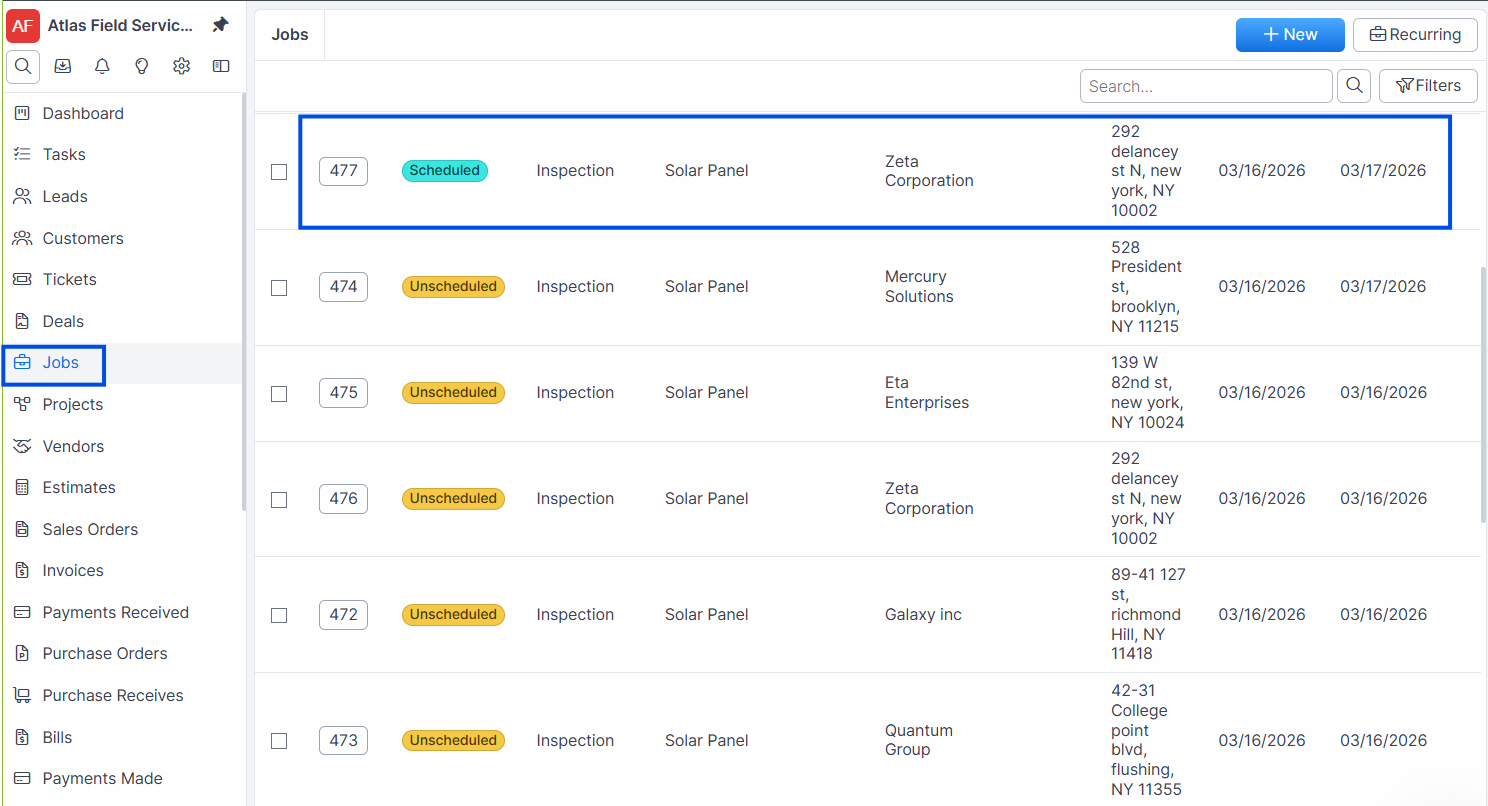
Click the Status control in the left column.
Select the next status from the available options.
Expected result: The status updates and the Status Updated timestamp records when the change occurred. Use this to track how long jobs spend in each stage.
Assigning a Technician
Open the job.
Click the Assignee field in the left column.
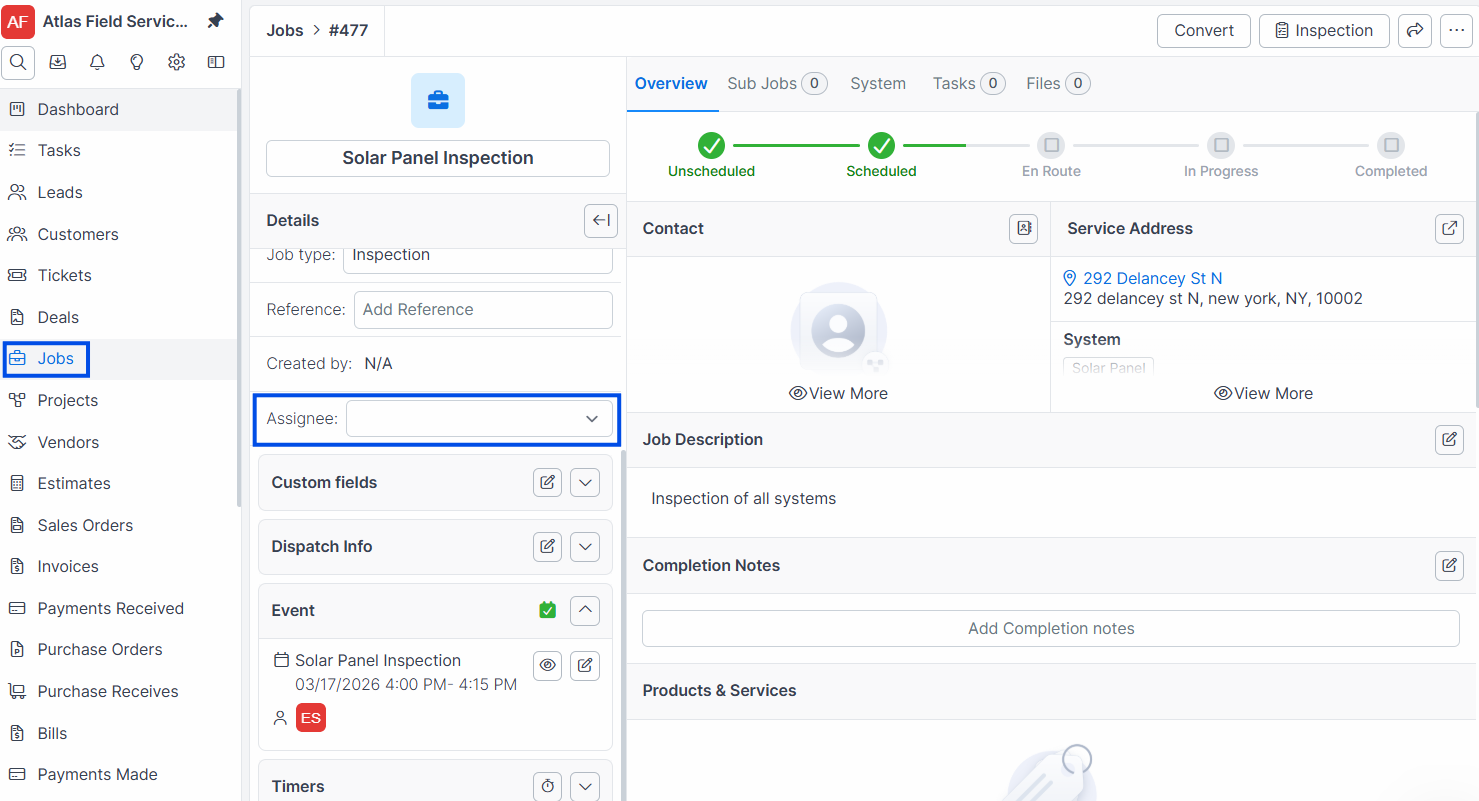
Select a technician from the dropdown.
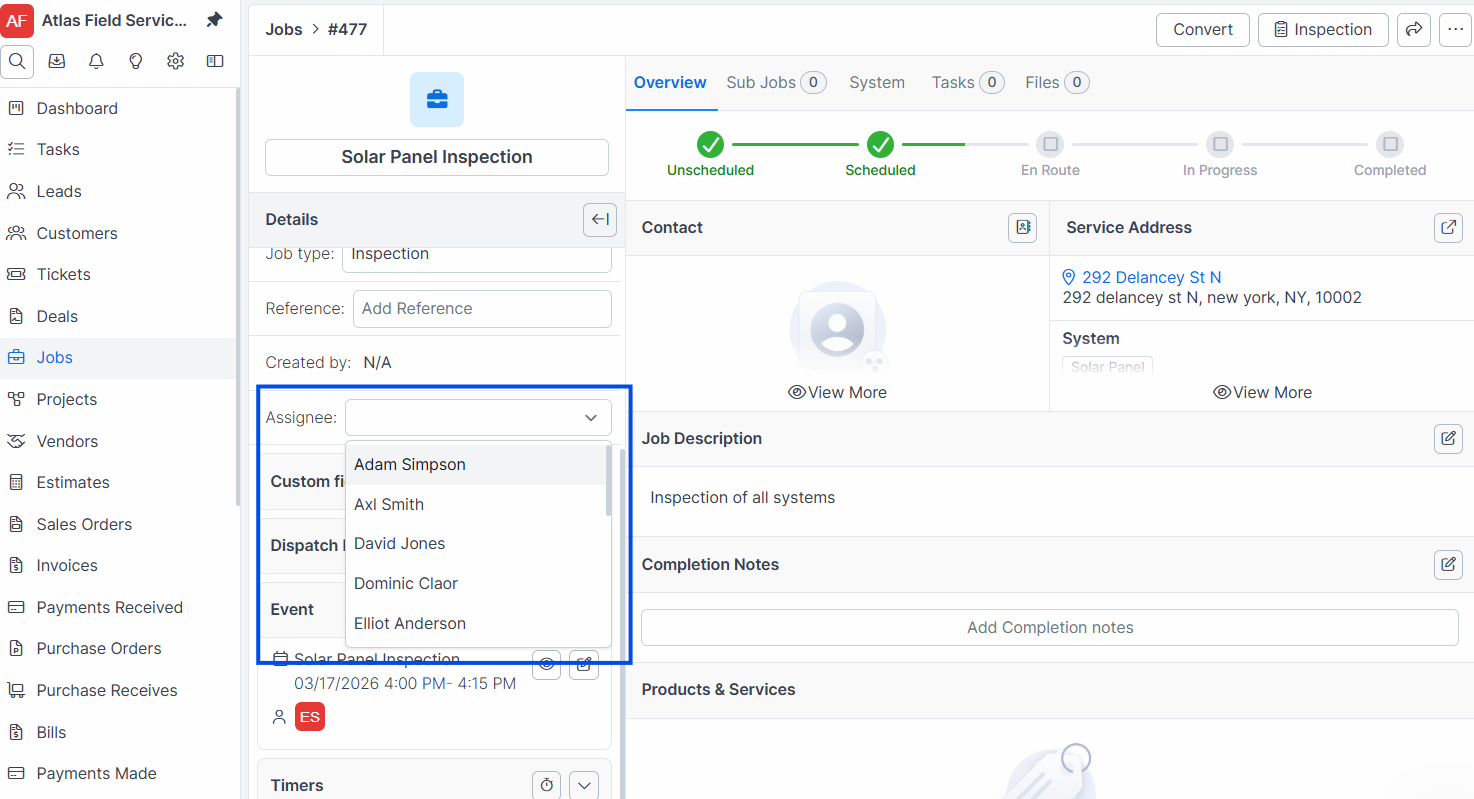
The assigned technician sees this job in their schedule and can access it from their mobile device.
Managing Labels
Labels are tags that help you organize and categorize jobs beyond the job type. Examples: "Warranty", "Follow-Up Required", "VIP Customer", "Parts on Order".
Open the job.
Click the Labels section in the left column.
Add or remove labels.
You can filter the jobs list by label to find all jobs with a specific tag.
Managing Contacts
Each job supports a primary contact and additional contacts. The primary contact is the main point of contact at the customer site. Additional contacts receive notifications or are listed for reference.
Open the job.
Locate the Contact section in the left column.
Select or change the primary contact.
Add additional contacts as needed.
Custom Fields
If your organization has configured custom fields for jobs (Settings > Custom Fields), they appear in the left column of the detail view. Fill in custom fields the same way you edit other job details.
Scheduling Jobs
Schedule a job to assign it a date, time, and technician on the calendar.
Schedule from Form View
Open the job.
Click the calendar icon next to Event in the left column.
Select Form View.
Choose a date, start time, end time, and assign one or more technicians.
Click Save.
Schedule from Calendar View
Open the job.
Click the calendar icon next to Event.
Select Calendar View.
The calendar opens with the job ready to place. Click a time slot or drag to set the duration.
Assign a technician and save.
AI Schedule Suggestions
Forz can suggest optimal time slots based on technician availability, location proximity, and estimated travel time.
Open the job.
Click Schedule Suggestions (or the AI scheduling option).
Review the suggested time slots. Each suggestion shows the technician, date, time, and estimated travel time.
Select a suggestion to apply it, or dismiss and schedule manually.
Schedule suggestions account for:
Technician availability and existing calendar entries
Geographic proximity to reduce travel time between jobs
Required skills matching
Viewing Scheduled Events
Scheduled events appear in the Events section of the left column on the job detail view. Each event shows the date, time, and assigned technicians.
Route Planner
The Routable toggle controls whether a job appears in the Route Planner for dispatch optimization.
The Routable toggle can only be changed when the job status is Unscheduled.
Enable Routable to include the job in route planning and dispatch optimization.
Disable Routable to exclude the job from the Route Planner (for jobs that do not require field dispatch).
Removing a Job from the Route Planner
Open the job.
Ensure the status is Unscheduled.
Toggle Routable off.
The job no longer appears in the Route Planner but remains in the jobs list.
Online Bookings
Jobs can also arrive from a customer picking an arrival window on your public request form or in the Customer Portal. Forz creates the ticket, the job and the calendar event together, and assigns a technician for the window the customer chose.
If your account confirms bookings automatically, the job is scheduled straight away. If not, the job page shows a pending-booking banner with Accept and Decline.
Accept — confirms the visit and emails the customer the window.
Decline — releases the window, discards the event and returns the job to Unscheduled.
Anyone who can edit a job can accept or decline a booking. A booking nobody acts on is released automatically after the time limit set in your portal settings, and the customer is told.
Note: the job page shows the technician's actual event time. The wider arrival window the customer was promised is what appears in their portal and confirmation email, and it does not change if you later adjust your booking hours.
See Service Requests & Online Booking for the full flow.
Activity Timers
Activity timers track time spent on a job. Technicians start and stop timers from the job detail view to log labor hours.
Open the job.
Locate the Timers section in the left column.
Start a timer when work begins. Stop it when work pauses or completes.
Timer data feeds into reporting and can be used for billing.
Job Detail Tabs
The right column of the job detail view contains tabs for different aspects of the job:
Generating Invoices and Estimates
Generate an Invoice
Open the job and go to the Overview tab.
Add products and services (line items) with quantities and prices.
Click Generate Invoice.
Forz creates a draft invoice and copies all line items from the job.
Warning: Each job supports one invoice. If an invoice already exists (even as a draft), the Generate Invoice button does not appear.
Generate an Estimate
Open the job and go to the Overview tab.
Add products and services with quantities and prices.
Click Generate Estimate.
Forz creates a draft estimate with the job's line items.
Note: The estimate is created as a draft with a 30-day expiration from today's date.
Printing and PDF Export
Generate a printable PDF of the job for paper records, customer sign-off, or email attachments.
Open the job.
Click the Print or PDF option.
The system generates a formatted PDF of the job details, line items, and relevant information.
Deleting and Recovering Jobs
Jobs use soft delete. Deleting a job moves it to the trash bin rather than permanently removing it.
Delete a Job
Open the job.
Click the Delete option.
Confirm the deletion.
The job moves to the trash bin and no longer appears in the active jobs list.
Recover a Deleted Job
Navigate to the Trash Bin.
Find the deleted job.
Click Restore.
The job returns to the jobs list with its previous status and data intact.
Common Scenarios
Dispatching a morning route for a technician
Go to Jobs and filter by Status: Unscheduled and Assignee: [technician name].
Review the unscheduled jobs and use Schedule Suggestions on each to find optimal time slots.
Accept the suggested schedule or adjust manually via Calendar View.
Enable the Routable toggle on each job so they appear in the Route Planner.
Tracking overdue maintenance jobs
Go to Jobs and filter by Due Date with an end date of today.
Filter by Status and exclude completed statuses.
The resulting list shows all jobs past their due date that are still open.
Reassign or reschedule as needed.
Organizing warranty work with labels
Open each warranty job and add the Warranty label.
From the jobs list, filter by Label: Warranty to see all warranty work in one view.
Use bulk actions to update statuses or reassign jobs across the filtered set.
Handing off a job to another technician
Open the job.
Click the Assignee field and select the new technician.
If the job is already scheduled, open the event and update the assigned technician on the calendar entry.
The new technician sees the job in their schedule immediately.
Troubleshooting
Was this helpful?
Still need help? Ask the team