Recurring Jobs
Create a recurring schedule from an existing job or from Jobs → Recurring → New, then manage Next Date, Frequency, and upcoming generations.
Overview
A recurring job defines a schedule that tells Forz to create new jobs automatically at set intervals. Each time the schedule triggers, Forz generates a standard job with the configured details — customer, service address, assignee, description, and products and services. The generated job enters your normal job workflow and can be scheduled, dispatched, and invoiced like any other job.
You can create a recurring schedule in two ways:
From an existing job, using the Recurring card and Make Recurring.
From the recurring list at Jobs → Recurring → New.
Once the schedule is set, Forz handles the repeating work so you do not have to recreate the same job by hand each week or month.
Before You Begin
Prerequisites:
Your role includes the recurring-job permissions you need to view, create, or edit recurring jobs.
At least one customer record exists, with a service address.
Job types are configured (Settings → Job Types) when you create from the Recurring list.
To use Make Recurring, open an existing job that already has a customer and service address.
Make a job recurring
Use this path when you already have a job with the right customer, address, assignee, description, and line items. Forz carries those details into the recurring template so you do not re-enter them.
Open an existing Job.
In the details column, find the Recurring card. When the job is not linked to a schedule, it shows Not recurring and a Make Recurring control.
Click Make Recurring.
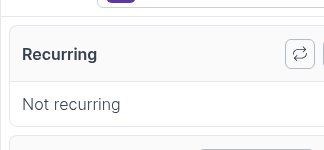
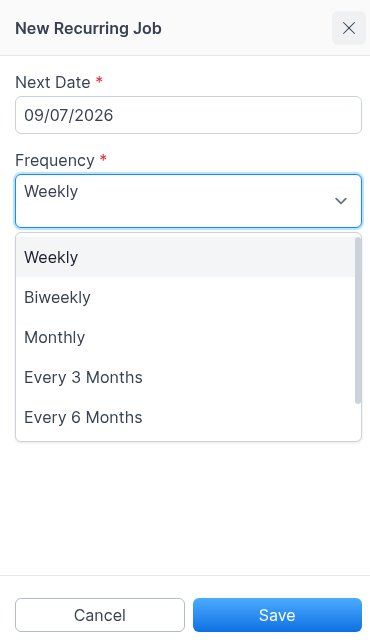
The New Recurring Job dialog opens.
Review or set Next Date — when the next job should generate.
Choose a Frequency: Weekly, Biweekly, Monthly, Every 3 Months, Every 6 Months, or Yearly.
Click Save to create the recurring template, or Cancel to close without creating one.
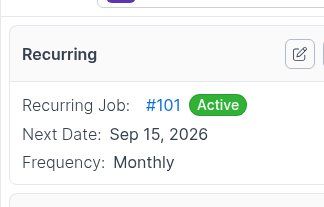
Expected result: Forz opens the recurring template. The source job's Recurring card now shows the linked recurring job number, Active or Inactive status, Next Date, Frequency, and Edit Schedule.
Note: Monthly schedules keep their intended day through shorter months. For example, a schedule on January 31 generates on February 28 (or 29 in a leap year), then March 31, then April 30.
Create from the Recurring list
Use this path when you want to start a recurring template without an existing source job.
Click Jobs in the sidebar.
Click Recurring to open the recurring jobs list.
Click New.
Select a Customer and Service Address (required).
Select a Job type (required).
Optionally enter a Description. This text copies into each generated job.
Set Frequency to Weekly, Biweekly, Monthly, Every 3 Months, Every 6 Months, or Yearly.
Set Next Date for the first generation.
Optionally set an End Date if the schedule should stop. Leave it blank for an indefinite schedule.
Click Save.
Optionally add products and services. Line items on the template copy into each generated job.
Expected result: Forz begins generating jobs according to the schedule. Each generated job receives its own job number and enters the first status in your workflow.
On the job: Recurring card
After a job is linked to a recurring template, the Recurring card on the source job shows:
The recurring job number (a link to the template)
Active or Inactive status
Next Date
Frequency
Edit Schedule (pencil control)
Edit Schedule
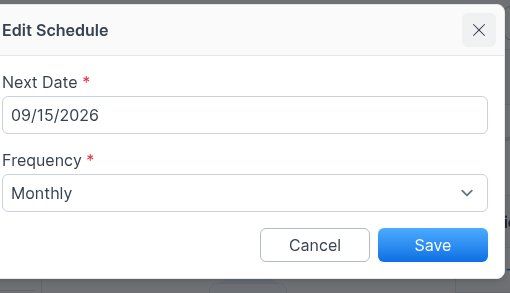
On the job's Recurring card, click Edit Schedule.
Update Next Date and/or Frequency.
Click Save. Forz returns you to the same job with the updated schedule details.
Open the template
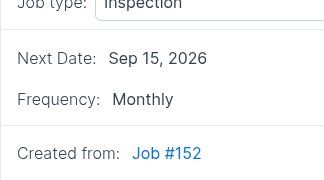
Click the recurring job number on the card to open the template. The template shows Created from: Job #N, which links back to the source job.
Managing recurring jobs
View upcoming generations
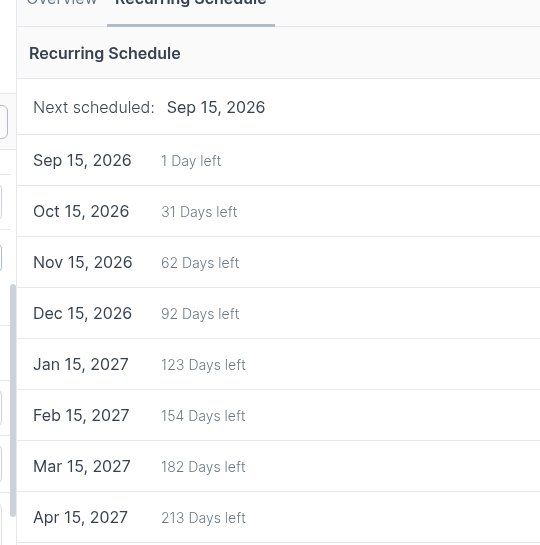
Open the recurring template (from the Recurring list, or from the job number on a linked Recurring card).
Open the Recurring Schedule tab to review upcoming dates.
Edit the template
Open the recurring job you want to change.
Update job details, line items, or use Edit Schedule for Next Date and Frequency.
Save your changes.
Changes apply to future generated jobs only. Jobs already generated are not affected.
Make Inactive (pause)
Open the recurring template.
Choose Make Inactive (or set an end date that has already passed, if you use one on the full form).
No new jobs generate while the recurring job is inactive. Reactivate it when you want the schedule to resume.
Delete a recurring job
Open the recurring job.
Click Delete.
Confirm the deletion.
Deleting a recurring job stops all future generations. Jobs already generated remain in the system and are not deleted.
Common Scenarios
Monthly preventive maintenance contract
A property management company has a 12-month HVAC maintenance agreement. Create a recurring job with job type set to Maintenance, frequency set to Monthly, next date set to the contract start, and an end date set to the contract end if needed. Add standard PM line items (filter replacement, system check). Forz generates one job per month — dispatchers assign a technician and schedule.
Weekly pool service route
A pool service company maintains residential pools on weekly schedules. Create a recurring job for each customer with frequency set to Weekly. Forz generates the week's pool service jobs on schedule so dispatchers can batch-assign them.
Every 3 Months fire safety inspections
A fire protection company inspects commercial sprinkler systems every quarter. Create a recurring job with job type set to Inspection and frequency set to Every 3 Months, and include line items for inspection labor and standard parts. Each cycle a new inspection job appears, ready to schedule.
Yearly backflow testing
A plumbing company performs annual backflow preventer tests required by local code. Set the frequency to Yearly with a next date that matches the customer's compliance deadline. Forz generates the job with lead time for scheduling, and the line items can include the standard test fee and certification paperwork.
Troubleshooting
Was this helpful?
Still need help? Ask the team