Email Account
Connect your own mailbox to log emails with contacts in Forz and send emails as yourself.
Overview
An email account connects your own mailbox (Gmail, iCloud, Yahoo, GoDaddy, or any provider with IMAP and SMTP) to Forz. Once connected, Forz does two things:
Logs your emails with contacts — emails you send to or receive from a Forz contact appear in that contact's Communication History, with their attachments, so your team sees the whole conversation.
Sends as you — emails you send from Forz, including replies and invoices, estimates, or other documents, go out from your own address and land in your mailbox's Sent folder.
Forz only saves emails with your company's Forz contacts. Mail with anyone who is not a contact is never stored.
Before You Begin
Prerequisites:
The Email Accounts module is enabled (Settings → Modules). It is marked Beta.
An app password for your mailbox. Gmail, iCloud, and Yahoo require one instead of your normal password, and the connect form links to the page where you create it. GoDaddy uses your normal email password.
Connecting your mailbox
Click your name at the bottom of the sidebar to open the profile menu.
Click Email account. The Email Account window opens.
Enter your Email address. Forz picks the Provider for Gmail, iCloud, and Yahoo addresses. For GoDaddy or any other provider, select it yourself.
Follow the steps shown for your provider, then enter the password in App password.
Leave Username blank unless your provider signs you in with something other than your email address.
If you selected Custom, enter the Incoming (IMAP) server, the Outgoing (SMTP) server, and the Outgoing port. IMAP always uses port 993.
Click Connect.
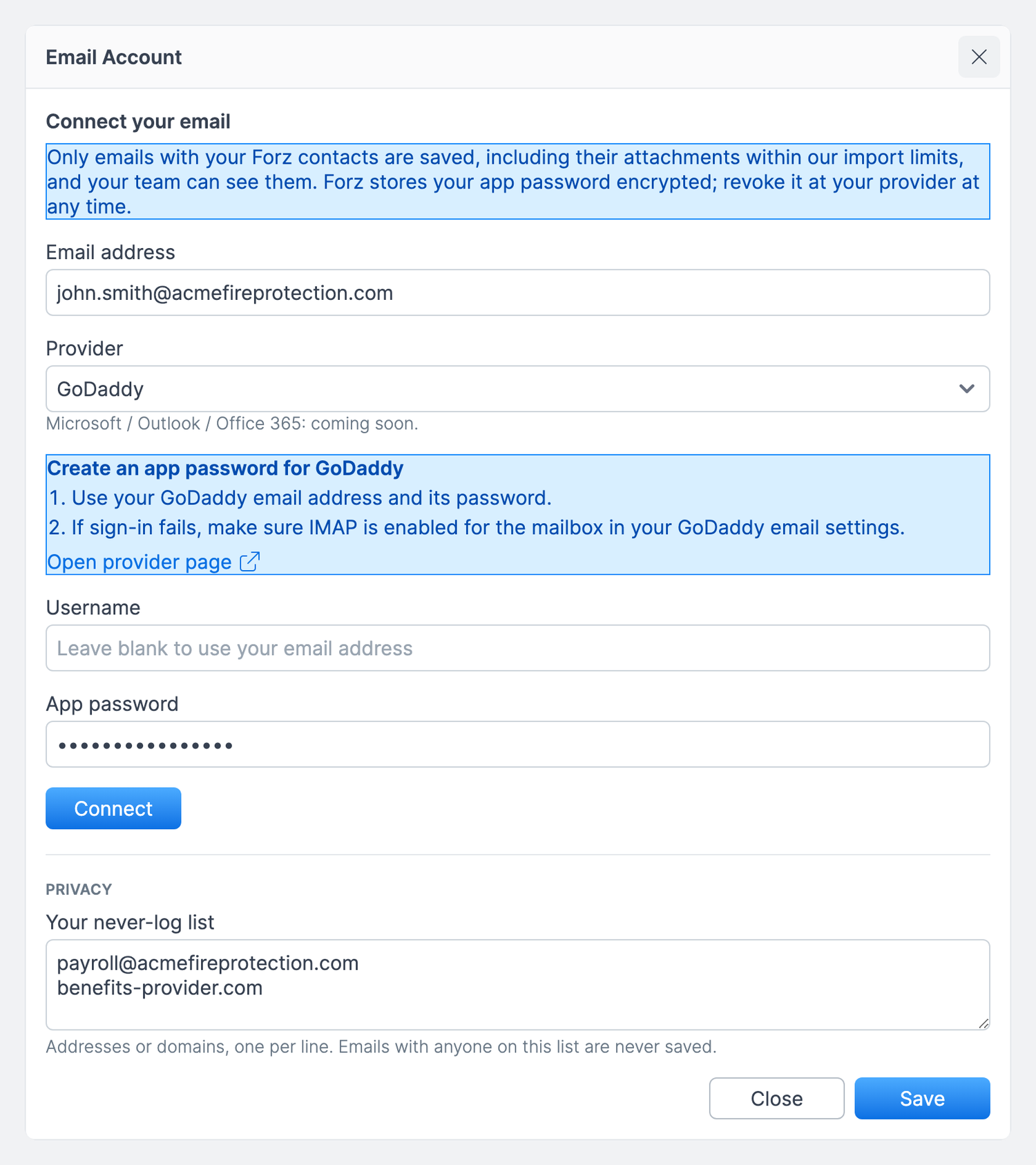
Expected result: Forz signs in to your mailbox to check the details, without sending any email, and shows Connected as your address with a green Connected badge. If the sign-in fails, nothing is saved and the error appears at the top of the window.
Managing your connection
Open Email account from the profile menu at any time to see the connection status and when your mailbox last synced.
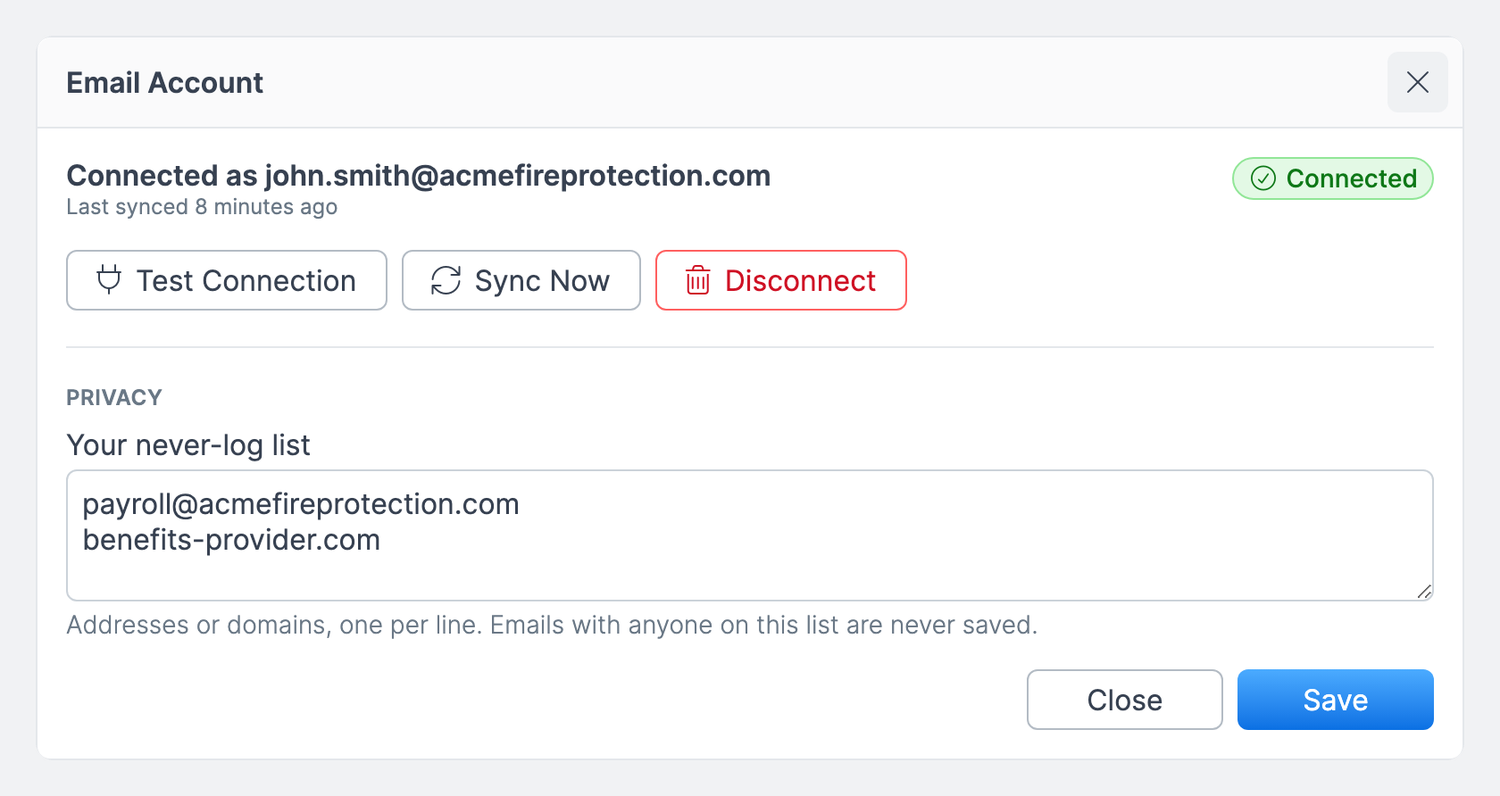
Test Connection — signs in to your mailbox again to confirm the details still work.
Sync Now — checks your mailbox for new emails right away instead of waiting for the next automatic check.
Disconnect — removes your saved app password and stops logging. Emails already logged stay on your contacts.
If your provider rejects the app password (for example, after you revoke it), the badge changes to Needs attention. Until you reconnect, Forz stops logging emails from your mailbox and sends your Forz emails from the company sender. Enter a new app password and click Reconnect.
How emails are logged
Forz checks connected mailboxes about every five minutes. It reads your Inbox and Sent folders without changing, moving, or marking any message as read. The only change is in your Sent folder: Forz adds a copy of each email you send from Forz, unless your provider (Gmail or Yahoo) files it there itself.
What is saved — an email is saved only when someone on it (From, To, or CC) matches the email address of a contact in Forz.
History — the first sync brings in matching emails from the last 90 days.
Threads — replies are grouped into one thread per conversation.
Attachments — files are imported up to 25 MB per file and 50 MB per email. Larger files show as Not imported with the reason.
Shared inbox mail — when the Conversations module is on, emails sent to or from your company's shared inbox address are skipped, because they already appear in Conversations.
Viewing logged emails on a contact
Open the contact.
Click the ⋯ menu and select Communication History.
Click a thread to expand it.
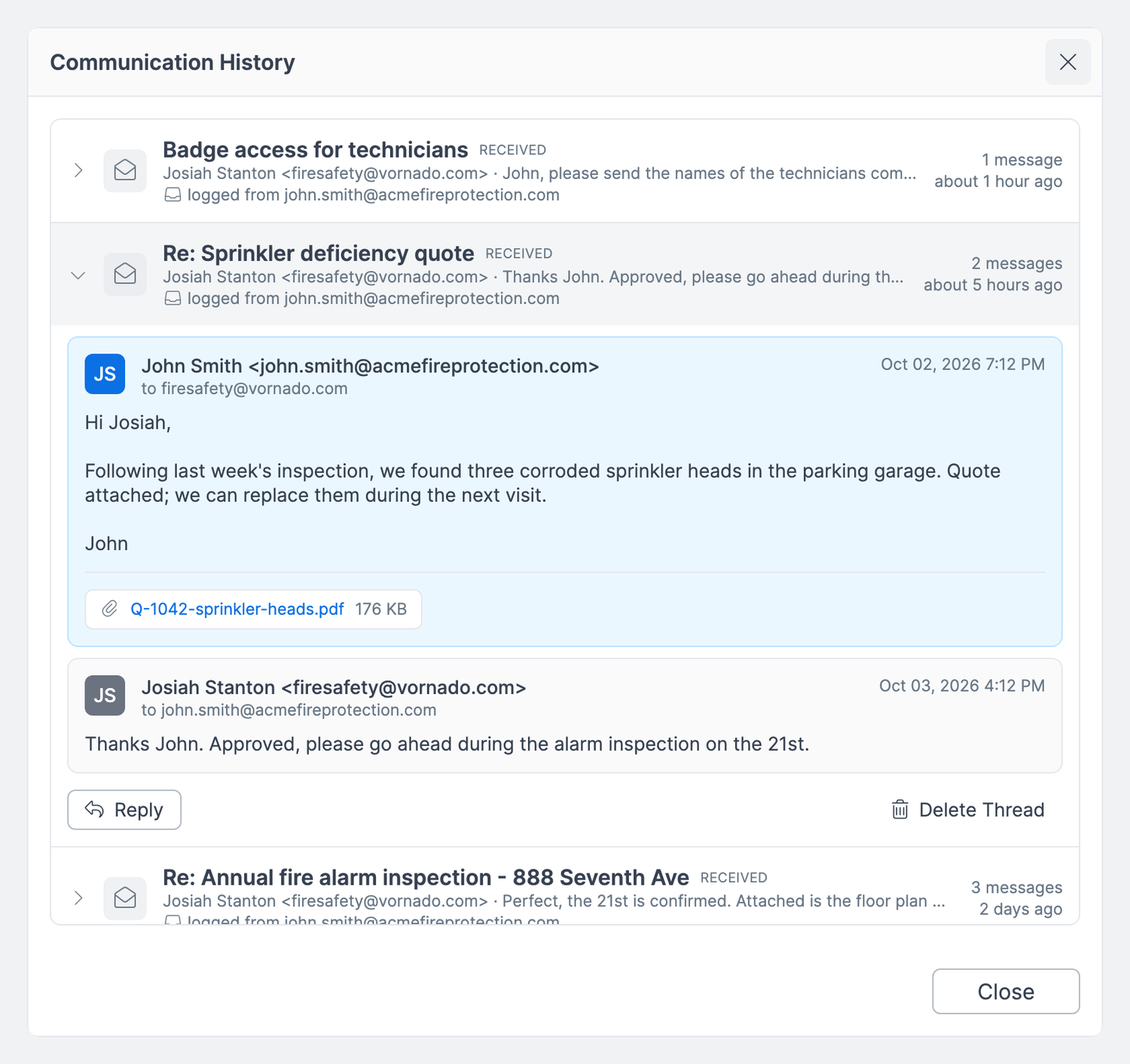
Each thread shows its subject, whether the latest message was Received, Sent, or Not sent, a preview of it, the number of messages, and the mailbox it was logged from. Expanded, it shows every message with its attachments. Click an attachment to download it.
Anyone who can view the contact can read its logged emails.
Replying to a thread
In Communication History, expand the thread.
Click Reply. The recipient and subject are filled in from the latest message.
Check the From field. It defaults to your mailbox; select Company sender to send from your company's address instead.
Write your message and click Send.
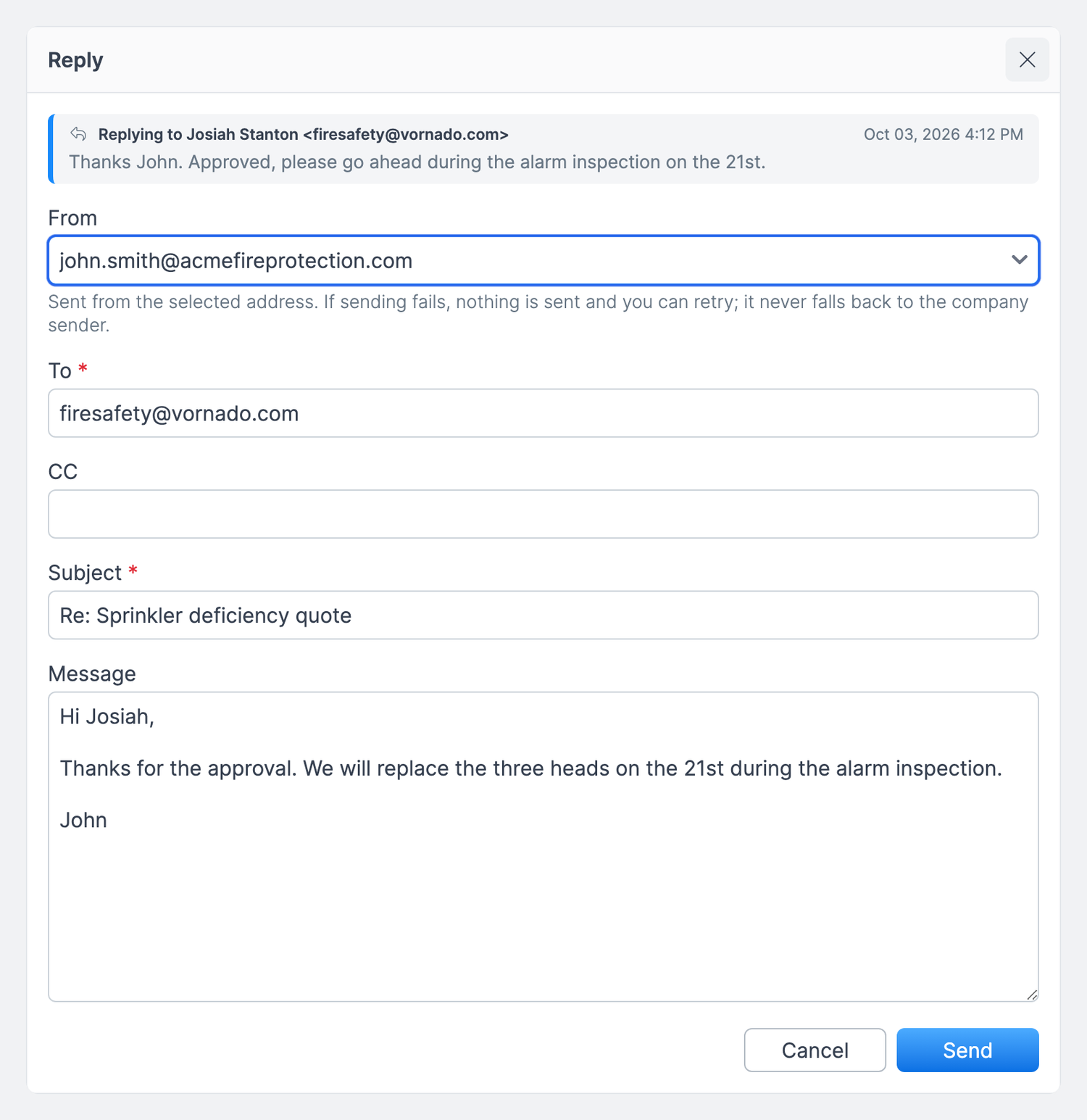
Expected result: The reply is sent from your mailbox, joins the same thread on the contact, and appears in your mailbox's Sent folder.
The same From field appears when you email an invoice, estimate, job, purchase order, or sales order. If sending through your mailbox fails, nothing is sent, the error shows on the form, and you can try again. Forz does not retry through the company sender. The failed attempt shows as Not sent in the thread.
Deleting a thread
In Communication History, expand the thread.
Click Delete Thread and confirm.
Expected result: The thread and its attachments are removed from Forz and are not logged again by later syncs. The emails stay in your mailbox. Document emails sent from the company sender, such as an emailed invoice, stay on their document.
Delete Thread appears only for people who were on the thread and for Account Admins.
Keeping emails private
Use a never-log list to stop Forz from saving emails with specific people or companies, even if they are contacts.
After you connect your mailbox, open Email account from the profile menu.
Under Privacy, enter addresses or domains in Your never-log list, one per line (for example
payroll@yourcompany.comoryourbank.com).Click Save.
Expected result: New emails with anyone on the list are not saved. Emails logged before you added them stay; delete those threads if needed.
Company settings for Account Admins
Account Admins see a Company settings section in the same window.
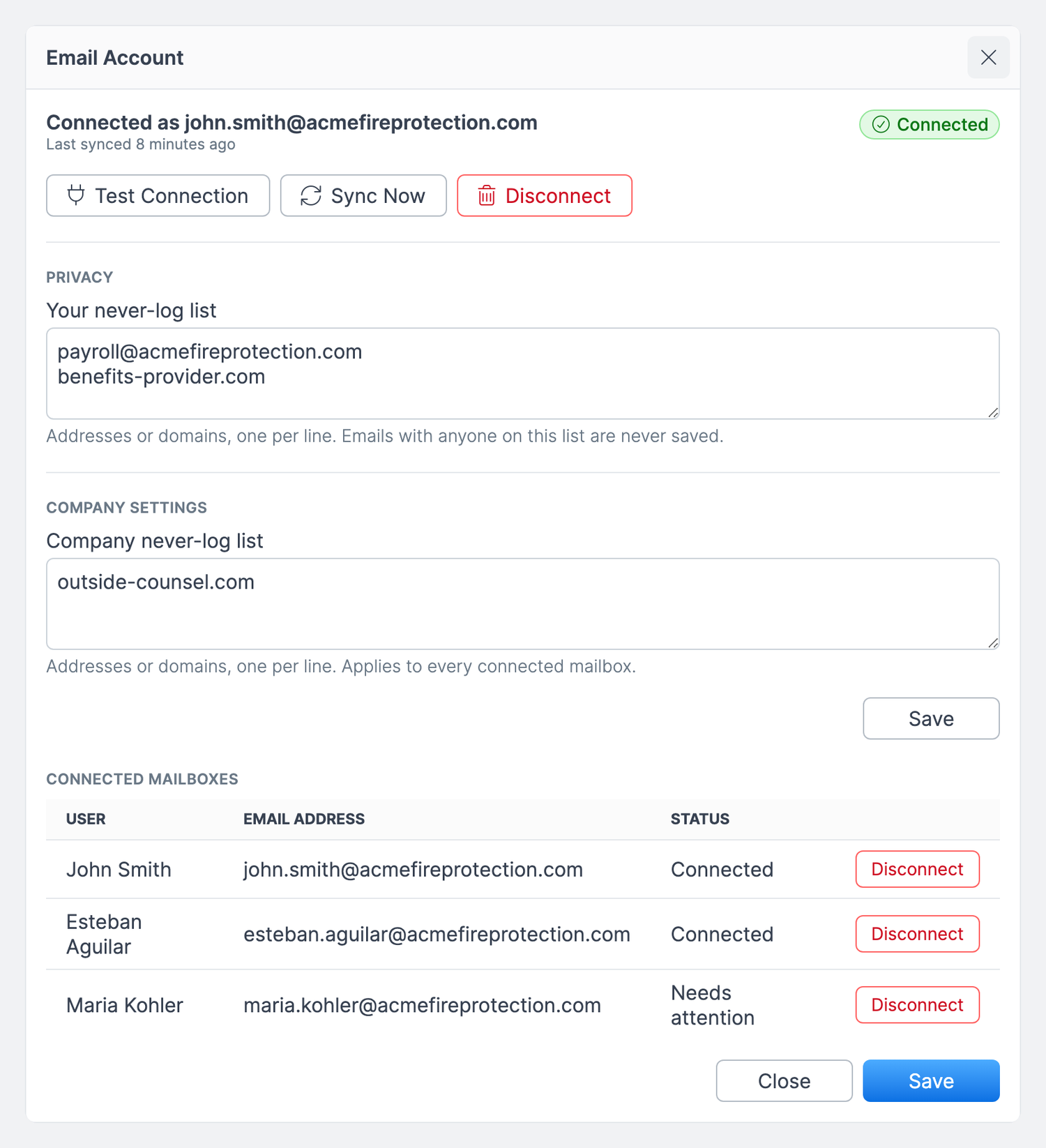
Company never-log list — addresses or domains that are never saved from any connected mailbox. Click Save under the list to apply it.
Connected mailboxes — every connected mailbox in your company with its status. Click Disconnect to disconnect someone's mailbox. Their logged emails stay on contacts.
Warning: Turning off the Email Accounts module disconnects every mailbox in your company and removes their saved app passwords. Logged emails stay on contacts. If you turn the module back on, each user must connect again.
Deactivating a user also disconnects their mailbox.
Permissions
Each user connects and manages only their own mailbox. Anyone who can view a contact can read its logged emails and download their attachments. Only people who were on a thread, and Account Admins, can delete it. Only Account Admins can edit the company never-log list and disconnect other users' mailboxes. There is no role permission to configure for this feature.
Troubleshooting
Known limitation
Microsoft accounts (Outlook and Office 365) are not supported yet.
Still need help? Ask the team