Purchase Orders
Create and manage purchase orders to track material and service purchases from vendors.
Overview
Purchase orders (POs) let you formalize material and service requests to vendors before the work begins. Each PO tracks line items, quantities, pricing, and payment terms. As items arrive, you record received quantities and generate bills for payment. POs connect your purchasing workflow to inventory and accounts payable.
Before You Begin
Prerequisites:
You have the Purchase Orders: Create permission on your role. At least one vendor exists in Purchasing > Vendors.
At least one payment term is configured in Settings > Payment Terms.
Creating a Purchase Order
Required fields
Navigate to Purchasing > Purchase Orders.
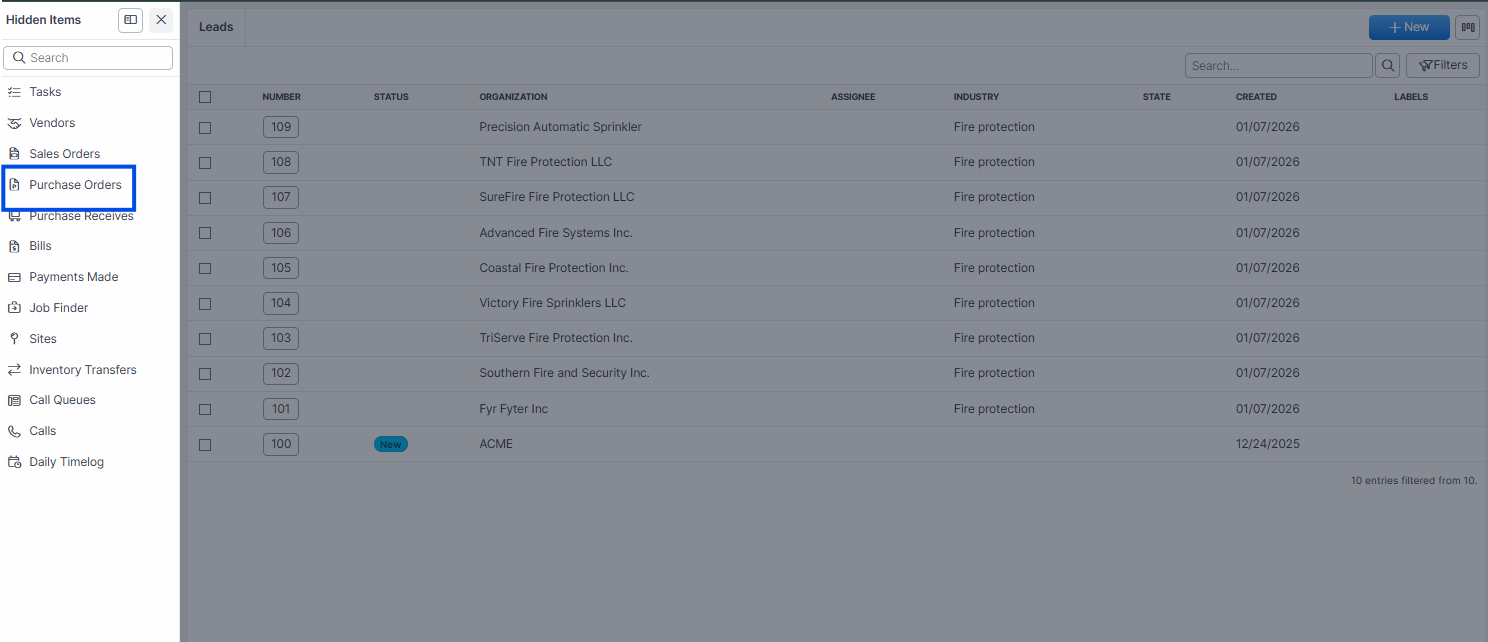
Click the + New button.
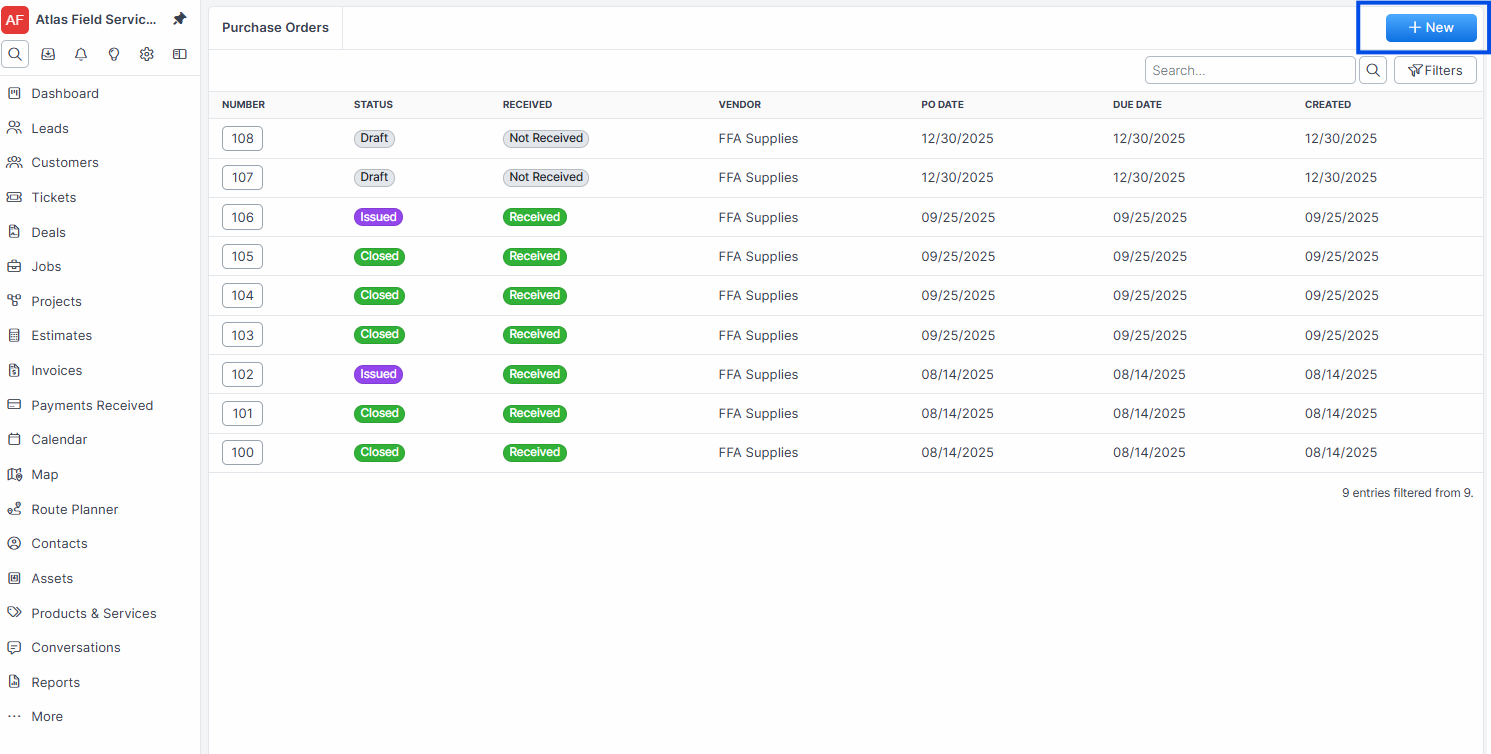
Select a Vendor from the dropdown. This links the PO to the vendor's contact and address information.
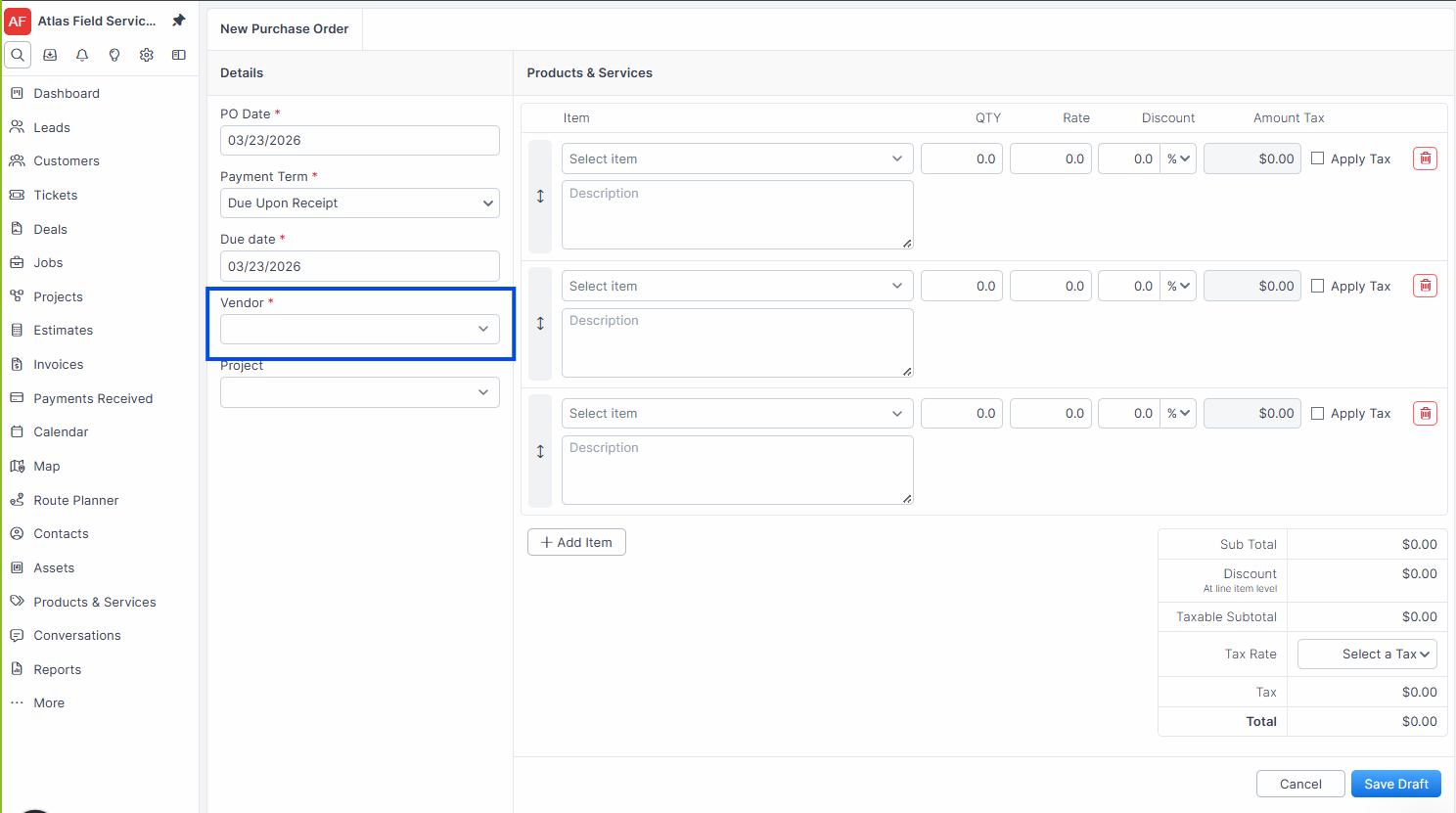
Set the PO Date to the order date. Forz defaults this to today's date.
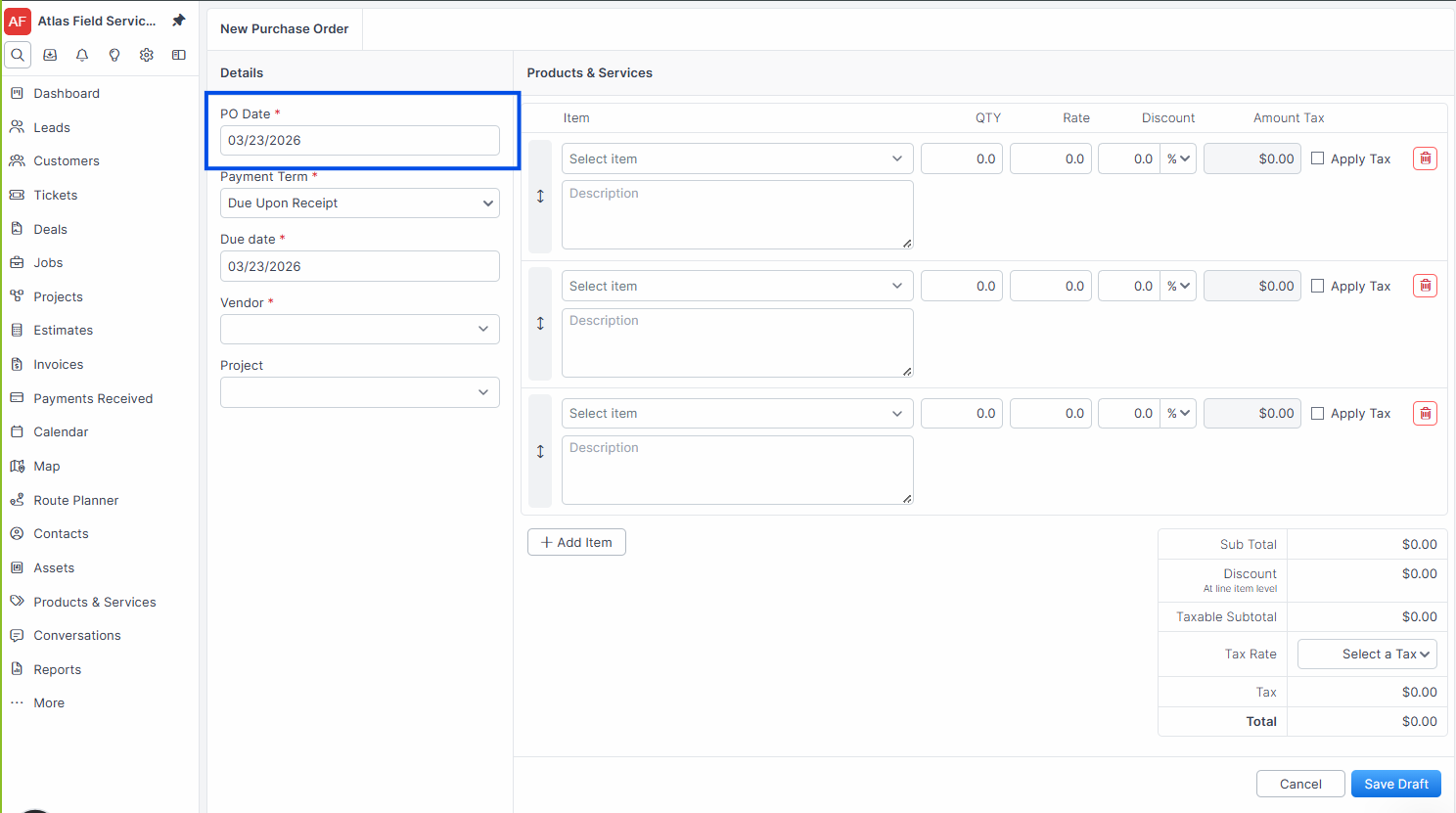
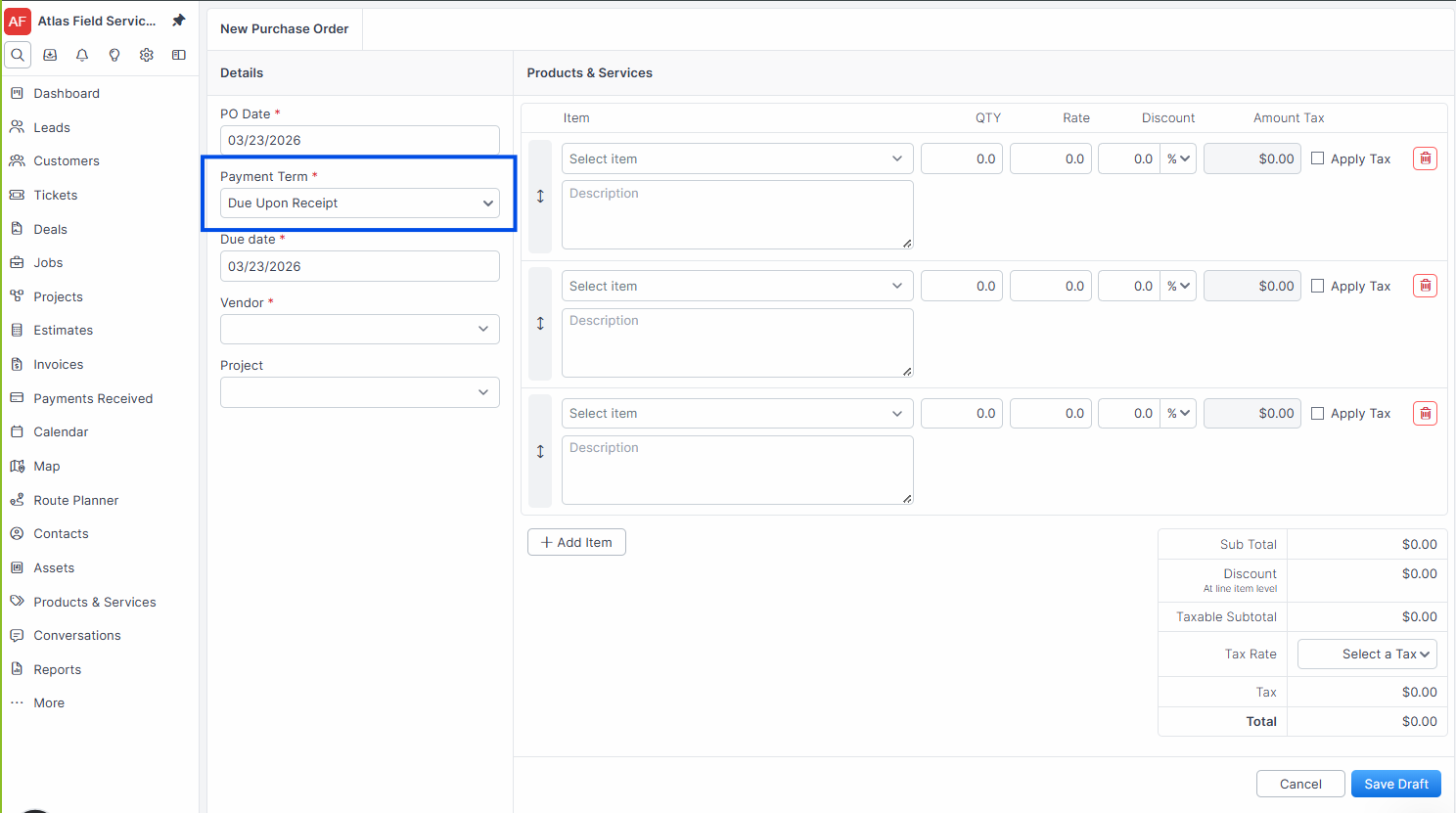
Select a Payment Term from the dropdown. Forz pre-selects your default payment term if one is configured.
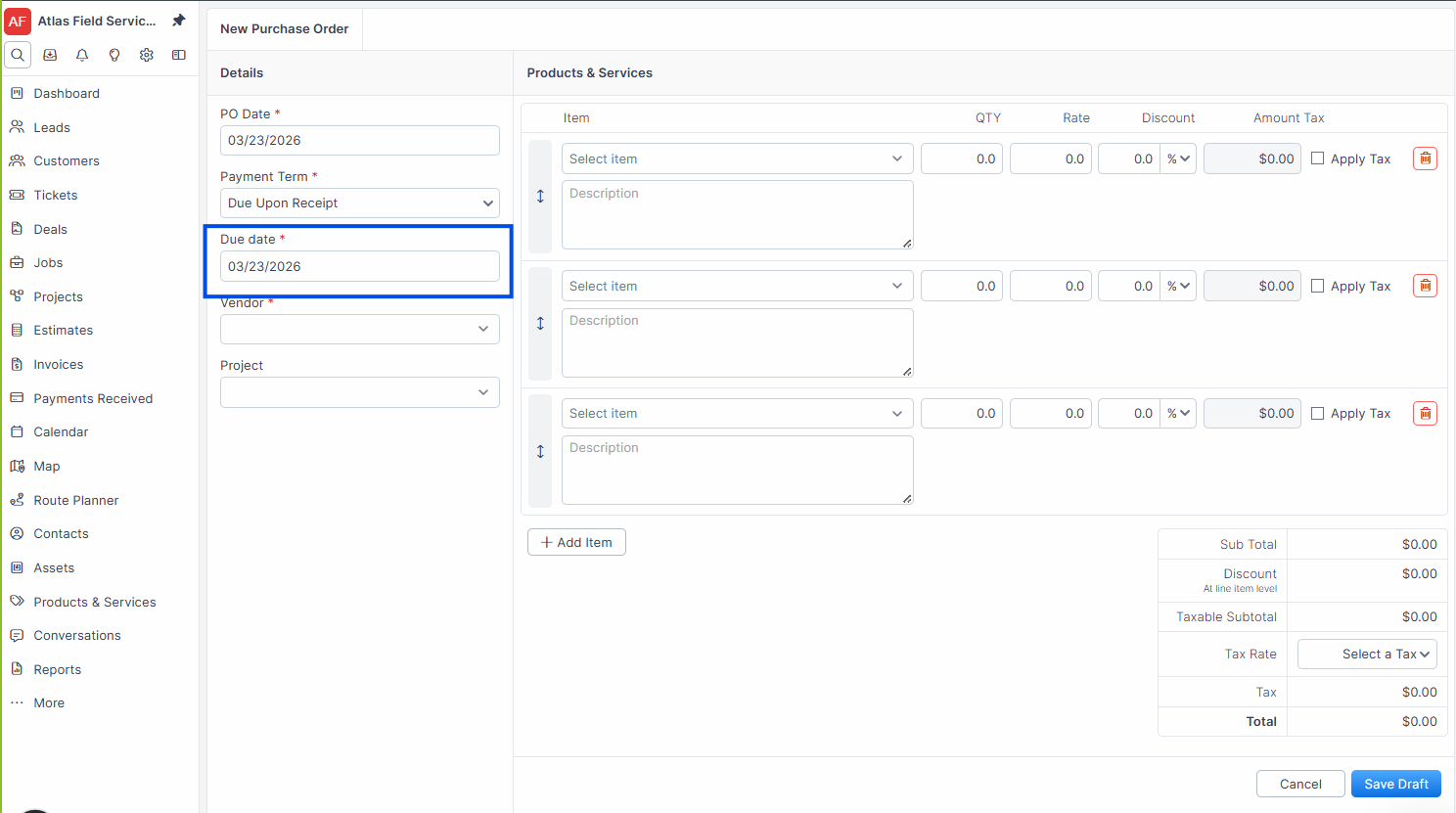
Set the Due Date for payment.
Tip: If you start from a vendor's detail page, Forz pre-fills the vendor on the new PO. Navigate to the vendor first to save a step.
Adding line items
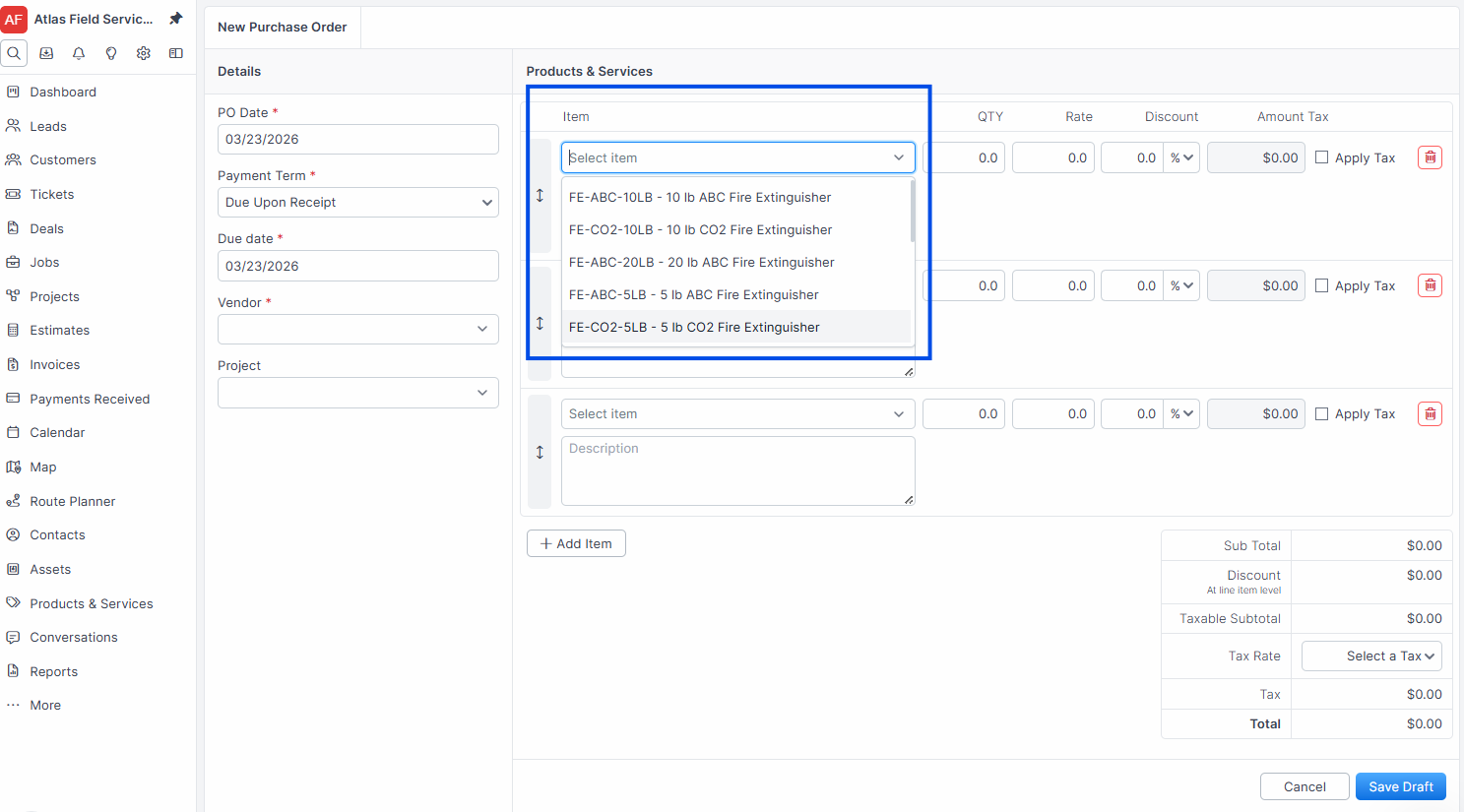
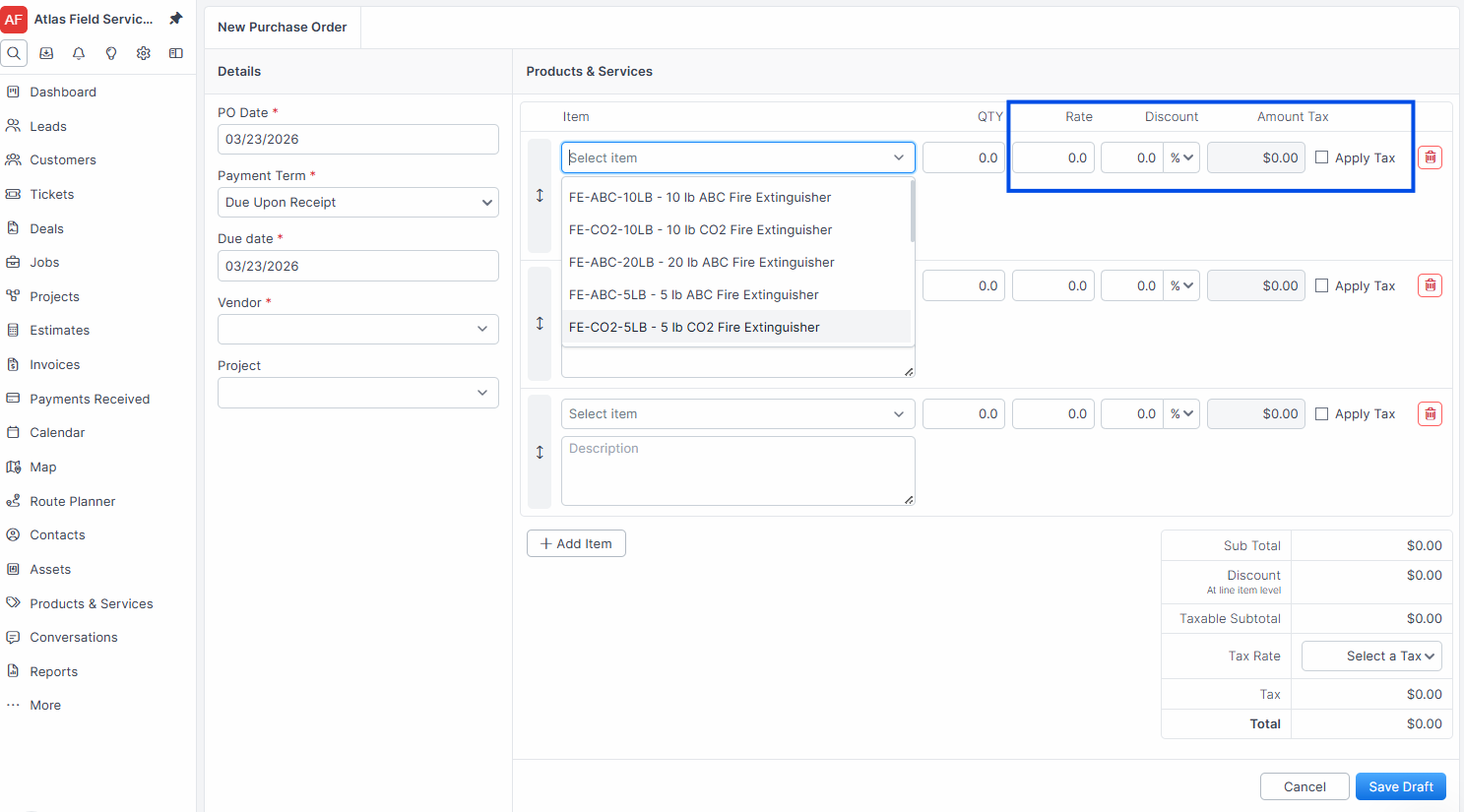
Select an Item from the line item row dropdown.
Enter the Qty (quantity) for each item.
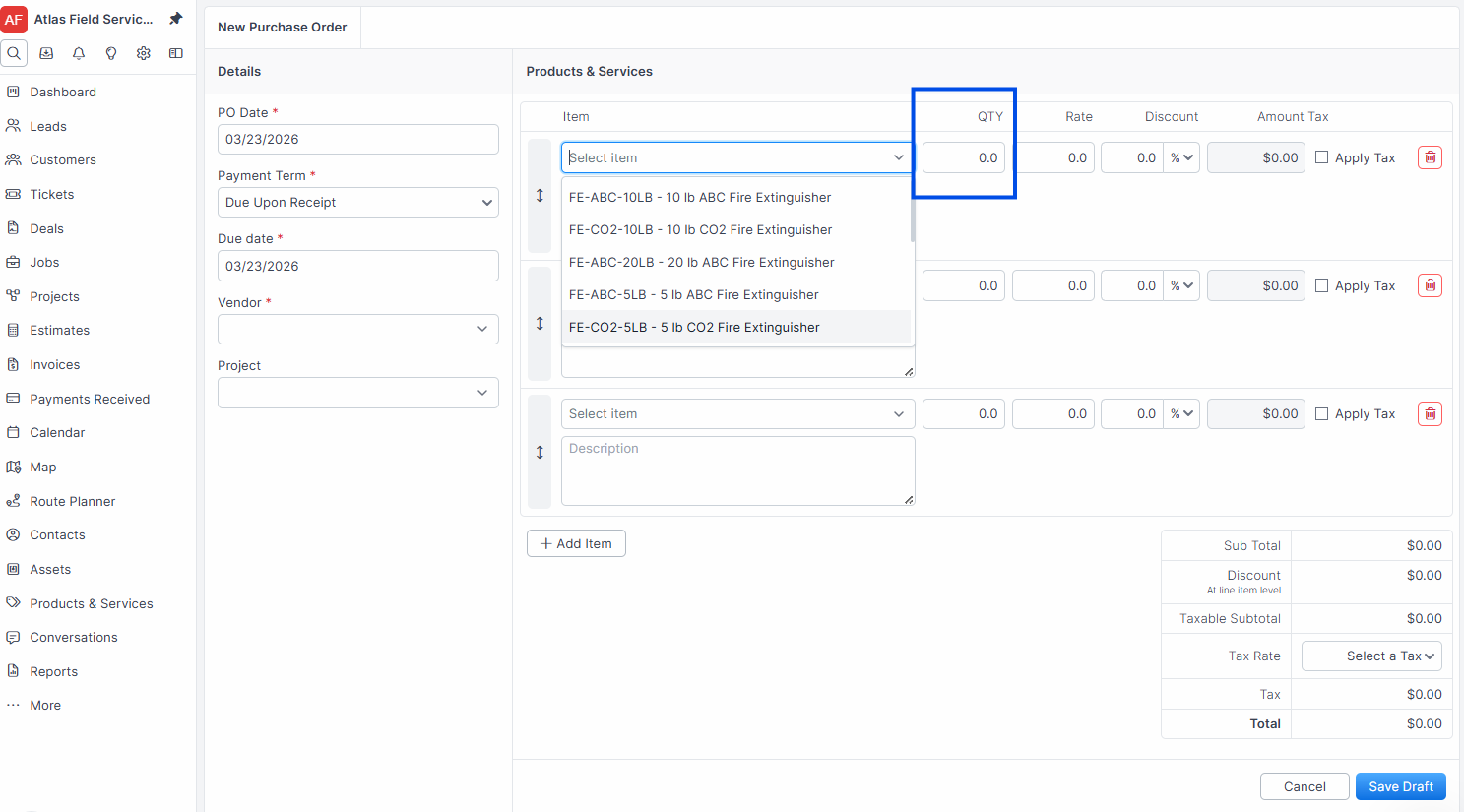
Adjust the Unit Price, Discount, and Tax Rate if needed.
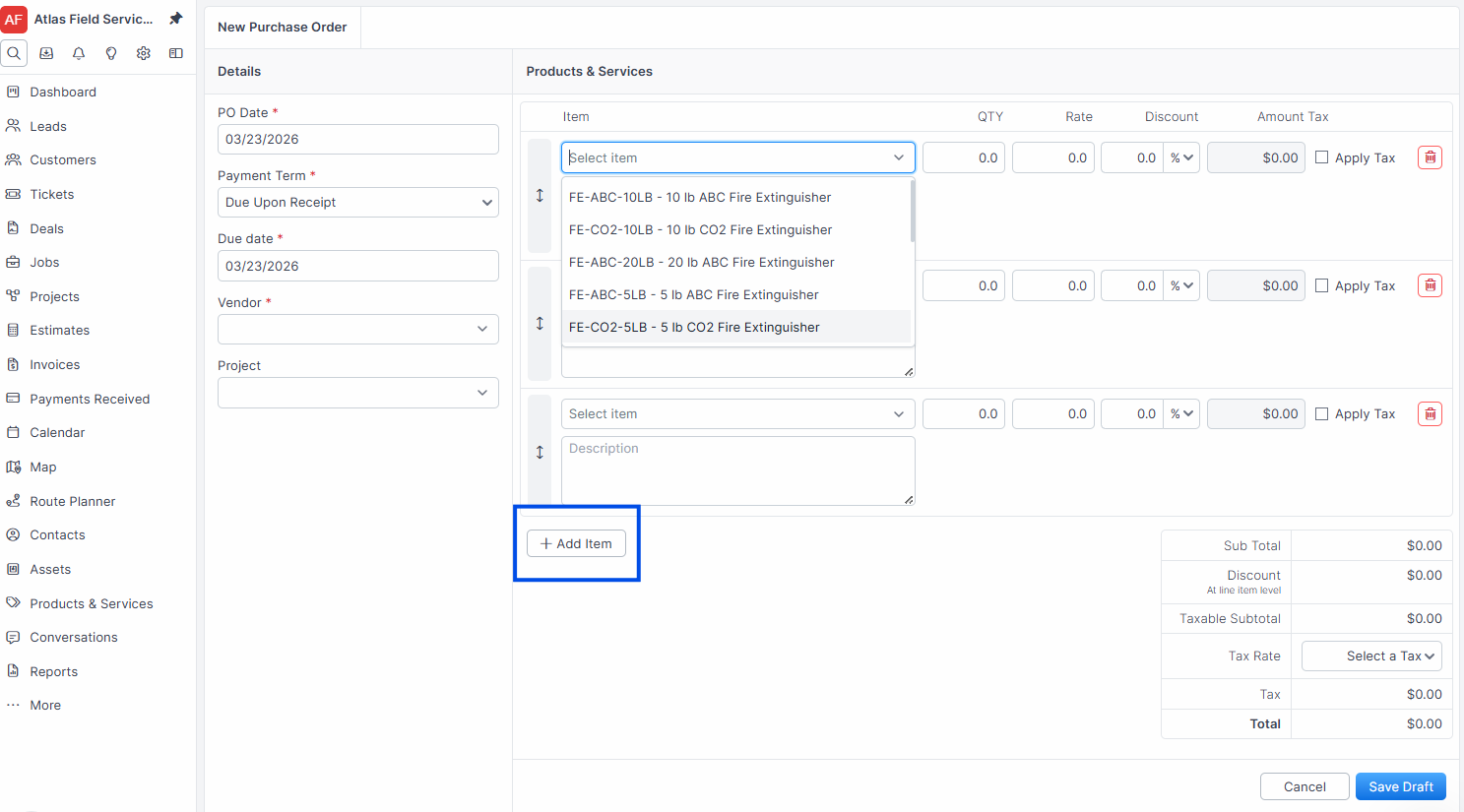
Click + Add Line to add more items, or remove a row by clicking the delete icon.
Click Save.
Expected result: Forz creates the purchase order with a unique number (e.g., PO-1001) and sets its status to the first status in your purchase order workflow (typically "Draft").
Note: Forz auto-generates the PO number sequentially. You cannot change it after creation.
Creating a PO from a Sales Order
When a sales order requires materials from a vendor, you can generate a PO directly from it.
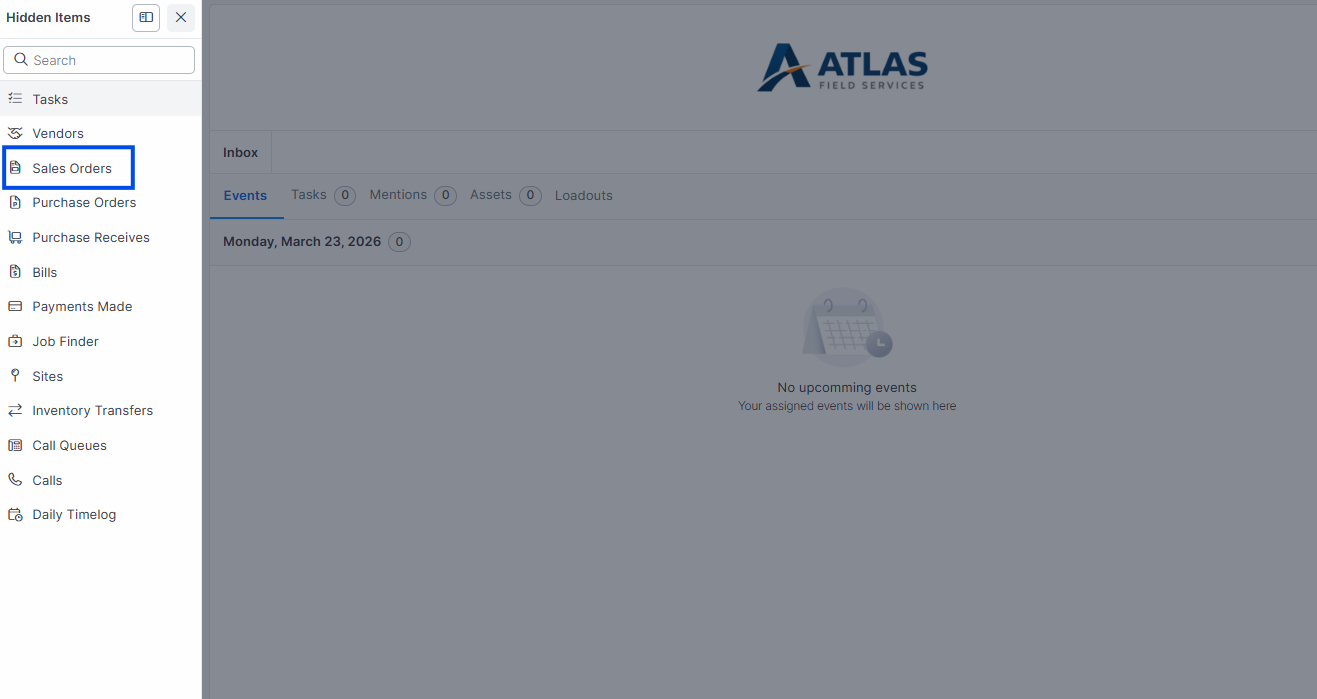
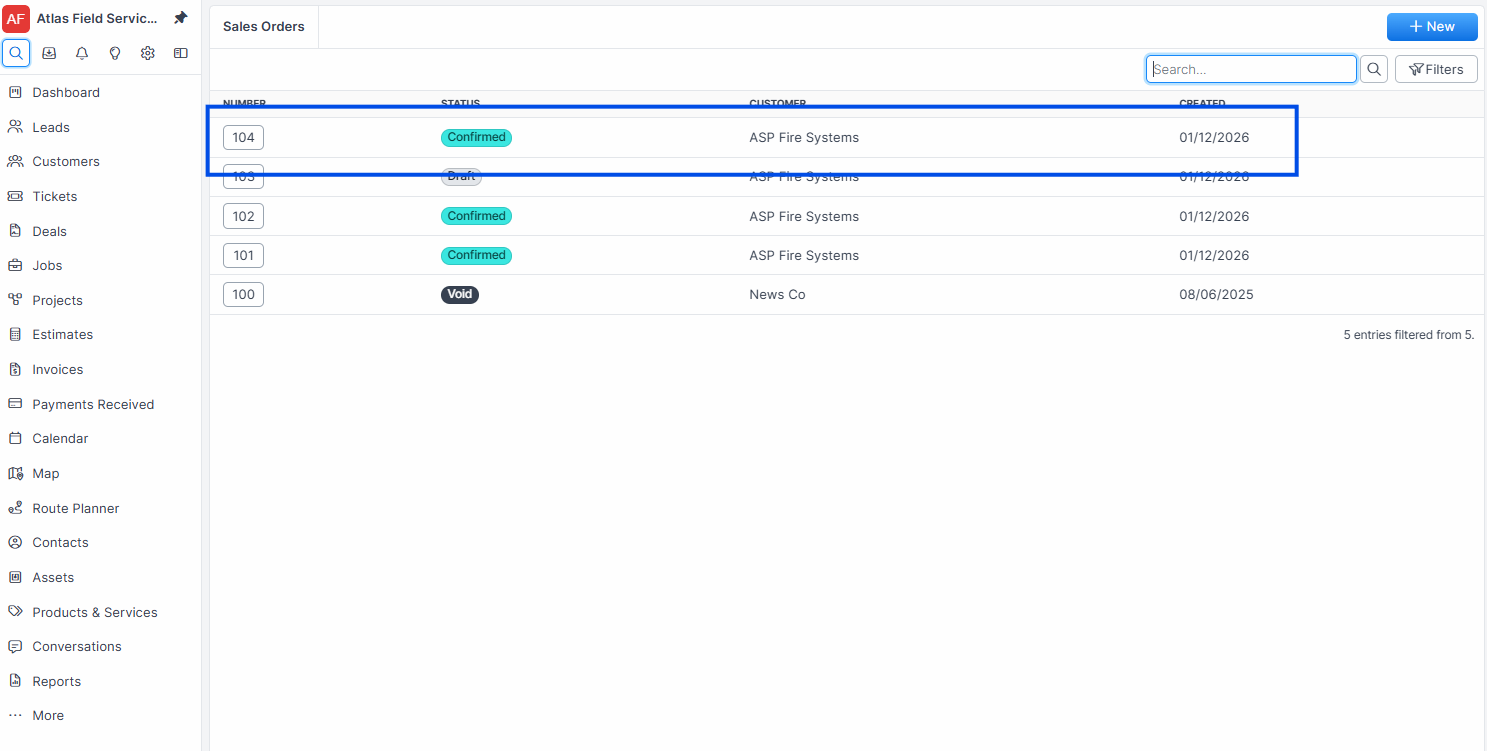
Open the sales order you want to fulfill.
Click Create Purchase Order.
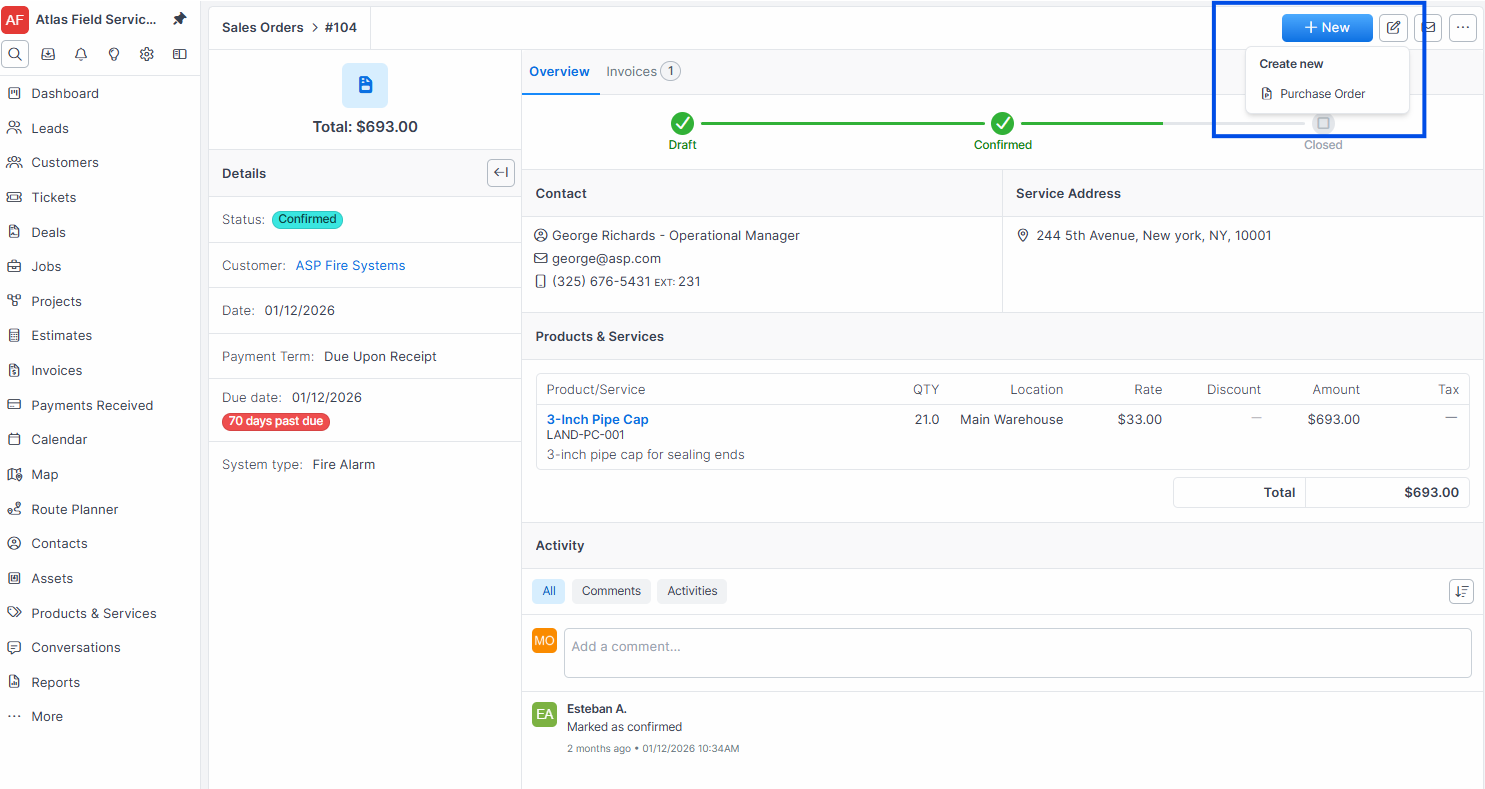
Forz copies the line items, tax rate, and payment term from the sales order.
Select or confirm the Vendor.
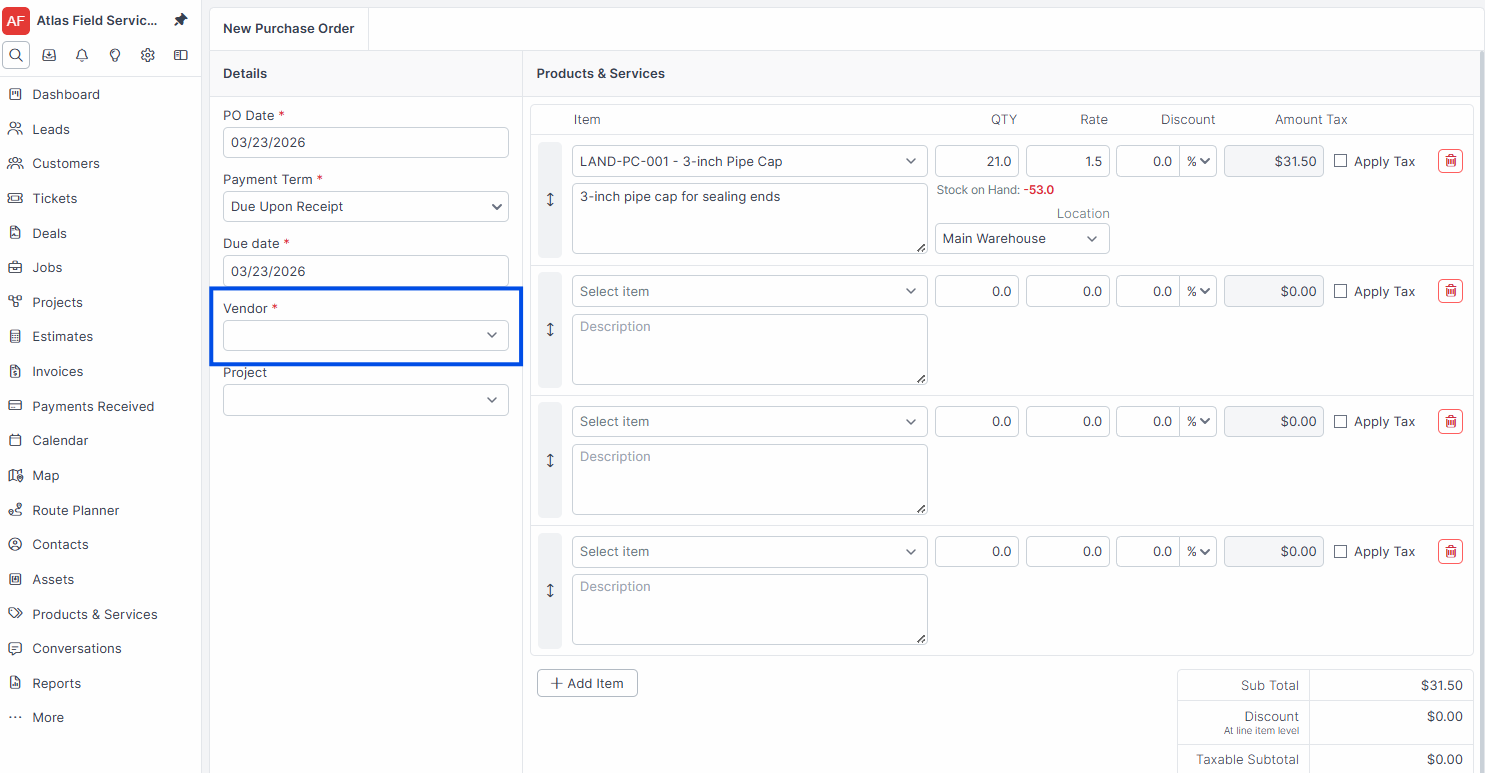
Review the line items and adjust quantities if you are only ordering a partial fulfillment.
Click Save.
Expected result: Forz creates the PO and links it to the sales order. The PO line items reflect the remaining quantities not yet ordered.
Sending a Purchase Order
After creating a PO, send it to the vendor for fulfillment.
Open the purchase order.
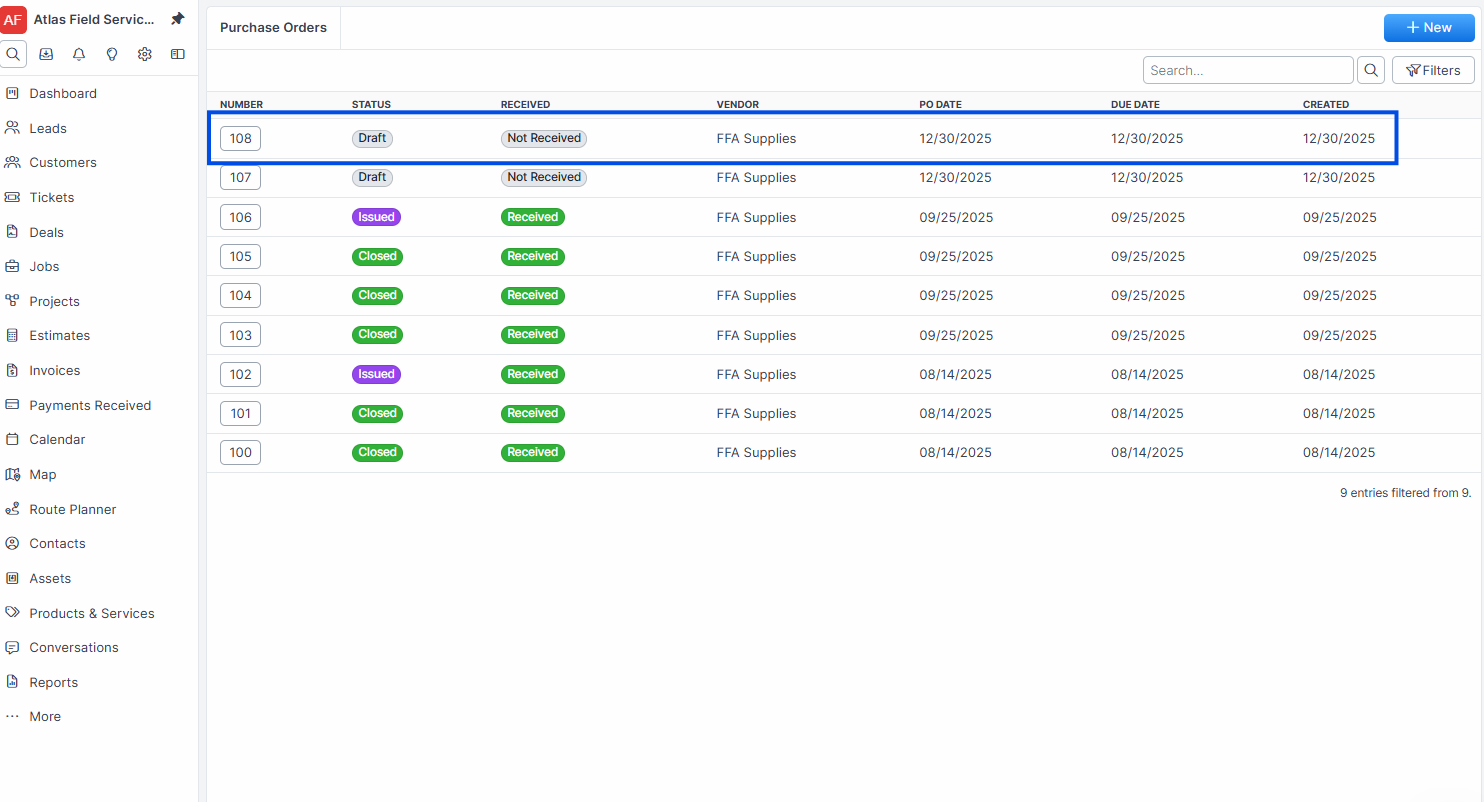
Click Mark as Sent to update the status.
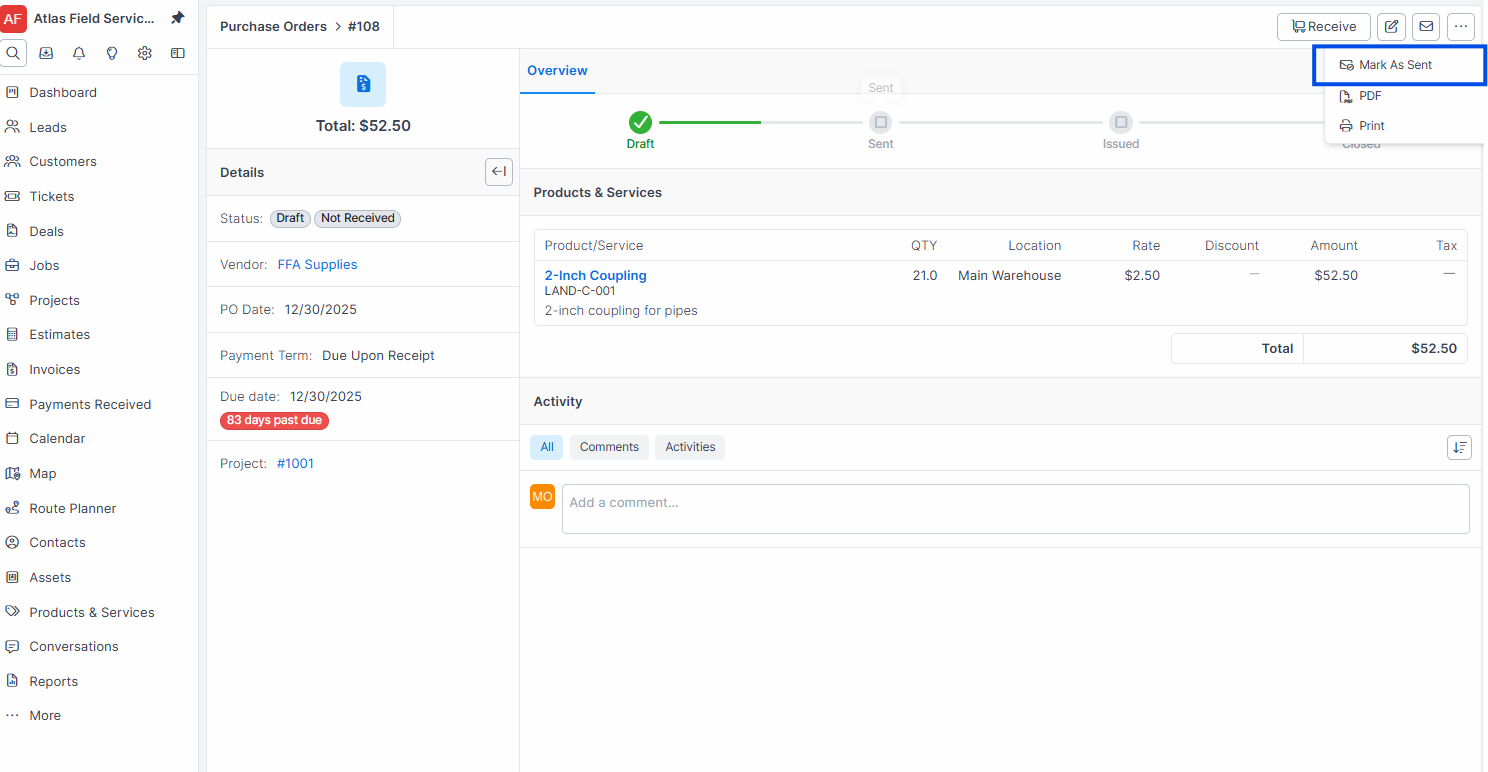
Expected result: Forz changes the PO status to "Sent" and logs an action note with the timestamp.
Tip: You can also export the PO as a PDF for emailing. Click the Print or PDF option on the PO detail page to generate a formatted document.
Receiving Items
When items arrive from the vendor, record what was received against the PO.
Open the purchase order.
Navigate to the Purchase Receives tab.
Click + New Receive .
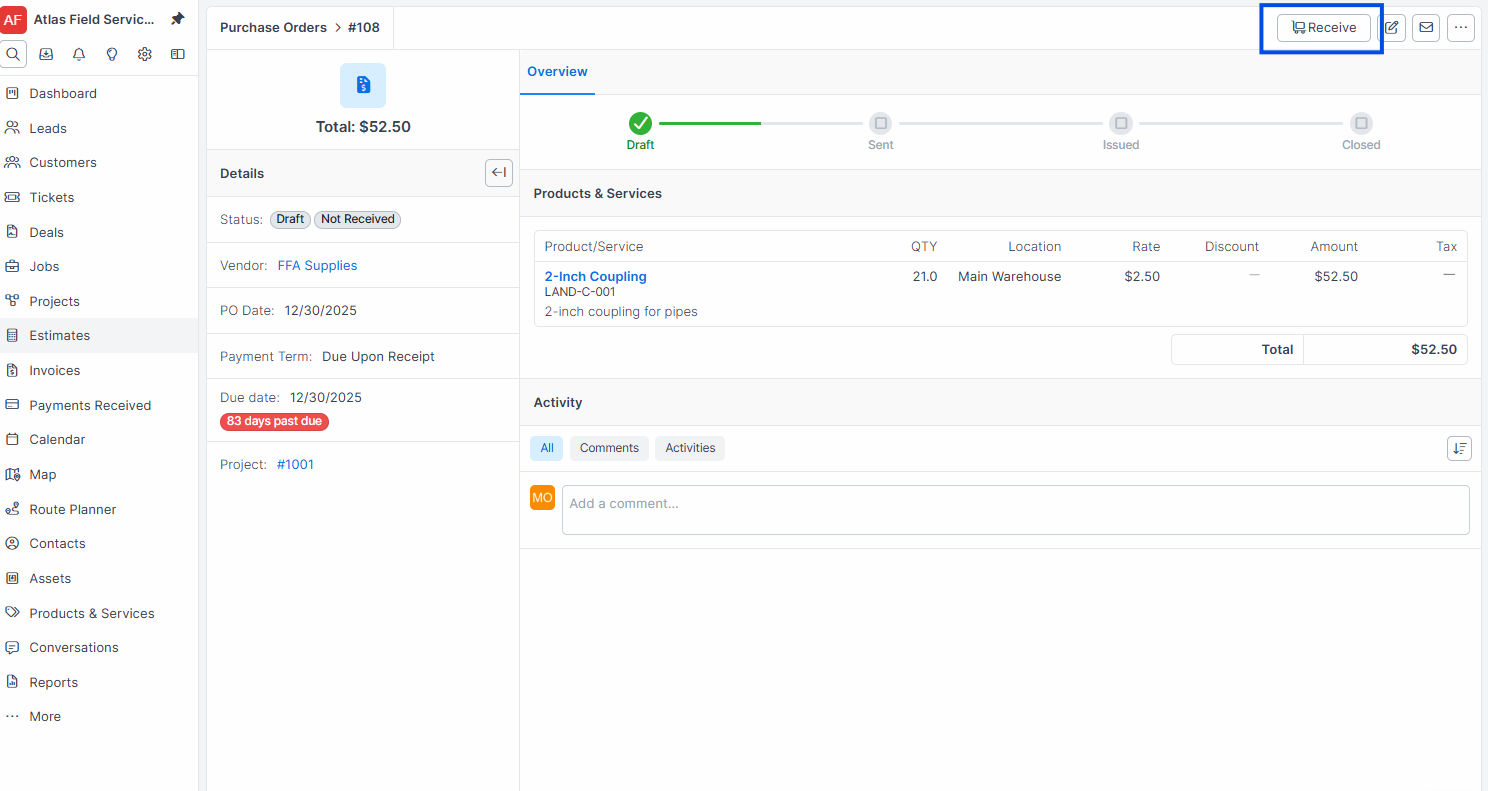
Enter the quantity received for each line item.
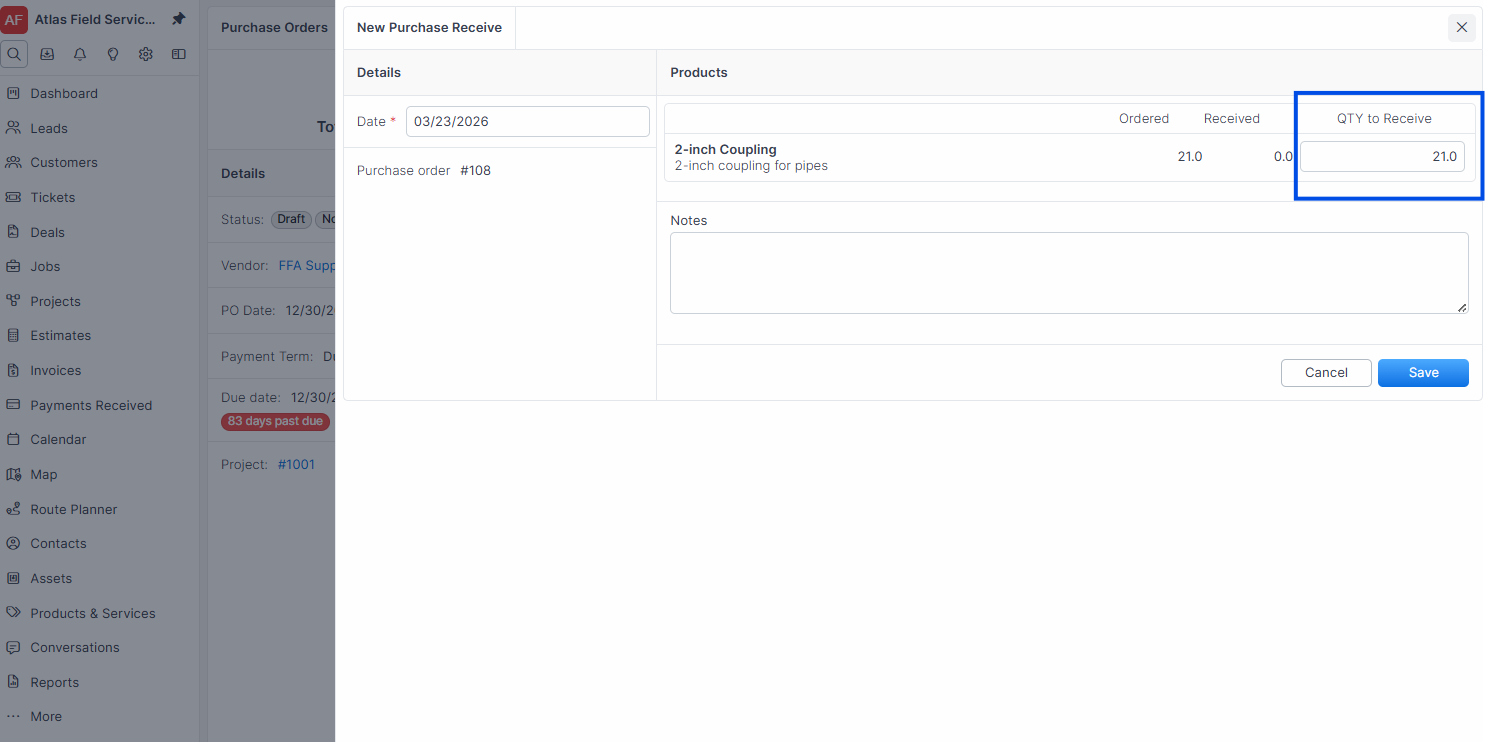
Click Save.
Expected result: Forz records the received quantities. The PO shows a received indicator: partially received if some items arrived, or fully received when all quantities match.
Warning: Service-type items are excluded from receiving. Only product items track received quantities.
Generating a Bill from a PO
Once items are received, generate a bill to track what you owe the vendor.
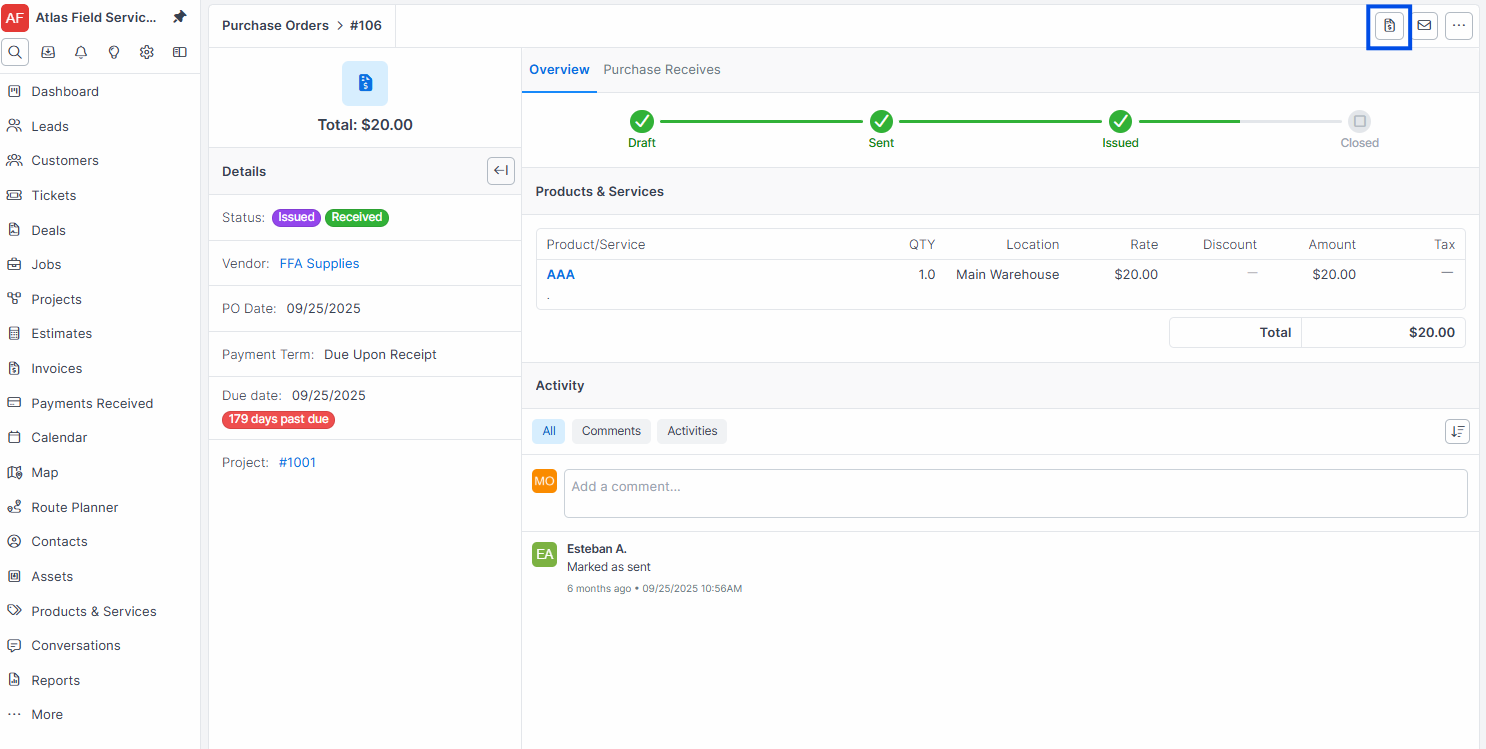
Open the purchase order.
Click Generate Bill.
Select the purchase receives you want to include on the bill.
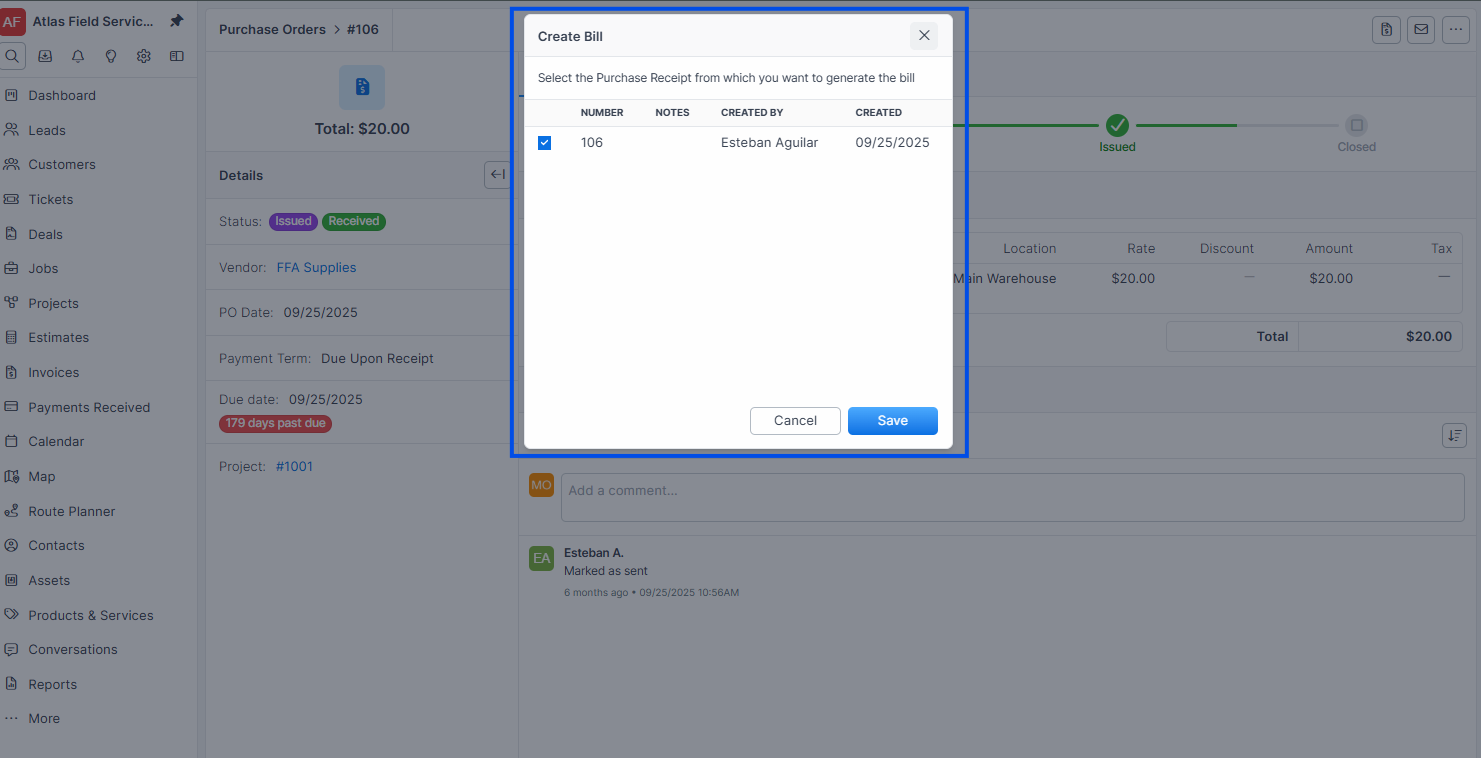
Click Create Bill.
Expected result: Forz creates a new bill linked to the PO. The bill line items reflect the received quantities and pricing from the PO. Unselected receives remain available for future bills.
Warning: You must select at least one purchase receive. If no receives are selected, Forz displays a warning: "No Purchase Receives selected."
What Happens After Creation
When a purchase order is saved, Forz automatically:
Generates a unique PO number using the sequential numbering system (e.g., PO-1001).
Creates a secure token URL for external sharing with the vendor.
Links to the vendor record, pulling their contact and address details.
Sets the initial status based on your configured purchase order statuses.
Common Scenarios
Ordering HVAC parts for a scheduled installation
A dispatcher receives a work order for a commercial HVAC installation. Before scheduling the technician, they need to order the condensing unit and line set from their HVAC distributor.
Navigate to Purchasing > Purchase Orders and click + New.
Select the vendor "ABC HVAC Supply" and set the PO date to today.
Add line items: 1x Carrier 5-ton condensing unit, 1x 50ft line set, 2x filter driers.
Link the PO to the project by selecting it in the Project field.
Save and click Mark as Sent to notify the vendor.
Receiving a partial shipment for a plumbing job
A plumbing contractor ordered 20 copper fittings and 10 PVC couplings. The vendor ships the copper fittings first, with the PVC couplings arriving next week.
Open the PO and go to the Purchase Receives tab.
Create a receive for the 20 copper fittings.
When the PVC couplings arrive, create a second receive for the 10 couplings.
Generate a bill from all receives, or generate separate bills per shipment.
Creating a PO from an existing bill
If you receive a bill from a vendor and need to create a matching PO for tracking purposes:
Open the bill.
Click Create Purchase Order .
Forz copies the vendor, line items, tax rate, and payment term from the bill.
Review and save the PO.
Troubleshooting
Was this helpful?
Still need help? Ask the team