Custom Record Numbering
Give jobs, invoices, and other records your own number format, such as WO2609-001, and choose which format each module uses.
Overview
By default, Forz numbers every record with a plain sequence that starts at 100. Custom record numbering lets you replace that with your own format for each module, so a job becomes WO2609-001 instead of 5847, and an invoice becomes INV2026-001.
A format is a name plus an ordered set of parts: a prefix, a suffix, the year, the month, the day, and dashes. Forz adds the sequential counter at the end. You can create several formats per module, pick one as the module's default, and choose between them on each creation form.
Custom numbering is available on 17 modules, including Jobs, Invoices, Estimates, Purchase Orders, Customers, Tickets, and Tasks. Numbers that are already issued never change when you add, edit, or delete a format.
Before You Begin
Prerequisites:
You can open Settings → Record Numbering. This is an Admin-level company setting.
You know which modules need a custom format. Existing records keep the numbers they already have.
Opening record numbering settings
Go to Settings → Record Numbering.
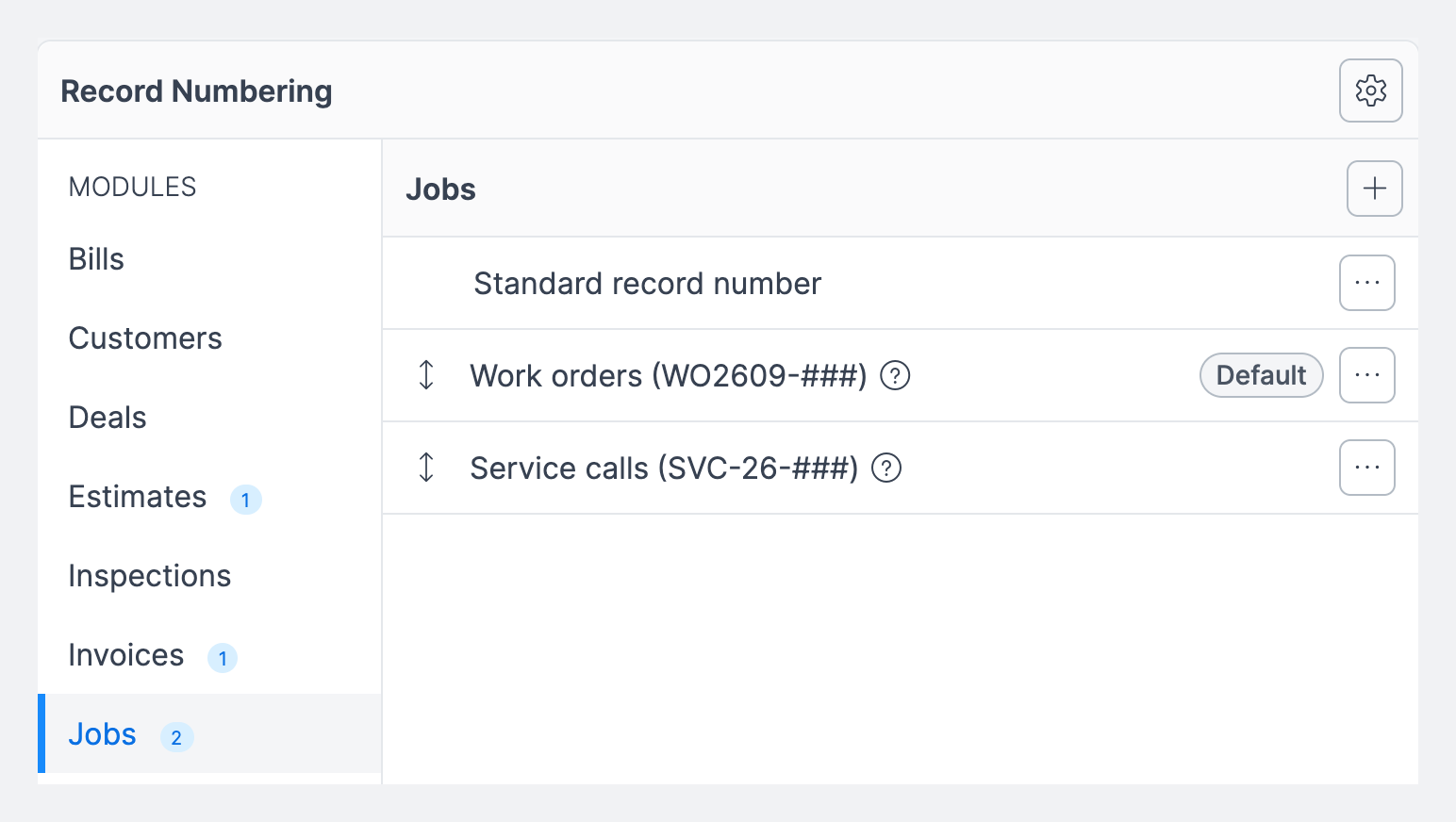
Click the module you want to configure in the MODULES list on the left. A badge next to a module shows how many custom formats it already has.
The right side lists the module's numbering choices. Standard record number is always there, Manual record number appears when manual numbers are enabled for that module, and custom formats follow. The choice currently in use carries a Default badge.
Warning: If your account is connected to Zoho Books, Zoho numbers invoices and estimates itself. A format for those two modules still applies when the record is created, but the number is replaced by Zoho's on the next sync. Forz shows this warning at the top of the Invoices and Estimates panels. QuickBooks Online does not do this; Forz keeps the number it assigned.
Creating a number format
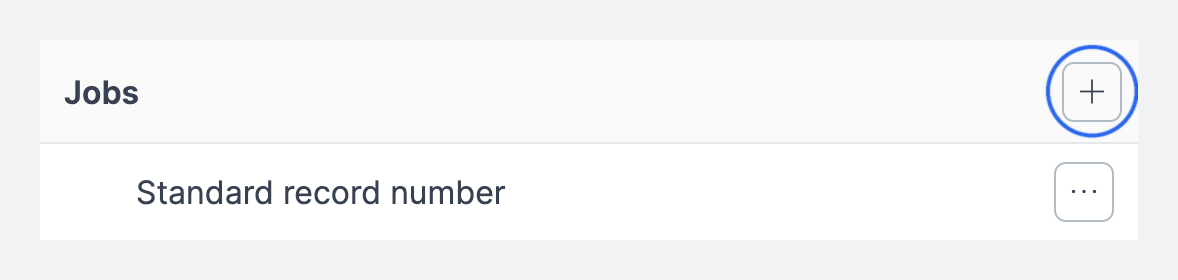
Click the + button beside the module name on the right. The New Number Format dialog opens with Module already filled in.
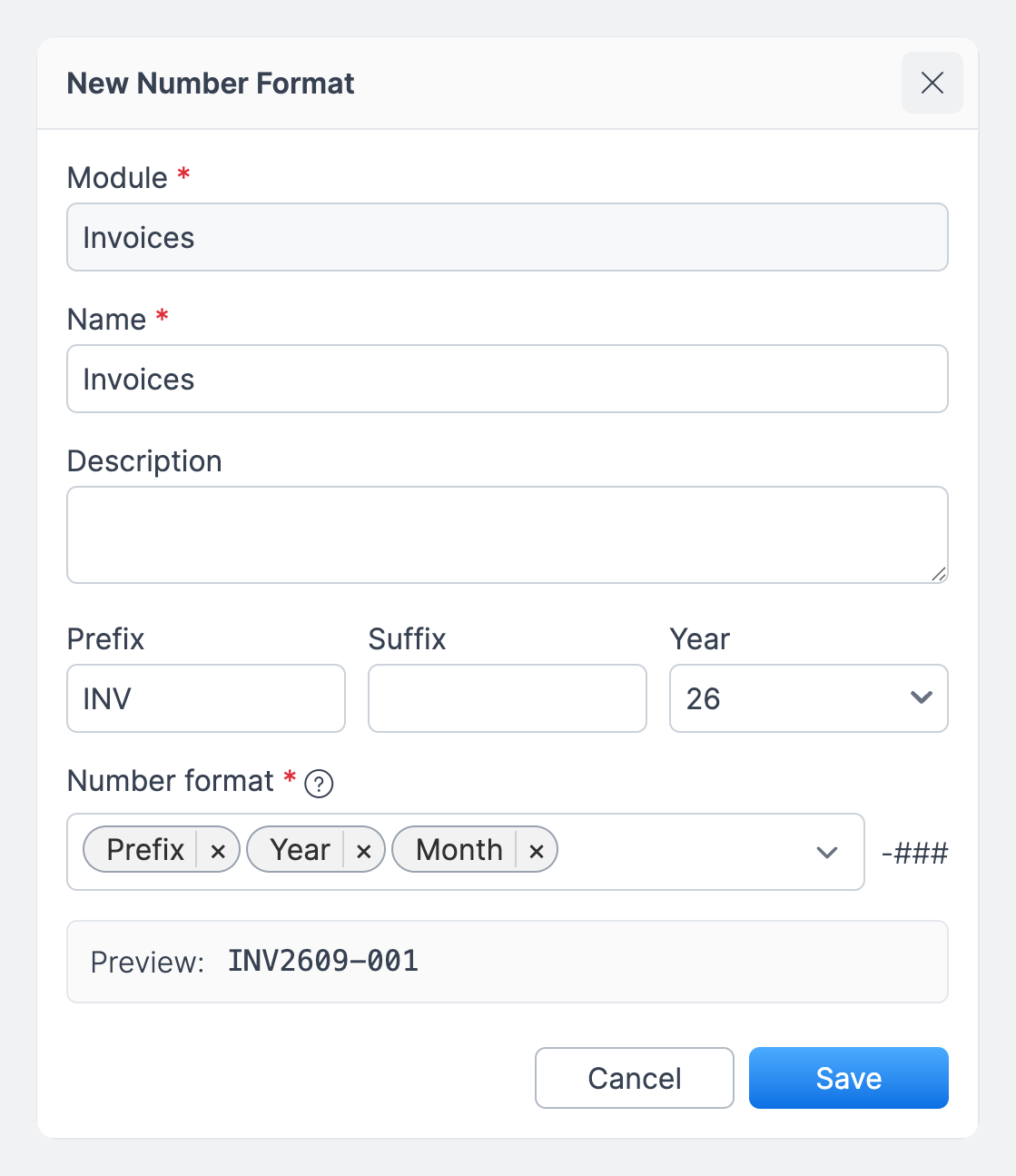
In the dialog:
Enter a Name. This is how the format appears in lists and on creation forms.
Add a Description if the name alone is not enough (optional).
Enter a Prefix and, if you need one, a Suffix. Both accept letters, digits, and the separators - _ / . Spaces and other symbols are rejected.
Choose the Year style: two digits (26) or four digits (2026).
Add parts under Number format in the order you want them to print. New formats start with Prefix and Year; open the dropdown to add Month, Day, Suffix, or Dash. The dropdown closes after each selection so the preview stays visible. Reopen it to add another part. Dash is the only part you can add more than once.
Check the Preview. It shows what a number in this format looks like, built from today's date.
Click Save.
Expected result: the format appears in the module's list. It is not the default yet, so numbering does not change until you set it as the default or pick it on a creation form.
Number format parts
Setting the default format
Saving a format does not switch it on. Each module keeps using its current default until you change it.
Click the ⋯ button on the format's row.
Click Set as default.
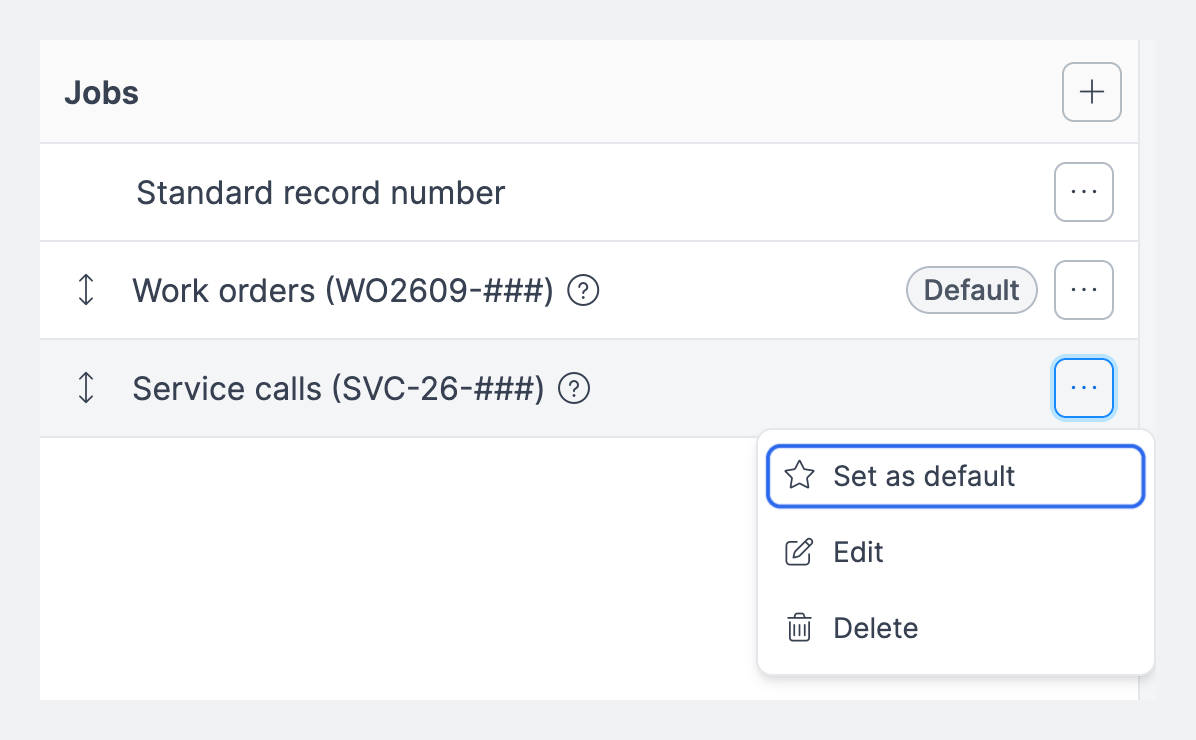
Expected result: the Default badge moves to that row. New records in the module use this format unless someone picks a different one on the creation form.
From the same menu you can Edit or Delete a format. Module is read-only on Edit, so a format cannot move to another module. Use Remove default on the current default to leave the module with no default; the creation form then starts blank, and a format has to be picked each time the picker is shown. Choose Set as default on Standard record number to go back to plain sequential numbers.
Drag the handle on the left of a custom format to reorder it. Standard record number and Manual record number stay at the top and cannot be moved. The order you set here is the order the creation form shows.
Choosing a format when creating a record
The creation form shows a required Record number format field once the module has a custom format, or when Manual record number is enabled for it. It is preselected to the module's default, or blank if the default was removed. Submitting it blank shows a warning. The field never appears on an edit form; a record's number is set once, at creation.
Open the creation form, for example Jobs → New Job.
Leave Record number format as it is, or pick another format, Standard record number, or Manual record number.
If you picked Manual record number, type the number into the Record number field that appears.
Fill in the rest of the form and click Save.
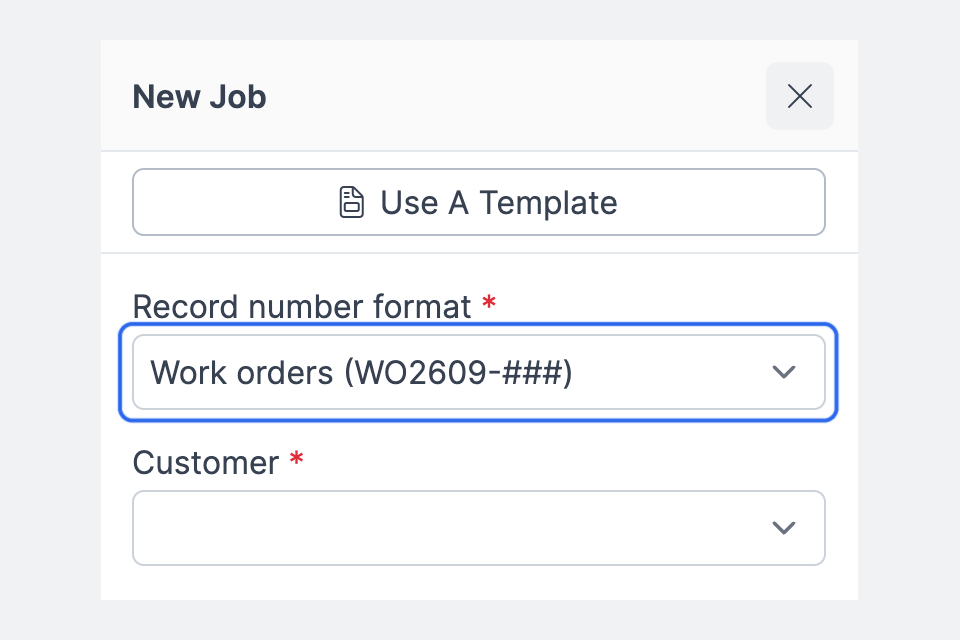
Expected result: the record is created with the next number in the chosen series, for example WO2609-003 if WO2609-002 already exists.
Numbering records generated by a schedule
Recurring jobs and recurring invoices carry their own Record number format, chosen when you create the schedule and changeable later in Edit Schedule. It applies to the records the schedule generates, not to the schedule itself; a new schedule gets a standard number of its own. Year, month, and day parts use each occurrence's scheduled date. If you choose Manual record number, enter a Prefix for generated records. Enter SERVICE and the generated records are numbered SERVICE-001, SERVICE-002, and so on.
General Settings
Click the gear button in the Record Numbering page header to open General Settings.
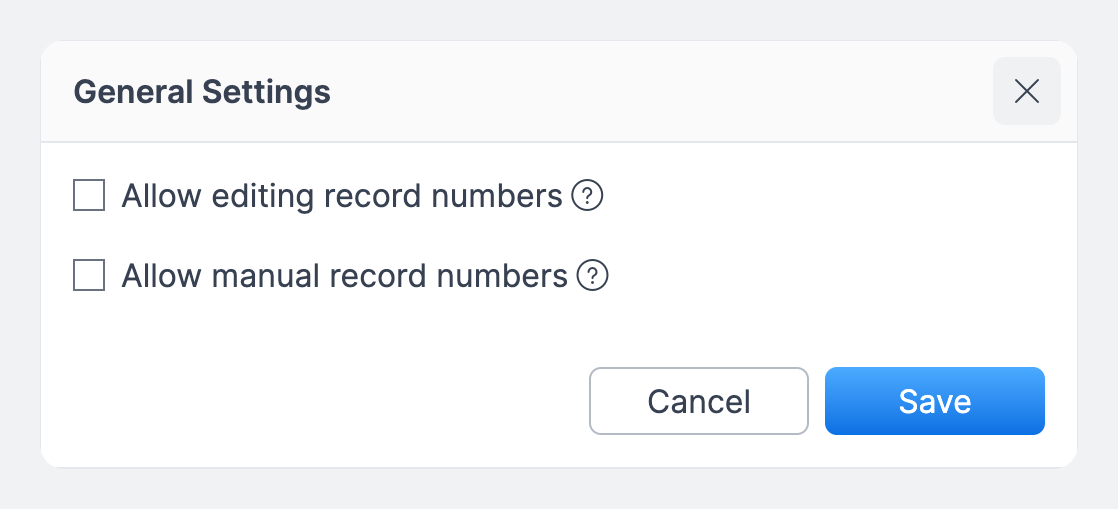
Allow editing record numbers lets users who can edit a record change its number from the pencil next to it on the record page. This is off by default because issued numbers may already be on documents customers hold. Editing a number upward moves the series: changing WO2609-001 to WO2609-007 makes the next one WO2609-008.
Allow manual record numbers is also off by default. Turning it on adds a Manual record number choice, where the number is typed on the creation form. Pick which modules allow it under Modules that allow manual record numbers. All 17 start checked.
Permissions
Creating, editing, deleting, and reordering number formats, setting a default, and opening General Settings all require permission to manage Record Numbering, which in practice means an Admin. Editing a number on an existing record also requires permission to update that record.
Known limitation
Deleting a format never rewrites existing numbers. If you delete the format that was the default, the module goes back to Standard record number rather than promoting another format, and standard numbering resumes where it left off: a Jobs module that ran 100 to 5847 before the format continues at 5848. Only Remove default leaves a module with no default at all.
Numbers are unique within a module regardless of case, so wo2609-001 and WO2609-001 count as the same number. Records in the trash bin still reserve their numbers. Inspections created from a job always use standard numbering, whatever the Inspection module's default is.