Receive Payments
Learn how to record payments on your invoices.
Overview
Record customer payments against sent invoices. You can receive a payment from an invoice, or create a payment from Payments Received and apply it across one or more outstanding invoices.
Before you begin
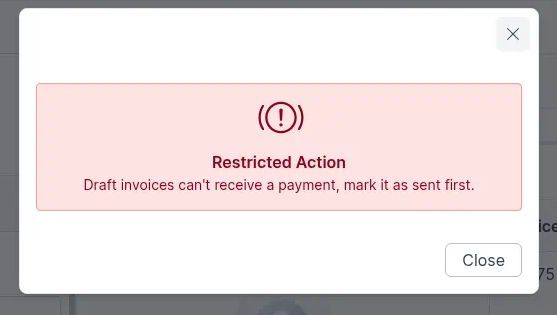
The invoice must not be a draft. Mark it as sent (or send it) first. If the invoice is still a draft, Receive Payment shows a Restricted Action message: “Draft invoices can't receive a payment, mark it as sent first.”
Need to create the invoice first? See Creating a New Invoice.
Receive payment on an invoice
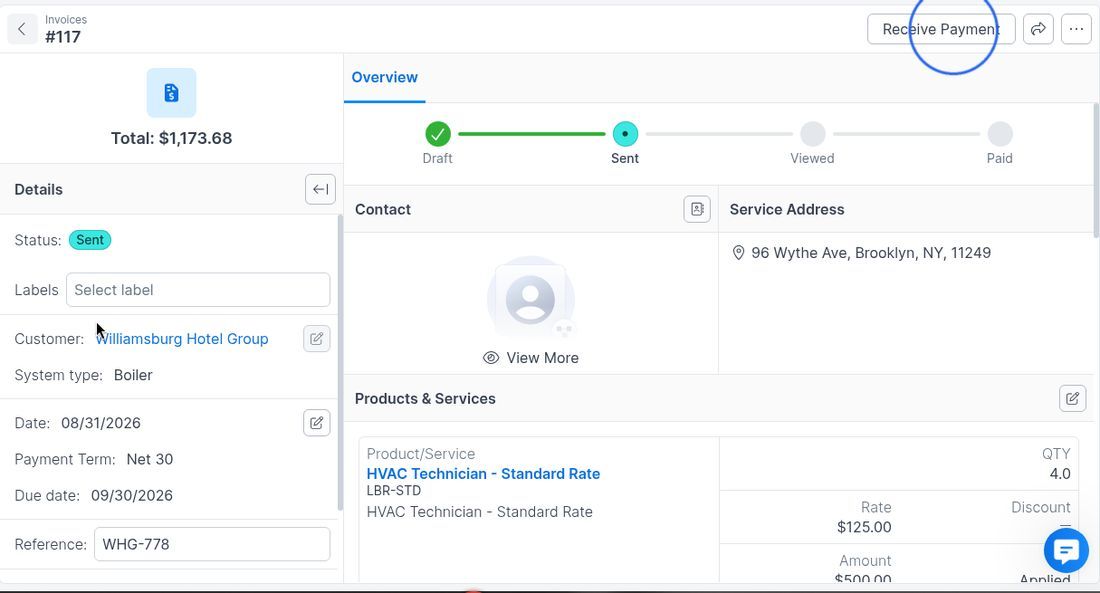
- Open a Sent invoice.
- Click Receive Payment.
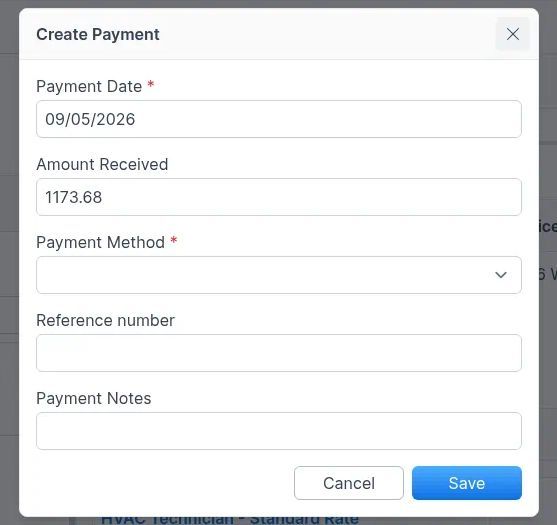
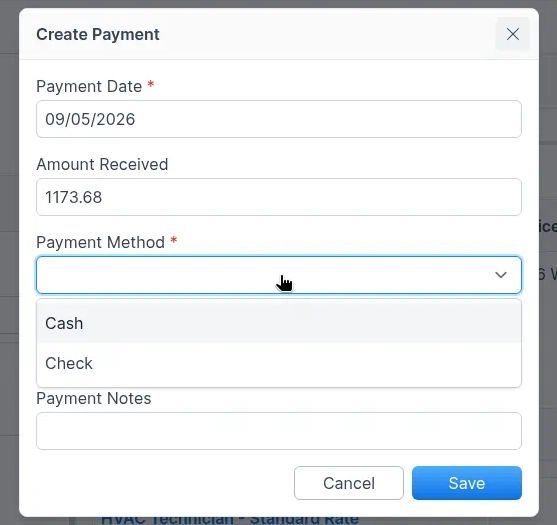
Forz opens the Create Payment modal. Fill in:
- Payment Date (required)
- Amount Received (prefilled with the invoice balance)
- Payment Method (required)
- Reference number (optional)
- Payment Notes (optional)
Click Save (or Cancel to discard).
Partial payments
To record a partial payment, change Amount Received to the amount you received, then click Save. You can receive another payment later for the remaining balance.
Record payments from Payments Received
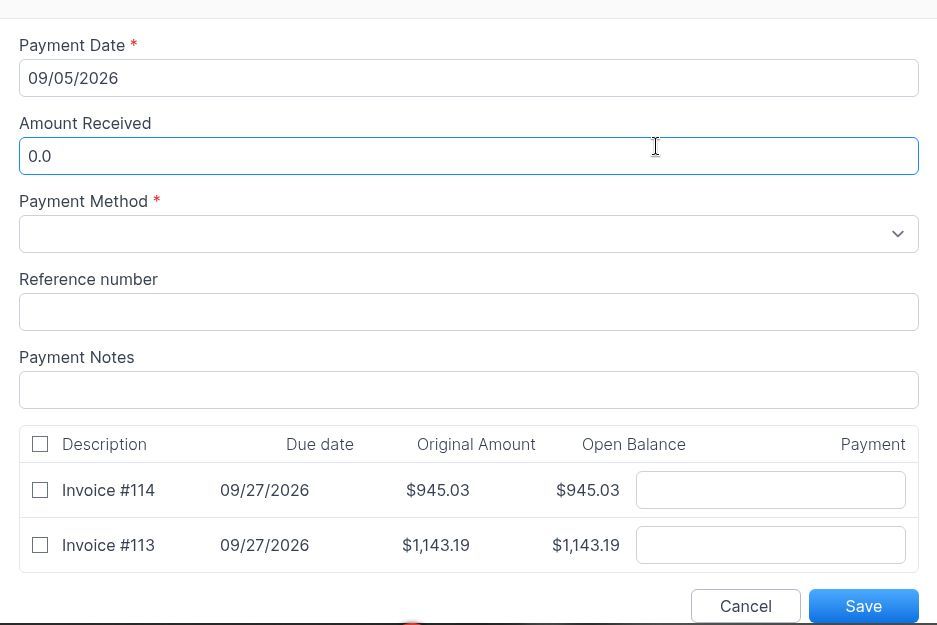
Use Payments Received to record a payment for a customer and apply it across outstanding invoices.
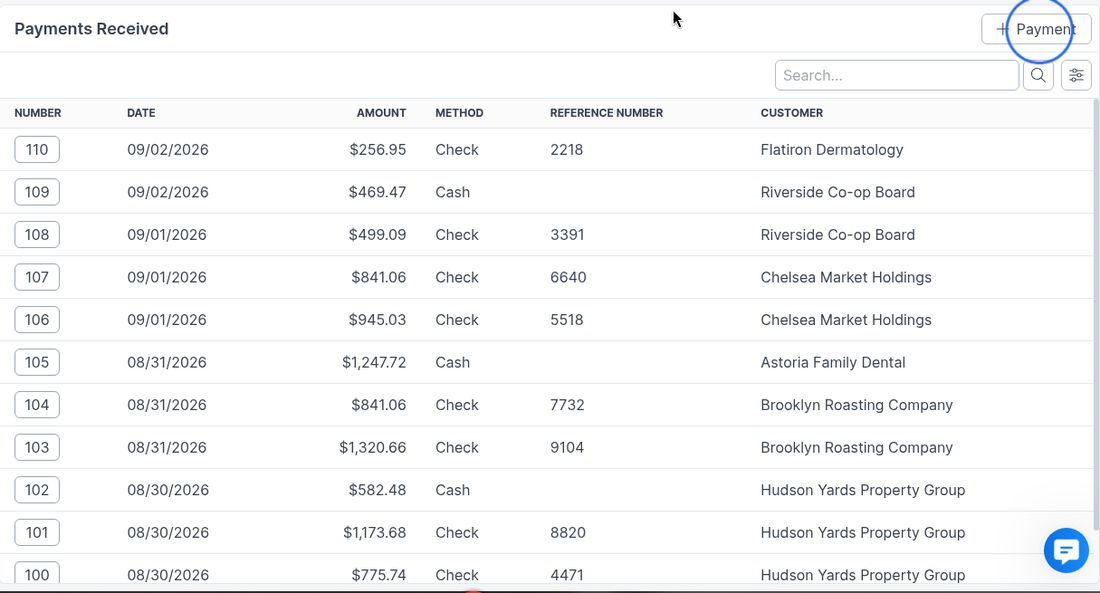
- Open Payments Received.
- Click + Payment.
- Select a customer who has outstanding invoices, then continue to Create Payment.
Enter Amount Received. Forz distributes that amount across the customer’s outstanding invoices. Adjust the amount on each invoice if needed, then click Save.
Payment methods
Payment methods come from your company settings. The options you see (for example Cash or Check) depend on what is configured for your organization.
Was this helpful?
Still need help? Ask the team