Creating a New Invoice
Create a customer invoice, add products and services, and save it as a draft.
Overview
Create an invoice from Invoices. Fill the customer and billing details, save a draft, then add line items under Products & Services. When the draft is ready, you can receive a payment or mark the invoice as sent.
Open a new invoice
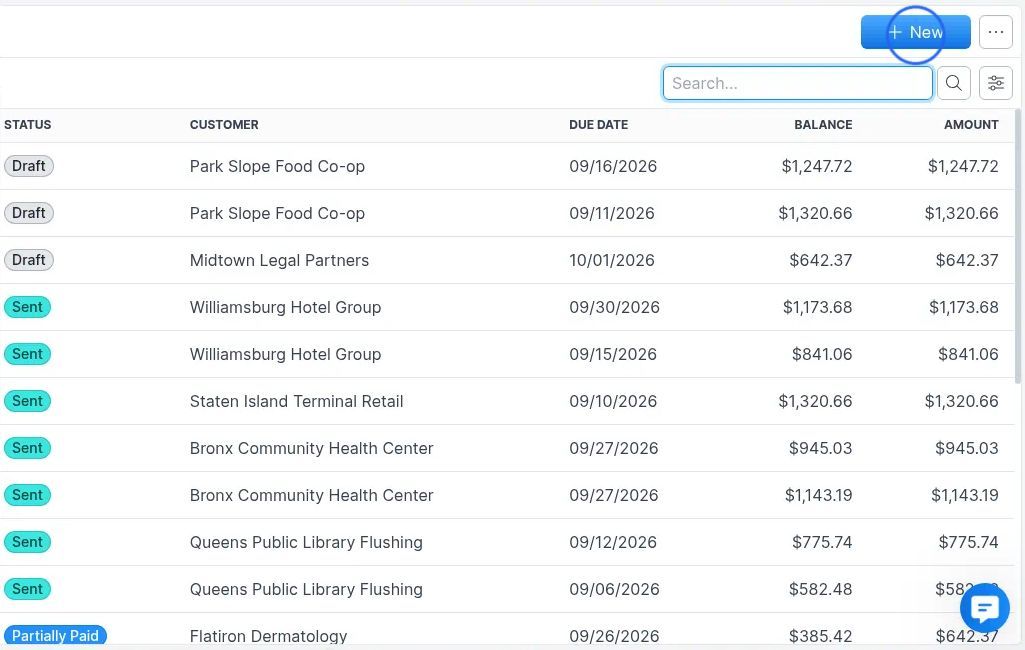
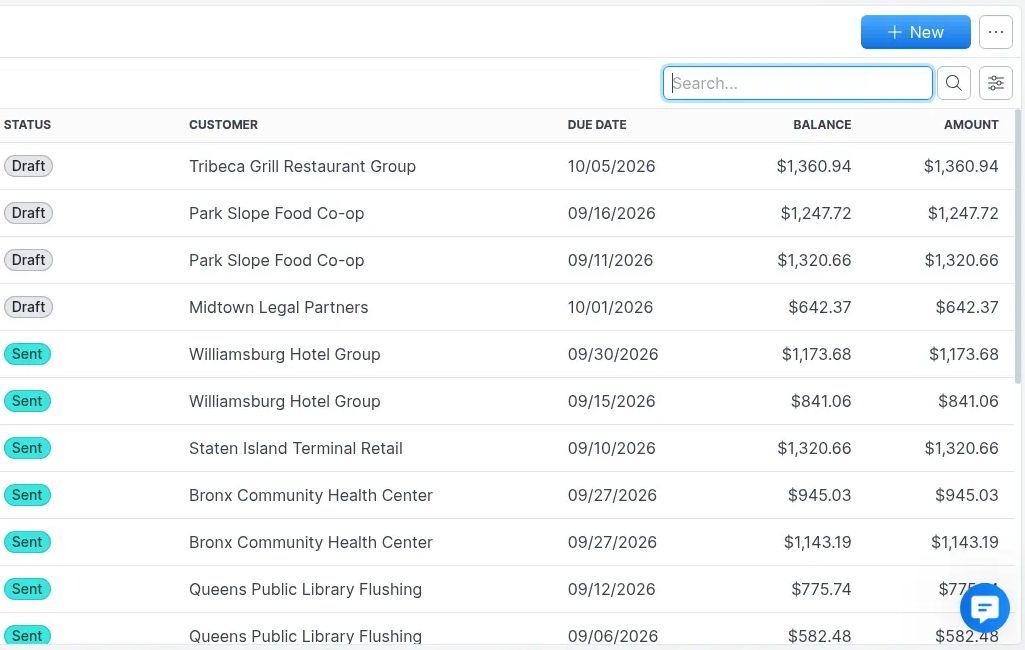
- Open Invoices in the sidebar.
- Click + New.
Forz opens the New Invoice panel.
Fill invoice details
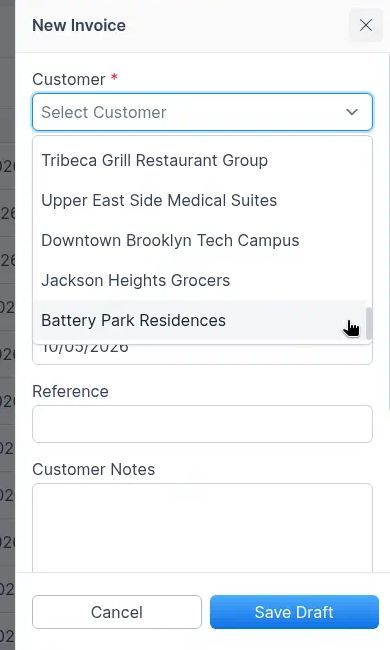
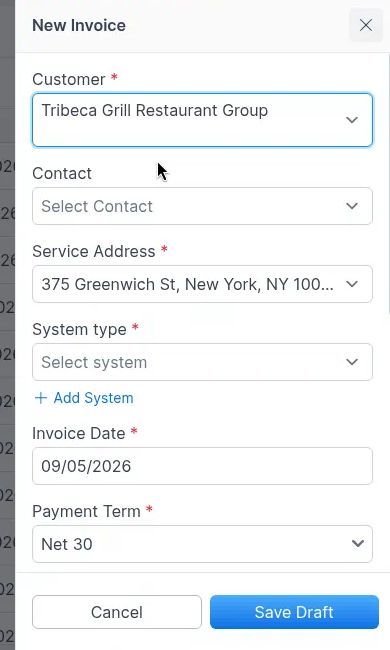
- Choose a Customer. Required fields for Contact, Service Address, and System type appear after you select one. Use + Add System if you need to add a system.
- Set Invoice Date, Payment Term, and Due date. Add an optional Reference.
Notes
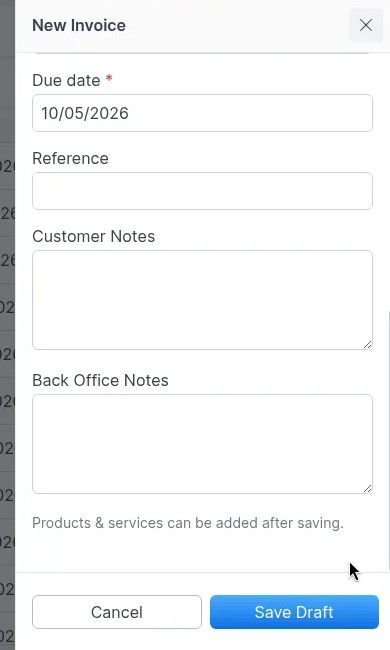
Add Customer Notes (visible on the invoice) and optional Back Office Notes (internal only).
Save as draft
The panel reminds you that products and services can be added after saving. Click Save Draft to create the invoice record. After the draft exists, further edits use Save instead of Save Draft.
Add products and services
On the draft invoice, open Products & Services.
- Click + Add Item if you need another row.
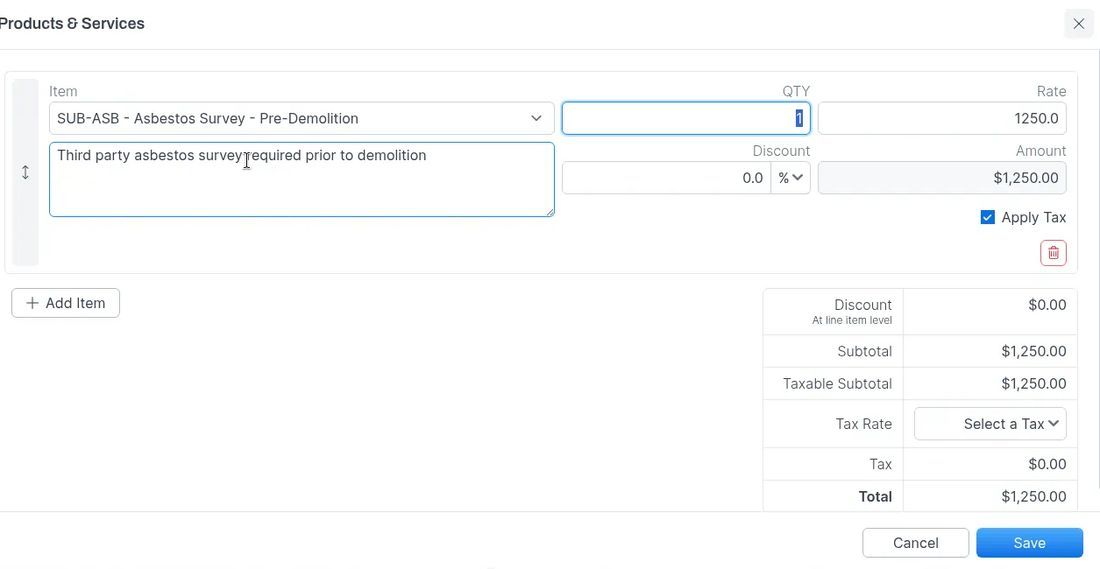
- Choose an Item, then set QTY, Rate, and Description as needed.
- Apply a line Discount as a percentage (%) or fixed amount ($).
- Check Apply Tax on taxable lines.
- Click Save when the lines look right.
Tax and totals
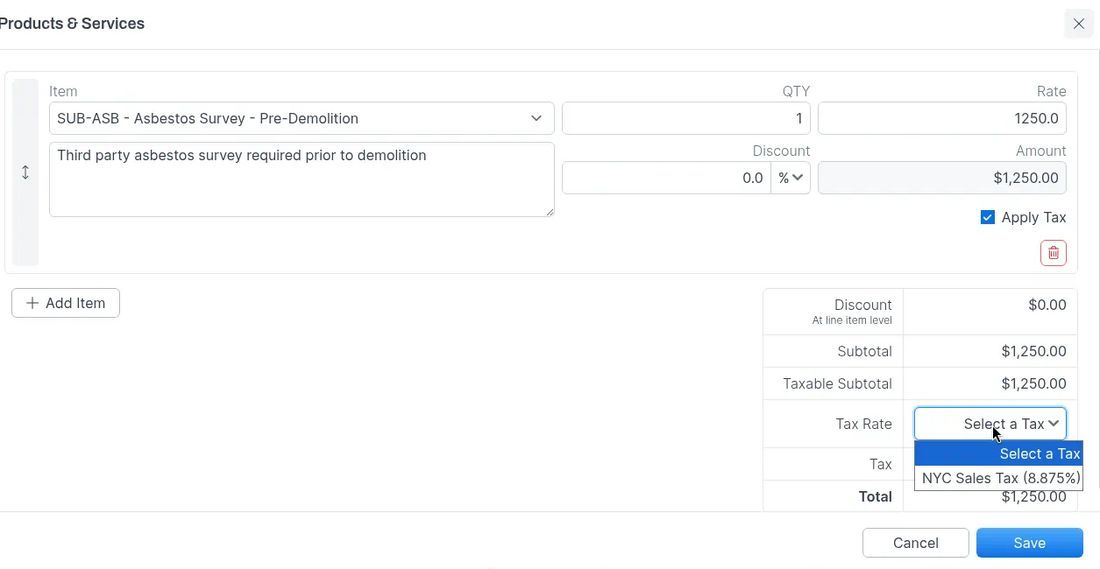
In the totals area, review Subtotal, Taxable Subtotal, Tax, and Total. Open Tax Rate and choose a rate from Select a Tax. Discounts on this screen are at line-item level.
Review the draft
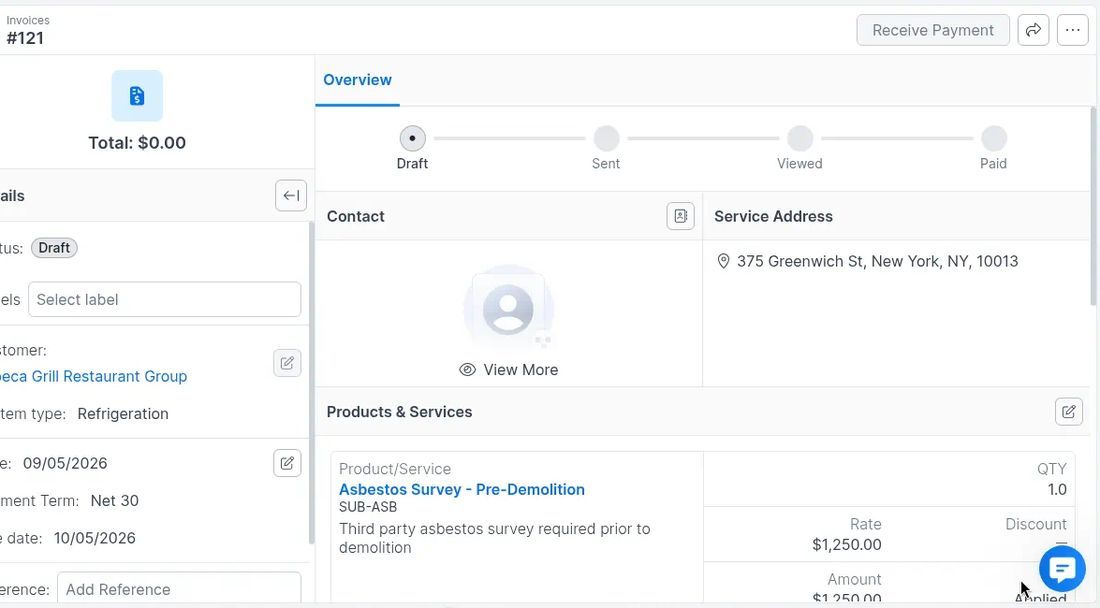
The invoice overview shows status Draft, customer details, service address, and the Products & Services list. Use the section edit control to change line items.
Next steps
From the draft header you can:
- Click Receive Payment to record a payment. See Receive Payments.
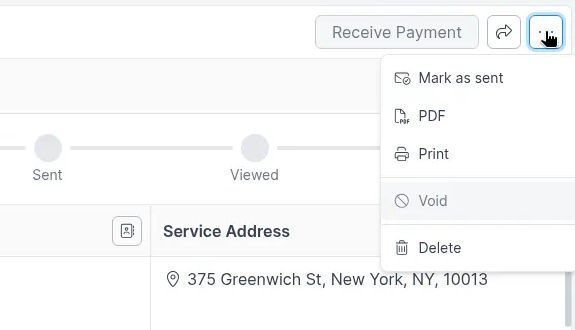
- Open the more-actions menu (⋯) and choose Mark as sent when you are ready to move the invoice out of draft.
The new draft also appears on the Invoices list with status Draft.
Was this helpful?
Still need help? Ask the team