Submit Feature Requests, Bug Reports, or Feedback

Learn how to easily get in touch with Forz Support and share in-context requests for seamless communication.

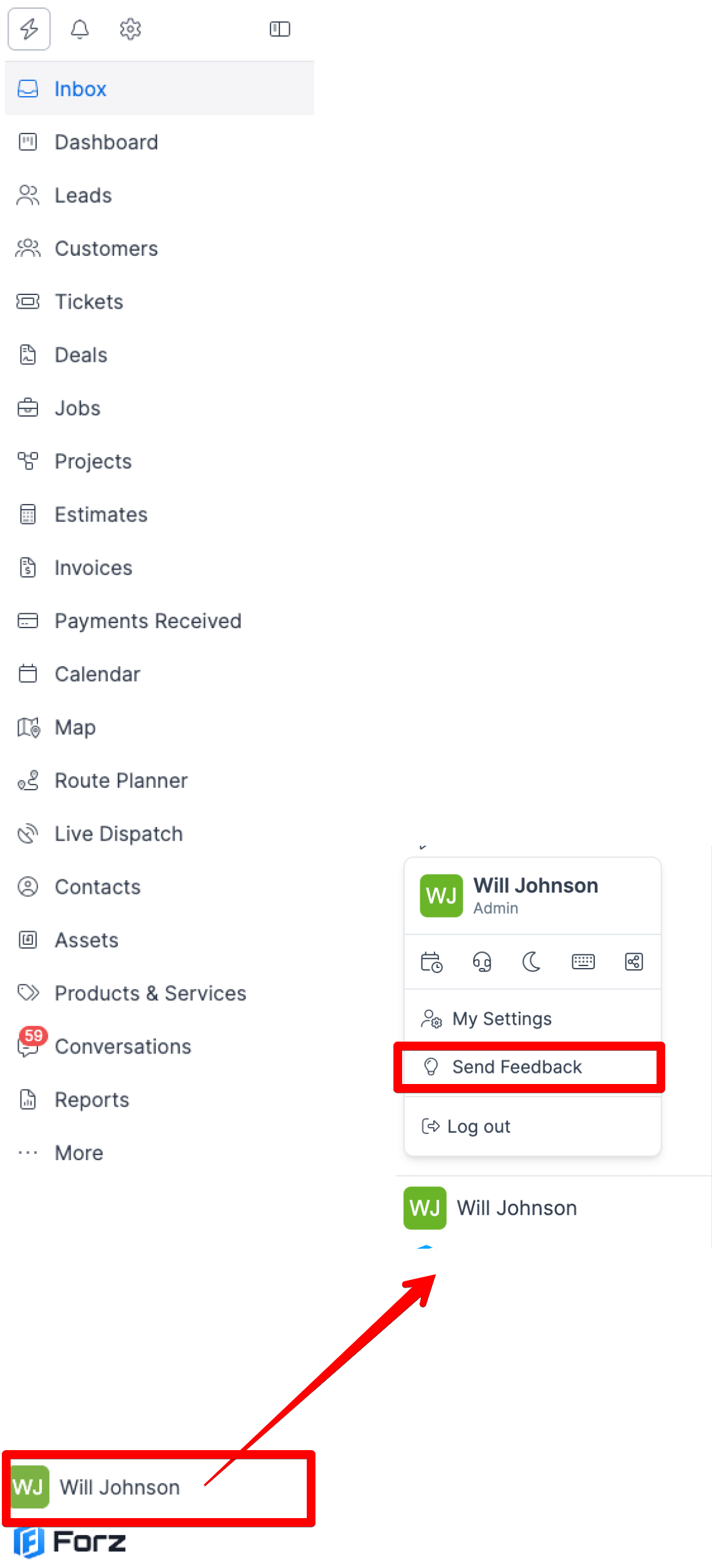
1) Click the Send Feedback button in the sidebar menu.

<p>Click the&nbsp;<strong>Send Feedback</strong>&nbsp;button in the sidebar menu.</p>

2) Select Feature Request, Bug Report, or Feedback, depending on your needs.
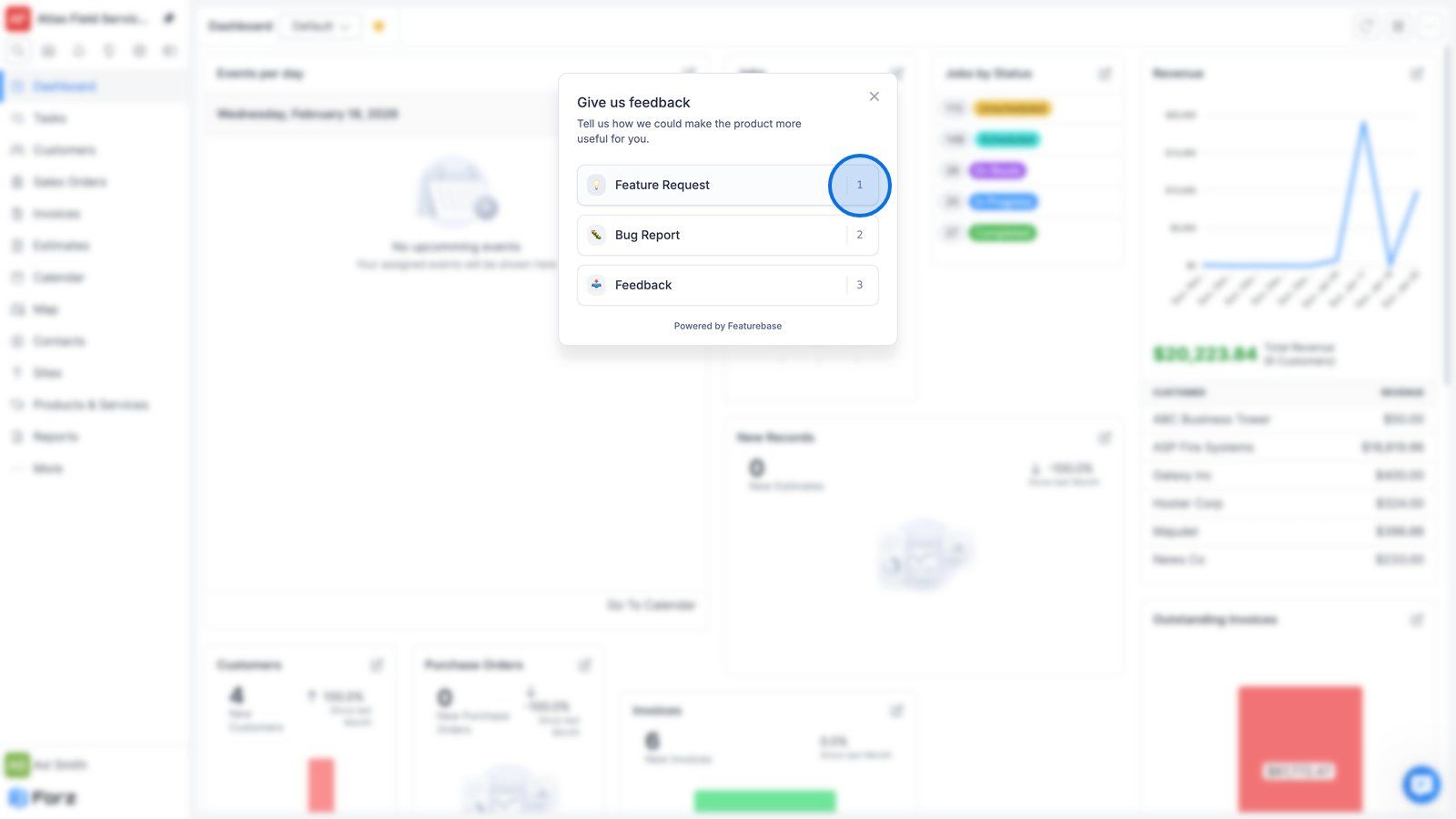
<p>Select&nbsp;<strong>Feature Request</strong>,&nbsp;<strong>Bug Report,</strong>&nbsp;or&nbsp;<strong>Feedback,</strong>&nbsp;depending on your needs.</p>

3) Enter a title and describe your request in detail.
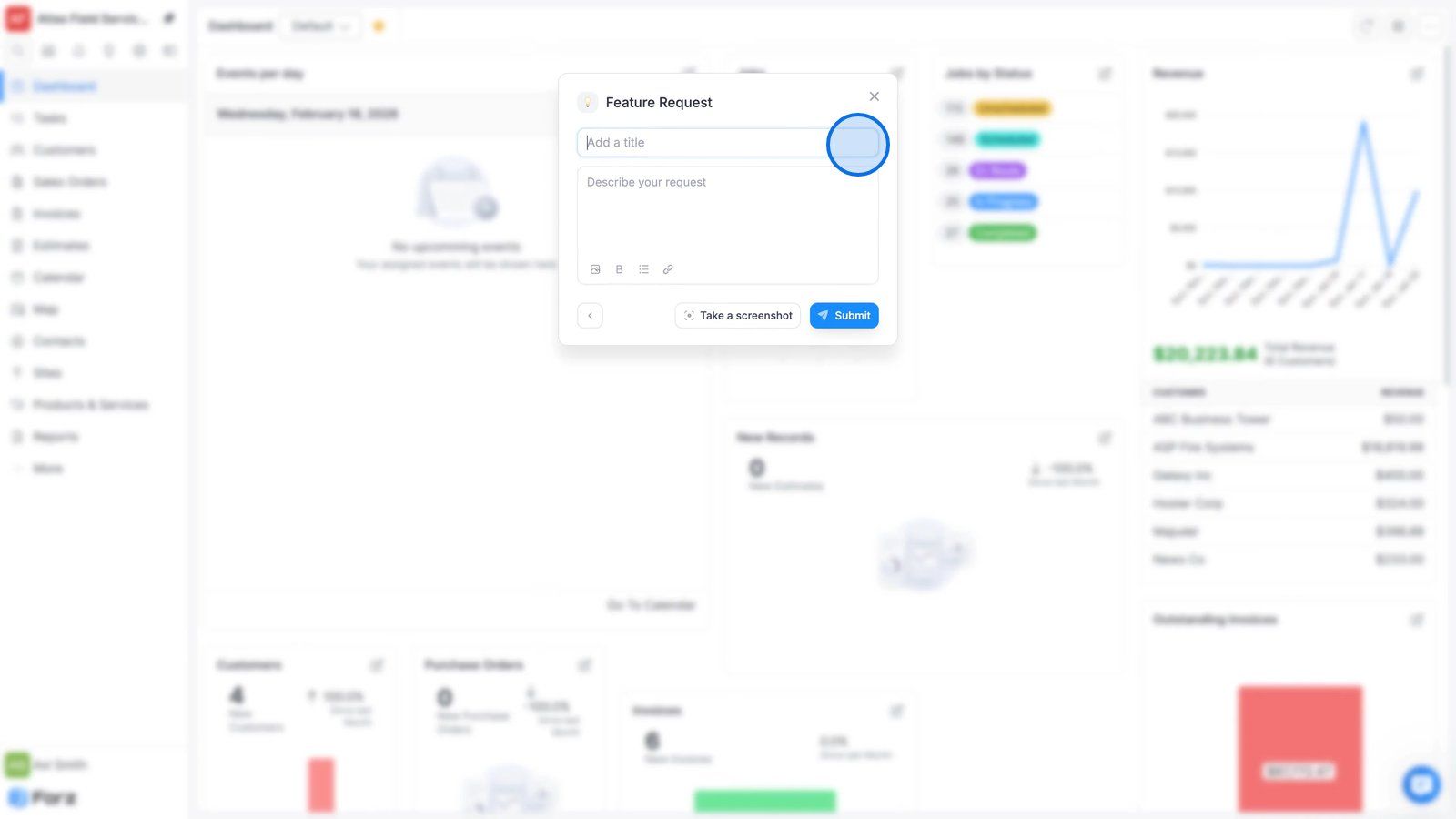
<p>Enter a title and describe your request in detail.</p>

4) Use the Take a Screenshot button to attach visual context and ensure seamless communication with Forz Support.
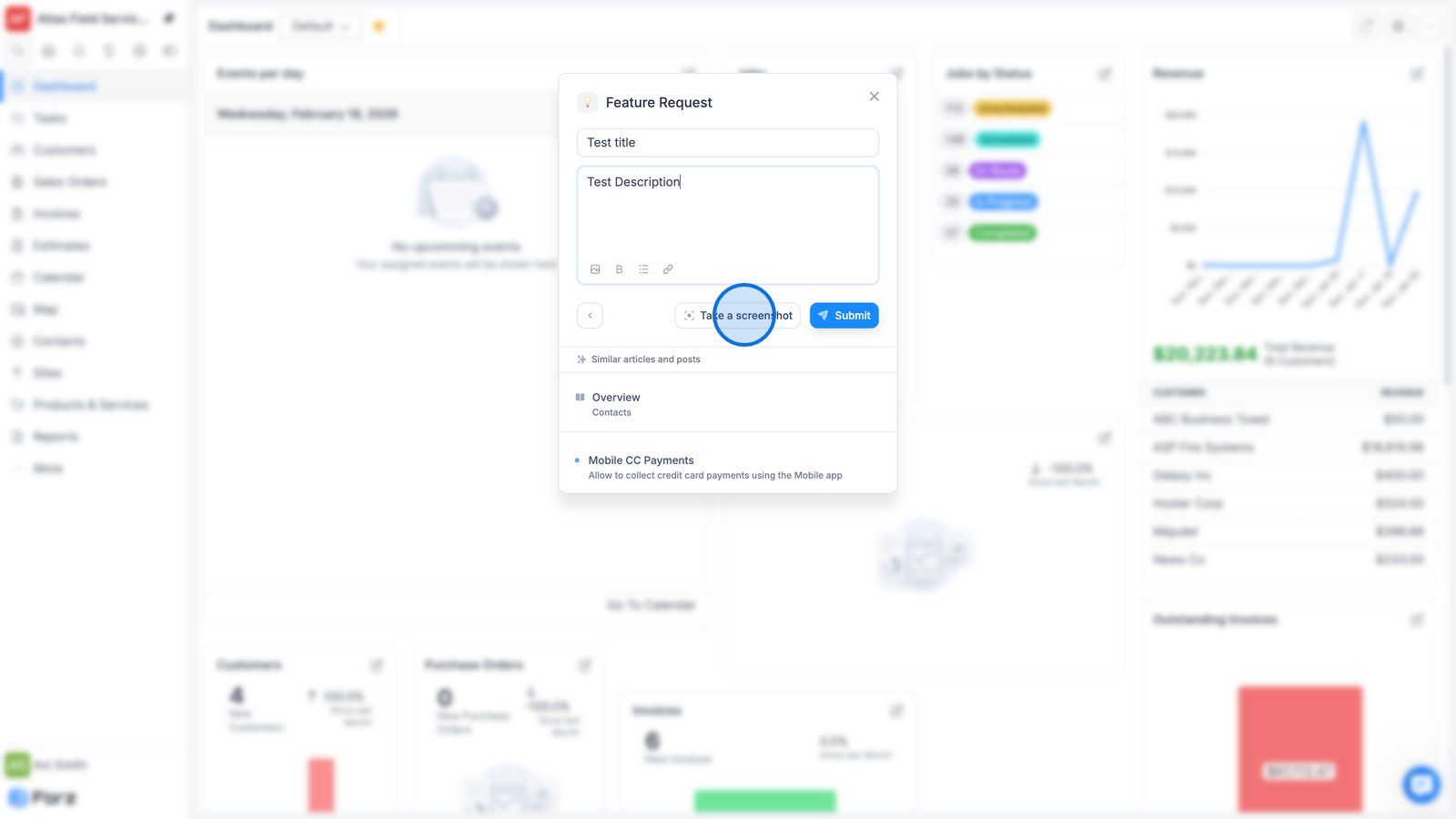
<p>Use the&nbsp;<strong>Take a Screenshot</strong>&nbsp;button to attach visual context and ensure seamless communication with Forz Support.</p>

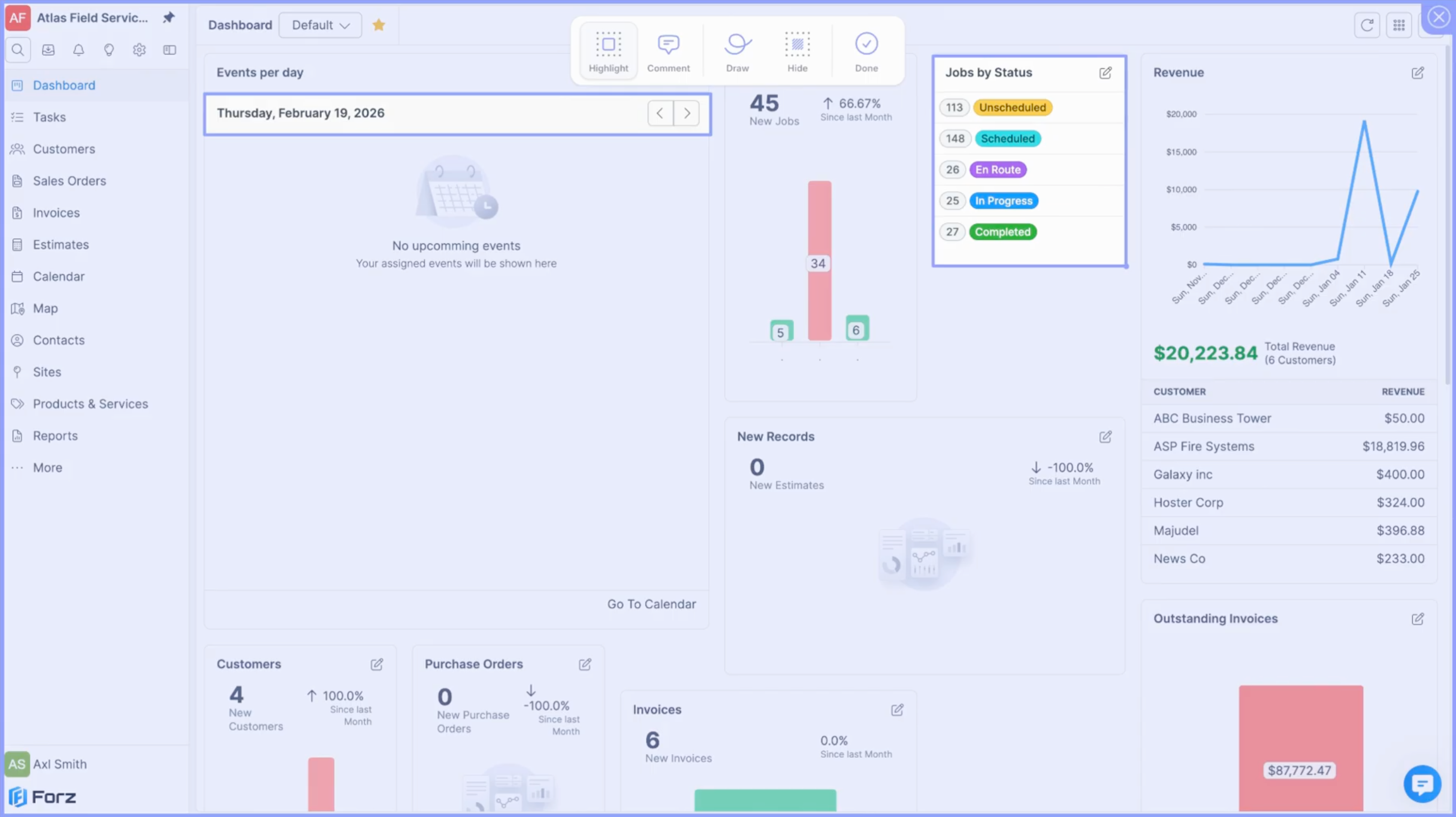
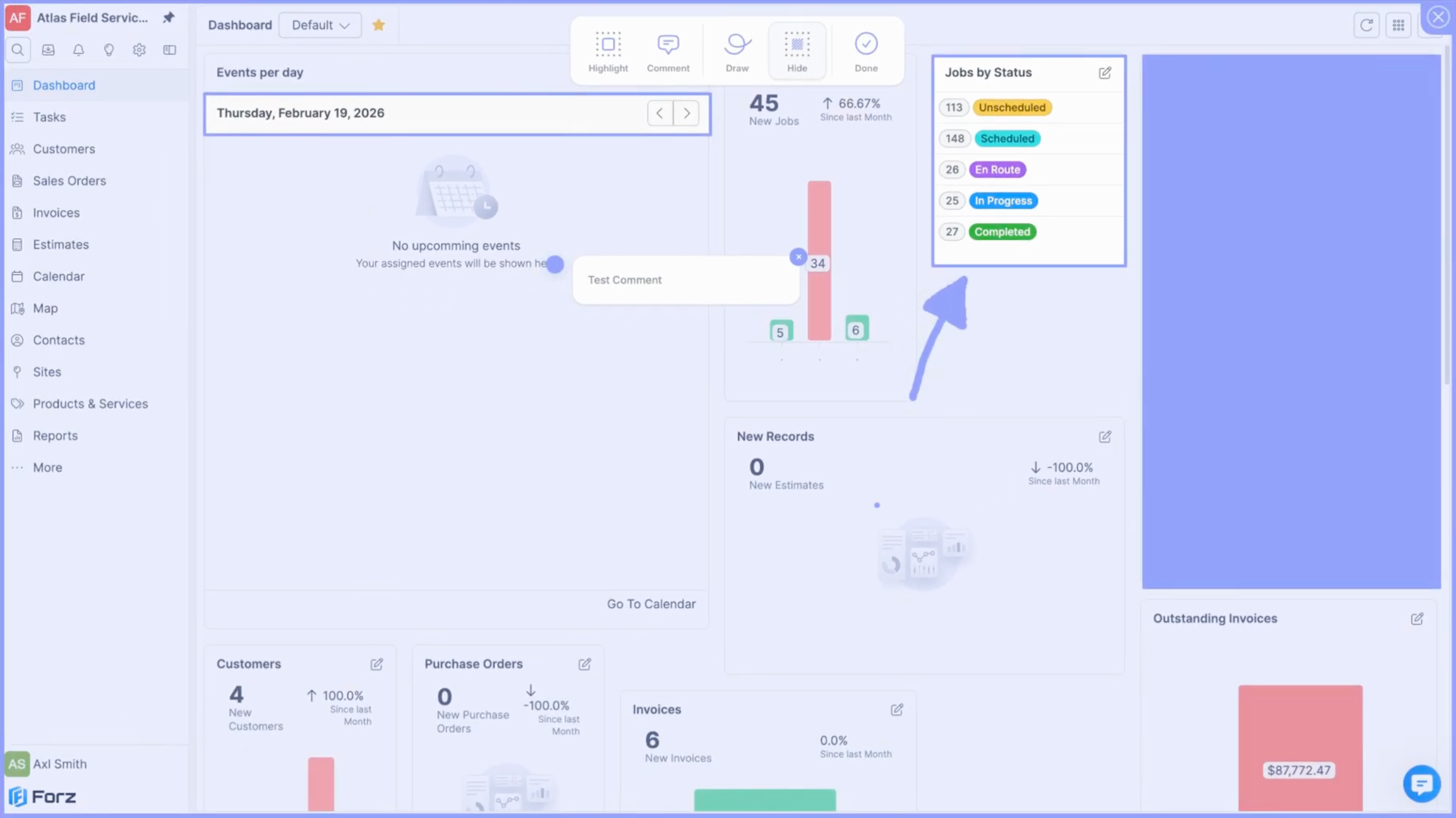
5) If you want to emphasize a specific area, click Highlight.
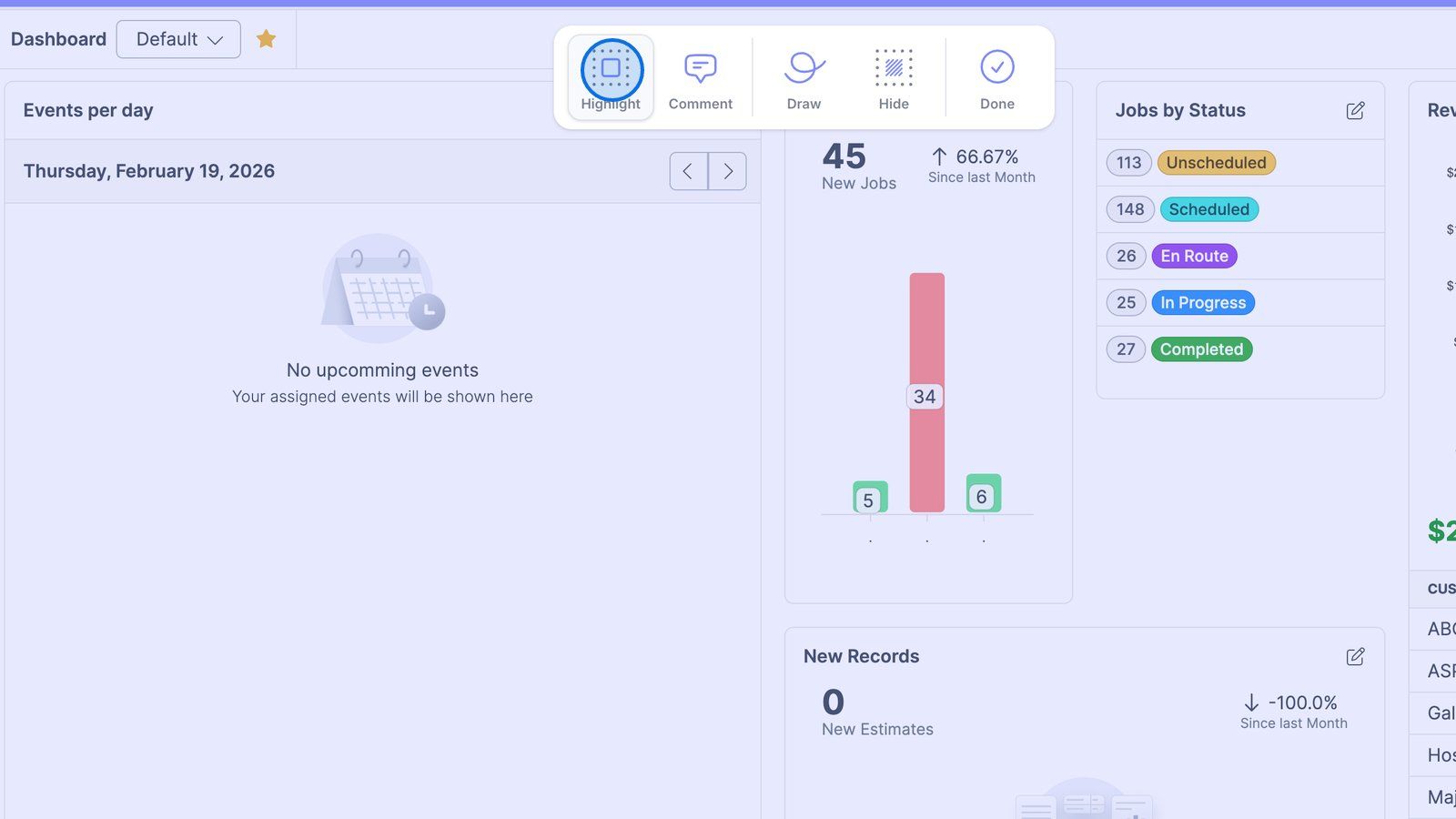
<p>If you want to emphasize a specific area, click&nbsp;<strong>Highlight.</strong></p>

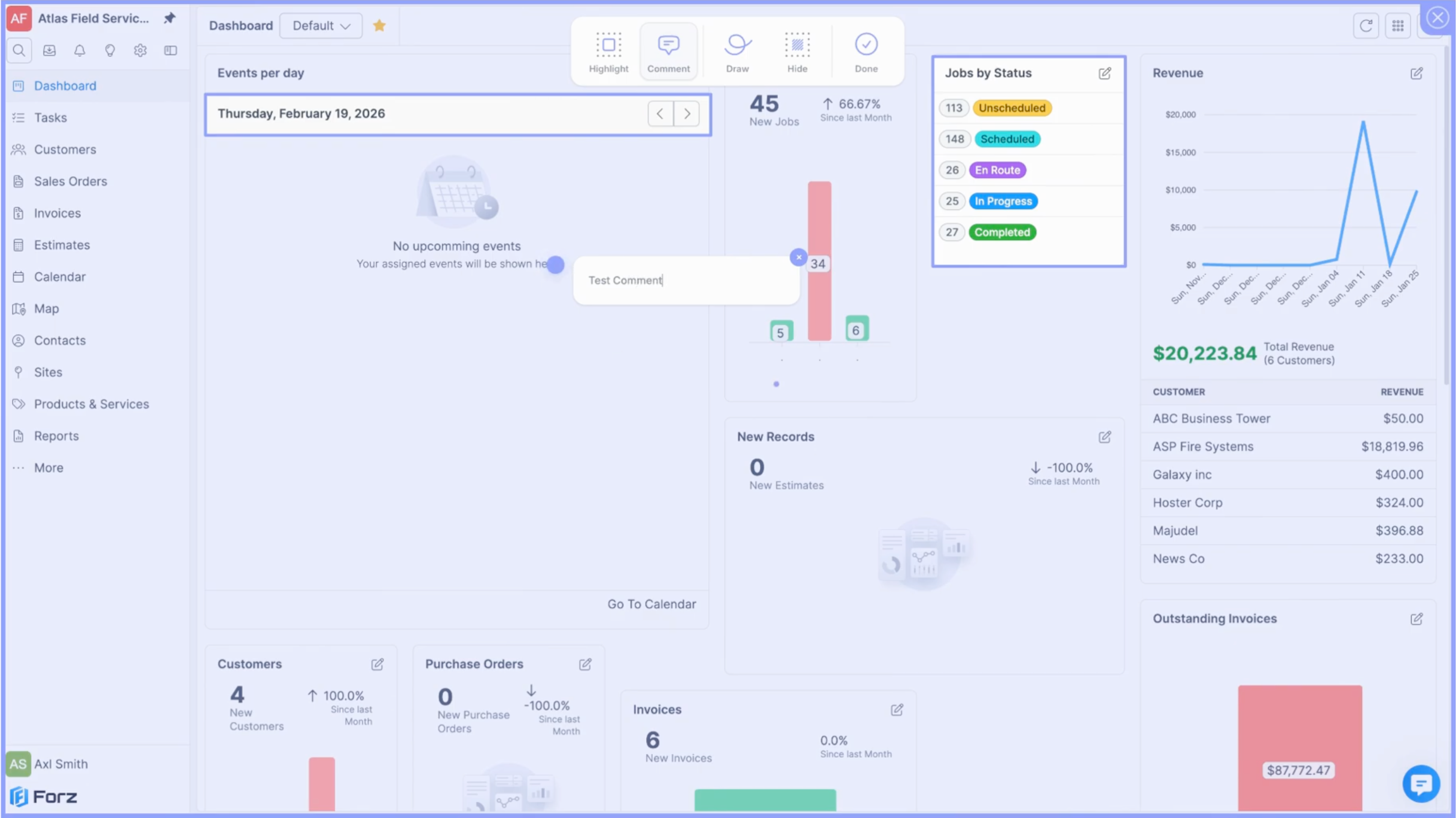
6) If you want to provide context, click Comment.
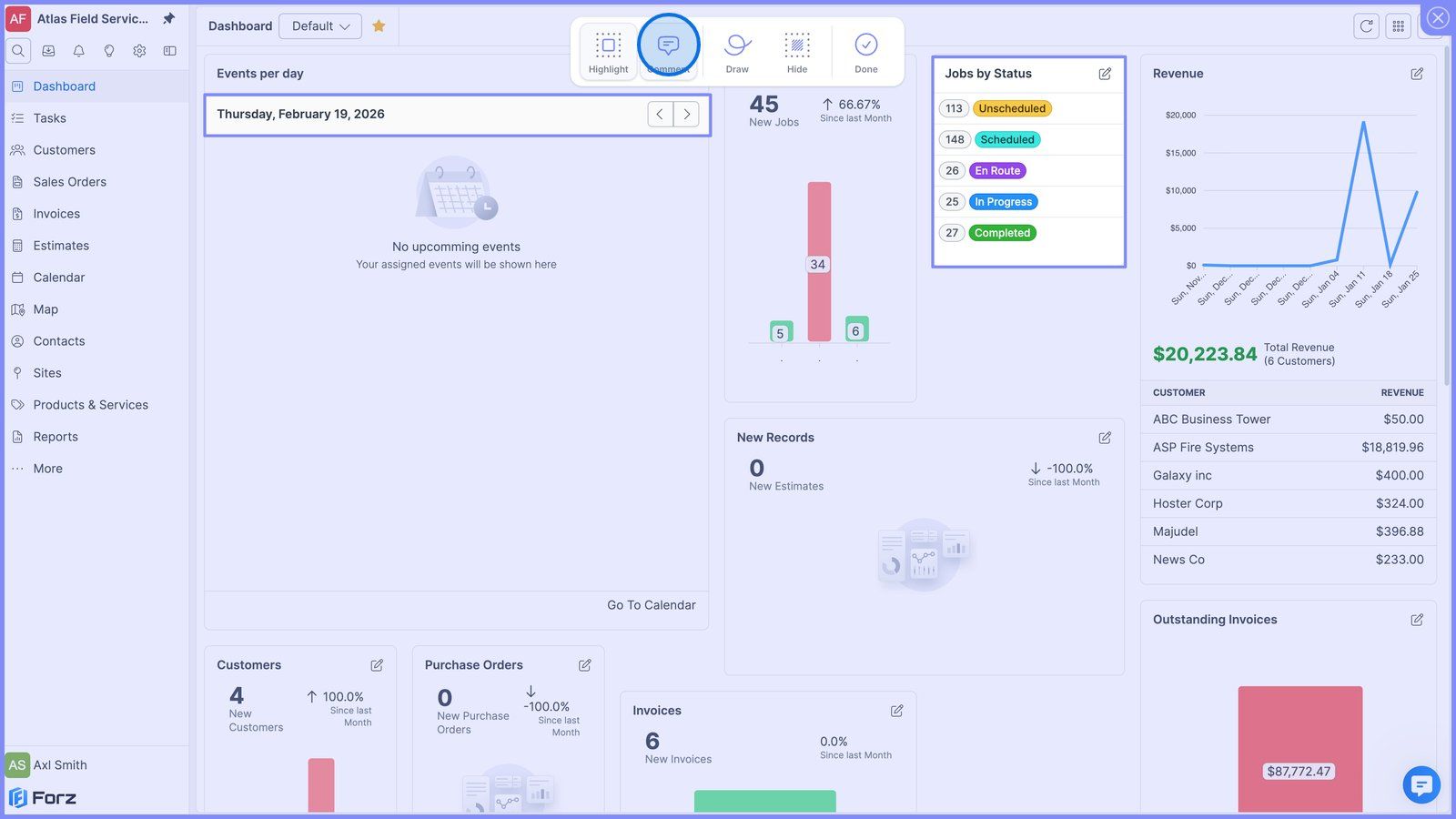
<p>If you want to provide context, click&nbsp;<strong>Comment.</strong></p>

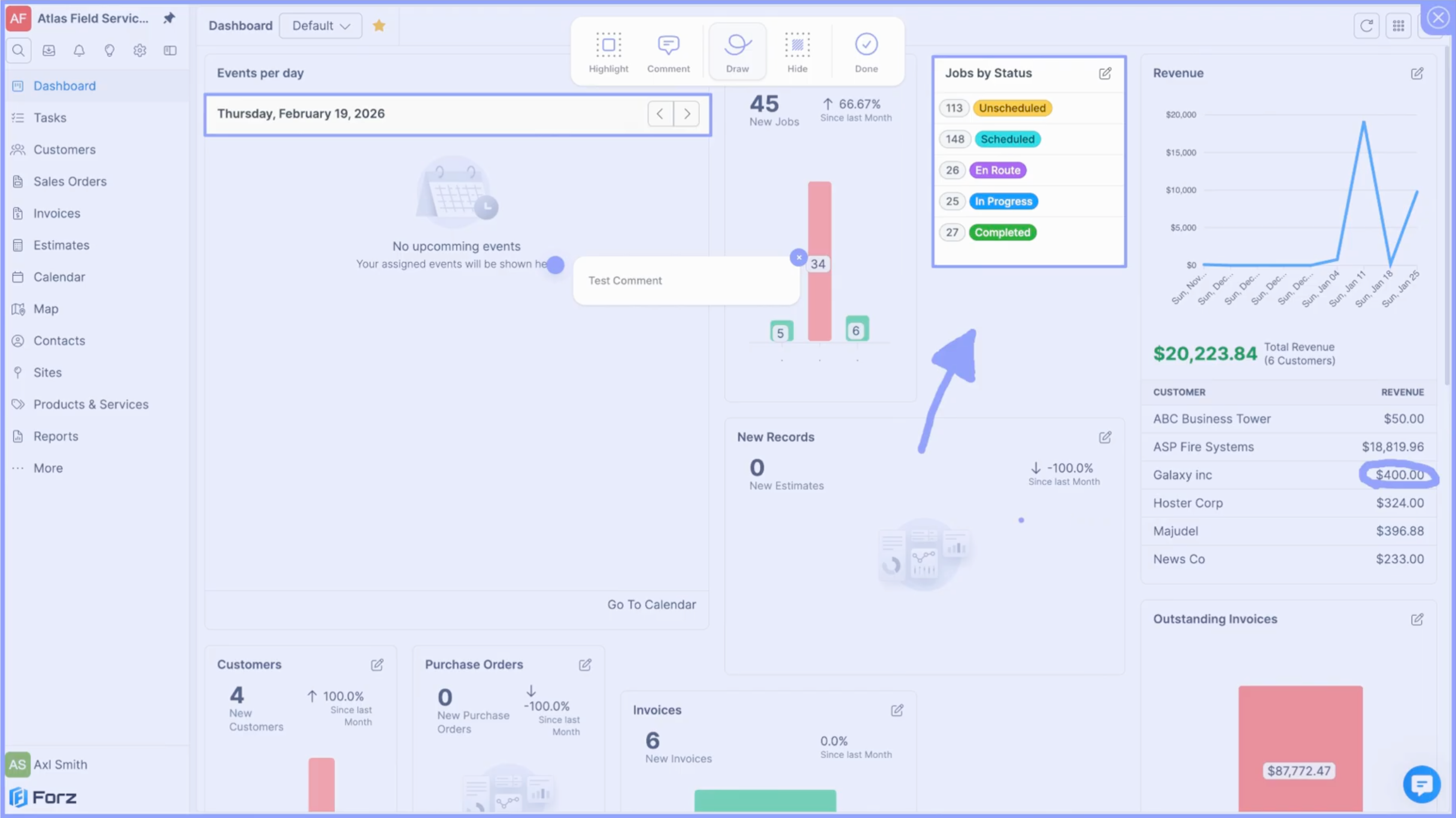
7) If you want to point to something using arrows or other shapes, click Draw.
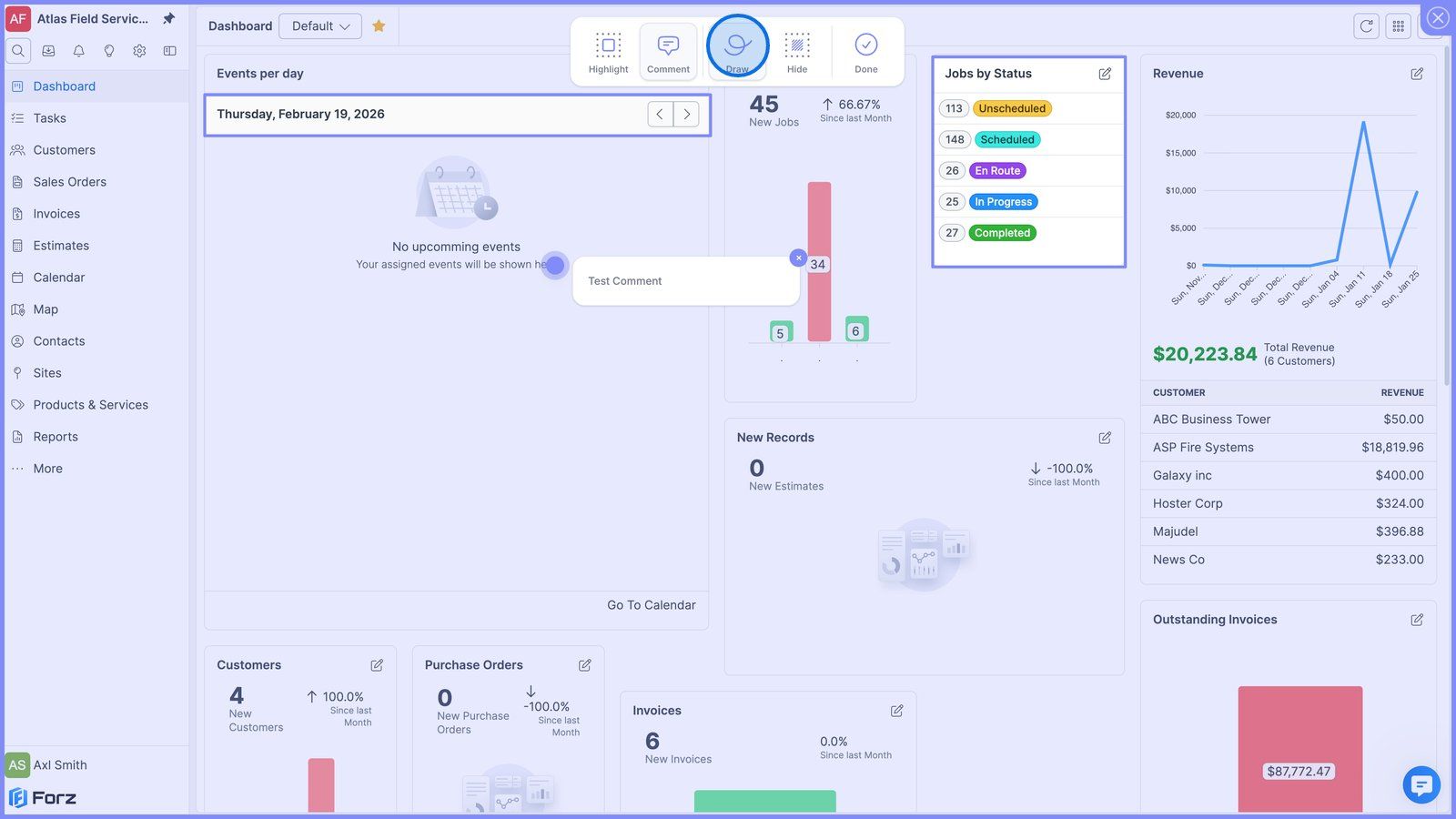
<p>If you want to point to something using arrows or other shapes, click&nbsp;<strong>Draw</strong>.</p>

8) If you want to cover sensitive information, click Hide.
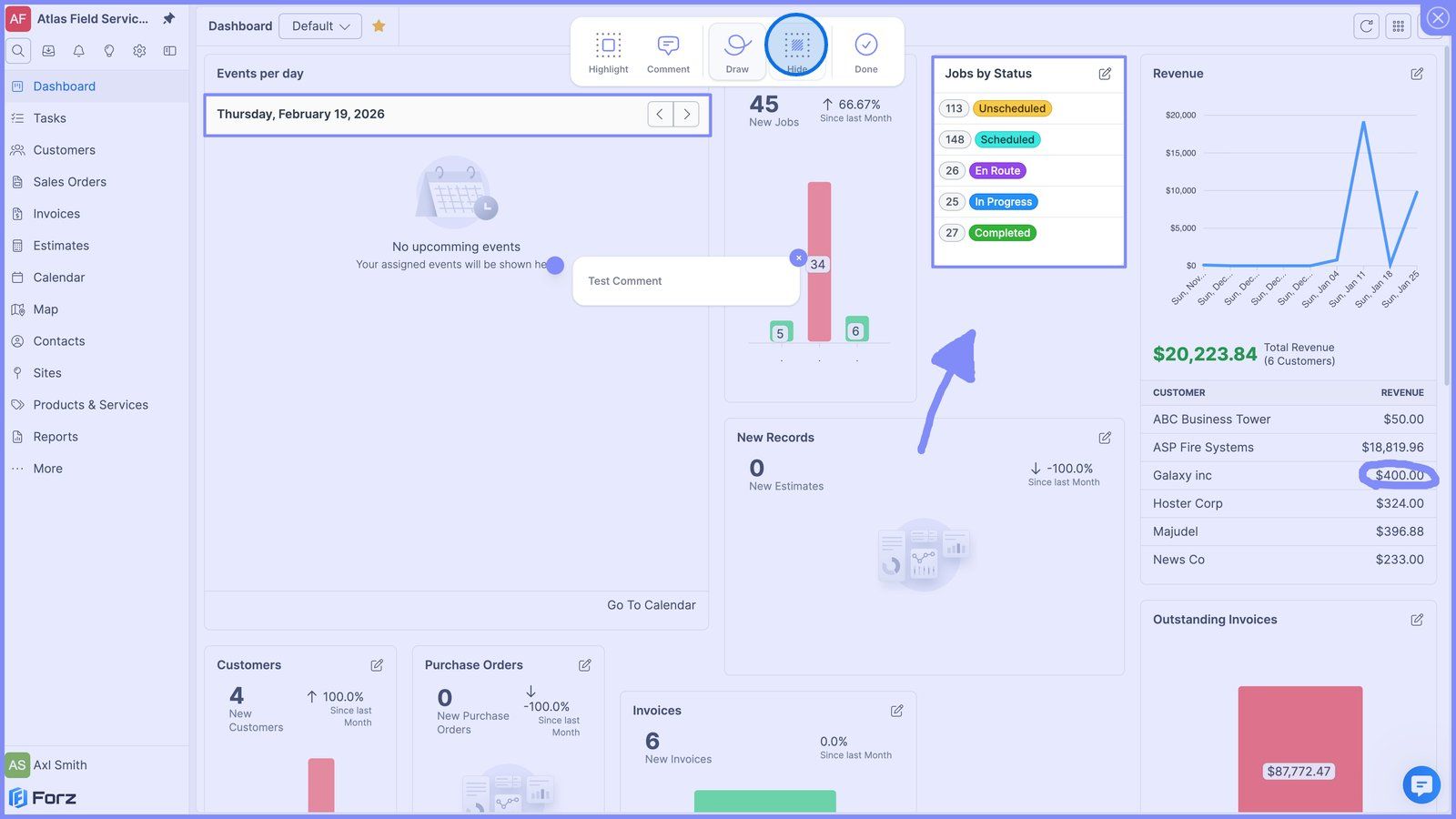
<p>If you want to cover sensitive information, click&nbsp;<strong>Hide.</strong></p>

9) Hover over an element and drag it to reposition it.
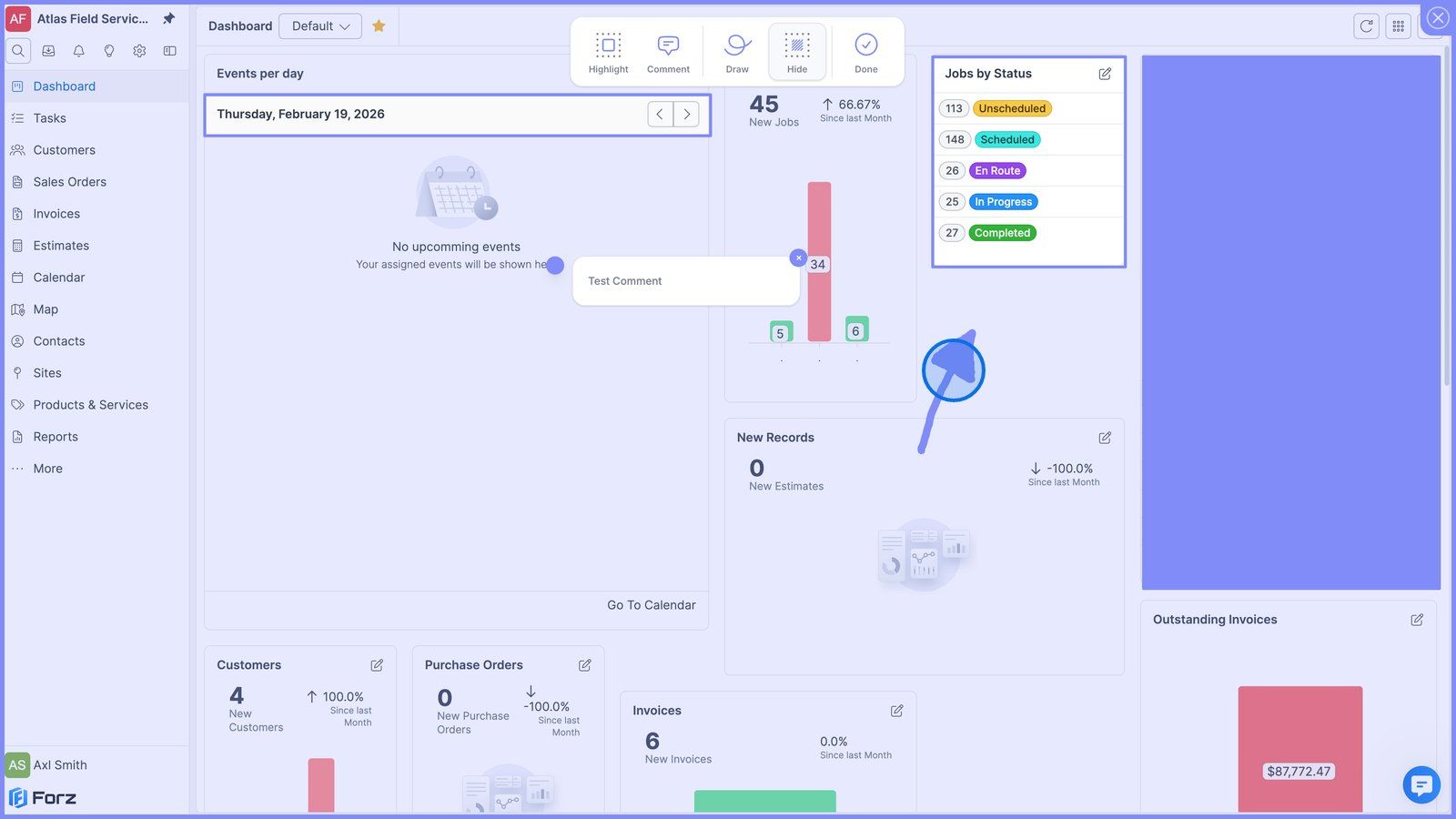
<p>Hover over an element and drag it to reposition it.</p>

10) Click the close button to remove an element.
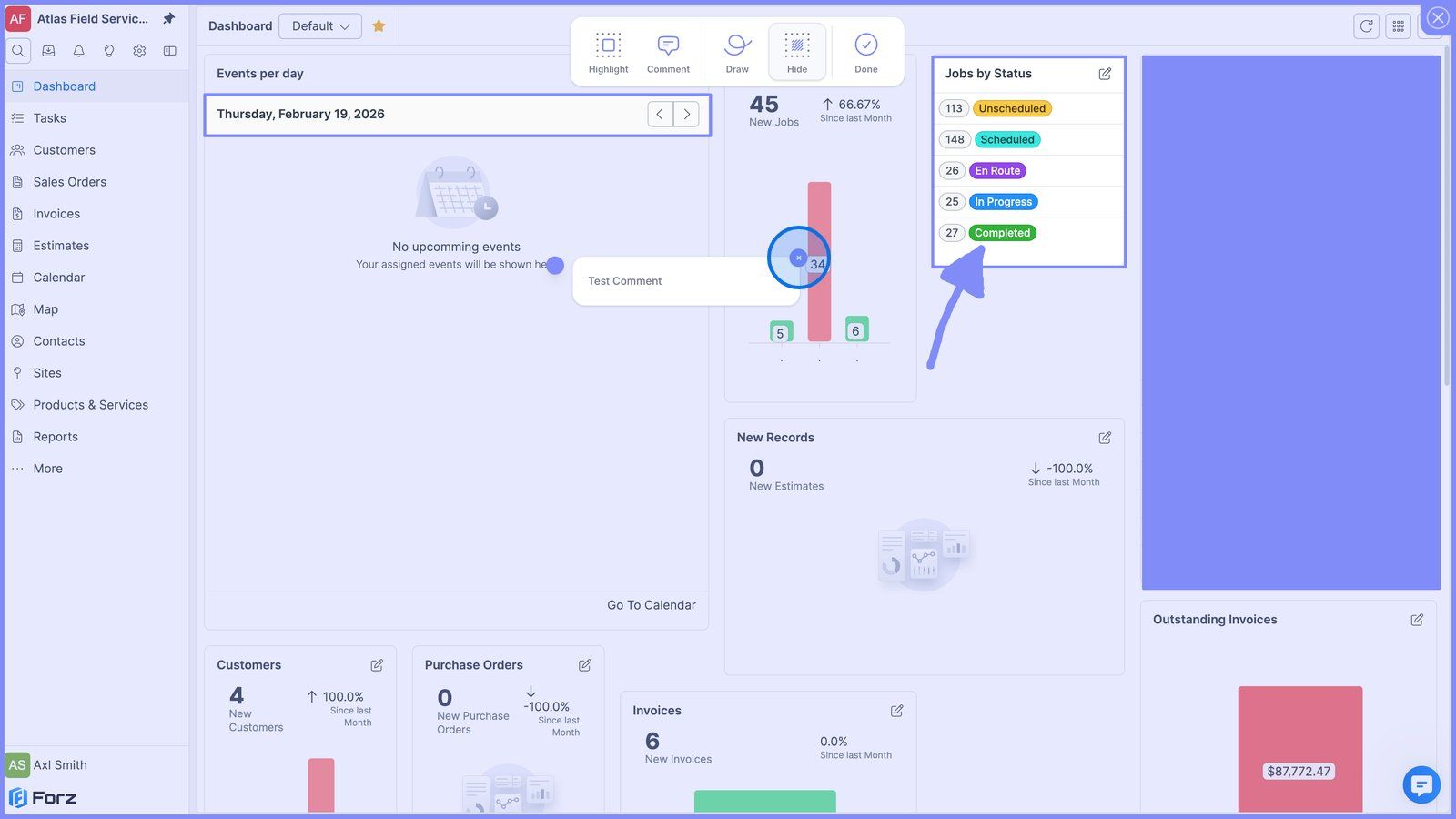
<p>Click the close button to remove an element.</p>

11) Click Done to save your screenshot and attach it to the request.
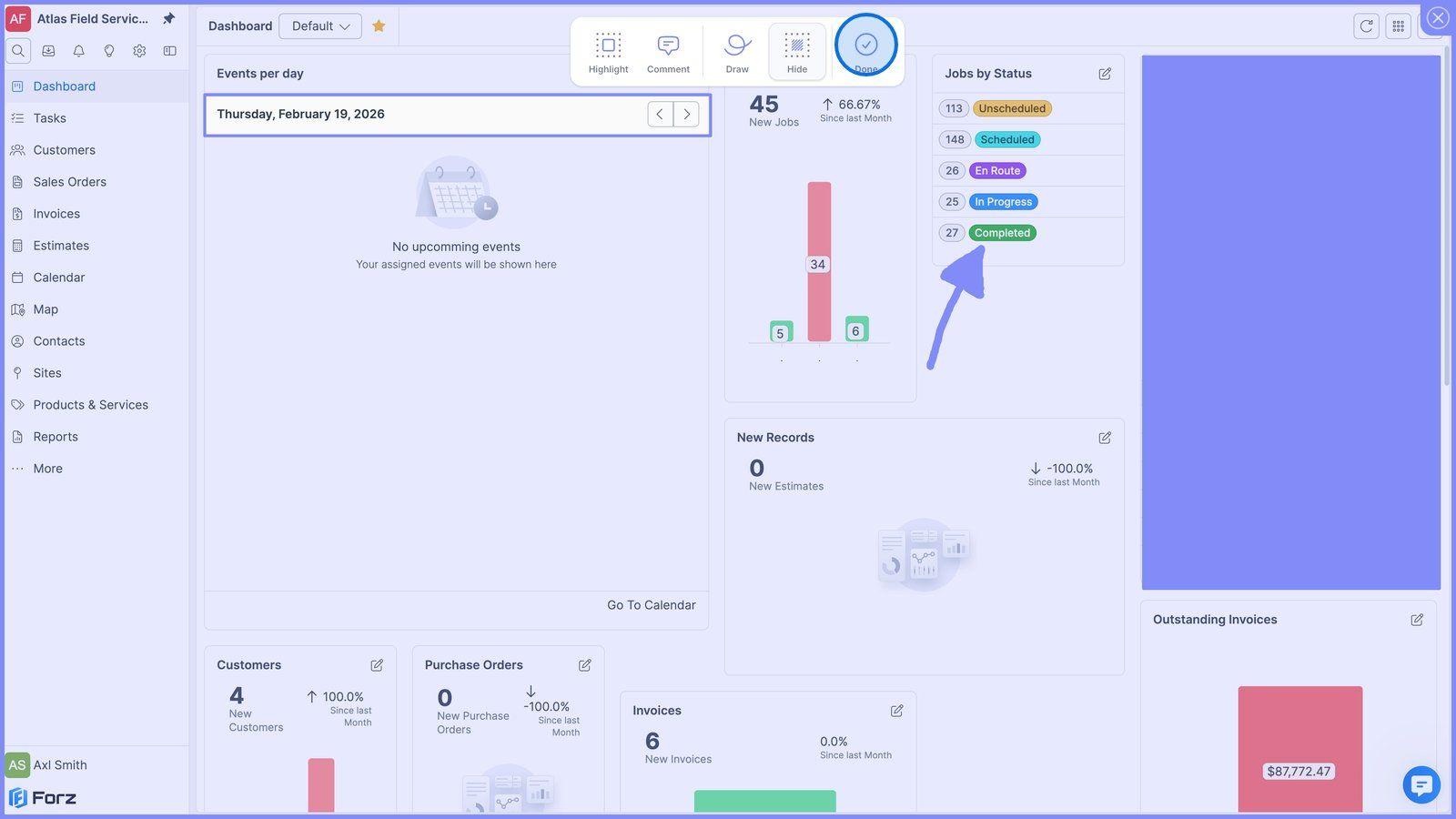
<p>Click&nbsp;<strong>Done</strong>&nbsp;to save your screenshot and attach it to the request.</p>

12) Finally, click Submit to send your request.
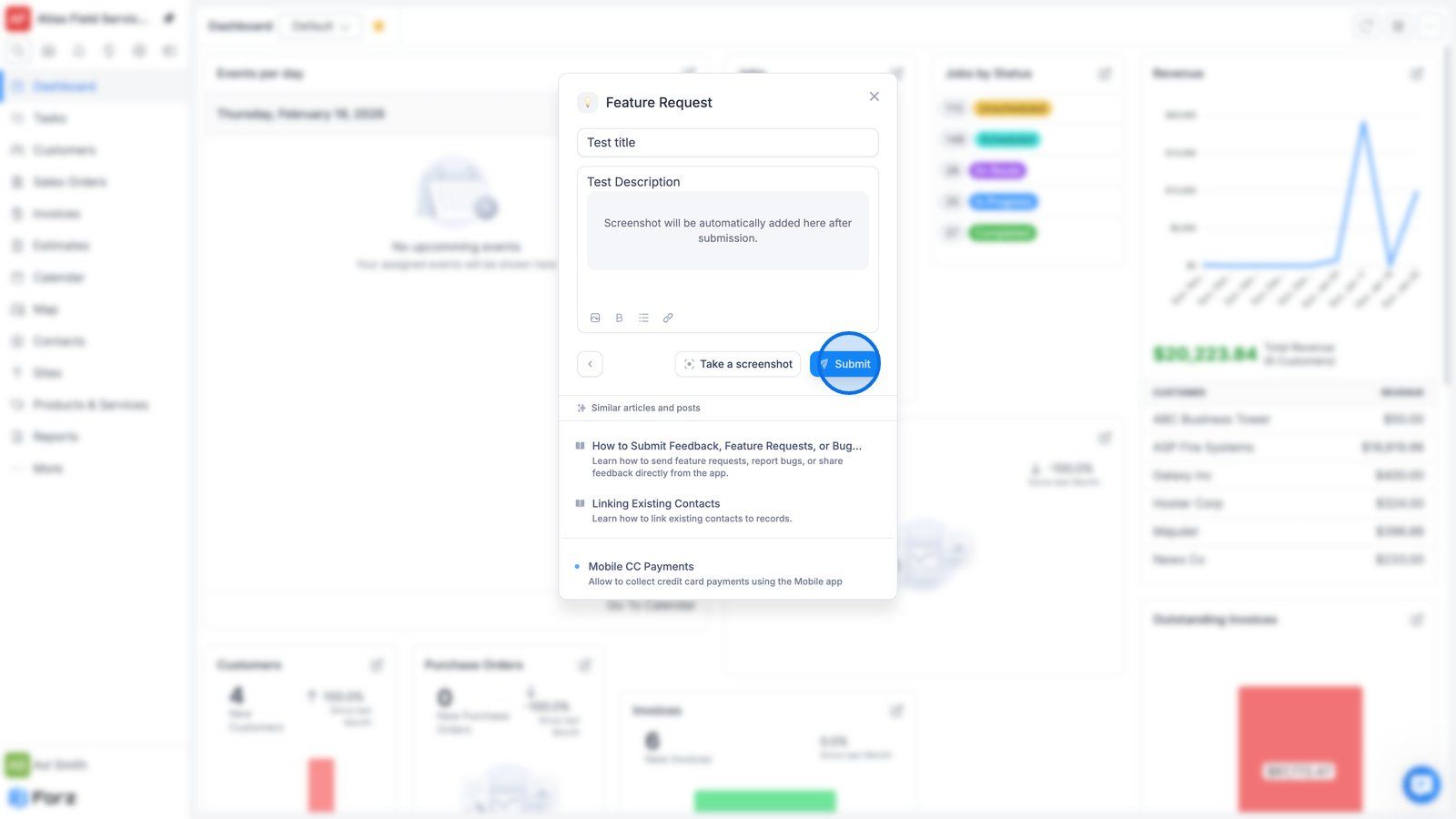
<p>Finally, click&nbsp;<strong>Submit</strong>&nbsp;to send your request.</p>

13) Click the close button to continue working in Forz.
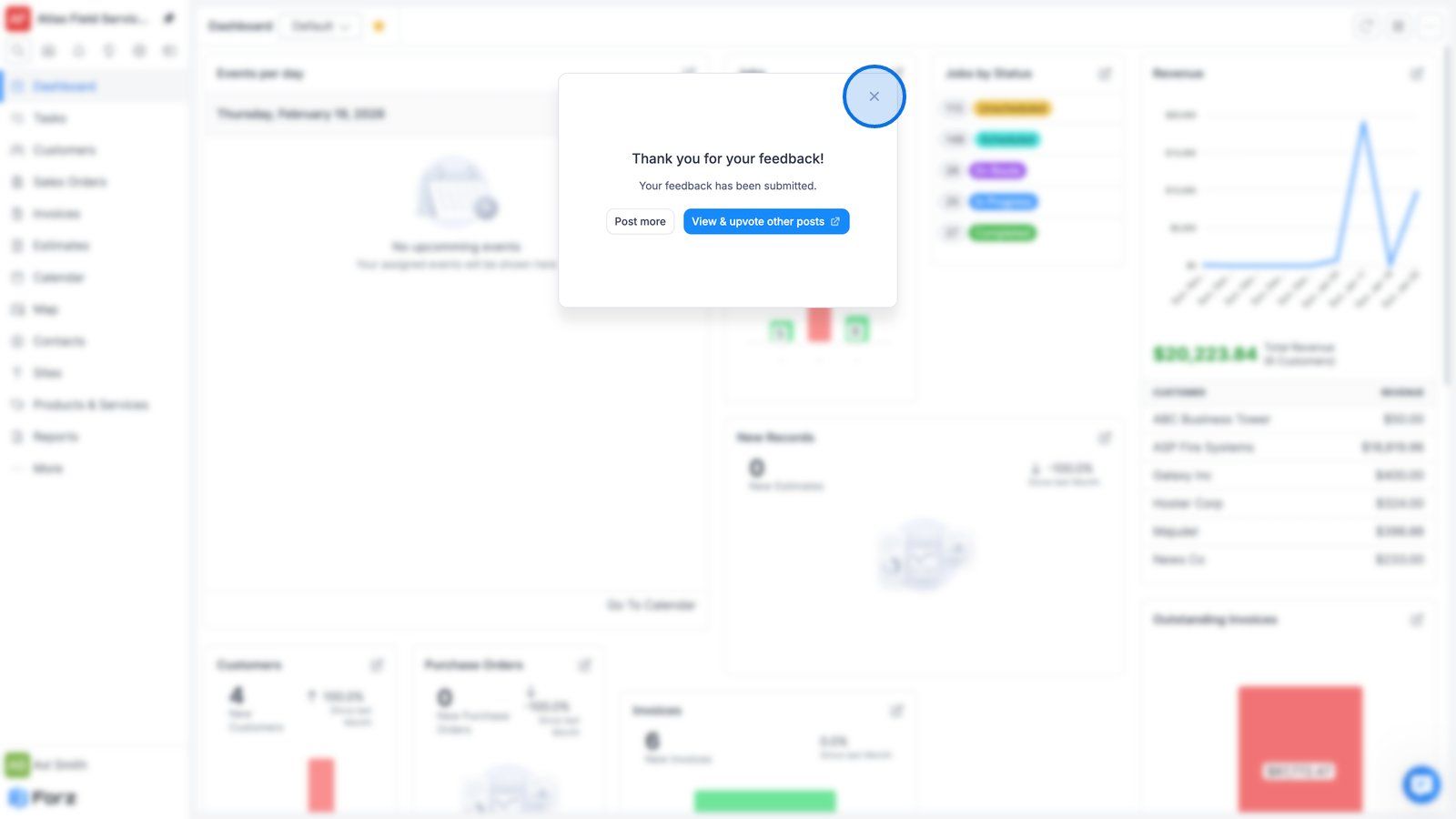
<p>Click the close button to continue working in Forz.</p>
Step 14