Users
Add, edit, and manage the people who use Forz in your organization.
Overview
Users are everyone in your company who signs in to Forz: dispatchers, technicians, managers, and administrators. Each user has one role that decides what they can see and do, an hourly rate for labor costing, and optional skills that match technicians to the right jobs. Forz uses WorkOS for sign-in, so adding a user sends them an email invitation to set up their login.
You manage users from Team in the main sidebar. The Team page has four tabs: Users, Skills, Groups, and Roles. This article covers the Users tab. Skills, User Groups, and Custom Roles each have their own article.
Before You Begin
Prerequisites:
Your role has Team → View to open the list, and Team → Create to add users. The Admin role has both.
You know the new user's email address. Each email can be used only once in your account.
Finding a user
Click Team in the sidebar. The Users tab opens.
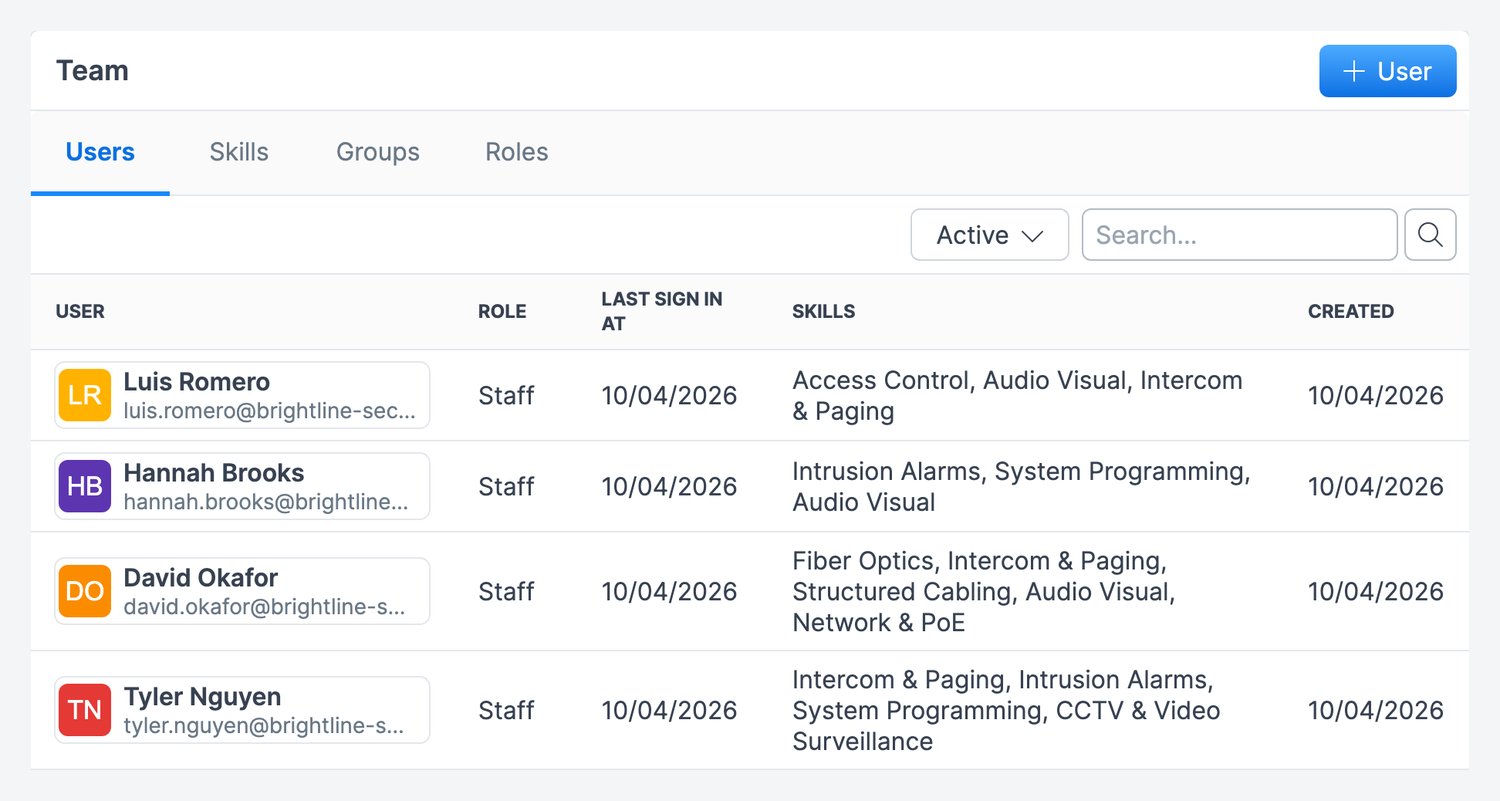
The list shows each user's name and email, Role, Last Sign In At, Skills, and Created date. Click a column heading to sort by it. A user who has not accepted their invitation yet shows an Invitation pending badge in the Last Sign In At column.
Type a name or email in Search and press Enter. Clear the box to see everyone again.
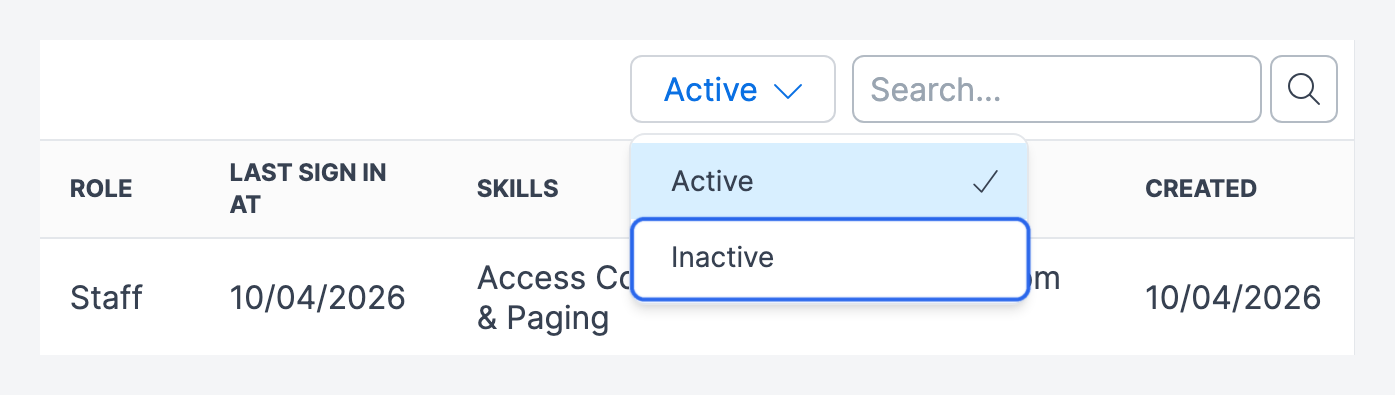
To see disabled users, open the Active filter beside the search box and select Inactive.
Adding a user
Click Team in the sidebar.
Click + User at the top right. The New User form opens.
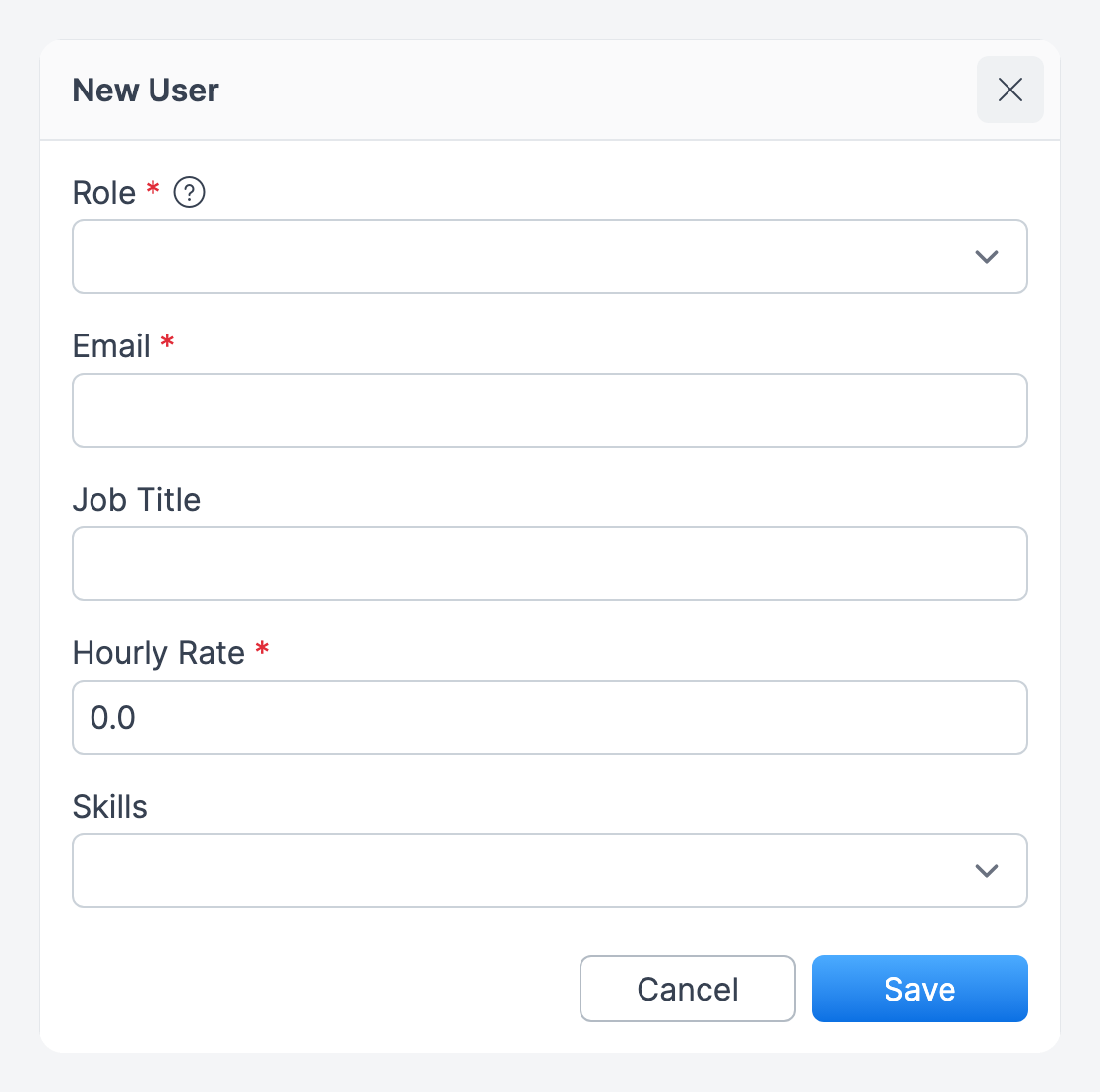
Select a Role. This decides the user's permissions.
Enter the user's Email.
Optionally, enter a Job Title, such as "Lead Technician". It is a label only and does not change permissions.
Enter an Hourly Rate. It starts at 0.0. Forz uses it for labor cost on jobs and time logs.
Optionally, select the user's Skills.
Click Save.
Expected result: The user appears in the list with an Invitation pending badge, and Forz emails them an invitation. They set their password and complete their name and phone number when they first sign in.
New users are available for assignment on jobs, events, and the calendar straight away, even before they accept the invitation.
Editing a user
There is no separate edit form. You change each field directly on the user's profile.
Click Team in the sidebar, then click the user's name.
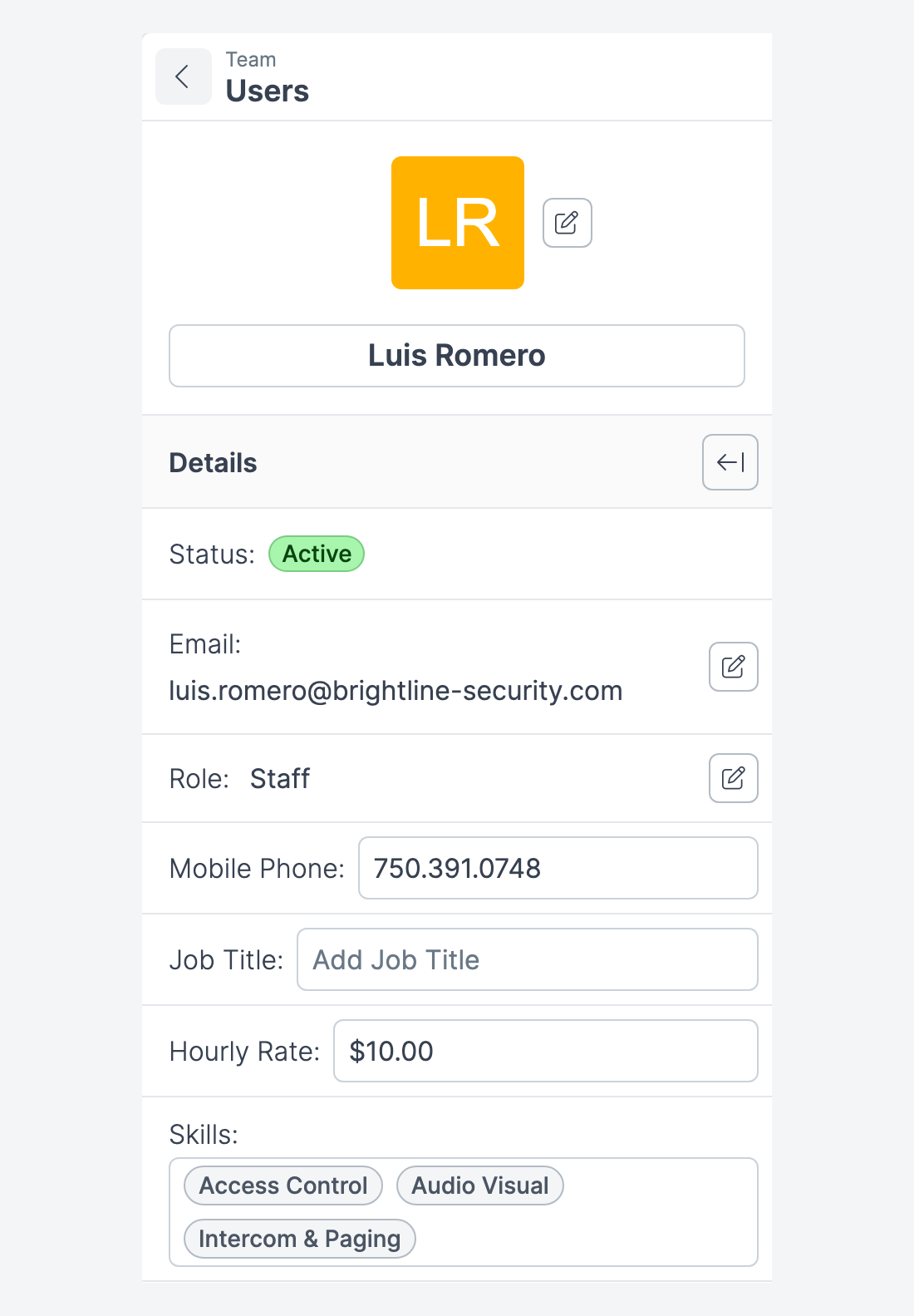
Click the field you want to change: the name at the top, Mobile Phone, Job Title, Hourly Rate, Skills, or Time Zone.
Enter the new value. Text and number fields show Save and Cancel. Skills saves when you click away, and Time Zone saves as soon as you pick a value.
Expected result: Only that field updates. The rest of the profile stays as it was.
A few fields work differently:
Photo — click the pencil beside the avatar and choose an image file.
Role — click the pencil beside Role to open Change Role, choose the role, and click Save. The account owner's role cannot be changed here.
Email — click the pencil beside Email to open Change Email. After you save, the user must accept a new invitation sent to the new address before they can sign in again.
Hourly Rate — Forz logs every rate change. Once a rate has been changed, a Rate History button appears beside it; click it to see previous rates, who changed them, and when.
The tabs on the right of the profile show the user's Time Logs, Licenses, and Certificates.
Resending an invitation
While an invitation is pending, the profile's More options menu (⋯) offers two extra actions:
Resend Invitation — emails the invitation again.
Copy Invitation Link — shows the invitation link so you can send it another way, for example by text message. If the invitation has expired, Forz sends a fresh one and shows its link.
Both actions disappear once the user accepts the invitation.
Disabling a user
When someone leaves or goes on extended leave, disable their account instead of deleting it. Disabled users cannot sign in, and their history (time logs, job history) stays intact.
Open the user's profile.
Click the More options button (⋯) at the top right, then click Disable User.
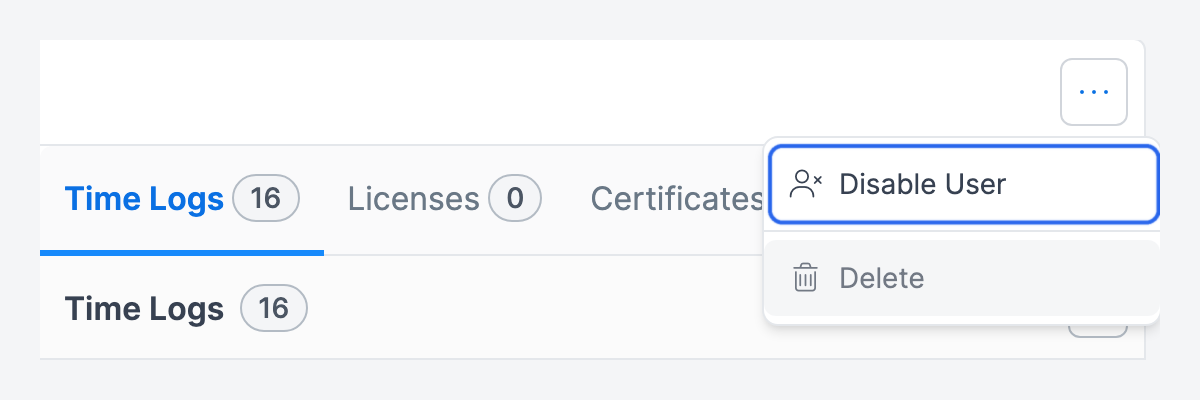
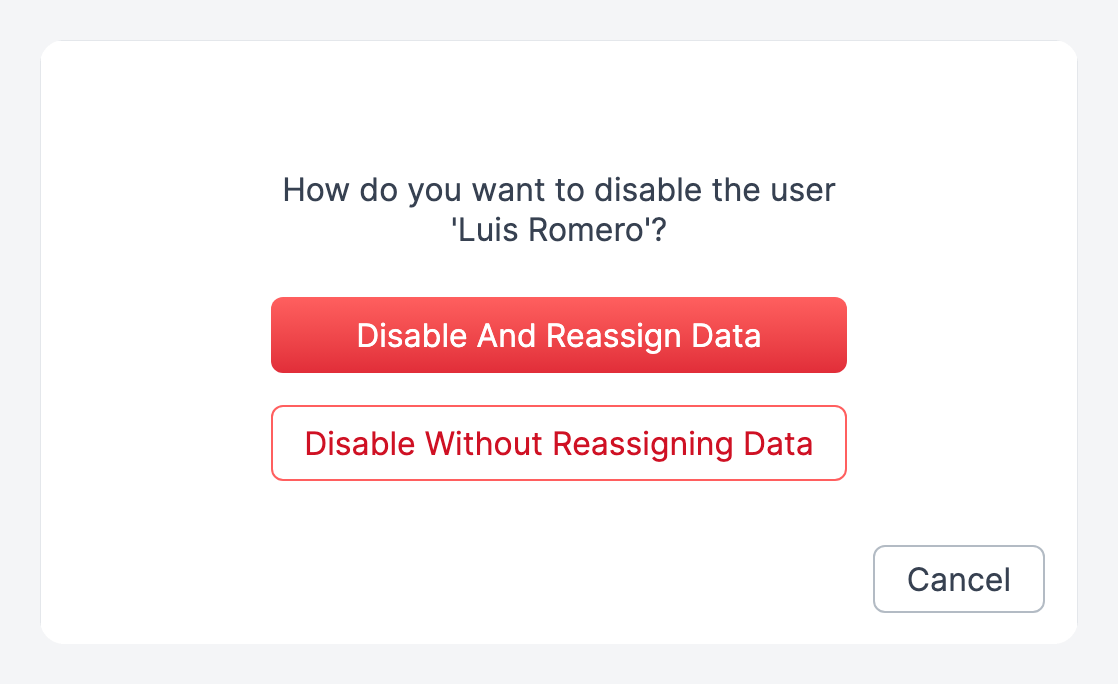
If the user still has open work, Forz asks how to disable them:
Disable And Reassign Data — choose a user under Reassign data to, review the jobs, recurring jobs, customers, events, projects, tasks, and tools that will move, and click Reassign.
Disable Without Reassigning Data — disables the user and leaves their records assigned to them.
If the user has nothing to reassign, confirm with Yes.
Expected result: The user's status changes to Inactive, they can no longer sign in, and they move to the Inactive list. Admins can review the reassignment under Settings → Reassignment Logs.
You cannot disable your own account. On plans billed per seat, every active user counts as a seat, so disabling a user lowers your seat count.
Re-enabling a user
Click Team in the sidebar.
Open the Active filter and select Inactive.
Click the user's name.
Click the More options button (⋯), then click Enable User and confirm.
Expected result: The user is active again and can sign in with their existing login.
Deleting a user
Delete is for users who were added by mistake. Open the profile, click the More options button (⋯), click Delete, and confirm. Deleted users go to the Trash Bin.
You cannot delete yourself, or a user who already has time logs, events, jobs, tasks, or @-mentions. Disable those users instead.
Your own profile
Each user can update their own photo, name, time zone, and language from My Settings: click your name in the bottom-left corner and select My Settings. If you have no photo, Forz shows an avatar with your initials.
Common scenarios
Onboarding a new HVAC technician
Click Team, then + User.
Select the Staff role (or your own technician role), enter the email, set Job Title to "HVAC Technician" and Hourly Rate to 45.00.
Under Skills, select "HVAC" and "EPA Certified", then click Save.
The technician receives the invitation, sets a password, and completes their name and phone number on first sign-in.
Handing over a departing dispatcher's work
Open the dispatcher's profile from Team.
Click More options (⋯) → Disable User → Disable And Reassign Data.
Choose the replacement dispatcher, check the list of records, and click Reassign.
Their jobs, recurring jobs, customers, events, projects, tasks, and tools move to the replacement. Admins can review the transfer under Settings → Reassignment Logs.
Permissions
Access to the Users tab is set by the Team permissions in Custom Roles:
View — open the Team list and user profiles.
Create — add users.
Edit — change profile fields, change a user's role or email, resend invitations, and disable or enable users.
Delete — delete users.
Only Admins can assign the Admin role. Users with the Admin role are listed only to other Admins, and only an Admin can change, disable, or delete them. The account owner's role cannot be changed from Team.
When a control is unavailable to you, Forz still shows it and explains which permission is missing when you click it.
Troubleshooting
Was this helpful?
Still need help? Ask the team