Custom Reports
Build filtered reports from your data using natural language or manual filters, and export to CSV or PDF.
Overview
Custom Reports let you create filtered views of your Customers, Jobs, Estimates, and Invoices. Describe what you want to see in plain language (e.g., "all overdue invoices over $500") and Forz uses AI to generate the filter. You can also write filters manually. Reports display configurable columns and can be exported to CSV or PDF for sharing with stakeholders.
Before You Begin
Prerequisites:
You have the Custom Reports: Create permission on your role.
You have the Custom Reports: View permission to see existing reports.
Creating a Report
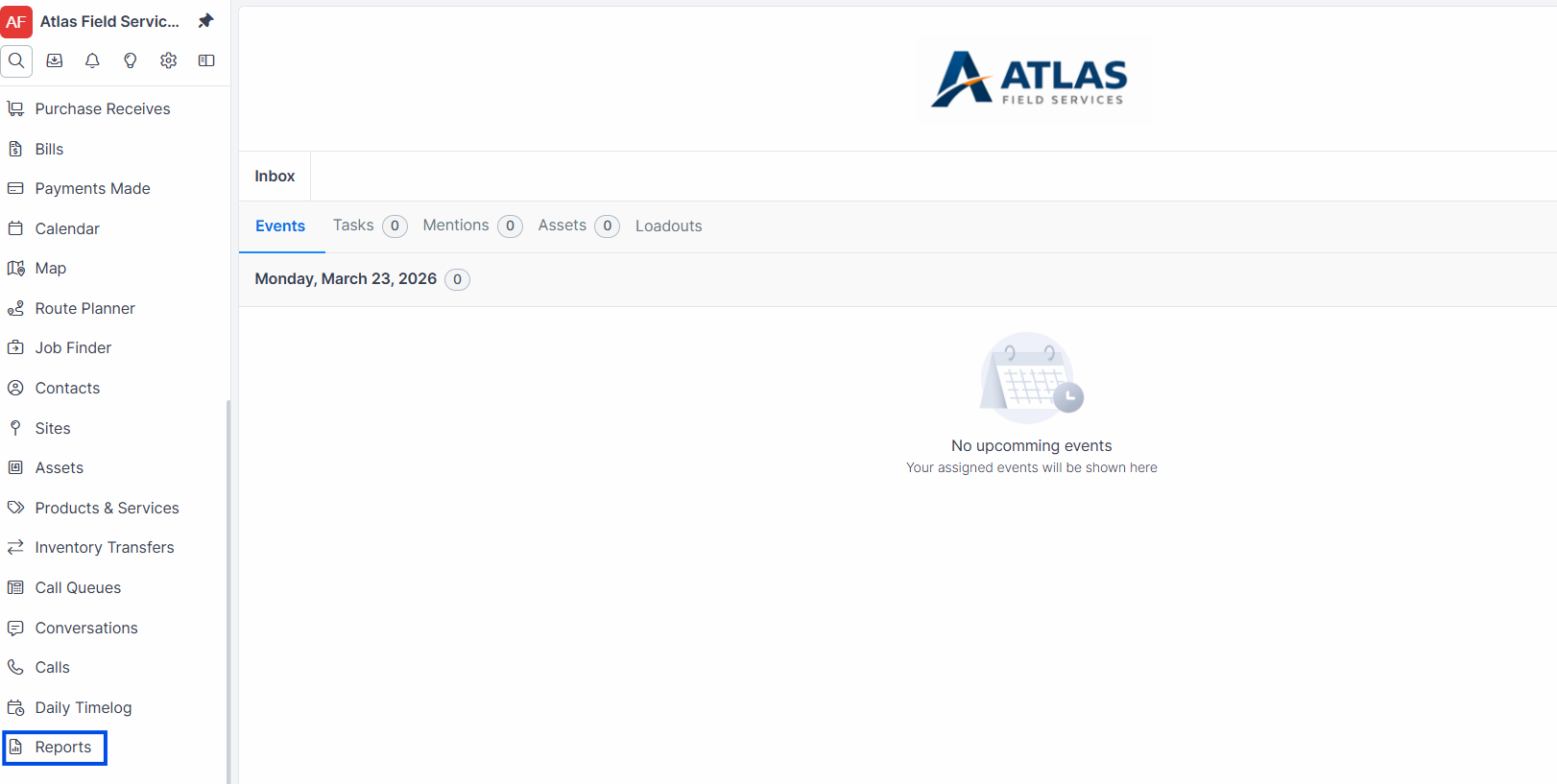
Click Reports in the sidebar navigation.
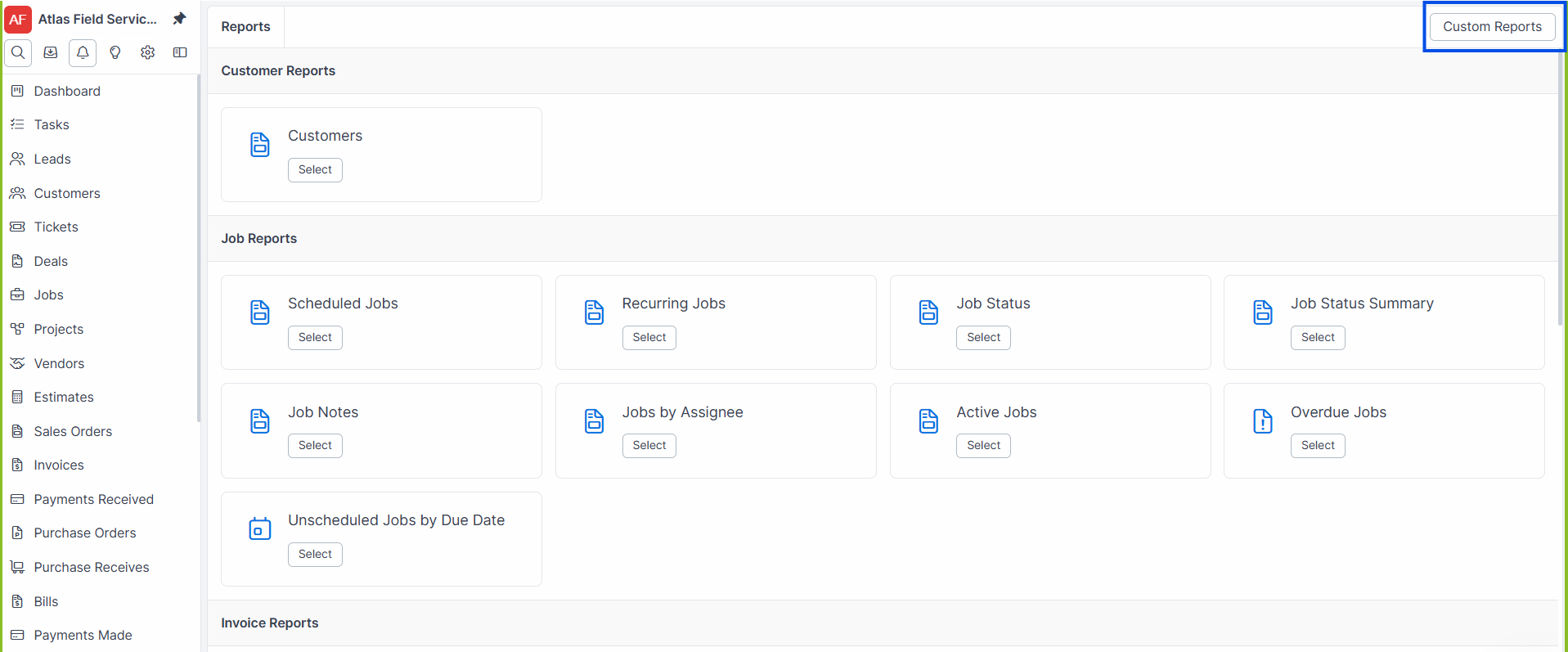
Click the + New Report button.
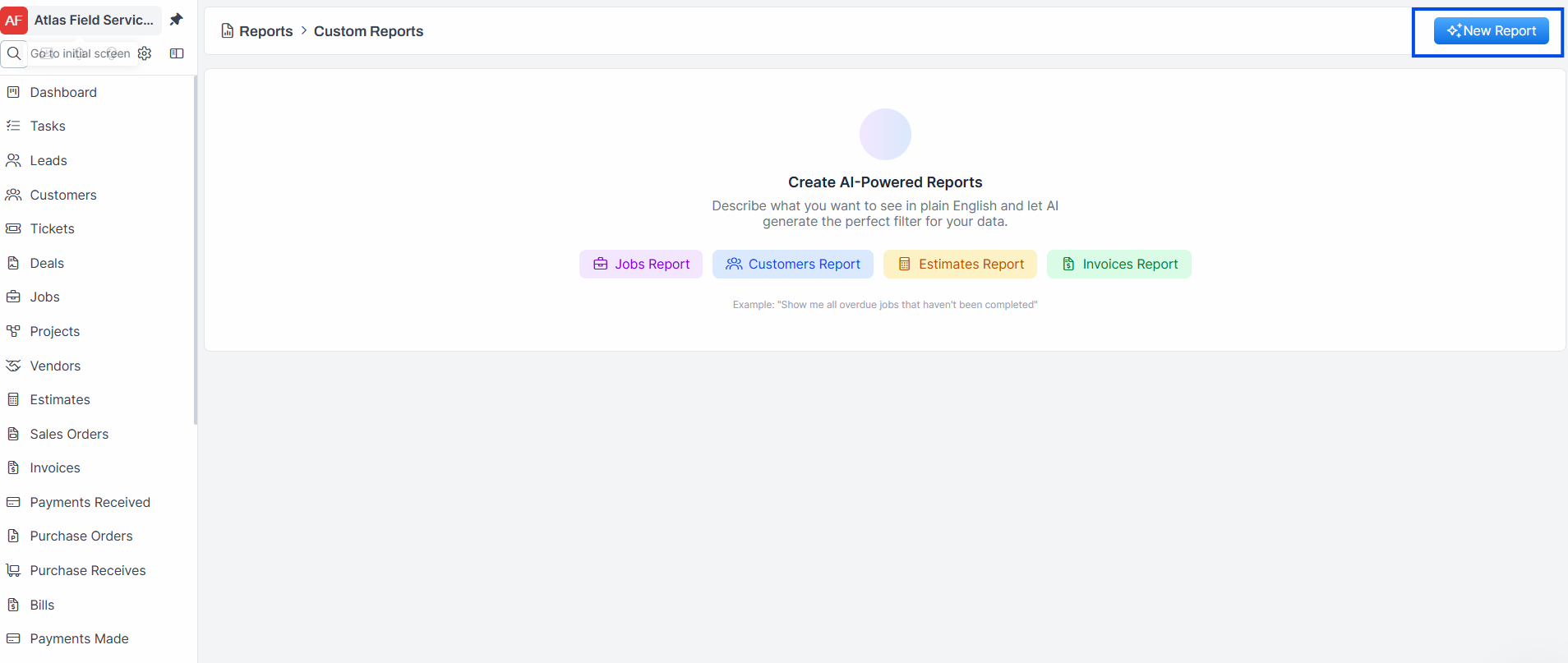
Select a Model — the type of data you want to report on.
Customer (customer records)
Job (job/work order records)
Estimate (estimate records)
Invoice (invoice records)
Enter a Description of what the report should show. Write this in plain language (e.g., "All jobs completed in the last 30 days with a total over $1,000"). This is required.
Click Save.
Expected result: Forz creates the report and begins processing. The AI filter generation runs in the background. After a few seconds, the report loads with filtered results. The report name is auto-generated from your description.
Note: The report enters a "processing" state while the AI generates the filter. The page automatically reloads when processing is complete.
How AI Filter Generation Works
When you create or update a report, Forz sends your description to the filter generator, which turns it into a structured filter. The AI considers the available filterable attributes for your selected model and translates your natural language description into a structured filter.
For example, the description "overdue invoices with balance over 500" might generate:
status = "Overdue" AND balance > 500If the generated filter has a syntax error, Forz detects it and automatically regenerates the filter.
Available Columns by Model
Each model has a set of columns you can display in your report. After creating a report, you can customize which columns appear.
Customer columns: number, status, organization, assignee, createdat, updatedat, statusupdatedat, labels.
Job columns: number, status, customername, jobtype, createdat, duedate, statusupdatedat, total, labels, cf1, cf2, cf3, cf4, cf_5.
Estimate columns: number, status, amount, customername, estimatedate, created_at, labels.
Invoice columns: number, status, amount, balance, customername, duedate, created_at, labels.
Filterable Attributes by Model
These are the attributes you can reference in your report description for filtering.
Customer: number, status, organization, assignee, city, state, createdat, updatedat, statusupdatedat, labels
Job: number, status, customername, jobtype, assigneename, duedate, createdat, statusupdated_at, total, labels
Estimate: number, status, amount, estimatedate, createdat, updatedat, statusupdated_at, labels
Invoice: number, status, amount, balance, customername, duedate, createdat, updatedat, statusupdatedat, labels
Customizing Report Columns
Open the report.
Click Edit Columns.
Add or remove columns from the available list. Columns that are already added are shown separately from columns not yet added.
Save your changes.
Expected result: The report table updates to show only the selected columns in the order you configured.
Editing a Report Filter
Open the report.
Click Edit.
Update the Description with your new filter criteria.
Click Save.
Expected result: Forz regenerates the filter in the background. The report re-enters the processing state and reloads with updated results when complete.
Regenerating a Report Filter
If a report's filter produces errors or unexpected results, you can force regeneration.
Open the report.
Click Regenerate.
Expected result: Forz marks the report as processing and re-runs the AI filter generation. The page reloads when the new filter is ready.
Exporting Reports
Export to CSV
Open the report with the results you want to export.
Click the CSV export option (or append
.csvto the report URL).
Expected result: Your browser downloads a CSV file named [report-name]-[date].csv containing all matching records with the configured columns.
Export to PDF
Open the report with the results you want to export.
Click the PDF export option.
Expected result: A PDF document is generated and opens in your browser (or downloads, depending on your browser settings). The PDF uses a print-optimized layout.
Print View
Open the report.
Click Print.
Expected result: The report opens in a print-friendly layout (up to 1,000 records) suitable for browser printing.
What Happens After Creating a Report
When a report is saved, Forz automatically:
Creates initial columns — all available columns for the selected model are added by default default.
Queues AI filter generation —a background job generates the filter from your description.
Sets the report name — the AI generates a concise report name based on your description.
Sets a filter description — a human-readable summary of what the filter does.
Warning: Reports are soft-deleted (moved to the trash bin) when you delete them. The data they report on is not affected -- reports are read-only views of your existing records.
Common Scenarios
Tracking overdue invoices for collection follow-up
An office manager needs a list of all unpaid invoices past their due date.
Click Reports > + New Report.
Select Invoice as the model.
Enter the description: "All invoices with status Overdue".
Save. The AI generates a filter for overdue invoices.
Export to CSV and share with the collections team.
Weekly job completion report for management
A service manager wants to see all jobs completed in the past week for a status meeting.
Create a new report with model Job.
Enter the description: "Jobs completed in the last 7 days".
Save. Edit columns to show: number, status, customername, jobtype, total, statusupdatedat.
Export to PDF for the meeting.
Finding high-value estimates pending approval
A sales manager wants to identify estimates over $5,000 that are still pending.
Create a new report with model Estimate.
Enter the description: "Estimates with status Pending and amount greater than 5000".
Save. Review the results and follow up with customers.
Troubleshooting
Was this helpful?
Still need help? Ask the team