Payment Terms
Define when invoices are due using standard day-count terms or date-driven terms tied to specific days of the month.
Overview
Payment Terms specify when an invoice payment is due. Forz supports two types: standard terms (due a set number of days after the invoice date, like "Net 30") and date-driven terms (due on a specific day of the month). You can set a default payment term that automatically applies to new invoices. Like tax rates, payment terms use an archive-and-create pattern to preserve history.
Before You Begin
Prerequisites:
You have the Admin role in Forz.
The Invoice module is enabled in Settings > Modules.
Default Payment Terms
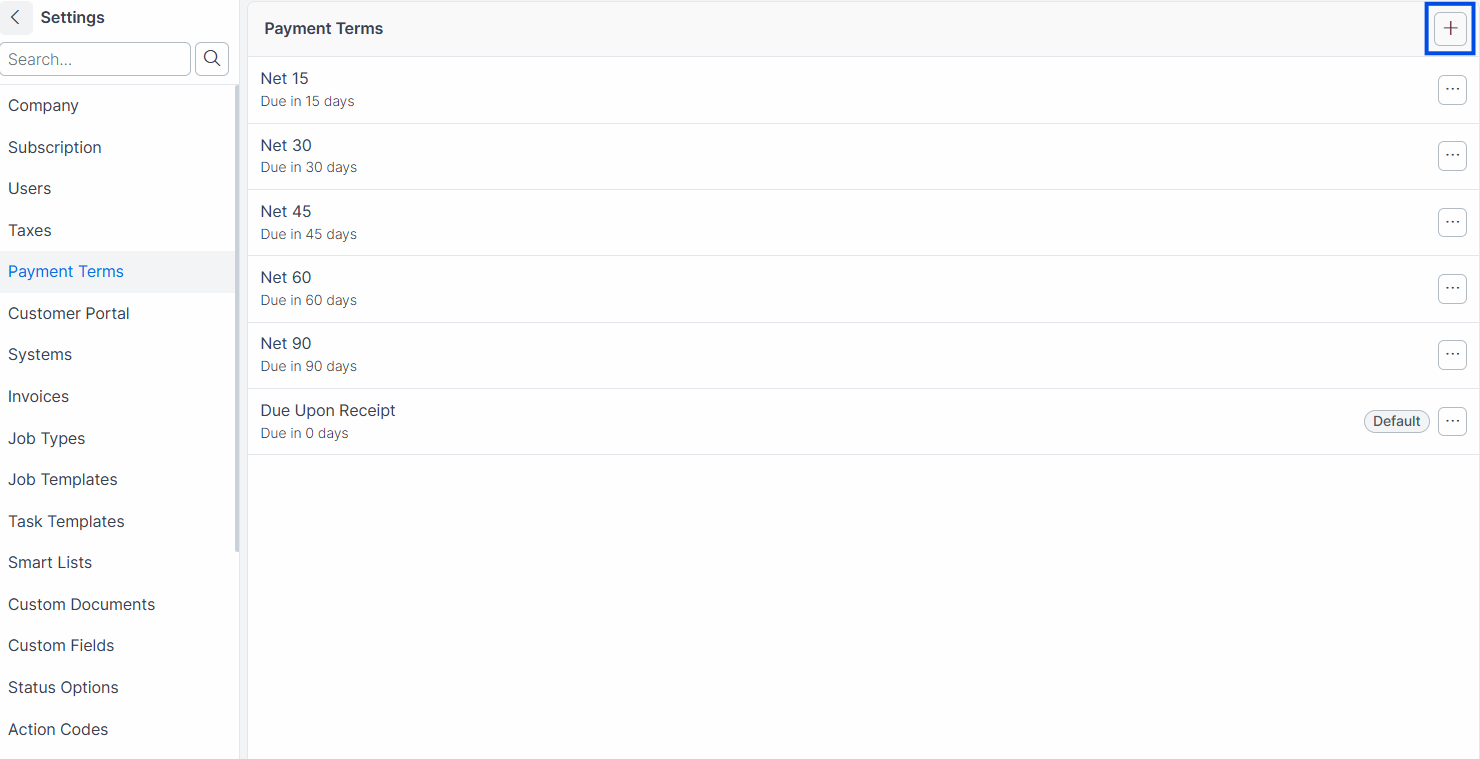
Forz creates these standard payment terms during account setup:
Creating a Standard Payment Term
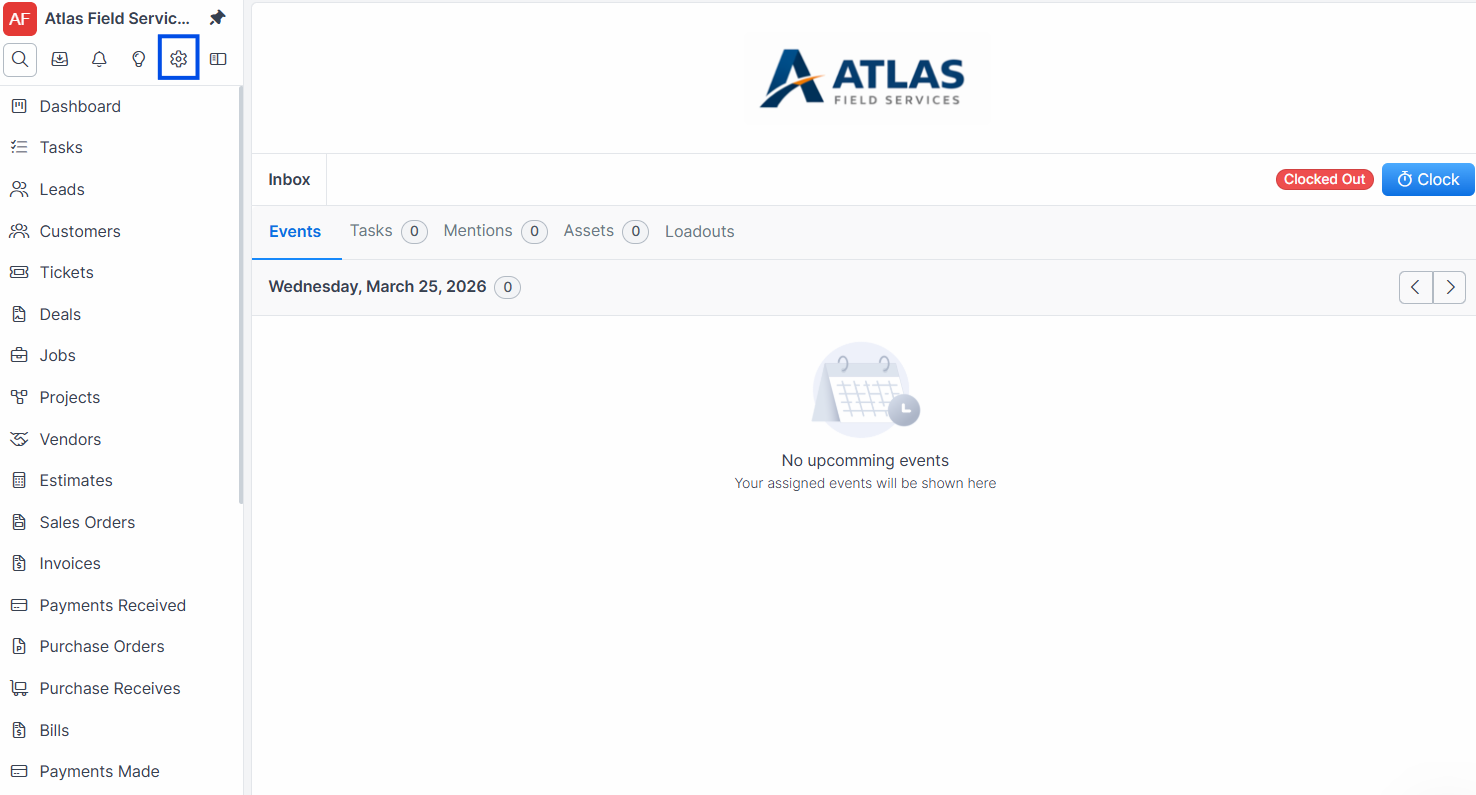
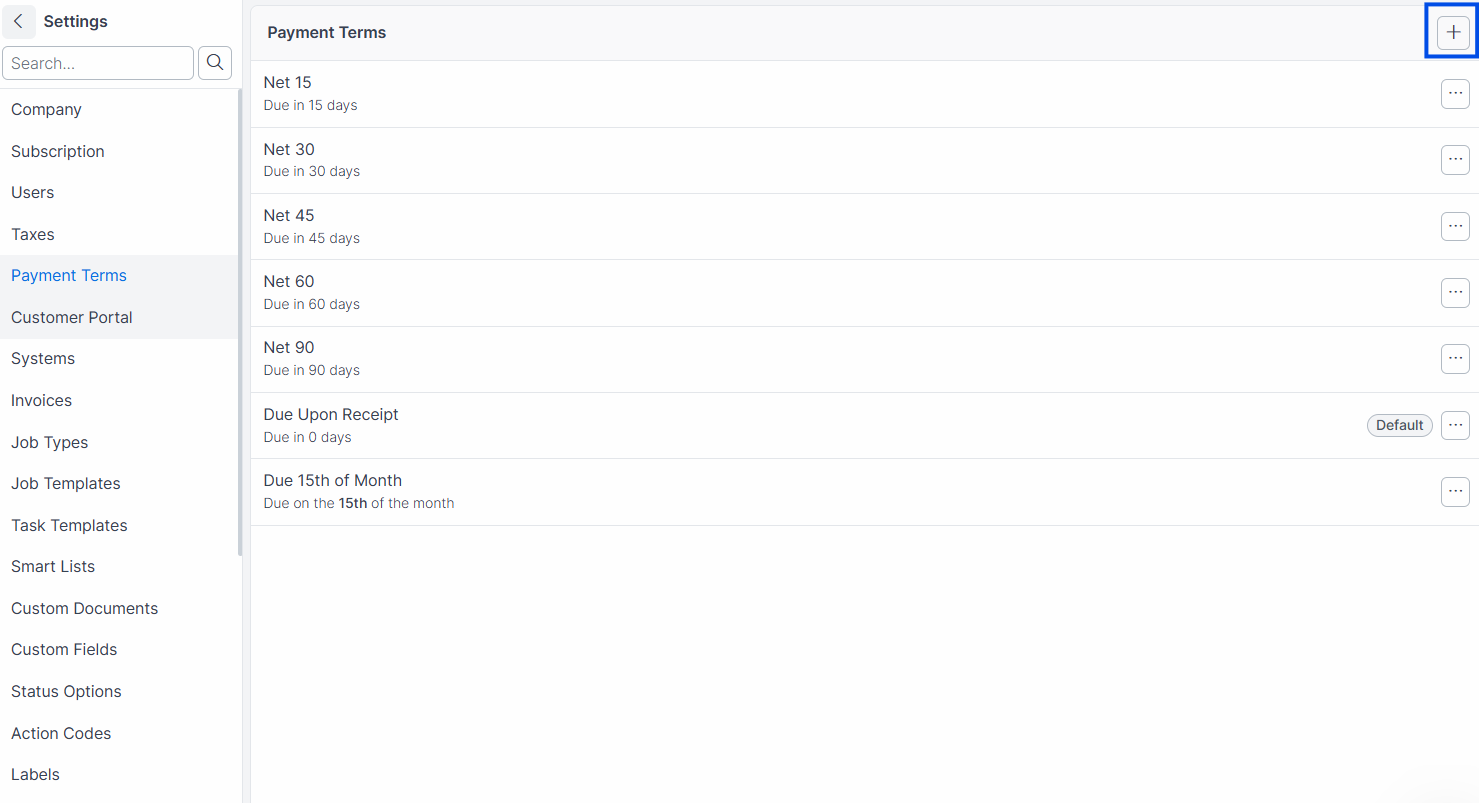
Click Settings in the sidebar navigation.
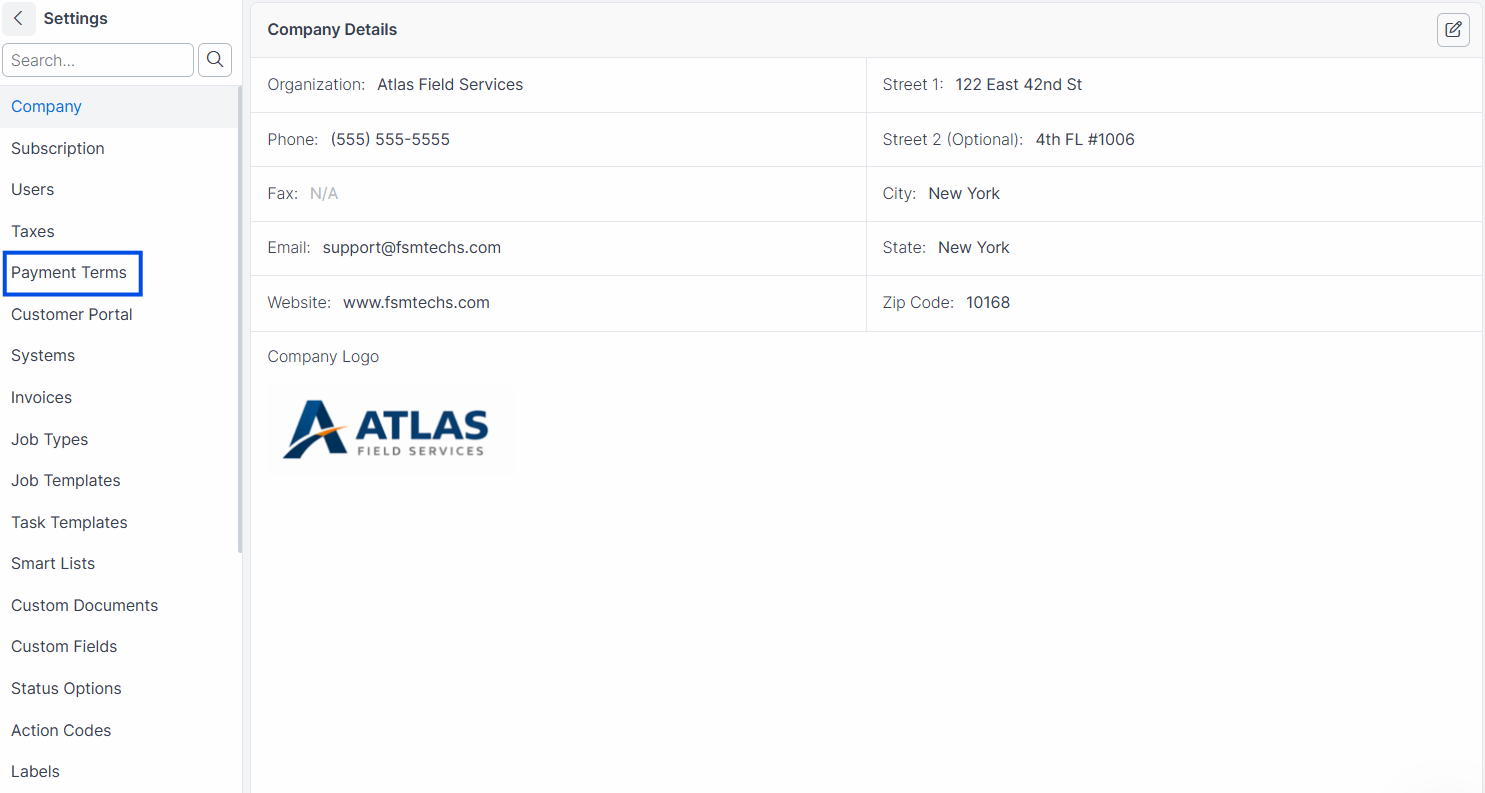
Click the Payment Terms tab.
Click Add Payment Term.
Enter a Name (e.g., "Net 45" or "2% 10 Net 30").
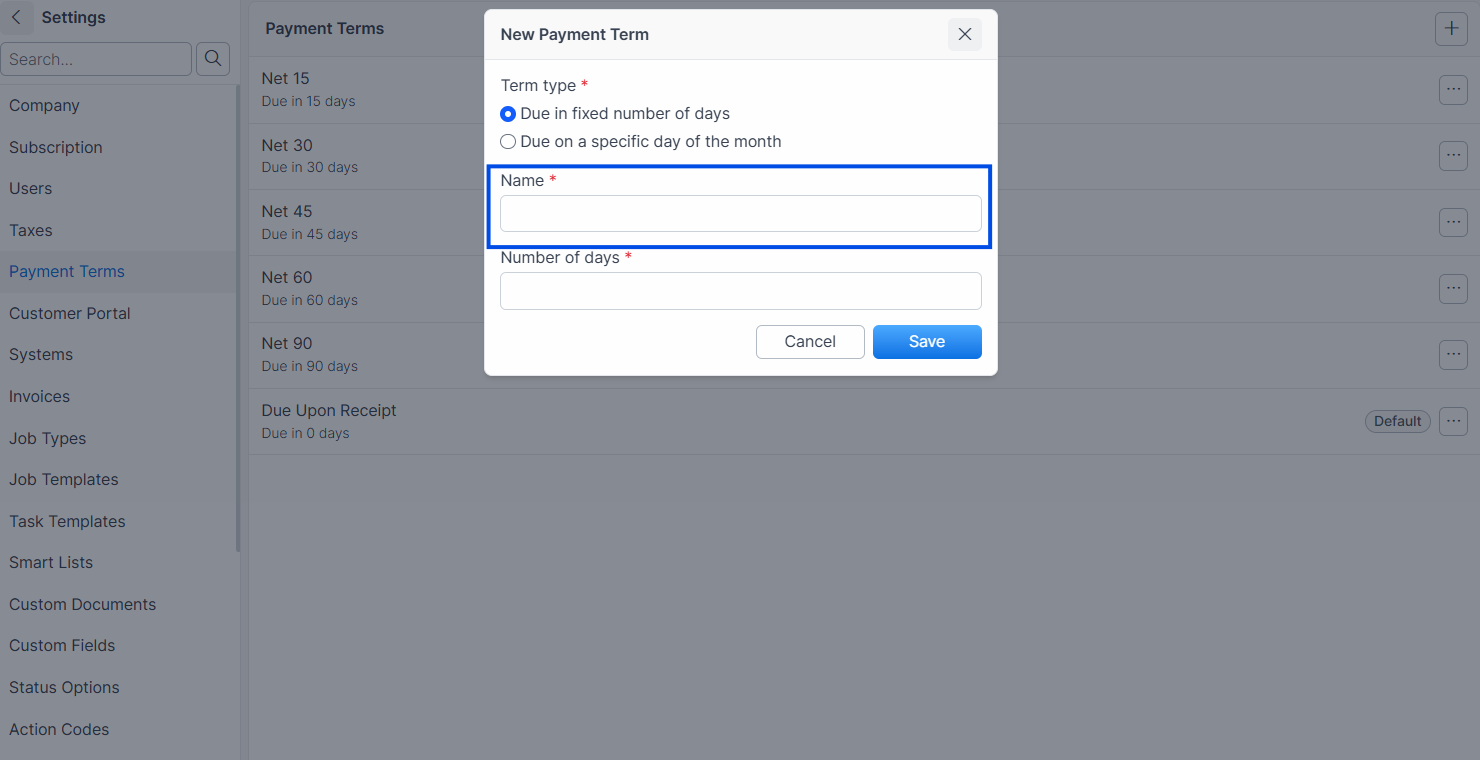
Select Standard as the term type.
Enter the Due Days — the number of days after the invoice date when payment is due.
Click Save.
Expected result: The payment term appears in the list and is available when creating invoices.
Creating a Date-Driven Payment Term
Date-driven terms set the due date to a specific day of each month, regardless of when the invoice is created.
Click Add Payment Term.
Enter a Name (e.g., "Due 15th of Month").
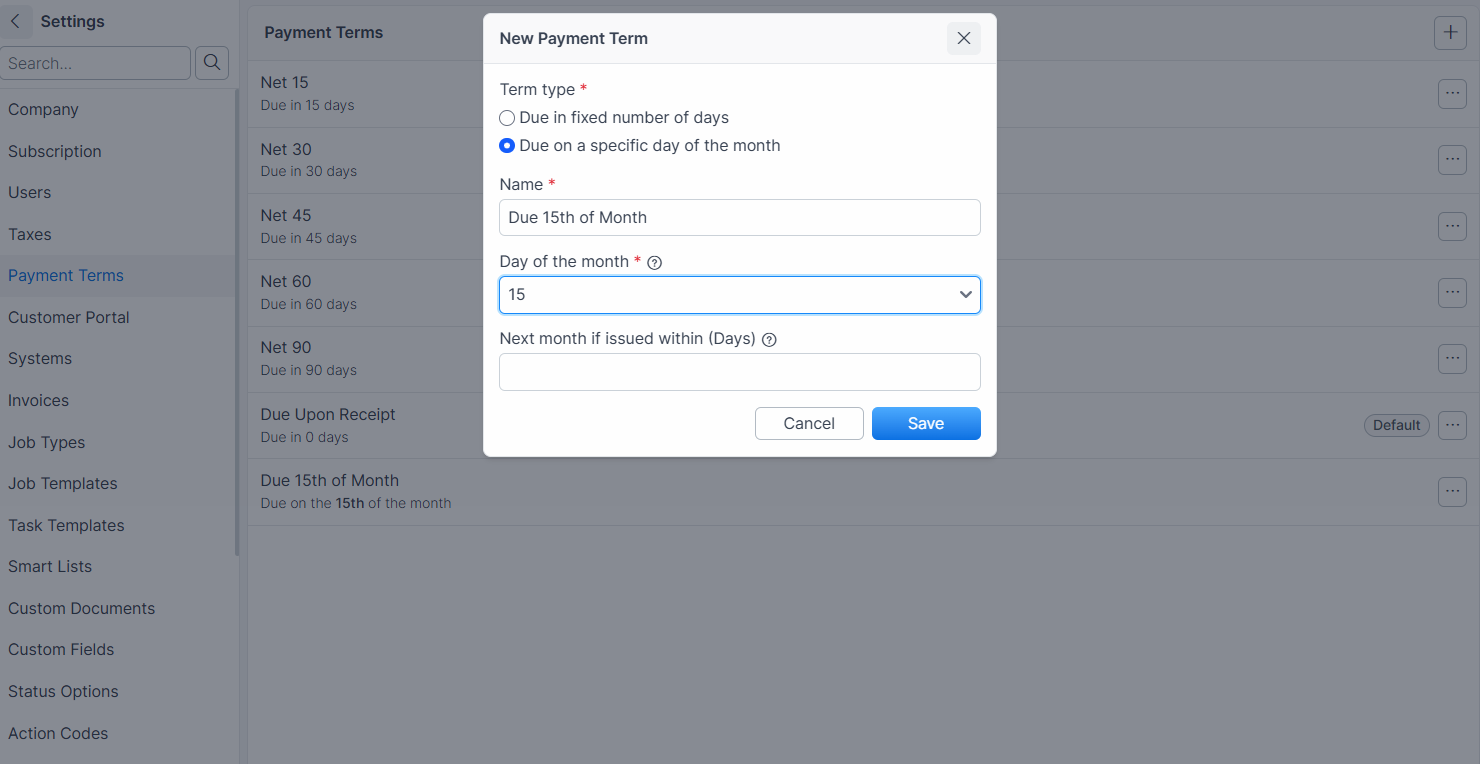
Select Date Driven as the term type.
Enter the Day of Month Due (1-31).
Optionally, enter Due Next Month Days — if the invoice is created within this many days before the due date, the payment is due the following month instead.
Click Save.
Expected result: The date-driven payment term is created. When applied to an invoice, the due date calculates to the specified day of the month (current or next month based on the "Due Next Month Days" threshold).
Tip: Use "Due Next Month Days" to prevent unreasonably short payment windows. For example, if the term is "Due 1st of Month" with Due Next Month Days set to 5, an invoice created on January 28 would be due February 1 instead of the very next day.
Setting a Default Payment Term
Navigate to Settings > Payment Terms.
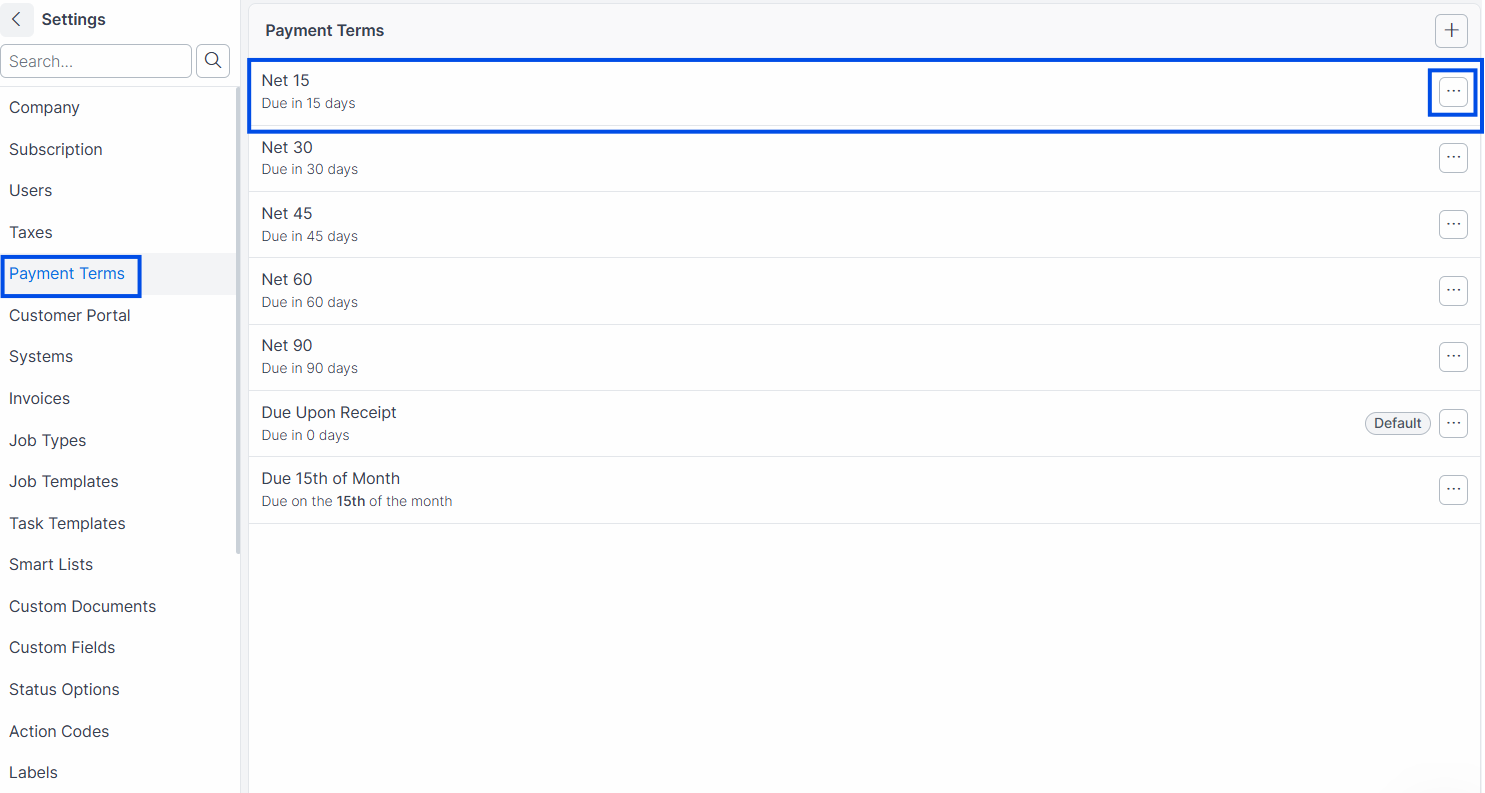
Click the payment term you want as the default.
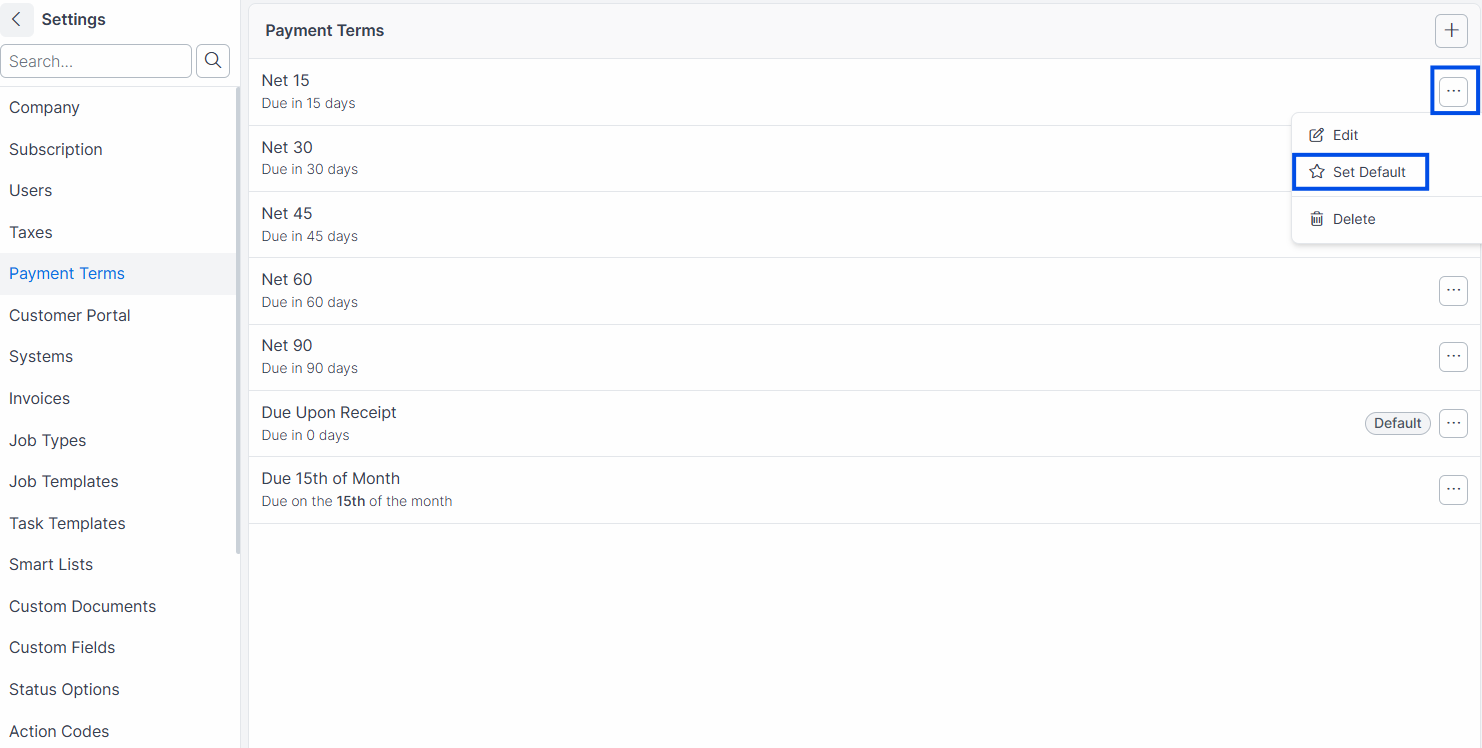
Click Set as Default.
Expected result: The selected term is marked as the default. New invoices automatically use this term unless changed manually.
Note: Only one payment term can be the default at a time. Setting a new default removes the default flag from the previous term.
Editing a Payment Term
When you change a payment term's name, due days, or date-driven fields, Forz preserves history using an archive-and-create pattern:
Navigate to Settings > Payment Terms.
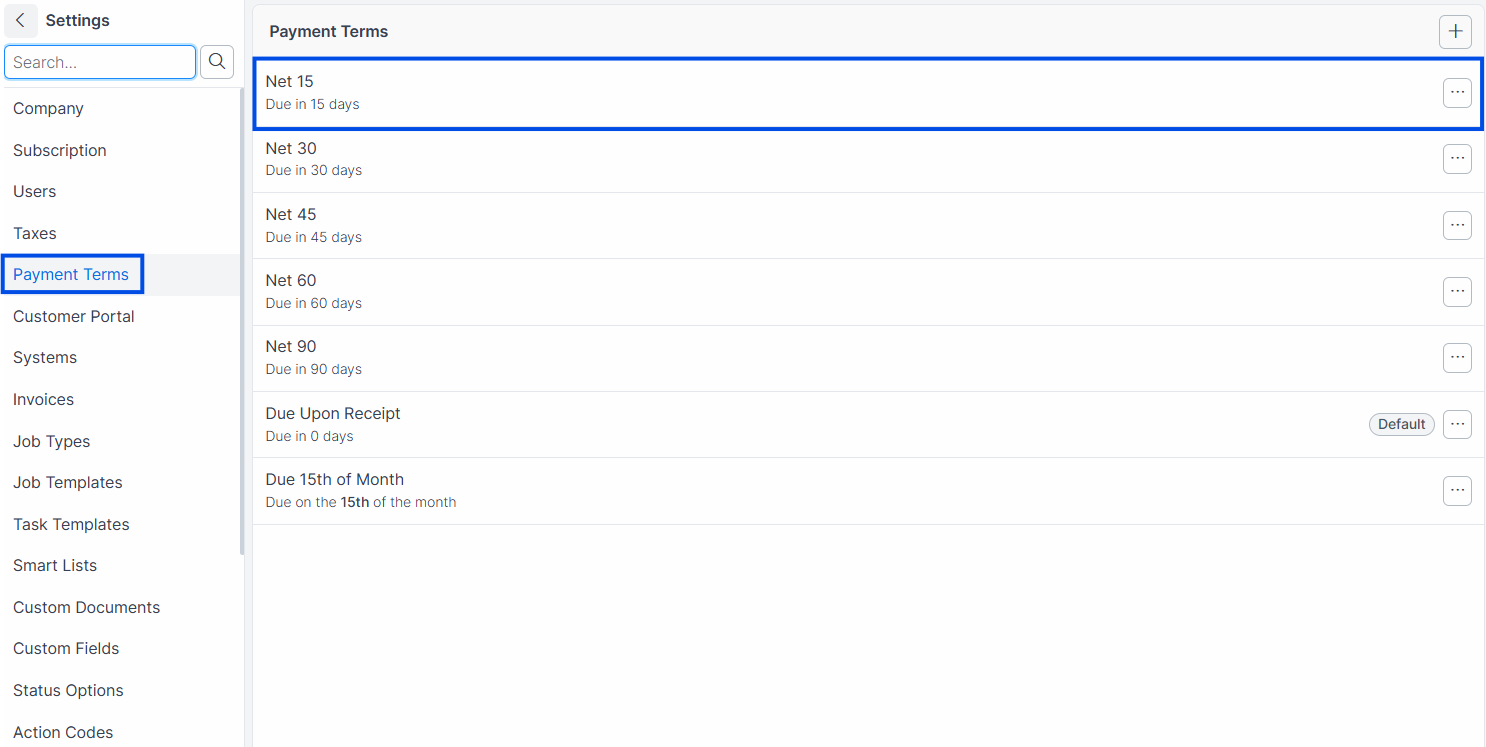
Click the payment term you want to modify.
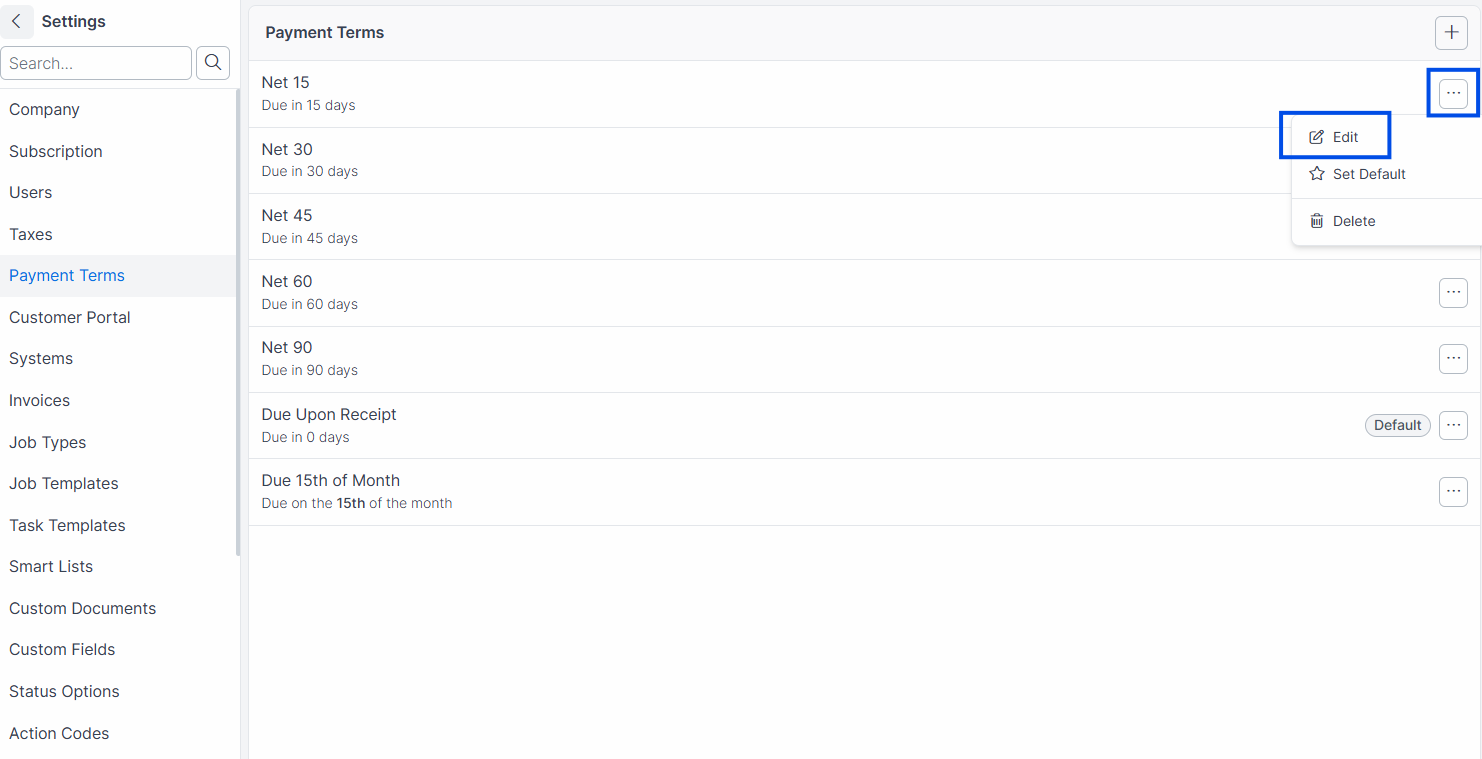
Update the Name, Due Days, Day of Month Due, or Due Next Month Days.
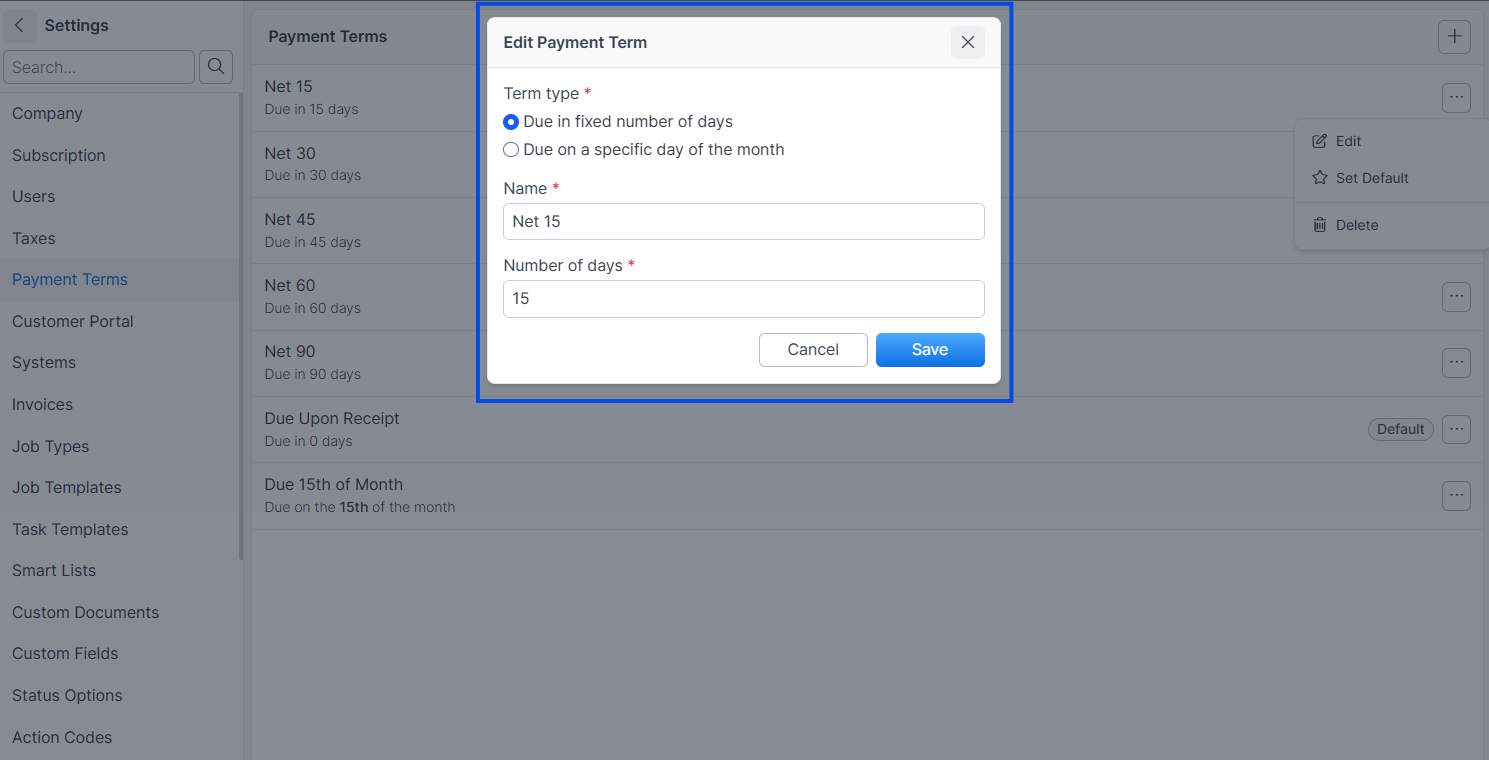
Click Save.
Expected result: Forz archives the original payment term and creates a new version with the updated values. Existing invoices retain the original term. New invoices use the updated version.
Warning: Editing a payment term's name or timing fields creates a new version. The original is archived for historical invoices. This ensures that previously issued invoices reflect the payment terms that were in effect when they were created.
Reordering Payment Terms
Navigate to Settings > Payment Terms.
Drag payment terms to rearrange their display order.
Expected result: The order updates immediately. Only active (non-archived) terms are shown.
Common Scenarios
HVAC company offering different terms to commercial clients
An HVAC company creates "Net 60" for commercial clients who need longer payment windows, and uses "Net 15" for residential customers. The default is set to "Net 30." Dispatchers select the appropriate term when creating invoices based on the customer type.
Plumbing company using date-driven billing
A plumbing company with property management clients creates a "Due 1st of Month" term with "Due Next Month Days" set to 10. All maintenance invoices created before the 21st of the month are due on the 1st of the following month. Invoices created on or after the 21st are due on the 1st of the month after that.
Electrical contractor updating a term after a policy change
An electrical contractor changes their standard terms from Net 30 to Net 21. The admin edits the "Net 30" payment term, changing the name to "Net 21" and the due days to 21. Forz archives the old "Net 30" and creates a new "Net 21." All outstanding invoices with "Net 30" retain their original terms.
Troubleshooting
Was this helpful?
Still need help? Ask the team