Skills
Keep your company's skill list and assign skills to technicians so dispatch matches the right person to each job.
Overview
Skills describe what each technician is qualified to do, such as "HVAC", "Backflow Certified", or "Fiber Optics". You keep one list of skills for your company, assign them to users, and add required skills to jobs. Live Dispatch, Smart Dispatch, Route Planner, and schedule suggestions use them to offer only technicians who have every skill a job requires.
Skills live on the Skills tab of Team in the main sidebar.
Before You Begin
Prerequisites:
Your role has Team → View to open the tab, and Team → Create, Edit, or Delete to change the skill list.
Assigning skills to a user needs Team → Edit.
The Skills tab
Click Team in the sidebar.
Click the Skills tab.
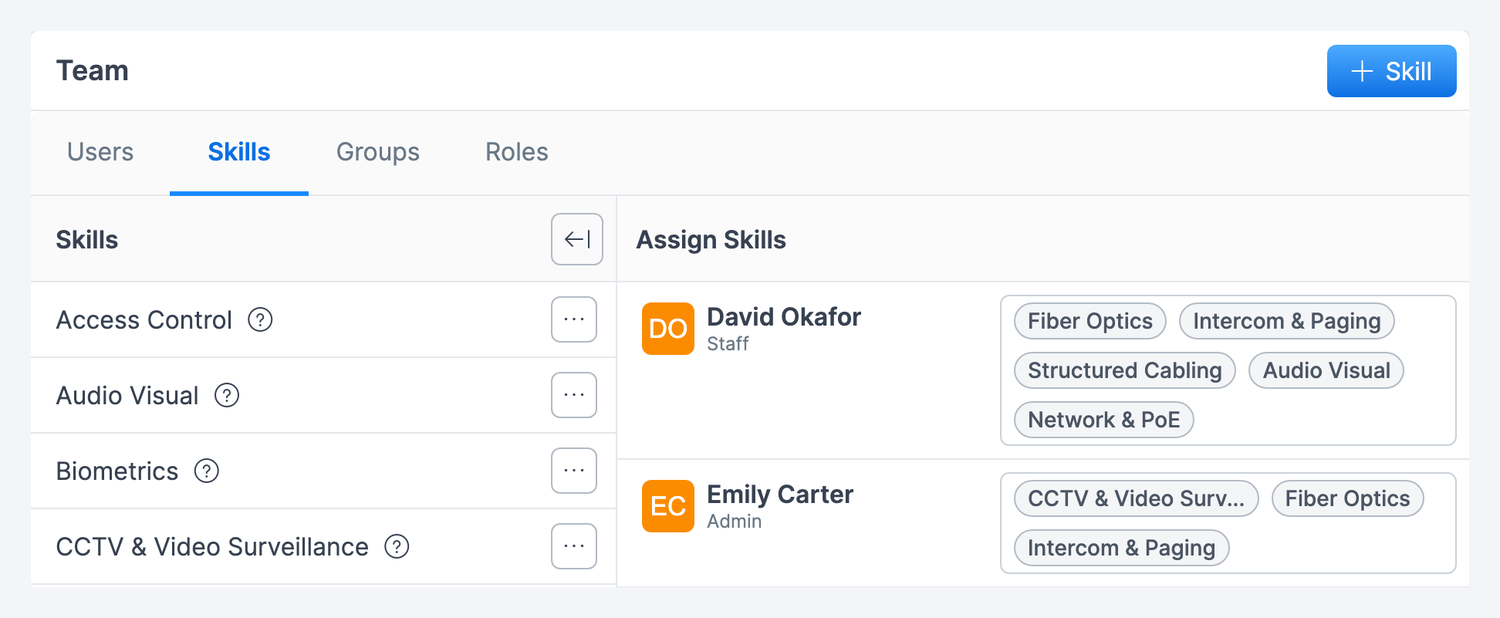
The page has two panes:
Skills — your company's skill list. Hover the ? icon beside a skill to read its description. Click the collapse button at the top of the pane to hide it; Forz remembers your choice.
Assign Skills — every active user with the skills they hold.
Adding a skill
Click + Skill at the top right.
Enter a Name. Each name can be used only once.
Optionally, enter a Description, such as the certification body or what the skill covers.
Click Save.
Expected result: The skill appears in the Skills list and can be picked for users and jobs.
Editing or deleting a skill
Click the skill's name, or click its More options button (⋯) and select Edit.
Change the Name or Description and click Save.
Note: Renaming a skill does not update users and jobs that already have it. They keep the old name, so assign the renamed skill to them again.
To delete a skill, click its More options button (⋯), select Delete, and confirm. Before you delete a skill, remove it from any users and jobs that still have it.
Assigning skills to users
On the Skills tab, find the user in the Assign Skills pane.
Click the skills box beside their name.
Select skills to add, or click the × on a skill to remove it.
Click anywhere outside the box.
Expected result: The skills save as soon as you click away. They also appear on the user's profile and in the Skills column of the Users tab.
You can also change one user's skills from their profile: click Team, open the user, and click Skills. Route Planner settings show the same list under User Skills.
How skills match technicians to jobs
When a job has required skills, dispatch tools only suggest technicians who hold all of them. A technician with three of four required skills is not offered for that job. Keep skill names consistent and remove skills a person no longer holds, so suggestions stay accurate.
Permissions
Skills use the Team permissions in Custom Roles: View opens the tab, and Create, Edit, and Delete control the matching changes to the skill list. There is no separate Skills permission. Admins can do everything.
Was this helpful?
Still need help? Ask the team