Schedule Suggestions
Use AI-powered suggestions to find the optimal time slot and technician for a job.
Overview
Schedule Suggestions analyzes technician availability, job proximity, travel time, workload balance, and deadline urgency to recommend the best scheduling options. Forz evaluates up to 14 days of upcoming schedules and returns up to 5 ranked suggestions, each with a score breakdown so dispatchers can make informed decisions.
Before You Begin
Prerequisites:
The Calendar module is enabled (Settings > Modules).
You have the Calendar: View and Events: Create permissions on your role.
The job you want to schedule has status "Unscheduled".
At least one active technician exists in the system.
How Suggestions Work
When you request schedule suggestions for a job, Forz evaluates every active technician and every open time slot across the scheduling window. Each possible slot is scored on five factors:
The final score is a weighted average of all five factors, expressed as a percentage.
Note: Proximity scoring is initially calculated using straight-line distance (up to 50 km maximum). After ranking, the top suggestions are enriched with actual driving distance and time from Forz's distance matrix service, and scores are recalculated for accuracy.
Scheduling Window
Suggestions search across a date range determined by the job:
Start date: the later of the job's schedule date or today.
End date: up to 14 days from the start date.
Due date constraint: if the job has a due date, the search window ends at the due date (or 14 days, whichever comes first).
Weekday filtering: if the job specifies allowed weekdays, only those days are considered.
Eligible Technicians
Not every technician is evaluated for every job:
Only active users are considered.
If the job requires specific skills, only technicians whose skill set includes all required skills are eligible.
If no skills are required, all active users are evaluated.
Time Windows and Gap Detection
Forz looks for open gaps in each technician's schedule within the configured time window:
Default time window: 8:00 AM to 5:00 PM.
Custom time windows: if the job has route planner time windows configured (per day of week), those windows are used instead. A specific day-of-week window takes priority over an "Any Day" window.
Within each time window, Forz identifies gaps between existing events. For larger gaps, multiple slot positions are evaluated:
Small gap (fits one job duration): one slot at the start of the gap
Medium gap (fits two job durations): early and late positions
Large gap (fits three or more): early, middle, and late positions
Tip: Job duration is determined in this order: (1) the explicit duration set in the job's dispatch info, (2) the historical median duration for this job type based on past completed events, or (3) a 30-minute default. Set accurate durations on jobs for better suggestions.
Requesting Suggestions
Generating suggestions
Open the job you want to schedule.
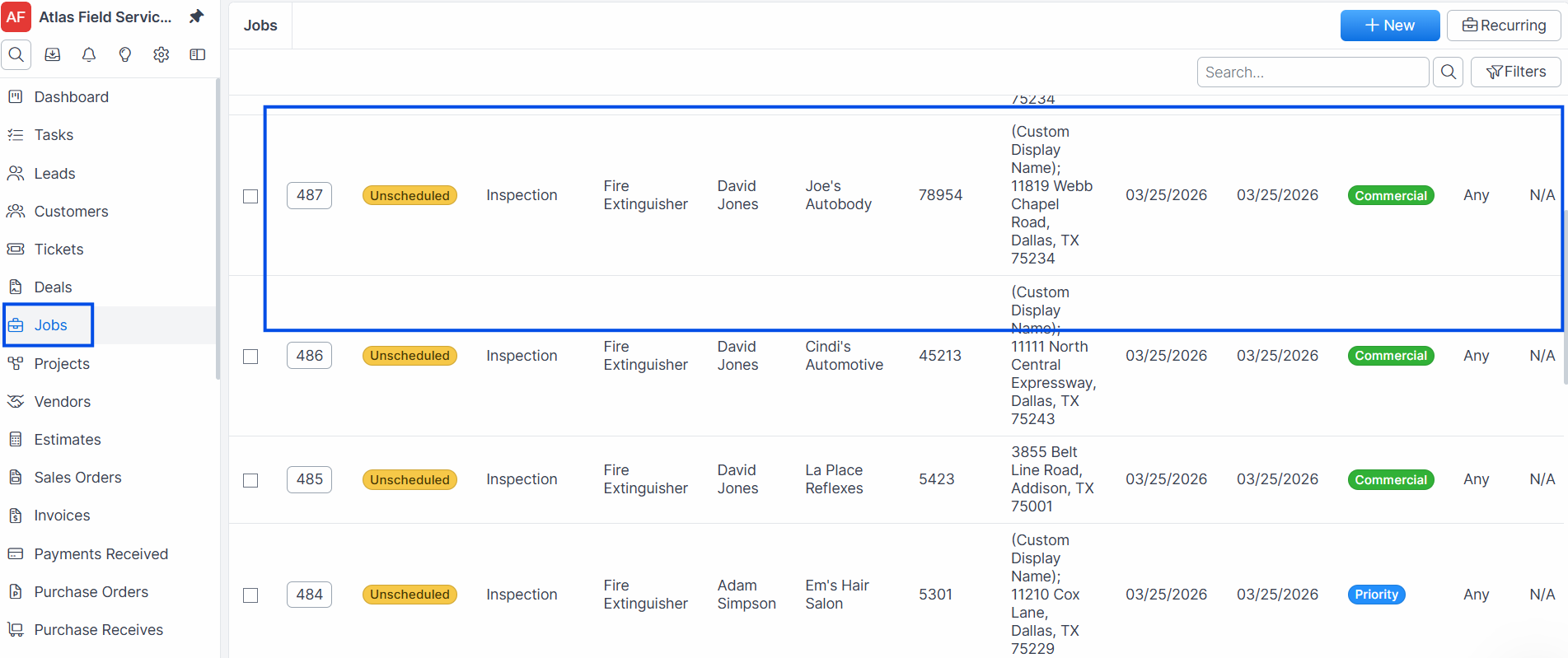
Click the Schedule Suggestions button in the scheduling section.
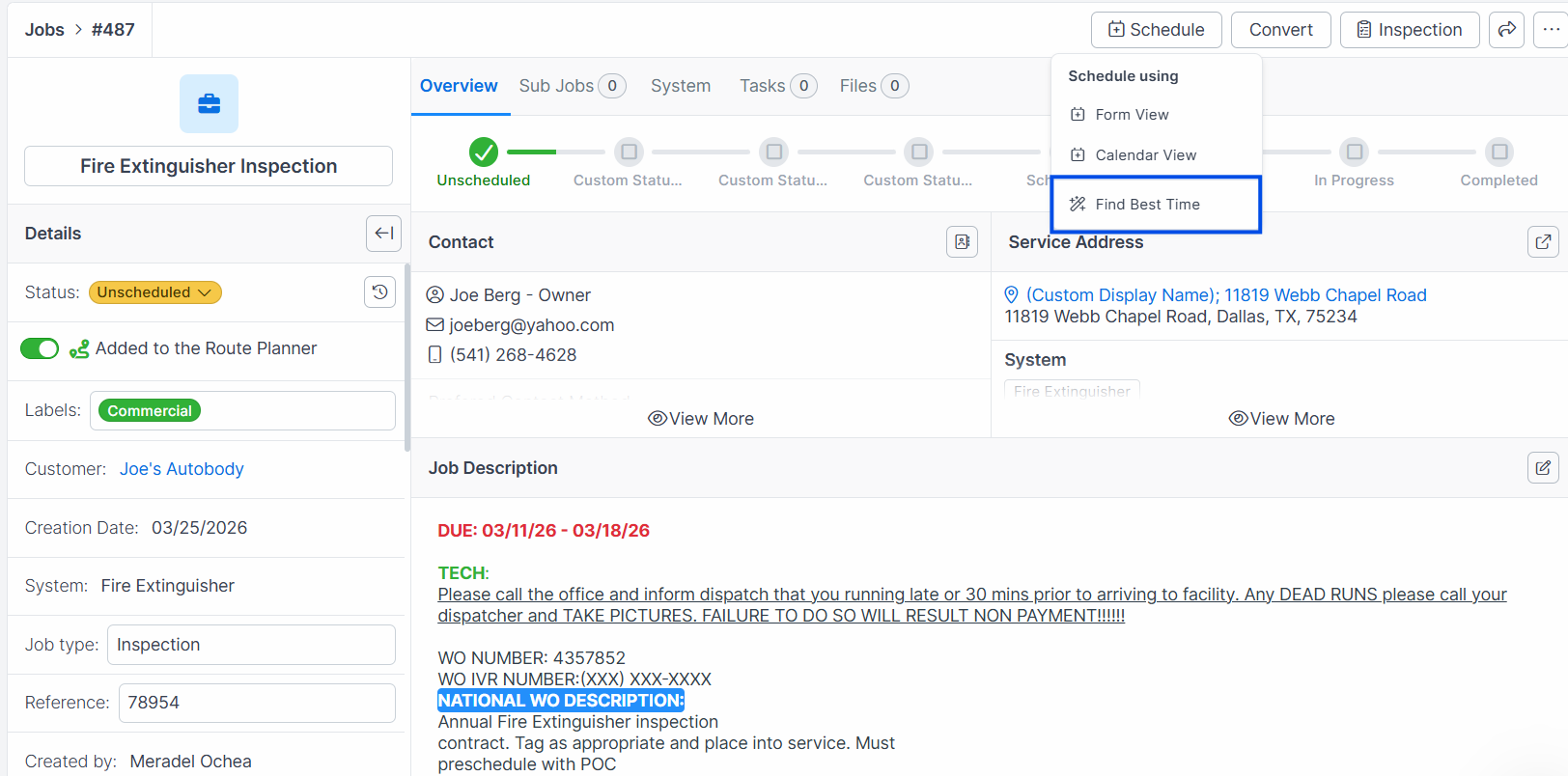
Forz analyzes technician availability and returns up to 5 ranked suggestions.
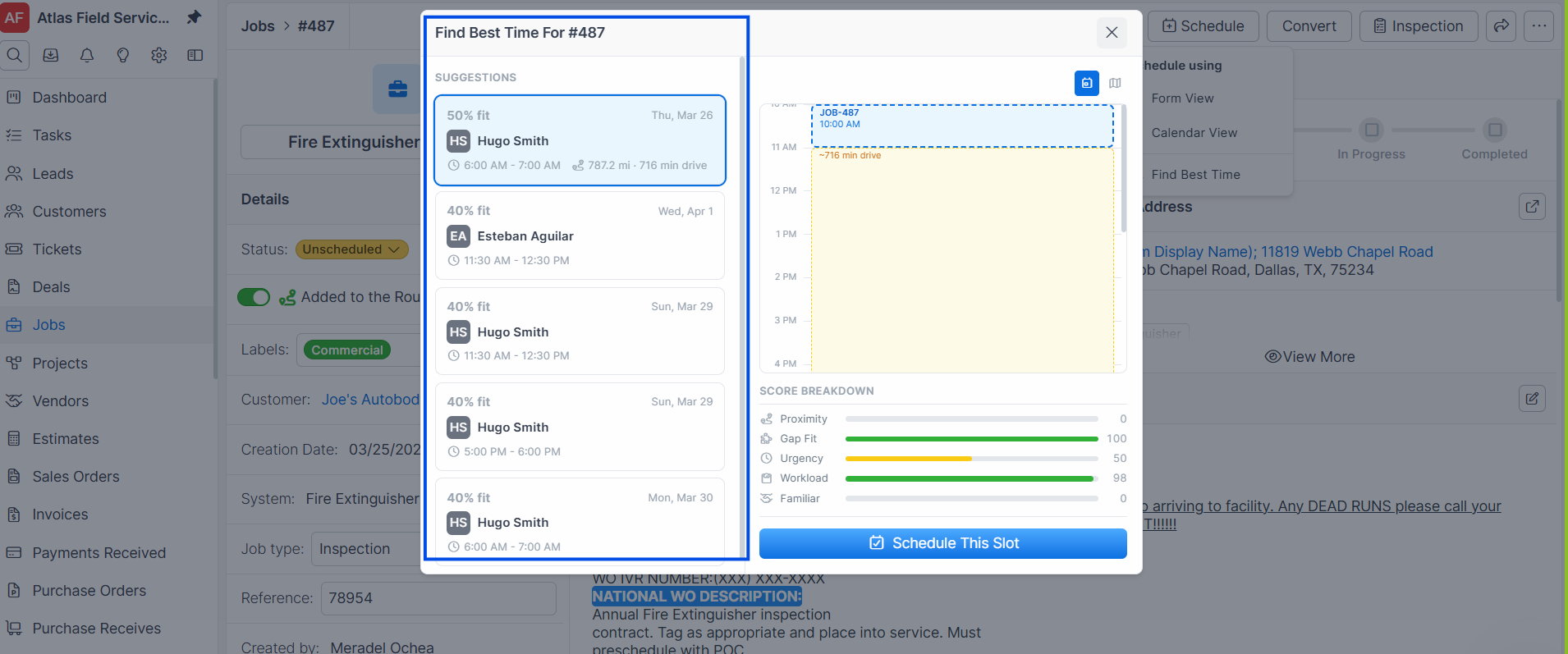
Expected result: A list of suggestions appears, each showing the recommended technician, date, time slot, overall score, and a breakdown of the five scoring factors.
Reviewing a suggestion
Each suggestion card displays:
Technician name and the suggested date and time.
Score as a percentage (higher is better).
Score breakdown for urgency, proximity, gap fit, workload, and familiarity.
Travel data (when available), driving distance and estimated travel time from the previous appointment and to the next appointment.
Accepting a suggestion
Review the suggestions and select the one that best fits your needs.
Click Accept (or the equivalent action button) on the chosen suggestion.
Forz creates a calendar event for the job at the suggested time, assigned to the recommended technician.
Expected result: The job is scheduled on the calendar at the suggested time and assigned to the recommended technician. The job status updates from "Unscheduled" to the next status in your workflow.
Common Scenarios
Scheduling a next-day appliance repair
A customer reports a broken dishwasher and needs service within 48 hours. The dispatcher opens the job (due date set to tomorrow) and clicks Schedule Suggestions. Because the due date is tomorrow, urgency scores are high for tomorrow's slots. The top suggestion recommends a technician who has a gap between two nearby appointments and has serviced this customer before.
Balancing workload across a team
A dispatcher has 8 unscheduled HVAC maintenance jobs for the week. By requesting suggestions for each job one at a time, the workload factor gradually shifts recommendations away from already-busy technicians toward those with lighter schedules, helping distribute work evenly across the team.
Matching skills for a specialized fire alarm inspection
A fire alarm inspection requires a technician with "Fire Alarm Level 2" certification. When suggestions are generated, Forz automatically filters to only technicians who have that skill in their profile, preventing unqualified assignments.
Troubleshooting
Was this helpful?
Still need help? Ask the team