Contact Actions
Edit, merge and delete a contact, set which records it is the primary contact on, and unlink it from a record.
Overview
On a contact detail page you can edit the person, open the More menu for merge and delete, and see whether someone is the primary contact on a customer (or similar) record.
This article covers actions on an existing contact. To create someone new, see Creating New Contacts. To attach a person who already exists to a customer, see Linking Existing Contacts.
Before You Begin
Prerequisites:
You can open the contact in Contacts.
Your role includes the permissions for the action you need (edit, merge, or delete).
Open a contact
Open Contacts in the sidebar.
Select the contact.
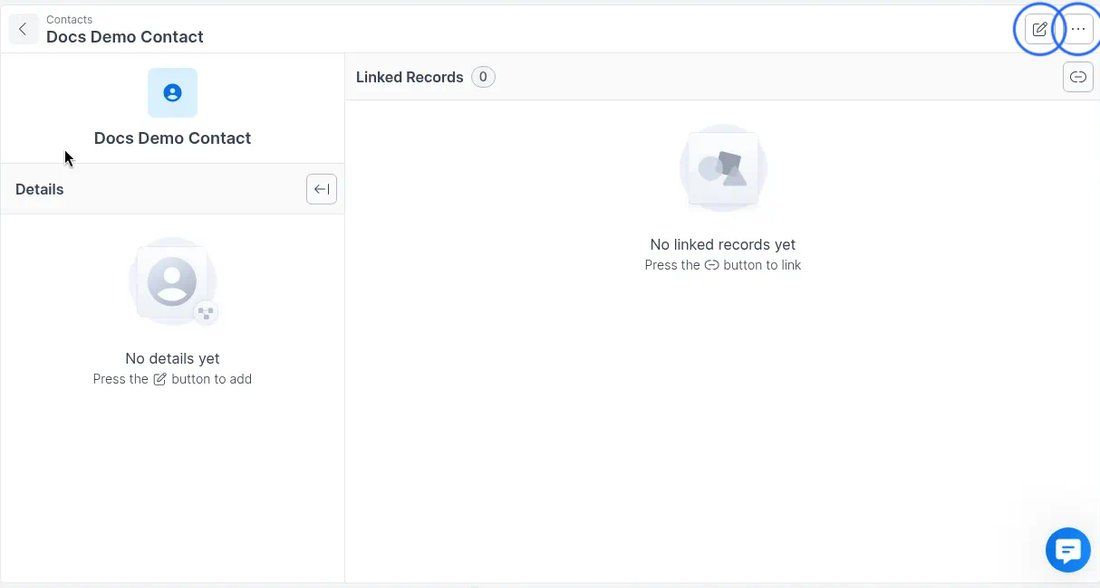
The contact detail page shows Details and Linked Records. In the header, use the pencil icon to Edit, or the … (More) button for other actions.
Edit a contact
On the contact detail page, click the pencil (Edit) icon.
Update fields in the Edit Contact form as needed:
Title
First name (required)
Last name
Email
Phone Numbers (use + Add More for additional numbers)
Preferred Contact Method
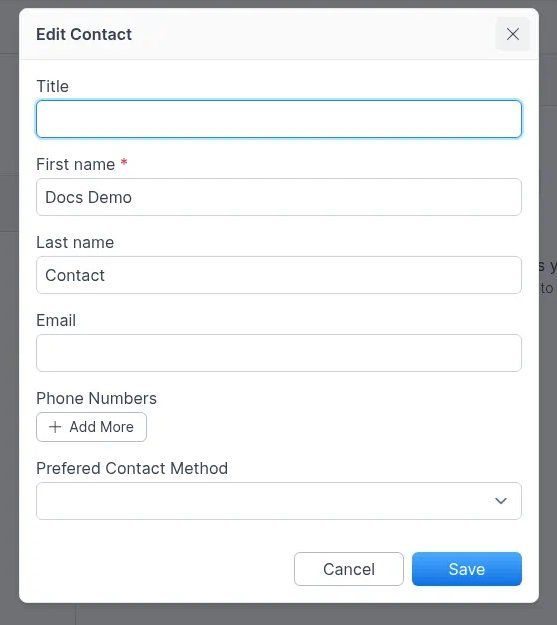
Click Save to keep your changes, or Cancel to close without saving.
Email a contact
Open the contact.
Click the paper-plane icon (Email) at the top of the page. It also appears next to the email address on contact cards (for example in customers, sites, jobs, calls, and tickets), and as New Email at the bottom of the contact's Communication History.
Write your message and click Send.
Expected result: The email appears in the contact's Communication History, where you can reply to it. For more, see Email.
More menu
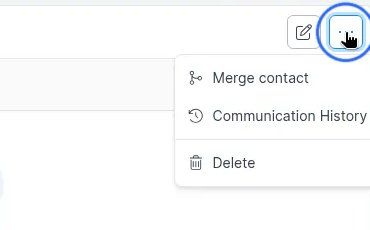
Click … in the contact header. The menu includes:
Merge contact
Communication History
Delete
Merge contact
Open the More menu and click Merge contact.
The Merge Contact dialog opens and looks for similar contacts.
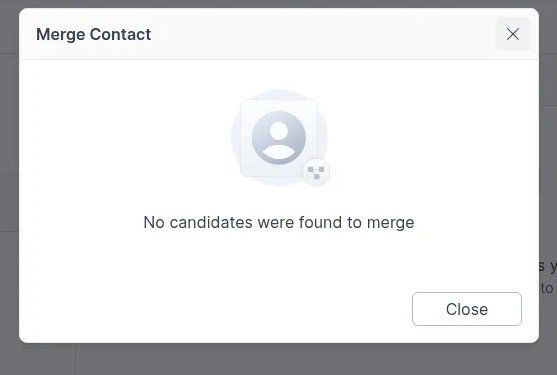
Note: If Forz cannot find duplicates, the dialog shows No candidates were found to merge. Click Close. When candidates exist, select the contact to merge with and confirm.
Delete a contact
Open the More menu and click Delete.
Confirm in the dialog: No cancels; Yes deletes the contact.
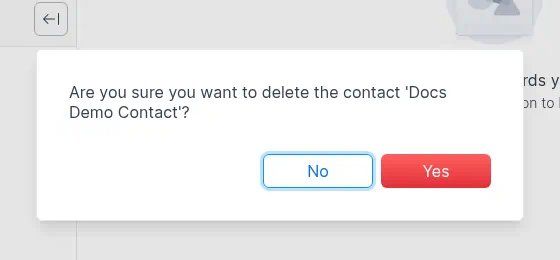
Note: You can delete a contact only when it is not linked to other records. Remove linked records first if Delete is unavailable or fails.
Primary contact
On a customer (or similar) record, the primary person is marked with a yellow star next to their name. Hover the star to see the Primary Contact tooltip.
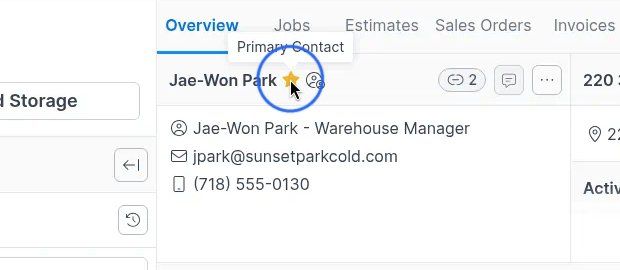
Note: There is no separate Set as primary label in the contact More menu. Use the yellow star and its Primary Contact tooltip to identify the primary person on the record.
Related articles
Contacts — hub overview
Troubleshooting
Was this helpful?
Still need help? Ask the team