How Inventory Works
Follow stock through Forz — how it arrives, what holds it in reserve, how it leaves, and how to correct the count.
Overview
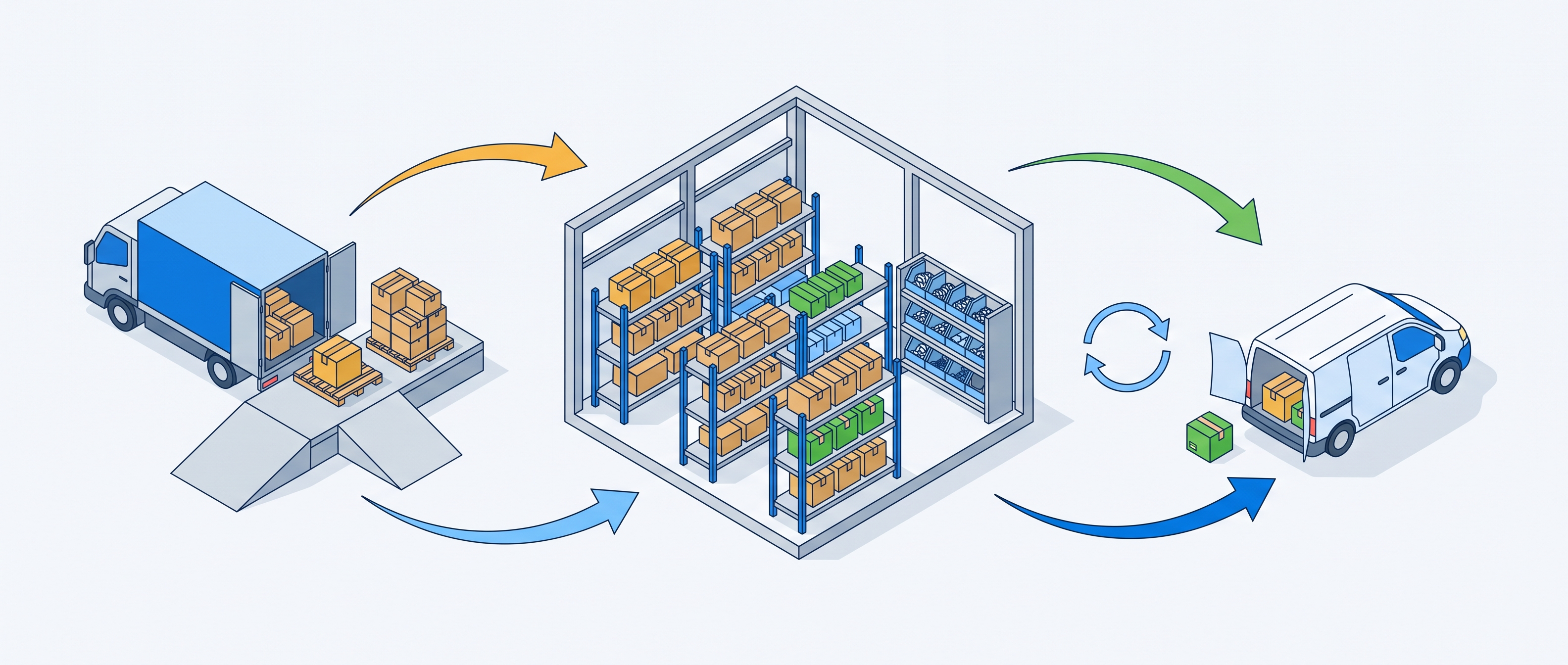
Forz never lets you type a stock quantity directly. The number you see at a location is a running total that Forz recalculates every time something moves stock — a purchase order is received, an invoice is posted, a transfer is completed, or someone corrects a count. This article follows a unit of stock all the way through: how it arrives, what holds it in reserve, how it leaves, and how you correct the number when the shelf and the screen disagree.
Stock tracking applies only to items with the type Inventory. Non Inventory and Service items never carry a quantity.
Multi-location tracking and inventory transfers require the Advanced Inventory module. Without it, stock still moves — receiving, invoicing, and adjustments all work the same way — but against one quantity per item instead of a quantity per location, and there is nowhere to transfer stock to.
Before You Begin
Prerequisites:
The Advanced Inventory module is enabled (Settings → Modules). This is what turns on multiple locations, the Locations tab, and inventory transfers.
At least one inventory location is active (Settings → Inventory Locations).
At least one adjustment reason is configured (Settings → Inventory Adjustment Reasons).
Your items are created with the type Inventory.
The Four Stock Figures
Open an Inventory-type item from Products & Services and click the Locations tab. Each active location shows one row, and the numbers mean different things:
Stock on Hand — units physically sitting at that location right now. This is the only figure that changes when stock actually moves.
Committed Stock — units already promised to work in progress but not yet consumed. Forz counts line items on sales orders that have not been invoiced yet, plus line items on jobs that have no invoice yet (or only Draft and Void invoices).
In Transit — units on transfers that are still In Transit and headed to that location. The stock has left its source but has not been checked in yet.
Available for Sale — what you can safely promise to a new customer. Forz calculates it as Stock on Hand minus Committed Stock minus In Transit.
A total row at the bottom of the tab sums every location, and that total is what the items list shows in the Stock on Hand column.
Tip: When a technician says a part is on the shelf but Forz will not let you promise it, compare Stock on Hand against Available for Sale. The gap is stock another job or sales order has already claimed.
What Moves Stock and What Does Not
Only four events change Stock on Hand. Everything else either reserves stock or does nothing at all.
How Stock Comes In
Receiving a purchase order
This is the main inbound path and the one that keeps your costs accurate.
Open the purchase order from Purchase Orders.
Record a receipt against it, entering the Quantity actually delivered for each line.
Choose the Inventory Location the goods are going into.
Save the receipt.
Expected result: Stock on Hand increases at the receiving location by the quantity received. The purchase order status updates to reflect how much is still outstanding, and you can receive the rest later in a second receipt.
Note: You cannot receive more than the quantity ordered on a line. If the supplier over-shipped, receive the ordered quantity and record the extra with an inventory adjustment.
Posting a bill
Inventory line items on a bill increase stock when the bill leaves Draft. This covers stock you buy without raising a purchase order first.
Warning: When a bill and a purchase order both cover the same delivery, Forz counts the stock once. Whichever record was created first owns the movement, and the other one skips it. If a receipt and a bill for the same goods were entered out of order, check the Locations tab before assuming stock was double-counted.
Completing a transfer into a location
Stock arriving from another warehouse or van increases when someone clicks Complete on the transfer, not when the transfer is created. See Inventory Transfers for the full procedure.
Note: Transfers require the Advanced Inventory module. Without it there is only one location, so there is nothing to transfer between — use an adjustment to correct a count instead.
Adjusting up
Use an adjustment for stock that arrives outside any of the above — a technician picking parts up from a supplier counter, or an opening balance when you first switch inventory on.
How Stock Goes Out
Invoicing the work
Stock leaves when an invoice leaves Draft. Adding parts to a job does not consume them; the job holds them as Committed Stock until you convert the work to an invoice and send it.
Add Inventory-type line items to the job, choosing the Inventory Location the parts came from.
Convert the job to an invoice.
Move the invoice out of Draft.
Expected result: Stock on Hand decreases at each line item's location, and the units stop counting as Committed Stock because the job is now invoiced.
Note: Voiding an invoice or removing a line item from a posted invoice returns the stock. Forz reverses the exact movement it made, so a mistake corrected the same way it was made nets to zero.
Completing a transfer out of a location
Completing a transfer decreases the source location by the transferred quantity in the same action that increases the destination. This path exists only with the Advanced Inventory module.
Adjusting down
Use an adjustment for stock that leaves without a customer document — damage, shrinkage, warranty replacements, or a count that came up short.
Correcting the Count
An inventory adjustment sets a location's quantity to match reality. Every adjustment records who made it, the reason, the quantity, and an optional description, so the count always has an audit trail.
Click Products & Services in the sidebar navigation and open an Inventory-type item.
Click Adjust Stock in the item header. A list of your active locations opens.
Choose the location you counted. The Adjust Stock modal opens for that location.
Enter the number you counted in New Quantity On Hand. Forz fills in Quantity Adjusted with the difference — negative if you counted fewer than the system expected.
Select a Reason.
Enter a Description explaining the correction.
Click Save.
Expected result: Stock on Hand at that location becomes the number you entered, and the adjustment appears on the item's Adjustments tab.
Tip: The two quantity fields are linked in both directions. Enter the counted total in New Quantity On Hand when you are doing a cycle count, or type the delta straight into Quantity Adjusted when you know exactly how many units to write off.
Reorder Points and Low Stock
Each location holds its own Reorder Point, seeded from the item's reorder point when the stock record is created. A warehouse that supplies three vans needs a higher threshold than the vans themselves, so set them separately.
Open the item and click the Locations tab.
Click the edit control on the location's Reorder Point.
Enter the threshold and save.
Forz checks reorder points nightly and emails everyone who has opted into low-stock notifications when a location's quantity is at or below its reorder point. Each location is notified once per day, so a part that stays low does not generate a new email every run.
Tip: Set the reorder point from your supplier lead time and your usage rate. If you fit ten air filters a week and your supplier takes two weeks, a reorder point of twenty gives you enough cover to place the order.
Stock Warnings on Documents
When you add an Inventory-type line item to a job, invoice, or sales order and the location does not have enough Available for Sale, Forz warns you before saving. The warning names the item, the quantity available, and the quantity requested, then asks whether to continue.
The warning does not block you. Field work often runs ahead of paperwork, and a technician may have already fitted the part. Continue when the physical stock was really there, and correct the count with an adjustment afterwards.
Permissions
The Advanced Inventory module gates multi-location tracking, transfers, and the Settings → Inventory Locations page. Without it, Forz tracks a single aggregate quantity per item.
Inventory Locations: View — shows the Locations tab on an item.
Items: Adjust Stock — shows the Adjust Stock button and the Adjustments tab.
Inventory Transfers: View and Create — show the Transfers tab and allow new transfers. These do nothing on their own: without Advanced Inventory, the Inventory Transfers sidebar item and the item's Transfers tab stay hidden no matter what the role allows.
Receiving stock uses the same permission as editing purchase orders.
Known limitations
Changing an item's type away from Inventory deletes its per-location stock records. The history of what moved is kept on the documents themselves, but the quantities are gone and switching the type back starts every location at zero.
Stock quantities can go negative. Invoicing more units than a location holds is allowed so that billing is never blocked by a paperwork gap, which means a negative Stock on Hand is a signal that receiving or an adjustment is outstanding rather than an error Forz will refuse.
Was this helpful?
Still need help? Ask the team