Customize Your Dashboard
Learn how to edit widgets, rearrange the layout, and manage multiple dashboards.
Your Forz Dashboard shows live module widgets in a grid you can rearrange. Open a widget to change what it shows, enter Edit Mode to add or move widgets, and switch or create dashboards when you need a different view.
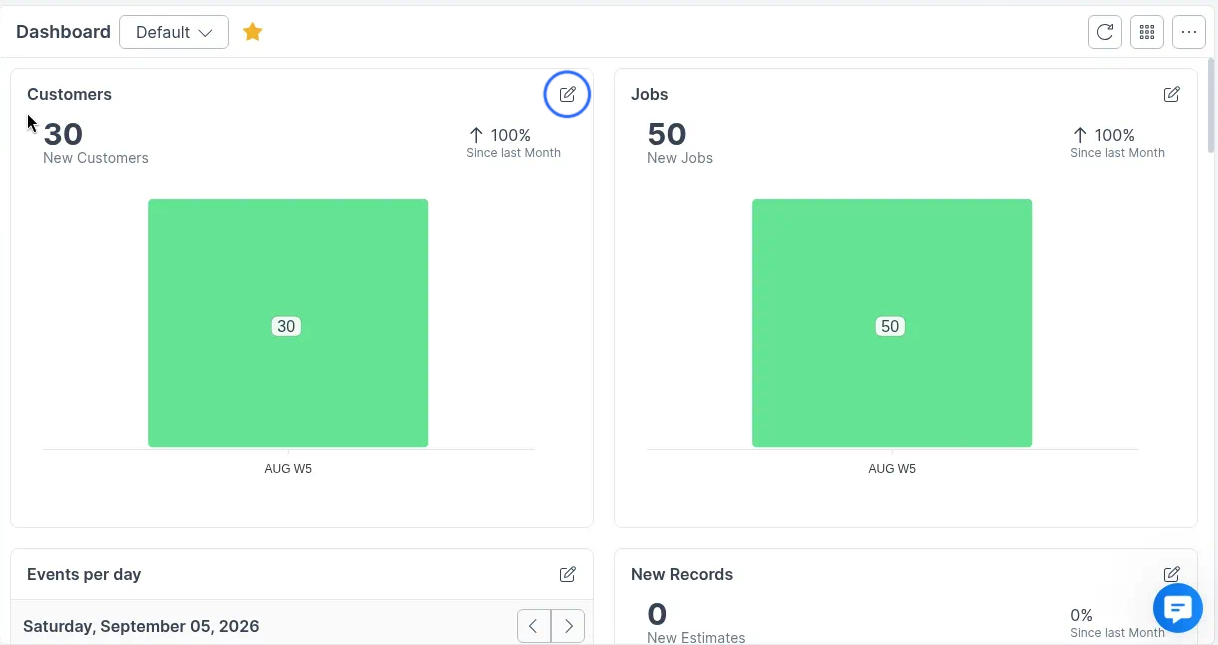
Edit a widget
Each widget has a pencil icon in its top-right corner.
- Click the pencil on the widget you want to change.
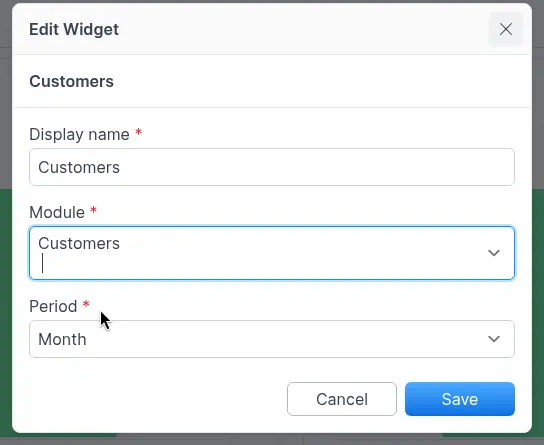
- In the Edit Widget dialog, update Display name, Module, and Period (or Assignee, depending on the widget).
- Click Save.
Edit the layout
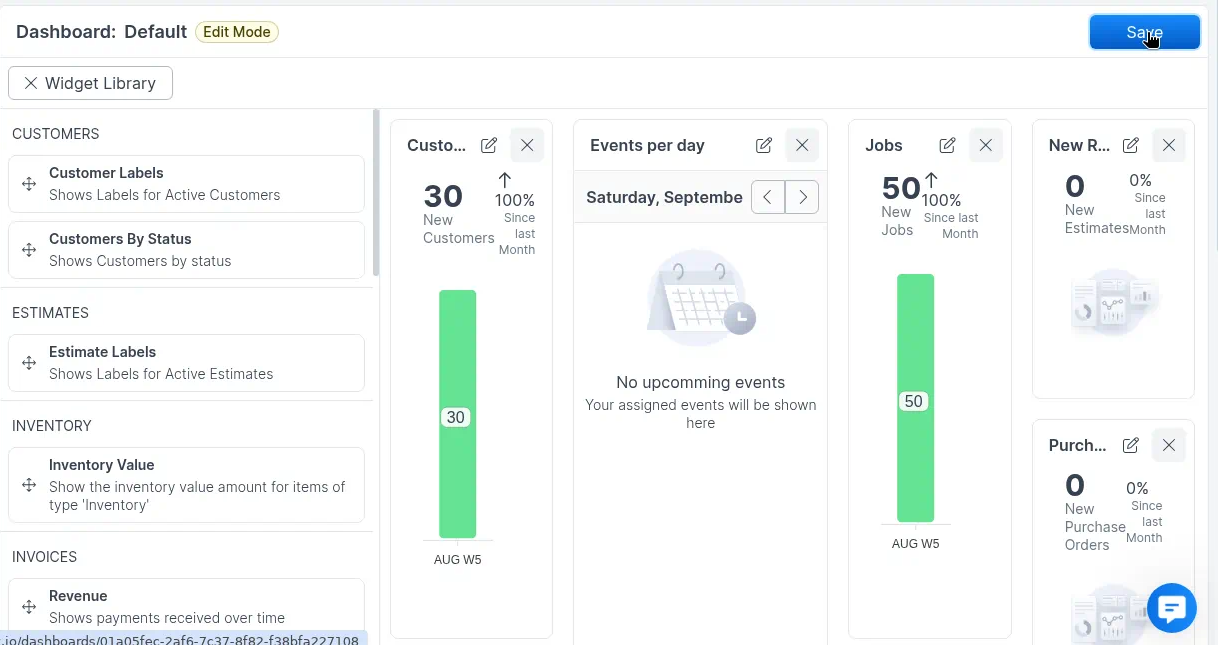
Use Edit Mode to add widgets, move or resize them, or remove ones you do not need.
- In the dashboard header, click the grid icon (Edit layout).
- Forz shows an Edit Mode banner and opens the Widget Library side panel. Widgets are grouped by category.
- Drag a widget from the library onto the grid to add it.
- Drag a widget body to move it, or drag a corner to resize it.
- Use the pencil on a widget to edit it, or the X to remove it from this dashboard.
- Click Save in the header when you are done.
Switch dashboards
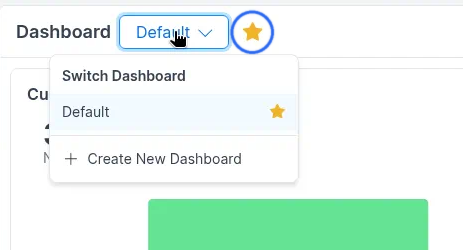
Click the current dashboard name next to the page title (for example, Default). The Switch Dashboard menu lists your dashboards. Select one to open it.
A yellow star marks the default dashboard. Hover the star to see the Default tooltip. The same star appears next to that dashboard in the list.
Edit dashboard details
To rename a dashboard or update its description:
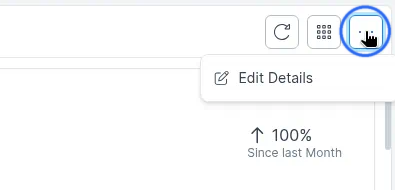
- Click More Options (⋮) in the header.
- Select Edit Details.
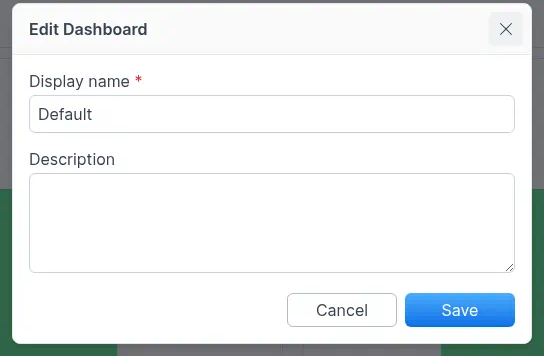
- In the Edit Dashboard dialog, change Display name and optionally Description.
- Click Save.
Create a new dashboard
- Open the dashboard name dropdown.
- Click + Create New Dashboard.
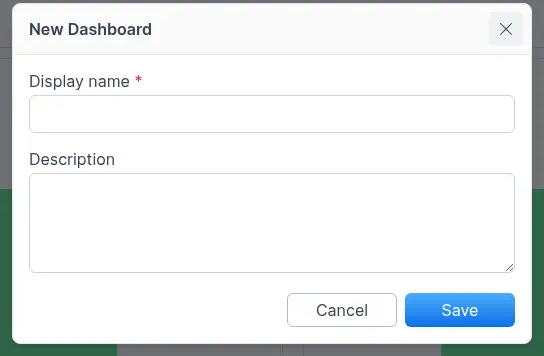
- In the New Dashboard dialog, enter a Display name and optional Description.
- Click Save.
- Add widgets in Edit Mode, then click Save in the header.
Was this helpful?
Still need help? Ask the team