QuickBooks Online Integration
Sync your accounting data between Forz and QuickBooks Online to eliminate double entry and keep records consistent.
Overview
The QuickBooks Online integration connects Forz to your QuickBooks account and synchronizes customers, items, invoices, tax rates, accounts, and payment methods. When you create or update a record in either system, Forz automatically pushes or pulls changes to keep both platforms in sync.
Before You Begin
Prerequisites:
You have the Admin role in Forz. The Integration module is enabled (Settings > Modules).
You have a QuickBooks Online account with admin access. Your QuickBooks company file is set up with at least one income account
Connecting QuickBooks Online
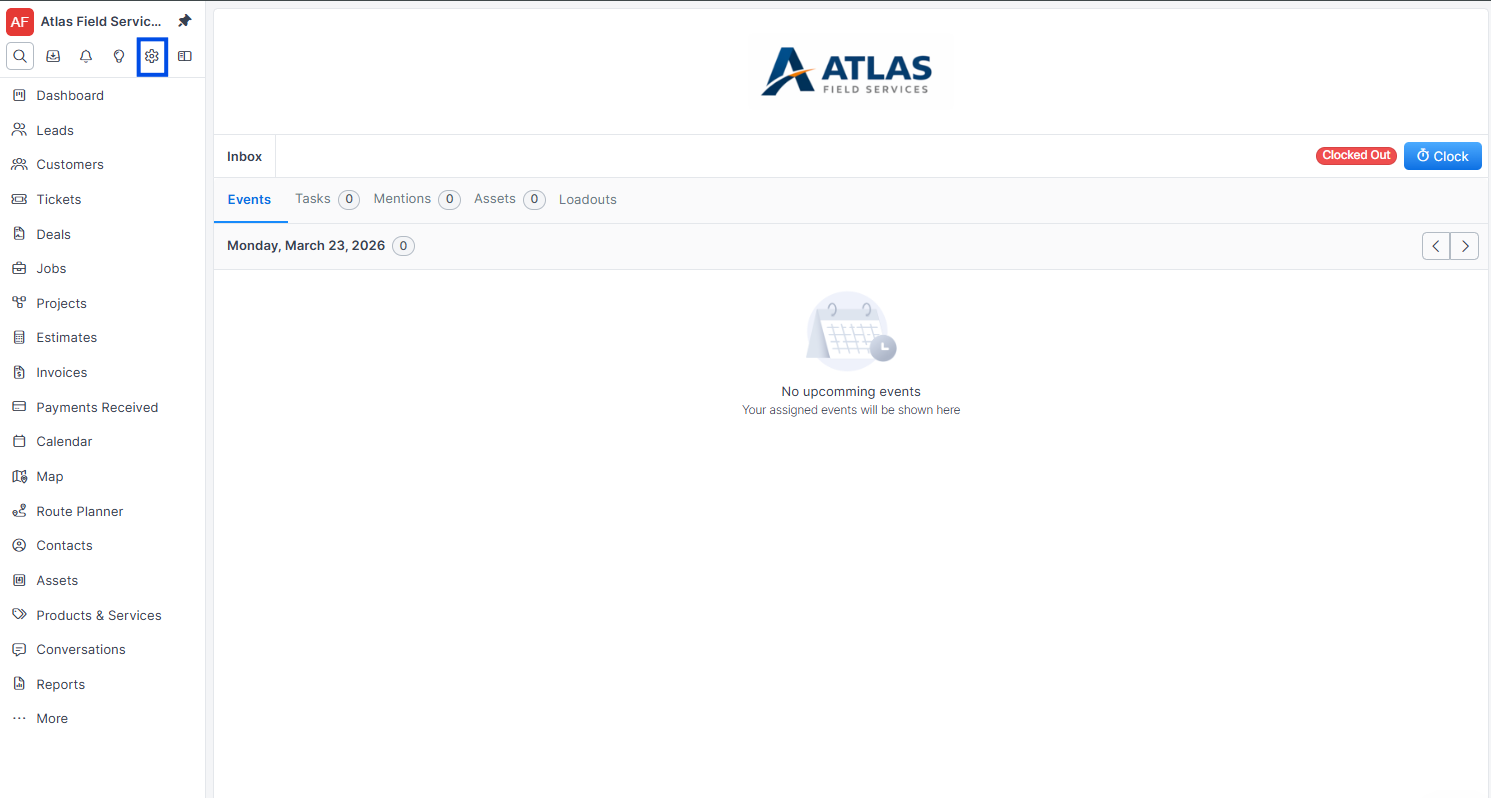
Click Settings in the sidebar navigation.
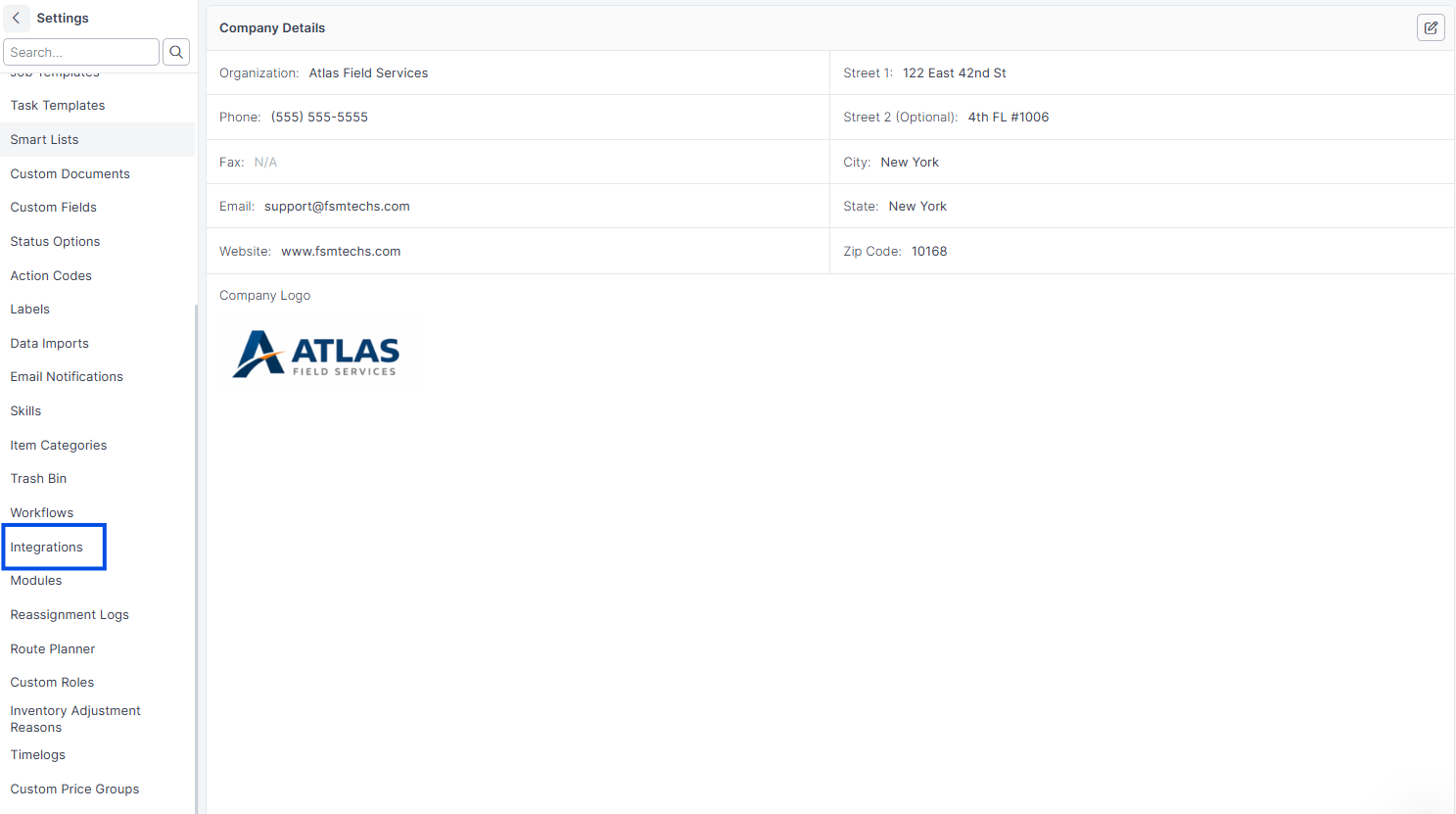
Click the Integrations tab.
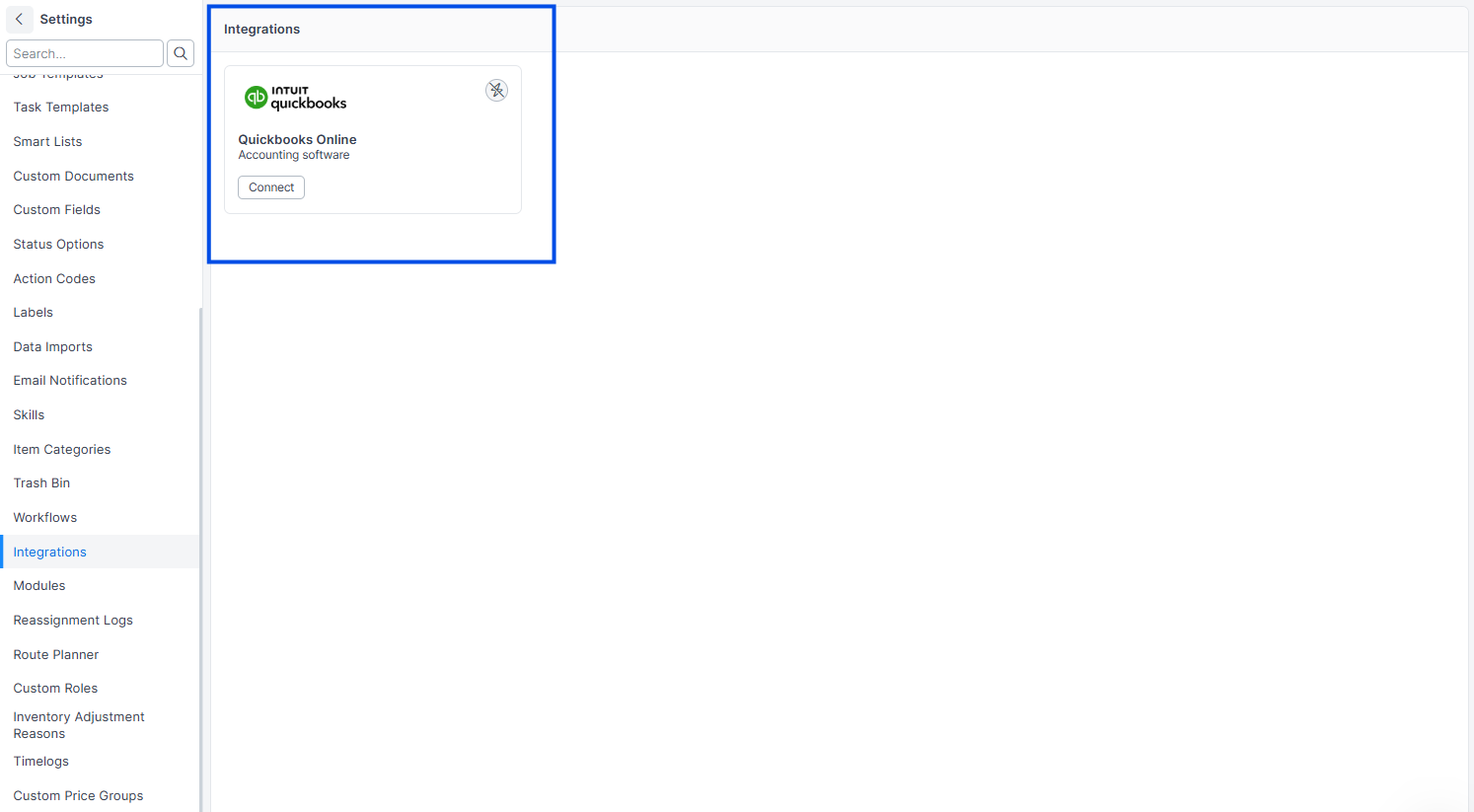
Click Connect on the QuickBooks Online card.
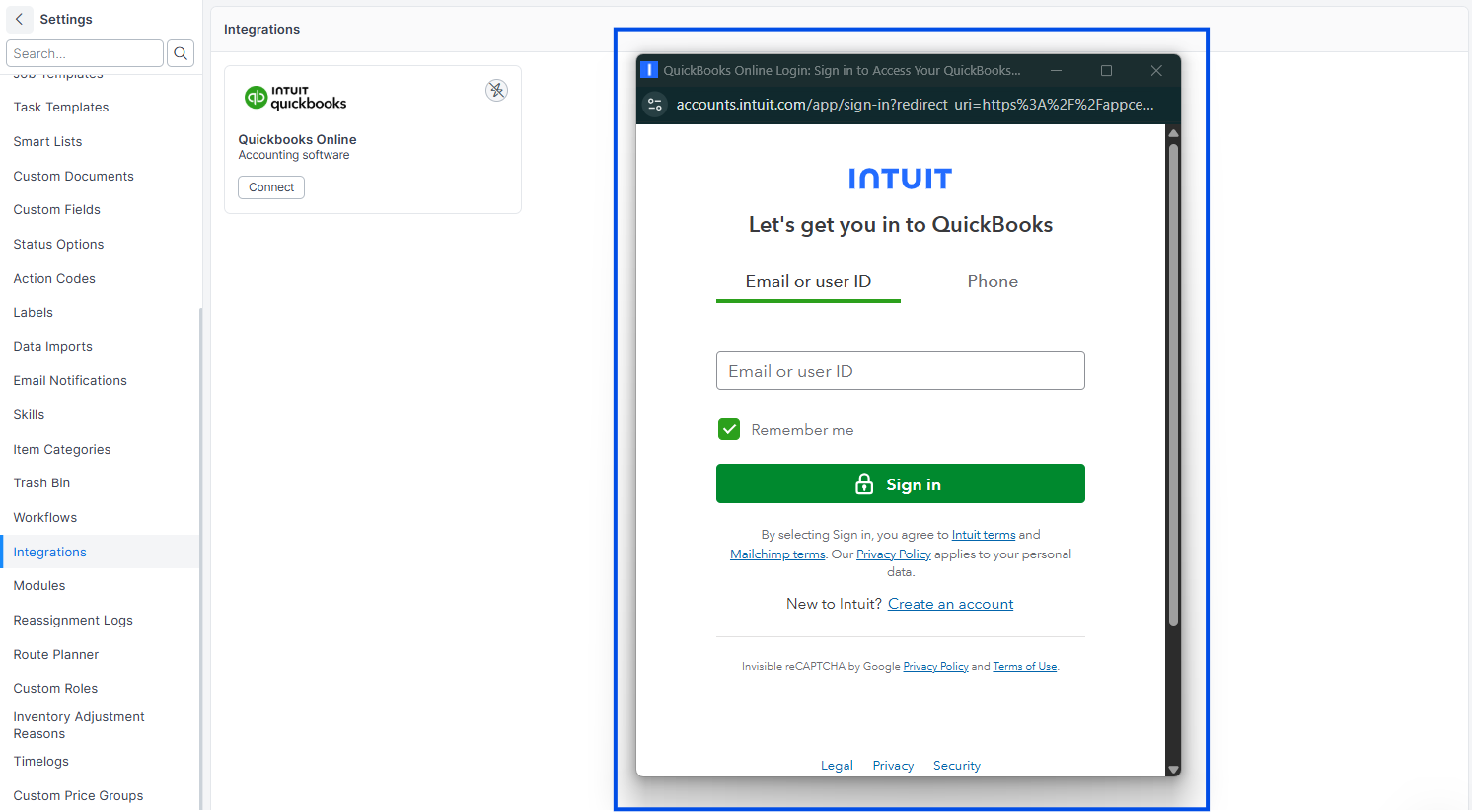
Sign in to your Intuit account when prompted.
Select the QuickBooks company you want to connect.
Click Authorize to grant Forz access.
Expected result: Forz displays a "Connected" badge on the QuickBooks Online card. The initial data import begins automatically in the background.
Note: The initial import pulls all customers, items, accounts, tax rates, and payment methods from QuickBooks into Forz. This may take several minutes for large QuickBooks files.
What Gets Synced
Forz synchronizes the following record types with QuickBooks Online:
Syncing Customers
When a customer record changes in either system, Forz synchronizes the following fields:
Organization (QuickBooks Display Name)
First Name / Last Name
Email, Phone, Mobile, Fax, Website
Billing Address (street, city, state, ZIP code)
Creating a customer in Forz
Create a new customer in Forz as you normally would.
Forz automatically sends the customer to QuickBooks within 15 seconds.
Expected result: The customer appears in QuickBooks Online with matching contact and address information. Forz stores the QuickBooks ID on the customer record for future syncs.
Importing customers from QuickBooks
Navigate to Settings > Integrations.
Click the QuickBooks Online card to view sync details.
Click Import Customers to pull all QuickBooks customers into Forz.
Expected result: Forz creates a customer record for each QuickBooks customer that does not already exist. Existing linked customers are updated with the latest QuickBooks data.
Tip: Forz matches records by their QuickBooks integration ID. If a customer already exists in both systems, link them first to avoid duplicates.
Syncing Items
Items (parts and services) sync between Forz and QuickBooks with these fields:
Name, Description, Type (Service or Inventory)
Unit Cost (Purchase Cost), Unit Price (Unit Price)
Quantity on Hand (Qty On Hand), Reorder Point
Account References (Income, Expense, Inventory Asset)
Note: QuickBooks "Service" type items map to Forz "Service" items. All other QuickBooks item types map to "Inventory" in Forz.
Syncing Invoices
When Forz creates or updates an invoice for a linked customer, it sends the invoice to QuickBooks with:
Customer reference (matched by QuickBooks ID).
Line items with quantity, unit price, description, and discount.
Due date and invoice number.
Warning: Invoice sync requires that both the customer and all line-item products already exist in QuickBooks. If a referenced item is missing, that line is skipped during import.
Syncing Tax Rates
Forz imports tax rates from QuickBooks in two ways:
Individual tax rates from QuickBooks Tax Rate records.
Combined tax codes from QuickBooks Tax Code groups, where Forz sums the component rates into a single rate.
Tax rate sync is one-way from QuickBooks to Forz.
Common Scenarios
HVAC company setting up QuickBooks sync for the first time
An HVAC contractor connects QuickBooks Online to Forz. The initial import pulls 340 customers, 85 service items (filter replacements, compressor repair, duct cleaning), and 12 inventory items (thermostats, refrigerant). The office manager reviews the imported records, verifies that customer addresses match, and begins creating invoices in Forz that automatically appear in QuickBooks.
Plumbing company keeping invoices in sync
A plumbing dispatcher creates an invoice in Forz after a technician completes a water heater installation. Forz sends the invoice to QuickBooks with the customer reference, line items (water heater unit, labor, copper fittings), and the applicable tax rate. The book keeper sees the invoice in QuickBooks within seconds and can apply payments there.
Troubleshooting
Was this helpful?
Still need help? Ask the team