Twilio Integration
Configure SMS and voice messaging for customers directlty from Forz conversations through Twilio phone number.
Overview
The Twilio integration lets your team send and receive SMS messages through Forz conversations. When a customer texts your Twilio phone number, the message appears in Forz. When your dispatcher or technician replies, Forz sends the response through Twilio. This keeps all customer communication in one place.
Before You Begin
Prerequisites:
You have the Admin role in Forz. The Integration module is enabled (Settings > Modules).
You have a Twilio account with an active phone number. You have your Twilio Account SID, Auth Token, and phone number ready.
Setting Up Twilio Credentials
Click Settings in the sidebar navigation.
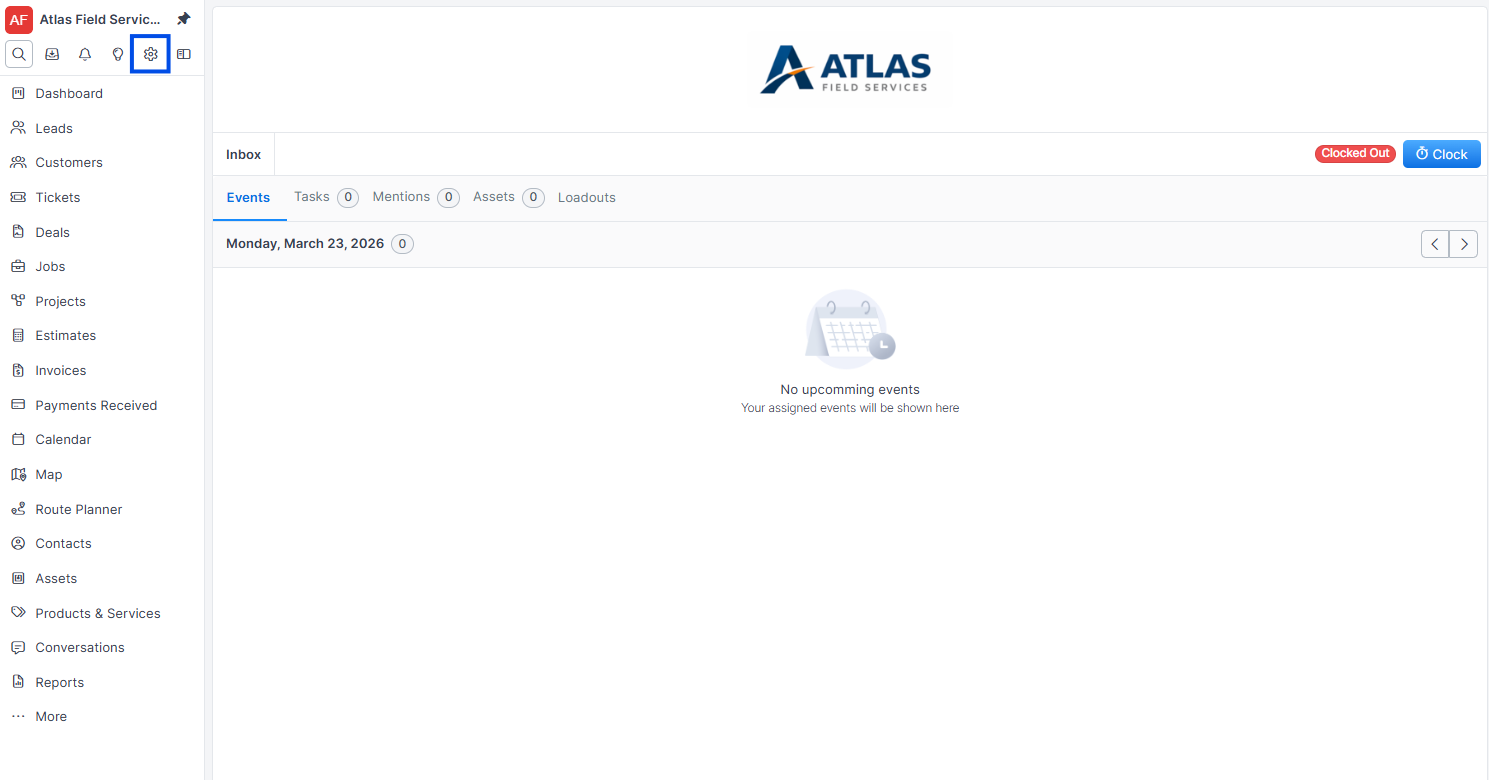
Click the Integrations tab.
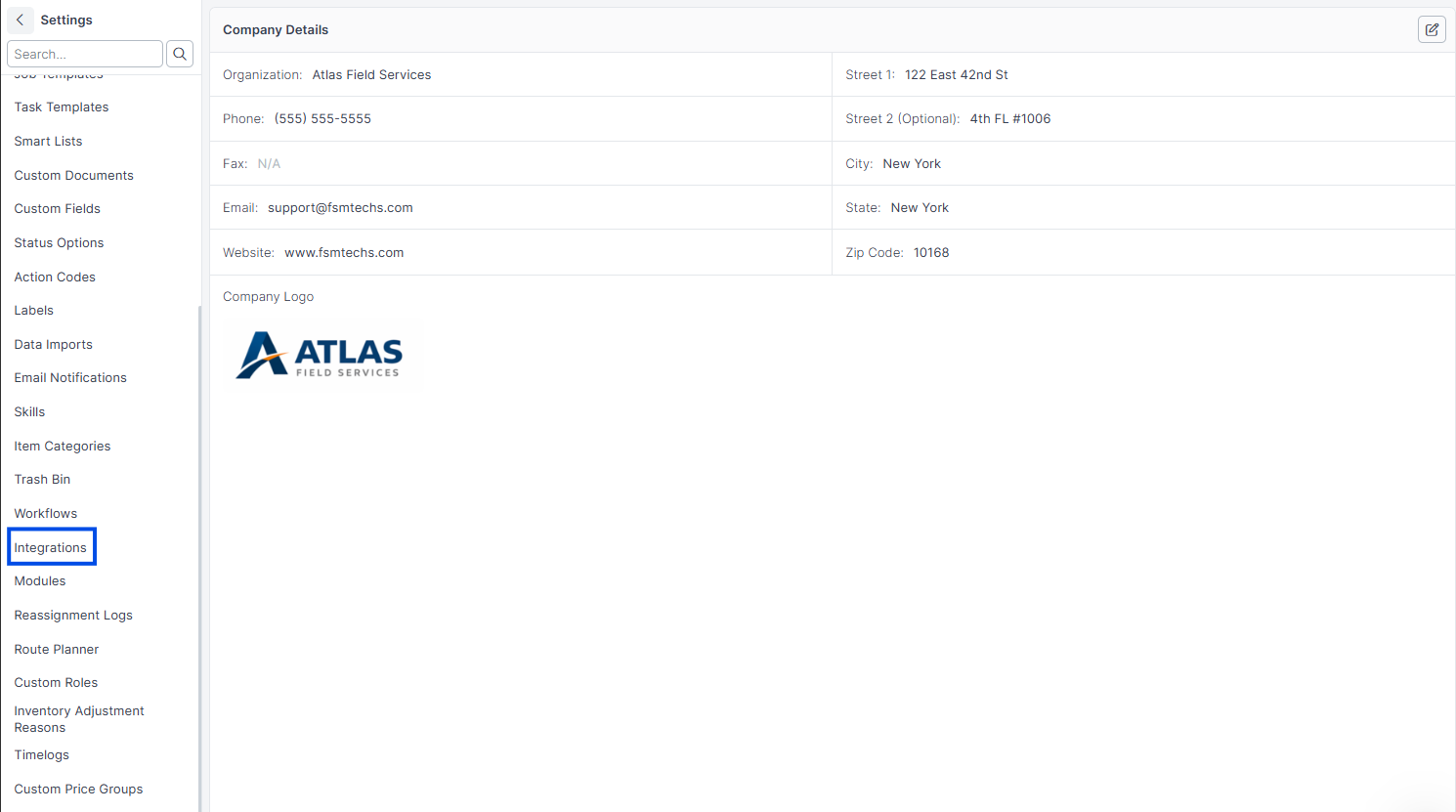
Locate the Twilio section and click Configure.
Enter your Account SID from the Twilio console.
Enter your Auth Token from the Twilio console.
Enter your Phone Number in E.164 format (e.g., +15551234567).
Click Save.
Expected result: Forz validates the credentials and displays "Connected" next to Twilio. Your team can now send SMS messages from conversations.
Tip: Find your Account SID and Auth Token on the Twilio Console dashboard at console.twilio.com. The Auth Token is hidden by default, click the eye icon to reveal it.
Sending an SMS Message
Open a Conversation with a customer.
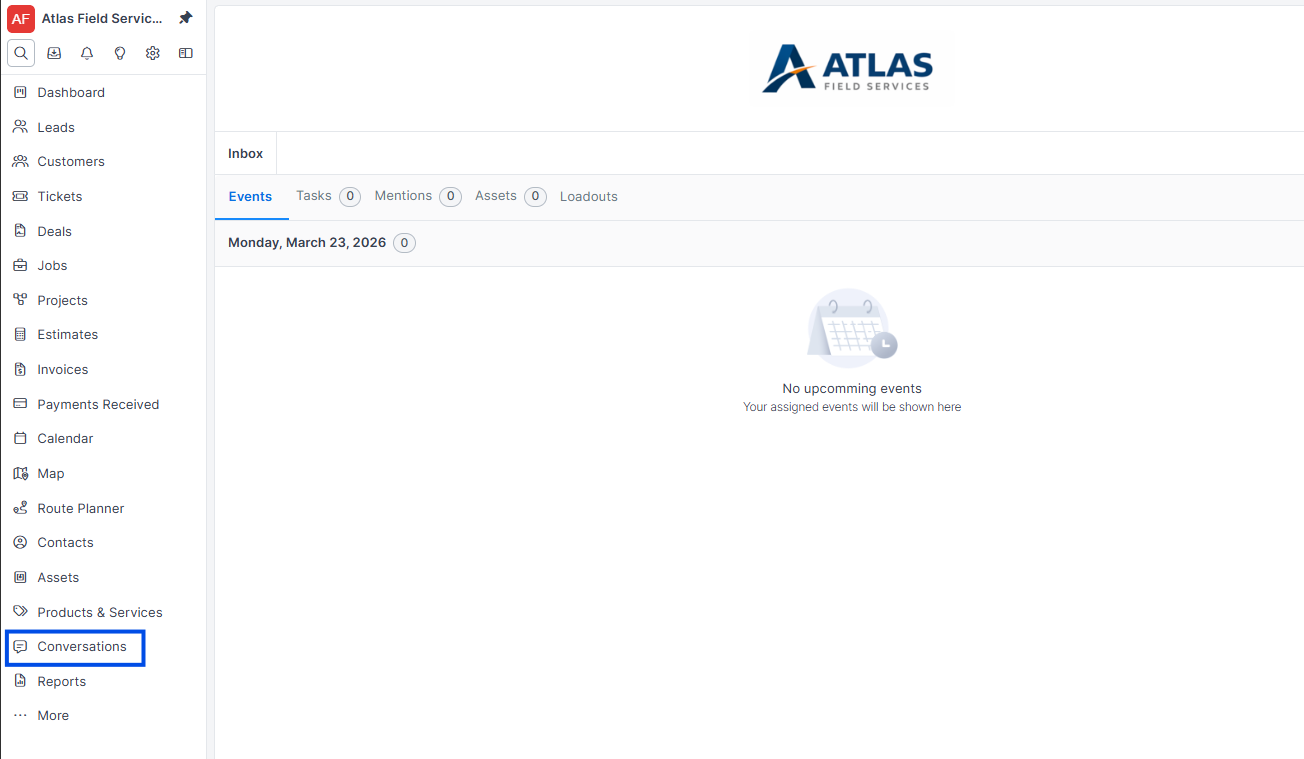
Verify the customer's phone number appears as the conversation source.
Type your message in the reply field.
Click Send.
Expected result: Forz sends the message through Twilio. The message appears in the conversation timeline with a delivery confirmation (Twilio SID).
Note: Forz stores the Twilio message SID on each outbound message for delivery tracking. If a message fails to send, the SID field remains empty.
How SMS Routing Works
When Forz sends an SMS:
From number — your Twilio phone number stored in the credentials.
To number — the source_identifier on the conversation (the customer's phone number).
Message body — the text entered by your team member.
Forz uses the Twilio REST API to create the message and stores the returned message SID for tracking.
Common Scenarios
Dispatching a technician with SMS confirmation
A dispatcher schedules an HVAC maintenance appointment for Friday morning. From the job's conversation, the dispatcher sends an SMS: "Hi Mrs. Johnson, your HVAC maintenance is confirmed for Friday 9:00 AM. Technician Mike will arrive at 123 Oak St. Reply “CONFIRM” to acknowledge." The customer replies "CONFIRM" and the message appears in the Forz conversation.
Sending appointment reminders
An electrical company uses Forz conversations to send day-before reminders to customers. The dispatcher opens each scheduled job's conversation and sends: "Reminder: Your panel upgrade is scheduled for tomorrow at 10 AM. Please ensure the main breaker area is accessible." All messages are logged in the conversation history.
Troubleshooting
Was this helpful?
Still need help? Ask the team