Timesheets
Review a day's clock and job-timer records, fix what's wrong, book time off, and approve each technician's pay period.
Overview
Timesheets is the office-facing screen where a manager settles time. It reads two records at once — the payroll clock (clock in / clock out) and job timers (the per-job stopwatch technicians start and stop) — and puts them on one line per technician, so you can see in a glance who needs attention before payroll runs.
The screen has two scopes. Day shows one calendar day, one collapsed line per technician, and it is where you repair a record. Week shows a Monday-to-Sunday grid, one row per technician, and it is where you approve a pay period.
Timesheets does not replace Timelogs. Timelogs is the live presence board — who is on the clock right now, grouped by project. Timesheets looks backwards: it corrects a day and settles a period. No pay figures, hourly rates, or currency appear anywhere on this screen. For clock-in and clock-out on the technician side, see Time Tracking.
Before You Begin
Prerequisites:
Your role has View on Timesheets to open this screen, and Manage time to make changes. Admins and the built-in Manager role have both by default; new Staff roles have neither. An Admin can turn them on under Team → Roles.
The Timesheets sidebar item appears once your role has View. If you have never customized your sidebar, it starts hidden; add it under Settings → Sidebar (see Customize Sidebar).
Automatic lunch deduction is configured under Settings → Modules → Timelog if you want Forz to deduct break time.
Opening a day
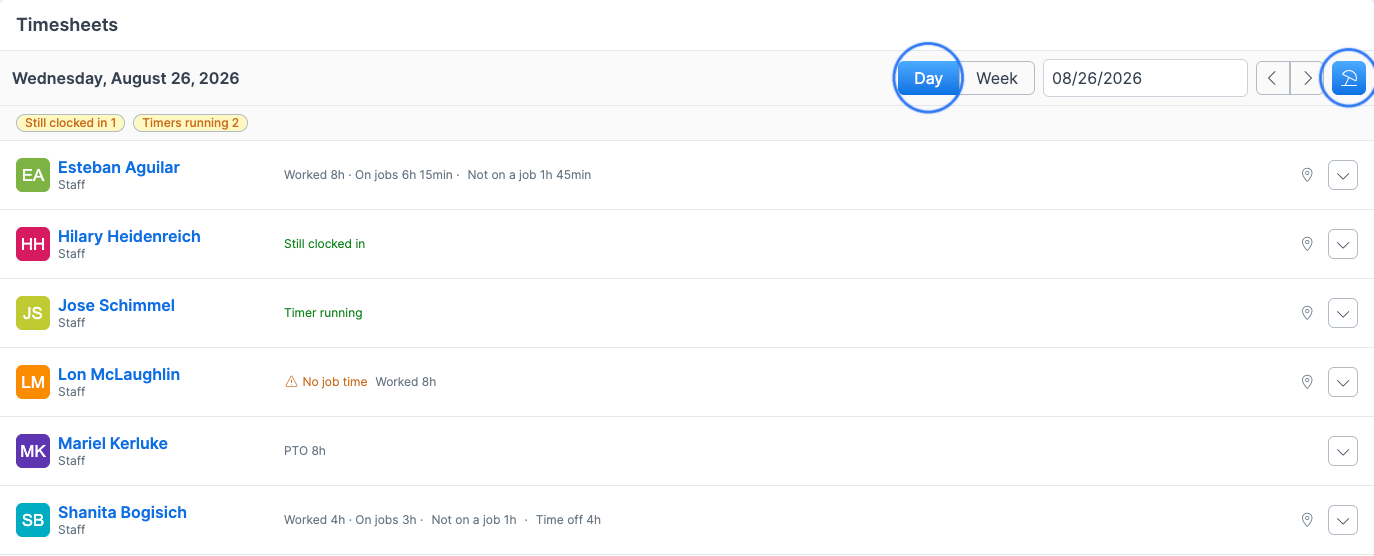
Click Timesheets in the sidebar. Forz opens today.
Use the ‹ and › chevrons to step one day at a time.
Type or pick a date in the date field to jump straight to it.
Click the calendar icon to return to today. It hides itself when you are already on today.
The Day / Week toggle in the header switches scope. The chevrons step by whichever unit you are in — one day in Day, one week in Week.
Two count badges sit above the list on today only:
Still clocked in — how many technicians have an open shift right now.
Timers running — how many job timers are still ticking.
On a past day both badges are hidden and any open row renders as static text rather than a live counter, so last month's sheet never claims people are at work.
Reading a technician's line
Each collapsed line has three zones: who the technician is, what needs attention, and the day's figures.
The three figures
Worked — time on the clock after the automatic lunch deduction.
On jobs — total of the closed job-timer entries for that day.
Not on a job — the difference between the two.
Not on a job is a statement about the records, not about the technician's conduct. It is time on the clock that no job timer covers, and it legitimately fills up with travel between jobs, an automatic lunch deduction, clock rounding, and timers nobody remembered to start. Hover the term for that reminder.
Where a timer ran past the end of a shift the difference goes the other way, and the line reads 1h 15min logged beyond shift instead. There is no minus sign and no red.
When the figures are hidden
On some days the arithmetic would be misleading, so Forz suppresses it and shows the reason instead. A row whose shift is still open has nothing to measure yet — the line says Still clocked in and prints no figures at all. The same holds for a running timer, a day with no shift recorded, and a booked day off.
A day that also holds leave keeps its figures and appends the leave separately: Worked 4h · On jobs 3h · Not on a job 1h · Time off 4h. Leave hours never enter the subtraction.
Attention labels
At most one label shows per line, chosen in order of urgency, plus the standing No job time flag.
Only the amber labels put a technician in the week grid's Needs attention tab. The neutral ones — Spans midnight, No shift recorded, and the time-off types — are explanations, not defects.
Opening a technician's day
Click anywhere on a collapsed line to expand it. The block holds up to three captioned ledgers.
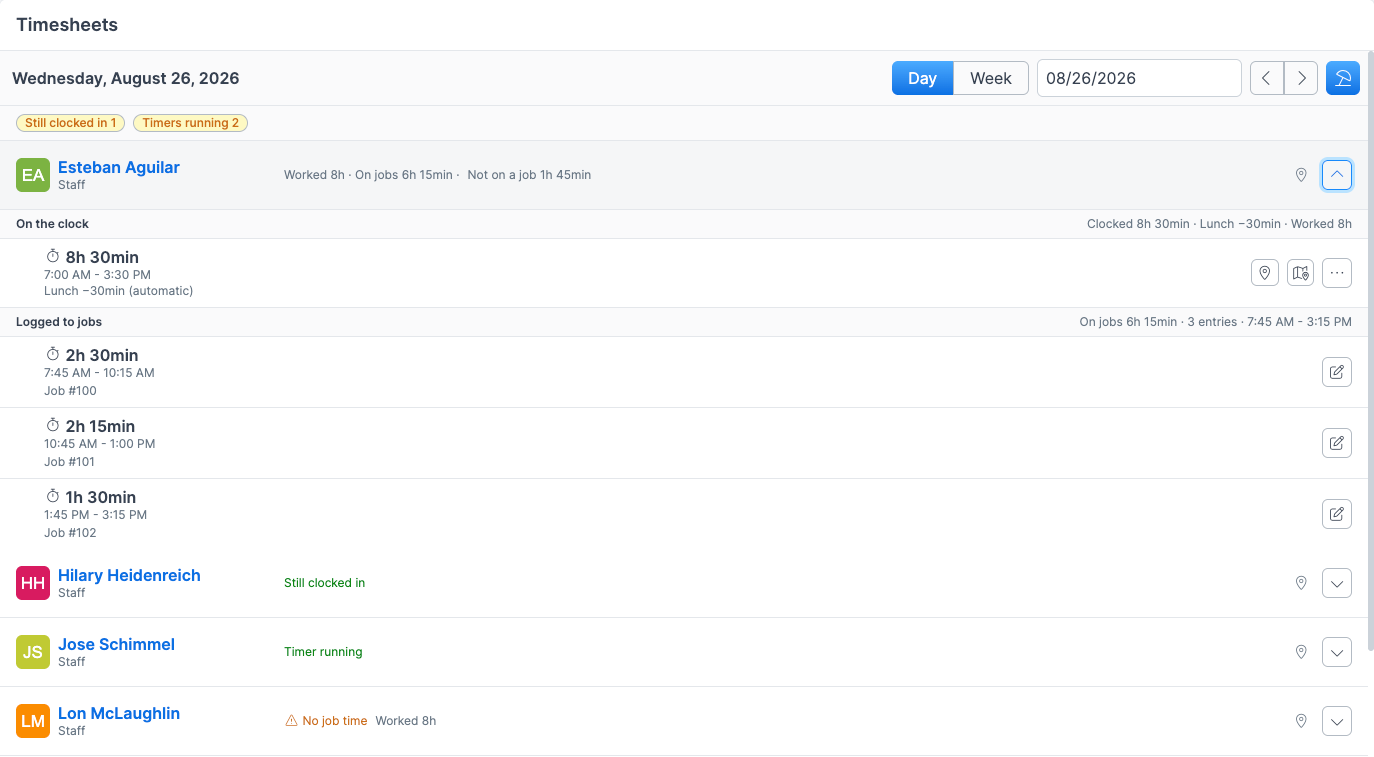
Time off — leave booked against the day, with the total hours.
On the clock — every shift, with Clocked, the Lunch deduction, and Worked in the caption.
Logged to jobs — every job-timer entry, with On jobs, the entry count, and the span in the caption.
Each ledger caption prints an em dash rather than a zero when nothing is measurable yet — a day whose only entry is still running has no closed time to sum. A day with genuinely no entries keeps a real 0s.
The two clock ledgers are dropped entirely on a leave-only day, so a booked holiday never reads as two empty defects.
Click a shift's ⋯ menu to edit it, or a job entry's pencil to edit its times. Click the job number to open the job itself.
Closing a shift somebody left open
When a technician forgets to clock out, close the shift from Timesheets rather than editing the record. The edit form does not clock anyone out — the technician's next tap would overwrite whatever end time you typed.
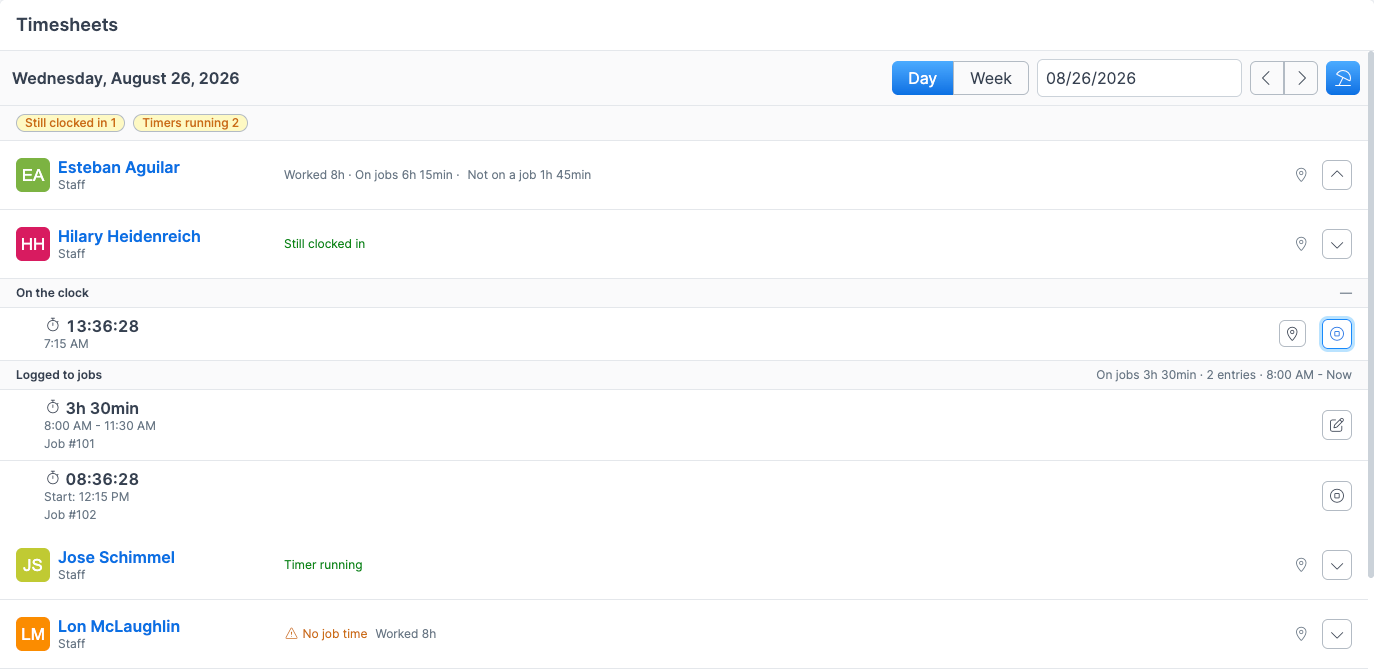
Expand the technician's block.
Click the Close shift icon on the open shift row.
Read the notices in the modal. It tells you that this clocks the technician out, restates the lunch rule that will apply, and warns you if a job timer is also still running.
Enter the End date and End time. Neither is pre-filled — you are asserting when the technician actually finished.
Click Close Shift.
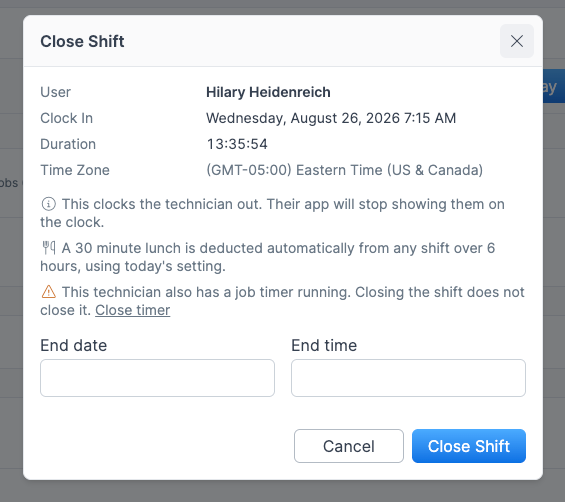
Expected result: the shift closes with your typed time, the technician's app stops showing them on the clock, and a manual entry is added to the shift's change history recording who closed it.
Forz refuses the whole request before writing anything if the shift is not open, the time cannot be read, the end is before the start, or the end is in the future.
Note: Closing a shift does not close a running job timer. Two facts deserve two typed end times. The modal links straight to Close timer when there is one.
The modal also states the time zone it is acting in. Forz reads and writes in your time zone, while the lunch rule is applied in the company's — worth checking when you are correcting a technician in another region.
Closing a job timer that is still running
Expand the technician's block.
Click the Close timer icon on the running entry under Logged to jobs.
Enter the end date and time and confirm.
The same four refusals apply, and the entry keeps a record of the manual close.
Booking time off
Time off is booked in hours against a date, never as a clock interval — nobody takes holiday from 8:00 to 16:30. It sums into the same payroll figures the rest of the clock feeds, and it is kept out of Worked so a day off never reads as unlogged work.
Adding time off
Click the umbrella button in the header. It is the only create action on the screen.
Choose the User.
Choose the Type — PTO, Holiday, Sick, or Unpaid.
Set the Date.
Enter the Hours. Write a half day as
4.5.Click Save.
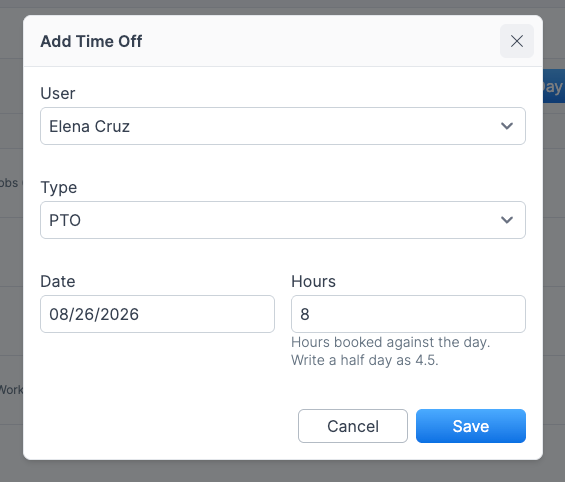
Expected result: the entry appears on that date's sheet. On a day with no shift the line reads the type and hours — PTO 8h. On a day that also holds work, the hours are appended after the figures as Time off 4h.
Editing or deleting time off
Expand the technician's block, then open the ⋯ menu on the Time off row and choose Edit or Delete. Deleting asks you to confirm and moves the entry to the Trash Bin, where it can be restored.
Time off is the only record on this screen you can delete. Clock records have no delete — discarding an open shift would strand a technician clocked in forever.
How the four types behave
PTO, Holiday, Sick — hours are recorded and paid at the technician's rate.
Unpaid — hours are recorded, but no pay is banked. The row is marked unpaid.
No lunch is ever deducted from a day off, whatever the hours.
Reviewing a whole week
Switch the header toggle to Week. The grid shows one row per technician, seven day columns, the period Worked total, and the approval control.
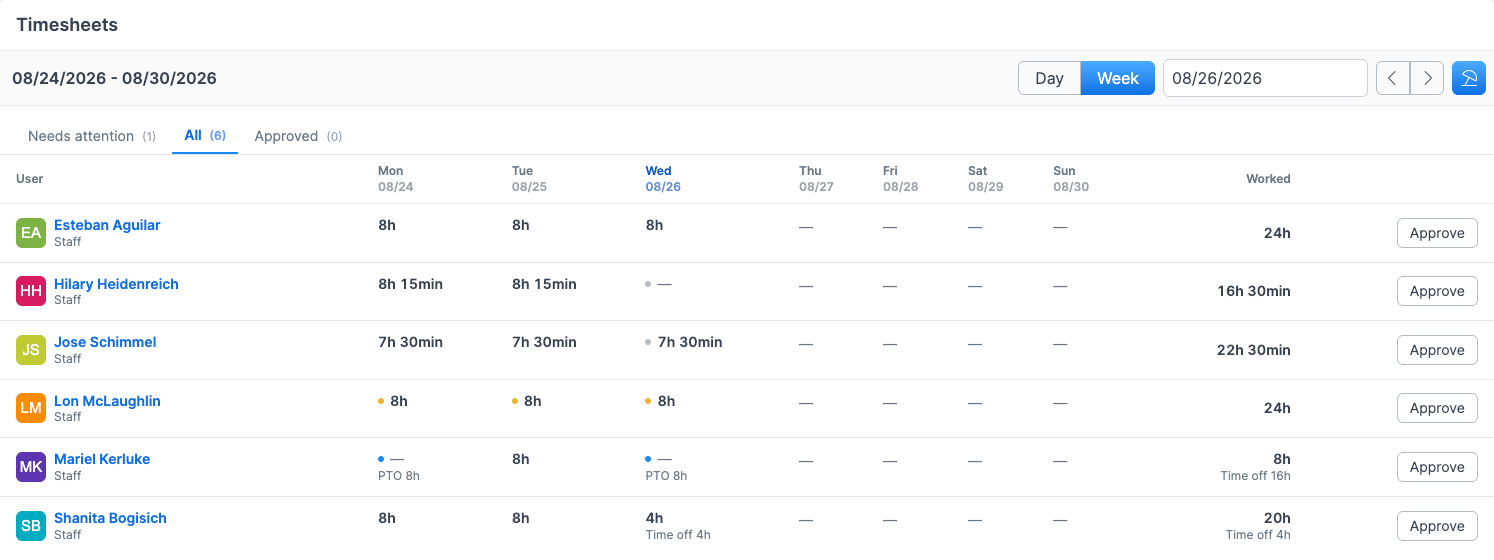
The period runs Monday to Sunday around whichever date you are on.
The tabs
Needs attention — technicians whose week holds at least one amber label.
All — everybody with any record in the period.
Approved — technicians whose period is signed off. An approved period is never in Needs attention.
Each tab carries a count. Day and week are a scope, not tabs: every populated cell links into that day's sheet, so the grid is the index and the day is the record.
Reading a cell
The bold figure in a cell is Worked, and only ever Worked, so every bold figure on a row sums into the Worked column at the end of it.
A day that holds only leave prints an em dash in the bold slot and puts its hours in the caption below it — PTO 8h — because those hours are not work and must not appear to be excluded from a total they were never in. A day that holds both prints the worked figure in bold and Time off 4h beneath it.
A marker dot next to a figure means the day carries a label. Open the day to read it.
Approving a pay period
Approving is you asserting that a technician's hours for the week are right.
Open the Week scope on any date inside the period.
Find the technician's row.
Click Approve.
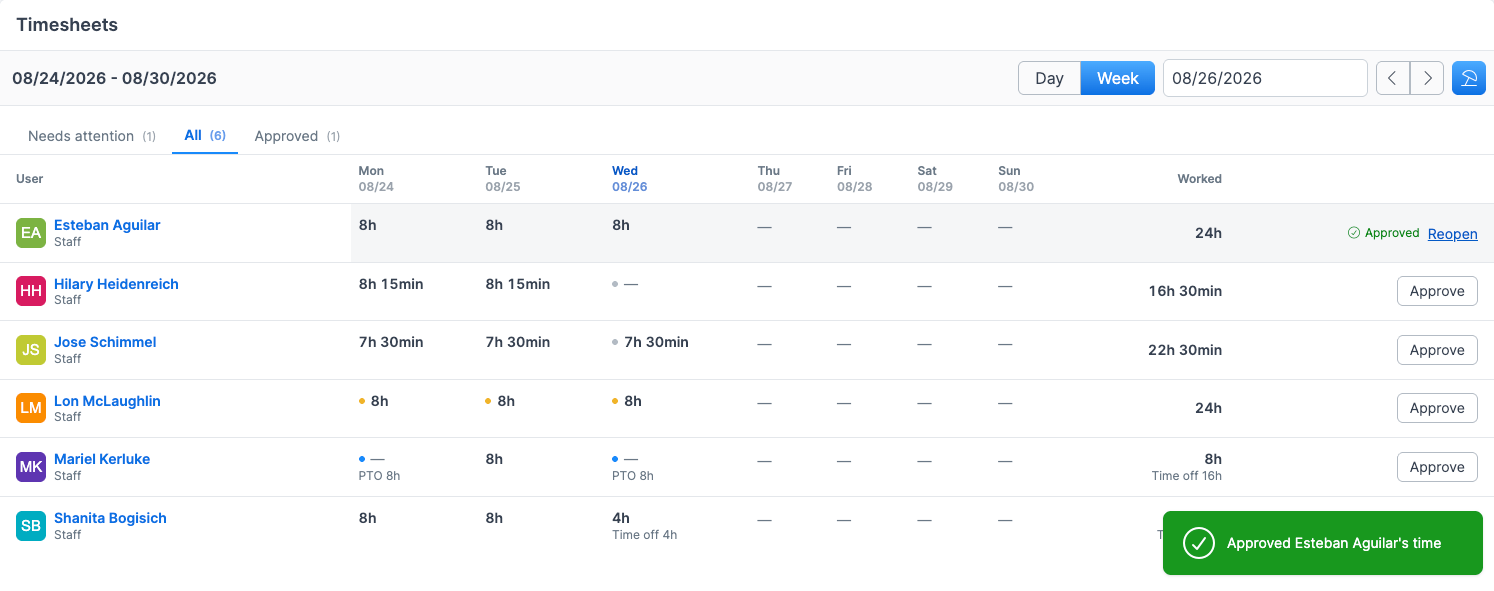
Expected result: the row shows a green Approved tick, the Approve button is replaced by a Reopen link, and the technician moves into the Approved tab.
When Forz refuses
Forz will not approve a period that still holds an open shift or a running timer — an open row inside an approved window would be frozen at whatever it happened to contain at that moment. The refusal arrives as a red toast naming the fix.
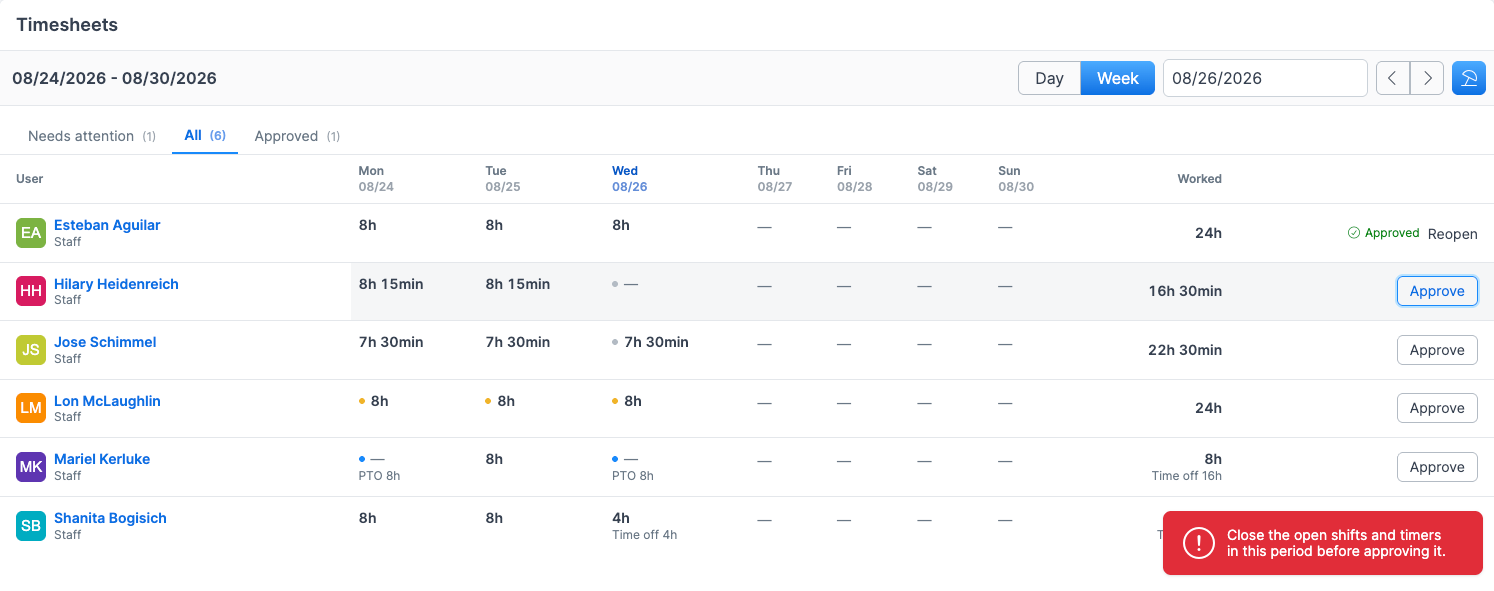
Close the open records first, then approve.
If two managers approve the same period at the end of a pay period, the second one is told it was already approved. Nothing is double-stamped.
What approval freezes
Before approval, editing a shift re-derives its lunch deduction and pay from whatever the settings say at that moment — so editing a June shift in August would quietly re-apply August's lunch rule to it.
Approving stops that. On an approved period:
The lunch deduction and pay figures are frozen at the values the approval banked.
Editing the raw times of a covered record is refused with That pay period was approved. Reopen it before making changes.
A record created after the sign-off lands unapproved on its own, and the row shows an amber 2 added since badge — the one state where a period is both approved and not yet settled. Reopen and re-approve to take those in.
Reopening a period
Click Reopen on an approved row and confirm. Reopening removes the sign-off, clears the stamps, and makes the hours editable again. It carries a confirmation because it unfreezes figures somebody already signed their name to, and it has no undo of its own.
Seeing where somebody clocked in
Two location controls sit at the right end of a technician's line, and they answer different questions.
The clock-in pin opens the day's first clock-in position on Google Maps. It needs no module and no extra permission — the coordinates come from the clock event itself, which every company records. Both readings for an individual shift stay available inside the expanded block.
The location track opens that technician's GPS track for the day, with snap-to-roads, speed coloring, and playback. It appears only when the day actually has points, and only when you have live tracking access.
The Manage time permission deliberately does not grant location tracking. The right to correct somebody's hours is not the right to watch where they drove.
Permissions
This screen uses two permissions on Timesheets, set under Team → Roles:
View — open the screen, its history, and payroll summaries.
Manage time — close shifts and timers, book time off, add or correct time, approve and reopen periods, and change settings. It only works when View is also on.
Admins and the built-in Manager role have both by default. New Staff roles have neither. Without Manage time, the management actions stay visible and explain that Timesheets → Manage time is needed. Clocking in and out and running your own job timers do not need either permission.
Viewing the GPS track needs live tracking access on top of it.
Known limitations
Pay periods are weekly. The period is always Monday to Sunday. Biweekly and semi-monthly periods are not supported yet.
A shift belongs to the day it started on. An overnight shift appears in full on the day it began, labelled Spans midnight, and the next day's sheet shows nothing for it.
Time on the clock cannot be reconciled to individual jobs. The link from a job timer through to a project is optional on both sides, and a shift's project is derived from where the technician clocked in. The technician-day is the only unit these figures can be trusted at.
This screen shows no money. Hourly rates and pay amounts live on the timelog record and in reports, not here.
Was this helpful?
Still need help? Ask the team