Scheduling Jobs or Events
Discover how to schedule jobs or events from the calendar.
Overview
Use the Calendar to schedule jobs and events for your team. Pick a time slot on the grid, then create a new event or assign an existing job.
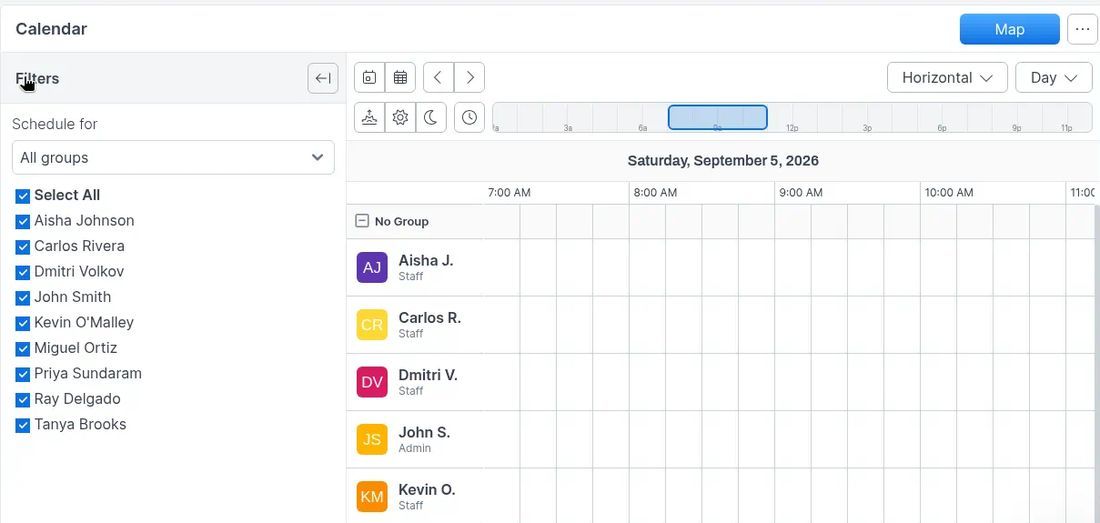
Open Calendar and choose a view
- Open Calendar from the sidebar.
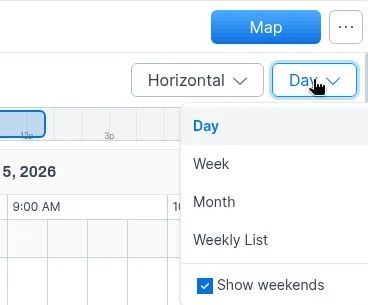
- Choose a view: Day, Week, Month, or Weekly List. You can also turn Show weekends on or off.
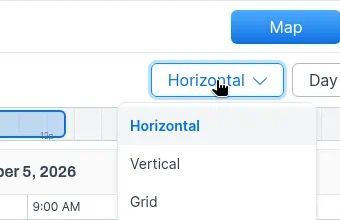
Then choose a layout: Horizontal, Vertical, or Grid.
Use the filters on the left to control who appears under Schedule for.
Schedule a new event
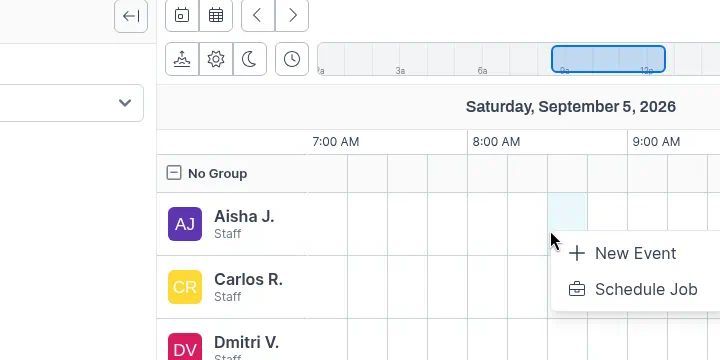
- Click an empty calendar slot for the person and time you want.
- Choose New Event.
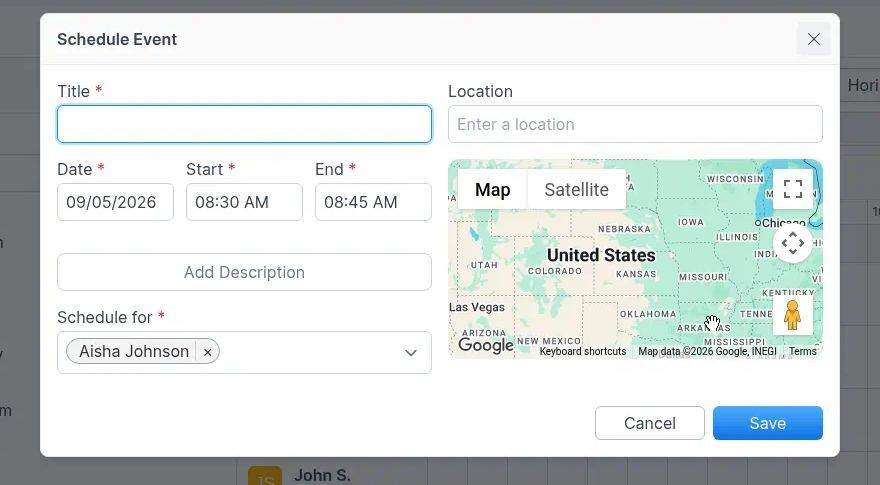
Fill out the Schedule Event form:
- Title (required)
- Location (optional)
- Date, Start, and End (required)
- Add Description (optional)
- Schedule for (required) — who the event is assigned to
Click Save (or Cancel to discard).
Schedule an existing job
To place an existing job on the calendar:
- Click an empty calendar slot.
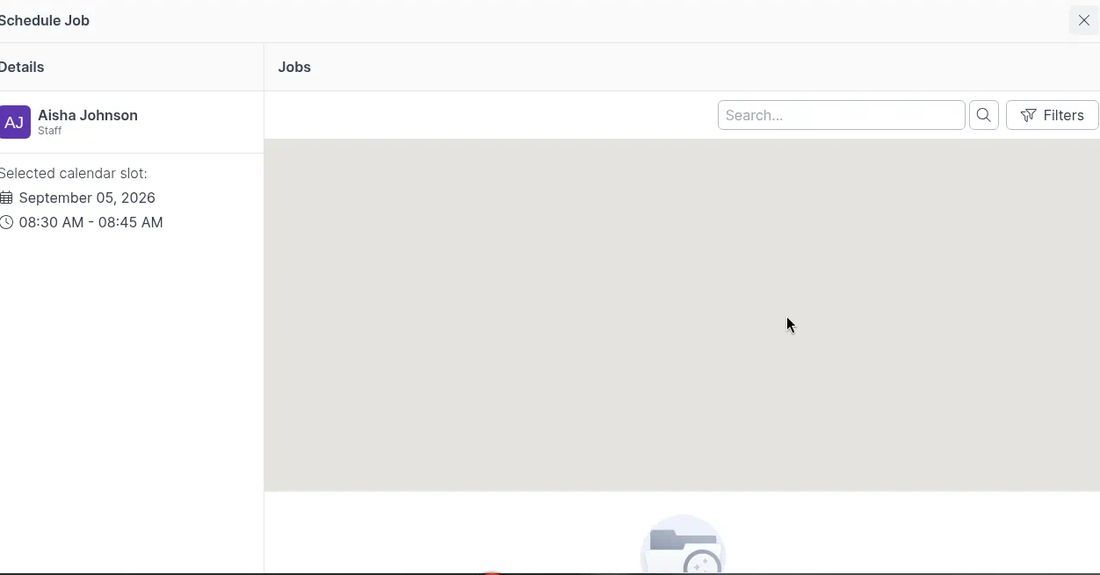
- Choose Schedule Job.
- In the Schedule Job panel, confirm the Selected calendar slot, then find the job under Jobs using Search... or Filters.
- Select the job to schedule it into that slot.
Need to create the job first? See Creating Jobs.
View or edit from the calendar
Click a scheduled event or job on the calendar to open it.
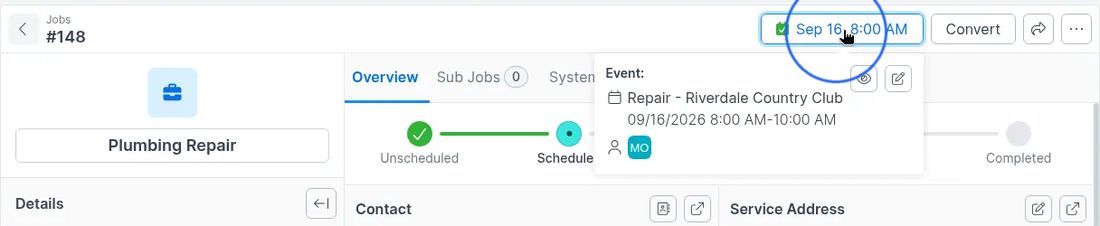
On a scheduled job, open the date and time control to see the Event popup. Use the view or edit icons on that popup to open or change the event.
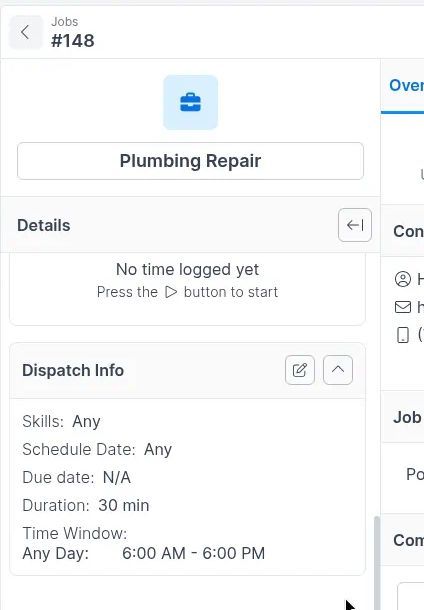
On the job, review Dispatch Info for skills, schedule date, due date, duration, and time window. Use the edit icon on that panel to make changes.
Was this helpful?
Still need help? Ask the team