Invoice Actions: Edit, Share, and Void
Learn how to edit, share, mark invoices as sent, and set them as void.
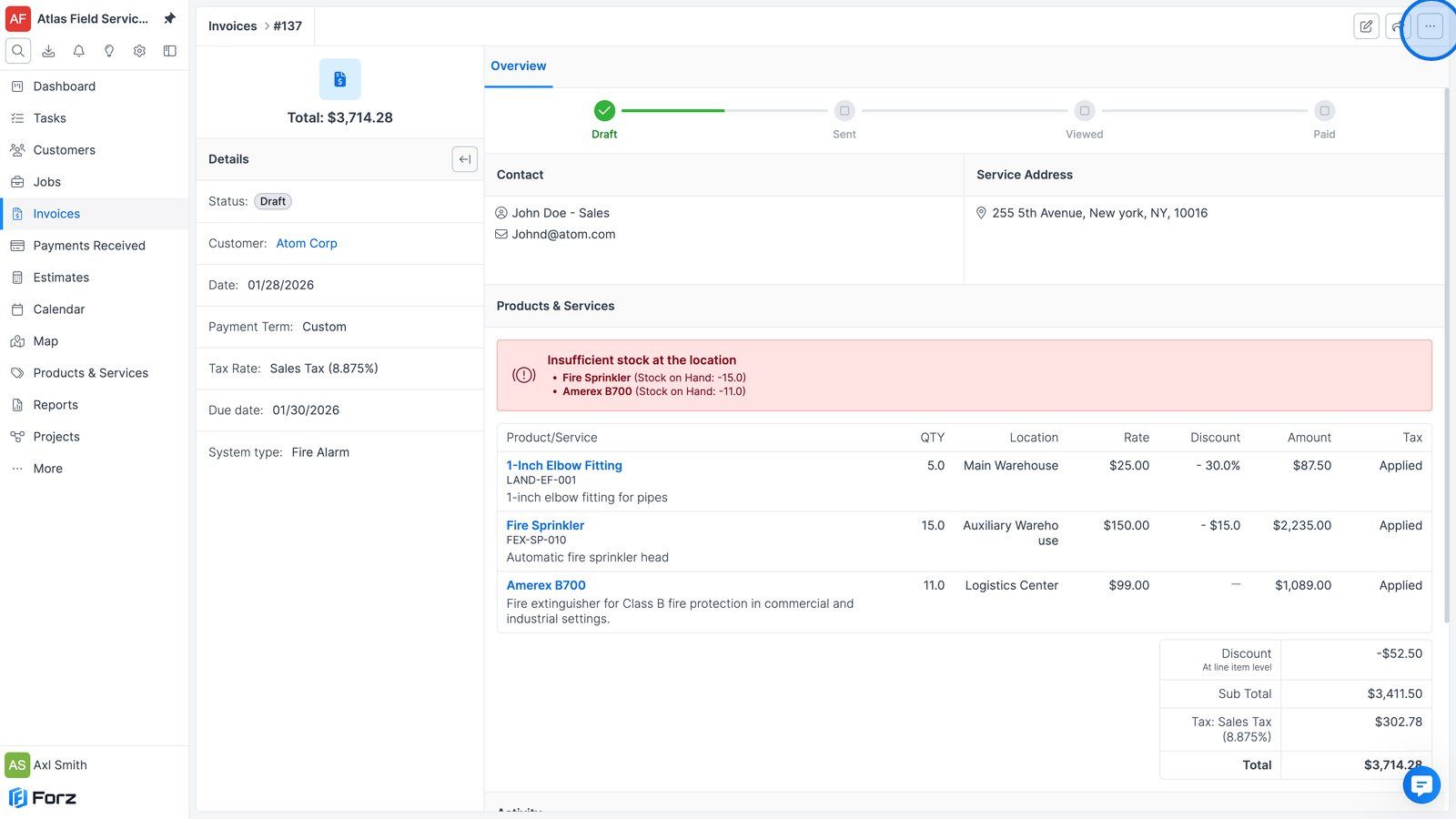
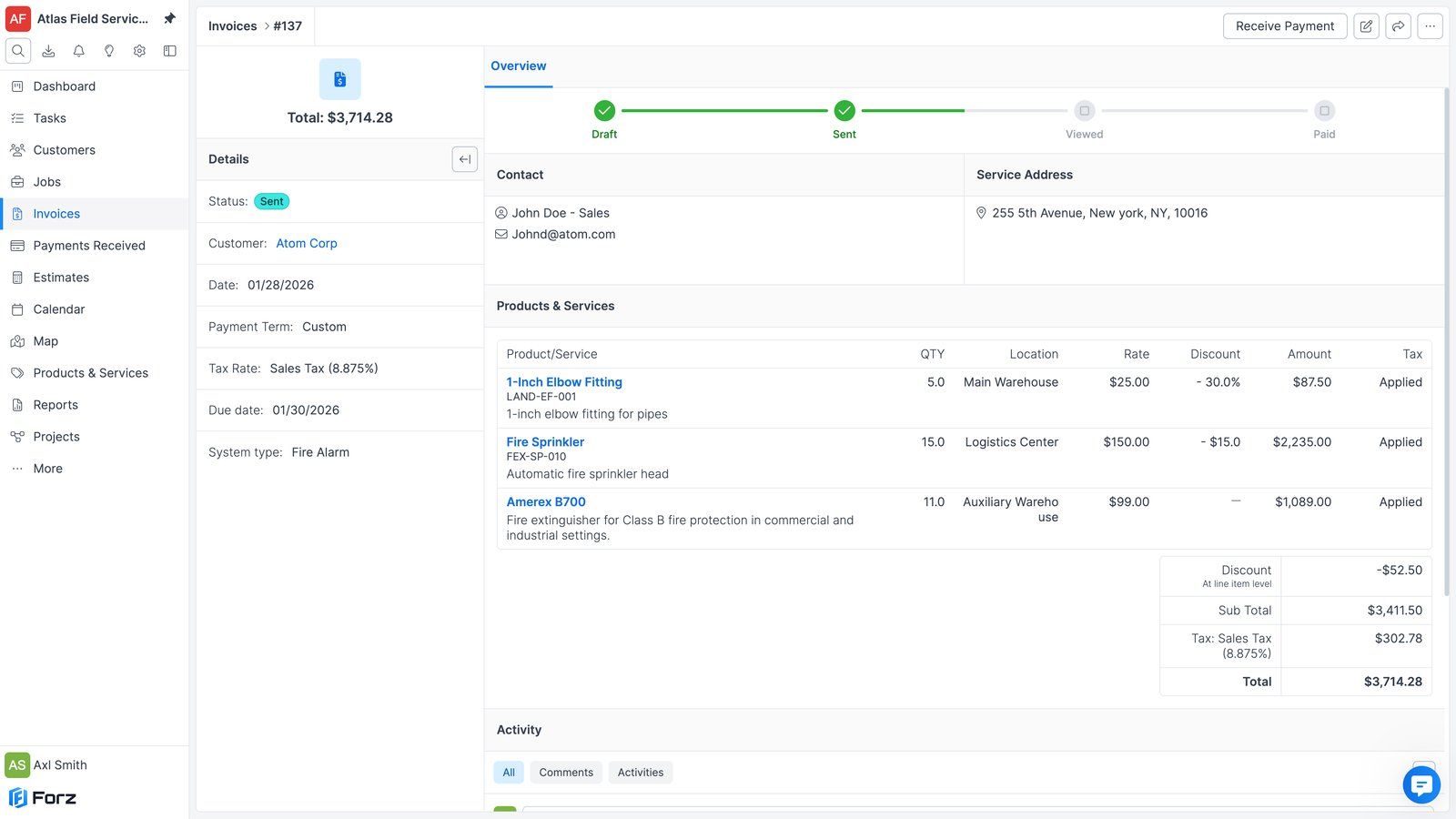
1) Click the “More options” button.
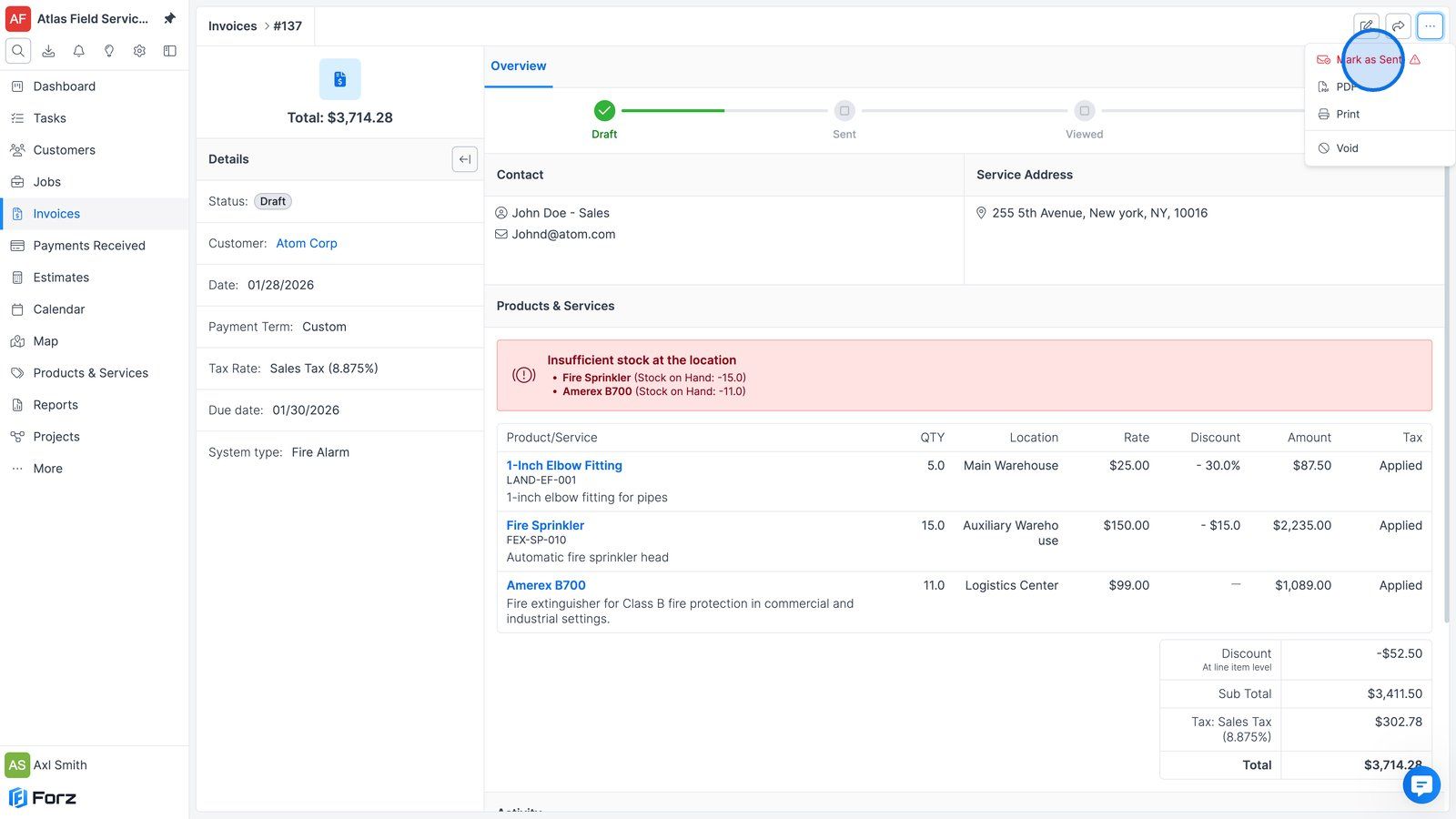
2) Click “Mark as Sent” to change the invoice status to “Sent” without actually sharing the invoice.
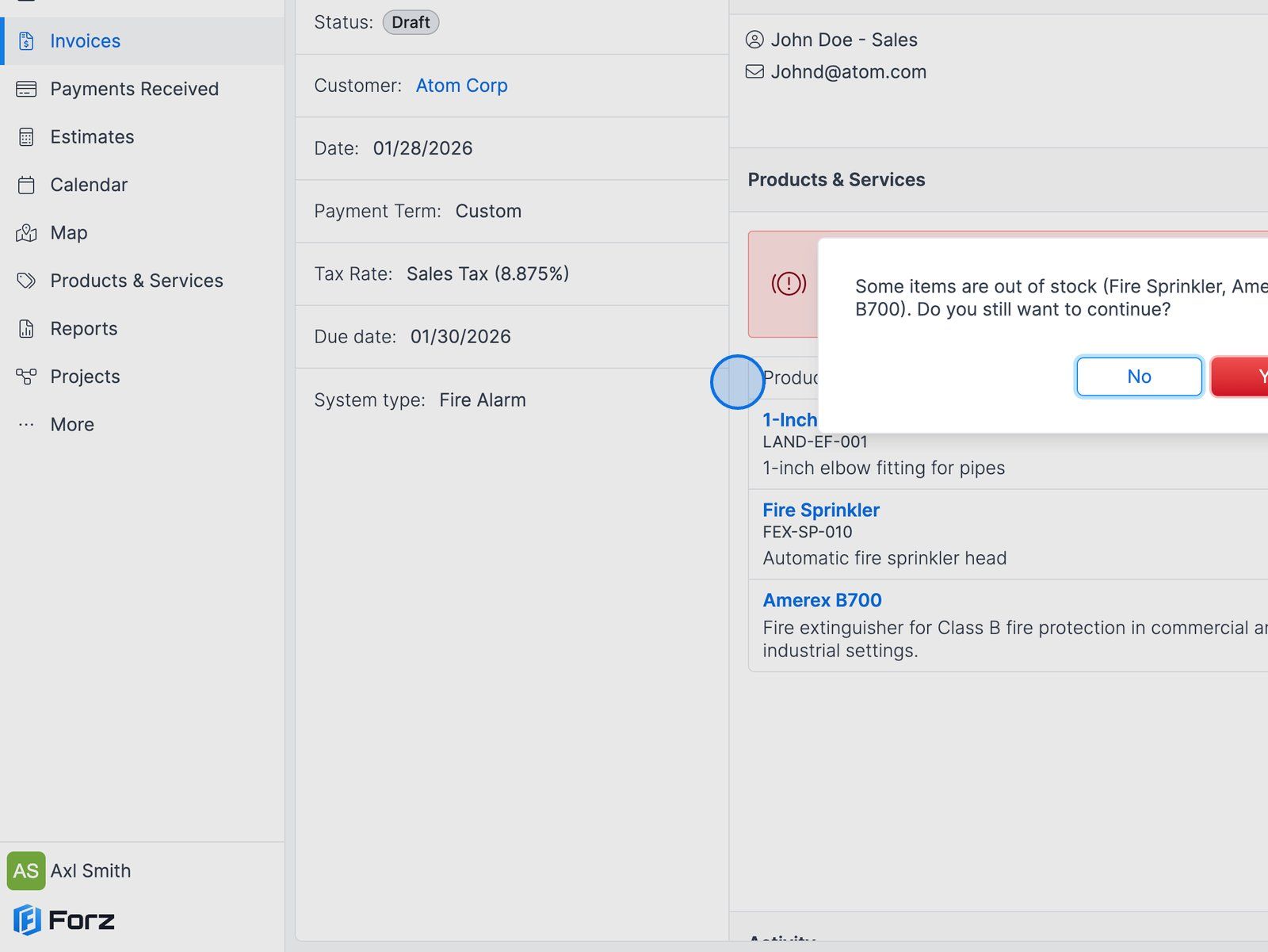
3) The system will alert you if any item included in the invoice is out of stock, allowing you to make the necessary stock adjustments. If you want to continue, click the “Yes” button. The system will alert you if any item included in the invoice is out of stock, allowing you to make the necessary stock adjustments If you want to continue, click the “Yes” button.
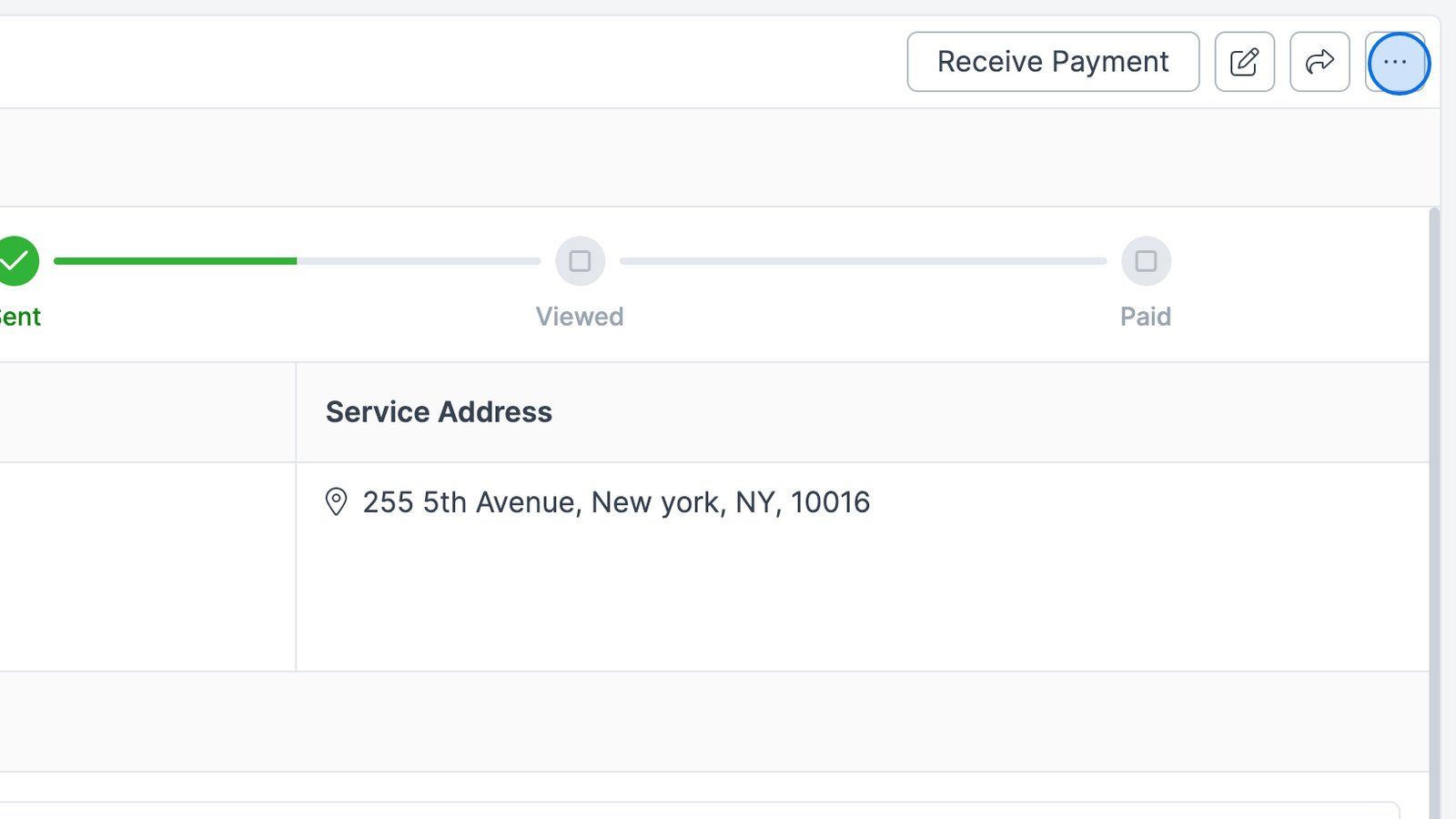
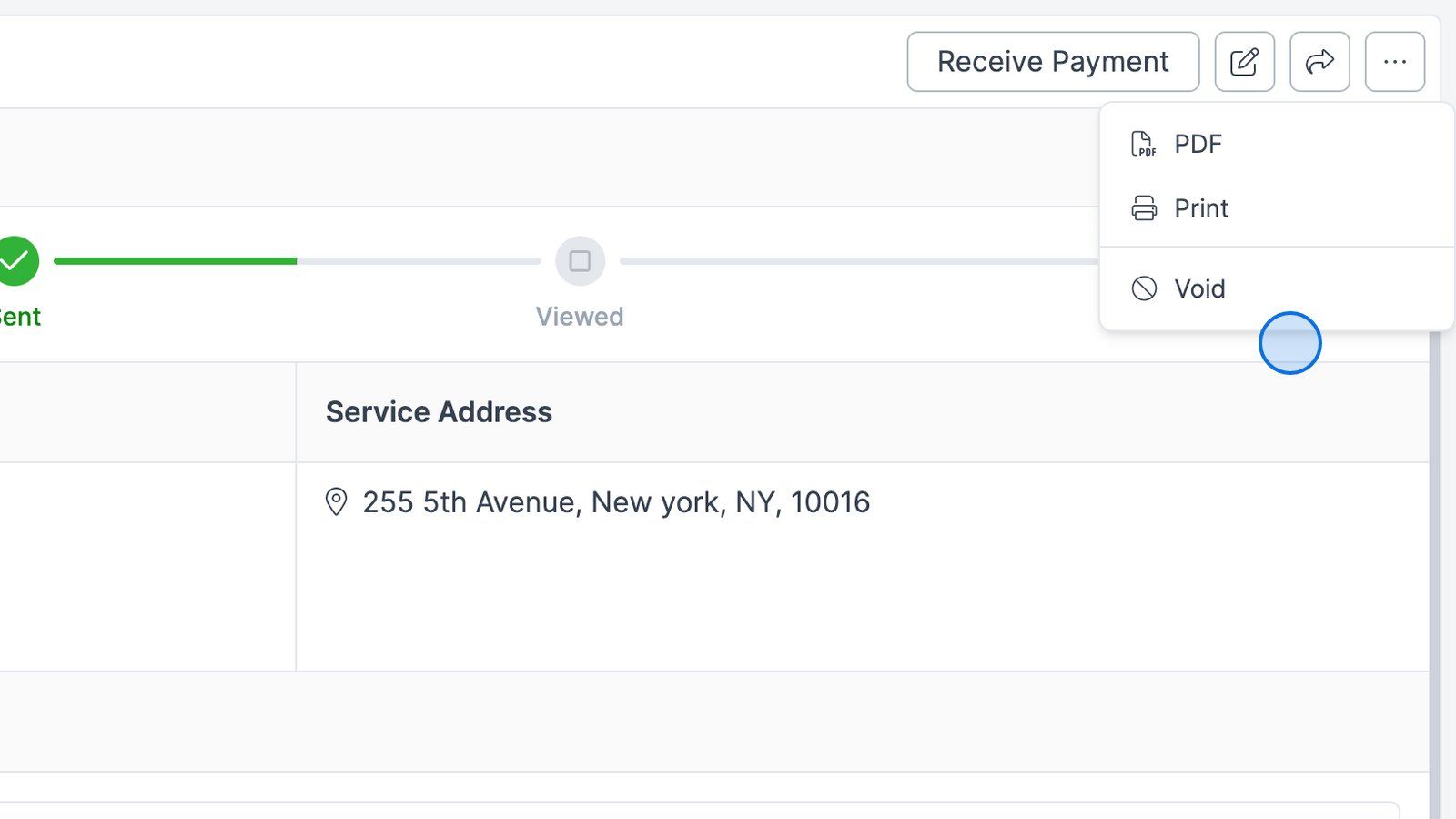
4) Click the “More options” button again to export the invoice as a PDF or print it.
5) You can also set the invoice as Void (this option is available only if no payment has been received).
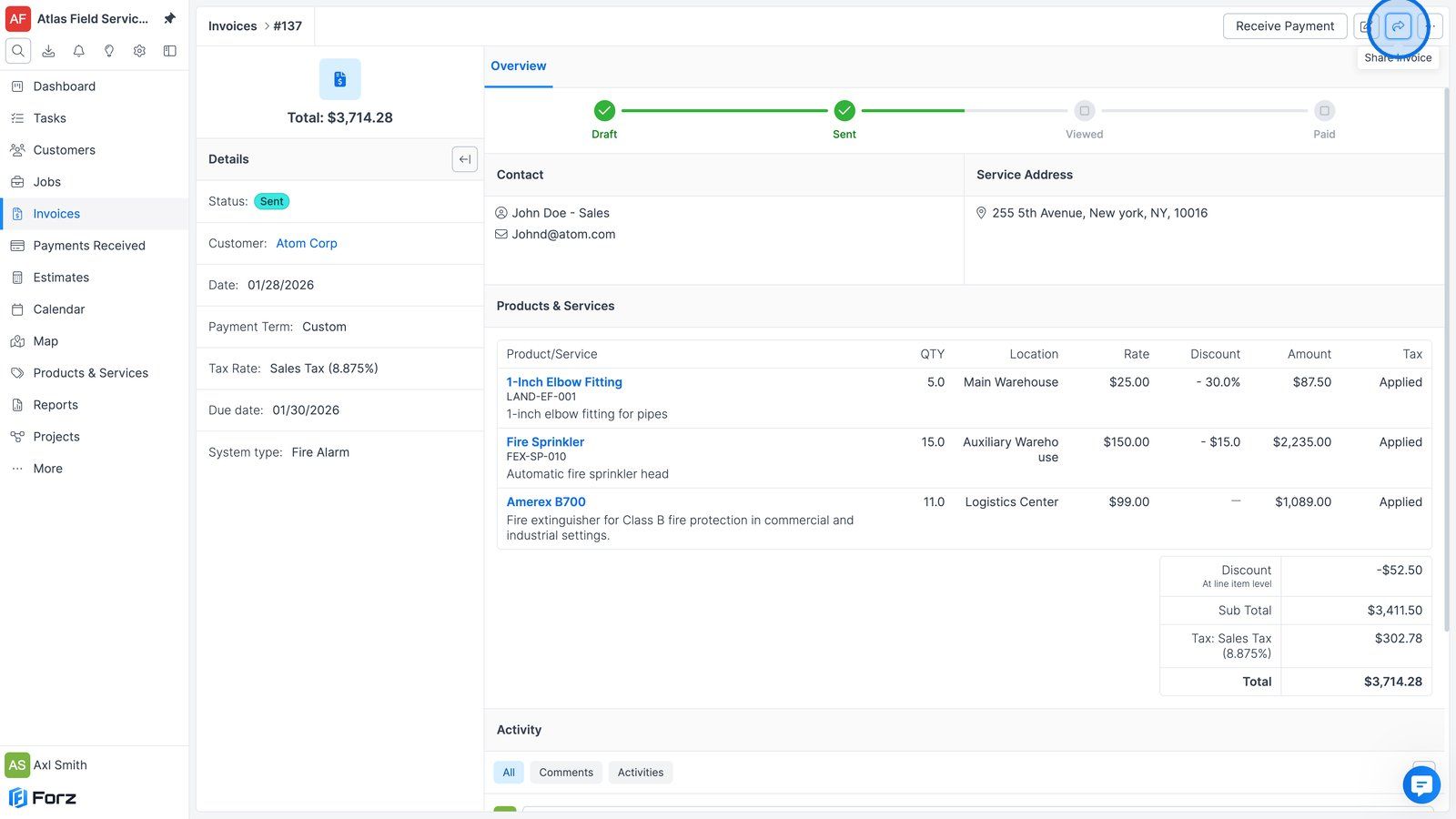
6) Click the “Share” button.
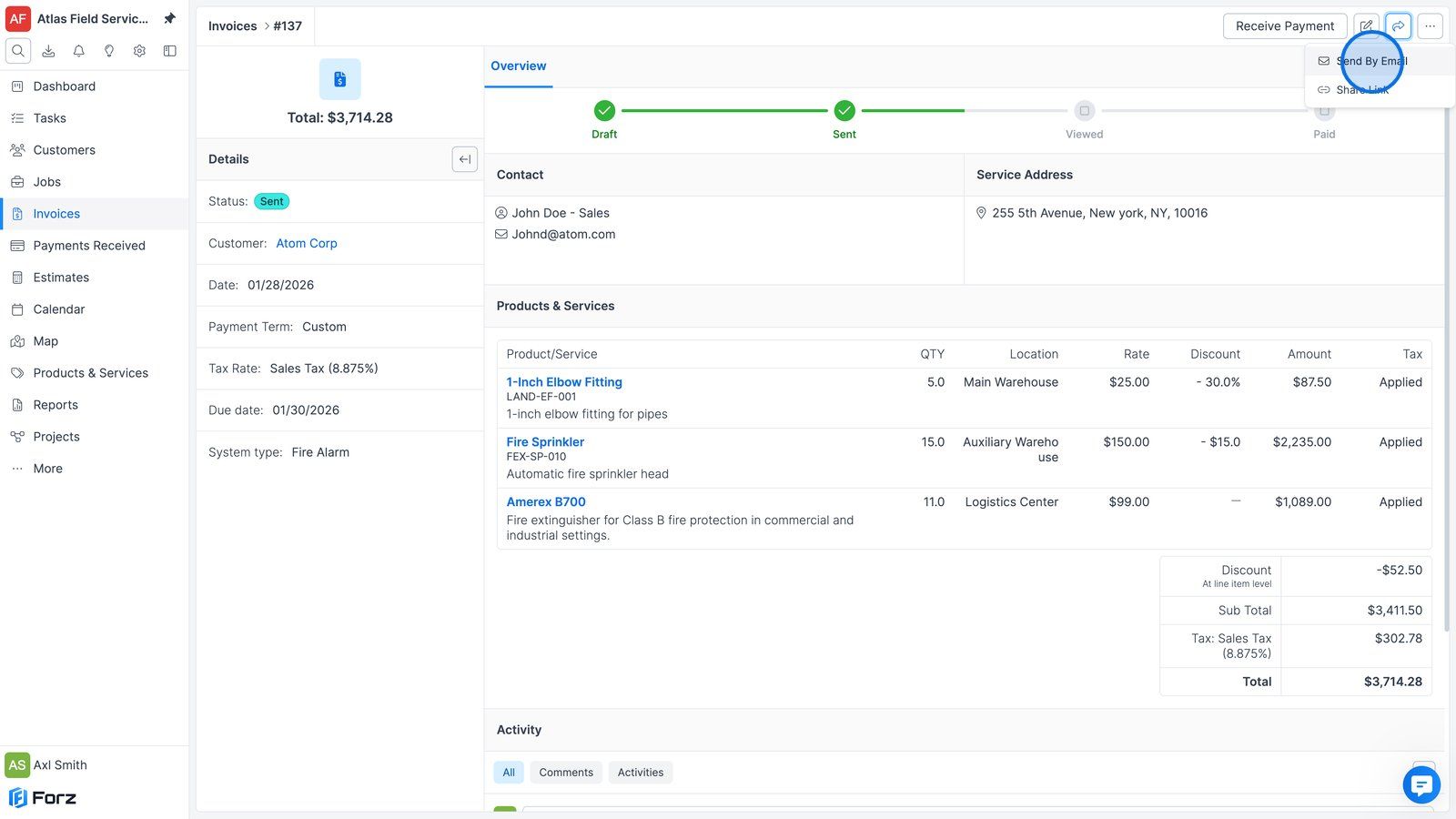
7) Click “Send by Email”.
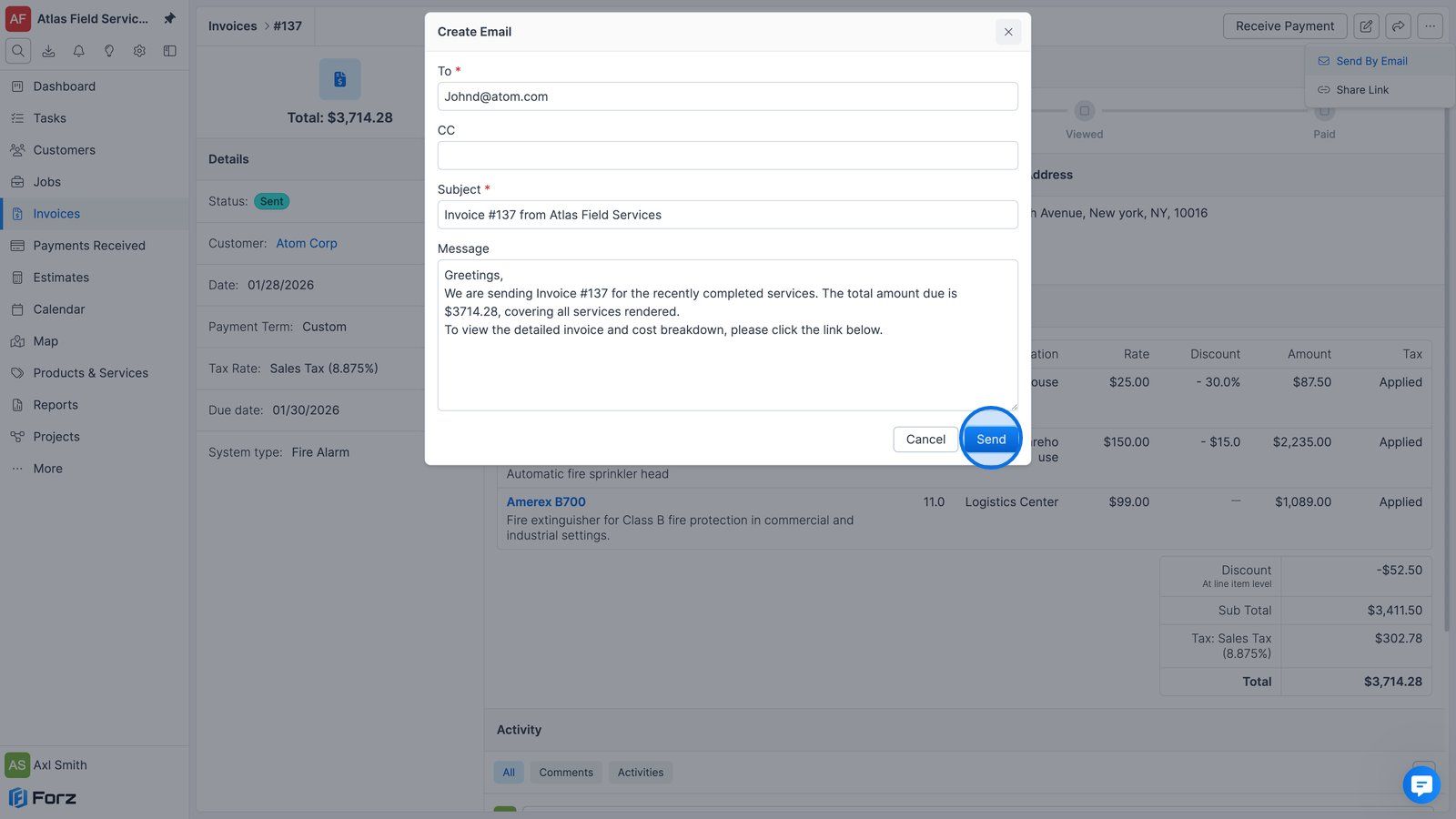
8) In the “Create Email” pop-up, the fields are prefilled. You can edit them if needed, then click “Send”.
9) Click the “Share” button again.
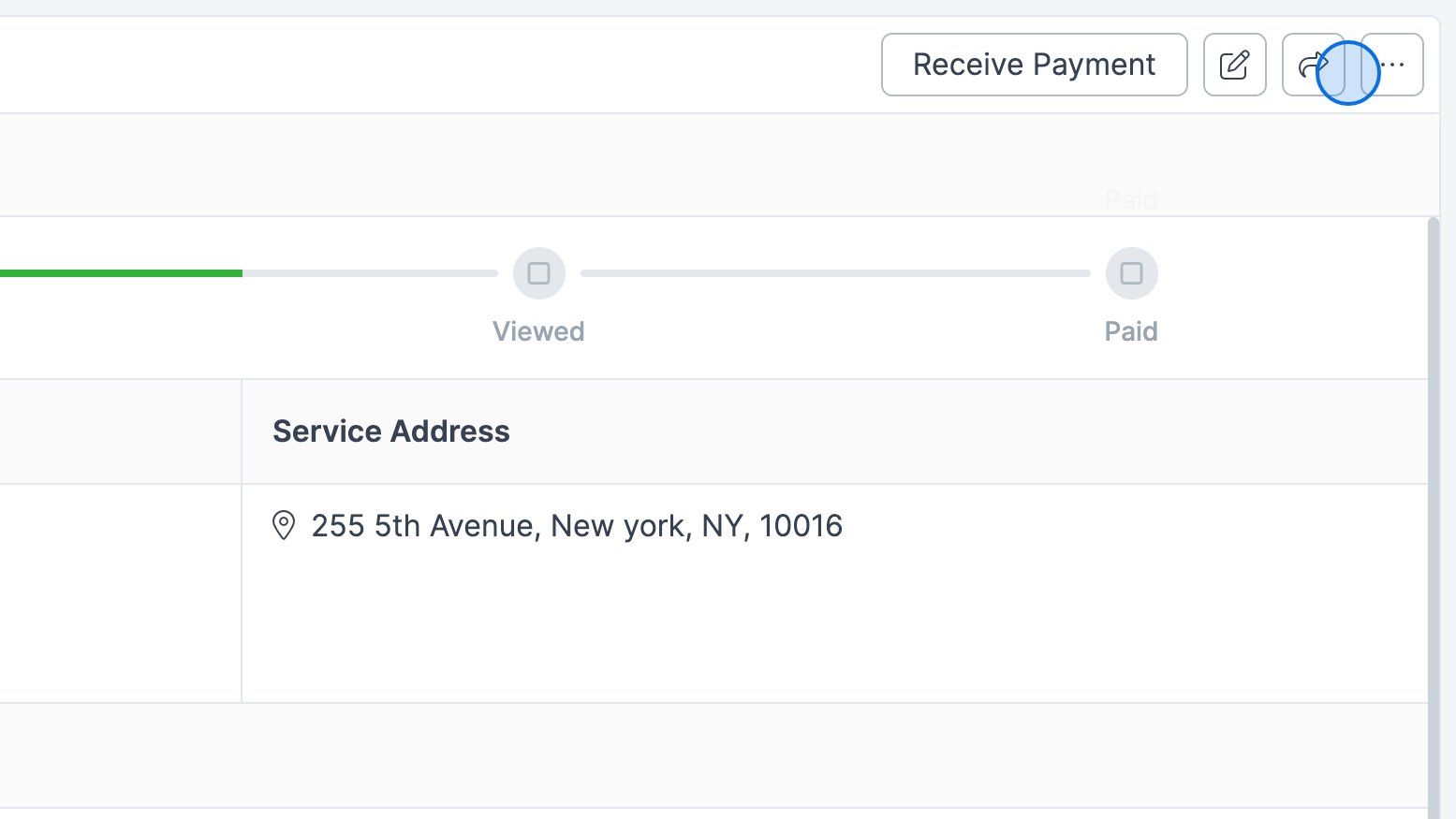
10) Click “Share Link”.
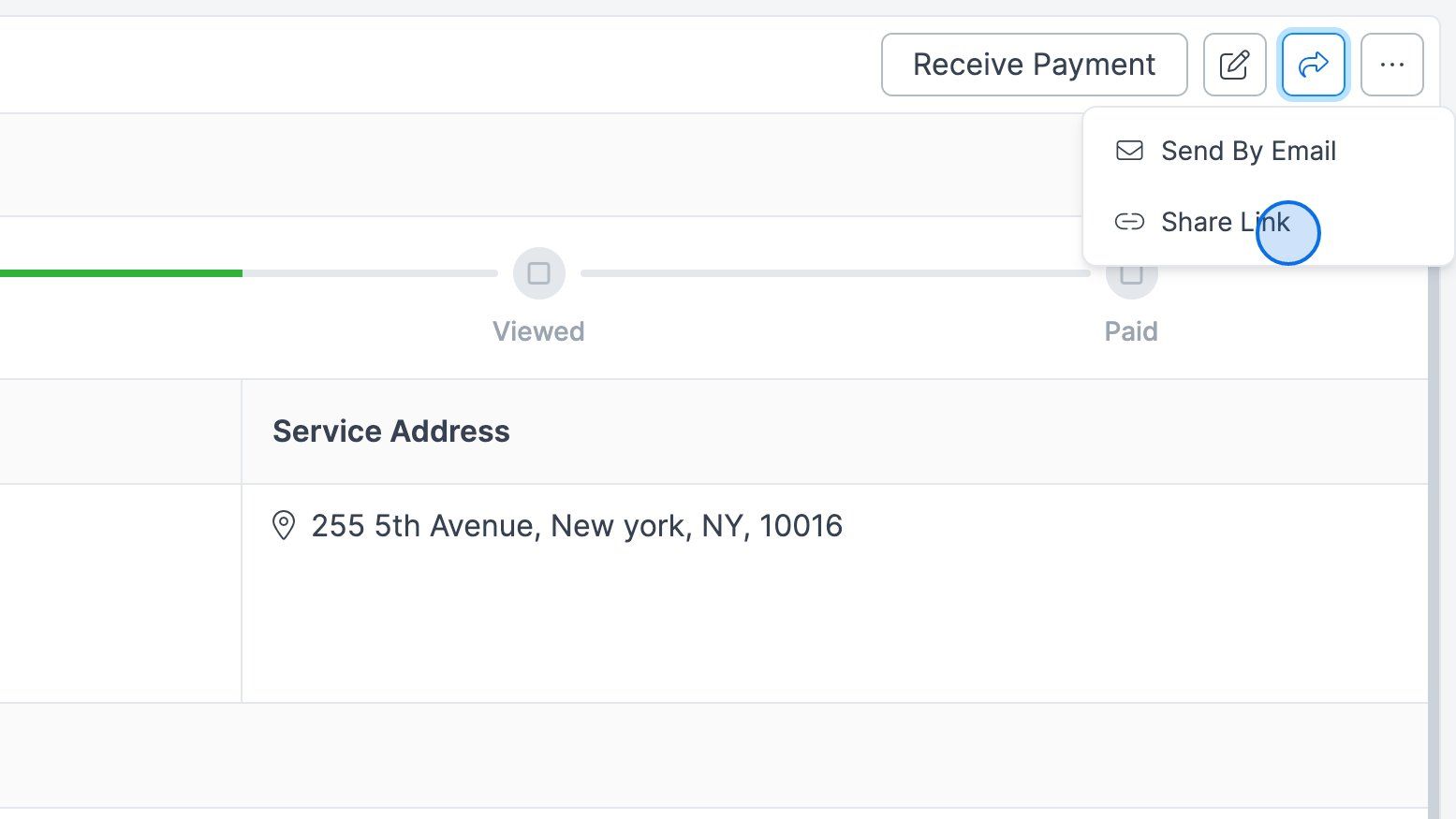
11) In the “Share Invoice” pop-up, you can copy the invoice URL to share it with your customers, or scan the QR code to open the link.
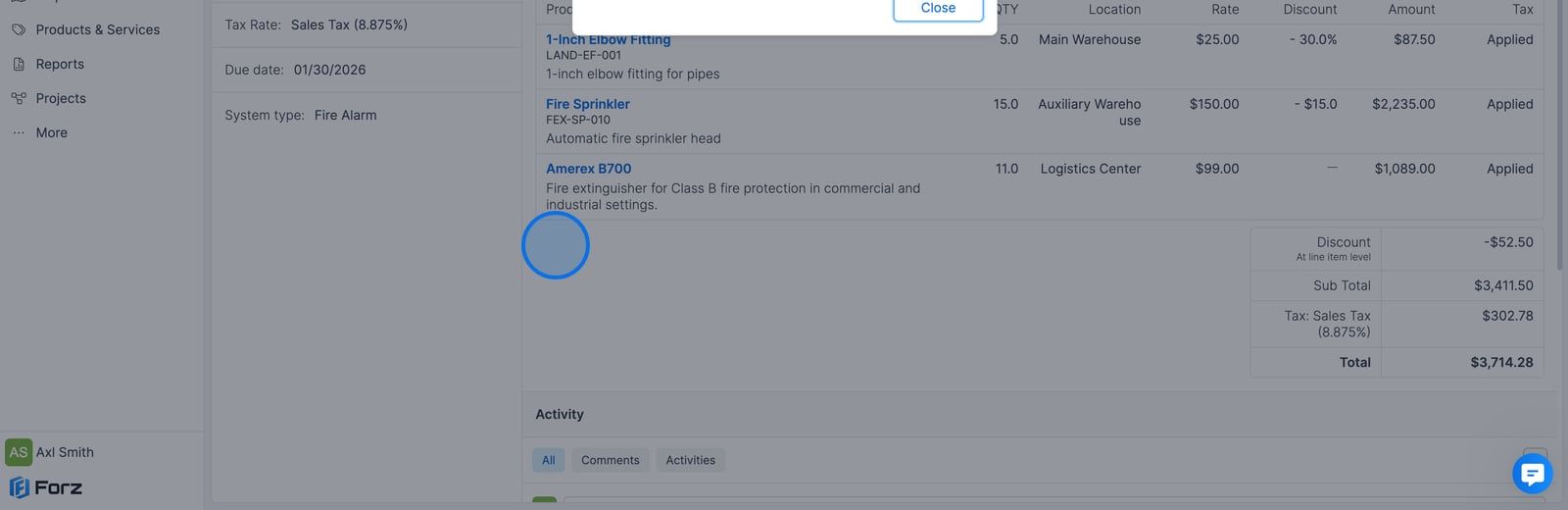
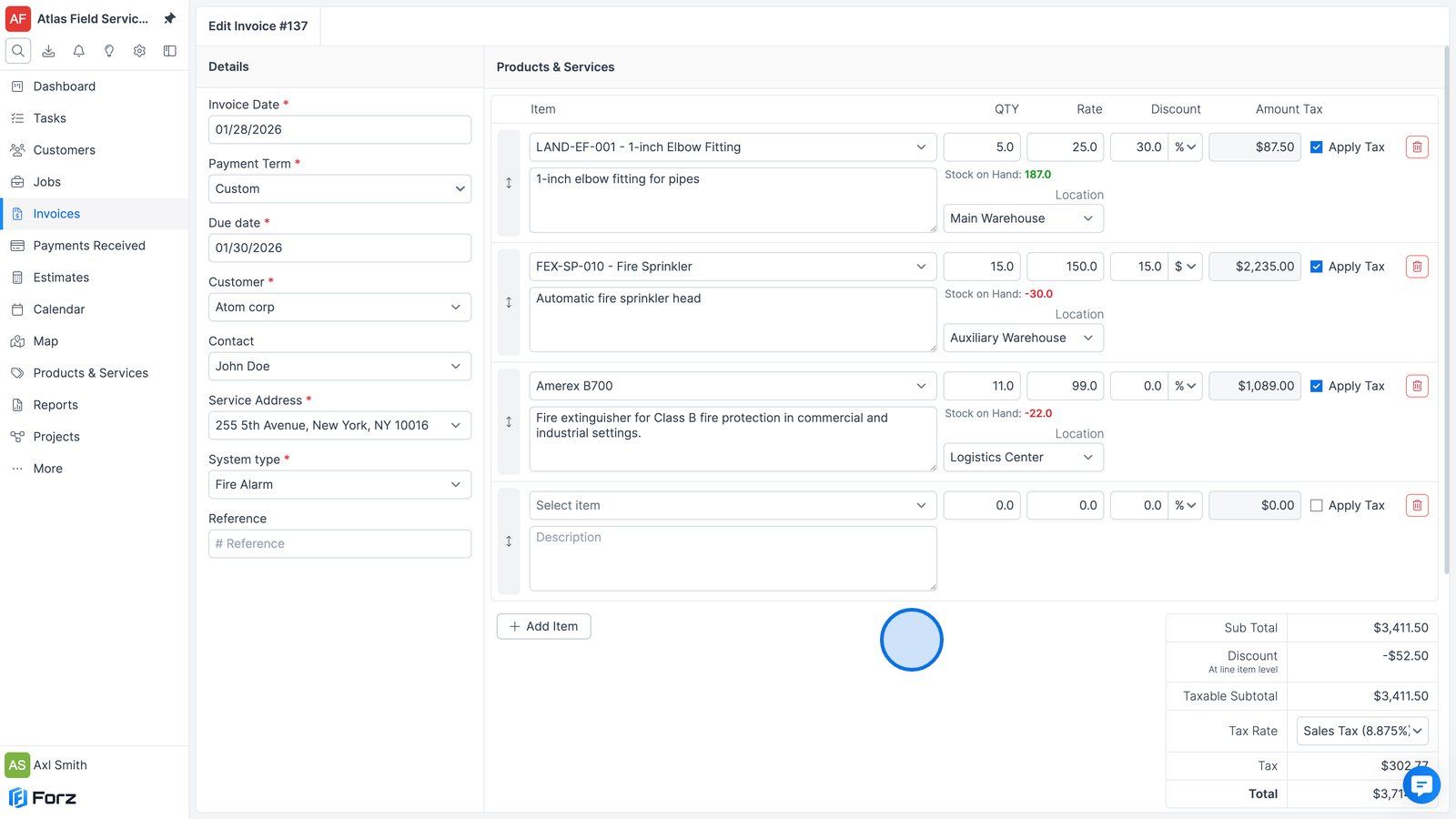
12) Click “Edit” if you need to make changes to the invoice.
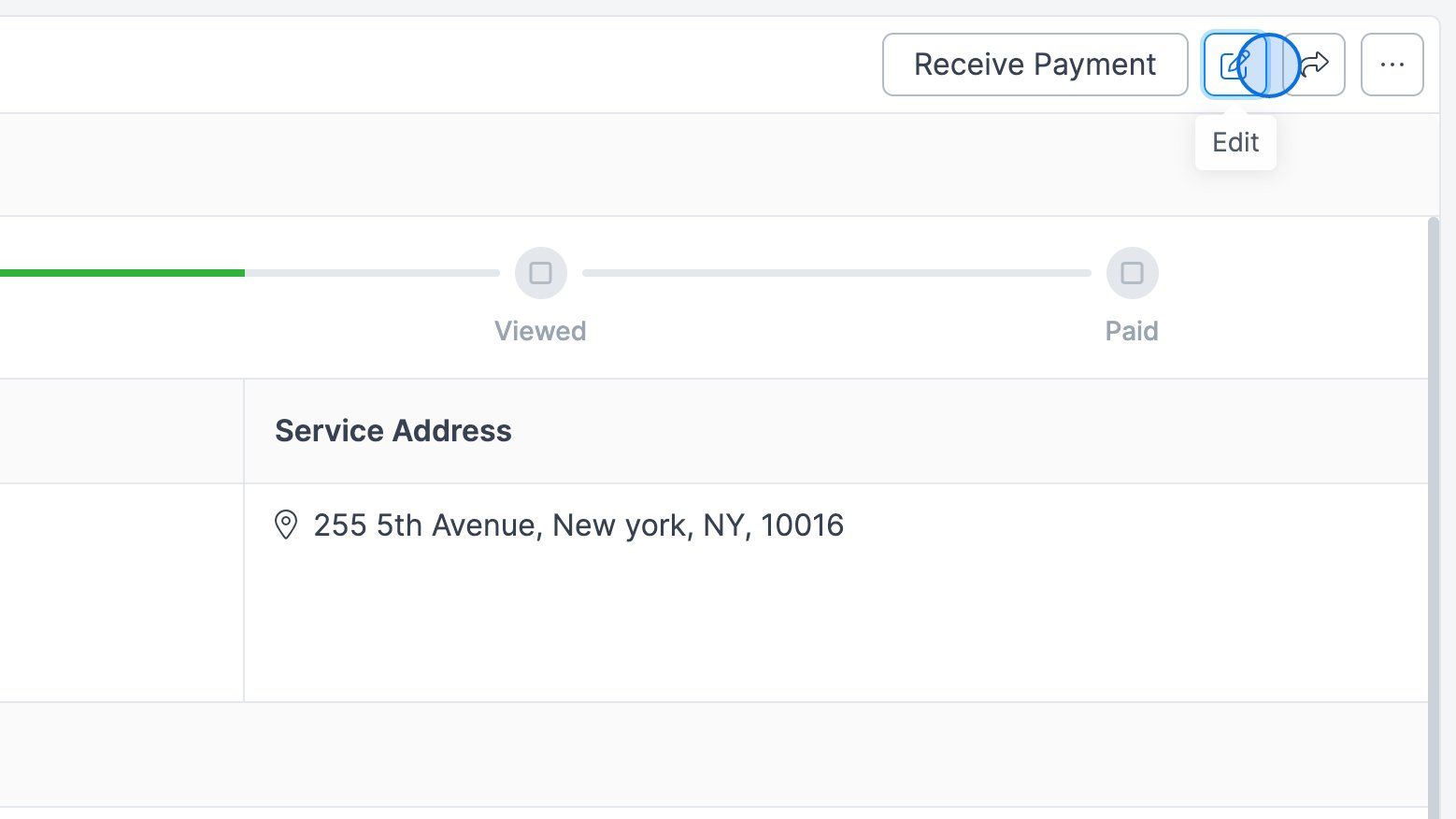
13) The “Edit Invoice” screen will appear. Make your changes, then click “Save.”
Was this helpful?
Still need help? Ask the team