Customize Sidebar Navigation
Learn how to show, hide, or reorganize modules in the sidebar.
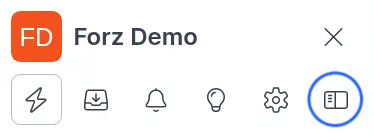
1) Click the sidebar layout icon at the right of the icon row to open Customize Sidebar.
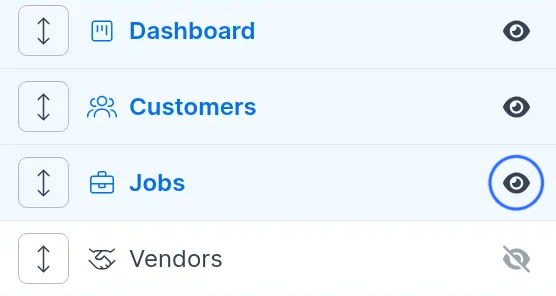
2) Click the eye icon next to a module to show it in the sidebar. An open eye means the module is visible.
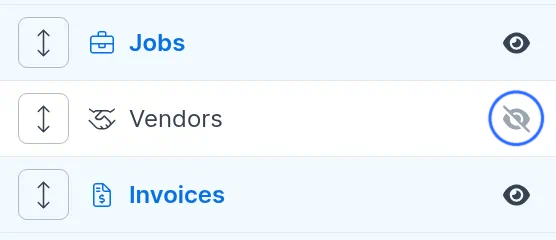
3) Click the eye icon again to hide a module you don't need. A slashed eye means the module is hidden.
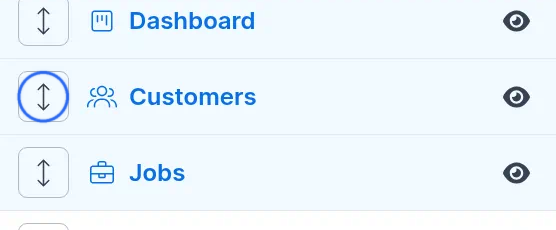
4) Drag the handle on the left of a row to reorder modules.
5) Changes are saved automatically. When you are done, click the X in the panel header to close Customize Sidebar.

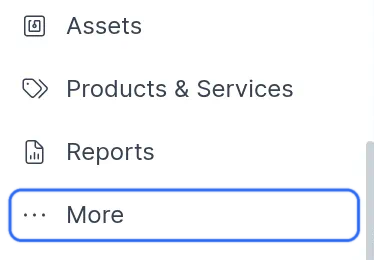
6) Click More in the sidebar to open Hidden Items, where hidden modules appear.
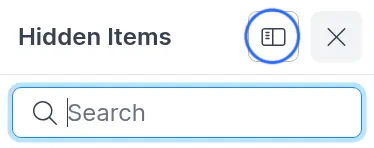
7) Hidden Items also includes the sidebar layout icon, which opens Customize Sidebar.
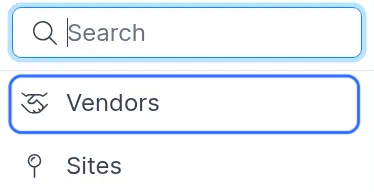
8) Click an item to open that module.
Was this helpful?
Still need help? Ask the team